Trying to find just what version of your Windows or Linux OS you have on your PC? It happens a lot more than you may think. For example, last month I had to find my Windows 10 version to see if I could install some Microsoft server utilities. I know that using the Command-Line Interface (like the Command Prompt or CMD in Windows or the Terminal in Linux) can be intimidating. But, in fact, it’s pretty straightforward, especially if you just follow this guide on how to find os version with command line.
This article will guide you on how to find os version with command line. You know, there are many variants of operating systems such as Windows OS and Linux OS (as well as its distributions). It might be that you’re trying to buy a new Program for your PC or that you want to update your drivers.
In this case, you might be asking yourself about the version of the Operating System that you are using on your device. This piece of information is quite vital for many Computer needs. Luckily command-line utilities show us the version of the Windows running on the computer. The same is true for the Linux Terminal. There are usually more details than just the version, actually. Depending on the OS, you can find other info, like service pack number or check kernel version. For now, let’s focus on getting the OS version.
✅How to Find OS version with Command Line for Windows?
To find Windows 10 version and Service Pack number from CMD is not difficult. As we mentioned, the “ver” command displays help to find Windows 10 version. Go to the Command Prompt and type the following command:
ver
Example:

However, you usually require other pieces of important info as well, such as the service pack number.
 Windows 10 VPS Hosting
Get yourself an efficient Windows 10 VPS for remote desktop, at the cheapest price out there. FREE Windows 10 running on NVMe SSD storage and high-speed internet.
Check Out Windows 10 VPS PlansThe “ver” does not show the service pack number when you find Windows 10 version, so we use the “systeminfo” command to check windows 10 version command line. But “Systeminfo” dumps a lot of other information too when you check windows 10 version command line, which we can filter out using the “findstr” command:
Step 1: Run dialog box
Press Windows Key+R to launch the Run dialog box.

Step 2: Go to command prompt
Type “cmd” (without the quotations), then click OK. This should open Command Prompt.
The first line you see inside Command Prompt is your Windows OS version. If you want to know more information about your operating system,
follow this command:
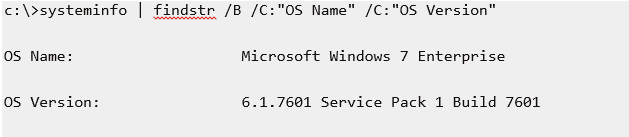
systeminfo | findstr /B /C: "OS Name" /C:"OS Version"
Example:
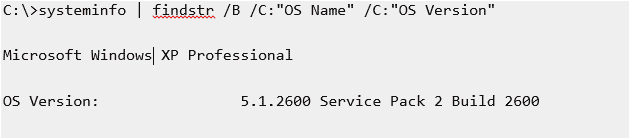
Note:
This command also works on XP, Vista, and Windows 7 as well as Server editions.
For Windows 7.
For Windows 7:
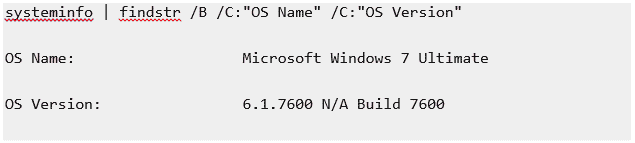
Note: The output would be slightly different for Windows 7 SP1:
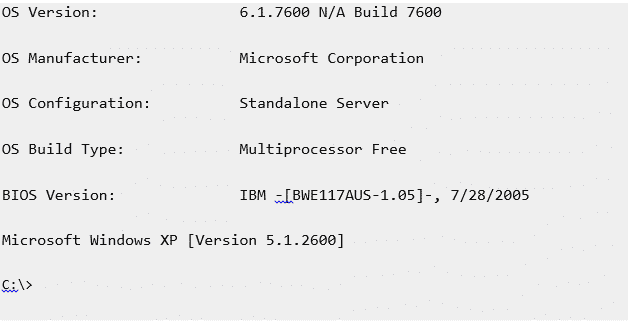
If you do want to print more details, then you can simply use ‘OS’ in the “findstr” search pattern. The example below is for Server 2008. Note that this command does not show the version on a Windows 7 system.
✅How to Find OS version with Command Line for Linux?
Step 1: Open the terminal application
Open the terminal application (Linux bash shell) for how to check Linux version command.
Note: For remote server login using the ssh:
ssh user@server-name
Step 2: Type below commands
Type any one of the below commands to see how to check Linux version command to find the version and name:
cat /etc/os-releaselsb_release –ahostnamectl
Note: For how to check Linux version command, type the following:
uname –r
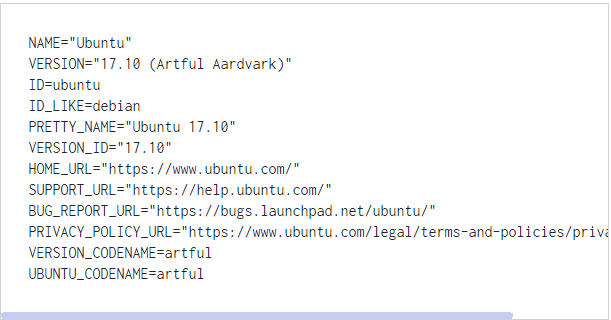
Look at the following example to check Linux version:
 Linux Hosting Simplified
Want a better way to host your websites and web apps? Developing something new? Simply don’t like Windows? That’s why we have Linux VPS.
Get your Linux VPS✅Find OS version with Command Line in CentOS/Ubuntu
Step 1: Using cat-release commands
The previously explained commands can also apply to CentOS and Ubuntu.
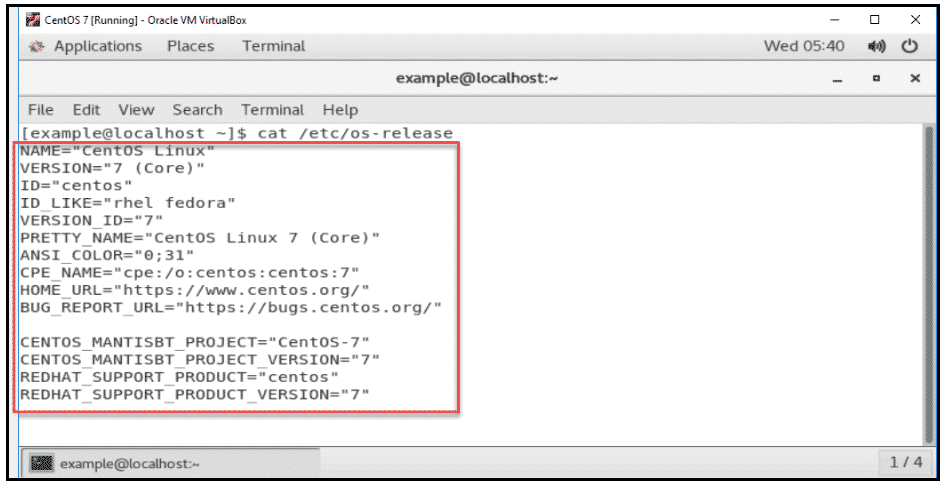
If you are looking to check Linux version distro and the major release version that is installed at your side, you can use the following command to open the release file.
cat /ets/os-release
When you run the command to check Linux version, the output will reveal the name of your operating system. Not only this but it will reveal the major release version and other specifications as well. Here is a pictorial representation of how things will work here when you check Linux version ubuntu.
Note: if you are looking to check Linux version ubuntu and the full release version you can use the following command.
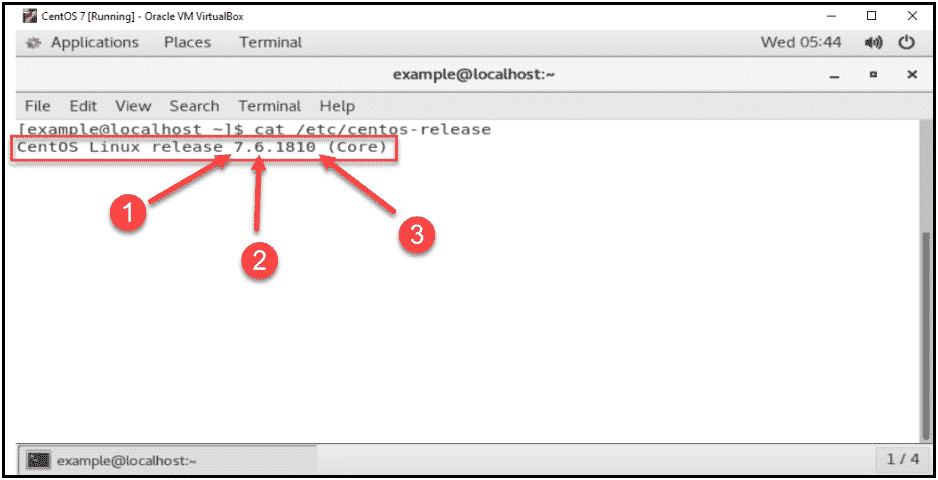
cat /etc/centos-release
When you run this command to check Linux version ubuntu, its output will reveal the full release version of your OS. It will include the following release numbers:
- Major release number
- Minor release number
- Asynchronous release number
Step 2: Using hostnamectl command
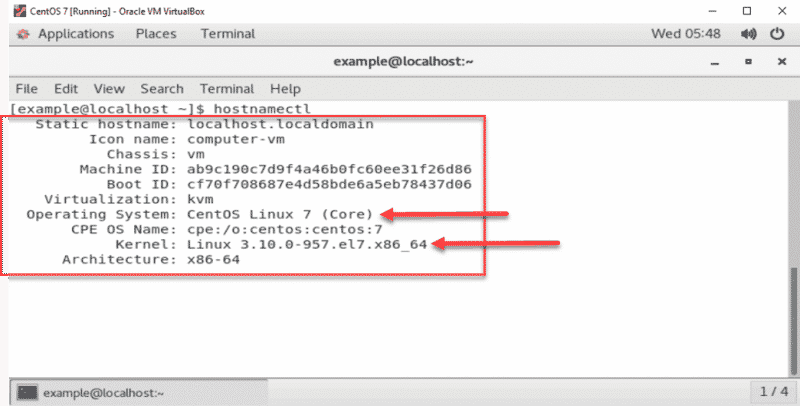
As mentioned before, you can also use “hostnamectl” instead of the other commands for the Linux version command line. We will also describe an example using hostnamectl. “hostnamectl” can query and change the hostname and other related settings for getting Linux version command line.
It displays information from the “/etc/centos-release” file, “uname –a” file, and others. In addition to the version number, it shows which Linux kernel your system is using. To see these specifics, use the following command for getting Linux version command line:
hostnamectl
 The Ultimate Minimal Server
Get CentOS 7 or CentOS 8 on your Cloudzy CentOS VPS and run an efficient Linux-based server with minimal resource consumption.
Get a CentOS VPSConclusion
No matter which operating system you use you can figure out your OS version in various ways. It is not a hard process and as you can see it’s just a few clicks or commands. Knowing your OS version helps you in many ways like when you want to install an application on your system. Well, with all this in mind, were you able to check your OS version using the things we said?
FAQ
What is an OS version?
Your computers are running on some OS and that OS gets several updates regularly. With each update, the version changes, and this is called the OS version.
Is Microsoft an OS?
Microsoft itself is not an OS but it provides one of the most commonly used Operating Systems called Microsoft Windows.
What is the Best OS for a low-end PC?
Ubuntu is an OS that is good for all kinds of computers. Its several versions can run on most computers. However, it is better to know the version before using it regularly for the best results.