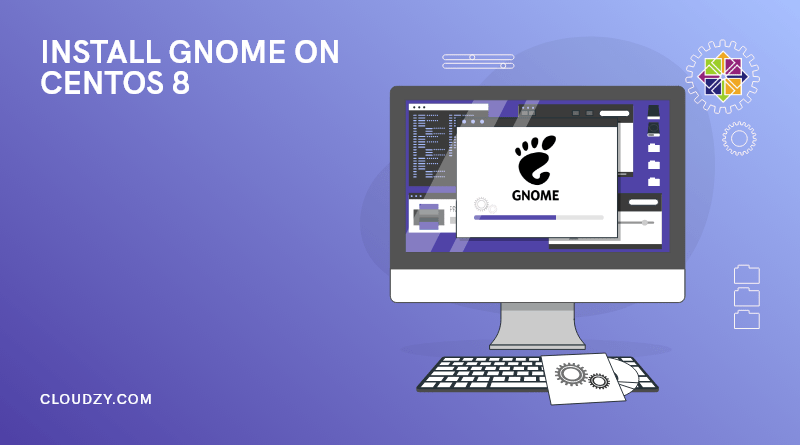
Gnome (/ɡəˈnoʊm, ˈnoʊm/) is a desktop available for the Linux (Unix-like) operating system. That is an open-source and free-of-the-charge environment that has managed to become one of the most efficient, stable, and reliable projects while remaining incredibly user-friendly. Regardless of experience, most users can get familiar with this environment with little effort.
Starting with version 3, Gnome Shell is the graphical shell of it Gnome shell is intended to be used on the large screen desktop computers that operated with mouse and keyboard or smaller screen portable computers operated via their touchpad, touchscreen, or keyboard. This graphical shell is a great design created by the Gnome UX design team.
Also Read: Centos VS Ubuntu
The Gnome shell comprises the following functional and graphical elements:
- System Status Area
- Application Switcher
- Application Picker
- Window Picker
- Top Bar
- Active Overview
- Notification and Messaging Tray
- Dash
- Indicator Tray
- جستجو
The compatibility of this graphical shell of the Gnome will be with Fedora, Arch Linux, openSUSE’s Gnome edition, Sabayon Linux, Mageia, Solaris, Debian, and Ubuntu.

What is CentOS?
CentOS Linux provides a free and open-source computing platform to anyone who wishes to use it. By that, we mean CentOS is a community-supported enterprise operating system, compatible with its upstream source Red Hat Enterprise Linux, from the CentOS Project. Although Red Hat just killed CentOS in 2021 Centos 8 is still working. In this article, we will explain how to install Gnome on Centos 8.
Also Read: Install GUI on CentOS 7
How to install gnome on CentOS 8?
As stated, because of the gnome’s great significance, it is highly recommended that users of centos 8 install Gnome on their platforms. Before starting to install Gnome on Centos 8, we have to note that we will assume users already installed CentOS and have access to the root superuser or user.
Requirements of CentOS 8 install GUI
- System: CentOS 8 / RHEL
- Software: Enabled Package Repository
- Other Requirements: Privileged Access to Your Linux System as Root or Via the Sudo Command
Just like the recent years, CentOS 8 also comes by default with a GNOME desktop environment. Bearing this in mind, when we talk about GNOME desktop installation, we will frequently talk about CentOS 8 workstation. Therefore, in this article, we will tell you how to install Gnome on Centos 8 as a part of the workstation package group. To start the installation, go through the following steps:
Step 1: Log in to the CentOS 8 console
Log in to the CentOS 8 console and enter the command-line shell. Then, execute the following dnf command:
dnf group list
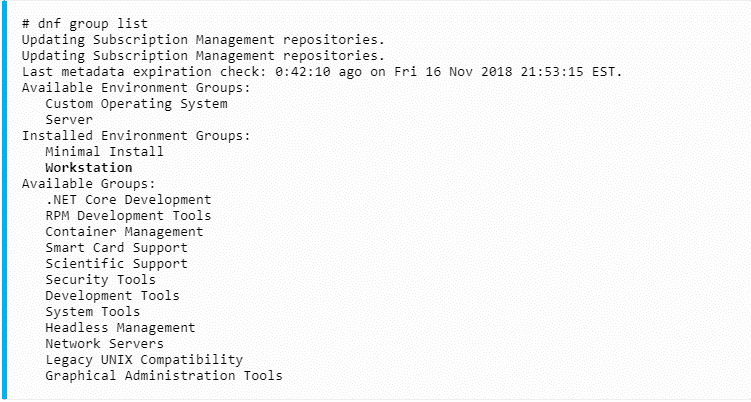
If everything flowed properly, you should see the Workstation group listed as part of the dnf command output.
Also Read : KDE Vs GNOME Vs Xfce
Step 2: Use the “dnf” to install Gnome CentOS 8
Use the dnf command to install the Workstation group:
dnf groupinstall workstation
This might take some time. Press y to continue with the installation:
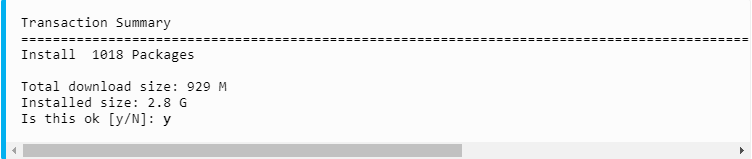
Step 3: Change the default boot
Once the GNOME desktop installation is completed, change the default boot to the graphical run level. This will ensure that the next time you reboot the system, the system will boot to GUI which in this case is GNOME:
systemctl set-default graphical.target
Step 4: Start graphical desktop after CentOS 8 install GUI
Start graphical desktop session:
systemctl isolate graphical.target
You can alternatively reboot your system if possible.
Congratulations. By performing the above-mentioned steps respectively, you have successfully installed gnome on your Centos 8. Now, you can start to use Gnome on your system and enjoy its exceptional benefits.
 The Ultimate Minimal Server
Get CentOS 7 or CentOS 8 on your Cloudzy CentOS VPS and run an efficient Linux-based server with minimal resource consumption.
Get a CentOS VPSConclusion
Throughout the above article, we have fully observed how you can install Gnome GUI on Centos 8. We believe that by reading this visual guide, users will have no question regarding the Gnome installation on their Centos 8. However, if you still need further guidelines, we are HERE to help.