
Windows frissítés után a szerver újraindításának letiltása
Semmi sem frusztráló annál, mint amikor a szervered
automatikusan újraindítja az egy fontos feladat közepén vagy során
a munkaidőben, az Windows frissítések miatt. Ez az útmutató végigvezet
a Windows-frissítések utáni automatikus újraindítások letiltásának lépései Windows rendszeren
Server 2012 és 2022. Akár meg szeretnéd akadályozni az újraindítást, amikor felhasználók
bejelentkezve vannak, vagy teljesen letiltani őket, mi megoldjuk.
Használat
Group Policy Editor automatikus újraindítások letiltásához
A Csoportházirendszerkesztő egy erőteljes eszköz, amely
lehetővé teszi a Windows Server rendszergazdáknak a különféle rendszerbeállítások finomhangolását
beállítások és házirendek. Ebben a szakaszban megismerkedünk
a Csoportházirend-szerkesztő a Windows utáni automatikus újraindítások letiltásához
frissítések az Windows Server 2012 és 2022 szervereken.
Az automatikus újraindítás letiltása két fő esetben hasznos:
-
amikor meg szeretné akadályozni az automatikus újraindítást a kritikus munkaórák során
órák -
amikor a felhasználók aktívan bejelentkezve vannak a szerverre
Kövesse az egyértelmű utasításokat a szükséges beállítások konfigurálásához a
Csoportházirend-szerkesztő, amely simább frissítési élményt biztosít az Ön
Windows Server.
1. lépés: Csoport megnyitása
Szabályzatszerkesztő
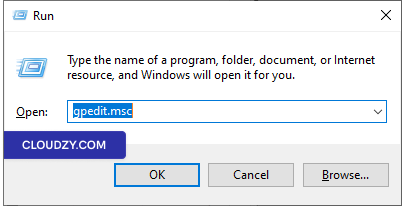
Nyomj Win + R, írja be a "gpedit.msc" parancsot, és nyomja meg az
Enter a Helyi Csoportszabályzat-szerkesztő megnyitásához.
Lépés 2:
Navigáljon a Windows Update Policy felé
A Csoportházirend-szerkesztőben nyissa meg a Számítógép konfigurációja ->
Felügyeleti sablonok -> Windows-összetevők -> Windows Update
Frissítés.
Lépés
3: Állítsa be a "Nincs automatikus újraindítás bejelentkezett felhasználók esetén ütemezett feladatokhoz" beállítást
automatikus frissítések telepítése
-
Keresse meg a "Nincs automatikus újraindítás bejelentkezett felhasználók esetén" nevű szabályzatot
ütemezett automatikus frissítések telepítéséhez. -
Kattintson duplán erre a házirend-beállításra.
-
Ha az állapotot "Engedélyezve"-re állítod, az Automatikus Frissítések
nem fog újraindulni a számítógép automatikusan során
ütemezett telepítés, ha egy felhasználó be van jelentkezve. Ehelyett értesítést küld
a felhasználónak újraindítania kell a számítógépet. Kérjük, vegye figyelembe, hogy a számítógépet
manuálisan újra kell indítani ahhoz, hogy a frissítések érvénybe lépjenek.
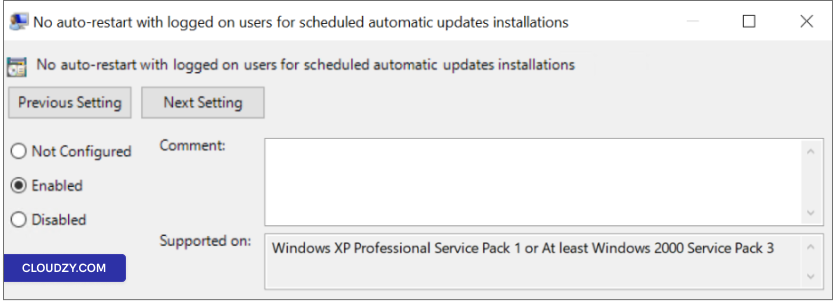
Megjegyzés: Ha az állapot "Letiltva" vagy "Nem
Beállítva: az automatikus frissítések értesítik a felhasználót, amikor a számítógép
automatikusan újraindul 5 percen belül a befejezéshez
telepítés
4. lépés: Alkalmaz és
Mentés
Kattintson Alkalmaz és majd OK menteni
a módosítások.
5. lépés: Újraindítás (ha
szükséges)
A módosítások érvénybe lépéséhez előfordulhat, hogy újra kell indítani a
szerver
Az alábbi lépések követésével és a "Nincs automatikus újraindítás a következővel
"bejelentkezett felhasználók számára ütemezett automatikus frissítések telepítése" szabályzat
nagyobb kontrollt exercitálhatsz az automatikus újraindítások felett, és biztosíthatod, hogy azok igazodjanak
a szerver kezelésével kapcsolatos igényeivel.
Használat
Automatikus újraindítások megakadályozása a Feladatütemezővel
Ha inkább egy alternatív módszert szeretnél az automatikus újraindítások szabályozásához
Windows frissítések után használhatja a Feladatütemezőt. Kövesse ezeket
lépések az automatikus újraindítás megakadályozásához ezzel a módszerrel:
1. lépés: Feladat megnyitása
Ütemezőprogram
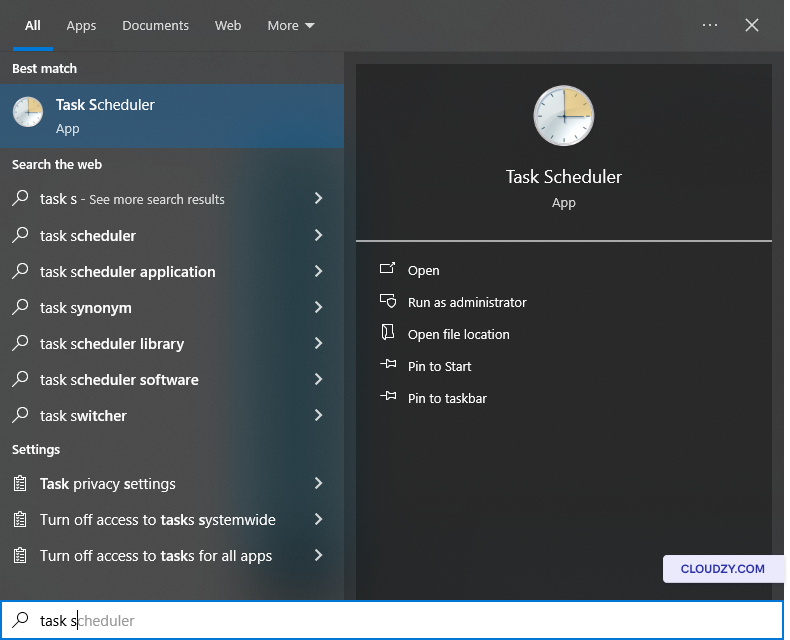
Kattintson Indítás és írja be a "Task Scheduler" szöveget a
keresősáv. Válasszon Feladatütemezés az eredményekből.
Lépés 2:
Lépjen az Update Orchestrator-hoz
A Feladatütemezőben navigáljon a Feladatütemező könyvtára -> Microsoft elemhez
-> Windows -> UpdateOrchestrator.
3. lépés: Letiltás
Újraindítási feladat
Keresse meg a "Reboot_AC" (vagy Reboot) nevű feladatot. Ha engedélyezve van,
jobb gombbal kattintson Reboot_AC és válasszon
Letiltás. Ez az intézkedés megakadályozza az automatikus újraindítást
feladat végrehajtásának megakadályozása.
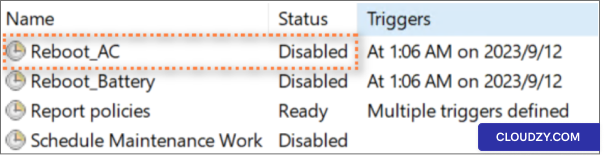
Ezeket a lépéseket követve és biztosítva, hogy a "Reboot_AC" feladat
letiltva, hatékonyan megakadályozhatja a Windows után az automatikus újraindításokat
frissítéseket a Feladatütemezővel. Ez a módszer lehetővé teszi, hogy
további szabályozási lehetőség, amely lehetővé teszi az újraindítások időzítésének saját igényeid szerint történő beállítását
szerver konkrét igényei.
További Windows
Beállítások frissítése
A Csoportházirend-szerkesztő és a Feladatütemezô mellett használhat
fedezze fel a Windows Update további beállításait a finom vezérléshez
automatikus újraindítások felett. Így működik:
1. lépés:
A Windows frissítés speciális beállításainak megnyitása
Nyissa meg a Start menüt és keressen rá a Windows Speciális frissítési lehetőségei
lehetőségek.
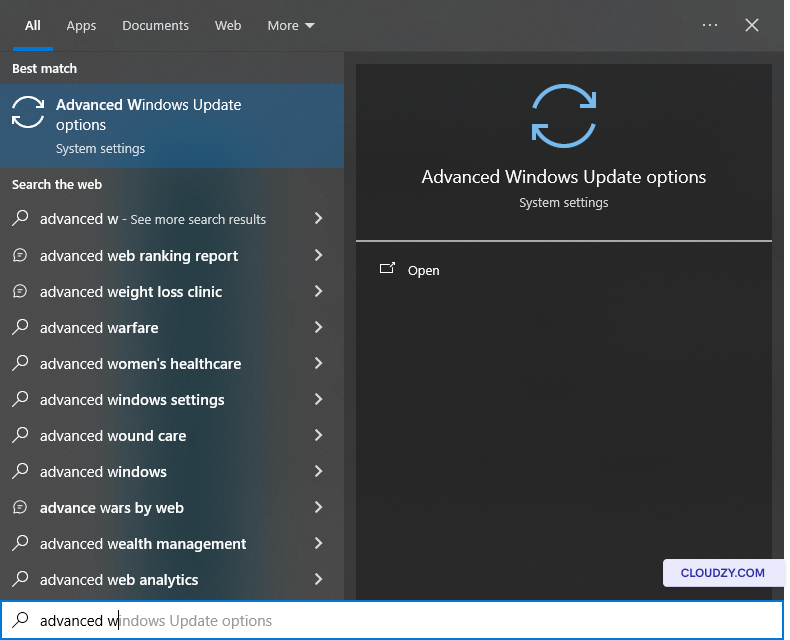
2. lépés: Letiltás
Azonnali újraindítás
A Speciális Windows Update beállításokban győződjön meg arról, hogy az „Eszköz újraindítása
eszköz a lehető leghamarabb, ha újraindítás szükséges a telepítéshez
frissítés" van kikapcsolvaEz a beállítás megakadályozza az azonnali
újraindítások, így te dönthetsz arról, hogy mikor telepítsenek frissítéseket.
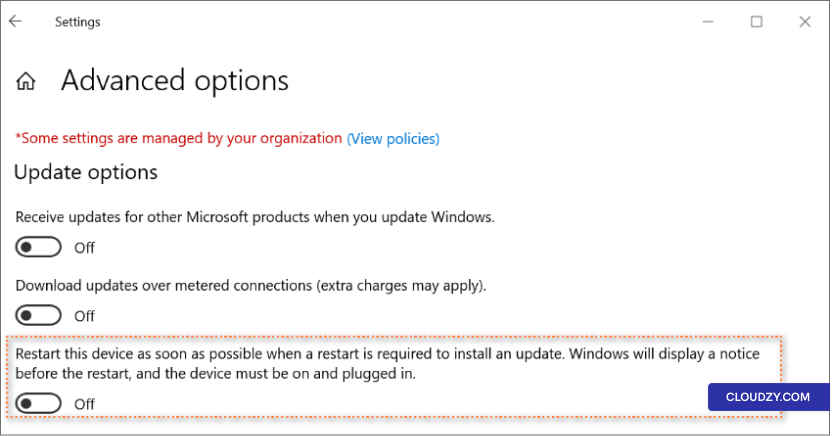
Ezen beállítás módosításával tovább szabhatja az frissítést, valamint
indítsa újra a beállításokat, hogy pontosan illeszkedjenek a szerver
üzemeltetési követelmények.
A Windows-frissítések után az automatikus újraindítások kezelése kritikus fontosságú az
rendszerbiztonság és termelékenység között. Ez az útmutató segít megtalálni az egyensúlyt
biztonsági igények kielégítése az üzletmenet zavarásának minimalizálásával, az Windows Server biztosítva
zökkenőmentesen működik. Ha kérdésed van, vedd fel velünk a kapcsolatot: elküldve egy
jegy. A support csapatunk szívesen segít neked.
Szintén itt: OS & VPS
Kapcsolódó útmutatók.
Másban kell segítség?
Medián válaszidő 1 órán belül. Valódi emberek, nem botok.