
サーバーを再起動するほどイライラすることはありません
重要なタスクの途中または重要なタスク中に自動的に再起動
Windows の更新に伴い営業時間中のサービス中断があります。このガイドではその手順をご説明します
Windowsの更新後の自動再起動を無効にする手順(Windows上)
Server 2012 および 2022。ユーザーの再起動を防ぎたい場合でも
ログイン中のユーザーに対してのみ表示するか、完全に無効にするか、どちらでも対応できます。
使用
グループポリシーエディターで自動再起動を無効化
リモートの グループ ポリシー エディター は強力なツールです
Windows Server 管理者がさまざまなシステムを微調整できるようにします
設定とポリシーについて説明します。このセクションでは、以下の方法を紹介します
グループ ポリシー エディターで Windows 更新後の自動再起動を無効にする
Windows Server 2012 と 2022 のアップデート情報
自動再起動を無効にすると、主に2つのシナリオで役立ちます:
-
重要な作業中に自動再開を防ぎたいときに
時間 -
ユーザーがサーバーにアクティブにログインしている場合
次の明確な指示に従って、以下の必要な設定を構成してください。
グループ ポリシー エディターにより、お客様のシステムで更新がスムーズに進むよう管理できます。
Windows Server。
ステップ 1: グループを開く
ポリシーエディター
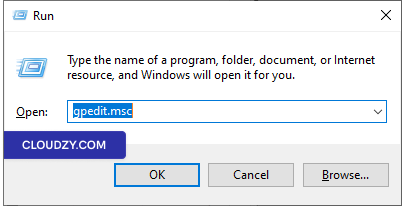
押す Win + R、「gpedit.msc」と入力して、Enterキーを押してください
Enter ローカルグループポリシーエディタを開く。
ステップ2:
Windows Update ポリシーに移動します
グループ ポリシー エディターで、[コンピューターの構成] に移動します →
管理用テンプレート -> Windows コンポーネント -> Windows
アップデート。
ステップ
3: スケジュール設定で「ログオンしたユーザーがいる場合は自動再起動しない」を有効にする
自動更新インストール
-
ログオンしているユーザーがいる場合は自動再起動しないというポリシーを探します
スケジュール済みの自動更新インストール用" -
このポリシー設定をダブルクリックします。
-
ステータスを「有効」に設定すると、自動更新が
再起動しません コンピューターが自動的に
ユーザーがログインしている場合、スケジュール済みのインストールの代わりに通知を送信します。
ユーザーがコンピューターを再起動する必要があります。コンピューターは必ず
更新を反映させるには手動で再起動する必要があります。
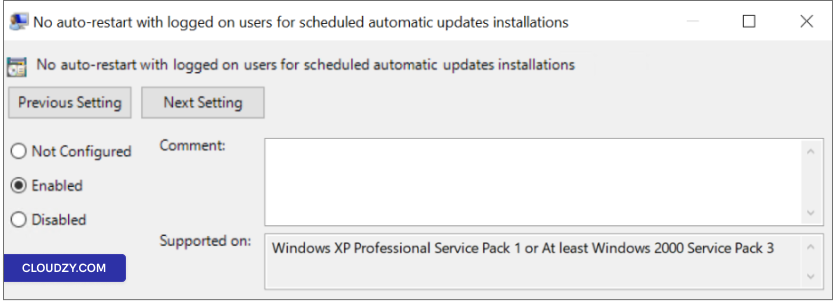
注意: ステータスが「無効」または「未
「構成済み」に設定すると、自動更新がコンピューターの更新について通知します
5分以内に自動的に再起動して完了します
インストール
ステップ4:適用して
保存
次をクリック: 適用する そして OK 保存する
あなたの変更。
ステップ 5: 再起動 (必要に応じて
必要)
変更を反映させるには、以下の再起動が必要な場合があります
サーバー
これらのステップに従い、「自動再起動なしで設定することで
スケジュール設定された自動更新のインストール用にログオンしたユーザーのポリシー
自動再起動をより細かく制御でき、それらの整合性を確保できます
サーバー管理のすべてのニーズに対応します。
使用
自動再起動を防ぐためのタスクスケジューラー
自動再起動を制御する別の方法を優先する場合
Windowsアップデート後、タスクスケジューラを活用できます。以下の手順に従ってください
このアプローチを使用して自動再起動を防ぐための手順:
ステップ 1: タスクを開く
スケジューラー
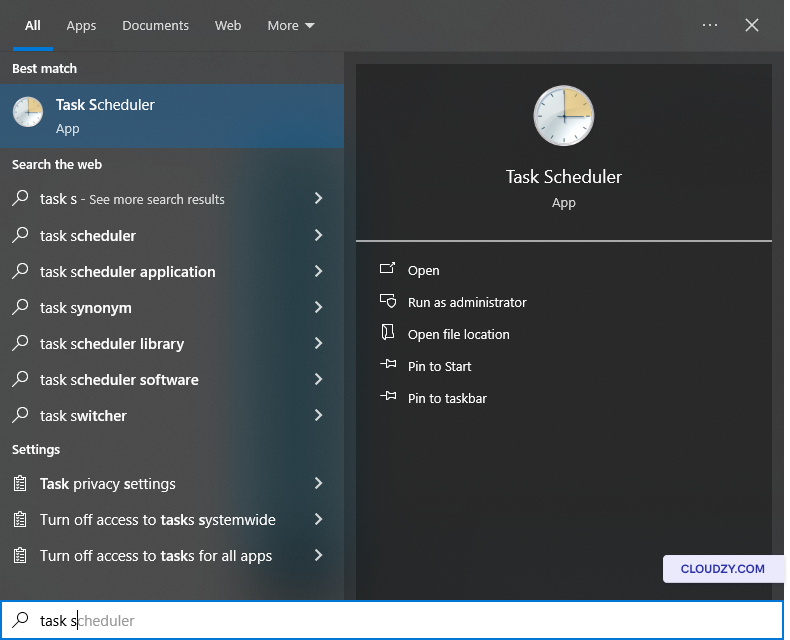
次をクリック: 開始 そして「タスク スケジューラー」と入力して
検索バー。選択 タスクスケジューラー 結果から。
ステップ2:
Update Orchestrator に移動する
タスク スケジューラで、[タスク スケジューラ ライブラリ] -> [Microsoft] に移動します
-> Windows -> UpdateOrchestrator.
ステップ 3: 無効化
再起動タスク
「Reboot_AC」(または Reboot)というタスクを見つけてください。有効になっている場合は、
右クリック Reboot_AC そして選択する
無効にする。この操作は自動再起動を防ぎます
タスクの実行を防止します。
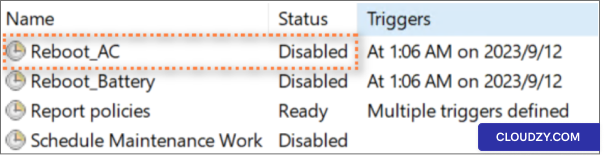
これらの手順に従い、「Reboot_AC」タスクが無効化されていることを確認することにより、
無効にすると、Windows の更新後の自動再起動を効果的に防ぐことができます
タスク スケジューラを使用した更新。この方法により次の利点が得られます。
再起動のタイミングを自分で決められるよう、管理権限をさらに強化します
サーバーの特定のニーズ。
追加 Windows
設定を更新
グループ ポリシー エディターとタスク スケジューラーの使用に加えて、次のことができます
Windows Update の追加設定を確認して、細かく制御を調整する
自動再起動について。手順は以下の通りです:
ステップ1:
Windows の詳細更新オプションを開く
スタートメニューを開いて検索する Windows の詳細な更新オプション
オプション.
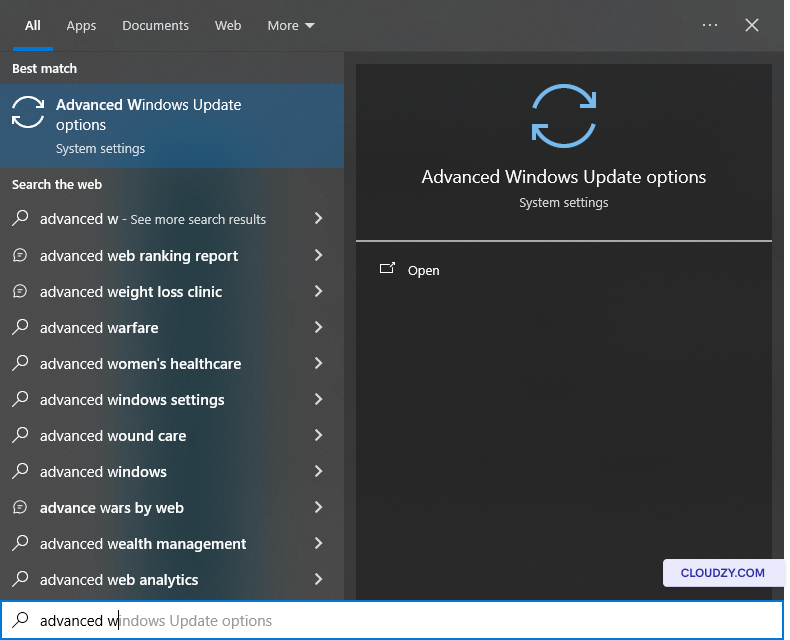
ステップ 2: 無効化
即座に再起動
Advanced Windows Update オプションで、「Restart this」がチェックされていることを確認してください
デバイスの再起動がインストールに必要な場合、可能な限り早く
更新" は 無効化この設定は即座の
再起動されるため、更新をいつ適用するかをより細かく制御できます。
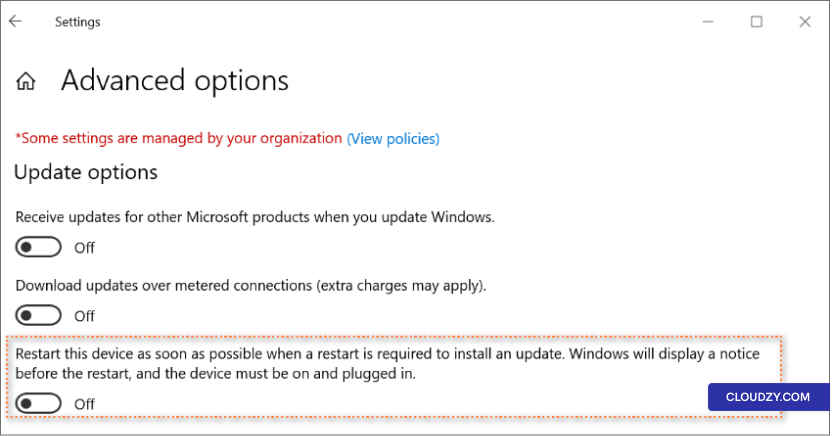
この設定を調整することで、更新をさらにカスタマイズできます。
設定を再度確認して、サーバーの構成に正確に合わせる
運用要件
Windows更新後の自動再起動の管理は非常に重要です
システムセキュリティと生産性のバランスを取るための実践的ガイドです
セキュリティニーズに対応しながらダウンタイムを最小化し、Windows Serverの安定稼働を確保
スムーズに動作します。ご不明な点はお気軽にお問い合わせください。 送信する
チケット。サポートチームがお手伝いします。