
iOSはに接続するための組み込みSSHクライアントを提供していません
Linux サーバーでは、xTerminal などのサードパーティアプリケーションを使用できます。
SSHクライアント。これらの手順に従うことで、サーバーのパフォーマンスを向上させることができます
セキュリティを確保し、VPS を効率的に管理できます。すべてから
iOSデバイス
SSH キーを生成中
xTerminal を使用して Linux VPS に安全に接続する前に、あなたは
SSH キーを Windows、macOS、または Linux コンピューターで生成する必要があります。
SSH キーを生成するには、以下の手順に従ってください。
1. ローンチ
お使いのコンピュータのターミナルアプリケーション
Windows では PowerShell や CMD などのアプリケーションが利用できます。
macOS と Linux で、ターミナルアプリケーションを開きます。
2. 実行する
SSH鍵生成コマンド
ターミナルで次のコマンドを実行して、SSH を生成してください
キー:
ssh-keygen -t rsa3. キーストレージを設定する
位置
キー生成プロセスではストレージの場所を指定するよう求められます
鍵ファイルの保存場所です。ENTERキーを押してデフォルトの場所を使用してください
鍵を設定し、セキュリティ強化のためパスフレーズを設定してください(スキップは推奨されません
このステップ)
⚠️ 警告。パスフレーズを2回入力する必要があります。
続行。
4. キーペアは
生成済み
パスフレーズを確認した後、システムはキーを生成します。
ペア
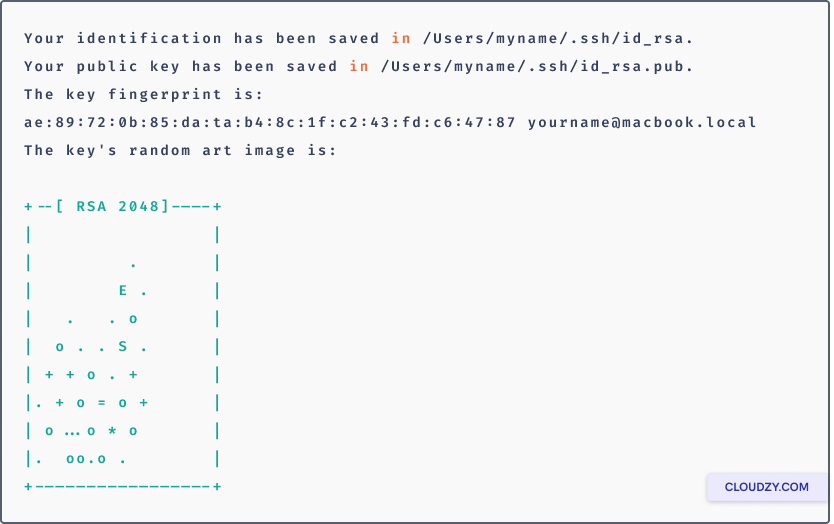
あなたの秘密鍵は以下に保存されました id_rsa ファイル内の
.ssh ディレクトリに保存され、公開鍵は
id_rsa.pub.
⚠️ 重要: 秘密鍵を誰とも共有しないでください
誰でも!
5.
Cloudzy ポータルへの SSH キーのインポート
次に、セキュアな運用のため、コピーしたSSHキーをCloudzy Portalへインポートしてください
サーバー管理。SSH キーをクリップボードにコピーした後、以下に戻ります
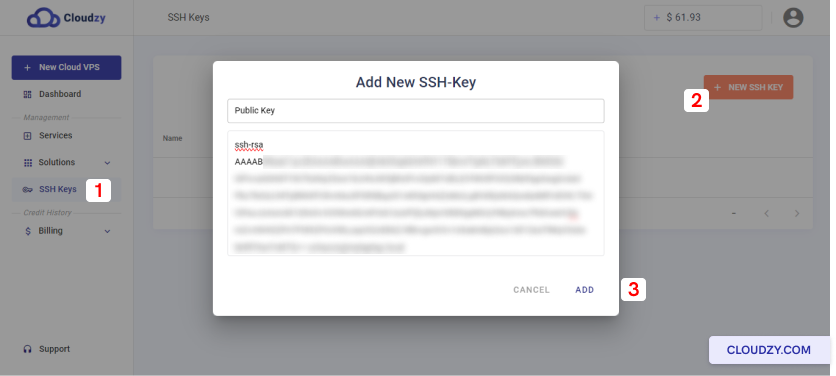
あなたの Cloudzy アカウントページで左側のサイドバーから選択してください。 SSH
Keys をクリックして 新しい SSH キー 右上に
コーナー
鍵には分かりやすい名前を付けて、id_rsa.pub の内容をここに貼り付けてください
ザ 公開鍵 領域
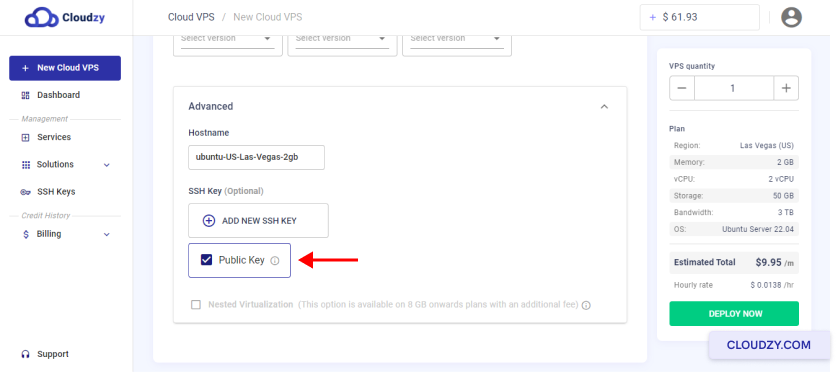
SSH キーのインポートが完了しました。これで以下の準備が整いました。
効率化されたVPS作成と強化されたサーバーセキュリティ。
xTerminal をインストール中
iOS デバイスから SSH キーを使用して Linux VPS に接続するには、
App Storeから xTerminal をインストールするには、次の手順に従います:
App Store から xTerminal をダウンロード: xTerminal
App Storeで
インポート
Private SSH Keys to xTerminal に対応する日本語翻訳:
xTerminal への Private SSH Keys
iOSデバイスにxTerminalをインストールしたら、次のステップで
先ほど生成した SSH の秘密鍵を使用します。手順は以下の通りです:
-
iOSデバイスでxTerminalを起動する。
-
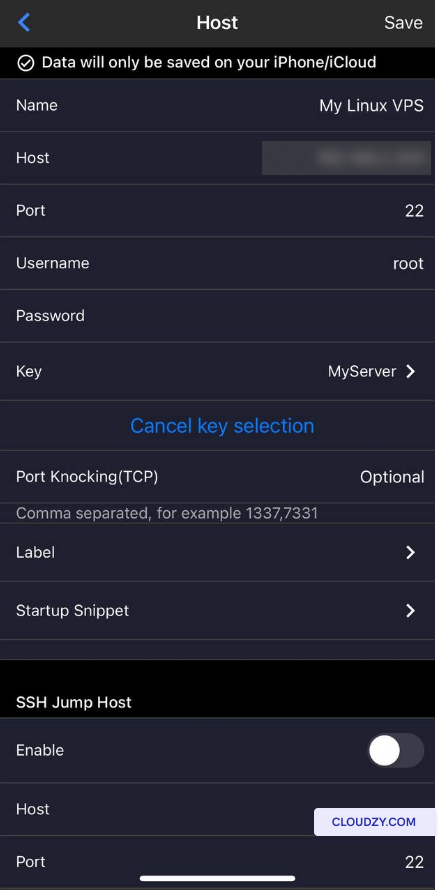
アプリのホーム画面から選択してください ファイルを追加
サーバー.
-
名前、ホスト IP、ユーザー名など、必須フィールドに入力してください
(例:root)。 -
パスワード入力の代わりに、以下を選択してください キー
ボタン -
リダイレクトされます Keys ページを選択
キーを追加. -
キーの名前を選択してコピーして内容を貼り付けます
あなたの秘密鍵ファイル (id_rsa)。
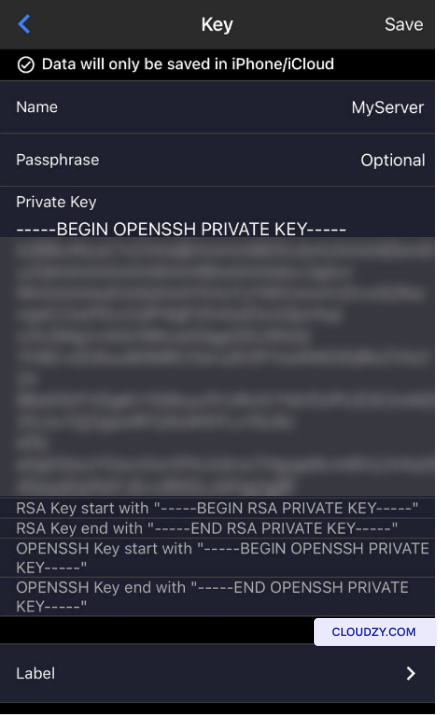
-
秘密鍵をパスフレーズで保護している場合は、ここに入力してください
指定されたフィールド。 -
最後に選択してください 保存 完了するまで2回
プロセス
あなたの Linux への接続
VPS
SSH キーをインポートすれば、Linux に接続する準備ができています
VPS を使用して xTerminal で実行します。以下の手順に従ってください。
-
iOSデバイスでxTerminalを起動する。
-
アプリのホームページから、追加したサーバーを選択してください
より早く -
xTerminalは、インポートされたSSHキーを自動的に以下の目的で使用します
認証 -
SSH キーのパスフレーズを入力してください (該当する場合) をタップしてください
接続.
これで Linux VPS に iOS デバイスから接続する方法がわかりました
SSH キーと xTerminal を使用しています。ご不明な点がございましたら、お気軽にお問い合わせください
サポートエージェントに連絡するには 送信する
チケット.
<BlogFAQSection data={[ { title: 'セットアップは必須ですか。
SSH キーの生成時のパスフレーズを設定する
SSHキーのパスフレーズはオプションですが、セキュリティを高めるために強く推奨されます
セキュリティが向上します。パスフレーズは追加の保護レイヤーとして機能します
秘密鍵を保護し、認可されたユーザーだけがアクセスできるようにする
複数の Linux サーバーを管理できますか、VPS を使用して。
xTerminal?', answer: 'もちろんです。xTerminalを使えば、
複数の Linux と VPS インスタンスを簡単に管理できます。SSH キーをインポートすることで、あなたは
iOS デバイスから様々なサーバーに安全に接続できます。
サーバー管理をシンプルにします。
xTerminal SSHの経験が限定的な初心者に適しており
サーバー管理?』、回答:『xTerminalは直感的なユーザー
初心者と経験者の両方に対応したインターフェース。
SSH キーの直感的なインポートオプション。SSH の経験が限定的なユーザーにも対応
ナレッジは、Linuxを使用してそれらのLinux VPSインスタンスに安全に接続できます
xTerminal.', }, ]} />