
XRDPは他のオペレーティングシステム上のRDPの実装であり、
Linux server の場合、ユーザーは同じ機能を備えることができます
RDP として。このガイドでは、Linux サーバーに接続する方法について説明します。
xRDP.
インストール
xRDPを使用してLinuxサーバーに接続する
このチュートリアルでは、以下の方法をご説明します。インストールと接続
Linux サーバー、この場合は Ubuntu、XRDP と組み合わせています。
ステップ
1: GNOME または Xfce デスクトップ環境をインストールします
準備として、デスクトップ環境をインストールします
(DE) Ubuntuで、Linuxサーバーとより対話したいため
コマンドのみを使用するよりも
注意: デスクトップをご利用の場合はこのステップをスキップしてください
Ubuntuのバージョン。
注意: デスクトップ環境を正常にインストールするには、まず次を行う必要があります
Ubuntu上にsudoユーザーを追加し、関連するコマンドを実行する
そこから管理者権限を取得できます。
GNOMEはUbuntu 20.04のデフォルトDEであり、以下を渡すだけで済みます
いくつかのコマンドでインストールできます。
sudo apt update
sudo apt install ubuntu-desktop
最後の行を実行すると、次のことをするかどうか聞かれます
インストールを続行するか中止するかを選択してください。追加のディスク容量として 2111 MB が必要です
使用されます。

入力する Y そして押してください Enter、そして待つ
GUIパッケージが完全にダウンロードされるまで、しばらく待機します。
もう1つのオプションとして、Xfceというデスクトップ環境も選べます。
高速で、ビジュアルも優れています。以下のコマンドを実行してください
残りのプロセスは GNOME のインストール手順と同じです。
sudo apt update && sudo apt install xubuntu-desktop
ステップ 2: XRDP をインストール
Ubuntu には既に XRDP パッケージが含まれています。以下を入力してください
それらをインストールするためのコマンド。
sudo apt install xrdpXRDPは完了後すぐに機能を開始します
インストールできます。または、以下を実行して XRDP のステータスを確認することもできます
以下のコマンド
sudo systemctl status xrdpXRDPは現在、正常に機能することができません。Linuxグループが
セキュリティ上の理由により制限されています。そのため、一部のユーザーはアクセスできません
特定のファイルへのアクセス権限。必要に応じてユーザーに手動でアクセス権を付与できます
必要な場合は追加の権限を付与します。
この場合、XRDPは読み込む必要があります
"/etc/SSL/private/ssl-cert-snakeoil.key"ですが、それはのメンバーではありません
関連グループに属しています。「ssl-cert」グループのメンバーのみがこのファイルを
使用できます。XRDP ユーザーにパーミッションを付与する必要があります。以下のコマンドを実行して行います。
次のコマンドを実行してください。
sudo adduser xrdp ssl-certXRDP を再起動して、新しい設定を適用します。
sudo systemctl restart xrdp完了しました!XRDPのインストールが終了しました。
ステップ 3: 確認する
Ubuntu内のIPアドレス
IP アドレスを取得する方法はたくさんあります。シンプルな方法の1つは
散漫な情報を含まないことはこのコマンドを実行することです
コマンドを理解するクライアントです。
hostname -Iステップ4:
ローカルWindowsまたはLinux上のRDP接続
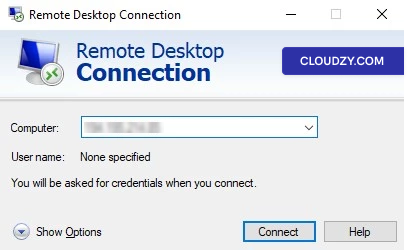
今、私たちは私たちの素敵なLego橋の最後のレンガを置くことになっています
リモート Linux マシンに接続することです。ローカルマシンが
Windows の場合は、デフォルトのリモートデスクトップ接続を使用して接続を確立できます。
接続。単純にRDCを開いてください。これはRemote Desktop Protocolとして機能します。
リモートサーバーのIPアドレスを入力して、クリックしてください
接続.
その後、認証情報の入力を求められます。完了です。これでリモート Linux サーバーを
操作できます。ローカルマシンが Linux の場合は
(Ubuntu)、お好みで選択できます GNOME ボックス RDPをセットアップするには。
次のコマンドを入力してください。
sudo apt install gnome-boxesインストールが完了したら、GNOME Boxes を起動して以下の画像の
手順に従ってください。
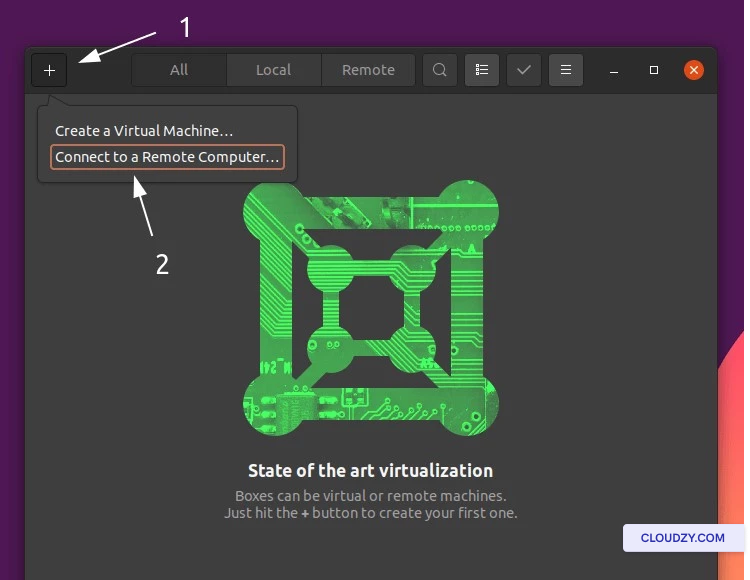
その後、リモートマシンの IP アドレスを入力して、クリックします。
接続.
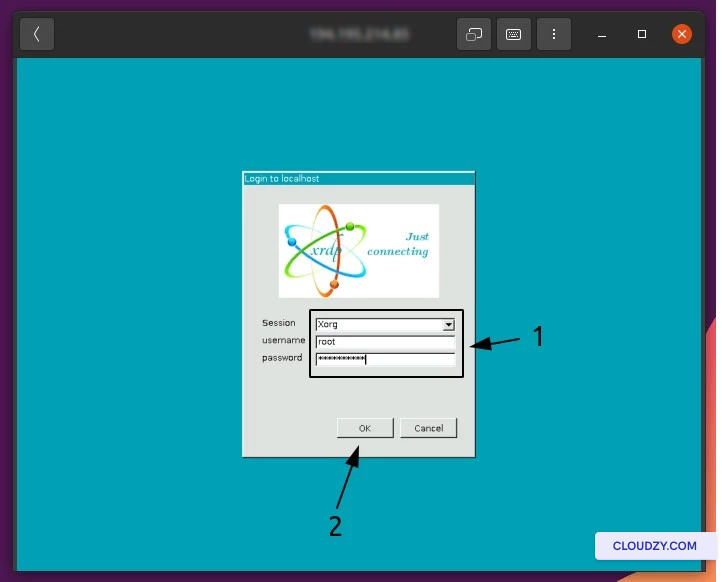
以下の画像で、 セッション そのままにしておくべき
Xorg。リモートマシンの
認証情報をクリックして OK 進むために
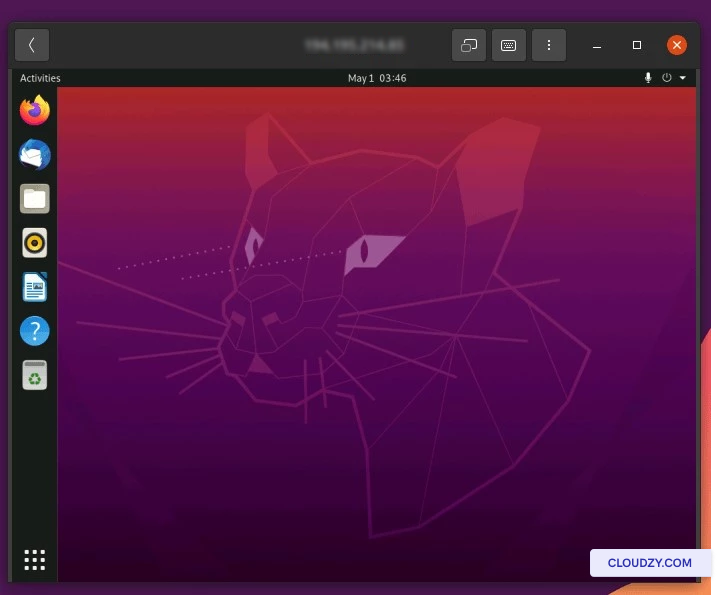
をご入力いただくことも可能です。
これでリモート Linux サーバーに接続されました。
送信する
チケット.