
リモートデスクトップは、ユーザーに以下の機能を提供する強力なツールです
リモートロケーションからコンピュータに接続し、直接アクセス権を付与
リモートシステムのデスクトップインターフェースへ。Windows Server 2022 には
Remote Desktop Services (RDS) 機能を搭載しており、
複数のユーザーが同時に接続できるようにして
アプリケーションとサーバーのデスクトップにリモートでアクセスできるようにします。この
機能は、特に以下に従事するIT専門家にとって特に有用です
リモートサーバー管理
有効にする
Windows Server 2022 のリモート デスクトップ
- サーバーへのアクセス:
まず、ローカル管理者アカウントを使って Windows Server 2022 にログインします
アカウント。このアカウントにより、必要な権限が付与されます。
システム設定を変更します。
- サーバーマネージャーを開く:
ログイン後、包括的なサーバー管理ツールであるサーバーマネージャーを起動します
管理ツール(様々な側面を設定および管理できるもの)
あなたのサーバーの
- ローカルサーバープロパティへのナビゲーション:
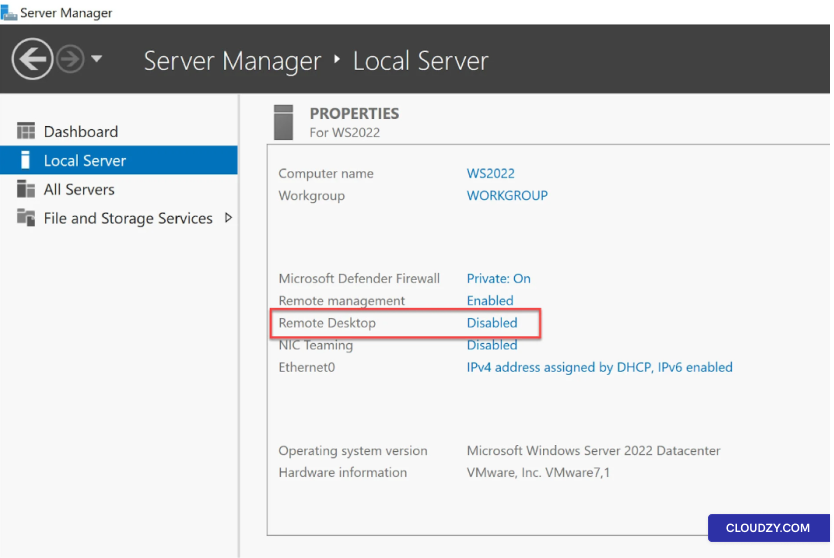
サーバー マネージャー インターフェイス内で探して選択してください
ローカルサーバー セクション。このセクションには重要な
サーバー関連の設定。ユーザーのニーズに応じてカスタマイズできます。
要件
- リモートデスクトップを有効にする:
に プロパティ ローカルサーバータブのセクション
リモートデスクトップオプションを探してください。デフォルトでは次のようにマークされている場合があります
無効。つまり、リモートデスクトップアクセスが
現在非アクティブです。
- リモートデスクトップを有効化中:
クリックしてください 無効 リモートデスクトップの隣のステータス
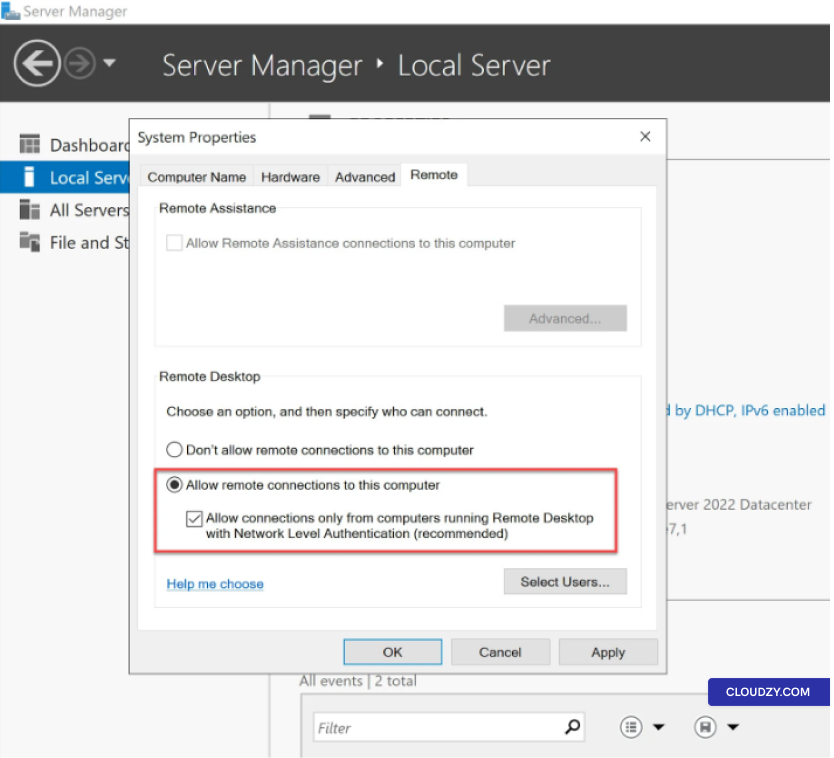
システムプロパティダイアログという新しいウィンドウが開きます。
- リモート接続設定の構成:
システムのプロパティダイアログ内で、次の項目に移動します
リモート タブです。ここからオプションを選べます 許可する
このコンピュータへのリモート接続。このオプションが
リモートデスクトップアクセスを有効にするにはチェックしてください。
- セキュリティの強化
セキュリティを強化するため、次のチェックボックスをオンにすることをお勧めします
リモートデスクトップを実行しているコンピューターからの接続のみを許可する
ネットワークレベル認証(NLA)付きこれにより追加されます
リモート接続にセキュリティレイヤーを追加できます。
- ユーザーアクセスの付与(オプション):
特定のユーザーにリモートデスクトップへのアクセス権を付与したい場合は
Windows Server 2022、クリックしてください ユーザーを選択追加できます
リモートアクセスが必要な個人ユーザー向けです。サーバーが
ドメインのユーザーを選択して、リモートアクセスを設定することもできます
特権
代替アクセス
メソッド
コマンドラインを使用する場合は、リモートを開くことができます
コマンドを実行してデスクトップ設定ウィンドウを開く
sysdm.cpl。このコマンドはシステムプロパティを開きます
ウィンドウが表示され、そこから リモート
タブに移動してリモートデスクトップの設定を有効にできます。
作成
新しいユーザーとリモートデスクトップ権限の割り当て
複数の管理者が同時リモート接続を確立できるようにするために
Windows Server 2022 でのデスクトップ接続を使用するには、新しい
ユーザーアカウントを作成し、リモートデスクトップアクセス権を付与することが重要です。この
このセクションでは、新しいユーザーを作成するためのステップバイステップのプロセスについて説明します。
リモートデスクトップ権限の設定:
ステップ1: アクセス
サーバーマネージャー
-
Windows Server 2022を使用して既存のアカウントでログインします
管理者アカウント。このアカウントはシステム設定に変更を加えるために必要な権限を持つ必要があります。
システム設定に変更を加えるために必要な権限を持つ必要があります。 -
Server Manager を起動します。これはサーバーの様々な側面を設定できる包括的な管理ツールです。
サーバーの様々な側面を設定できます。
ステップ2: 新しいものを作成する
ユーザー
-
Server Manager で、 Tools
メニューを選択 コンピュータの管理。これにより、次の
コンピュータの管理コンソール。 -
コンピュータの管理コンソールで、 Local
ユーザーとグループ セクションを展開し、右クリックします
ユーザー. -
選択 新規ユーザー 新しいユーザーを作成する
アカウント -
ユーザー名とパスワードを含むユーザーの詳細を入力するようプロンプトに従います。パスワードがサーバーのセキュリティ要件を満たしていることを確認してください。
ユーザー名とパスワード。パスワードがサーバーのセキュリティ要件を満たしていることを確認してください。
要件
ステップ4:
リモートデスクトップの権限を付与
新しいユーザーアカウントを作成したので、このアカウントにリモート
デスクトップアクセス権を付与する時間です。
-
サーバーマネージャーに戻り、次のステップに進んでください Local
サーバー 前述のセクション。 -
に プロパティ セクション、検索
リモートデスクトップ オプション。デフォルトでは、マークされている可能性があります
as 無効 新しいユーザーアカウント用の。 -
クリックしてください 無効 新しい次のステータス
ユーザーのアカウント名、およびウィンドウ(システムプロパティダイアログ)が表示されます。
現れる -
システムのプロパティダイアログ内で、次の項目に移動します
リモート タブ。 -
ここでは、オプション リモート接続を許可
このコンピュータが見つかります。リモート
デスクトップアクセスを新しく作成したユーザーに付与するには、このオプションがチェックされていることを確認してください。 -
セキュリティを強化するため、
リモートデスクトップを実行しているコンピューターからの接続のみを許可する
ネットワークレベル認証(NLA)付き. -
次をクリック: OK というラベルの付いたボックスをチェックすることを検討してください。変更を保存します。
ステップ5:
新規ユーザーアカウントでログイン
新しいユーザーアカウントがセットアップされ、リモートデスクトップアクセスが有効になりました
権限。ユーザーはユーザー名とパスワードを使用してサーバーにリモートで接続できます。
ユーザー名とパスワード。
Windows Server 2022 でリモートデスクトップを有効にすることは
シンプルなプロセスにより、管理する能力を備えることができます
サーバーにリモートでアクセスします。この機能はセキュリティと組み合わせて
ネットワークレベル認証によるセキュリティ強化により、安全な
と効率的なリモート管理が可能です。さらに必要な場合は
さらにサポートが必要な場合は、サポートチームまでお気軽にお問い合わせください
by 送信する
チケット.
<BlogFAQSection data={[ { title: '同時実行を有効にするとどのような仕組みになりますか
RDP接続はサーバー管理者に役立ちますか?', 答え: '有効にする
同時RDP接続はサーバー管理者に力を与える
複数のタスクとユーザーセッションをリモートから効率的に管理できます。
これにより、生産性と柔軟性が向上し、
サーバーの問題をトラブルシューティングして、物理的なアクセスを必要とせずに解決してください。', }, {
title: 'Remote Desktop Services (RDS) on Windows Server 2022 とは?',
回答: Remote Desktop Services (RDS) は、以下を実現する機能です
複数のユーザーがアプリケーションとサーバーに接続して使用する
デスクトップをリモートで操作できます。特にシナリオに関わる場合に非常に有用です
サーバーリソースへのリモート管理とマルチユーザーアクセス。
title: 'Windows Server 2022 で RDP を有効にするのは安全ですか?', answer: 'はい。'
Windows Server 2022でRDPを有効にすることは、適切なセキュリティ対策を実施すれば安全にすることができます
対策が適用されます。Network Levelを有効にすることをお勧めします
認証 (NLA) でセキュリティを強化。NLA により、許可されたユーザーのみが
認証済みのユーザーはリモートから接続でき、追加のセキュリティレイヤーを実現できます。
保護。"、}, {タイトル: 'Windows Server 2022でRDPを有効にできますか
a local administrator account?', answer: 'Yes, you can enable RDP on
Windows Server 2022 ローカル管理者アカウントを使用しています。このアカウント
システム設定を構成するために必要な権限を付与します。
リモートデスクトップアクセスを含む。', }, { title: 'How can I grant specific
Windows Server 2022でユーザーにリモートデスクトップアクセスを許可する方法について、回答は以下の通りです。許可するには
特定のユーザーにリモートデスクトップアクセスを許可するには、「ユーザーの選択」をクリックします。
リモートデスクトップの設定から、個別のユーザーを追加できます。
リモートアクセスが必要です。サーバーがドメインの一部である場合は、
ドメイン ユーザーにリモート アクセスを許可します。', }, ]} />