
リモートデスクトッププロトコル(RDP)はリモート接続のための重要なツールとして機能します
管理により、ユーザーは遠隔地からシステムを制御できます。ただし、
広く使用されているため、ブルートフォース攻撃の主な標的になっています。
これらの攻撃は弱いパスワードを悪用し、無許可のアクセスを得ようとしています
システムへのアクセス。リモートワークの増加に伴い、RDP のセキュリティは非常に重要になっています。
これまで以上に重要になっています。
包括的
RDPセキュリティ強化ガイド
以下の推奨事項に従うことで、
あなたのリモートデスクトップ環境の不正アクセスに対する防御
アクセスおよびサイバー脅威。
名前変更
管理者アカウントとユーザーアクセスの保護
押す Windows キー + R、入力
lusrmgr.msc、そして押す Enter 開く
ローカルユーザーとグループの管理。
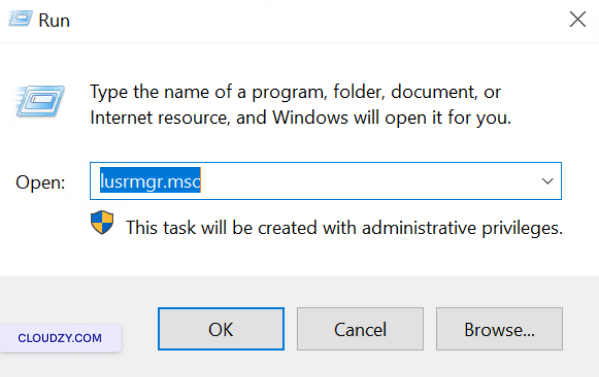
管理者アカウントの名前を変更するには:
- 中央のペインで右クリックして、
Administrator アカウントを選択して
名前変更.
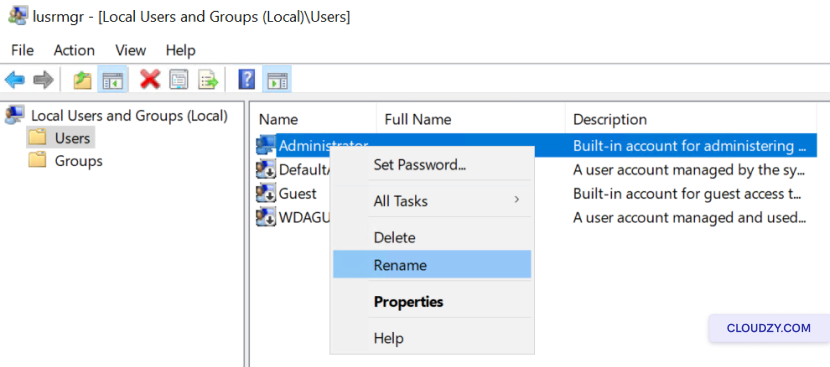
- 管理者アカウントの新しい名前を入力して押してください
Enter.
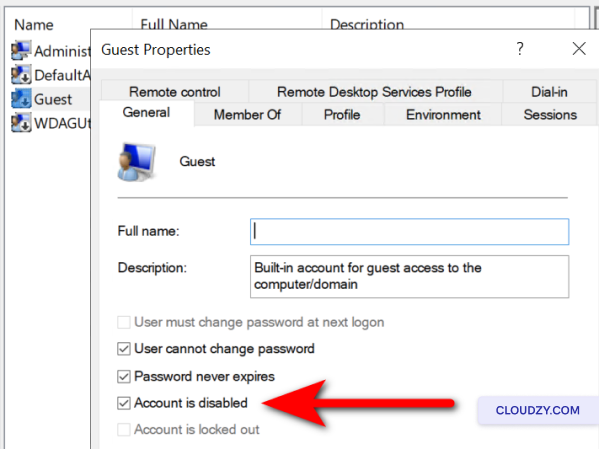
ゲストアカウントを無効にするには:
-
ゲストアカウントを見つけてダブルクリックします。
-
チェック アカウントが無効になっています チェックボックスをクリック
on OK.
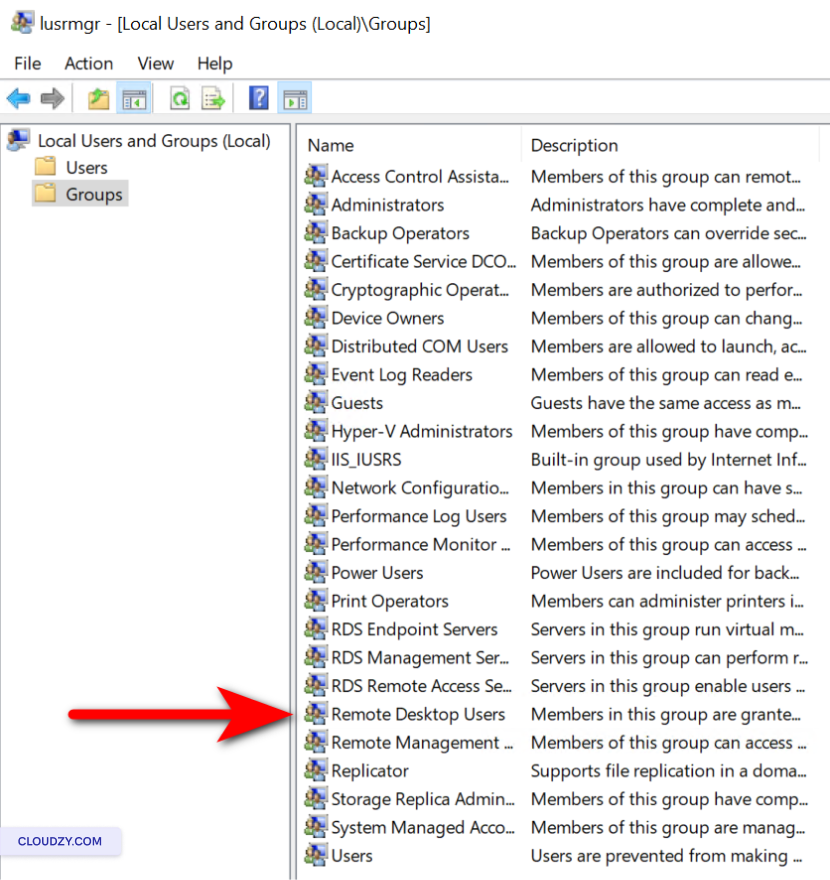
RDPアクセス権限を定期的に確認するには:
-
次をクリック: グループ 左側のペインで。
-
ダブルクリックしてください リモートデスクトップユーザー
グループ -
ユーザーのリストを確認します。ユーザーを削除するには、選択して
それらをクリック 削除。ユーザーを追加するには、クリックして
追加 必要な詳細情報を入力します。 -
クリック 適用する そして OK to
変更を確認します。
実装中
強力なパスワードポリシー
-
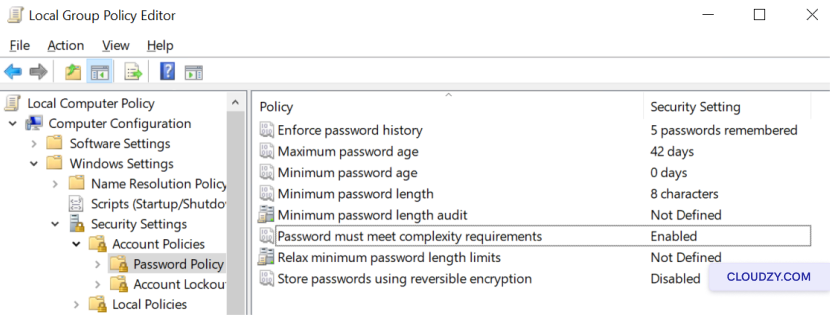
グループ ポリシー エディターを開くには、次のキーを押します Windows キー +
R、入力 gpedit.msc 実行中に
ダイアログ。 -
コンピューター構成に移動 > Windows 設定 >
セキュリティ設定 > アカウント ポリシー > パスワード ポリシー -
パスワードの最小文字数と複雑性要件を定義してセキュリティを強化するために
セキュリティを強化 -
パスワード履歴を強制して最近のパスワードの再利用を防止する
パスワード
制限
ファイアウォール構成経由のRDPアクセス
-
開きます Windows ファイアウォール(セキュリティが強化されたバージョン) by
タイピング wf.msc 実行ダイアログで (Windows キー +
R). -
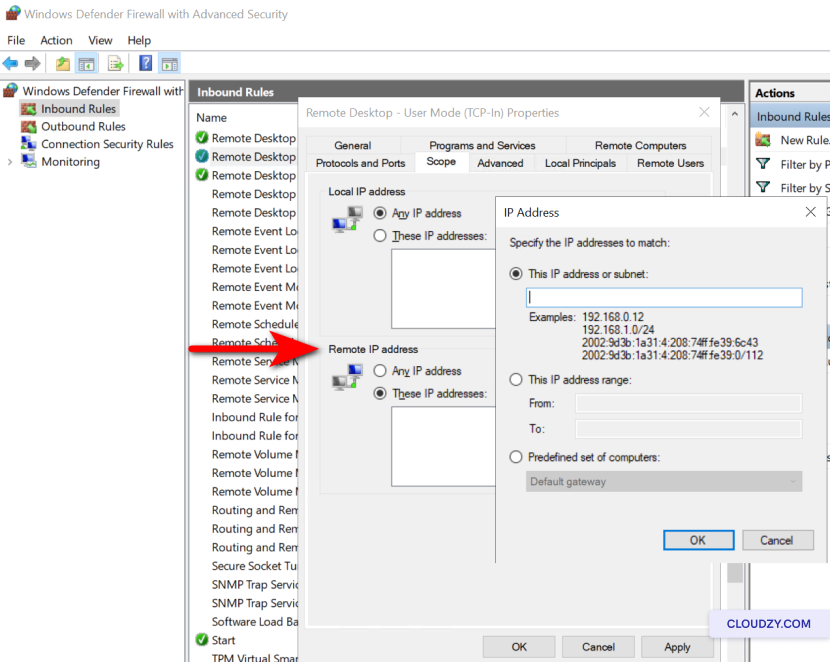
次をクリック: インバウンドルール 左側に
ペイン -
ルールを見つける リモートデスクトップ – ユーザーモード
(TCP-In) と リモートデスクトップ – ユーザーモード
(UDP-In). -
各ルールを右クリックして選択
プロパティ. -
の下 スコープ タブをクリック これらのIP
住所 の中に リモートIPアドレス
セクション -
クリック 追加 そしてIPアドレスを指定してください
RDP接続を確立することが許可されています。 -
変更を確認するには、クリックしてください OK そして確認する
ルールが有効になっています。
セットアップ
多要素認証
-
RDP の設定と互換性のある MFA ソリューションを選択します (例: デュオセキュリティ, Microsoft
Entra). -
MFA プロバイダーの特定のインストールおよび設定手順に従ってください
RDP 環境と統合するためのガイド。 -
ユーザーを登録し、次のような二次認証方法を設定します
モバイルアプリまたはハードウェアトークン。
ネットワークを有効化中
レベル認証
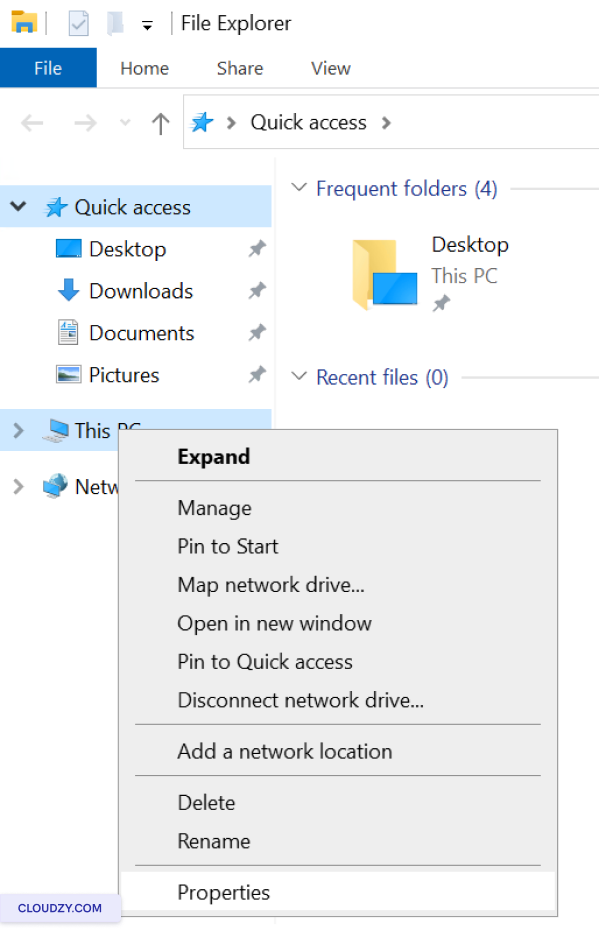
- 右クリックして このPC そして選択する
プロパティ.
-
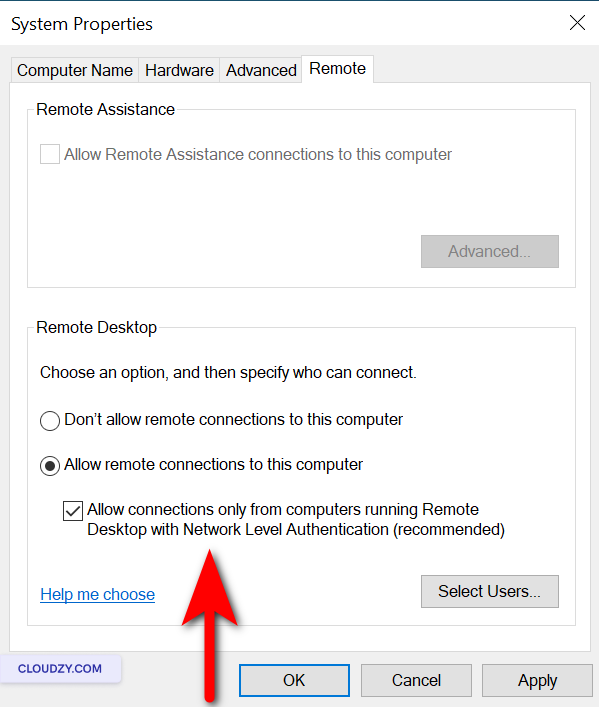
次をクリック: リモート設定.
-
以下 リモートデスクトップ、確認してください 許可する
リモートデスクトップとネットワークを実行しているコンピューターからの接続のみ
レベル認証 が選択されています。
デフォルトRDPの変更
ポート
-
押す Windows キー + R 実行を開く
ダイアログ。 -
タイプ regedit そして押してください Enter to
レジストリエディターを開く。 -
HKEY_LOCAL_MACHINEServer-Tcpに移動します。
-
探す PortNumber サブキーをダブルクリックして、
選択 小数新しいポート番号を入力します。
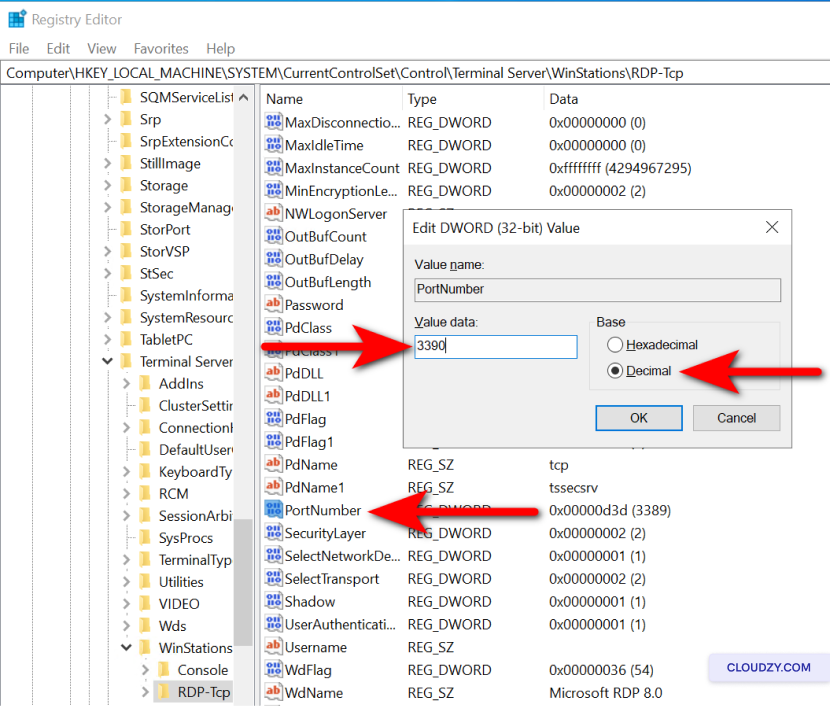
- 次をクリック: OKレジストリエディターを閉じて、更新します
ファイアウォールルールを適切に設定してください。
次に、新しいポートを Windows で許可します
ファイアウォール:
-
Windows ファイアウォールを開くには以下を押してください Windows キー +
R、入力 wf.msc. -
左側のペインで、クリックします インバウンド
ルール. -
次をクリック: 新しいルール 右側のペインで。
-
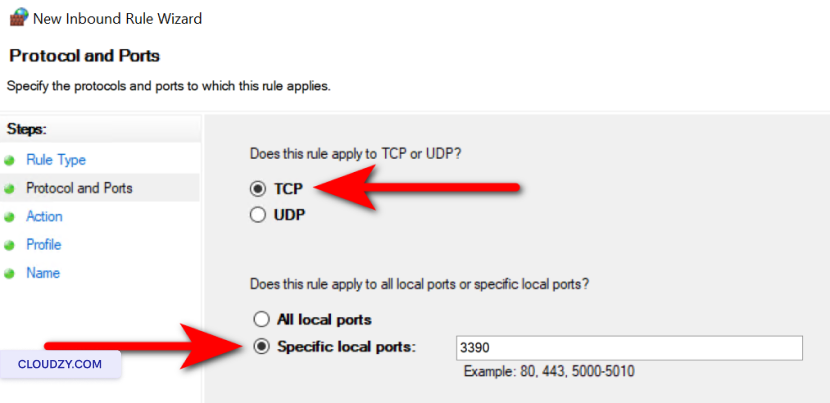
選択 ポート をクリックして
次へ. -
チームドキュメントには TCP そして新しいポート番号を指定してください
レジストリエディターで設定して、次へをクリックします。
-
選択 接続を許可する をクリックして
次へ. -
確認する ドメイン, プライベート、そして
公開 ルールのスコープを定義するためにチェックされます
必要に応じて選択してから、「次へ」をクリックします。 -
ルールに名前を付けます。例: カスタム RDP ポート,
をクリックして 完了. -
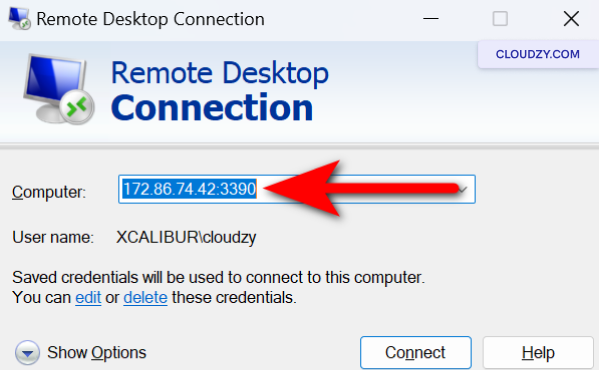
システムを再起動してから、新しいポートを経由して接続していることを確認してください
ポート
構成中
アカウントロックアウトポリシー
-
グループ ポリシー エディターにアクセスするには、 Windows キー +
R そして入力 gpedit.msc. -
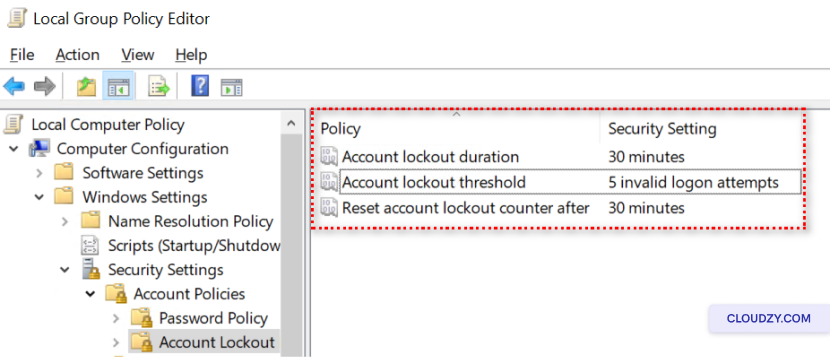
コンピューター構成に移動 > Windows 設定 >
セキュリティ設定 > アカウント ポリシー > アカウント ロックアウト
政策 -
設定する アカウントロックアウトしきい値、アカウントロックアウト
期間、そして アカウントロックアウトカウンターをリセット
後(after)適切な値に設定してください。
システムを更新中
ソフトウェア
-
Windows Update 設定で自動更新を有効にします。
-
すべての使用ソフトウェアの更新を定期的に確認してください
RDP付きで。 -
スケジュール済みメンテナンスウィンドウ中に更新プログラムを適用して最小化する
混乱
デプロイ中
ウイルス対策とマルウェア対策ソリューション
-
定評のあるアンチウイルスおよびマルウェア対策ソフトウェアを選択します。
-
ソフトウェアを製造元の指示に従ってインストールしてください
指示 -
ソフトウェアを自動更新するように設定し、定期的なチェックを実行してください
スキャン
実施中
定期的なセキュリティ監査とアラート設定
-
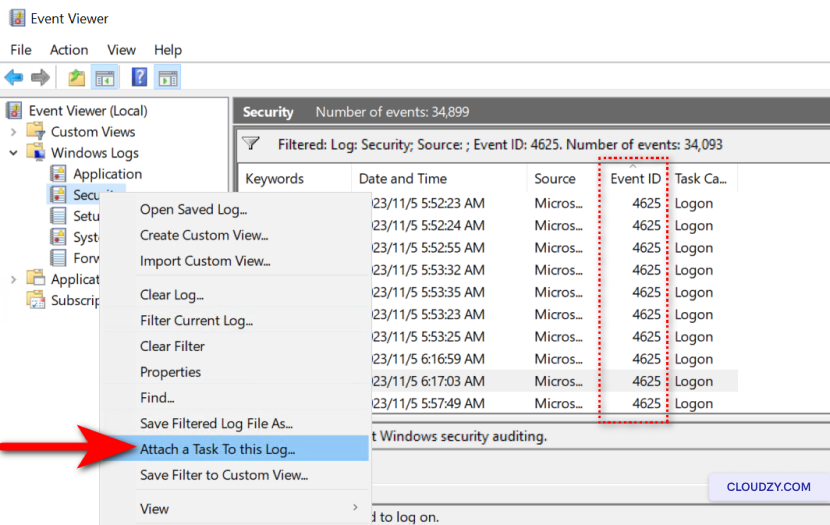
イベント ビューアーを開くには以下のように入力します eventvwr.msc in
実行ダイアログ (Windows キー + R) -
Windows ログ > セキュリティに移動し、イベント ID を探します
4625. -
アラートを設定するには、右クリックして セキュリティ と
選択 このログにタスクを割り当て…. -
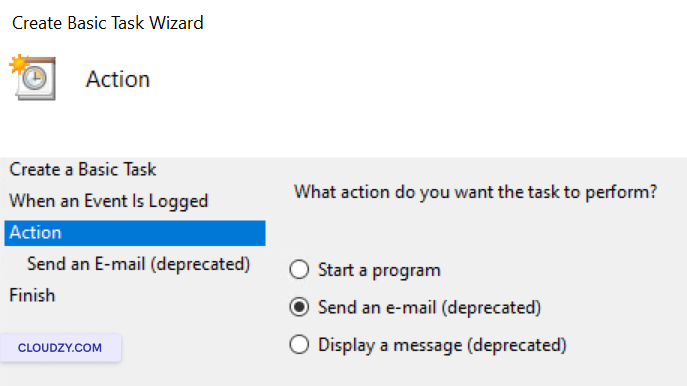
ウィザードに従って、複数によってトリガーされるタスクを作成します
イベントID 4625のインスタンス。
- メールを送信するか、メッセージを表示するなどのアクションを選択します
タスクがトリガーされます。
- ウィザードを完了して、タスクを簡単に識別できるように名前を付けます。
VPN を使用する場合
追加セキュリティ
-
セキュリティ要件に基づいてVPNの必要性を判断してください
および RDP 経由でアクセスされるデータの機密性。 -
信頼できるVPNサービスプロバイダーを選択するか、または独自のVPNをセットアップしてください
あなたには、その力がある。 -
すべてのデバイスに VPN クライアント ソフトウェアをインストールして構成します
RDPを使用します。 -
ユーザーにRDP接続を開始する前にVPNに接続するよう指導する
セッションを確保して、リモートデスクトップトラフィックが暗号化されていることを確認し
保護 -
VPN インフラストラクチャを定期的に更新・維持管理して対応する
あらゆるセキュリティ脆弱性を特定し、それが堅牢であることを保証し、
脅威
RDP を堅牢に保つ。定期的な更新とセキュリティ対策で守り抜く
これらの対策がネットワーク防御の要となり、セキュリティを継続的に守ります
突破されない防御を保ちましょう。常に警戒し、先手を打つことが、あなたのセキュリティを左右します
ご不明な点やご質問がございましたら、いつでもお気軽にサポートチームにお問い合わせください
チームで 送信する
チケット.
同じカテゴリー Windows / RDP