
Android-ból csatlakozás Windows VPS-hez
Távoli asztali protokoll
a különféle szoftverekhez biztosító attribútumok, amelyek könnyű kapcsolatot nyújtanak
az Windows gép és bármilyen más operációs rendszer között.
Microsoft Remote Desktop alkalmazás a Google Play áruházban megkönnyít
az Windows VPS vezérlése Android eszközön. Az alkalmazás telepítéséhez néhány
egyszerű lépés szükséges a mobiltelefonján. Kezdjük is
továbbmegyünk és elmagyarázzuk őket.
1. lépés: Letöltés
Alkalmazás
Az első lépés bármely alkalmazás használatához az, hogy letöltsd, hacsak nem
egy webalkalmazás. Az alkalmazás letöltésének legfontosabb tanácsa az,
hogy megbízható forrásból töltse le.
A Google Play Store weboldala vagy alkalmazása jó választás lehetne
letöltéshez Távoli
Asztali alkalmazás.
2. lépés: Nyissa meg a
Alkalmazás
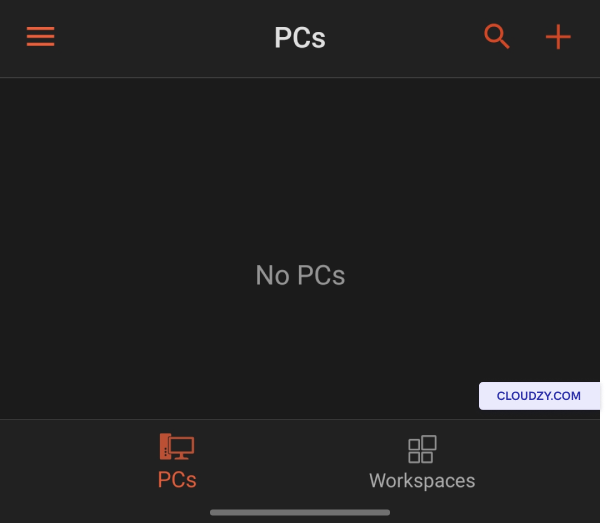
A letöltés után nyissa meg az alkalmazást. Látni fogja No
Számítógépek az alábbi kép szerint.
Lépés 3: Új eszköz hozzáadása
Connection
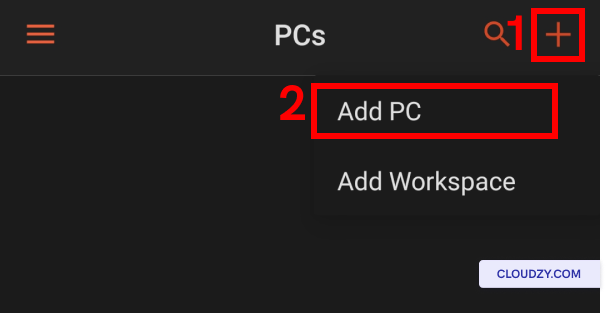
Nyomjon a plusz vagy + gomb, majd válassza ki
PC hozzáadása.
4. lépés: Adja meg a
Hitelesítési adatok
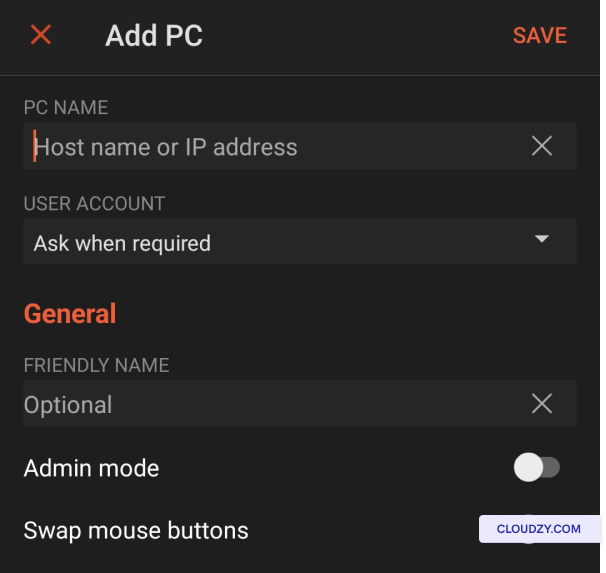
Ebben a lépésben meg kell adnia az Windows VPS hitelesítési adatait. Folytathat
és írja be a kiszolgáló IP-címét az első mezőbe, majd töltse ki a következőt
igényeidnek megfelelően
5. lépés: Csatlakozás a
VPS
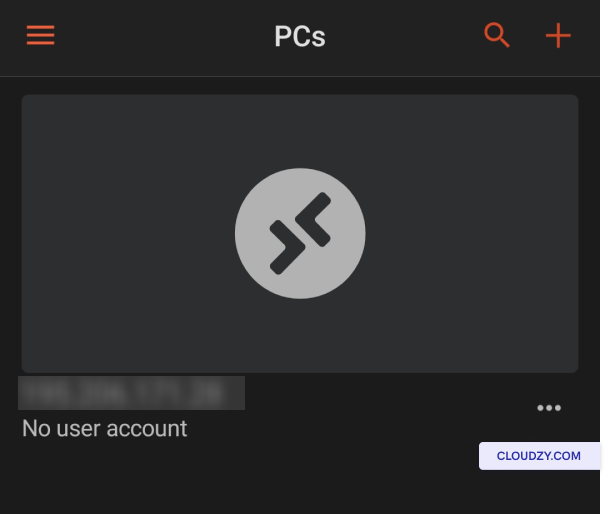
Most láthatja, hogy az Windows VPS hozzáadódott a PC-k listájához. Koppintson a
csatlakozás indításához.
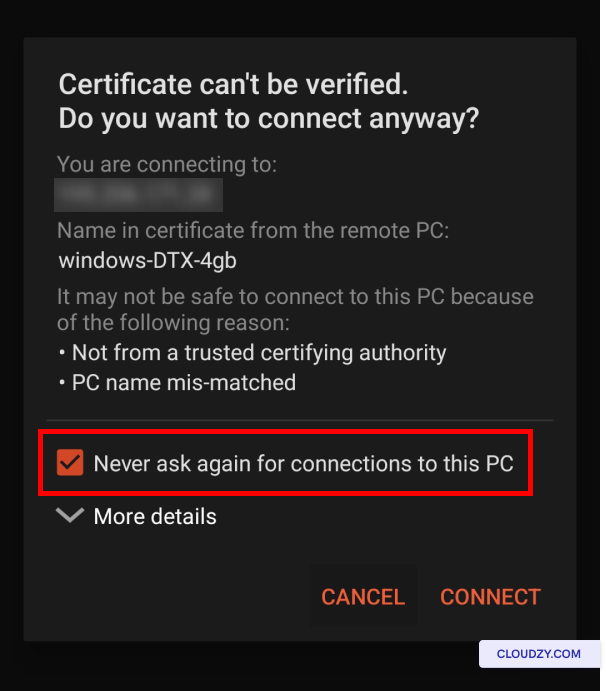
Ebben az új ablakban ügyeljen arra, hogy a Többé ne kérdezz rá
kapcsolatok ehhez a számítógéphez lehetőség be legyen jelölve, majd koppintson a
CSATLAKOZÁS.
6. lépés: Kezdje el használni az Ön
VPS
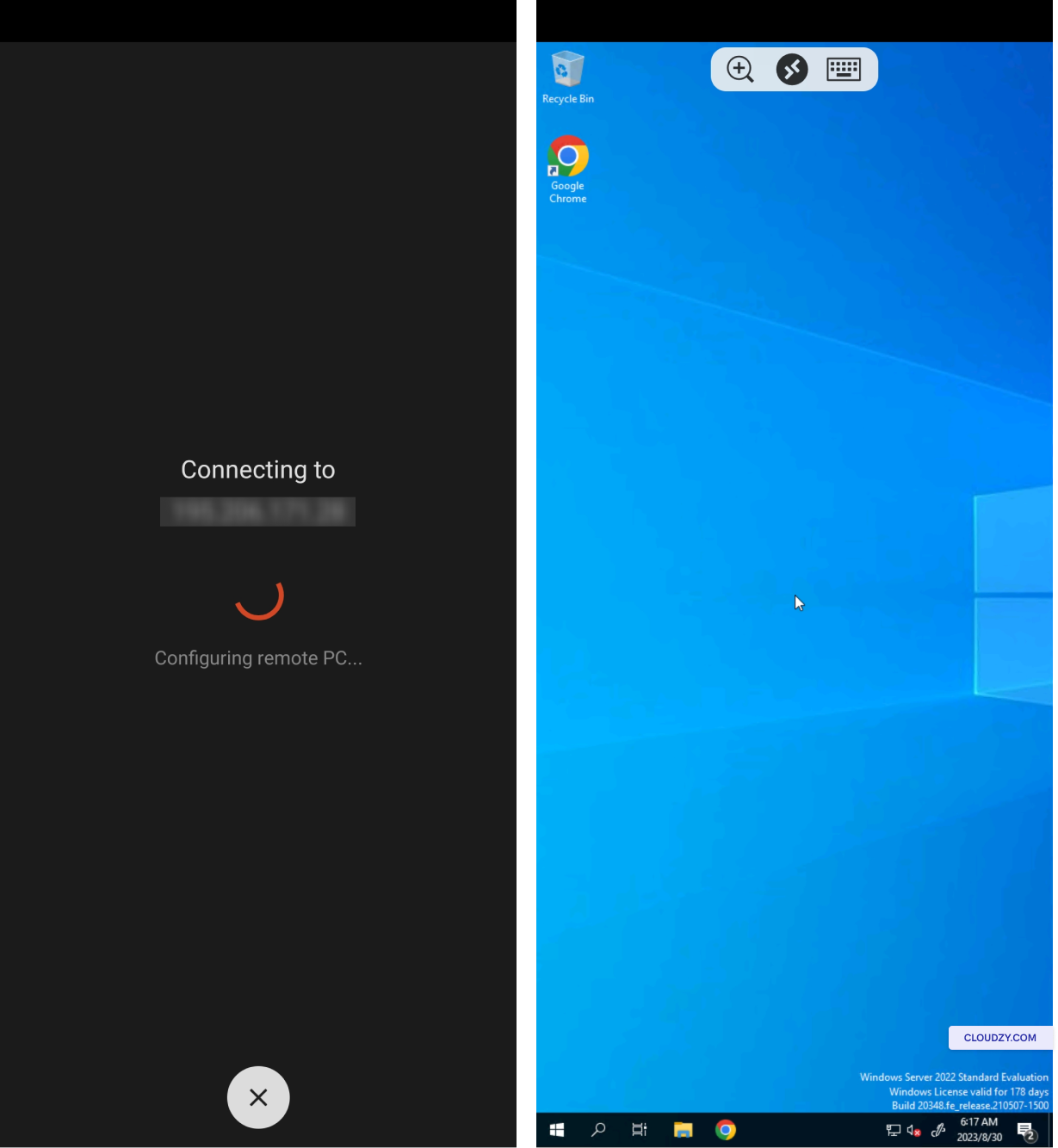
Amint látható, most már csatlakozik az VPS rendszerhez, és kezdheti el
annak használatát Android eszközén!
Ha bármilyen kérdése van, forduljon a támogatási csapatunkhoz
elküldve egy
jegy.
Szintén itt: Windows / RDP
Kapcsolódó útmutatók.
Másban kell segítség?
Medián válaszidő 1 órán belül. Valódi emberek, nem botok.