
A Remote Desktop Protocol (RDP) kritikus eszközként szolgál a távolból történő
felügyelet, amely lehetővé teszi a felhasználók számára, hogy távolról irányítsák a rendszereket. Azonban
a széles körű használata miatt a brute force támadások elsődleges céljává vált.
Ezek a támadások gyenge jelszavakat használnak ki, megkísérelve jogosulatlan hozzáférést szerezni
hozzáférés a rendszerekhez. A távoli munka terjedésével az RDP biztonsága soha nem volt fontosabb.
még kritikusabb lett volna.
Átfogó
RDP-biztonság javítására vonatkozó útmutató
Az alábbi javaslatok követésével erősítenie kell
a távoli asztali környezet védelme az illetéktelen hozzáférés ellen
hozzáférés és kibertámadások.
Átnevezés
az Administrator Account és a felhasználói hozzáférés biztonságossá tétele
Nyomj Windows billentyű + R, írjon
lusrmgr.msc, és nyomjon meg Enter megnyitni
a Helyi felhasználók és csoportok kezelőjét.
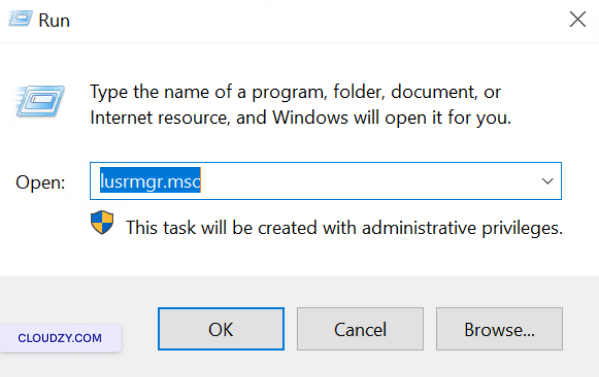
A rendszergazda fiók átnevezéséhez:
- A középső panelen kattintson a jobb gombbal a
Administrator fiók és kiválasztás
Átnevezés.
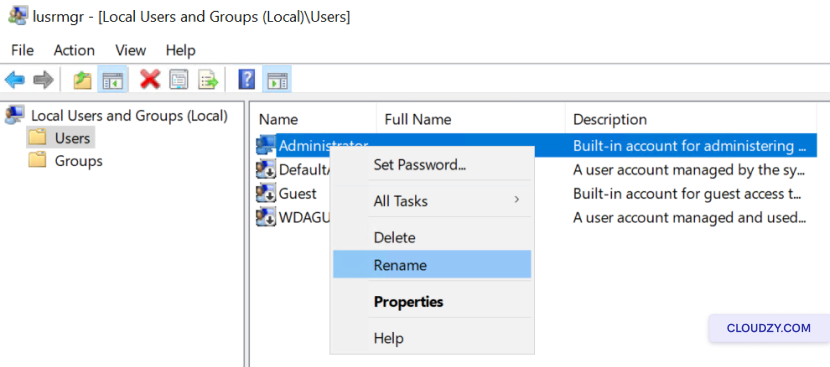
- Adja meg az új nevet a rendszergazda fiókhoz, és nyomja meg az
Enter.
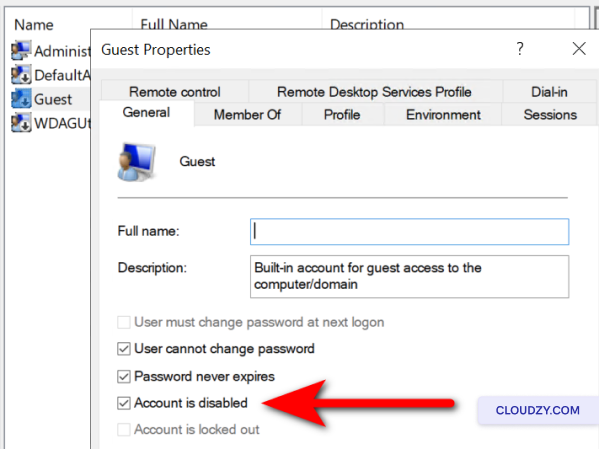
A vendég fiók letiltásához:
-
Keresse meg és kattintson duplán a vendég fiókra.
-
Jelöld be a A fiók letiltva jelölőnégyzet és kattintson
on OK.
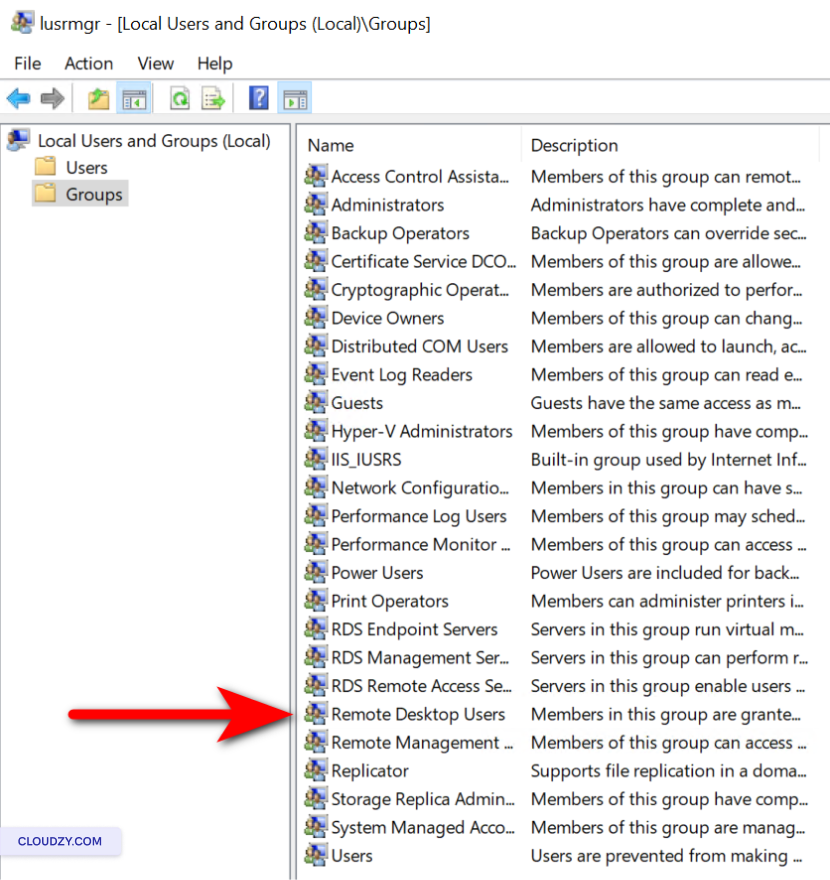
Az RDP hozzáférési engedélyek rendszeres ellenőrzéséhez:
-
Kattintson Csoportok a bal panelen.
-
Kattintson duplán a Távoli asztali felhasználók
csoport -
Tekintse át az engedélyezett felhasználók listáját. A felhasználó eltávolításához válassza ki a
rájuk kattintson Eltávolítás. Felhasználó hozzáadásához kattintson a
Hozzáadás és adja meg a szükséges adatokat. -
Kattintson Alkalmaz és majd OK to
erősítse meg az összes módosítást.
Megvalósítása egy
Erős jelszóházirend
-
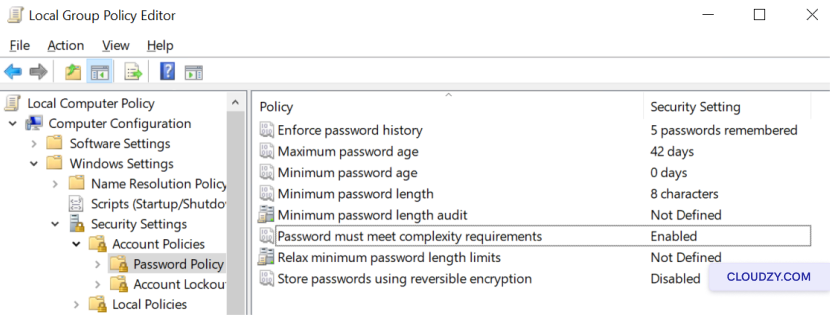
A Csoportirányítási szabályzat szerkesztőjének megnyitásához nyomja meg az Windows billentyű +
R, gépelés gpedit.msc a Futtatásba
párbeszéd. -
Navigáljon a Számítógép konfigurációja > Windows-beállítások >
Biztonsági beállítások > Fiókszabályzatok > Jelszószabályzat. -
Határozza meg a jelszó minimális hosszát és összetettségi követelményeit az
javítsa a biztonságot. -
Jelszóelőzmények betartatása a közelmúltbeli jelszavak újrafelhasználásának visszaszorítása érdekében
jelszavak.
Korlátozás
Tűzfal-konfiguráción keresztüli RDP-hozzáférés
-
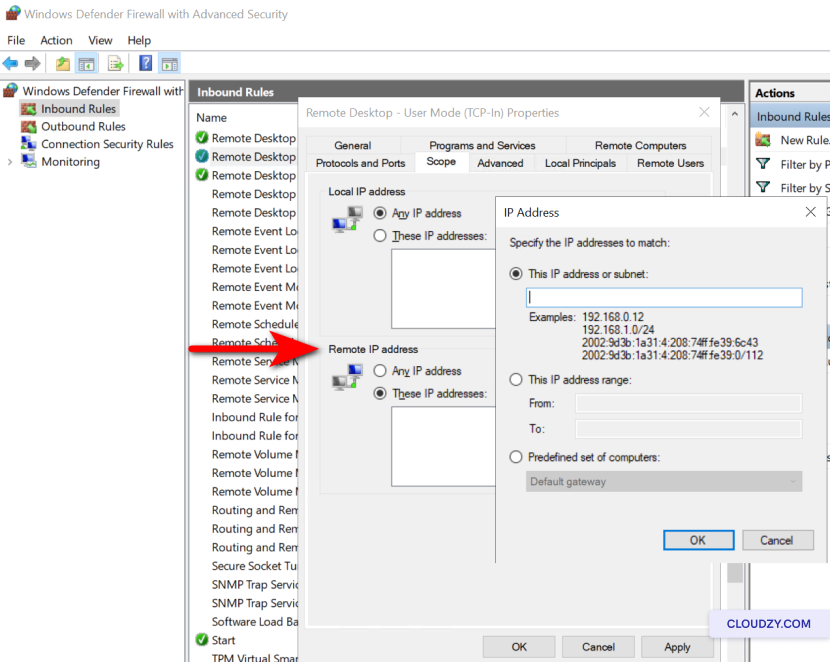
Nyissa meg Windows tűzfal speciális biztonsággal by
gépelés wf.msc a Futtatás párbeszédpanelen (Windows billentyű +
R). -
Kattintson Bejövő szabályok a bal oldalon
ablak -
A szabályok megkeresése Távoli asztal – Felhasználói mód
(TCP-In) és Távoli asztal – Felhasználói mód
(UDP-In). -
Kattintson jobb gombbal az egyes szabályokra, és válassza ki
Tulajdonságok. -
Alatt Hatókör fülre kattintva Ezek az IP
címek ben Távoli IP-cím
szakasz. -
Kattintson Hozzáadás és adja meg az IP-címeket, amelyek
engedélyezett RDP-kapcsolatok létesítésére. -
Kattintson a módosítások megerősítéséhez OK és biztosítani
a szabályok engedélyezve vannak.
Beállítás
Többfaktoros hitelesítés
-
Válasszon egy MFA megoldást, amely kompatibilis az RDP beállításával (pl. Duo Security, Microsoft
Entra). -
Kövesse az adott MFA-szolgáltató telepítési és konfigurációs útmutatóját
útmutató az RDP környezettel való integrációhoz. -
Felhasználók regisztrálása és másodlagos hitelesítési módszerek beállítása, például
mobil alkalmazások vagy hardver tokenek.
Hálózat engedélyezése
Szint hitelesítés
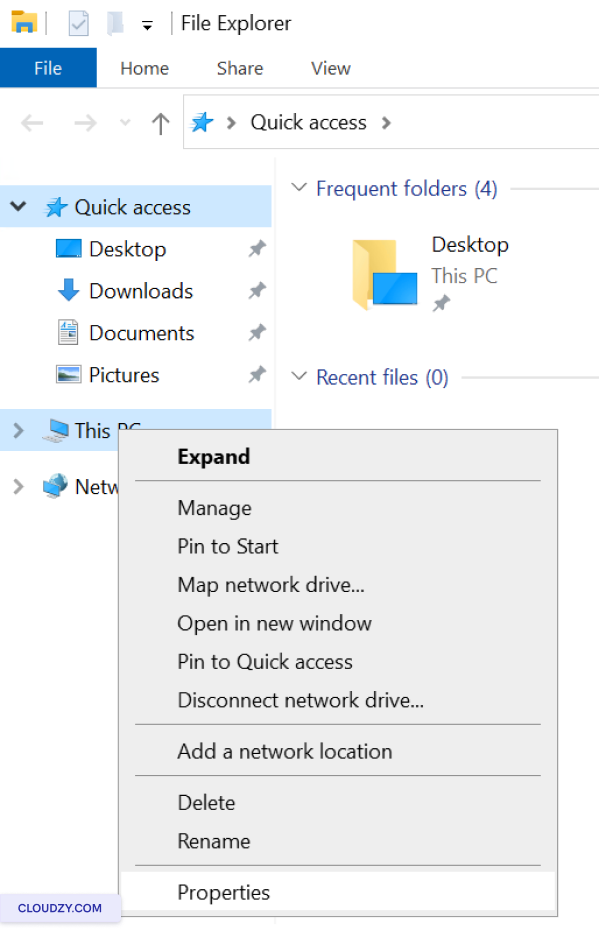
- Kattintson a jobb gombbal a Ez a PC és válasszon
Tulajdonságok.
-
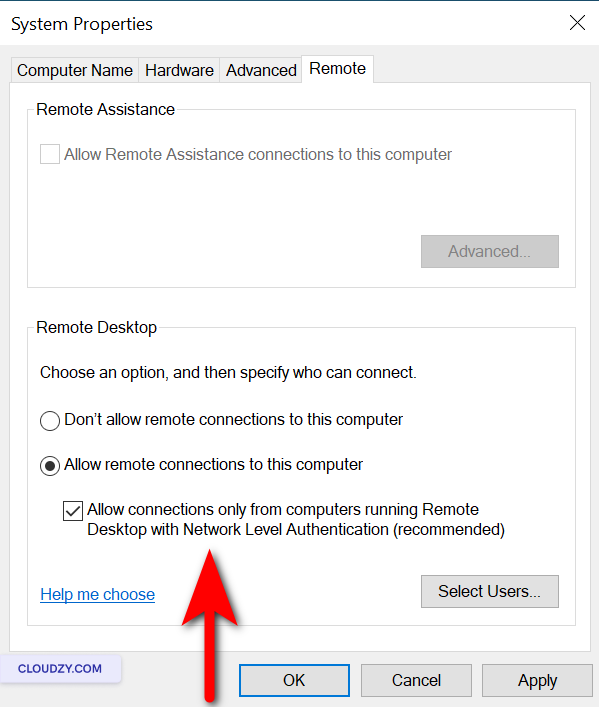
Kattintson Távoli beállítások.
-
Alatt Remote Desktop, biztosítsa Engedélyez
csak olyan számítógépekről való kapcsolatok, amelyeken a Remote Desktop Network fut
Szint hitelesítés ki van választva.
Az alapértelmezett RDP módosítása
Port
-
Nyomj Windows billentyű + R a Futtatás megnyitásához
párbeszéd. -
Típus regedit és nyomja meg Enter to
Nyissa meg a Beállításszerkesztőt. -
Navigáljon a HKEY_LOCAL_MACHINEServer-Tcp mappához.
-
Keresés a PortNumber alegkulcs, kattintson rá duplán,
válassz Tizedes, és adjon meg egy új portszámot.
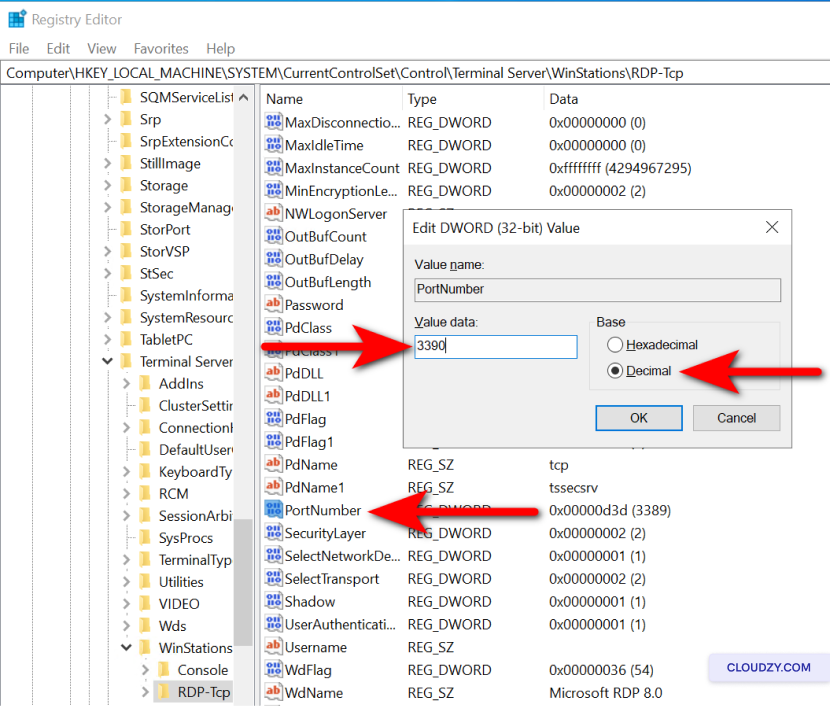
- Kattintson OK, zárja be a Rendszerleíró Szerkesztőt, majd frissítse
a tűzfalszabályok megfelelően.
Most, hogy az új port áthaladhasson az Windows-en,
Tűzfal:
-
Nyissa meg a Windows tűzfalat a következőre kattintva: Windows billentyű +
R, gépelés wf.msc. -
A bal oldali panelen kattintson a Bejövő
Szabályok. -
Kattintson Új szabály a jobb oldalsávon.
-
Válassz Port és kattintson a
Következő. -
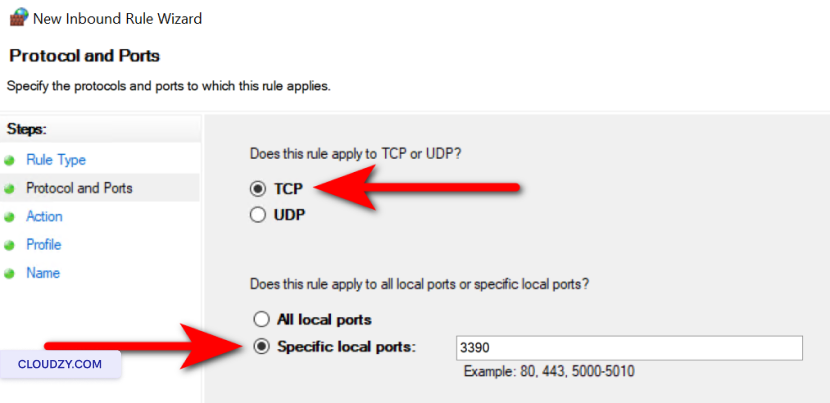
Válasszon TCP és adja meg az új porttszámot
beállítást a Rendszerleíró Szerkesztőben, majd kattintson a Tovább gombra.
-
Válassz Csatlakozás engedélyezése és kattintson a
Következő. -
Biztosítsa Tartomány, Privát, és
Nyilvános a szabály hatókörének meghatározásához szükséges
szükséges, majd kattintson a Tovább gombra. -
Adjon nevet a szabálynak, például Egyéni RDP Port,
és kattintson a Kész. -
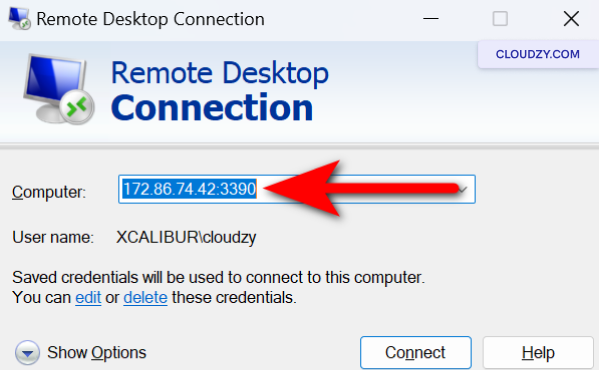
Indítsa újra a rendszert, majd győződjön meg arról, hogy az új porton keresztül csatlakozik
kikötő
Konfigurálás
Fiók zárolási szabályzatok
-
A csoportházirend-szerkesztő eléréséhez nyomja meg az Windows billentyű +
R és írás gpedit.msc. -
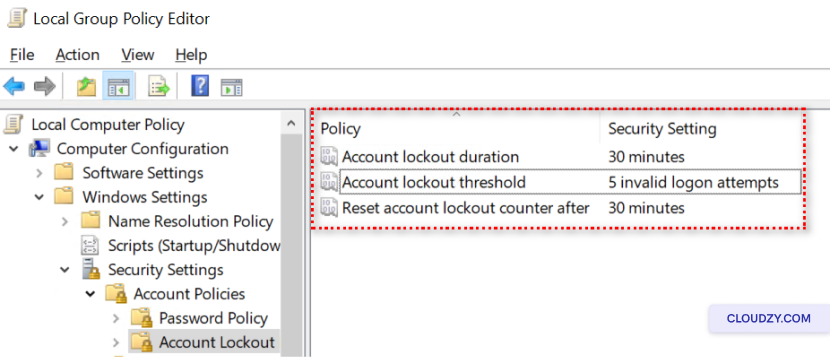
Navigáljon a Számítógép konfigurációja > Windows-beállítások >
Biztonsági beállítások > Fiók házirendjei > Fiók zárolása
Irányelvek. -
Állítsd be a Fiók zárolási küszöb, Fiók zárolása
időtartam, és Fiók zárolási számlálójának visszaállítása
után, megfelelő értékekre.
Rendszerek frissítése és
Szoftver
-
Automatikus frissítések engedélyezése a Windows Update beállításaiban.
-
Rendszeresen ellenőrizze a frissítéseket az összes használt szoftvernél
RDP-vel. -
Alkalmazza a frissítéseket az ütemezett karbantartási időszakokban a minimálisra csökkentéséhez
zavar
Telepítés
Vírusirtó és kártékony szoftver elleni megoldások
-
Válasszon egy megbízható vírusvédelmi és kártevőirtó szoftvert.
-
A szoftver telepítése a gyártó utasításai szerint
utasítások -
Állítsa be a szoftvert az automatikus frissítésre és végezzen rendszeres
vizsgálatok.
Lebonyolítás
Rendszeres biztonsági auditok és riasztások beállítása
-
Nyissa meg az Event Viewer alkalmazást a következő beírásával: eventvwr.msc in
a Futtatás párbeszédpanel (Windows billentyű + R). -
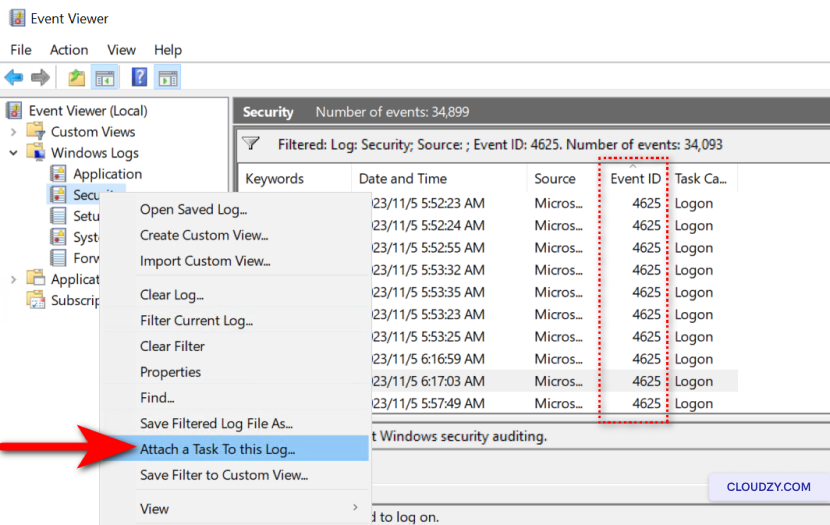
Navigáljon a Windows Logs > Security menüponthoz, és keresse meg az event ID azonosítót
4625. -
Riasztások beállításához kattintson a jobb gombbal a Biztonság és
válassz Feladat csatolása ehhez a naplóhoz…. -
Kövesse a varázslót egy több elem által aktivált feladat létrehozásához
az eseményazonosító 4625 előfordulásai.
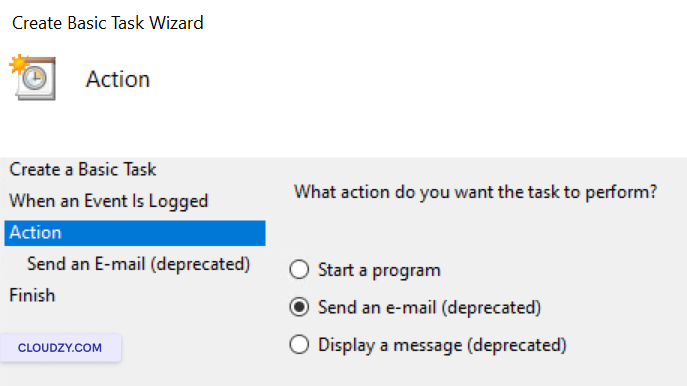
- Válassz egy műveletet, például e-mail küldését vagy üzenet megjelenítését, amikor
a feladat aktiválódik.
- Fejezze be a varázslót, és nevezze el a feladatot az egyszerű azonosítás érdekében.
VPN-ek használata
További biztonság
-
Határozza meg a VPN szükségességét a biztonsági követelmények alapján
és az RDP-en keresztül elérhető adatok érzékenysége. -
Válasszon egy megbízható VPN szolgáltatót, vagy állítson be saját VPN-t, ha
van rá képessége. -
Telepítse és konfigurálja a VPN ügyfélszoftvert az összes olyan eszközön, amely
RDP-t fog használni. -
Képezze ki a felhasználókat, hogy az RDP-munkamenet megkezdése előtt csatlakozzanak a VPN-hez
munkamenet annak biztosítása érdekében, hogy a távoli asztal forgalma titkosított legyen és
biztonságos -
Rendszeresen frissítse és karbantartsa a VPN infrastruktúrát a
bármilyen biztonsági sebezhetőség és annak biztosítása, hogy az ellenálló marad a támadásokkal szemben
fenyegetések.
Erősítse meg RDP-t, mint egy digitális erődöt. A rendszeres frissítések és ajánlott
gyakorlatok az Ön figyelmes őrei, amely biztosítja a hálózat védelmi
rendszereinek sértetlenségét. Maradjon figyelmes és proaktív - a kiberbiztonság ettől függ
Bármilyen kérdése esetén ne habozzon kapcsolatba lépni az ügyfélszolgálatunkkal
csapat által elküldve egy
jegy.
Szintén itt: Windows / RDP
Kapcsolódó útmutatók.
Másban kell segítség?
Medián válaszidő 1 órán belül. Valódi emberek, nem botok.