
RDP-munkamenetben a hang engedélyezése
Ez az útmutató az audio engedélyezésének folyamatát mutatja be a Remote során
Asztali munkamenetek. Néha a felhasználóknak vizuális interakcióra van szükségük
a távoli rendszerrel való hangalapú kommunikációhoz. Ilyen esetekben a hang
egy távoli számítógépről egy helyi eszközre történő átvitel nagy hatékonysággal
fontos. Például a távoli rendszer hangjához való hozzáférés javíthatja
termelékenység és kommunikáció a távoli támogatásban vagy együttműködési környezetben
munkakörnyezeteket. Ez az útmutató részletezi mindkét konfiguráció lépéseit
a távoli és helyi gépek zökkenőmentes hangintegráció érdekében a Remote-ban
Asztal munkamenetek.
Előfeltételek
A folyamat megkezdése előtt győződjön meg az alábbi előfeltételekről
teljesülnek:
-
Táveléréses Asztali Hozzáférés Távoli hozzáféréssel kell rendelkezned
Asztali hozzáférés beállítása a helyi és a távoli számítógépek között. -
Rendszergazdai jogosultságok: Győződjön meg arról, hogy rendelkezik
rendszergazdai jogosultságok a helyi és távoli gépeken a rendszerbeállítások módosításához
beállítások. -
Hangeszközök: A helyi számítógépnek rendelkeznie kell
hangszóró és mikrofon típusú hangeszközök. -
Frissített szoftver: Bizonyosodjon meg arról, hogy a helyi
a rendszer a legújabb operációs rendszer frissítésekkel és meghajtóprogramokkal van naprakészen tartva,
különösen hangeszközökhöz. -
Alapvető technikai ismeretek Megismerkedés a
Távoli asztal felület és alapvető számítógép-beállítások (például hang
konfiguráció).
Lépés
1: Engedélyezze a távoli hangot a távoli számítógépen
Először létesítsen Távoli asztali kapcsolatot az VPS szerverrel. Ezt követően
csatlakoztatva, kövesse az alábbi lépéseket:
- Hangszándítások elérése a távoli számítógépen:
Kattintson jobb gombbal a Hang ikon a rendszertálcán és
válassz Hangok. Ez a művelet megnyitja a Hang
beállítások ablak, ahol az audioeszközöket kezelheti.
- Válaszoljon az Audió szolgáltatás kérésére:
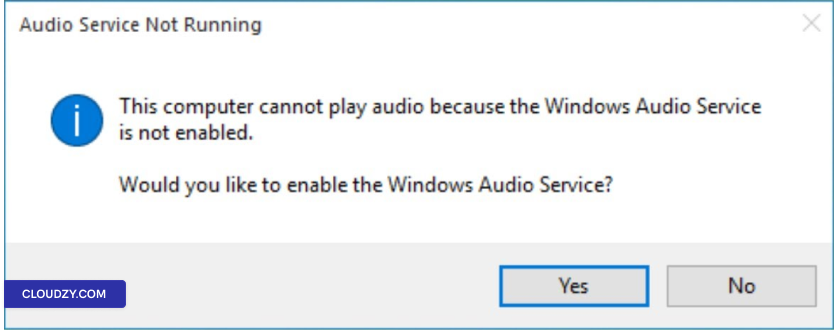
Ha egy üzenet jelenik meg, hogy az audiorendszer nem fut,
kattintson a Igen az Windows Audio Service engedélyezéséhez. Ez
biztosítja az alapvető hangszolgáltatásokat a hanglejátszáshoz és
A felvételek működőképesek.
- Hangszolgáltatások manuális engedélyezése:
Szükség esetén manuálisan indítsa el vagy indítsa újra az audioeszközöket. Nyomja meg
Windows billentyű + R, írjon services.msc,
és nyomja meg Enter. Keress Windows Audio
a listában, kattints rá jobb gombbal, és válaszd ki Indítás vagy
Újraindítás.
- Alapértelmezett lejátszási és felvételi eszközök beállítása:
Belül a Hang beállítások, a alatt
Lejátszás lapon ellenőrizze, hogy a helyes lejátszási eszköz be van-e jelölve
engedélyezve és alapértelmezettként beállítva. Hasonlóan a
Felvétel fülön engedélyezze és állítsa be az alapértelmezett felvételt
eszköz szükség esetén.
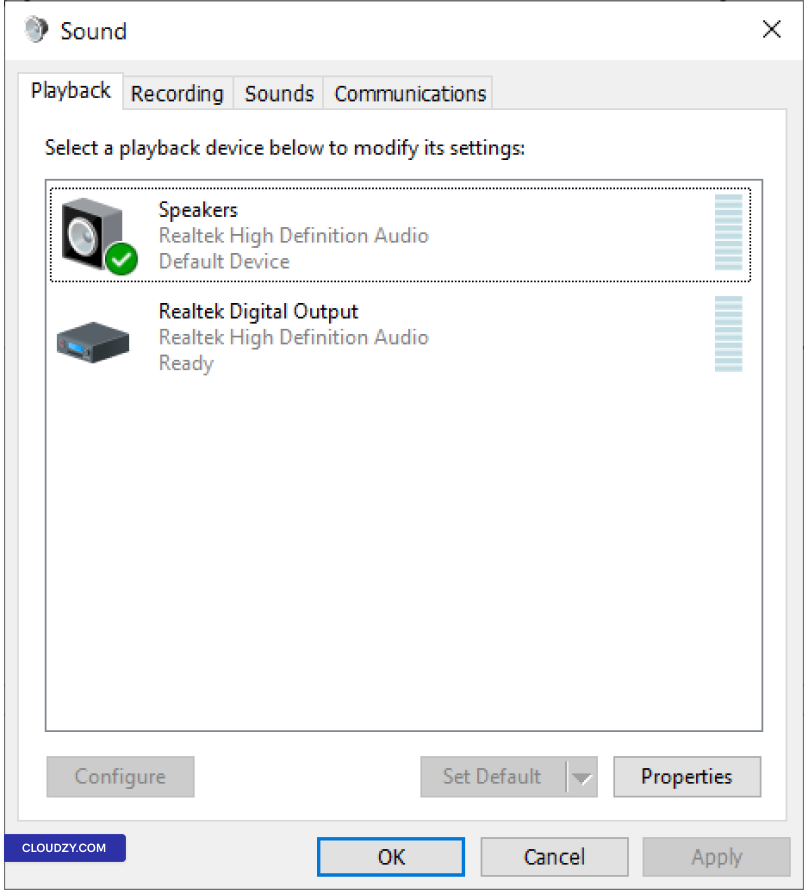
Az alábbi lépések elvégzésével biztosítod, hogy a távoli számítógép
az audio kimenet és bemenet kezelésére konfigurálva.
Lépés 2:
Távoli asztal kliens beállításainak konfigurálása
- Nyissa meg a Távoli asztal kapcsolat klienst:
A helyi számítógépén nyissa meg a Remote Desktop
Connection kliens. Ezt a Start menüben találod meg:
Windows Accessories, vagy indítsd el a következő beírásával
mstsc ben Futtasd le párbeszédpanel (Windows billentyű +
R).
- Speciális beállítások elérése:
Csatlakozás előtt kattintson a Lehetőségek megjelenítése megjeleníteni
további beállítások. Ez kibővíti az interfészt további lehetőségekkel
konfigurációs lehetőségek.
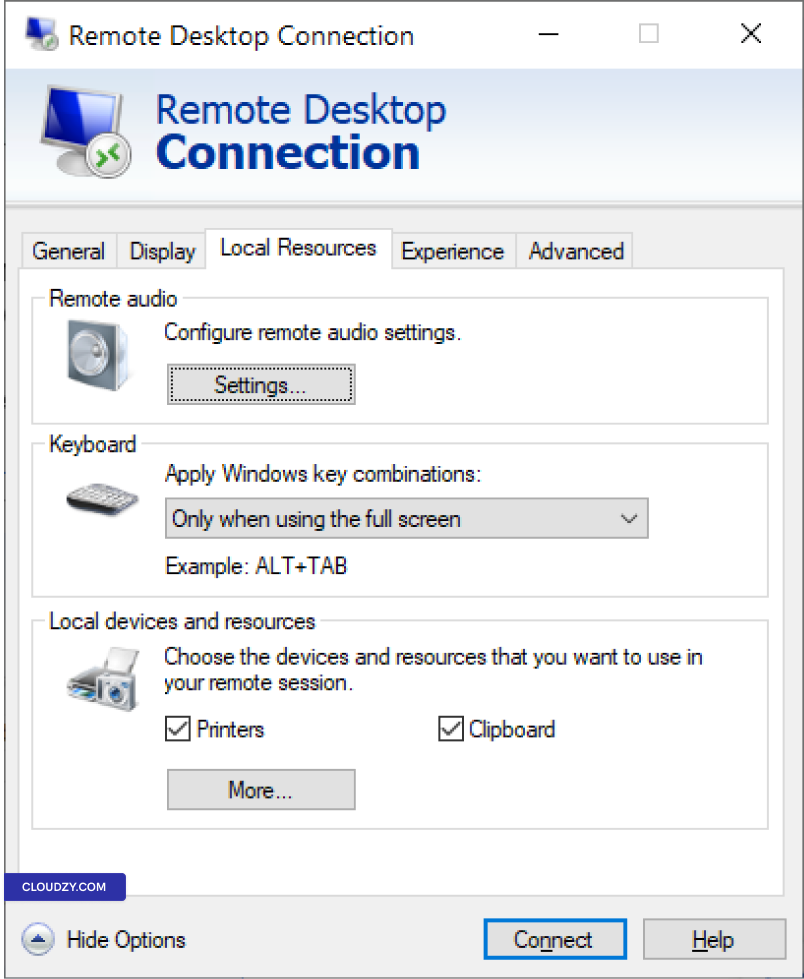
- Navigáljon a Helyi erőforrásokhoz:
Menj a Helyi erőforrások fül. Ez a fül a következőket tartalmazza
helyi eszközök és erőforrások beállításai, beleértve a hangot.
- Remote audio-beállítások konfigurálása:
Kattintson a Beállítások gomb alatt a
Távoli hang szakasz.
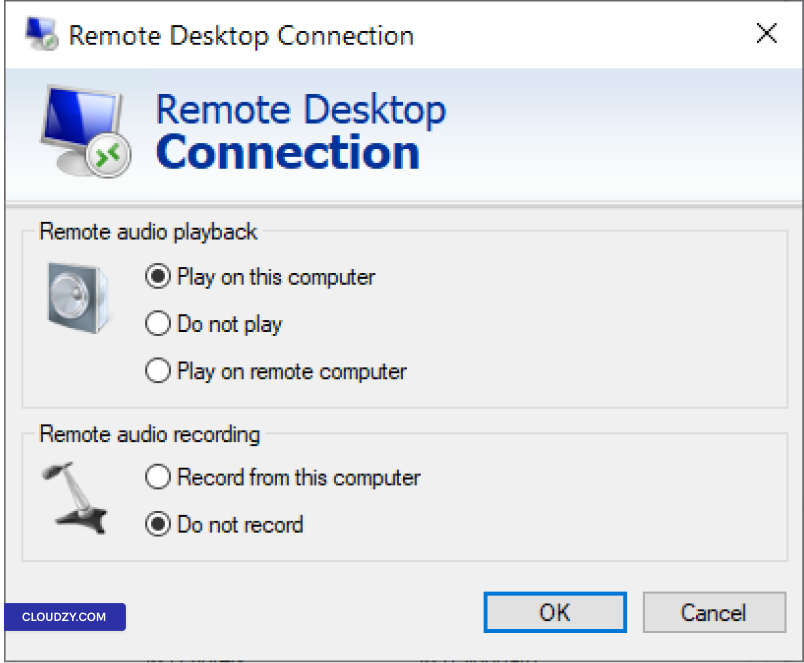
Itt válassz ki Játssz ezen a számítógépen hanghoz
lejátszás. Mostantól a helyi számítógéped hangszórója fog hangot lejátszani.
Opcionálisan, ha a helyi számítógéphez csatlakoztatott mikrofont szeretnél használni
hangbemenetként a távoli számítógépen, válassza ki Rögzítés
ebből a számítógépből.
- Mentés és Csatlakozás:
Mentse el ezeket a beállításokat, majd folytassa a távoli eszközhöz való csatlakozással
számítógépként szokott.
Ezek a beállítások módosításai a Remote Desktop kliensen biztosítják
a hang a távoli számítógépről a helyi gépre továbbítódik
Távoli Asztal munkamenetek során. Ha további információra vagy
támogatásra van szükséged, fordulj bizalommal támogatási csapatunkhoz elküldve egy
jegy.
Szintén itt: Windows / RDP
Kapcsolódó útmutatók.
Másban kell segítség?
Medián válaszidő 1 órán belül. Valódi emberek, nem botok.