
RDP画面解像度の調整に問題が発生している場合
Windows VPS でこのガイドを使用すると、
Windows、macOS、Android、その他から Remote Desktop 接続の解像度を変更できます。
iOS.
変更
Windows からのリモート デスクトップ解像度
Windows オペレーティングシステムを使用している場合、簡単に解像度を変更できます。
Built-in Remote Desktop を使用したリモート デスクトップの解像度
アプリケーションで実行します。解像度を調整するには、以下の手順に従ってください:
あなたの設定
ステップ1: 起動
リモートデスクトップ接続
Remote Desktop Connection アプリケーションを起動してください。
以下のいずれかの方法で実行できます:
Windows キーを押して、入力します リモートデスクトップ
Connection または mstsc 検索ボックスに入力して
押す Enter.
ステップ 2: 高度な設定にアクセス
オプション
Remote Desktop Connection ウィンドウが開いたら、
オプションを表示 ボタン。追加の
リモートデスクトップセッションの設定と構成を行います。
ステップ 3: 構成
表示設定
に移動 ディスプレイ リモート内のタブ
デスクトップ接続ウィンドウ。ここでは、様々なディスプレイ関連の
調整可能な設定
ステップ4: 調整
解像度
Remote Desktop セッションの解像度をカスタマイズするには、
ディスプレイ設定セクションのスライダーを使用します。スライダーを動かして、
希望の解像度を選択できます。これはデバイスの性能と
視覚的な設定に合わせてカスタマイズできます。
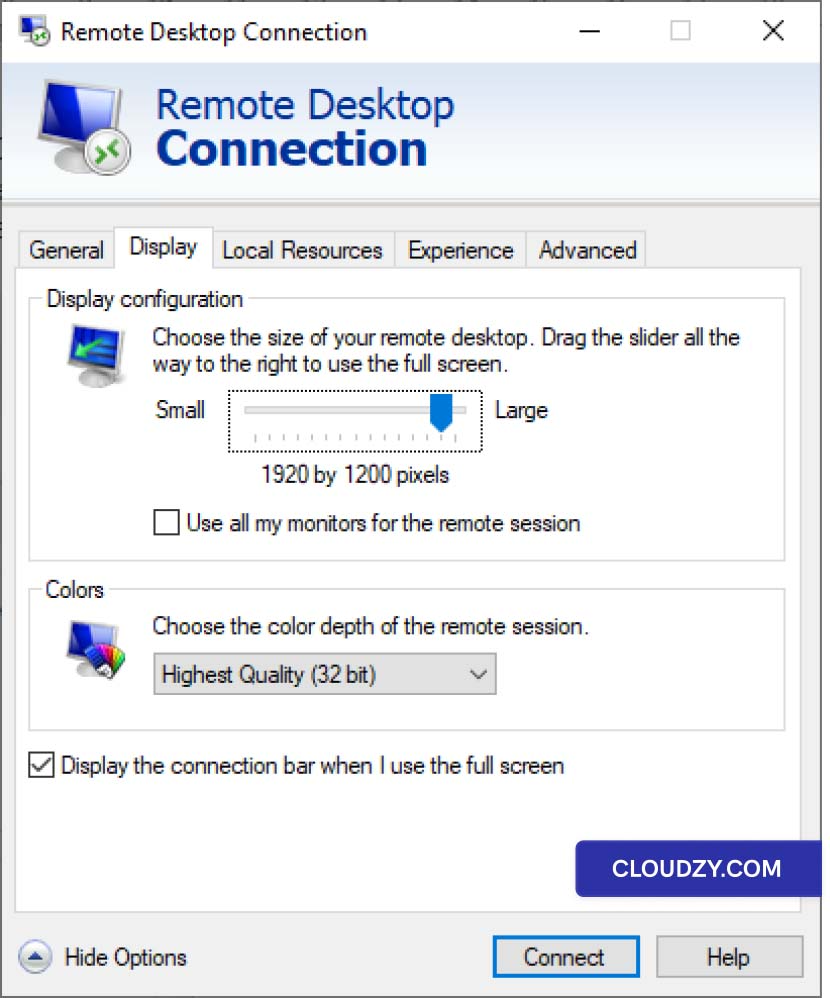
調整
macOS からのリモート デスクトップ解像度
既に Remote Desktop プロファイルを持っている macOS ユーザーの場合、
Microsoft Remoteから直接RDP接続の解像度を調整する
Desktop から Windows に接続するのと同じアプリケーションを使用できます
VPS:
-
macOS 上で Microsoft Remote Desktop アプリケーションを起動します
Applications フォルダからデバイスを選択します。 -
アプリケーション内で、以下をクリックしてください ••• (三点リーダー)
メイン画面のボタンをクリックして選択する 編集. -
に リモートデスクトップを編集 ウィンドウを選択して
調整したいリモートデスクトップ接続。 -
クリック 編集 ボタン(鉛筆アイコン)の
ウィンドウの下部でそれの設定を変更するには
接続 -
に リモートデスクトップを編集 ウィンドウに移動して、
ディスプレイ タブ。 -
確認する すべてのモニターを使用 オプションがチェックされていません
リモートデスクトップのカスタム画面解像度を設定する。
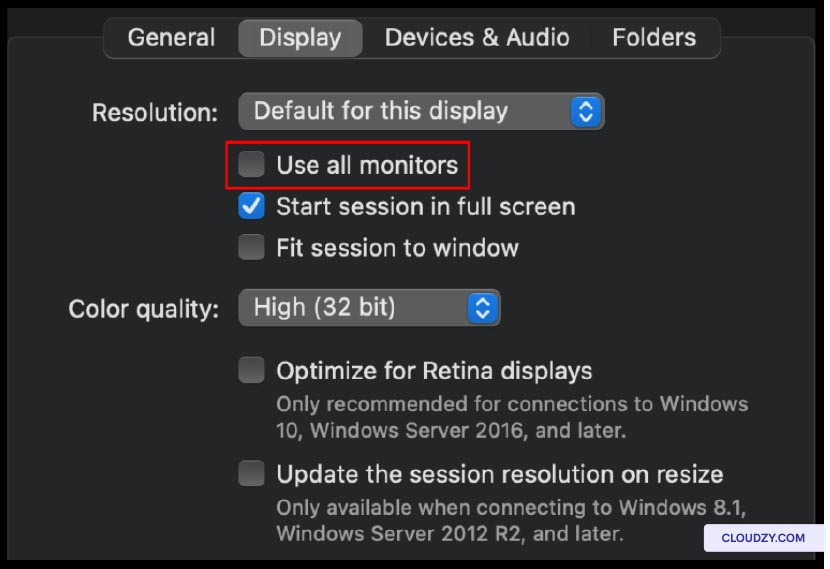
- ここでは、表示設定をカスタマイズするオプションがあります。使用する場合は
リモートデスクトップの優先解像度を設定するスライダー
セッション
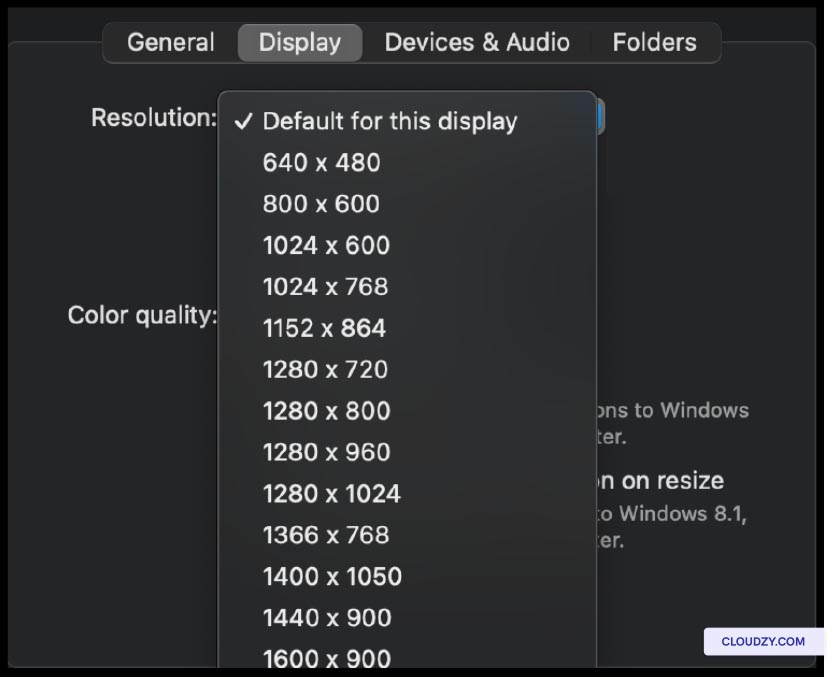
-
オプションで、ディスプレイ関連の他の設定を調整することができます。例えば
色深度やスケーリングなど、自分の好みに合わせて調整できます。 -
ディスプレイ設定を設定した後、クリックしてください
保存 変更内容を保存するボタン。
調整
iOSからのリモートデスクトップ解像度
iOSユーザー向けのリモートデスクトップの解像度変更手順
は以下の通りです:
ステップ1:
リモートデスクトップアプリケーションを起動
お使いのiOSデバイスでリモートデスクトップアプリケーションを起動します。その後
Windows VPS への接続に使用するのと同じアプリケーションです。
ステップ 2: アクセス
設定
アプリを開いたら、画面上の ••• (3点ボタン) をタップしてください。
画面の左上隅にあります。ここをクリックするとメニューが表示されます
オプション
ステップ 3: 構成
表示設定
メニュー内から選択 設定 にアクセスするには
リモートデスクトップセッションの設定オプション。設定後は
設定セクションで、以下に移動します ディスプレイ カテゴリー
ステップ 4: 選択
あなたの希望する解像度
に ディスプレイ セクションで、次のオプションが見つかります
希望の解像度を選択してください。この設定をタップするとリストが表示されます
利用可能な解像度から選択できます。iOS に最適な解像度を選んでください
デバイスと表示設定。
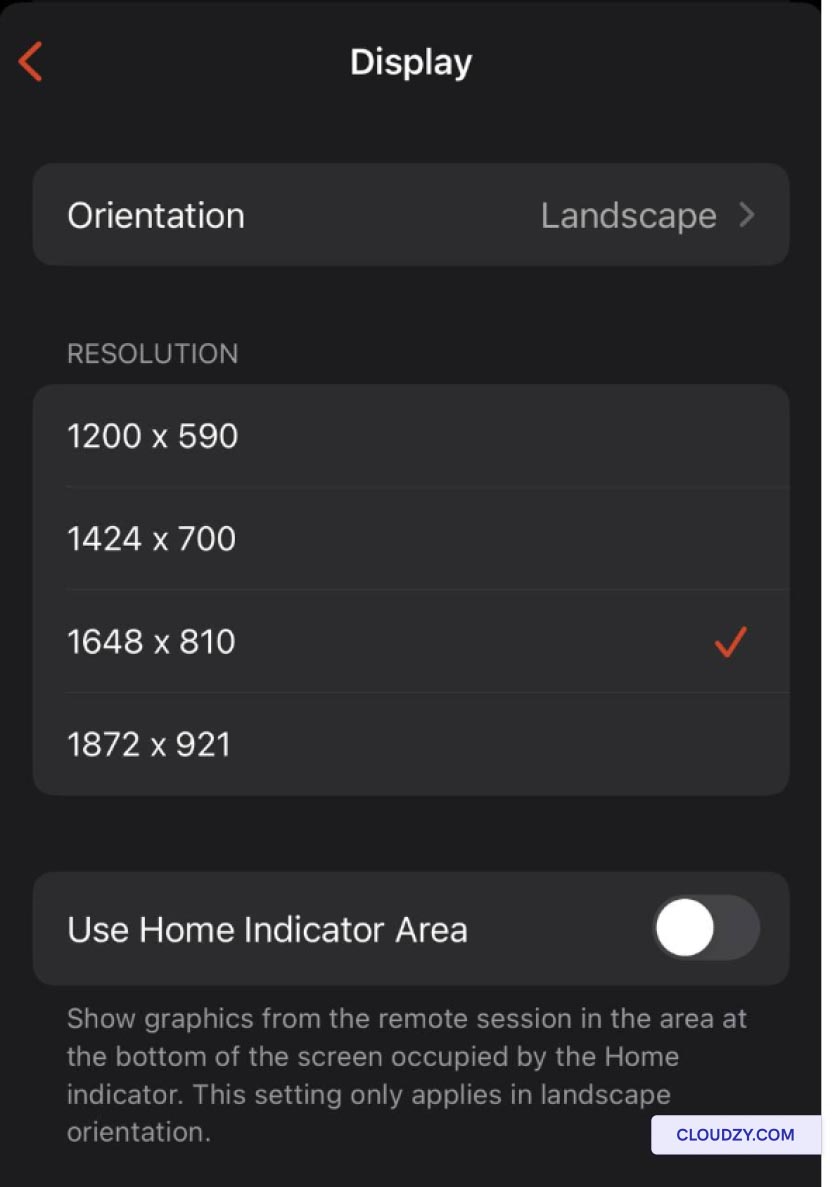
修正中
Androidからのリモートデスクトップ解像度
Androidユーザーは、リモートデスクトップを変更するために次の手順に従うことができます
解像度:
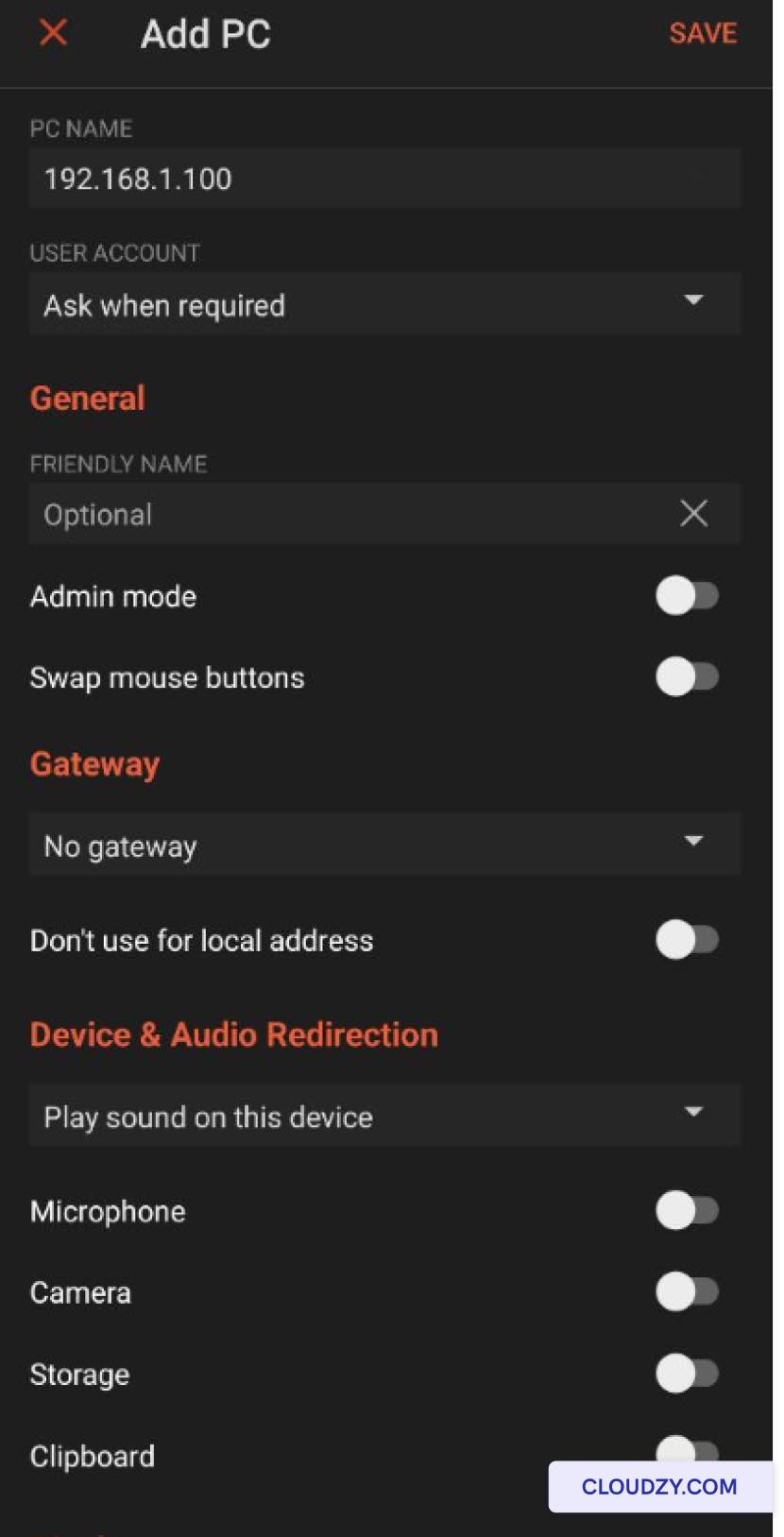
ステップ1: カスタマイズ
ディスプレイ解像度
Microsoft Remote Desktop アプリケーションから接続するために使用する
あなたの VPS をページの下部セクションで探してください。
ディスプレイ解像度をカスタマイズ オプション。切り替えてください
オフ to On カスタマイズを有効にするために
ディスプレイ解像度。
ステップ 2: お選びください
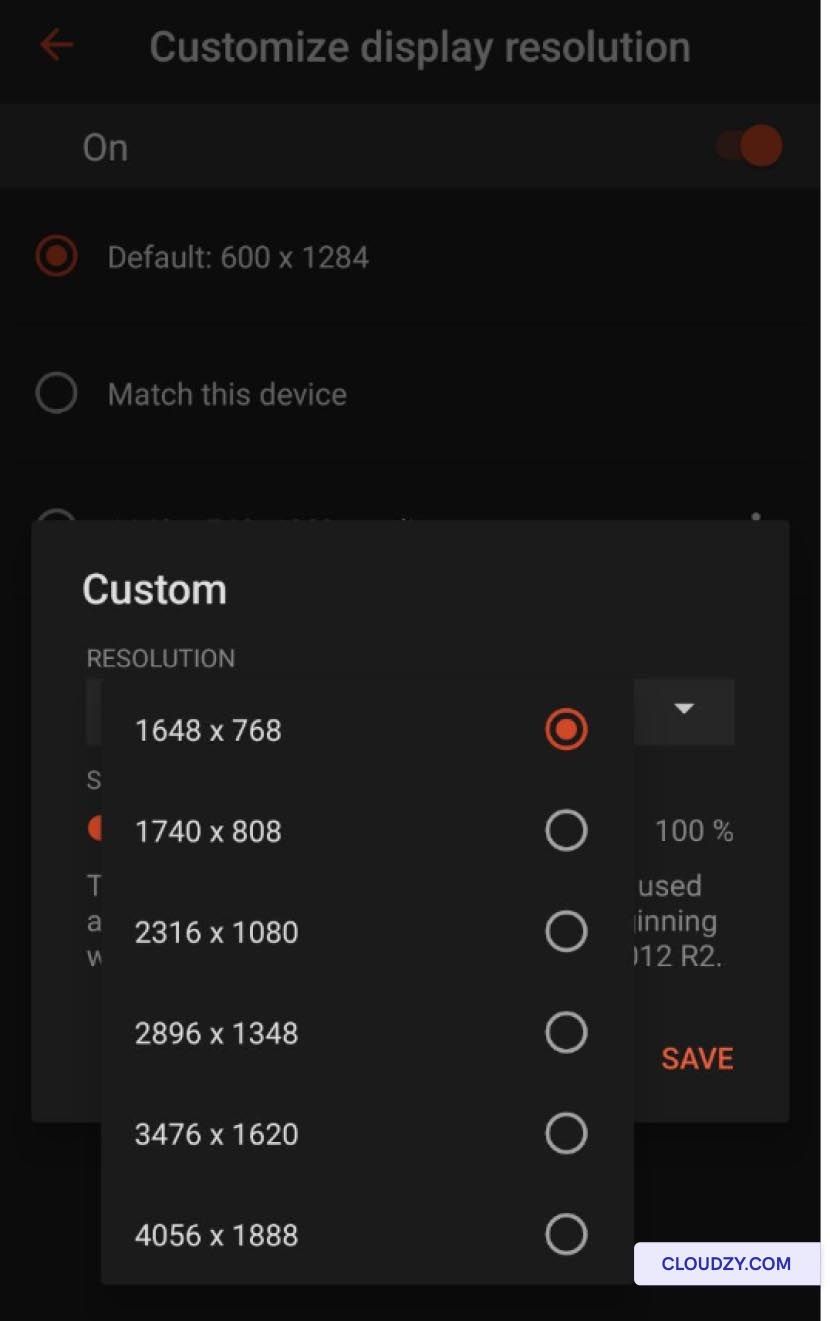
解像度
有効化後に ディスプレイ解像度をカスタマイズ、a
ドロップダウンメニューが表示され、複数の解像度オプションが提示されます。選択してください
あなたのニーズと機能に最も適した解像度
Android デバイス。
ステップ3: 保存
設定と接続
希望する解像度を選択したら、必ず保存してください
設定を構成します。その後、アプリケーションのホームページに戻ります。
ホームページから、以下の方法で VPS に接続できます。
に設定された接続。リモートデスクトップセッションが確立されます
選択した解像度設定。
<BlogFAQSection data={[ { title: 'なぜ調整が重要なのか
リモートデスクトップの解像度?', answer: 'リモートデスクトップの
解像度は、シームレスでカスタマイズされた視聴体験を保証するために重要です
異なるデバイスからリモートでコンピュータにアクセスする際のエクスペリエンス。
適切な解像度調整がないと、圧縮された視覚要素が発生する可能性があります
または大きすぎる要素があると、生産性が低下します。', }, { title: 'Can I
必要に応じてデフォルトの解像度設定にリセットできますか?', 答え: 'はい、
デフォルトの解像度設定に戻すことができます(必要な場合)。ほとんどのリモート
デスクトップアプリケーションとオペレーティングシステムは、次のものに戻すことができます。
必要に応じてデフォルト設定を変更でき、柔軟性を確保します
adaptability.', }, { title: 'さらに役立つヒントはありますか
リモートデスクトップの体験を最適化していますか?』という質問に対して、答えは『同時に
解像度を調整する際には、色深度、スケーリングなどの要因を考慮してください
さらにリモートデスクトップの使い心地を高めるための品質設定も用意しています。
これらの設定を試してあなたに最適な設定を見つけてください
あなたのニーズと好みに合わせて
同じカテゴリー Windows / RDP