
クラウド仮想プライベートサーバー上の接続の問題のトラブルシューティング
(VPS) では、ファイアウォール設定の確認と調整が必要になることがよくあります。
適切に構成されたファイアウォールは最適なレベルを維持するために不可欠です
セキュリティを維持しつつ、サービスの可用性も確保する方法についてのこの記事
包括的なガイドを提供します。管理およびトラブルシューティング方法について
VPS のファイアウォール設定により、接続性の向上。
前提条件
ファイアウォールのトラブルシューティング手順に進む前に、以下を確認してください
次の前提条件を満たす必要があります:
-
Sudo権限: sudo権限を持っている必要があります
VPS で管理コマンドを実行する場合。 -
ファイアウォールの基本知識: 基本的な知識
ファイアウォールの概念とコマンド。UFW (Uncomplicated) に特化した内容
このガイドで使用しているファイアウォール)。 -
SSHアクセス: SSH アクセスがあることを確認してください
VPS リモートコマンド実行用 -
更新されたシステム: あなたのVPSは以下を実行しているべきです
そのセキュリティのための最新バージョンのオペレーティングシステム
互換性があります。システムを更新するには、VPS にログインして、以下のコマンドを実行してください
2つのコマンド
sudo apt update && sudo apt upgrade.ステップ1: ファイアウォールを確認する
ステータス
- ファイアウォールのステータスを確認:
まずは次のコマンドでファイアウォールの現在の状態を確認してください。
sudo ufw statusこのコマンドはファイアウォールがアクティブであるかどうかを表示し、任意の
既存のルール。
- ファイアウォールが無効の場合は有効にする:
ファイアウォールがアクティブでない場合は、有効にする必要があります。その前に
そのため、SSH接続がロックされないように許可されていることを確認してください
出力:
sudo ufw allow ssh
sudo ufw enable
これらのコマンドはファイアウォール経由のSSH接続を許可し
その後、有効化してください。
このステップはファイアウォールが実行されていることを確認するために重要です
初期診断のために正しく設定されています。
ステップ2: レビュー
およびファイアウォールルールの変更
- 現在のファイアウォールルール一覧
現在のファイアウォールルールをすべて番号付きで表示するには、以下を実行してください:
sudo ufw status numbered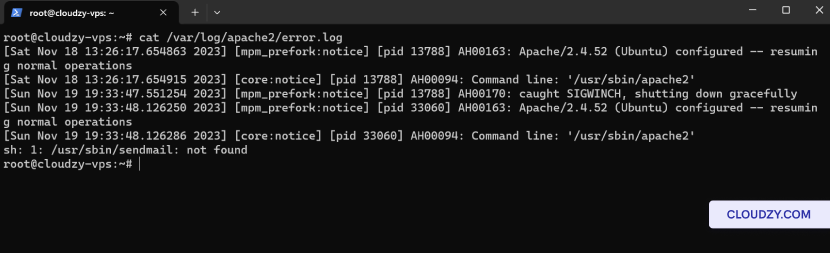
このコマンドは、すべてのルールとその概要を明確に提供します
順序
- 特定のポートを許可する:
特定のポートのトラフィックを許可するには、以下を実行してください:
sudo ufw allow [port_number]置き換える [port_number] 実際のポート番号を使用して
開きたい。
- 特定のポートを拒否:
特定のポートのトラフィックをブロックするには、以下を使用します:
sudo ufw deny [port_number]置き換える [port_number] ご希望のポート番号を使って
閉じる
- 特定のルールを削除:
ルールを削除するには、リストからそのルール番号を確認してから、以下を実行してください。
sudo ufw delete [rule_number]置き換える [rule_number] 対応する番号付きで
削除したいルールを選択してください。
- ルールを再確認更新:
変更を加えた後、更新されたルールを以下のコマンドで確認してください:
sudo ufw statusファイアウォールルールを必要に応じて確認・変更することで、
VPS との間のトラフィックフローを管理し、潜在的な問題に対処する
接続の問題。
ステップ3: テスト
接続性
- サービス接続をテストします:
ウェブサービスの場合、ブラウザでウェブサイトにアクセスするか、
コマンドのような: curl http://your_website.com.
-SSH の場合、次でコネクションをテストしてください ssh
username@your_vps_ip.
FTP サービスの場合、FTP クライアントまたはコマンドを使用して接続してみてください
コマンド: ftp your_vps_ip.
- 許可されたポートへのアクセスを確認:
-
特定のポートにアクセスできるか確認するには、telnetを使用できます
この同じ文字列はアラビア語に「:」と翻訳されました。 つまり、翻訳可能であることはわかっていますよね。ブランド名ではありません。 Japanese語に翻訳してください。翻訳のみを返してください。引用符やコメントなしで: telnet your_vps_ip port_number. -
例えば、ポート 80 で Web サーバーをテストする場合: telnet
your_vps_ip 80.
- ブロック済みサービスのポート確認:
-
拒否されたポートへの接続がブロックされていることを確認してください。次に試してください。
ブロックされたポートのサービスに接続すると、接続に失敗するはずです。 -
たとえば、ポート 8080 をブロックしている場合、以下を使用してテストできます
telnet your_vps_ip 8080 失敗すべきです。
これらのコマンド例を含めることで、実践的なアプローチを提供します
ファイアウォール設定の有効性を検証しています。
ステップ4:
追加のトラブルシューティング
- サービスステータスを確認:
ウェブサーバーなど、アクセスしようとしているサービスが正しく動作していることを確認してください
(apache2, nginx) またはデータベース (mysql) が稼働しているか確認してください。以下のようなコマンドを使用します
sudo systemctl status apache2 確認する
状態
- IPの制限を確認:
ファイアウォール内にIP ベースの制限が設定されていないことを確認してください。
誤ってアクセスをブロックすることがあります。以下で確認できます sudo
ufw ステータス.
- ログを確認して手がかりを探す
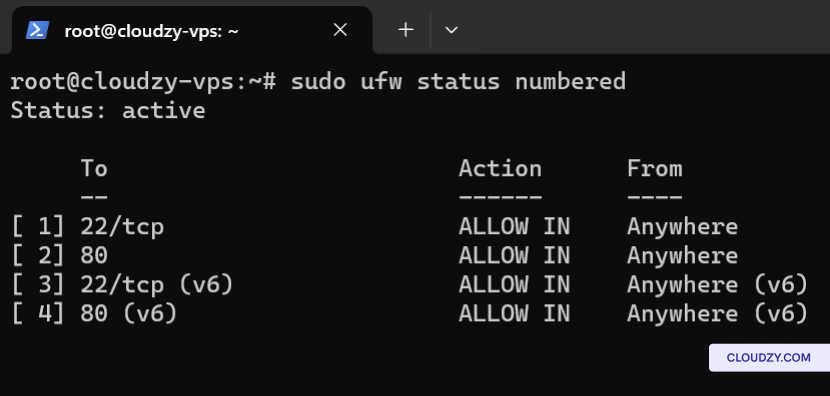
サーバーログをチェックして、エラーメッセージまたは関連する手がかりがないか確認してください
接続の問題が発生しています。Apache の場合は、以下を確認してください
/var/log/apache2/error.log.
- ネットワーク診断ツールを使用する:
-
ピング: サーバーへのネットワーク接続をテストする
(ping your_server_ip). -
トレースルート: あなたのパケットが通るパスを追跡する
server (traceroute your_server_ip)。このコマンドはネットワークの経路を確認するのに役立ちます
ルート上で接続の問題が発生する場所。 -
Netstat: ネットワーク接続を表示して
リッスンポート (netstat -plntu)。どのサービスが実行されているかを確認するのに便利です
どのポートでリッスンしているか。 -
Nmap: スキャンしてオープンポートを確認します
ファイアウォールルールが正しく適用されています (nmap your_server_ip)。
これらの追加のステップとツールは、診断と解決を支援できます
より複雑な接続の問題。
これであなたは接続のトラブルシューティングについてすべてを知っています。もし
ご質問やご不明な点がありましたら、以下の方法でお気軽にお問い合わせください 送信する
チケット!
同じカテゴリー ネットワークとファイアウォール