
リモートデスクトッププロトコル
様々なソフトウェアに対して簡単な接続を提供する属性
完了です。ご不明な点がございましたら、お気軽にお問い合わせください。
Microsoft Remote Desktop アプリケーション Google Play ストアで便宜を提供します
Windows マシンと他のオペレーティングシステム間で接続を確立できます。
Android デバイスから Windows VPS を操作できます。このアプリをスマートフォンにインストールするための手順はシンプルです。さっそく始めましょう。
先に進んで説明してください。
ステップ1: ダウンロード
アプリケーション
あらゆるアプリケーションを使用する最初のステップは、それをダウンロードすることです。ただし
ウェブアプリケーションです。アプリケーションをダウンロードする際の最も重要なポイントは
信頼できるソースからダウンロードすることです。
Google Play Storeのウェブサイトまたはアプリケーションは良い選択肢になる可能性があります
ダウンロードするための リモート
デスクトップアプリケーション.
ステップ 2: 開く
アプリケーション
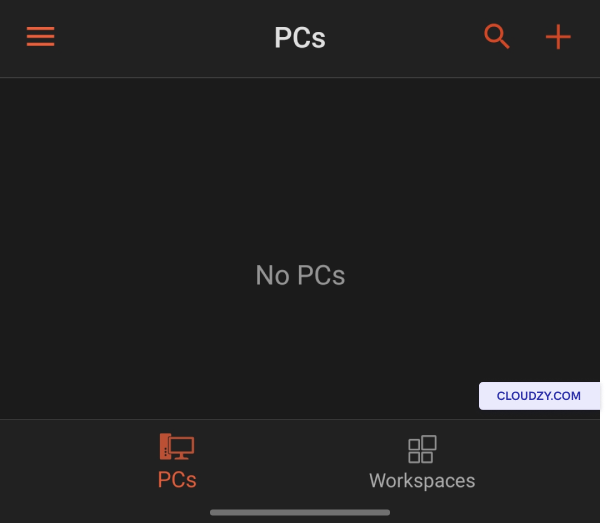
ダウンロード後、アプリケーションを開いてください。 No
パソコン 下の画像のように表示されます。
ステップ 3: 新しいデバイスを追加
Connection
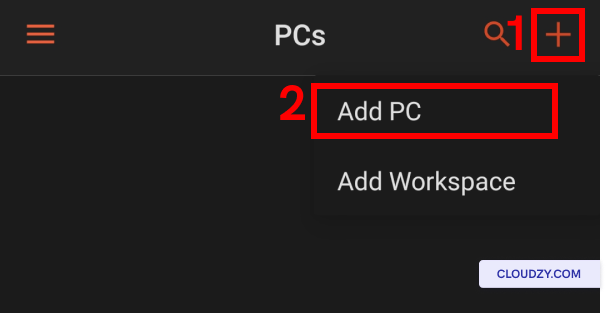
プラス記号をタップするか + ボタンをクリックして選択してください
PCを追加.
ステップ4: 入力
認証情報
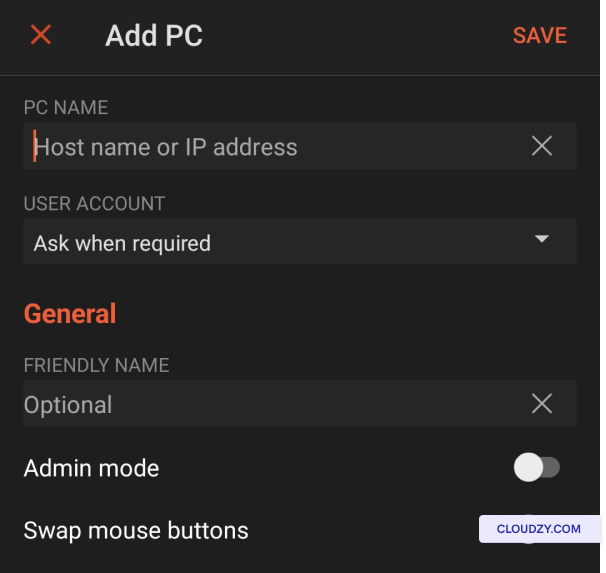
この手順では、Windows VPS の認証情報を追加する必要があります。Go に進んでください。
そしてサーバーのIPアドレスを最初のフィールドに入力して、次のフィールドに入力してください
要件は自由に設定できます。
ステップ 5: に接続する
VPS
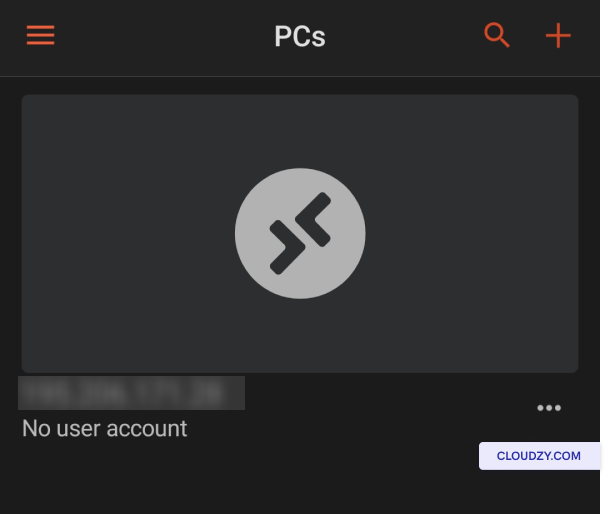
これで、Windows VPS がPC リストに追加されたことが確認できます。
をタップして接続を開始します。
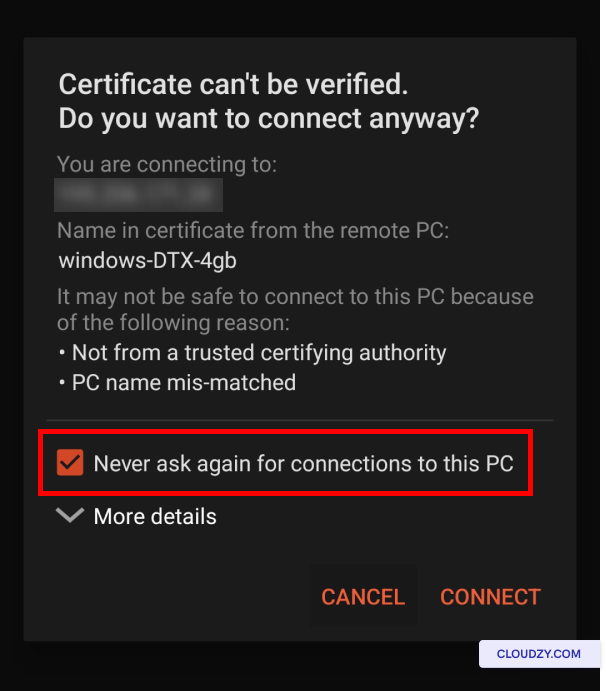
この新しいウィンドウで、 二度と聞かない
このPCへの接続 オプションがチェックされていることを確認してから、
接続.
ステップ 6: 使用を開始する
VPS
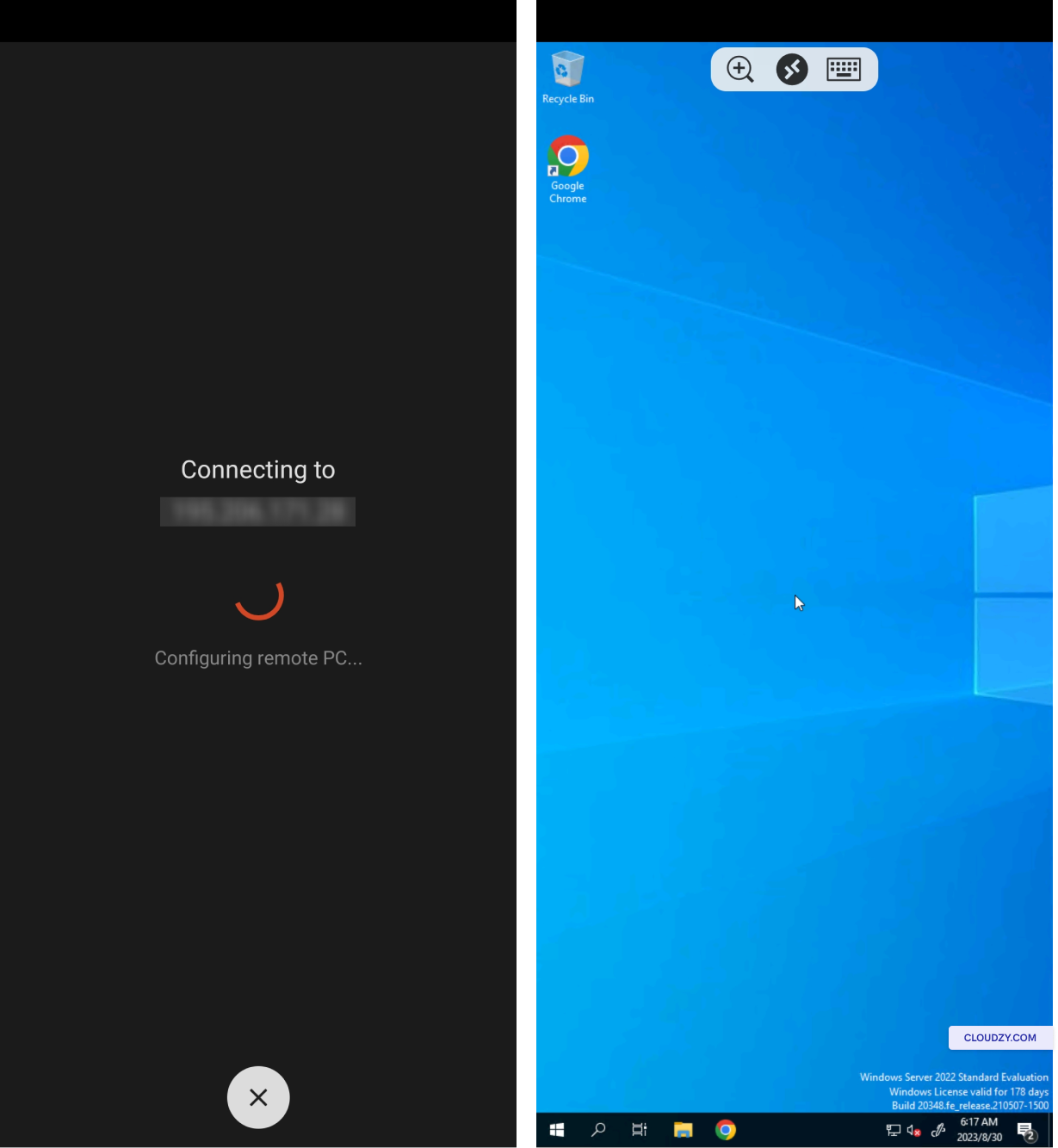
ご覧のとおり、VPS に接続され、Android デバイスで
使用を開始できます。
ご不明な点がございましたら、サポートチームまでお気軽にお問い合わせください。
送信する
チケット.
同じカテゴリー Windows / RDP