
多くのユーザーはWindowsとLinuxの両方を実行する機能から恩恵を受けることができます
Windowsマシン上で同時に実行できます。Windows Subsystem for Linux
(WSL) を使用すると、Linuxディストリビューション(Ubuntuなど)を
OpenSUSE、Kali、Debian、Arch Linux等)およびLinuxアプリケーションを使用して、
ユーティリティおよびBashコマンドラインツールをWindowsで直接実行できます。変更の必要はありません。
従来の仮想マシンやデュアルブートのオーバーヘッドなしで
セットアップ
前提条件:
始める前に、正しいバージョンを実行していることを確認することが重要です。
Windows のバージョン:
Windows バージョンの確認:
Windowsのバージョンを確認するには、次の手順に従ってください。
-
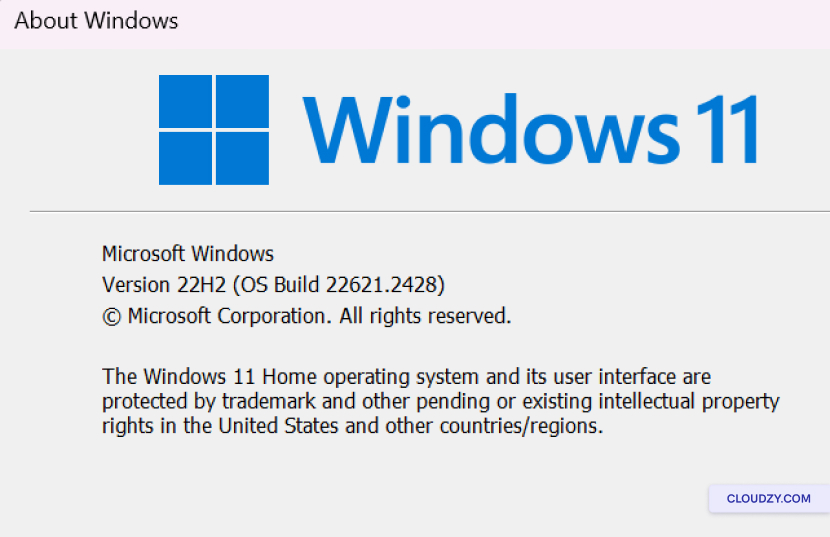
Windows + Rを押して、ファイル名を指定して実行ダイアログを開きます。
-
winver と入力して Enter を押してください。
-
ウィンドウが表示され、Windowsのバージョンとビルド番号が表示されます
バージョン番号を確認してください。Windows 10 バージョン2004以降を実行していることを確認してください。
(Build 19041 以上) または Windows 11 でこれらのコマンドを使用するため
以下。
WSLをインストール
WSLを実行するために必要なすべてのものを1つのコマンドでインストールできるようになりました。
コマンドを実行します。手順は以下の通りです。
ステップ
1: コマンドプロンプトを管理者モードで開く
-
Windowsのスタートボタンを右クリックします。
-
選択 Windows Terminal(管理者) または
コマンド プロンプト (管理者)これは重要です。
インストールには管理者権限が必要です。
ステップ2:入力してください
インストールコマンド
コマンドプロンプトまたは Windows ターミナルで管理者権限を使用して、
次のコマンドを入力してください:
wsl --install --web-download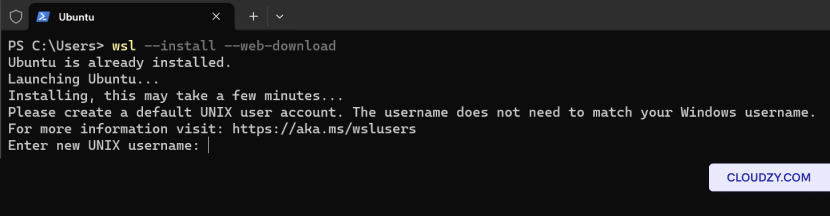
変更する
デフォルトLinux Distribution
デフォルトでは、インストールされた Linux ディストリビューションは Ubuntu になります。ただし、
このデフォルト配布をを使用して変更できます -d
フラグ
インストールするディストリビューションを変更するには、以下の手順に従ってください。
-
コマンドプロンプトまたは Windows ターミナルを開きます。
-
Enter wsl –list –online リストを表示する
オンラインで利用可能なLinuxディストリビューション
ストア
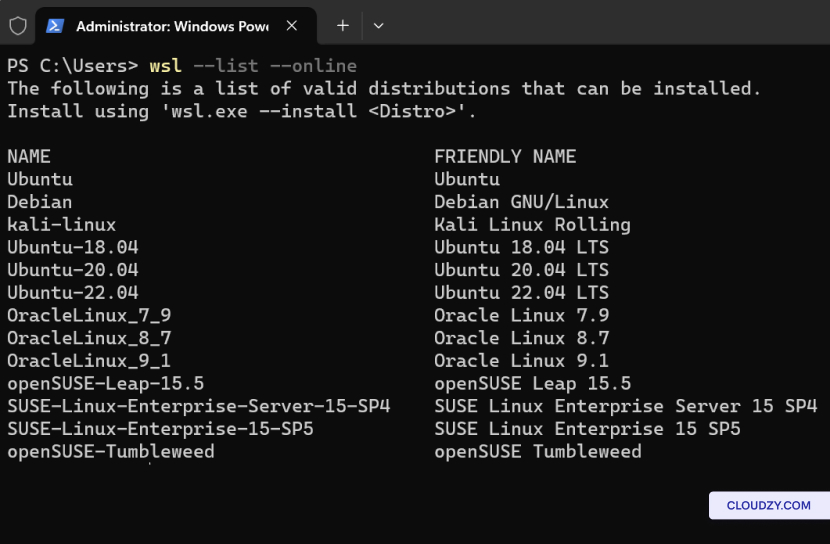
- 置き換える ディストリビューション名 名前付きで
必要なディストリビューションを選択して実行します。
wsl --install -d <Distribution Name>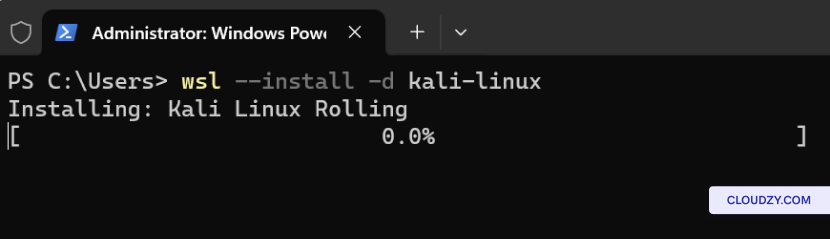
実行方法
Linux ディストリビューション (WSL を使用)
Windows Subsystem を使用して Linux ディストリビューションをインストールした後
Linux (WSL) では、簡単に起動して作業を開始できます。方法は以下の通りです。
Linux ディストリビューションを実行するには、
オプション 1: スタート メニュー
検索
-
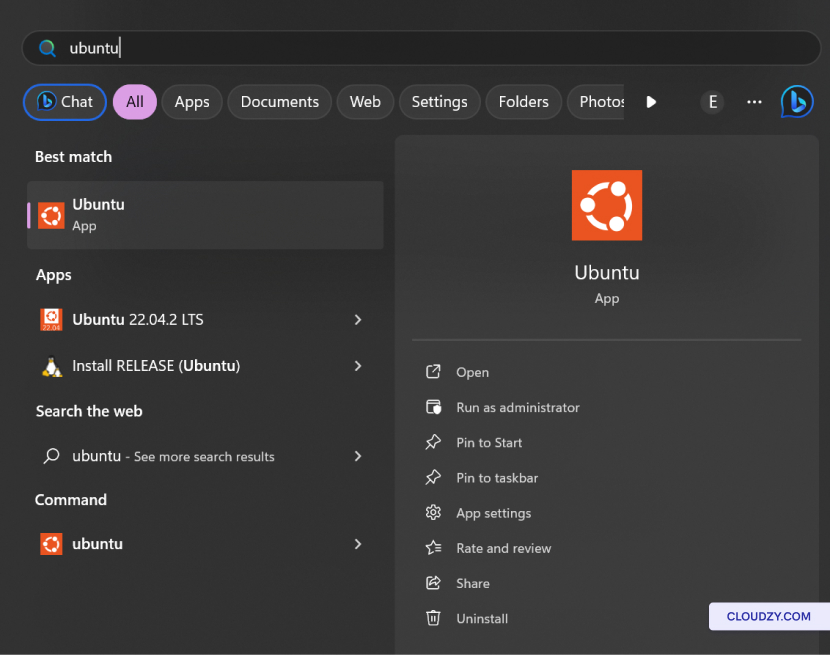
Windows のスタートメニューの検索バーに、インストール済みディストリビューションの名前を入力します。
Linux ディストリビューション。たとえば、Ubuntu がインストール済みの場合は、単純に
入力する Ubuntu. -
Windowsは検索結果にあなたのLinuxディストリビューションを表示します
結果から選択してクリックし、ディストリビューションを起動します。
オプション 2: コマンド
行
コマンドラインからLinuxディストリビューションを実行することもできます
Windows. 方法は以下の通りです:
-
コマンドプロンプトまたは Windows ターミナルを開きます。
-
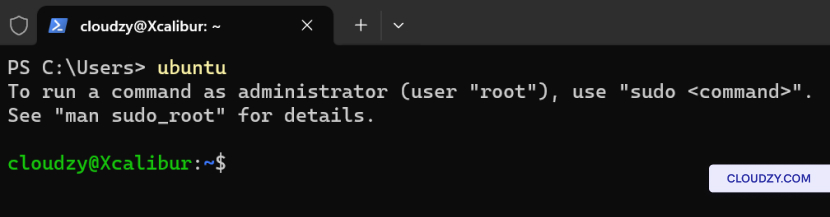
インストール済みディストリビューションの名前を入力します。たとえば、
Ubuntu があれば、入力してください ubuntu を入力してEnterキーを押してください。
基本コマンド
WSL
WSLをインストールしてLinuxをセットアップしたので
ディストリビューションを使用する場合は、基本的なコマンドに慣れておくことが重要です。
Linux 環境内で効率的に作業するためのコマンドを以下に示します。
WSL内で使用できるいくつかの主要コマンド。
インストール済みLinuxのリストを表示
配布:
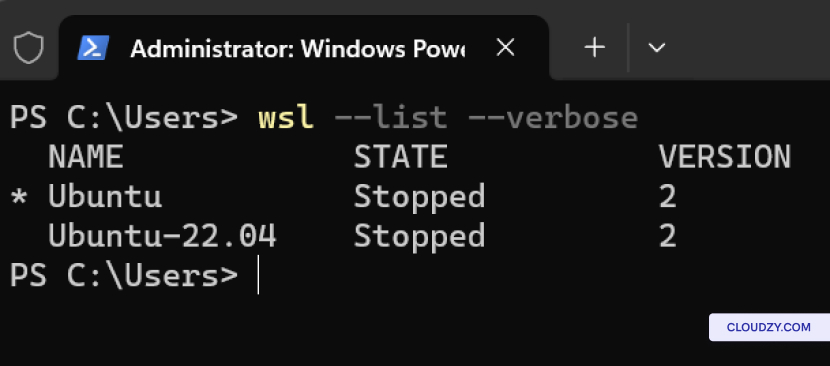
Windows にインストールされている Linux ディストリビューションの一覧を表示するには
マシン、その状態とWSLバージョンを含めて、使用します:
WSLバージョンを設定:
特定の Linux ディストリビューションの WSL バージョン (1 または 2) を設定するには、
使用:
wsl --set-version <distribution name> <versionNumber>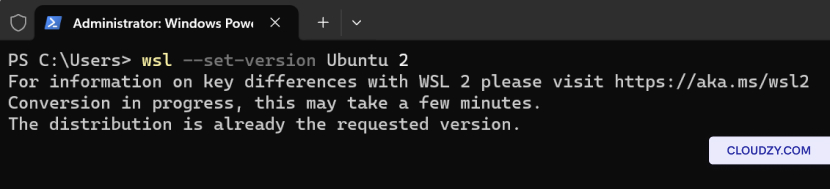
デフォルト WSL を設定
バージョン:
WSL の新しい Linux ディストリビューションのデフォルト バージョン (1 または 2) を設定するには
インストール、使用:
wsl --set-default-version <Version>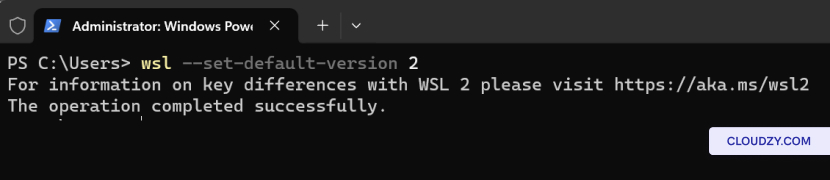
デフォルト Linux を設定
配布:
wsl コマンドで使用するデフォルト Linux ディストリビューションを設定するには、
使用:
wsl --set-default <Distribution Name>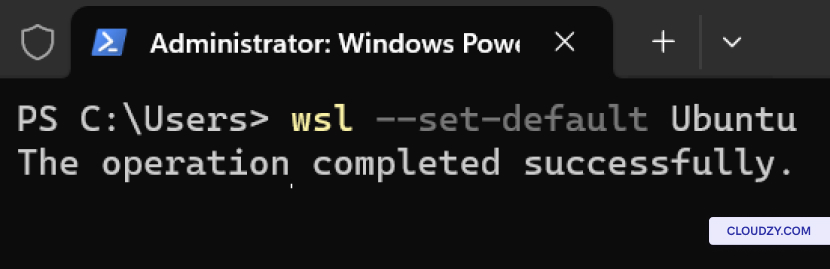
特定のLinuxを実行
配布:
特定の Linux ディストリビューションを特定のユーザーで実行するには、以下を使用してください。
wsl --distribution <Distribution Name> --user <User Name>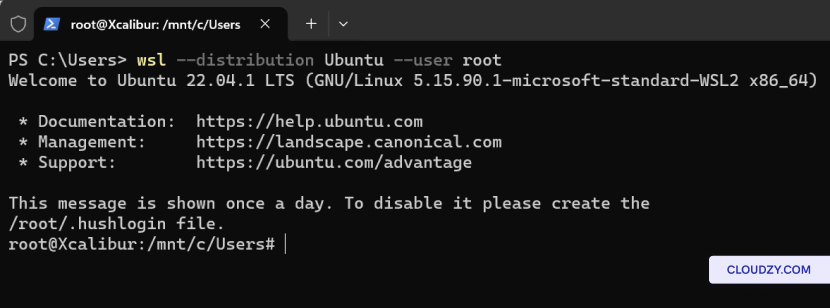
削除
特定のLinuxディストリビューション
WSLから特定のLinuxディストリビューションを削除したい場合
セットアップするには、以下の手順に従ってください:
-
コマンドプロンプトまたは Windows ターミナルを開きます。
-
次のコマンドを実行して置き換えます distro
name 使用したいディストリビューションの名前を指定して
削除:
wsl --unregister <distro name>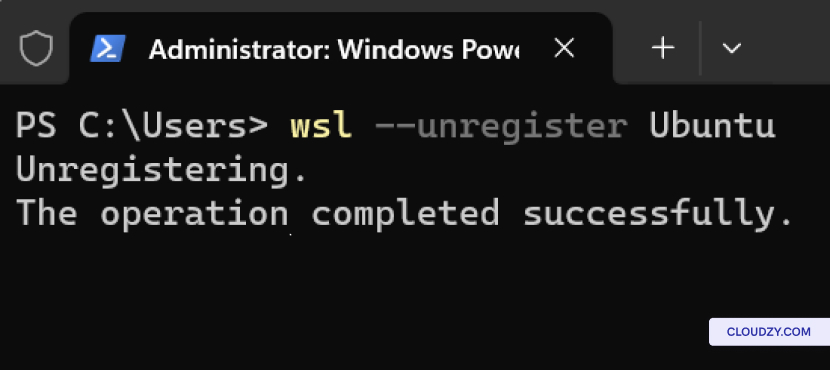
このコマンドは、指定されたディストリビューションを WSL から登録解除し、
システムから削除します。そのディストリビューションに関連するすべてのデータ、設定、および
ソフトウェアは永久に削除されることに注意してください。
WSLをアンインストール
あなたのコンピュータ
コンピューターから WSL を完全にアンインストールする場合は、以下の手順に従ってください。
これらのステップ:
-
コマンドプロンプトまたは Windows ターミナルを開きます。
-
以下のコマンドはWindows Subsystem for Linuxを無効にします
システムから無効化されます。無効化されると、WSL はコンピューターから削除されます。
コンピューター
Disable-WindowsOptionalFeature -Online -FeatureName Microsoft-Windows-Subsystem-Linux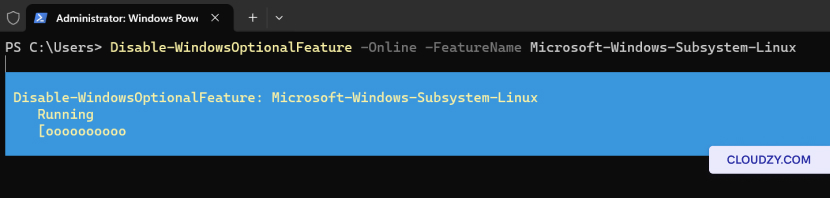
WSL を使用すると、Windows と Linux の統合がスムーズに進みます。
適切なWindowsバージョンがあることを確認して、次のコマンドを実行します
Linux ディストリビューションのインストールと実行のプロセスは、
簡潔です。さらに、Linux ディストリビューションを管理できます。
効率的に基本的なWSLコマンドを使用できます。詳しい情報が必要な場合は、
その他のサポートが必要な場合は、サポートチームまでお気軽にお問い合わせください 送信する
チケット.
同じカテゴリー 手動インストール