
このステップバイステップガイドでは、最も
VPS と Microsoft Windows のユーザー間で発生する問題についての質問で、それは
RDP を使用して Windows VPS に接続する方法について説明します。説明のために Windows 10
を使用しました。ただし、プロセスは
すべてのWindowsバージョンで同じです。
ステップ
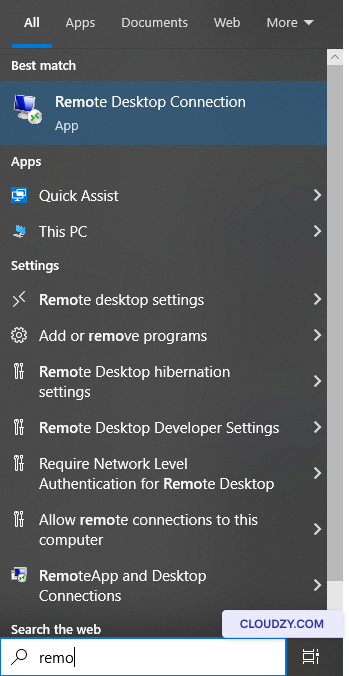
1: リモートデスクトップ接続ソフトウェアを開く
ツールバーで以下を検索します リモートデスクトップ
Connection.
ステップ 2: IP アドレスを入力
住所
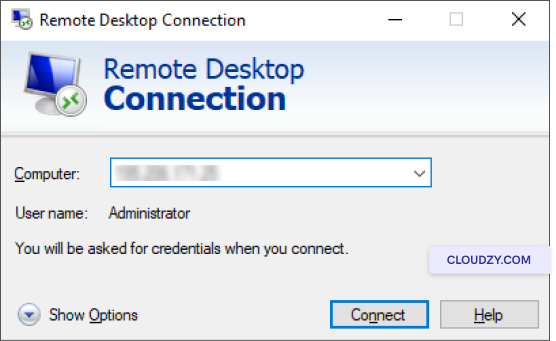
開いたウィンドウにサーバーのIPアドレスを入力します
コンピューター フィールドをクリック
接続.
ステップ 3: 入力
ユーザー名とパスワード
この段階で、下のウィンドウがポップアップします。ここにユーザー名とパスワードを入力する必要があります
ユーザー名とパスワードを入力してから、以下をクリックします Ok.
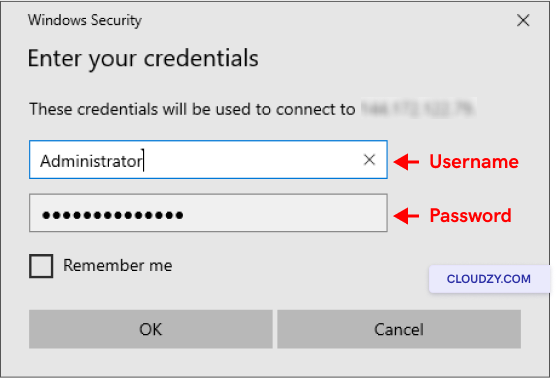
確認できます 私を覚えておいて 保存するボックス
ユーザー名とパスワードを今後の接続用に保存します
おめでとうございます。Windows VPS に RDP 経由で接続しました。
Windows VPS の使用を開始して、任意のソフトウェアを実行できます。
自分のコンピュータと同じように使用できます。RDP の内部エラーは一般的なエラーです。
リモートデスクトップ接続にアクセスしようとしているときに発生する可能性があります
ここ
いくつか便利なヒントがあります。
RDP を閉じる方法
セッション?
作業が完了したら、リモートデスクトップを簡単に閉じることができます。
以下の指示に従って接続してください。
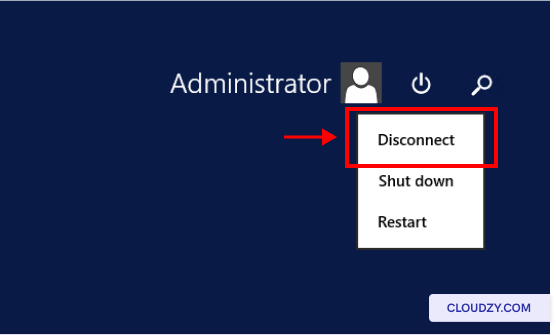
- クリックしてください 開始 メニューボタン
- ユーザーアイコンを探してクリックします
- 次をクリック: 切断
完了後にRDP接続を終了することが必要です
特に公共の非セキュアなコンピュータを使用した場合は、作業内容を保護することが重要です。しかし
ローカルデバイスの場合、RDP セッションに戻る予定がある場合
すぐに接続を終了する必要がない場合は、接続を維持しておいても問題ありません。もし何か 認証情報
エラー エラーが発生した場合は、このフィックスを確認できます。
同じカテゴリー Windows / RDP