While using Linux, you might encounter a temporary failure in name resolution error when trying to access websites, update packages, or execute tasks requiring an internet connection. This error indicates that your system cannot resolve a domain name to an IP address, preventing network operations from completing successfully.
This issue commonly stems from internet connectivity problems or DNS configuration issues. Troubleshooting and fixing this error is simple and direct. In this guide, we’ll explain everything you need to know about resolving this error across different Linux distributions. We’ll cover specific fixes for Ubuntu 22.04 and 24.04.
What Does Temporary Failure In Name Resolution Mean?
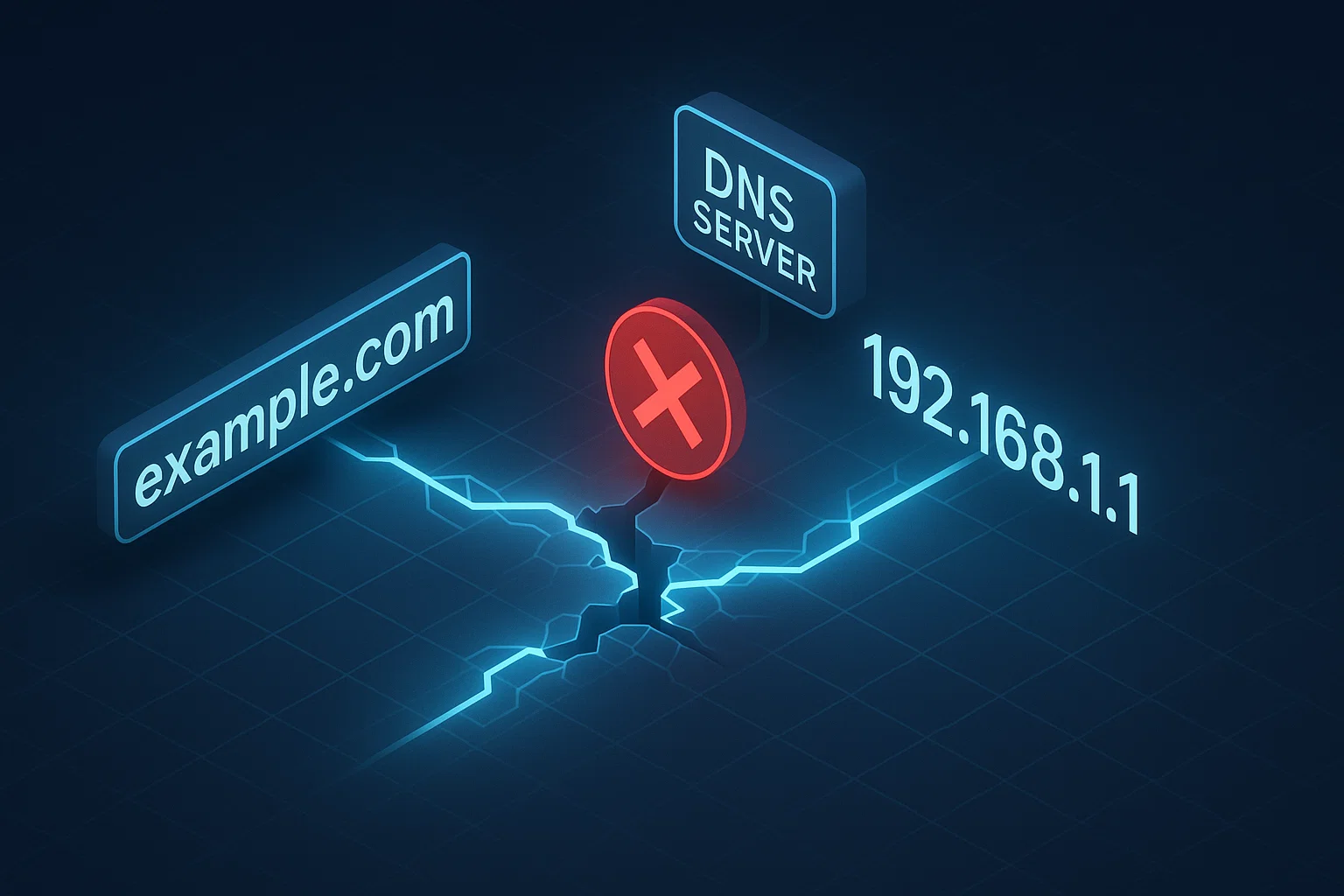
The temporary failure in name resolution prevents your Linux system from properly connecting to the internet. When this occurs, you cannot reach websites or use applications that require an active internet connection.
It acts as a generic “try again” failure for DNS. The lookup failed somewhere in the chain, be it a local glitch, upstream timeout, or validation problem.
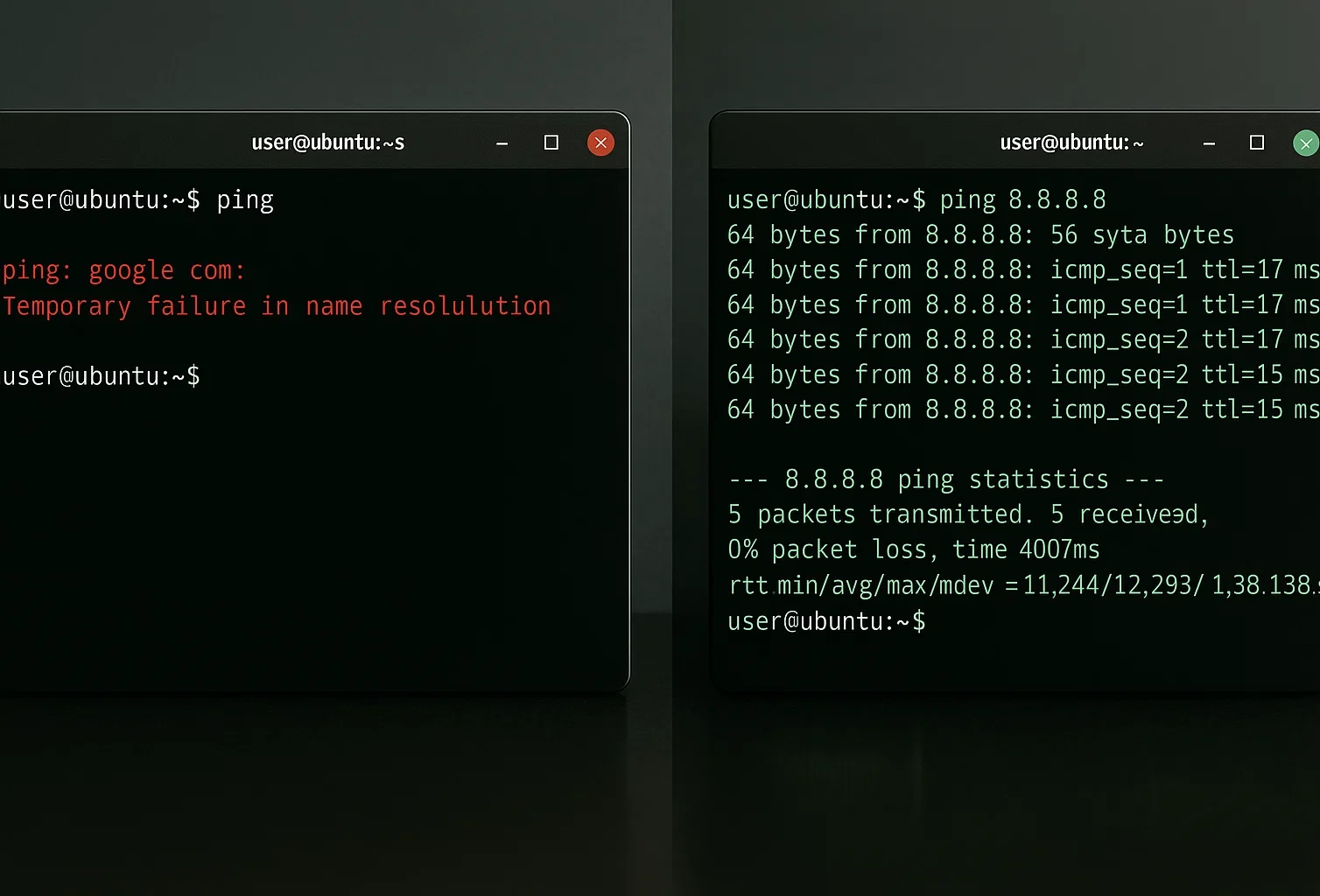
You typically see this error when attempting to ping a website:
ping google.com

ping: google.com: Temporary failure in name resolution
How to Fix Temporary Failure in Name Resolution
There are multiple approaches to solving this error depending on its root cause. Let’s explore the main solutions.
Solution 1: Check Internet Connection
Check your router and network hardware to make sure everything is set up correctly. Try opening other applications to confirm you can establish an internet connection through them.
You can test basic connectivity by pinging an IP address directly:
ping -c 4 8.8.8.8This command sends four packets to Google’s public DNS server. If you receive responses, your internet connection is working.
If you see “Request timed out” or “Network unreachable,” you have a general connectivity problem unrelated to DNS.
If applications connect to the internet successfully, proceed to the next solution.
Solution 2: Misconfigured resolv.conf File
The /etc/resolv.conf file lists the DNS servers your system uses. If this file contains the wrong IP addresses, you cannot connect to websites.
On many Ubuntu systems, this file is a link to a dynamic file managed by systemd-resolved. It often contains a warning: “Do not edit.” However, if you edit this file directly, your changes might only last a few minutes. The system overwrites them when it updates network settings or restarts.
Before configuring DNS settings, make sure your system user has administrative privileges. Learn how to add a user to sudoers if needed.
Check Current DNS Configuration
Check your DNS settings without changing them first:
cat /etc/resolv.confIf you do not see valid nameservers, you have found the problem.
Temporary Test
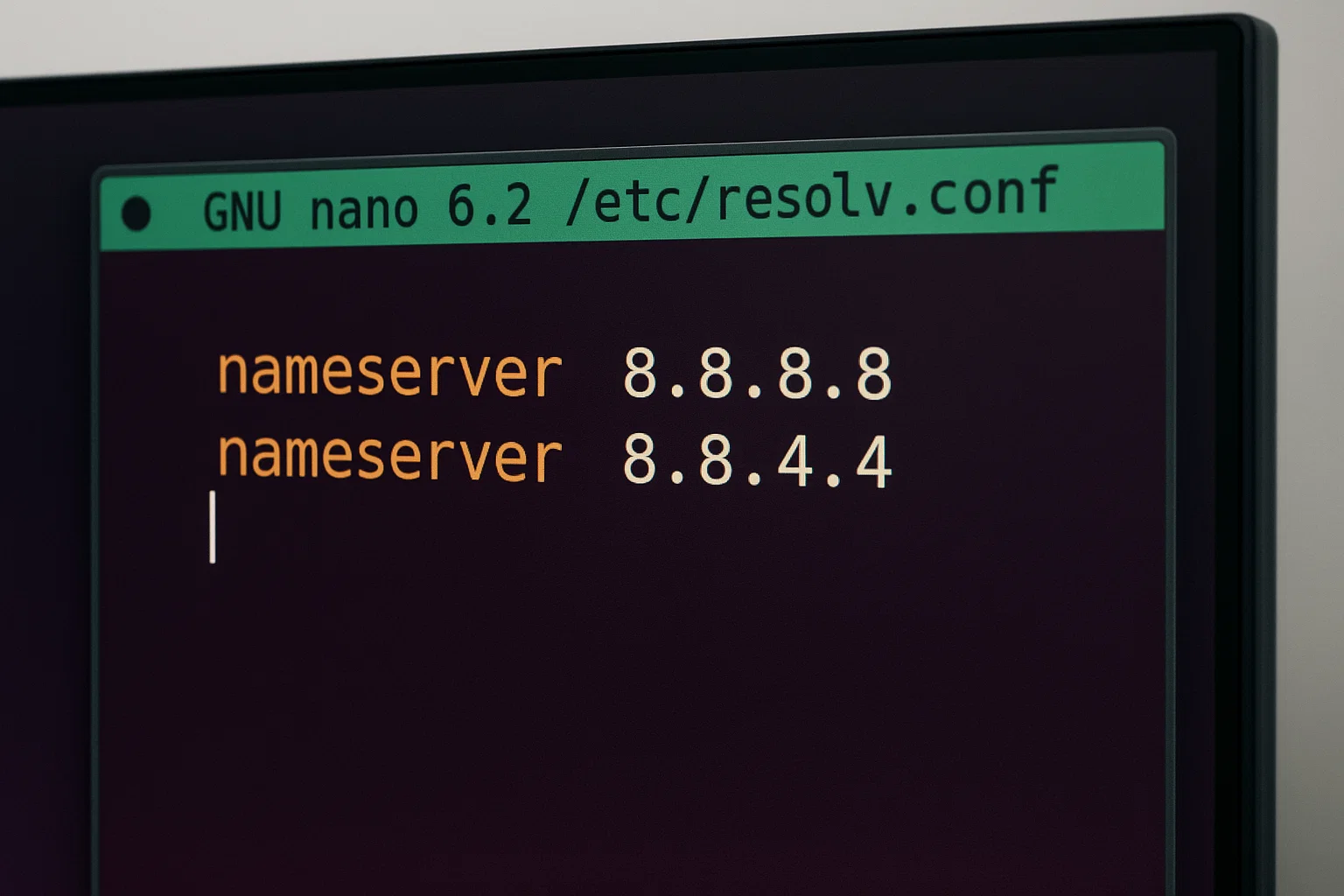
You can add Google’s DNS servers for a quick test.
nameserver 8.8.8.8

nameserver 8.8.4.4
Alternatively, you can use Cloudflare’s DNS servers:
nameserver 1.1.1.1

nameserver 1.0.0.1
Here’s a comparison of popular public DNS servers:
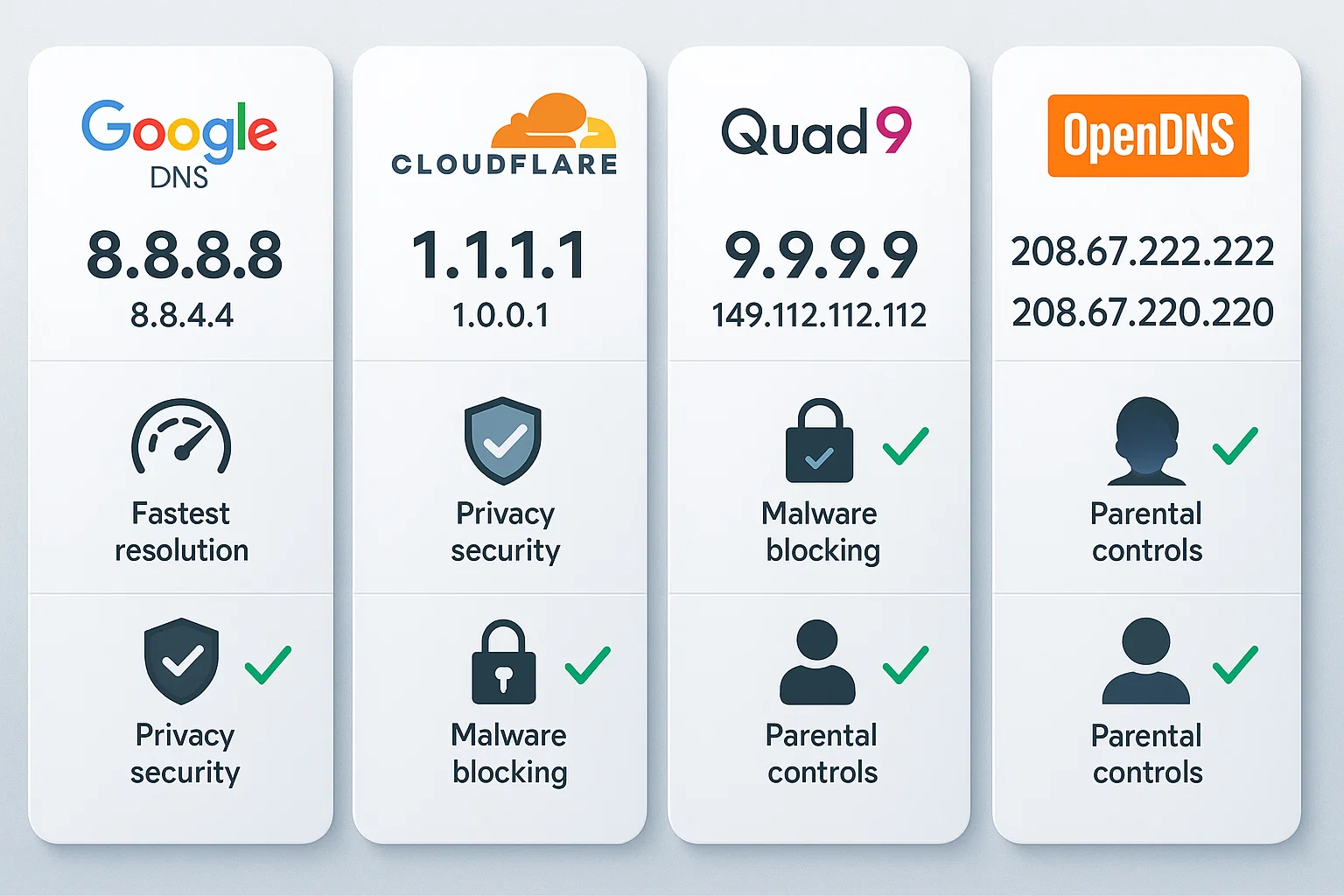
| DNS Provider | Primary DNS | Secondary DNS | Key Features |
| Google DNS | 8.8.8.8 | 8.8.4.4 | High availability, global coverage |
| Cloudflare | 1.1.1.1 | 1.0.0.1 | Privacy-focused, does not log IPs |
| Quad9 | 9.9.9.9 | 149.112.112.112 | Blocks known malicious domains |
| OpenDNS | 208.67.222.222 | 208.67.220.220 | Phishing protection, content filtering |
But this is not permanent. The system will wipe these changes. For a lasting fix on Ubuntu, you must configure systemd-resolved or Netplan. We cover those steps in the specific sections below.
Verify Systemd-Resolved Service Status.
If your nameservers look correct, but resolution still fails, check the systemd-resolved service. This service manages local DNS lookups on most modern Linux systems. Use this command to see if it is running: sudo systemctl status systemd-resolved
If the output shows the service is inactive, you can start it immediately.
sudo systemctl start systemd-resolved
This step is a must-know for Ubuntu users since service interruptions often trigger name resolution failures.
Solution 3: Firewall Restrictions
Firewalls protect your Linux system from malware and security threats. However, improper firewall configuration can block DNS requests, causing name resolution errors.
One diagnostic approach is to temporarily disable firewalls and security software to determine if they’re causing the issue. If disabling the firewall resolves the problem, you need to reconfigure your firewall settings.
Configure UFW Firewall
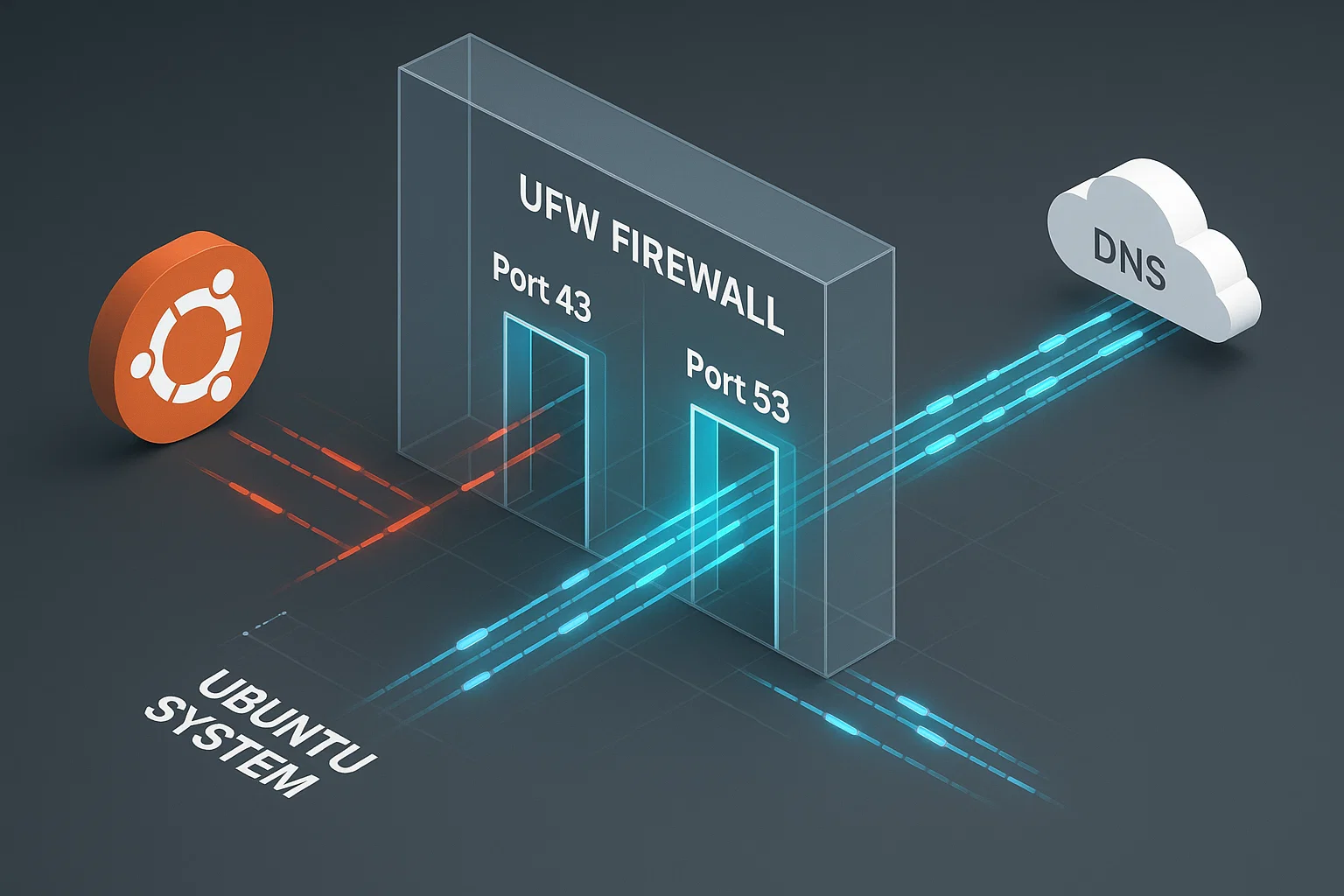
Most Debian and Ubuntu distributions use the UFW firewall. You must allow DNS traffic on Port 53 (both UDP and TCP):
sudo ufw allow 53/udp

sudo ufw allow 53/tcp
DNS relies on UDP for standard queries and TCP for larger transfers.
After opening these ports, reload UFW to apply changes:
sudo ufw reload
Configure Firewalld
For CentOS and Red Hat-based systems using firewalld, open the necessary ports:
sudo firewall-cmd --add-port=53/udp --permanent

sudo firewall-cmd --add-port=53/tcp --permanent
Reload the firewall to apply changes:
sudo firewall-cmd --reloadSolution 4: Flush DNS Cache
DNS cache stores IP addresses locally to speed up future lookups. However, outdated or corrupted DNS cache data can prevent you from accessing websites that have changed their domain name or hosting provider, causing temporary failure in name resolution errors.
You only clear the DNS cache when you want to force the system to request fresh data. Use this step when you encounter resolution errors.
Identify Your DNS Service
Services vary by installation. Check which one is running to avoid “unit not found” errors:
sudo systemctl is-active nscd

sudo systemctl is-active dnsmasq
Flush nscd
If nscd is active, restart it:
sudo systemctl restart nscd.serviceFlush dnsmasq
If dnsmasq is active, restart it:
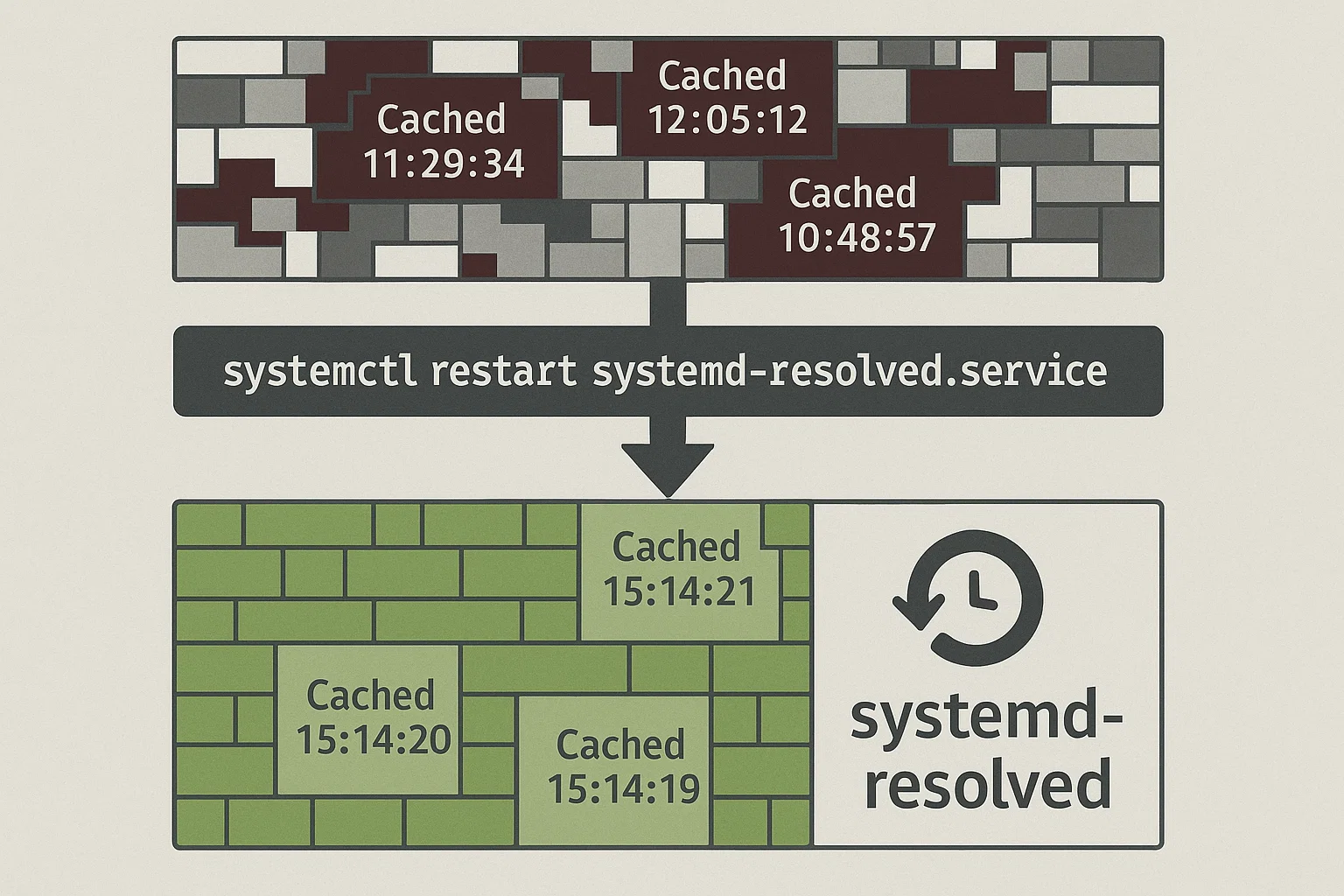
sudo systemctl restart dnsmasq.serviceFlush Cache on Ubuntu (systemd-resolved)
For systems using systemd-resolved:
sudo systemctl restart systemd-resolved.serviceOr use the resolvectl command:
sudo resolvectl flush-cachesUnderstanding Name Resolution
When you enter a website address like cloudzy.com, your computer must convert this human-readable domain into an IP address (such as 172.66.40.212) to locate the site on the internet. This conversion process is called name resolution, and DNS servers handle it.
The temporary failure in name resolution error occurs when your Linux system fails to contact a DNS server to retrieve the corresponding IP address for a website. The “temporary” designation indicates this is not necessarily a permanent failure. Most often, it results from a configuration or connectivity issue that can be resolved.
DNS servers translate domain names into IP addresses that computers use for communication. Google Public DNS handles over a trillion queries daily, exemplifying the scale of this vital internet service.
Similarly, Cloudflare’s 1.1.1.1 resolver processes nearly 2 trillion queries daily. This volume proves that DNS is key to the internet.
What Causes Temporary Failure in Name Resolution?
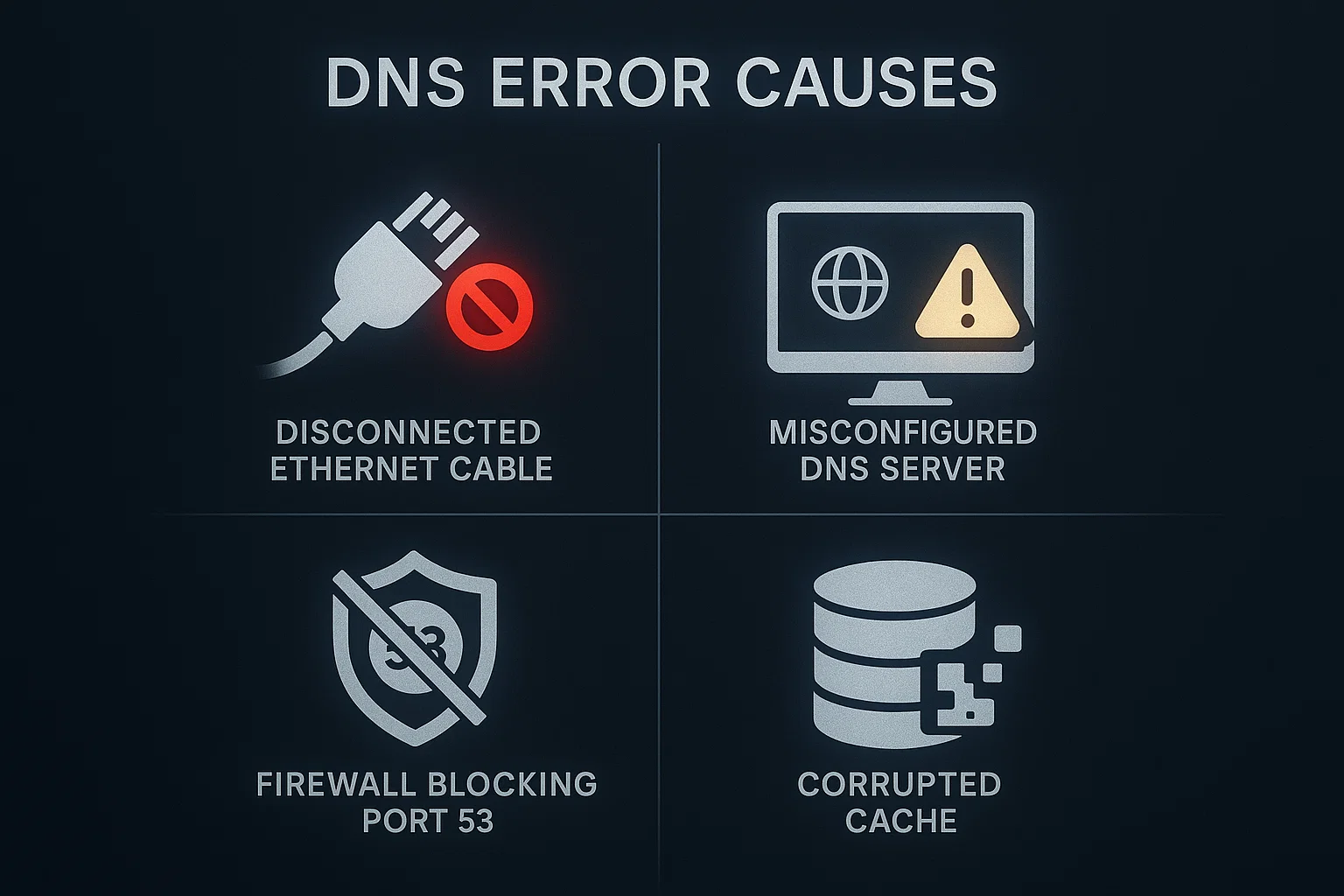
Identifying the root cause is the first step toward fixing Ubuntu’s temporary failure in name resolution errors. Several factors can trigger this issue.
Internet Connectivity Issues
A slow or lost internet connection is often the primary culprit. Before diving into complex troubleshooting, verify your internet connection is working properly.
DNS Configuration Problems
DNS configuration faults are among the most common sources of this error:
- Unresponsive DNS servers: The DNS servers your system attempts to reach may be unavailable
- Misconfigured DNS resolution: The DNS resolution mechanism may be improperly configured
- Outdated DNS cache: Old or corrupted DNS cache entries can prevent proper resolution
Firewall Restrictions
Firewall configurations can block DNS requests even when properly configured. DNS queries use Port 53, and if your firewall blocks this port, name resolution will fail.
Port 53 handles both UDP and TCP protocols. DNS typically uses UDP Port 53 for standard queries because it’s faster. TCP Port 53 is used for zone transfers and larger queries that exceed UDP’s size limitations.
Service Configuration Issues
The systemd-resolved service, which manages DNS resolution in modern Linux distributions, may be stopped, disabled, or misconfigured. This service provides DNS resolution for all applications on your system.
Temporary Failure in Name Resolution Ubuntu 22.04
Ubuntu 22.04 LTS introduced changes to network management that can cause DNS resolution issues, particularly after system upgrades. Users may encounter Ubuntu unable to resolve host, temporary failure in name resolution errors more frequently on this version.
Common Ubuntu 22.04 Issues
Users upgrading from Ubuntu 20.04 to 22.04 frequently report DNS resolution failures. The Ubuntu 22.04 temporary failure in name resolution issue often stems from systemd-resolved service misconfigurations that occur during the upgrade process.
Ubuntu 22.04 Specific Fix
If you experience persistent DNS issues on Ubuntu 22.04, follow these steps:
First, verify that systemd networking services are properly enabled:
sudo systemctl unmask systemd-networkd.service

sudo systemctl unmask systemd-resolved.service
Check the status of systemd-resolved:
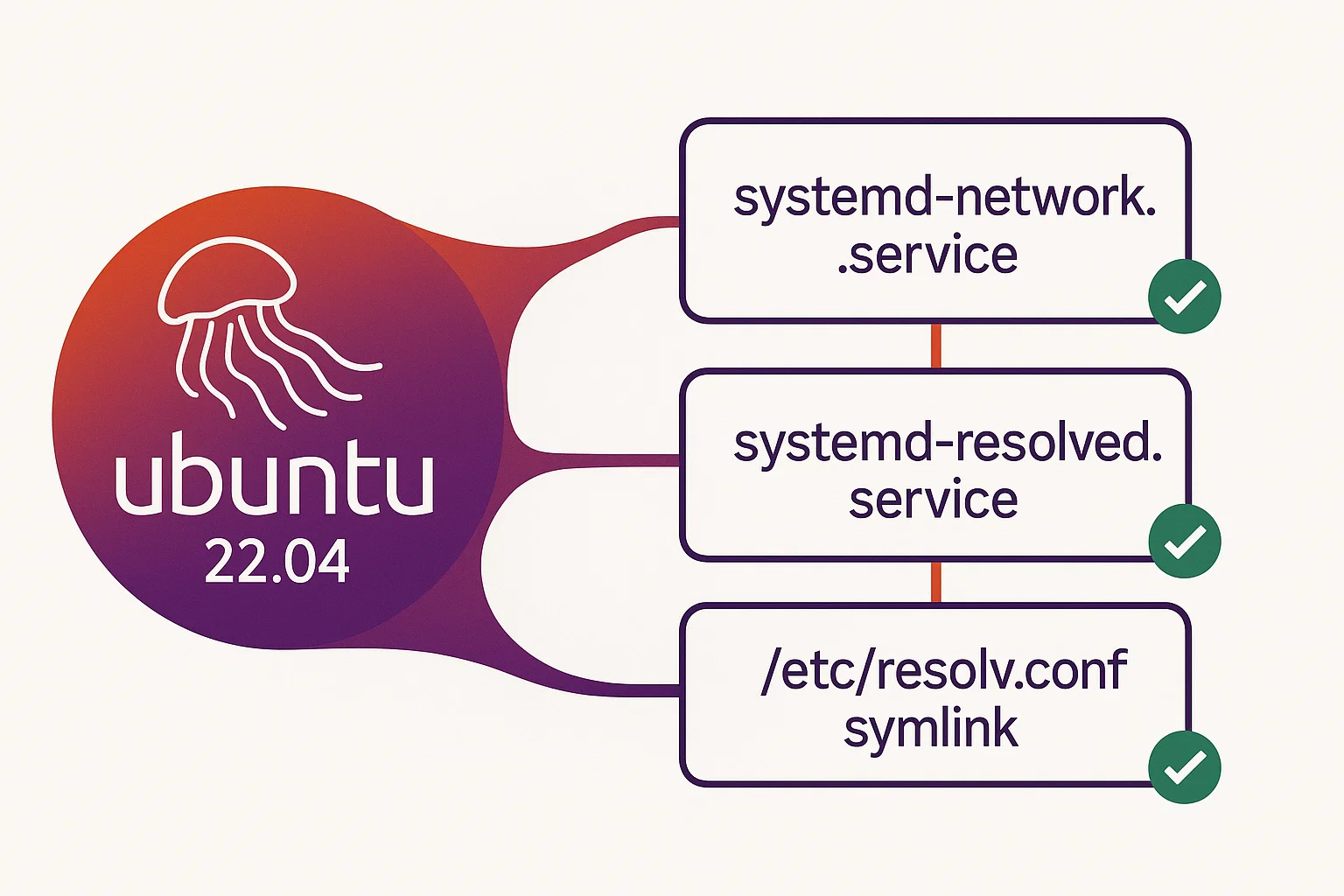
sudo systemctl status systemd-resolved.serviceIf the service is inactive, start it:
sudo systemctl start systemd-resolved.service

sudo systemctl enable systemd-resolved.service
Verify your /etc/resolv.conf symlink points to the correct location:
ls -l /etc/resolv.confThe recommended configuration links to the stub resolver:
sudo ln -sf /run/systemd/resolve/stub-resolv.conf /etc/resolv.confTesting the Fix
After making these changes, test DNS resolution:
resolvectl statusThis command displays your current DNS configuration. It also confirms systemd-resolved is managing DNS properly.
Ubuntu 24.04 Temporary Failure in Name Resolution
Ubuntu 24.04 LTS, the latest long-term support release, uses systemd 255 and includes updated network management components. While more stable than previous versions, specific DNS issues can still occur.
Remote admins often face “SSH could not resolve hostname” errors. This triggers when the system stub resolver at 127.0.0.53 fails. Since SSH relies on this local service for name translation, a stopped systemd-resolved process blocks all domain-based connection attempts immediately.
Ubuntu 24.04 DNS Configuration
Ubuntu 24.04 relies heavily on systemd-resolved for DNS management. The stub listener on 127.0.0.53 handles DNS queries for the system.
Fixing DNS Issues in Ubuntu 24.04
If you encounter name resolution failures on Ubuntu 24.04, check that systemd-resolved is running:
sudo systemctl status systemd-resolvedVerify DNS configuration with resolvectl:
resolvectl statusThis displays nameserver information and DNS configuration for each network interface.
Ubuntu 24.04 Netplan Configuration
Ubuntu 24.04 uses Netplan for network configuration. The filename and renderer settings depend on whether you use a Server or Desktop version.
First, identify your configuration file:
ls /etc/netplan/Edit the file you find (often 50-cloud-init.yaml or 00-installer-config.yaml):
sudo nano /etc/netplan/YOUR_FILE_NAME.yamlVerify your DNS settings. Note: Servers typically use networkd, while Desktop installs use NetworkManager. Check your interface name (e.g., eth0 or ens3) using ip addr before editing.
network:

  version: 2

  renderer: networkd

  ethernets:

    eth0:

      dhcp4: yes

      nameservers:

        addresses: [8.8.8.8, 8.8.4.4]
Apply the configuration:
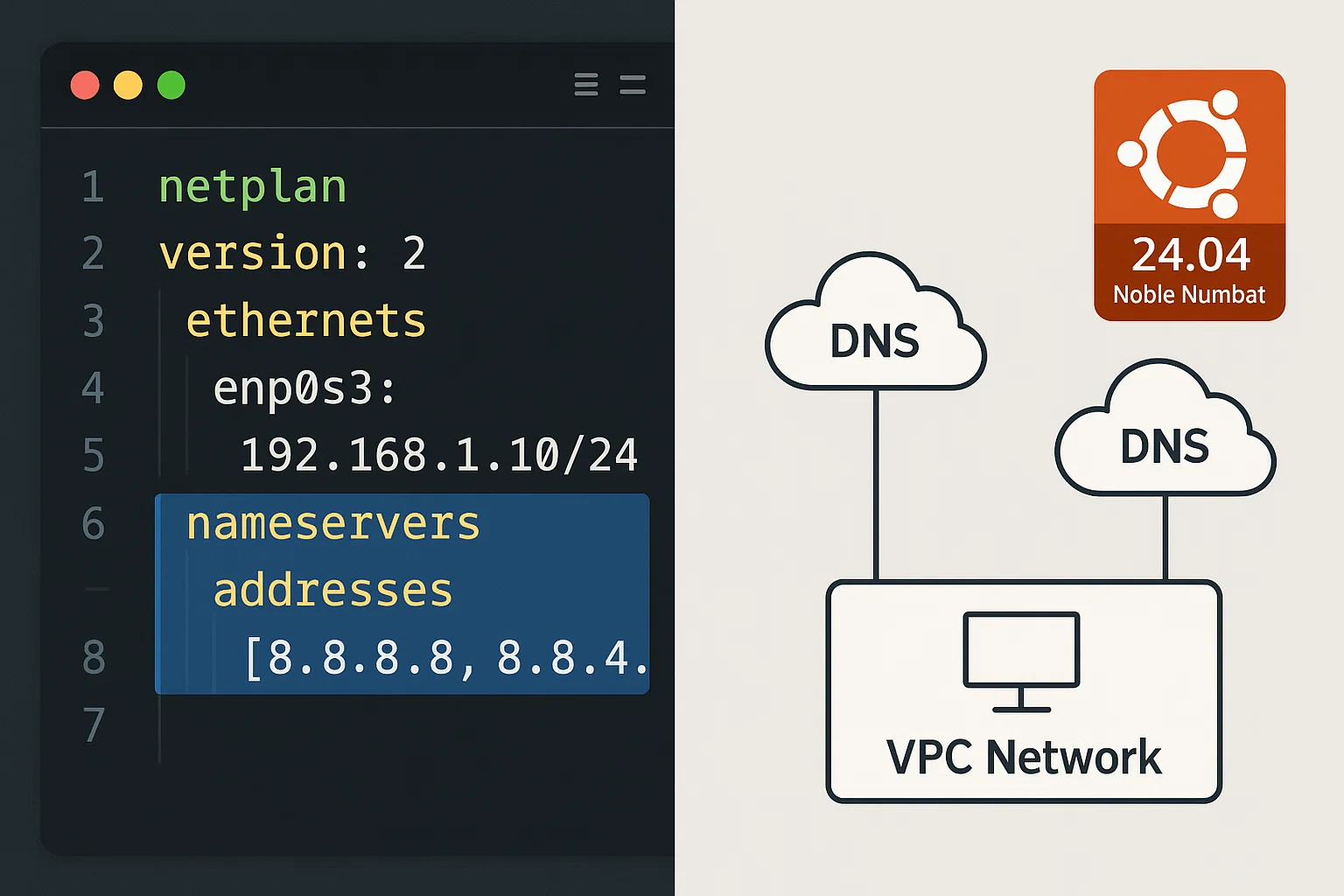
sudo netplan apply
Stub Listener Issues
Some applications may conflict with systemd-resolved’s stub listener on port 53. If you need to disable the stub listener:
sudo mkdir -p /etc/systemd/resolved.conf.d/Create a configuration file:
echo -e "[Resolve]\nDNSStubListener=no" | sudo tee /etc/systemd/resolved.conf.d/noresolved.confRestart systemd-resolved:
sudo systemctl restart systemd-resolved.serviceAdditional Troubleshooting Tips
If the error persists, use these tools to isolate the problem. You need to determine if the issue comes from your network connection, the DNS server itself, or a local file conflict.
Verify DNS Server Accessibility
You should test if your system can reach the specific DNS servers listed in your configuration. Use the ping command followed by the IP address of your primary nameserver:
ping -c 4 <your_dns_server_ip>If this fails, you have a network connection issue.
Check /etc/hosts File
The /etc/hosts file can override DNS lookups. Incorrect entries here can cause resolution failures:
sudo nano /etc/hostsVerify it contains at minimum:
127.0.0.1 localhost
127.0.1.1 your-hostname
Use dig for DNS Diagnostics
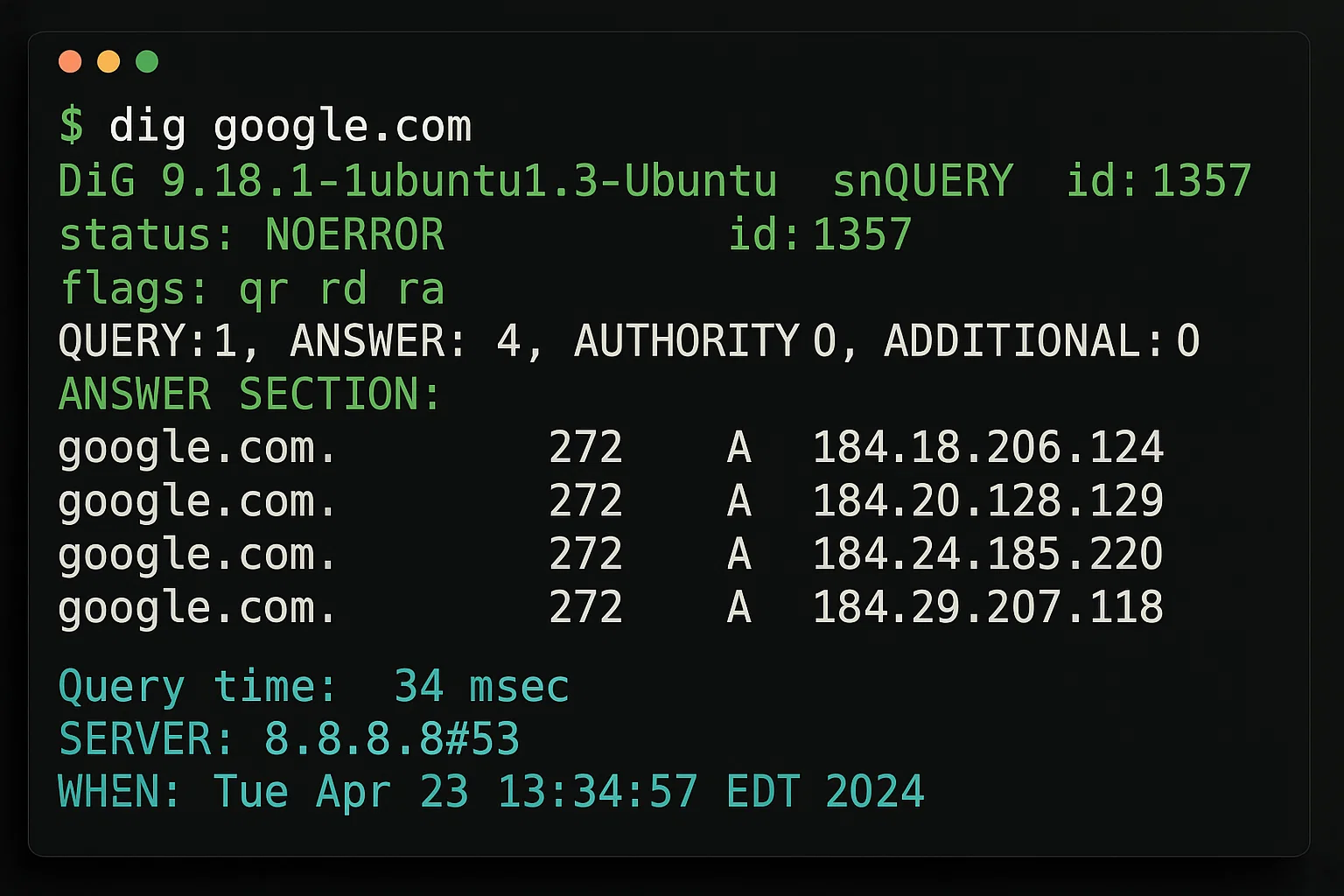
The dig command helps diagnose DNS issues:
dig google.comThis shows detailed DNS query information, including which nameserver responded and how long the query took.
Check Network Interface Configuration
Verify your network interfaces are configured correctly:
ip addr showMake sure your primary network interface has an IP address assigned.
Preventing Future DNS Issues
Fixing the immediate error restores access, but you need a resilient setup to stop it from returning. These practices build redundancy into your network configuration so your system handles minor connection drops without losing name resolution.
Network reliability depends on hardware quality. Our Cloudzy Linux VPS runs on high-frequency AMD Ryzen 9 processors and 40 Gbps connections. This raw speed minimizes the latency and timeouts that often cause resolution failures, ensuring your applications remain accessible.
Use Reliable DNS Servers
You should configure multiple nameservers through Netplan or systemd-resolved rather than editing /etc/resolv.conf directly; this is so that your settings remain persistent after a reboot. Adding a secondary IP like 1.1.1.1 or 8.8.4.4 creates redundancy if your primary provider fails.
Monitor System Updates
DNS configuration can change after system updates. After updating your Linux distribution, verify DNS resolution is still working correctly.
Document Your Configuration
Keep records of your DNS configuration, especially if you use custom DNS servers. This makes troubleshooting easier if issues arise.
Avoid Routine Flushing
Do not clear the DNS cache as part of a daily schedule. This removes valid data and slows down your web browsing.
Only flush the cache in two specific situations:
- You changed your DNS provider (e.g., switching from ISP to Google DNS).
- A website has moved to a new server, and you cannot access it.
Conclusion
The temporary failure in name resolution error in Linux systems typically results from internet connectivity issues, DNS configuration problems, firewall restrictions, or DNS cache corruption. By systematically working through the solutions in this guide, you can identify and fix the specific cause affecting your system.
Ubuntu 22.04 and 24.04 users must prioritize the systemd-resolved configuration. Since this service manages all DNS queries, a single misconfiguration blocks package updates and external connections. Verify that the service is active and linked correctly. A stable DNS setup lets your Linux VPS execute network tasks without interruption.