
Cloudzy VPS 上に MariaDB をデプロイするのは簡単です
ワンクリックアプリです。このガイドでは、セットアップのプロセスをステップバイステップで
解説し、データベースサーバーを素早く起動して実行できるようにします。
初心者でも経験豊富なユーザーでも、このチュートリアルで
MariaDBの使用を効率的に始められます。
前提条件
Cloudzy VPSにMariaDBをデプロイする前に、以下を確認してください
以下の前提条件が必要です:
クレジット十分: Cloudzyアカウントに以下の内容があることを確認してください
MariaDB OCAのセットアップと使用に十分なクレジットがあること。
アクティブなアカウント: あなたのCloudzyアカウントは
アクティブで使用可能な状態です。
オペレーティングシステム互換性: MariaDB
ワンクリックアプリはUbuntuと互換性があります。Ubuntuから選択できます
Server 20.04、Ubuntu Server 22.04、およびUbuntu Server 24.04バージョン。
ステップ1:
MariaDB アプリケーションの選択
-
アプリケーションセクションに移動: あなたの
Cloudzyダッシュボードで「アプリケーション」セクションに移動します。 -
MariaDBを選択: MariaDBを見つけて選択してください
利用可能なアプリケーションのリストからオプションを選択します。
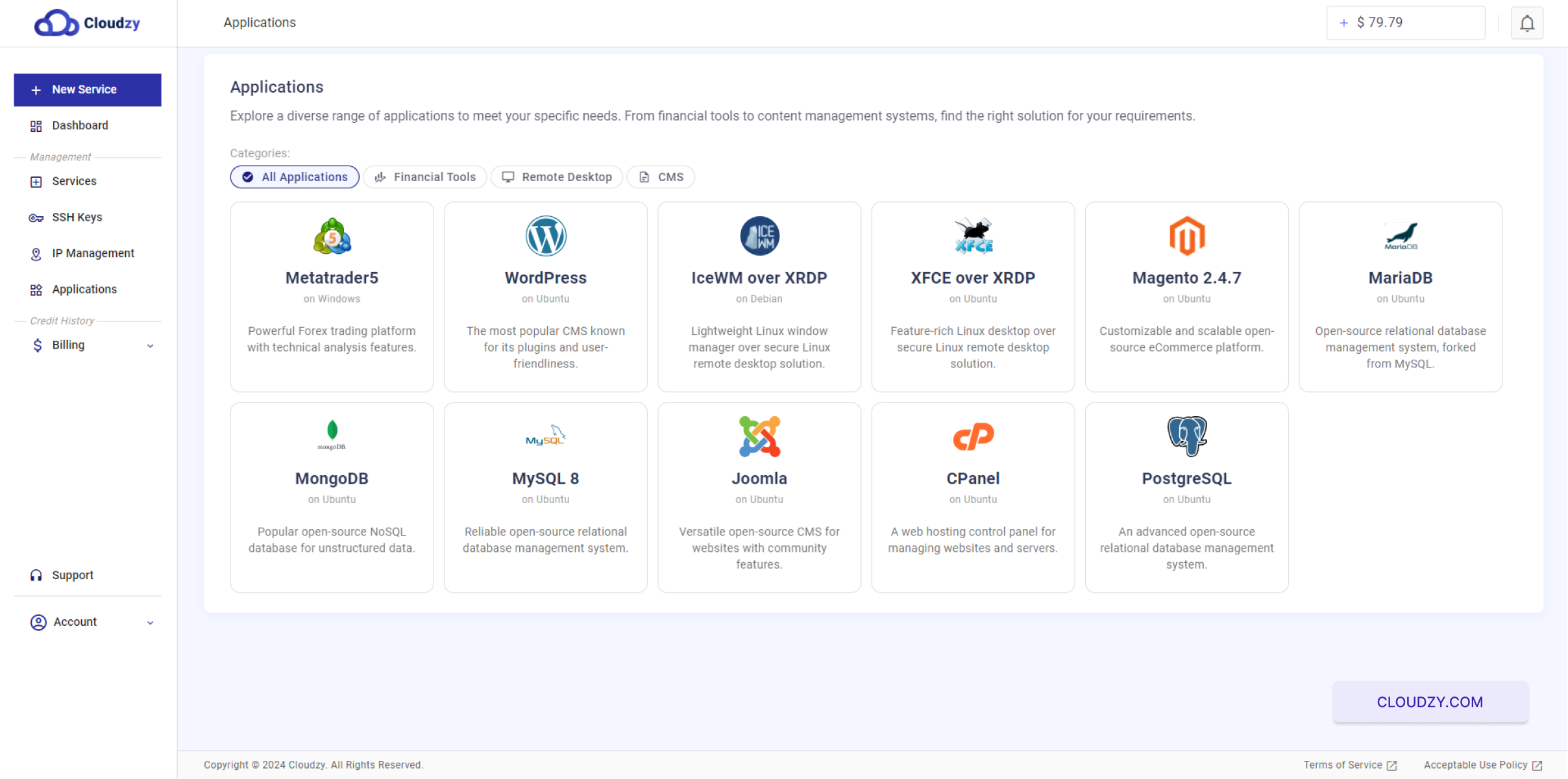
- サービスをデプロイをクリックしてください: 「DEPLOY SERVICE」をクリック
進める ボタン
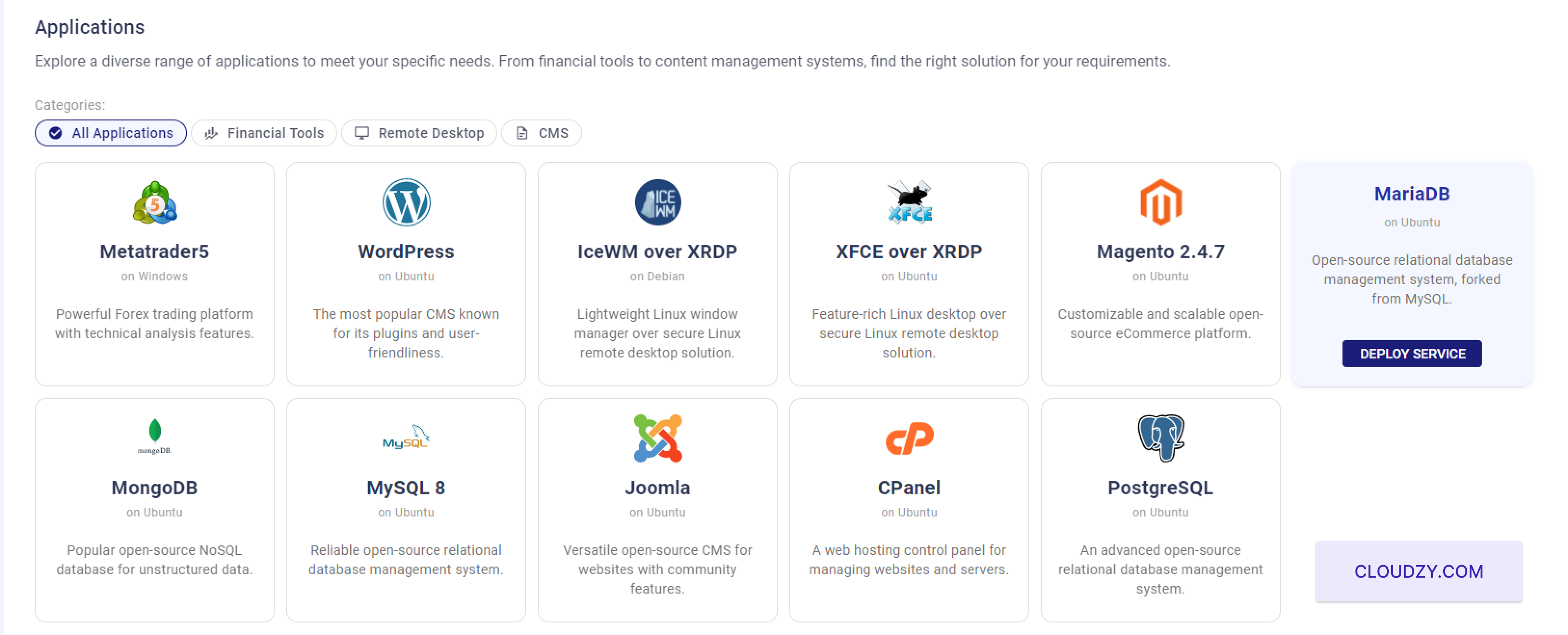
ステップ 2: 設定を構成する
サービス
- サーバーの場所を選択してください:
サーバーをホストする地域を選択してください。
例えば、「Miami」を選択できます。
- オペレーティングシステムを選択:
MariaDB サーバー。Ubuntu Server 20.04、Ubuntu から選択できます
Server 22.04、および Ubuntu Server 24.04。
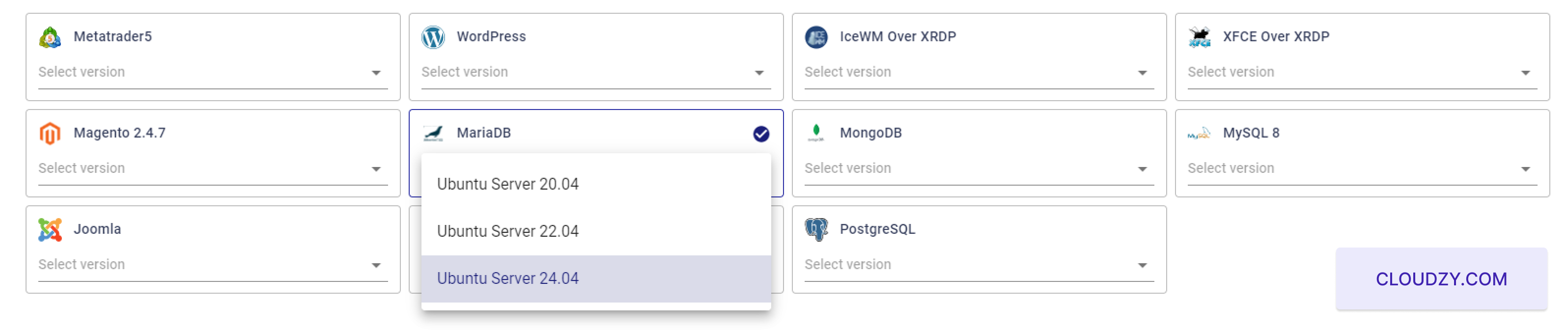
- サーバー構成を選択してください
「プラン」セクションで、お客様のニーズに合ったサーバー構成を選択してください
ご要件に合わせて選択できます。例えば、2 個の vCPU と 2 GB のプランを選ぶことができます。
メモリ、および50 GB ストレージ。
- SSH キーを追加:
SSHキーを使用してセキュアなログインを行う場合は、SSHキーを追加してください。詳細は
これらのSSHキーの構成と使用方法に関するガイドへ Cloudzy SSHキー
ガイド.
 SSH キーを使用したい場合は
セキュアログイン、SSH キーを追加してください。以下のガイドを参照して
SSH キーの設定と使用方法: Cloudzy SSH Key Guide。すべての
設定内容を確認して問題なければ、「Deploy」をクリック
'Now' ボタンをクリックして VPS のプロビジョニングプロセスを開始します。
- ホスト名を設定:
MariaDB サーバーのホスト名を入力してください。例えば、
MariaDB-US-Miami-2gb
ステップ3: デプロイ
サービス
- サービスをデプロイ:
「Deploy Now」ボタンをクリックしてデプロイプロセスを開始します。
- デプロイメント完了をお待ちください
デプロイメントが開始され、ステータス更新がリアルタイムで表示されます
あなたの VPS をセットアップ中です。

- サービス準備完了
デプロイが完了すると、確認メッセージが表示されます
VPS が正常に作成されたことを示しています。IPアドレスをメモしておいてください
MariaDBサーバーのアドレス、ユーザー名、パスワード。
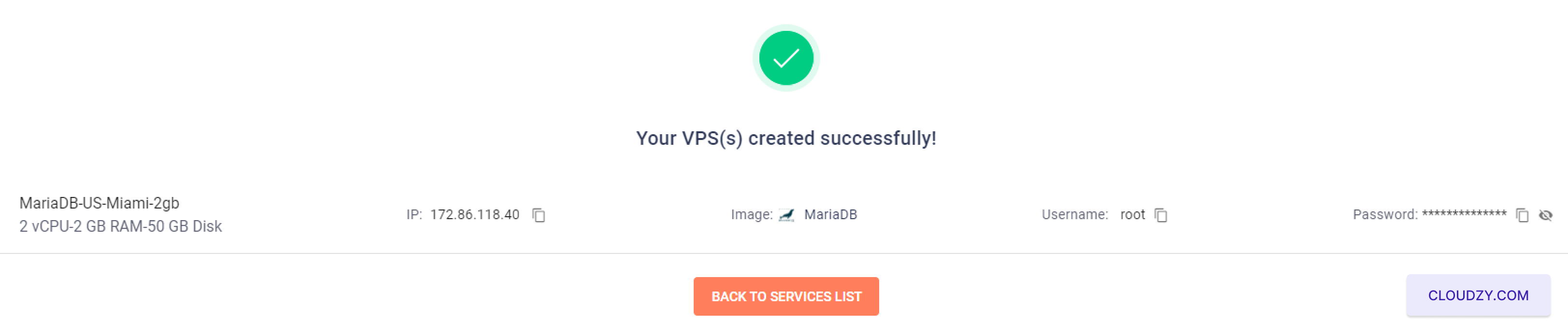
これらの詳細は大切に保管してください。VPS にアクセスする際に必要になります。
MongoDBサーバー。
これらのステップを完了することで、MongoDB サーバーが稼働していることが保証されます。
実行中です。提供されたアドレスを使ってサーバーに接続できます。
あなたのアプリケーションで MongoDB を使い始めるための認証情報。
ステップ 4: アクセスする
MariaDB サーバー
- サーバーに接続:
提供されたIPアドレス、ユーザー名、パスワードを使用して接続してください
SSH を経由して MariaDB サーバーに接続します。SSH 経由での接続にサポートが必要な場合は、こちらを参照してください
to これ
件のガイド.
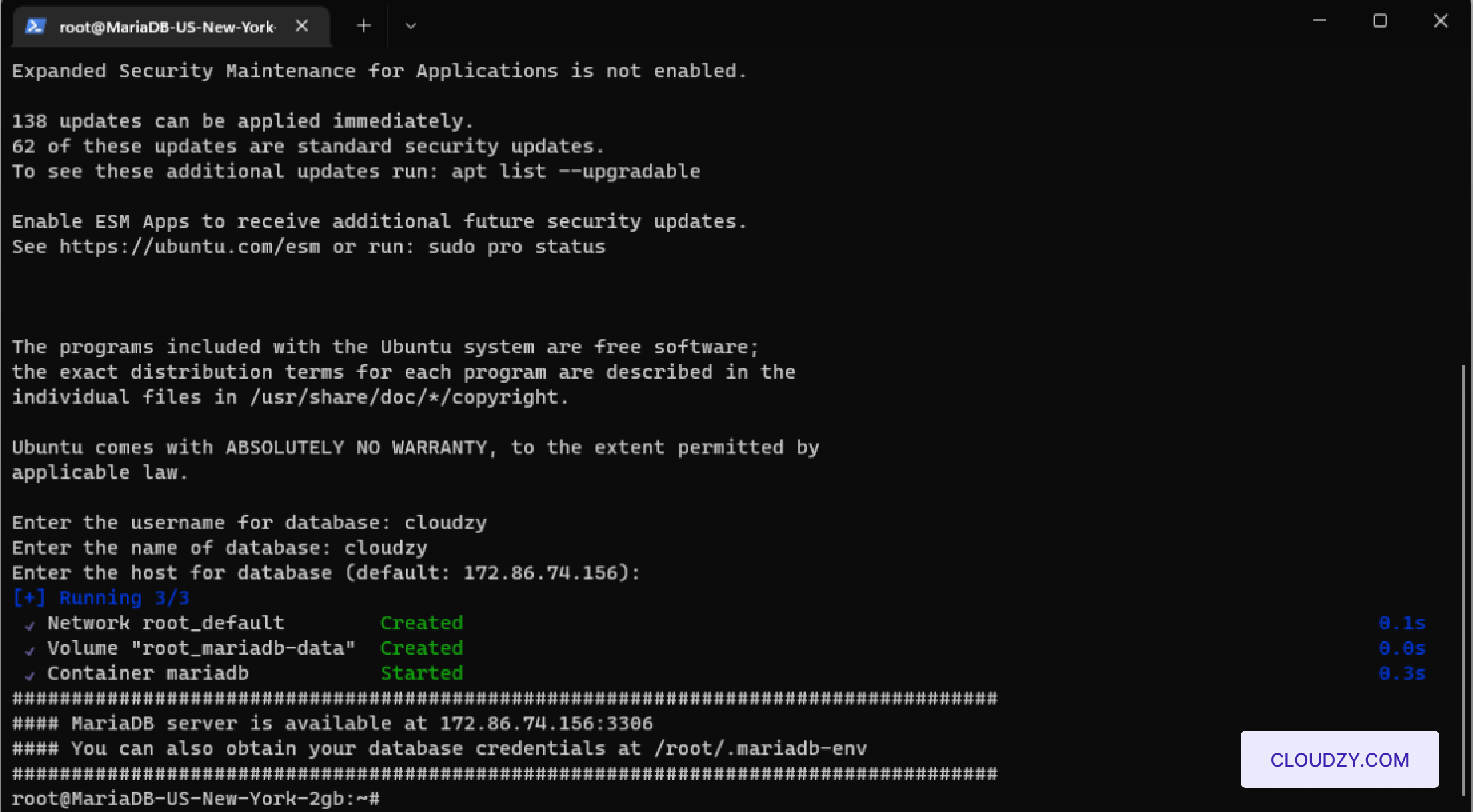
- 初期設定
SSHでログインすると、以下の情報を入力するよう求められます
詳細:
データベースのユーザー名: ユーザー名を入力してください
管理者ユーザー(例:「cloudzy」)
データベース名: データベース名を入力してください。
例えば、「cloudzy」のような場合です。
データベースホスト: 現在の項目を選択するにはEnterキーを押してください
サーバーをホストとして
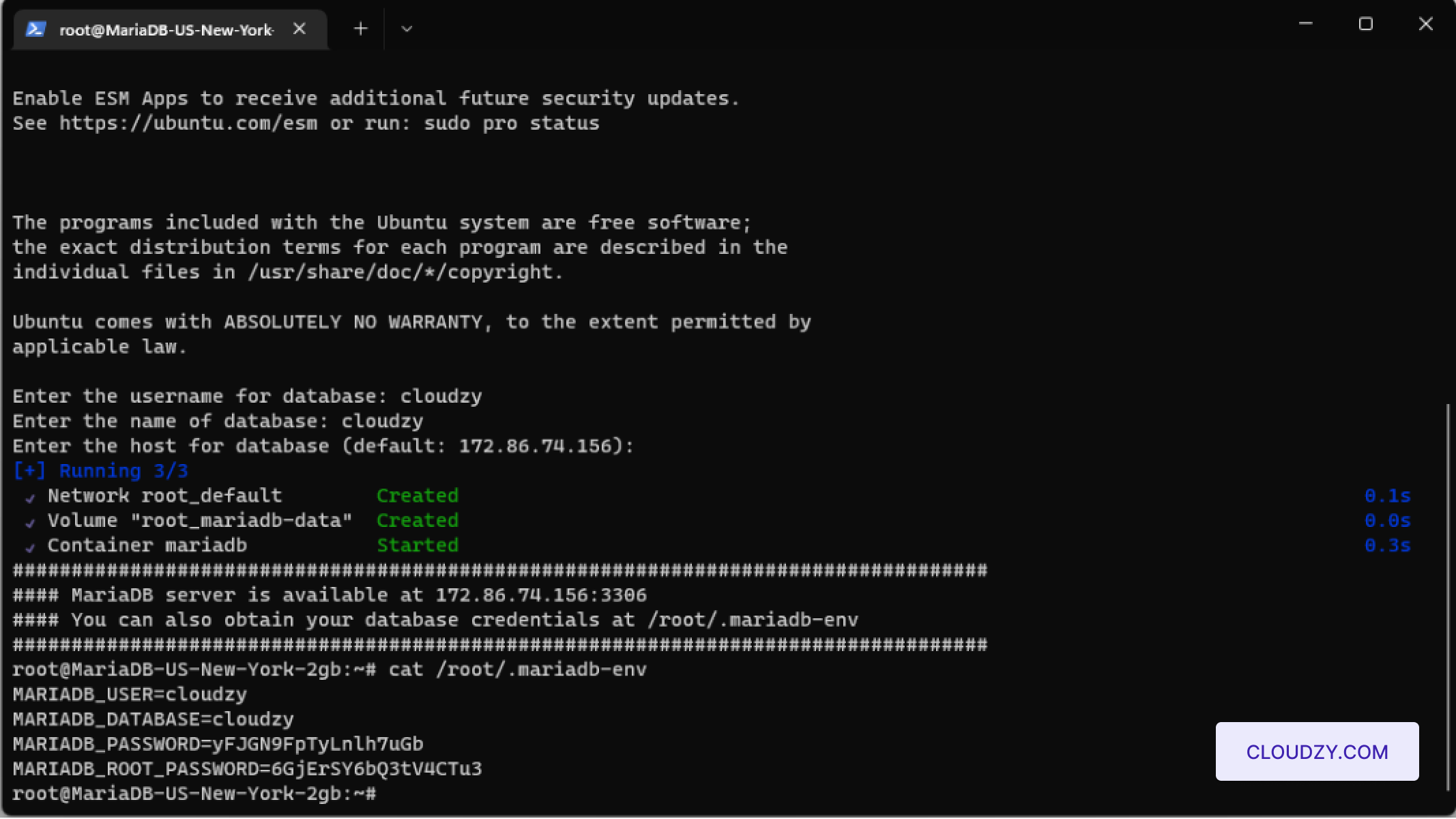
- データベース認証情報にアクセス:
データベース管理者認証情報を確認するには、次の場所にあるファイルにアクセスしてください
at
/root/.maria-envサーバー上で。このコマンドを使用してください
cat /root/.maria-env認証情報を確認する。
以下の手順に従うことで、MariaDB サーバーは以下のように構成されます
管理者ユーザーが設定済みで、データベース操作の準備が整っています。このセットアップにより
サーバーが完全に稼働し、すぐに使用できるセキュアな状態であることを確認できます。