
このガイドは、デプロイと
Cloudzy の Virtual Private Server (VPS) で MongoDB を設定する際に
ワンクリックアプリサービス。必要な手順をカバーして、素早くセットアップできます
MongoDB サーバー。サーバーへのアクセスや設定の構成から始まり
データベース認証情報を取得しています。これらの簡単な手順に従って
MongoDB をプロジェクトで効率よく利用し始めましょう。
前提条件
Cloudzy上でMongoDBをデプロイする前に、
ワンクリックアプリを使用する場合は、以下を確認してください:
クレジット十分: Cloudzyアカウントに以下の内容があることを確認してください
MongoDB ワンクリックアプリのセットアップと利用に必要なクレジット残高があります。
アクティブなアカウント: あなたのCloudzyアカウントは
アクティブで使用可能な状態です。
オペレーティングシステム互換性: MongoDB
ワンクリックアプリはUbuntuと互換性があります。Ubuntuから選択できます
Server 20.04、Ubuntu Server 22.04、およびUbuntu Server 24.04バージョン。
ステップ1:
MongoDB アプリケーションを選択する
-
Cloudzy アカウントにログインしてください: サインインして開始
あなたのCloudzyダッシュボードにあなたの認証情報を使用してアクセスします。 -
アプリケーションセクションに移動: に
左側のメニューで「Applications」をクリックすると、利用可能なアプリケーションが表示されます
アプリケーション
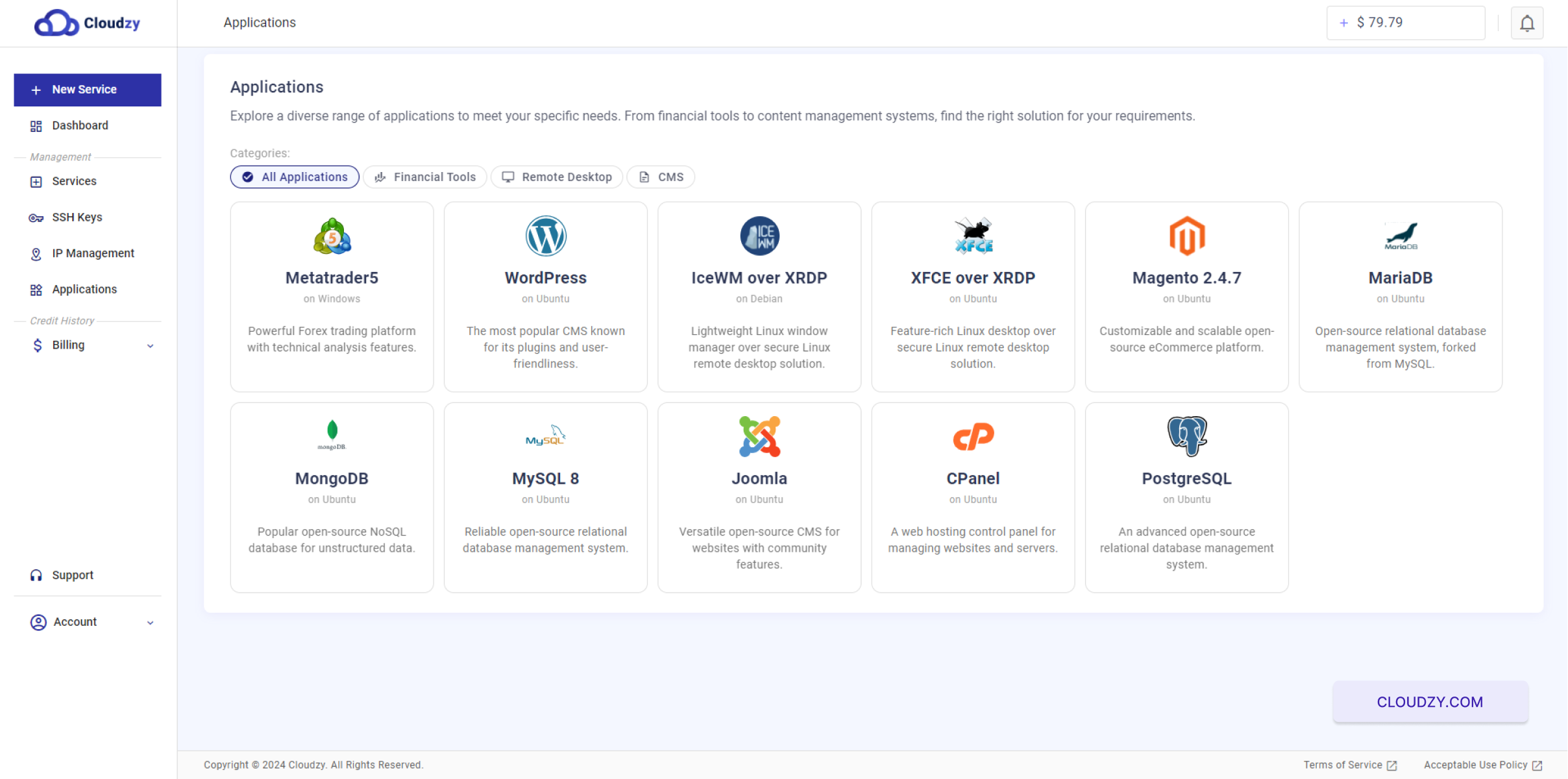
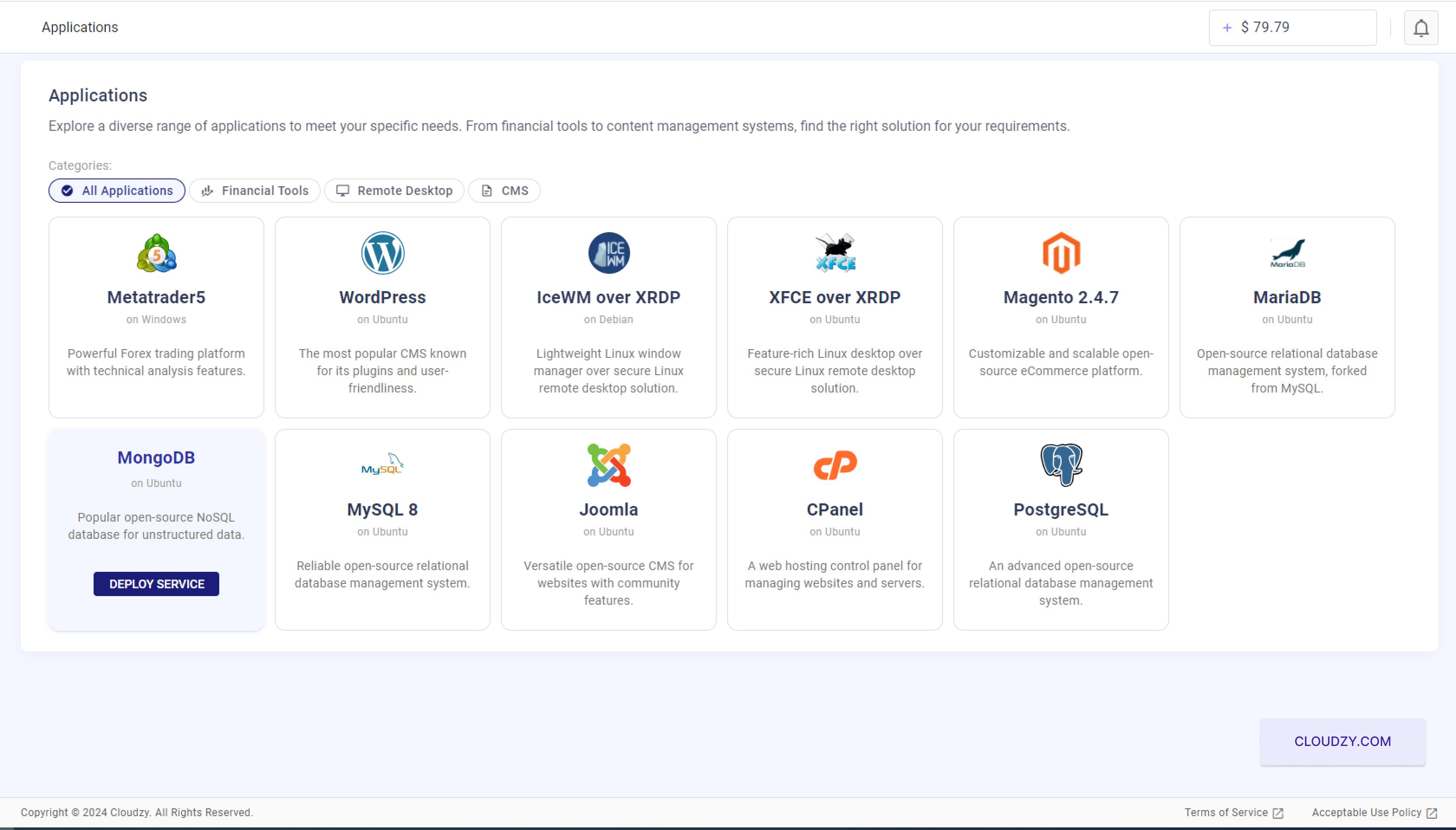
- MongoDB を選択: さまざまなアプリケーションの中でも
一覧から MongoDB を探してください。検索バーを使うか、スクロールして
list. 見つけたら、MongoDB アイコンの下にある 'Deploy Service' をクリックします。
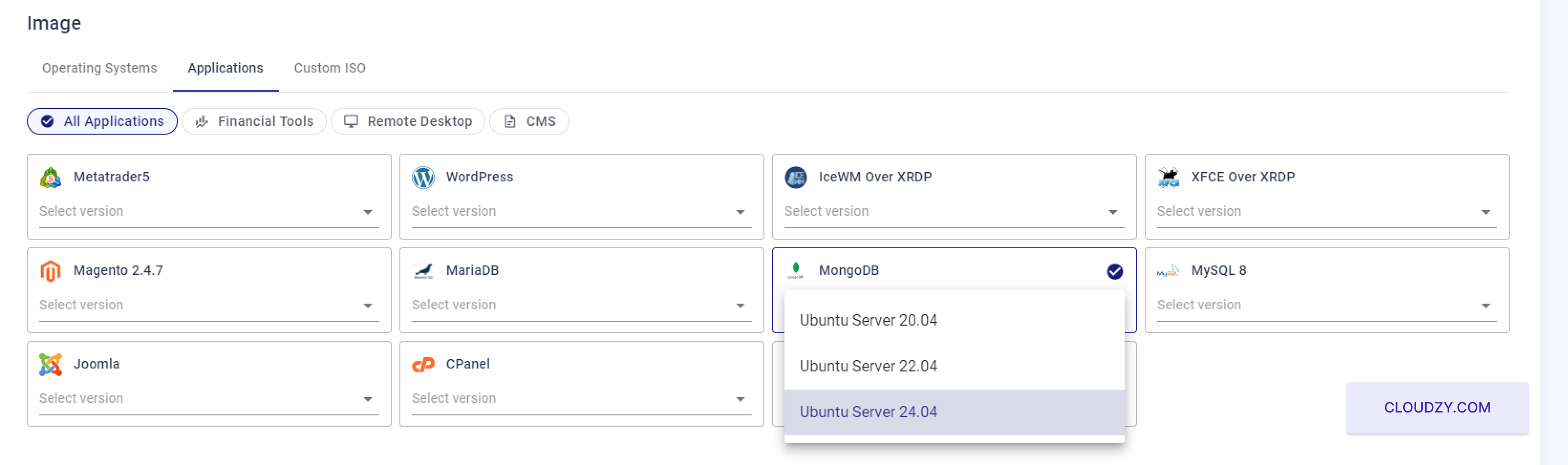
- オペレーティング システム バージョンを選択してください: 選択してください
お使いの MongoDB に適した Ubuntu のバージョン (20.04、22.04、または 24.04) を選択してください
アプリケーション。互換性と最高のパフォーマンスを保証します。
これはMongoDBのインストール用にシステムを準備します
デプロイを成功させるために必要な設定。
ステップ2:
VPS設定の構成
ご注文を完了する前に、アカウントを作成する必要があります。手順は以下の通りです。
登録フォームにお名前、メールアドレス、パスワードを入力してください
強力なパスワード。または Google アカウントでサインアップすることもできます。
選択する Googleで続行 オプション
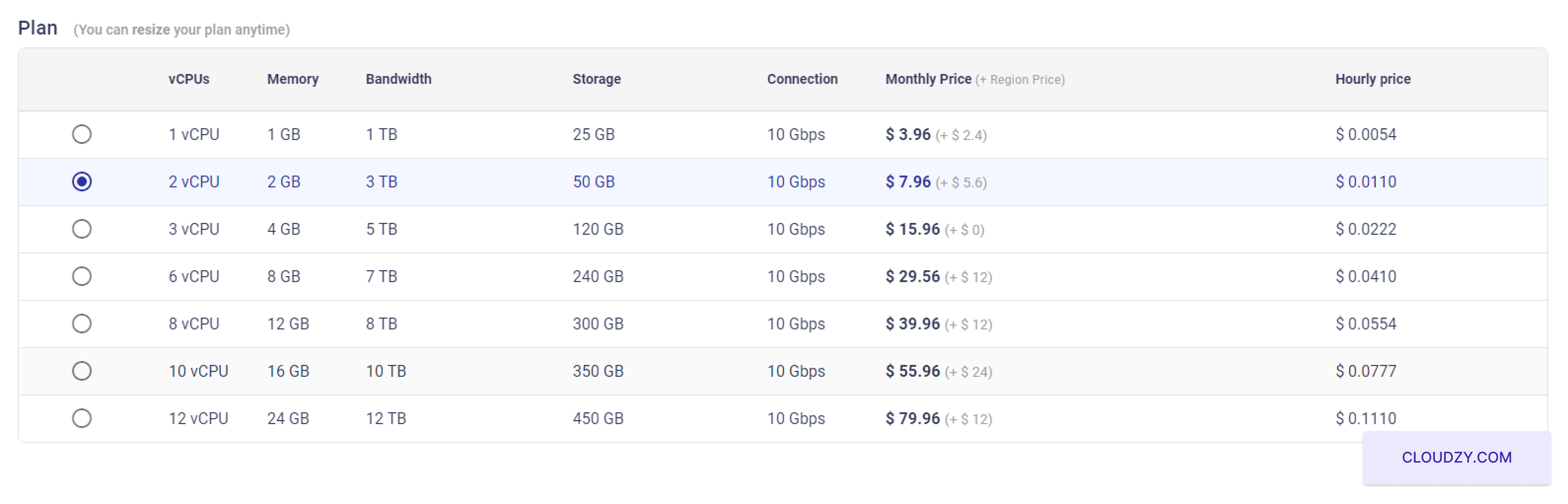
- サービスプランを選択:
MongoDB と互換性のあるオペレーティングシステムを選択した後、次のステップに進みます。
サービス設定ページに移動します。利用可能な VPS プランを確認してください。
それぞれ vCPUs、メモリ、帯域幅、ストレージ容量が異なります。
MongoDB、より多くのメモリと CPU リソースを備えたプランを選択して確保してください
より優れたパフォーマンス
- SSH キーを設定する(オプションですが推奨されます):
セキュリティを強化するには、セキュアなサーバー用に SSH キーを追加することをお勧めします
アクセス

SSH キーをまだお持ちでない場合は、作成することをお勧めします
パスワード不要のセキュアアクセス。設定と使用方法については
SSH keys、Cloudzyの SSH キーセットアップガイドを参照してください。 クラウドジーの
SSH キー設定ガイド
- ホスト名を入力してください:
VPSのホスト名を割り当てます。サーバーのネットワーク識別に使用されます
識別子
サーバーの用途を反映した、意味のあるホスト名を選択してください。例:
mongodb-server-01.
- VPSをデプロイします:
設定がすべて確認できたら、次のボタンをクリックします
「Deploy Now」ボタンをクリックして VPS のプロビジョニングを開始します。  セットアップが始まり、サーバーが
MongoDB がインストールされた状態で準備してください。
このプロセスにより、MongoDBサーバーが適切に構成されることが保証されます
必要なリソースとホスティングに適切なセキュリティ対策を備えた
データベースを効率的に。
ステップ3:
デプロイメントプロセスの監視
- デプロイの進行状況を追跡:
「Deploy Now」をクリックすると、ステータスページにリダイレクトされます
このページで VPS のデプロイ進捗を確認できます。
「ネットワークを準備中」や「ディスクを準備中」などのさまざまなステージを表示します
「Initializing」を経由して最終的に「Active」に到達します。各段階で現在のサーバーセットアップの状況が表示されます。
サーバーセットアップの現在の状況が表示されます。
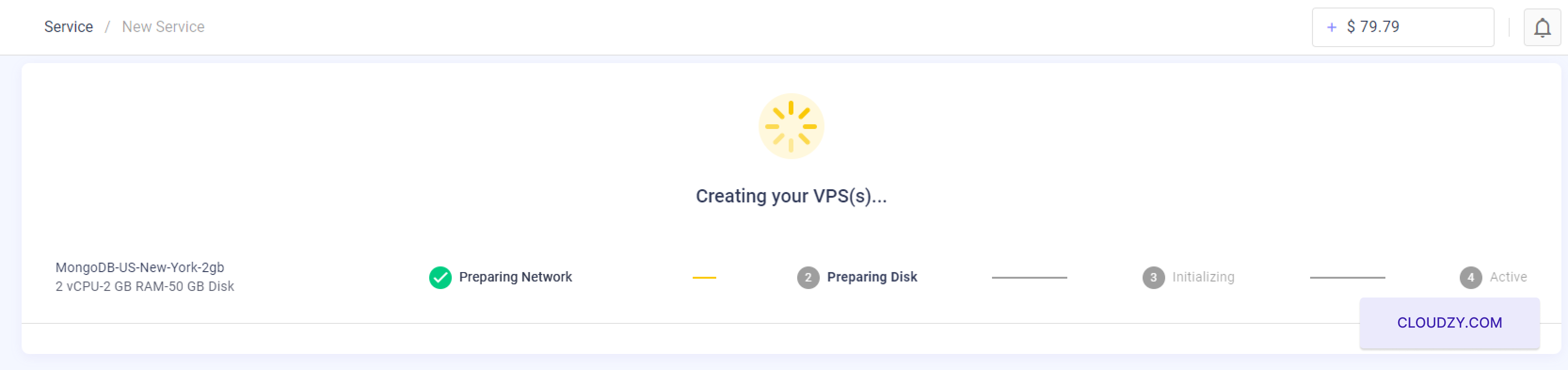
- デプロイメント完了:
プログレスバーが各段階の完了を示します。すべてのステージが「Active」ステータスに到達するまで待ちます。これはサーバーが完全にデプロイされ、運用可能になったことを示します。
すべてのステージが「Active」ステータスに到達するまで待ちます。
MongoDB サーバーが完全にデプロイされ、運用可能な状態になります。
このプロセスは選択内容によって数分かかる可能性があります
設定とネットワーク速度。

- サーバー詳細にアクセス
デプロイが成功し、サーバーステータスに表示されると
「Active」になると、サーバーの IP アドレスなどの情報が表示されます。
ユーザー名と初期パスワード。
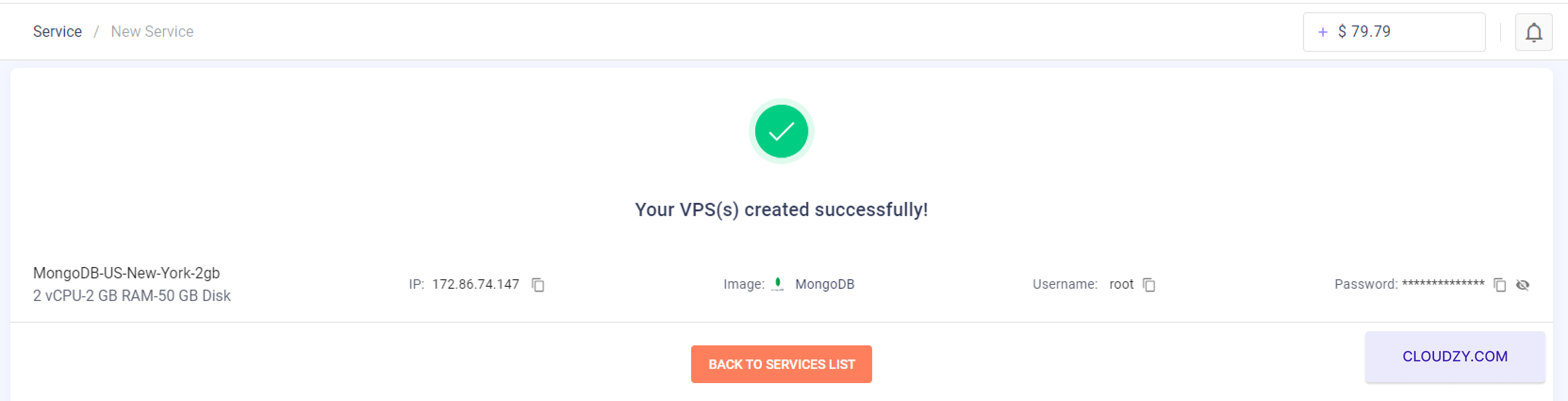
これらの詳細は大切に保管してください。VPS にアクセスする際に必要になります。
MongoDBサーバー。
これらのステップを完了することで、MongoDB サーバーが稼働していることが保証されます。
実行中です。提供されたアドレスを使ってサーバーに接続できます。
あなたのアプリケーションで MongoDB を使い始めるための認証情報。
ステップ4:
MongoDB サーバーへのアクセスと使用
- サーバーに接続:
デプロイプロセスの最後に提供される IP アドレス、ユーザー名、初期パスワードを使用してサーバーに接続します。接続に問題がある場合は
サーバーにログインしたら、MongoDB の設定を続けます。必要なヘルプについては
SSH経由での接続に関するヘルプについては、以下を参照してください クラウドジーの
SSH接続ガイドクレジットが足りない場合は 低
残高 ポップアップが表示されるので、クリックしてください 追加
クレジットへ.
- MongoDB の初期設定:
サーバーにログインしたら、MongoDB の設定に進みます。
インスタンス
管理者ユーザー名を入力: プロンプトが表示されたとき
コマンドラインで選択した管理者ユーザー名を入力します。このユーザー名は MongoDB 環境を管理するために使用されます。
MongoDB 環境を管理するために使用されます。
データベースホストを指定: プロンプトが表示されます
MongoDB データベースのホストを入力します。デフォルト IP が提案されている場合、それがセットアップに適していれば受け入れるか、必要に応じて別のものを入力します。
必要に応じて別のものを入力します。
必要に応じて
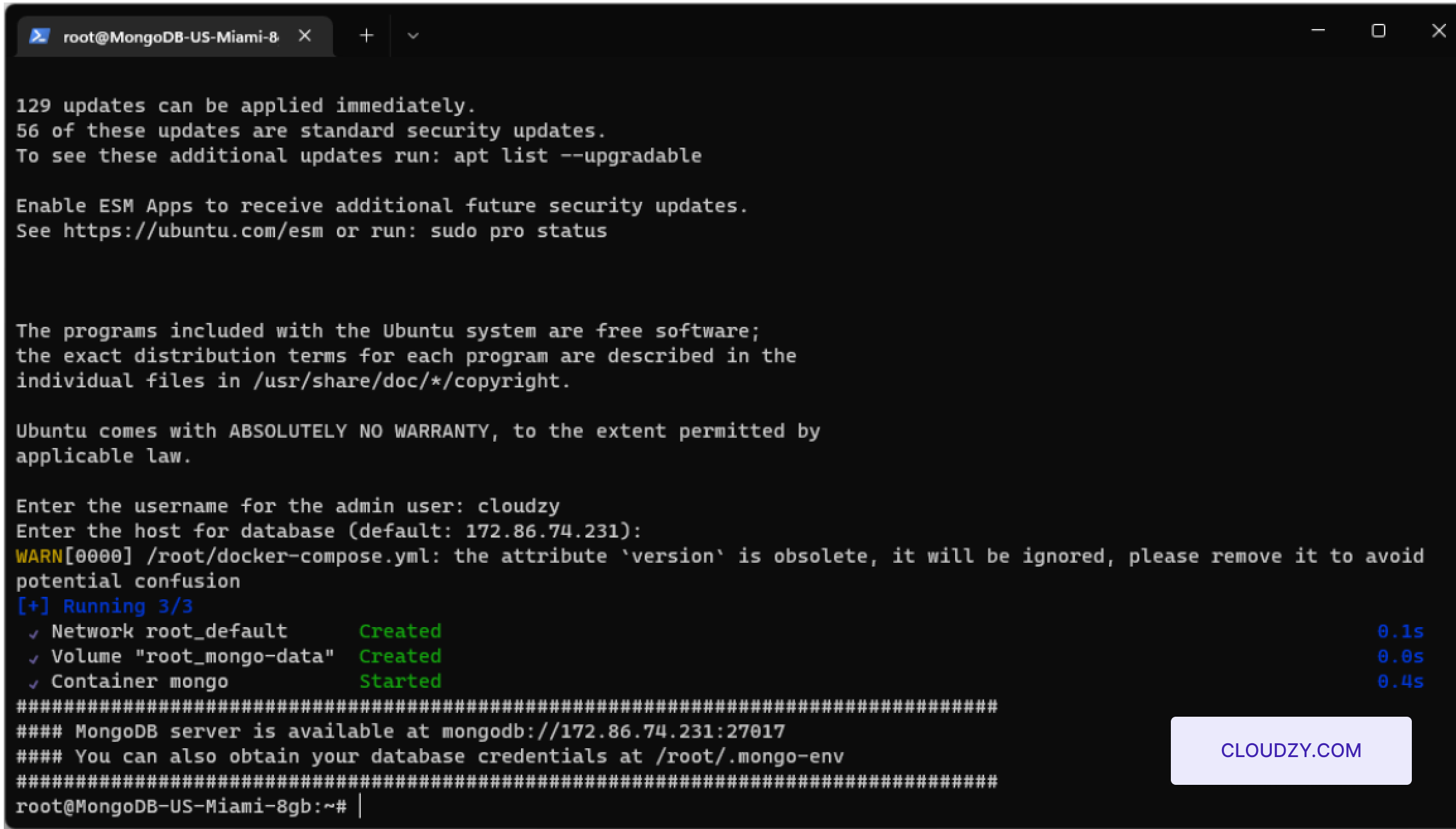
- インストールを確認してサーバーにアクセス:
初期セットアップの完了後、MongoDB サーバーが運用可能であることがシステムから確認されます。通常はアクセス可能な状態を示します。
通常はアクセス可能な状態を示します。
URLは mongodb://your-server-ip:27017 のようなものです。your-server-ip を
実際のIPアドレスが提供されます。
- データベース認証情報にアクセス:
MongoDB データベースの認証情報を確認するには、コマンドラインを使用して認証情報ファイルに移動します。次のコマンドを入力します。
次のコマンドを入力します。
cat /root/.mongo-envこのコマンドはに保存されているデータベース認証情報を表示します
.mongo-env ファイルには MongoDB のユーザー名とパスワードが含まれています。
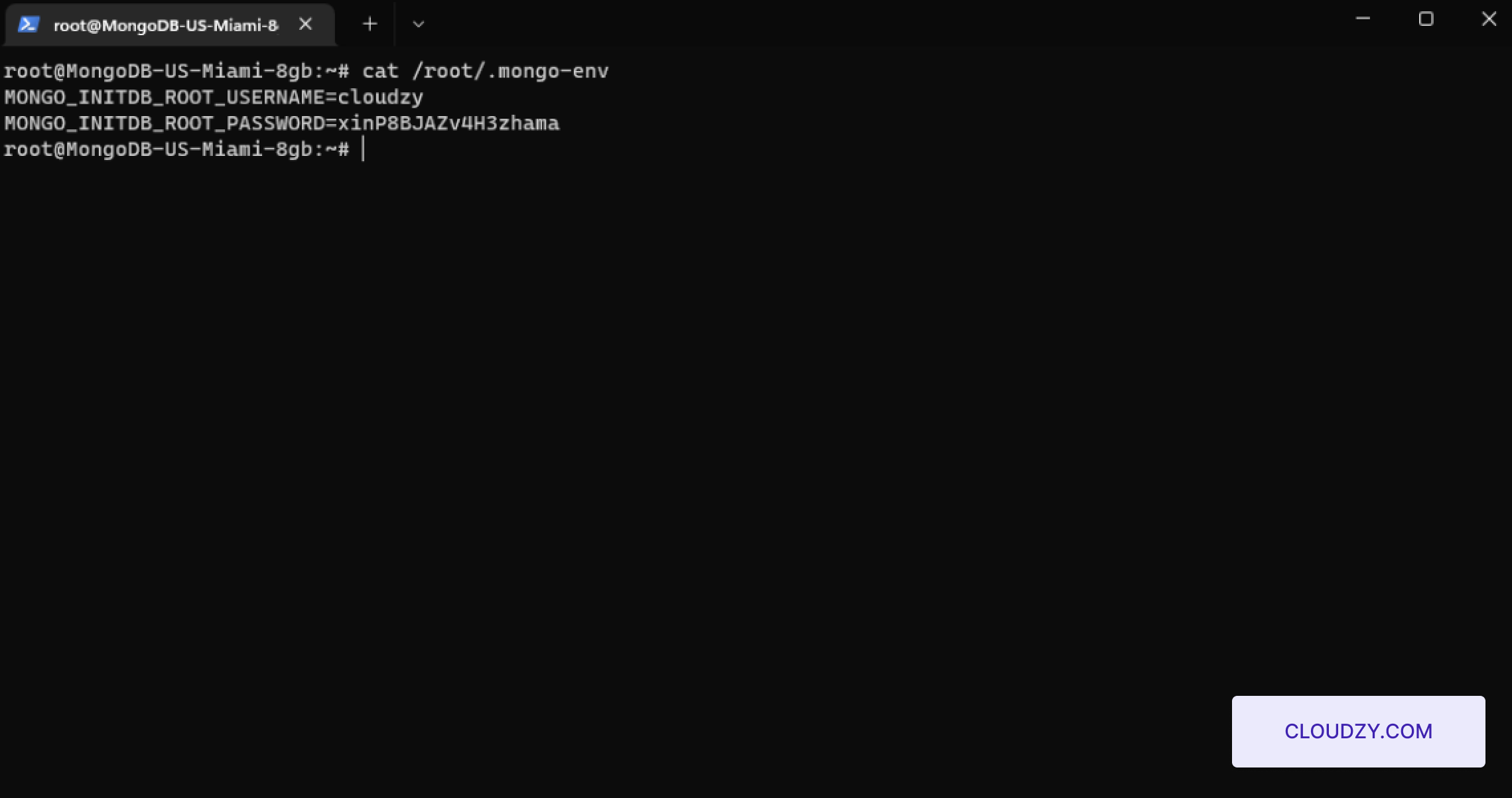
これらのステップに従うことで、MongoDB サーバーが設定されます。
管理者ユーザーが設定済みで、データベース操作の準備が整っています。このセットアップにより
サーバーが完全に稼働し、すぐに使用できるセキュアな状態であることを確認できます。