

To secure a Windows VPS without turning it into a science project, patch it first, harden RDP with NLA and IP allowlists, enforce account lockout, keep inbound firewall rules tight, leave Defender real-time protection on, and test your backups. For remote work, websites, or apps, the goal is simple: cut attack surface, protect identity, and watch your logs.
Patch First: Updates, Drivers, and Roles
Before anything else, patch. Unpatched servers with public exposure are low-hanging fruit, and most break-ins start there. Keep security updates rolling, remove unused Windows roles, and plan reboots on a schedule that your team can live with. That is the boring work that stops the noisy stuff.
- Set Windows Update to install security updates on a regular cadence; align maintenance windows with business hours that work for you.
- Remove roles and features you do not need, like legacy IIS modules or SMB 1.0 components.
- Apply driver, firmware, and app updates on a rhythm, then reboot on schedule, not two months later.
- If the VPS is on public IP, review exposure in your cloud portal and close what is not needed.
Start here, and keep a simple changelog per month so you can answer what changed and when. That sets the stage for identity work next, which is where most gains happen.
Identity Basics: Strong Passwords, MFA Paths
Identity is your front door. Long passphrases and a second factor stop most commodity attacks, and they are simple to roll out even on a small Windows Server.
- Use passphrases of at least 14 characters. If the server is domain-joined, add banned-password filtering through your identity stack.
- Add MFA to Remote Desktop via an RD Gateway, a VPN, or a third-party credential provider.
- Use separate named admin accounts, and keep daily work under a standard user.
- Audit who can log in via RDP, trim that list, and stick to least privilege.
None of this is a trick. It is consistency, and consistency is what leads straight into accounts. If you are doing this for a client, bake these checks into the handover notes so the next admin sticks with the plan.
Kill the Default 'Administrator' and Apply Account Lockout
Attackers hammer the built-in Administrator name. Disable it, create a named admin, and add account lockout so brute force attempts slow to a crawl.
- Create and test a separate named admin, then disable the built-in Administrator. If you must keep it, rename it and protect it as a break-glass account.
- Set Account Lockout to 10 attempts, 15-minute lockout, and 15-minute reset for a practical balance.
- Document a quick unlock path so support is not blocked when someone fat-fingers a password.
For baseline settings and trade-offs, see Microsoft's Account lockout threshold reference.
Small changes like these pay off fast on a public VM. With the default door closed and lockouts in place, the next layer is the RDP surface.
RDP Hardening: NLA, Port Noise, and IP Allowlists
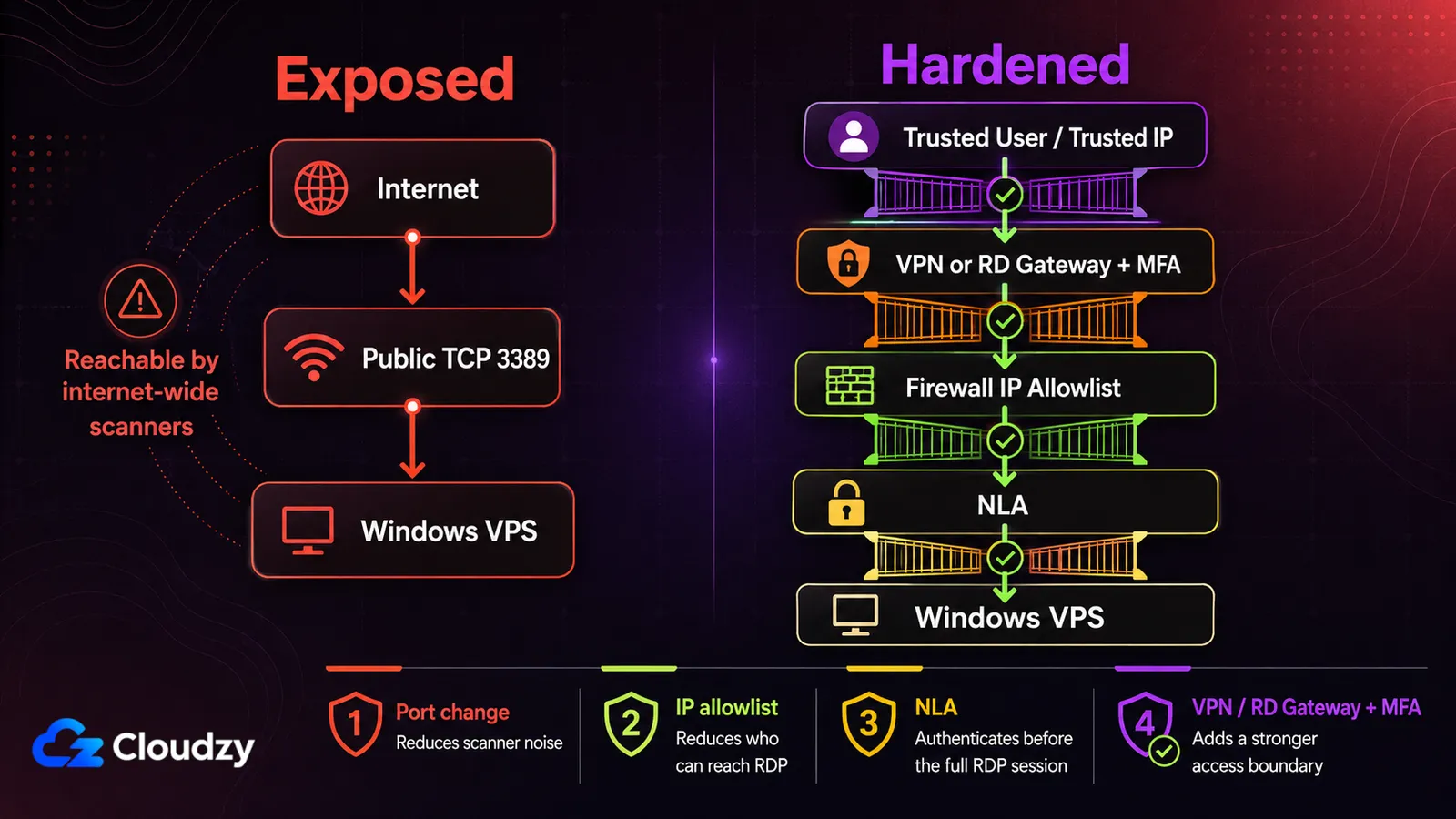
Remote Desktop is a favorite target, so tighten it. Turn on Network Level Authentication, cut exposure with allowlists, and reduce bot noise on 3389. Changing the port is not a control by itself; it just keeps scanners quieter.
- Require NLA on the server; older clients that do not support it should not connect.
- Allowlist source IPs for TCP 3389 or the new port; better yet, place RDP behind a VPN or an RD Gateway.
- Change the default RDP port to reduce scanner noise, but do not treat this as security by itself.
- Disable drive and clipboard redirection if you do not need them; set idle timeouts and force re-authentication.
Locking down RDP cuts most automated attacks, and the allowlist does the bulk of that work. Narrowing the source range, or using RDP allowlisting and geo-fencing when your users all sit in one region, keeps drive-by traffic from ever reaching the logon screen. That pairs nicely with sane firewall rules.
Firewall Rules That Actually Help
Host firewall rules should be simple, deny by default, then open only what you use. Tie RDP rules to known source IPs, log drops, and keep legacy protocols out.
- Start with default-deny inbound, then allow only needed ports and protocols.
- Scope RDP rules to known IPs, not 0.0.0.0/0, and log blocked traffic for review.
- Stick with TLS 1.2 or newer; disable SMBv1 across the board.
- Keep outbound allow-by-default unless you have a managed egress policy; add targeted outbound blocks only where you have a defined need.
The rules that earn their keep are usually the ones covering ports nobody deliberately opened. Windows RPC on TCP 135 is the standard example, and restricting it to trusted sources at the host firewall is the same default-deny reflex applied one port at a time. Behind those ports sit the services themselves.
Services Hygiene: Remove What You Do Not Use
Extra services add attack paths. Turn off what you do not need, then check again in a month to see what crept back in.
- Stop and disable the Print Spooler if the server is not a print host.
- Disable Remote Registry and legacy protocols you do not use.
- Uninstall web, file, or FTP roles that are not part of your workload.
- Review startup items and scheduled tasks, and investigate anything you do not recognize before disabling it.
With the house cleaned, add baseline protection with Defender and light EDR settings. It is a small lift, and it is the kind that shows up in daily practice.
Defender, EDR, and Scheduled Scans
Microsoft Defender Antivirus gives you a solid built-in baseline on current Windows Server releases. Keep real-time and cloud-delivered protection active, and use quick scans for the regular schedule.
- If the server is onboarded to Defender for Endpoint, enable Tamper Protection there.
- Keep real-time and cloud-delivered protection on; schedule a weekly quick scan during a quiet period.
- Run full scans only for specific investigations or when your security tooling calls for one.
These settings give you day-to-day coverage, which is a baseline and not a managed detection and response program. They work best alongside backups you can actually restore.
Backups, Snapshots, and Recovery Tests
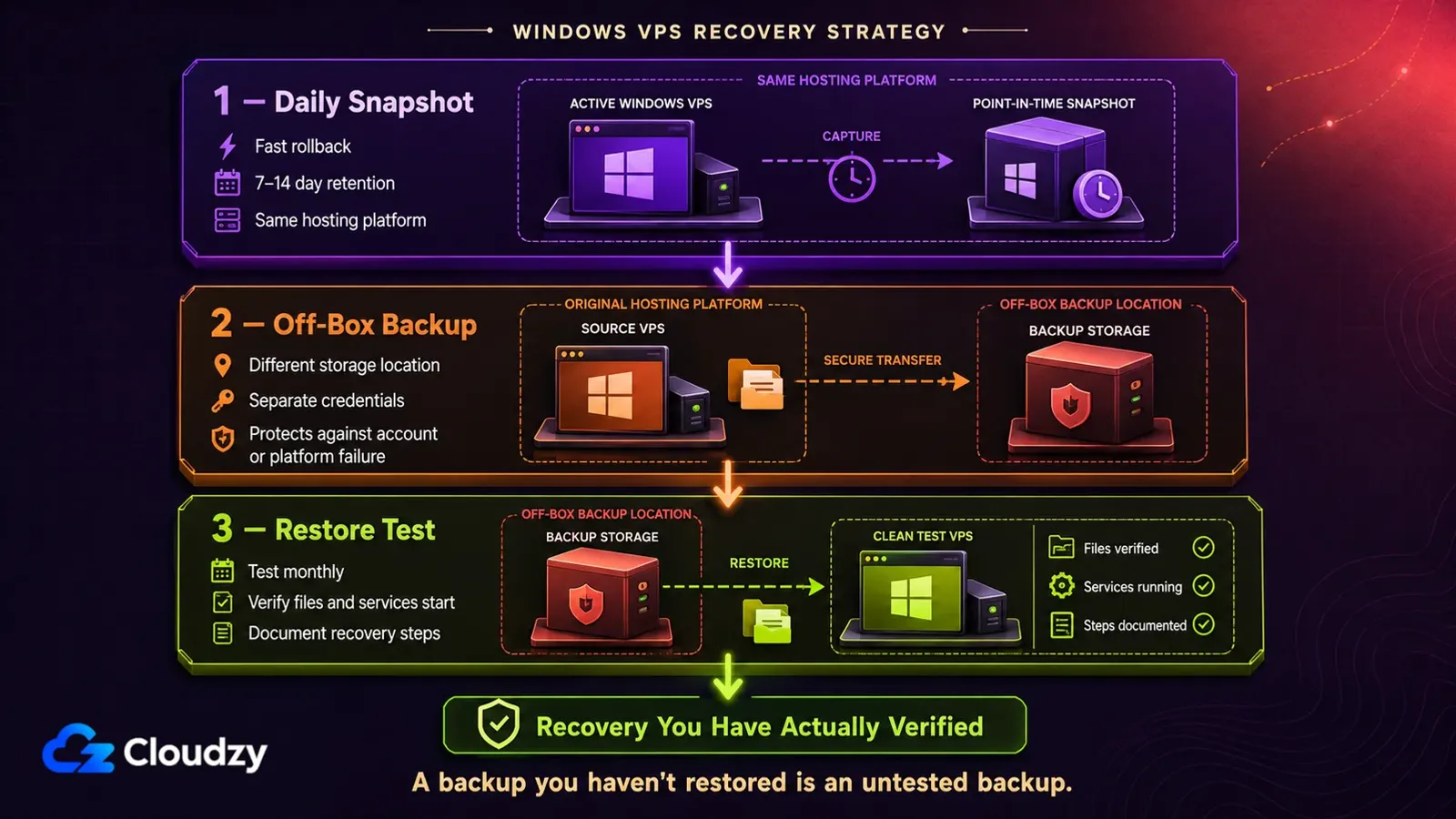
A Windows VPS that cannot be restored is a single point of failure. Take daily snapshots, keep off-box backups, and test restores so you know the plan works.
- Daily automated snapshots with a seven to 14-day retention, longer for compliance work.
- Off-box backups to a provider, region, or bucket that uses different credentials.
- Monthly test restores, documented steps, and a contact list for time-to-recover.
Snapshot and restore behavior is a platform question as much as a policy one, and it is worth checking before the day you need it. If you're deploying a fresh server, our Windows VPS offers one-click images for Server 2022, 2019, 2016, and 2012 R2.
One caveat there is worth more than the rest of that paragraph. Server 2012 is still on the image list for legacy application compatibility, and it is not a base image for a hardened build. Microsoft's Server 2012 lifecycle notice puts end of support at October 10, 2023, and paid Extended Security Updates run out entirely on October 13, 2026. Server 2016 is also close to end of support in January 2027, so if you are building something new and putting it on a public IP, start with Server 2019 or 2022.
Monitor and Log: RDP, Security, PowerShell
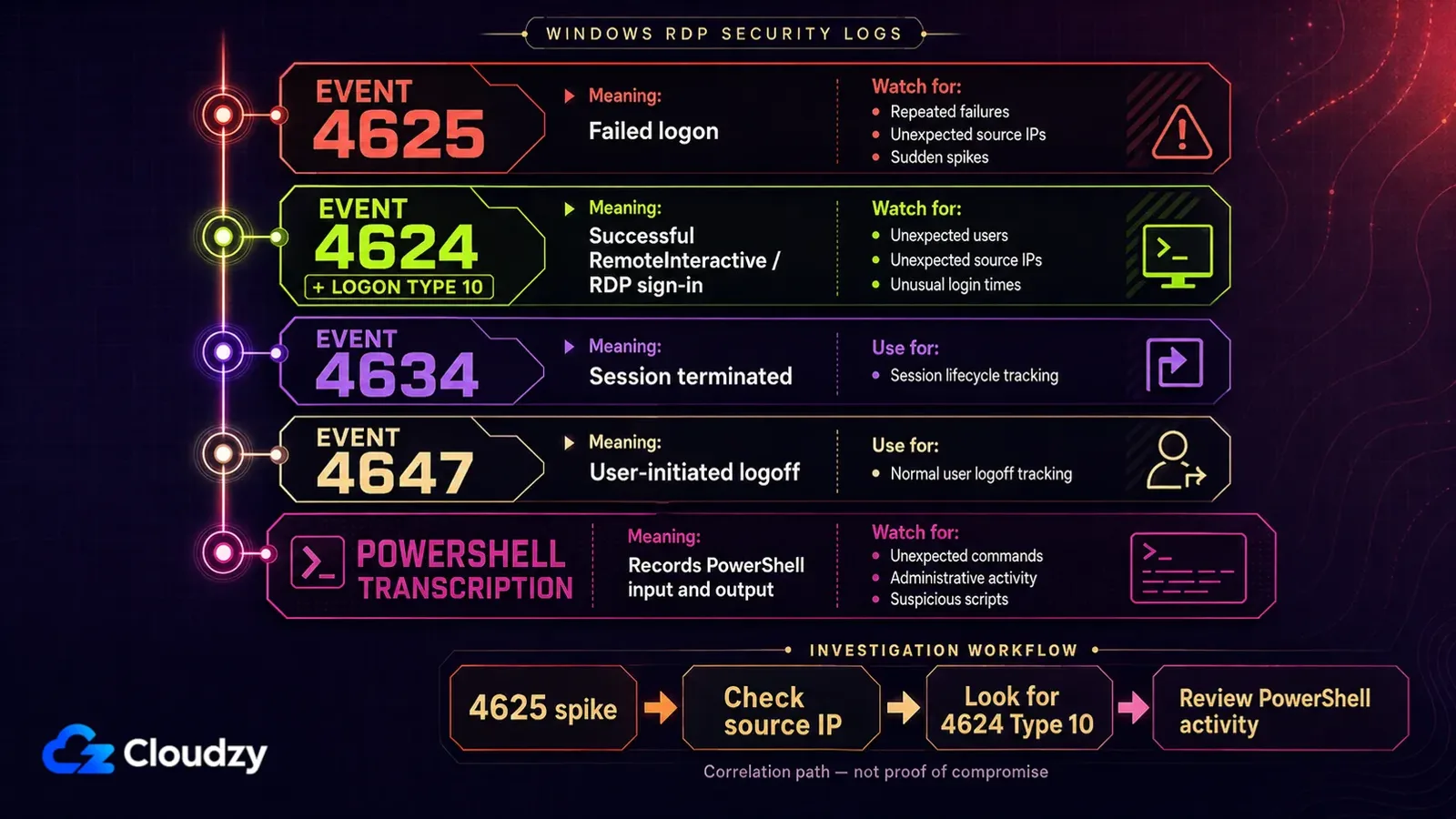
You do not need a SIEM to get value from Windows logs. Start with failed logons, successful RDP sessions, and PowerShell transcription. Those three signals give you a useful monitoring baseline on a small server.
- Turn on auditing for failed logons and watch Event ID 4625 spikes.
- Track successful RDP sign-ins with Event ID 4624 filtered to Logon Type 10 (RemoteInteractive); use 4634 for session termination and 4647 for user-initiated logoff.
- Enable PowerShell transcription by policy so PowerShell input and output have a trail.
With visibility in place, print the one-page hardening snapshot and keep it handy. This is where day-two operations start, since alerts are what drive the next round of patching and cleanup.
Windows VPS Hardening Table
A quick summary you can scan before maintenance windows or after a rebuild.
| Control | Setting | Why it matters |
|---|---|---|
| Windows Update | Auto install security updates | Closes public exploits quickly |
| Admin account | Disable built-in, use named admin | Removes a known target |
| Account Lockout | 10 attempts, 15-min lock | Slows brute force |
| NLA | Enabled | Stops unauthenticated RDP |
| RDP Port | Non-default | Reduces scanner noise |
| IP Allowlist | Restrict RDP scope | Cuts exposure |
| Firewall | Default-deny inbound | Only the needed ports |
| SMBv1 | Disabled | Removes legacy risk |
| Defender | Real-time protection; tamper protection with MDE | Baseline malware defense |
| Backups | Daily + test restores | Recovery safety net |
That snapshot is your at-a-glance view; the next piece compares the same ideas on Linux, which helps cross-train teams.
Bonus: Compare With Linux Hardening
Some teams mix platforms. The same big wins show up on both sides: patches on a schedule, named admin accounts, strong SSH or RDP, and deny-by-default firewalls. If your stack includes Linux boxes, this Windows plan aligns well with a secure Linux VPS baseline, so your playbooks look familiar across the board.
That cross-platform view sets you up for practical choices by use case, and it gives you something to hand the colleague who manages SSH keys and iptables all day and has never opened Group Policy.
Quick Picks by Use Case
Your list should match your workload. Here is a short matrix to map controls to common setups.
- Solo dev box: require NLA, allowlist your current IP range, and optionally change the RDP port to cut scanner noise, and run weekly quick scans. Keep daily snapshots and test once a month.
- SMB app server for ERP or accounting: place RDP behind a VPN or an RD Gateway, restrict admin rights, disable legacy protocols, and add alerting on 4625 spikes.
- Remote desktop farm for a small team: centralize access through a gateway, add MFA, use unique passphrases and change them when compromise is suspected, and keep firewall rules tight on inbound and outbound.
Deploy a Windows VPS with instant setup and full admin RDP.
Buy Windows VPSFrequently Asked Questions
Is changing the RDP port enough?
No. It only reduces drive-by scans; you still need NLA, account lockout, and IP allowlists, or a VPN and gateway. Think of the port change as noise control, not a shield.
Do I need a VPN for RDP?
If RDP faces the internet, use a VPN or an RD Gateway to cut exposure. Pair it with MFA and firewall allowlists for a simple, strong setup most small teams can run.
How often should I patch a Windows VPS?
Follow your provider's maintenance windows if available, then apply security updates soon after release for the OS and apps. Attack paths often start with public exposure and known bugs, so do not lag on patching. If the server hosts customer data, put the patch cadence in a written policy so it sticks.
What is NLA, and why turn it on?
Network Level Authentication requires logon before the RDP session starts, which blocks unauthenticated code paths and saves resources. Microsoft recommends NLA for most environments; verify it is enabled and leave it on.
What should I monitor on a small server?
Start with 4625 failed logons, 4624 Logon Type 10 for successful RDP sign-ins, 4634 session termination, 4647 user-initiated logoff, and PowerShell transcription. Add weekly reviews and a simple alert rule for spikes. That is enough visibility on a small box without buying a full platform.



Discussion
Comments
Sign in to join the discussion.