50% off 所有套餐限时优惠,起价 $2.48/mo
9 min left
Security & Networking

How to Fix “Windows Could Not Automatically Detect This Network’s Proxy Settings” Error

Allen By Allen 9 min read Updated Oct 28, 2025
Windows 无法自动检测该网络的代理设置

A yellow warning triangle over your WiFi icon shows: “Windows could not automatically detect this network’s proxy settings.”? This mind-blowing error has become increasingly common in today’s complex network environments. When Windows can’t detect proxy settings automatically, it typically indicates network configuration issues that can be resolved with the right troubleshooting steps.

为什么会出现 Windows 代理检测错误?

可视化展示网络连接中断和数据路径冲突的情况,说明 Windows 代理检测为何失效。

Windows automatically searches for proxy settings using WPAD (Web Proxy Auto-Discovery Protocol) every time you connect to a network. When you see “could not automatically detect,” it means Windows is looking for a configuration file called “wpad.dat” that most home networks don’t even have. Your computer keeps searching for proxy servers that simply don’t exist in typical home setups.

真正的问题在于 Windows 同时运行两个相互冲突的代理系统。WinHTTP 处理系统级应用,而 WinINet 处理浏览器。当这两个系统不一致或损坏时,自动检测会完全失败。加上过时的驱动程序、注册表损坏或 VPN 软件,整个检测流程就会瘫痪。

恶意软件会针对代理设置发动攻击,劫持你的网络流量,使问题更加严重。某些病毒会不断将你的配置重置为有问题的设置,这就是为什么即使你认为已经修复了,错误仍会反复出现。

下面是解决代理设置错误的实证方法:

解决方案 1:重启您的计算机和路由器

很多时候,重启电脑就能解决各种问题。虽然不总是管用,但有时候能帮你省去复杂的故障排查。遇到 Windows 无法自动检测网络代理设置的问题时,首先试试重启一下。

你也可以试试重启路由器。不过,这个错误通常是由你的电脑或笔记本问题导致的,而不是网络问题。所以重启路由器不太可能能解决这个问题,但还是值得一试。

解决方案 2:检查 Windows 中的代理设置
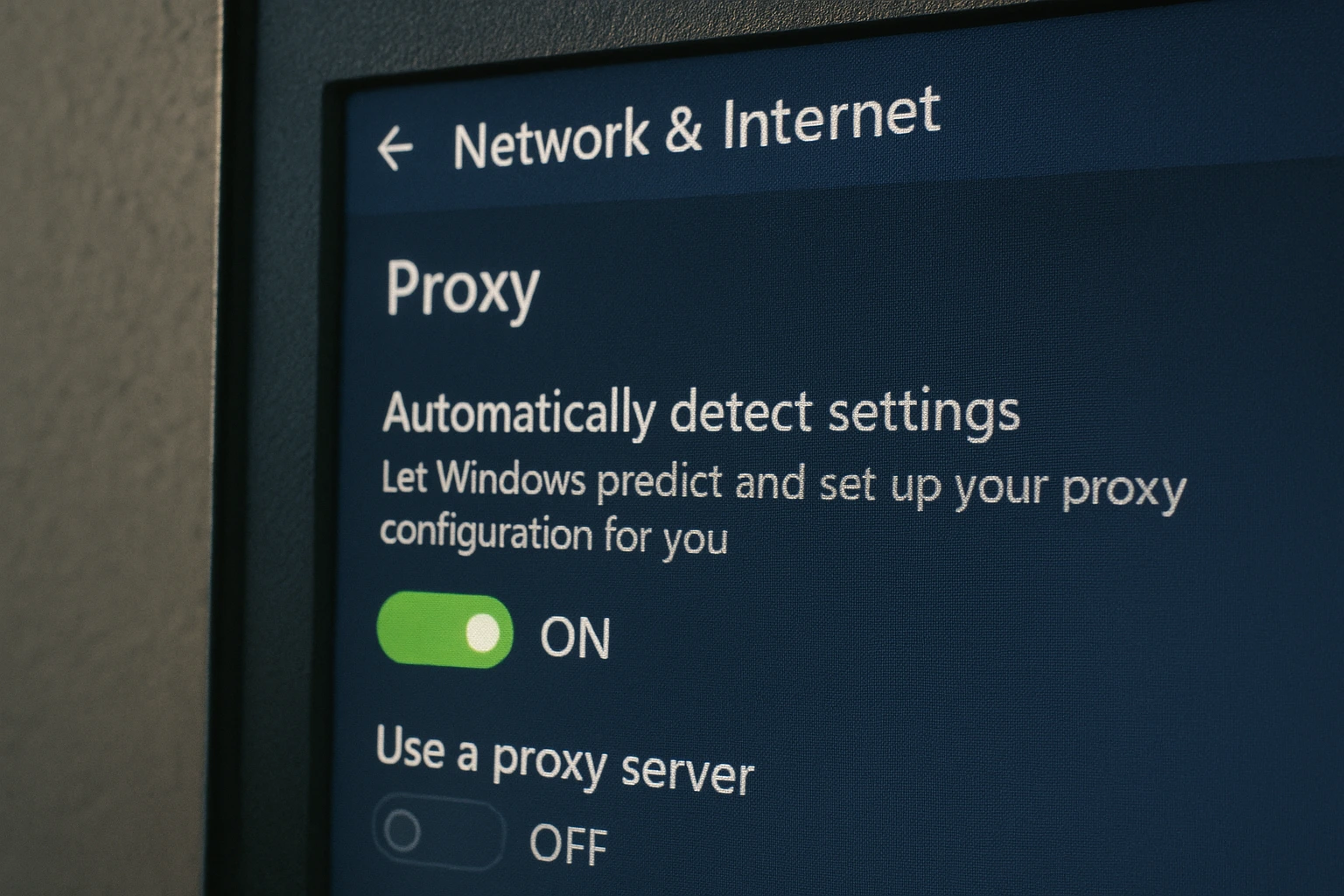
A computer screen showing Windows network settings with "Automatically detect settings" enabled and "Use a proxy server" disabled.

Most of the time, checking the box “Automatically detect settings” and leaving the box “Use a proxy server” off will do the job of fixing Windows could not automatically detect this network’s proxy settings. This solution addresses the most common cause of proxy detection errors, which occurs when Windows gets confused about whether to use automatic detection or manual proxy configuration. The automatic detection feature uses Web Proxy Auto-Discovery Protocol (WPAD) to detect proxy server settings from your network environment. In most home and small office networks, no proxy server is needed, so enabling automatic detection while disabling manual proxy settings resolves the conflict. Unless you are a professional and know exactly how to set your proxy, you shouldn’t worry about changing the other boxes, as incorrect manual settings often cause more problems than they solve.

什么是代理服务器?

代理服务器充当您的计算机与互联网之间的中介,通过另一台服务器转发您的网络请求。大多数家庭用户不需要代理服务器,这就是为什么应该启用自动检测。

For Windows 10/11:

  1. Press Windows + I to open Settings
  2. Go to Network & InternetProxy
  3. Turn ON “Automatically detect settings”
  4. Turn OFF “Use a proxy server” (unless you know you need one)

For Windows 7:

  1. Open Control PanelInternet Options
  2. Click Connections tab → LAN Settings
  3. Check “Automatically detect settings”
  4. Uncheck “Use a proxy server for your LAN”

如果用户遇到 Windows 无法检测网络代理设置的问题(特别是 Windows 7),上面介绍的控制面板方法是最可靠的解决方案。

方案 3:运行网络适配器故障排除工具
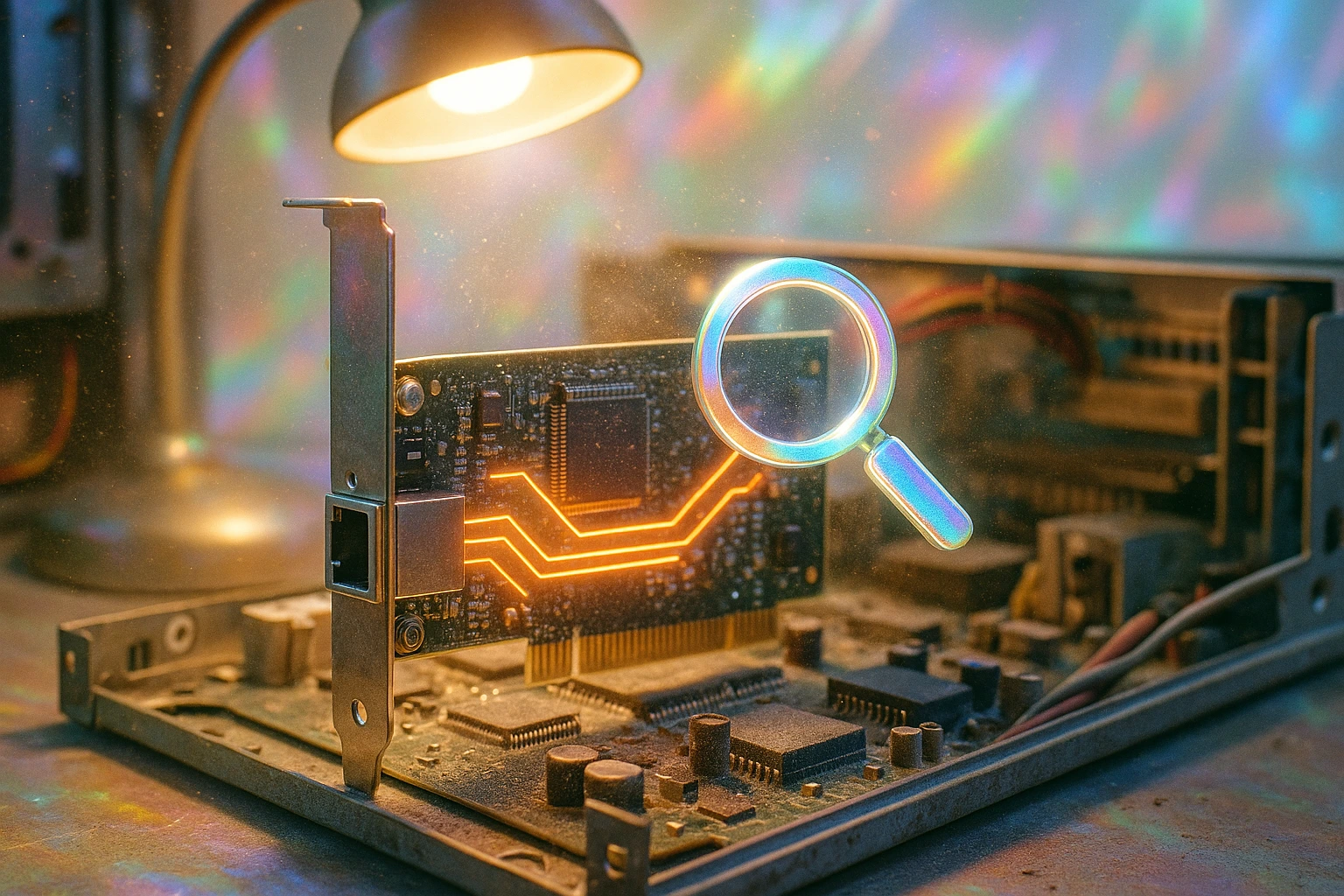
一个风格化的网络适配器图标,配有放大镜,展示网络适配器故障排除工具在工作。

Maybe 此错误由您计算机的网络适配器问题引起。网络适配器是计算机内部的硬件,用于通过网络或 LAN 连接与其他计算机、服务器或网络设备通信。网络连接问题影响数百万用户,其中 30% 的美国人经历过互联网连接问题 在家办公时,网络适配器的正常工作至关重要。

Windows 可以诊断并修复适配器问题。你只需要运行故障排除。你可以在以下部分找到网络适配器故障排除:

For Windows 10/11:

  1. Press Windows + ISystemTroubleshoot
  2. Click Other troubleshooters
  3. Find Network Adapter → Click Run
  4. 按照屏幕上的说明操作

For Windows 7:

  1. Control PanelTroubleshooting网络和互联网Network adapter

然后运行故障排查,Windows 会自动修复代理问题。

解决方案 4:自动获取 IP 地址和 DNS 信息
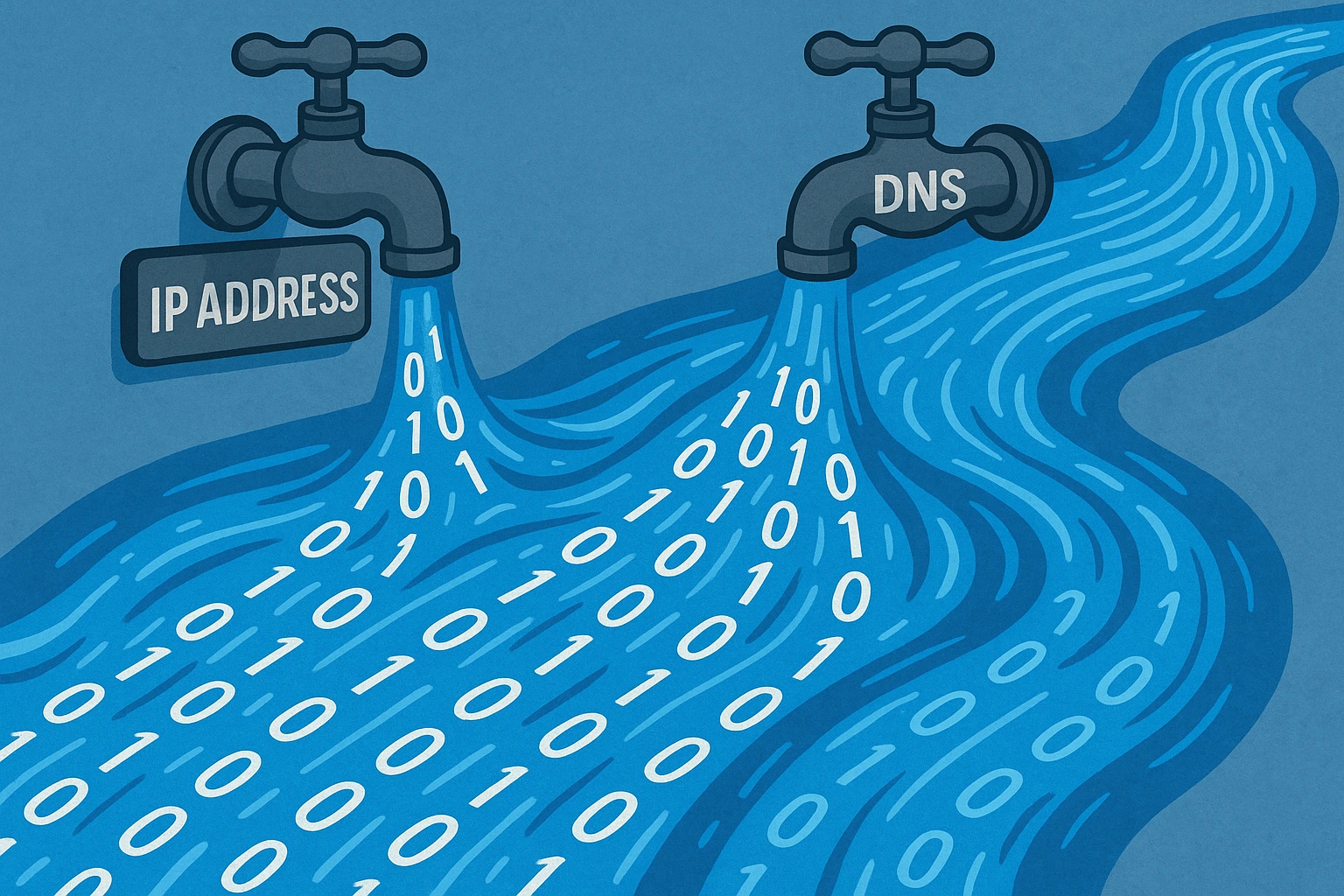
电脑屏幕显示 TCP/IPv4 设置,已勾选自动 IP 和 DNS 获取。

Sometimes your computer has trouble detecting the proxy settings because it couldn’t get the DNS server address. To fix it, you just need to find a box that says “Obtain DNS server address automatically” and check it. You’ll find this box here:

For Windows 10/11:

  1. SettingsNetwork & internet更改适配器选项
  2. 右键单击你的连接 → Properties
  3. Double-click 互联网协议第 4 版 (TCP/IPv4)
  4. Select “Obtain an IP address automatically”
  5. Select “Obtain DNS server address automatically”
  6. Click OK

For Windows 7:

  1. Control Panel网络和共享中心修改适配器设置
  2. 按照上面的步骤 2-6 进行

这里有两个选项:"自动获取 IP 地址"和"自动获取 DNS 服务器地址"。确保两个都已勾选。

方案 5:更新或回滚网络驱动程序

Maybe 你需要更新网络驱动程序才能连接到互联网。网络驱动程序软件让计算机操作系统能够支持网络适配器。因此,要让你的计算机连接到任何网络,你需要网络驱动程序。

  1. Press Windows + XDevice Manager
  2. Expand Network adapters
  3. 右键点击你的网络适配器 → Update driver
  4. Choose “Search automatically for drivers”
  5. Restart if prompted

如果没有驱动更新,可能是你的电脑制造商发布了有问题的更新,你需要回滚到之前的版本。试试这两个方法。

方案 6:通过命令提示符重置网络配置

如遇持续问题,使用以下命令可将 Windows 网络配置重置为默认状态:

  1. Press Windows + R, type cmd, press Ctrl + Shift + Enter (runs as administrator)
  2. 逐条运行这些命令(每条后按 Enter):
    • netsh winsock reset
    • netsh int ip reset
    • ipconfig /release
    • ipconfig /renew
    • ipconfig /flushdns
  3. 重启你的电脑

这五个命令可以重置 Windows 网络协议,方式是从路由器释放当前 IP 地址并获取新地址,或者重置 DNS 设置。

方案 7:检查防火墙、VPN 和杀毒软件

有时候你的 VPN、防火墙或杀毒软件会阻止网络连接,导致无法检测网络设置的错误。此外,软件更新可能会改变某些设置,或者最近安装的应用可能会修改代理设置。

要排查问题所在,请逐一临时禁用 VPN、杀毒软件或防火墙,看是否能解决。如果错误消失,说明问题出在其中之一,你需要调整这些软件的设置以免影响网络连接。

方案 8:扫描恶意软件

恶意软件可能会修改网络设置并导致代理检测错误。运行 Windows Defender 完整扫描:

  1. Windows 10/11: 设置 → 更新和安全 → Windows 安全 → 病毒和威胁防护 → 扫描选项 → 完整扫描
  2. Windows 7: 开始 → 所有程序 → Windows Defender → 立即扫描
  3. 考虑运行 Malwarebytes 以获得额外保护
  4. 移除任何检测到的威胁,然后重启计算机

如果恶意软件是问题的原因,删除它应该能恢复正常的网络连接。

方案 9:使用还原点

系统还原点保存了系统配置和设置的完整快照。当系统运行出现问题时,你可以用它把系统恢复到之前正常运行的状态。

按照这个路径找到你的系统还原:

For Windows 10/11:

  1. Press Windows + R, type rstrui,然后按 Enter
  2. 选择问题出现前的还原点
  3. 跟随恢复过程

For Windows 7:

  1. Control PanelSystemSystem ProtectionSystem Restore

时间回溯不会影响你的任何数据,也不会丢失文件,但会移除自从创建该还原点以来安装的所有软件。

解决方案 10:重置网络设置

如果 Windows 无法检测网络代理设置,问题仍然存在。尝试重置网络设置。这将把 VPN 和代理服务器恢复到默认状态,并回滚任何网络配置到原始设置。

For Windows 10/11:

  1. SettingsNetwork & internet高级网络设置
  2. 向下滚动,然后在 More settings, tap on Network reset
  3. Click Reset now
  4. 根据提示重启

For Windows 7:

  1. Control PanelInternet OptionsAdvanced tab
  2. Click Reset删除个人设置Reset

重置网络会移除所有网络适配器并重新安装它们。完成后,你需要重新连接到之前的网络,请确保你已保存这些网络的密码。

Conclusion

Following these solutions in order should resolve the “Windows could not automatically detect this network’s proxy settings” error. Most users find success with the first few solutions, particularly checking proxy settings and running the network troubleshooter.

这些步骤可以帮助诊断代理配置问题,并恢复 Windows 的正常设置。如果无法正常检测代理,按照这个系统化的方法可以解决导致设置错误的软件冲突和配置问题。

网络代理错误可能由多种因素引起。不过按照上面的步骤操作,你应该能解决这个问题,恢复网络连接。如果还是有问题,直接联系你的网络管理员寻求进一步帮助。

针对需要可靠网络连接和专业 Windows 环境的企业 Windows VPS 托管 提供托管型 Windows 实例,包含有保障的网络连接和预配置的自动代理检测设置。

如果以上方案都不奏效,问题可能出在硬件上,需要专业诊断。
FAQ

家庭网络需要代理服务器吗?

不需要。大多数家庭用户不需要代理服务器。你的家庭网络通过 ISP 直接连接到互联网。代理服务器主要用于企业环境中的安全过滤。如果你在家里遇到这个错误,请完全禁用代理设置。

为什么这个 Windows 代理检测错误总是反复出现?

此错误通常由恶意软件感染、防病毒软件冲突或系统文件损坏引起。恶意软件会持续重置代理设置,而 VPN 程序或安全软件可能在启动时自动启用代理配置。Windows 更新失败也会导致问题反复出现。

恶意软件或病毒会导致 Windows 代理设置错误吗?

是的,恶意软件会劫持代理设置以重定向你的网络流量或阻止安全网站。如果标准修复方法不起作用,请使用 Windows Defender 和 Malwarebytes 运行完整扫描,以删除修改网络配置的恶意软件。

是什么导致 Windows 自动失去代理检测功能?

主要原因包括过时的网络驱动程序、损坏的系统文件和冲突的防病毒软件。Windows 更新失败和 VPN 应用程序干扰网络适配器也会导致此连接问题。

我该如何彻底解决 Windows 代理检测问题?

通过 Windows 设置 > 网络和 Internet > 网络重置来重置网络设置。更新网络驱动程序,运行 SFC 扫描(sfc /scannow),并确保自动 IP/DNS 检测已启用。删除导致干扰的冲突 VPN 或防病毒软件。

Share

博客更新

Keep reading.

MikroTik L2TP VPN 指南的 Cloudzy 标题图像,展示笔记本电脑通过发光的蓝色和金色数字隧道连接到服务器机架,并配有盾牌图标。
Security & Networking

MikroTik L2TP VPN 设置(含 IPsec):RouterOS 指南(2026)

在这个 MikroTik L2TP VPN 设置中,L2TP 处理隧道,IPsec 处理加密和完整性验证。将两者结合使用可以获得原生客户端兼容性,无需第三方工具。

Rexa CyrusRexa Cyrus 9 min read
终端窗口显示 SSH 警告信息,提示远程主机标识已更改。深蓝绿色背景上显示修复指南标题和 Cloudzy 品牌标识。
Security & Networking

警告:远程主机标识已更改及修复方法

SSH 是一种安全网络协议,可在系统之间创建加密隧道。在需要远程访问计算机但无需图形界面的开发者中仍然广泛使用。

Rexa CyrusRexa Cyrus 10 min read
DNS 服务器故障排查指南插图,深色背景上显示警告符号和蓝色服务器,用于 Linux 名称解析错误。
Security & Networking

名称解析临时失败:含义和修复方法?

使用 Linux 时,在尝试访问网站、更新软件包或执行需要网络连接的任务时,可能会遇到名称解析临时失败错误。

Rexa CyrusRexa Cyrus 12 min read

Ready to deploy? From $2.48/mo.

独立云服务,始于2008年。AMD EPYC、NVMe,40 Gbps。14天退款保障。