You can run Docker in production for months without a visible problem. Containers start, apps respond, nothing breaks. Then one exposed port or one misconfigured permission creates a foothold that an attacker didn’t have to earn. Most Docker security mistakes don’t look like mistakes until something goes wrong.
This article covers the specific configurations that put container environments at risk, what each one enables for an attacker, and closes with a checklist you can run against your own setup today.
Why Docker Security Is Harder Than It Looks
Containers feel isolated. You start one, it runs its own process space, and from inside it, the next container doesn’t exist. You do get isolation, but it’s only partial. Containers share the host’s kernel, which means a process inside a container can, under specific conditions, reach the host system entirely.
Docker ships are configured for developer convenience, not production hardening. Root access on. All ports are bindable to all interfaces. No runtime monitoring. Most developers accept those settings, ship the container, and move on. That’s a reasonable approach for getting started; it’s not a finished security posture.
According to Red Hat’s 2024 State of Kubernetes Security report, 67% of organizations delayed or slowed application deployment due to container or Kubernetes security concerns. That friction usually isn’t from attacks. It’s from teams discovering their container setups needed hardening that they hadn’t built in.
We often see containers running in production with the same configuration they had on a developer’s local machine. That’s where Docker security mistakes tend to compound quietly, with no visible symptoms until something is audited or fails.
The mistakes that create those gaps are specific, predictable, and mostly avoidable, starting at the configuration level.
Common Docker Configuration Mistakes
Most container breaches don’t start with a zero-day exploit. They start with a configuration set on day one, without much thought about network exposure or privilege scope.
Default Docker settings are built to work. The gap between functional and secure is where Docker container security risks accumulate, especially in self-hosted setups that get deployed and never revisited.
We see this pattern often: containers on public-IP servers with port bindings, user settings, and network configurations exactly as they were at initial deployment.
Running Containers as Root
When you start a Docker container without specifying a user, it runs as root. That means any process inside the container, including your application, has root-level privileges within the container’s namespace.
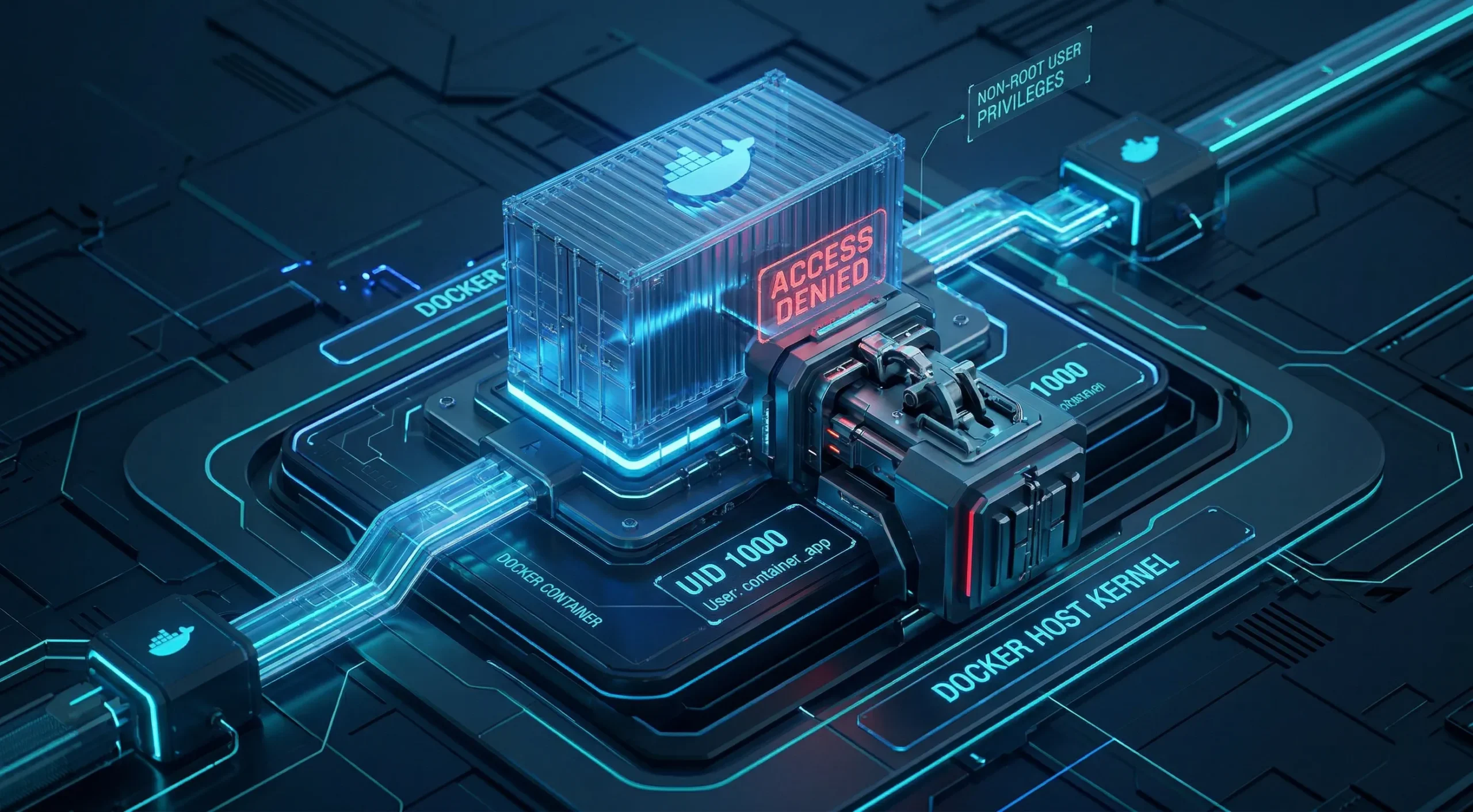
Root inside a container isn’t the same as root on the host, but the separation isn’t absolute. Privilege escalation exploits targeting the runtime, like the well-documented runc CVE-2019-5736 and similar runtime flaws, frequently require a root container process to succeed.
Non-root containers remove the root process requirement that those exploits depend on, significantly narrowing the attack surface for that class of vulnerability, though they don’t eliminate container escape risk entirely.
Adding a USER directive to your Dockerfile addresses this. Some official images ship with an unprivileged user you can activate with a USER directive, but many still default to root with no ready-made app user. In those cases, you create the user in the Dockerfile before switching to it. For most self-hosted setups, this single change removes an entire category of escalation risk.
Exposing Too Many Ports to the Public Internet
When you publish a port with Docker, Docker writes its own iptables rules directly. Those rules run before host-level firewall rules. This is a well-known behavior reported by the community and documented in Docker’s packet filtering guide, not a misconfiguration, and it means UFW and similar tools don’t block what Docker has already opened.
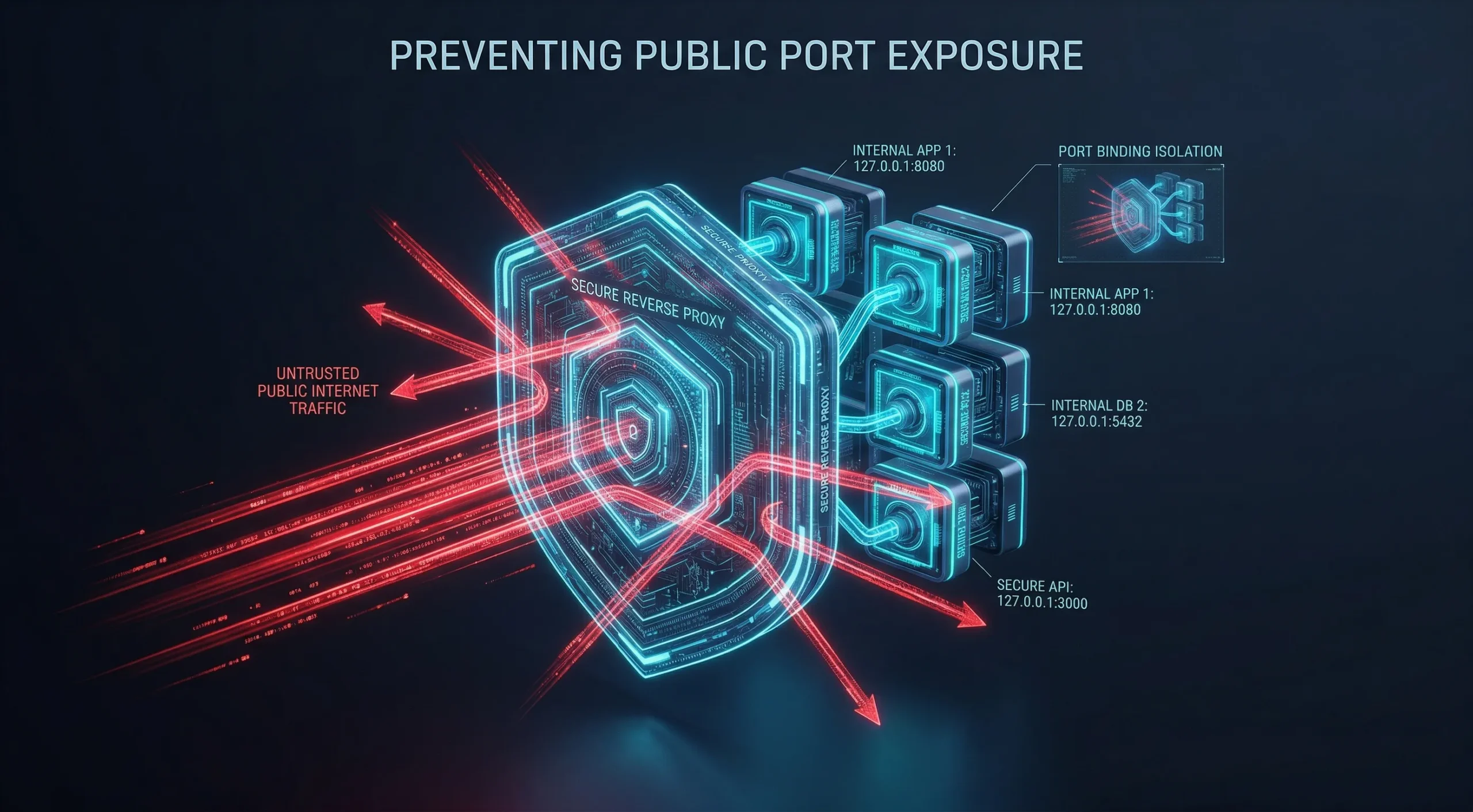
Docker writes directly to iptables, bypassing UFW and firewalld defaults on many Linux hosts. That means a port bound to 0.0.0.0 can be publicly reachable even when your firewall appears configured. Cloud security groups and DOCKER-USER chain rules can still block that traffic, so the actual exposure depends on your specific network setup.
Bind services to 127.0.0.1 where possible, route public-facing traffic through a reverse proxy, and publish only what genuinely requires external access. A reverse proxy is the most reliable way to control what’s exposed from outside the host.
Ignoring Network Isolation Between Containers
Any container on that network can reach any other container on it without restriction. The default bridge applies no traffic filtering between containers sharing it, and most setups never change that configuration.
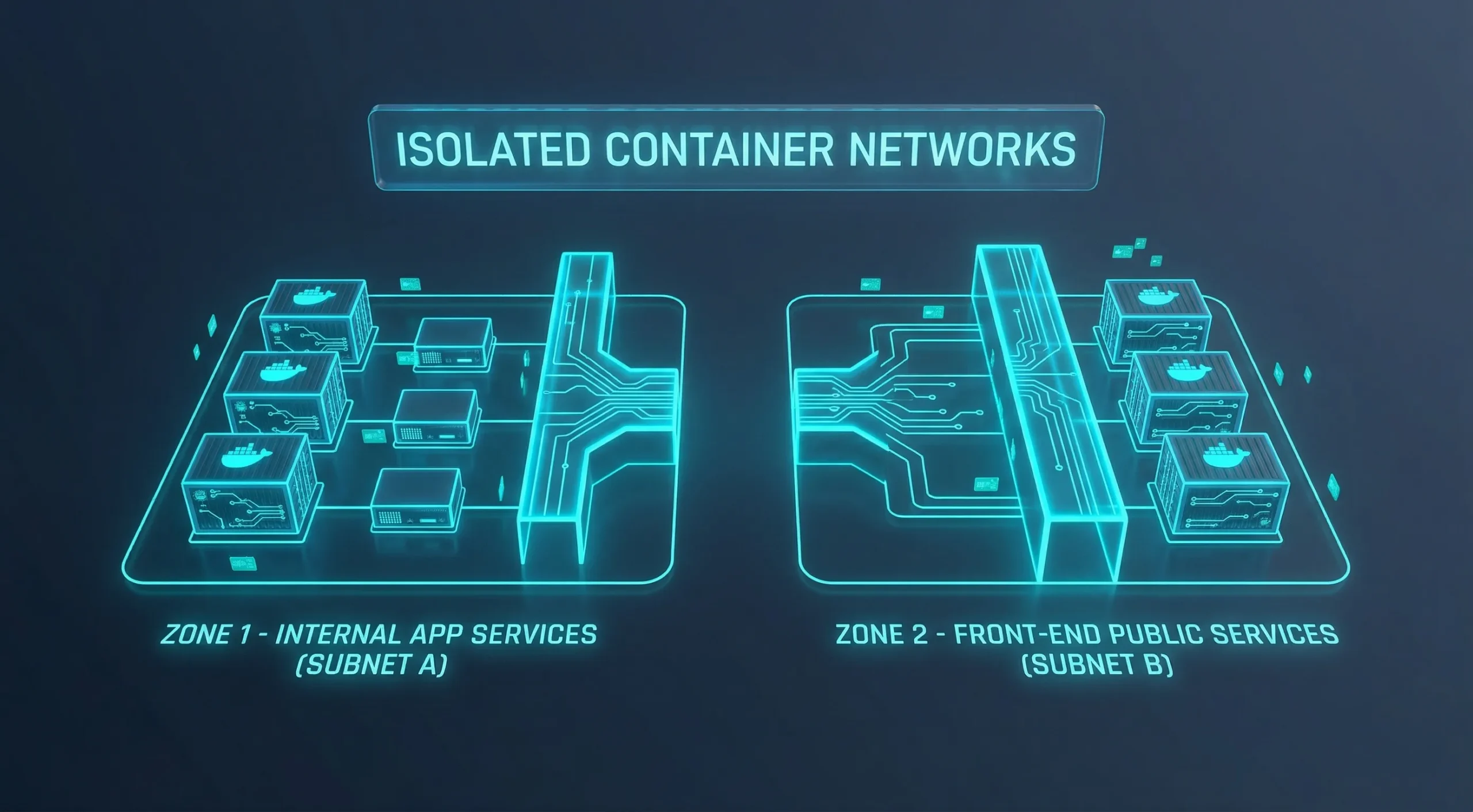
If one container gets compromised, that open communication becomes a lateral movement path. A frontend container can reach a database, an internal API, or anything else on the same default bridge network, even when that access was never intended.
User-defined networks give you explicit control over which containers can communicate, but a single custom network shared by all your services still allows free inter-container traffic. Real isolation requires putting services that shouldn’t talk to each other on separate networks. Switching off the default bridge is the starting point, not the finish line.
Overlooking the Docker Socket
The Docker socket at /var/run/docker.sock is the control interface for the entire Docker engine. Mounting it into a container gives that container direct API access to the daemon running on the host.
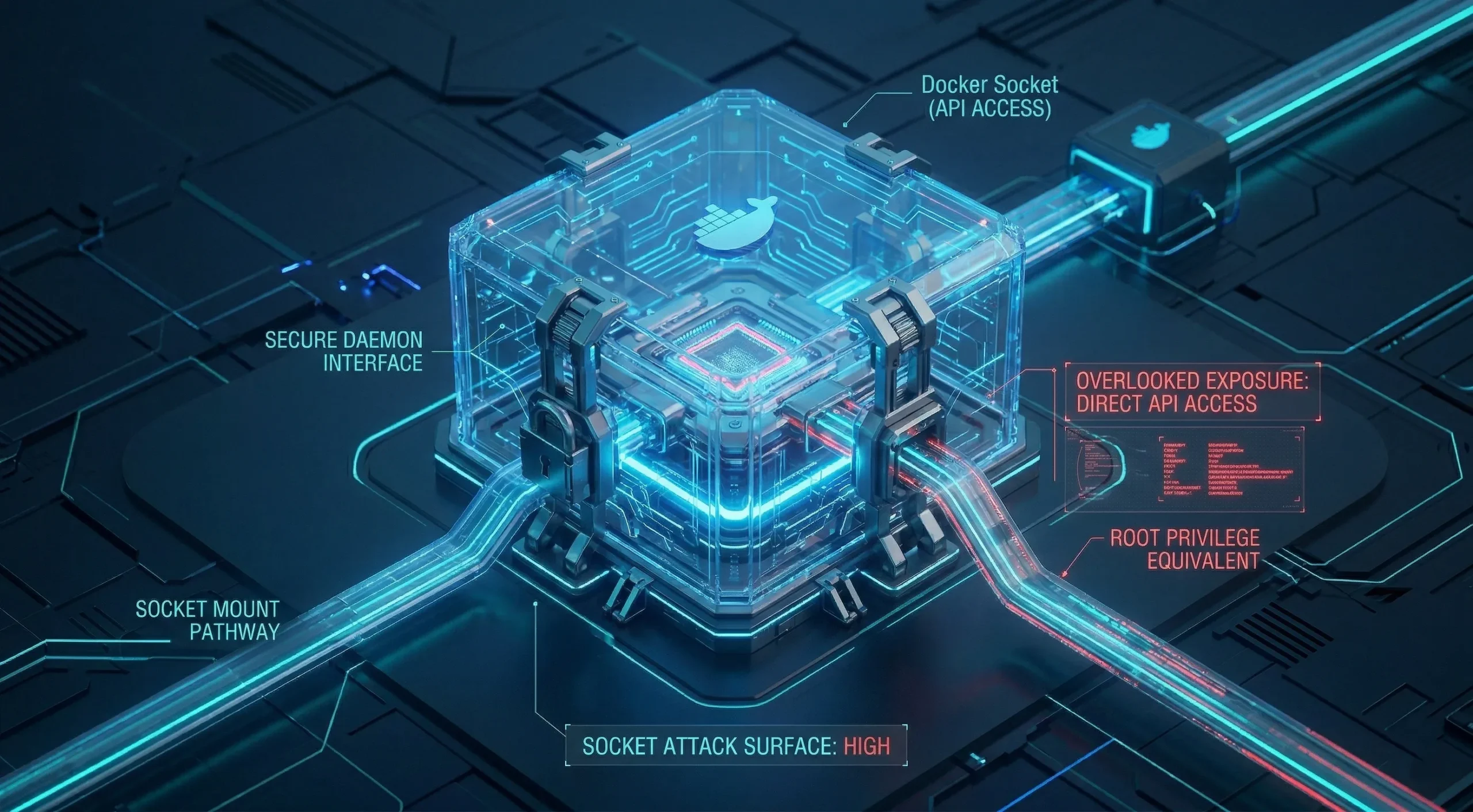
With that access, a container can start new containers, mount host directories, inspect and modify running containers, and effectively control the host machine. The attack surface is equivalent to root on the host, which is why any tool that requires socket access deserves careful evaluation.
For most use cases, there are safer alternatives: scoped APIs or Docker management tools that don’t require socket access. Docker-in-Docker carries its own security and operational trade-offs and is not a straightforward substitute.
Configuration mistakes create the initial exposure. Image and dependency choices determine how that exposure compounds over time.
Image and Secrets Mistakes That Outlast the Container
When you stop a container, the configuration mistakes inside it stop with it. When you rebuild from an image that carries a vulnerability or a hardcoded credential, the problem restarts with the container. Image-level mistakes don’t reset between deploys.
They travel with the image to every environment that pulls it, every registry that stores it, and every team member who runs it. That persistence makes image and secrets management a distinct category of risk, worth auditing separately from configuration.
We see this pattern often: an image chosen carefully at project start and never rebuilt since, slowly drifting from the security baseline it represented initially.
Using Untrusted or Outdated Images
Public registries are open to anyone. Malicious images have been distributed through Docker Hub carrying crypto-miners and backdoors embedded in layer history that persist across container restarts. Verification before pulling matters, especially for images from unofficial or unknown publishers.
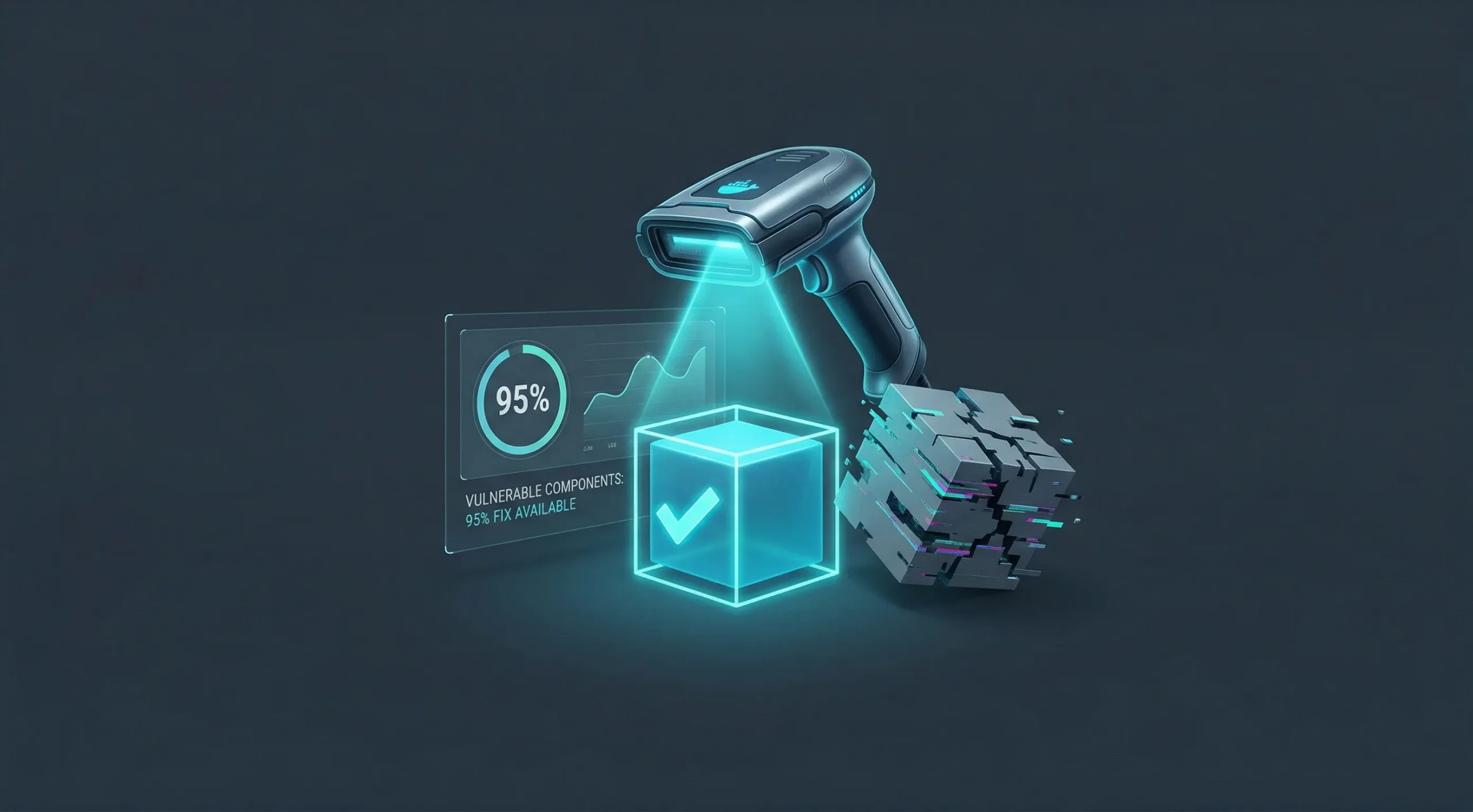
The separate problem is staleness. An official image you pulled six months ago and never rebuilt since has been accumulating unpatched Docker vulnerabilities with each CVE disclosed against its packages. The image isn’t broken. It’s just no longer current.
Sonatype’s 2024 State of the Software Supply Chain report found that 95% of the time a vulnerable component is consumed, a fixed version is already available, and 80% of application dependencies remain un-upgraded for over a year. That pattern is relevant to Docker base images as well, since they rely on the same open-source packages.
Use official images from verified publishers and pin specific version tags rather than relying on “latest.” Build a regular rebuild cadence to keep your images current.
Hardcoding Secrets in Dockerfiles and Compose Files
Credentials written into a Dockerfile ENV or ARG instruction, hardcoded into a Compose environment block, passed as build arguments, or stored in a .env file committed to version control don’t disappear when you stop the container. They stay in the image layer history or source control, accessible to anyone who can reach either.
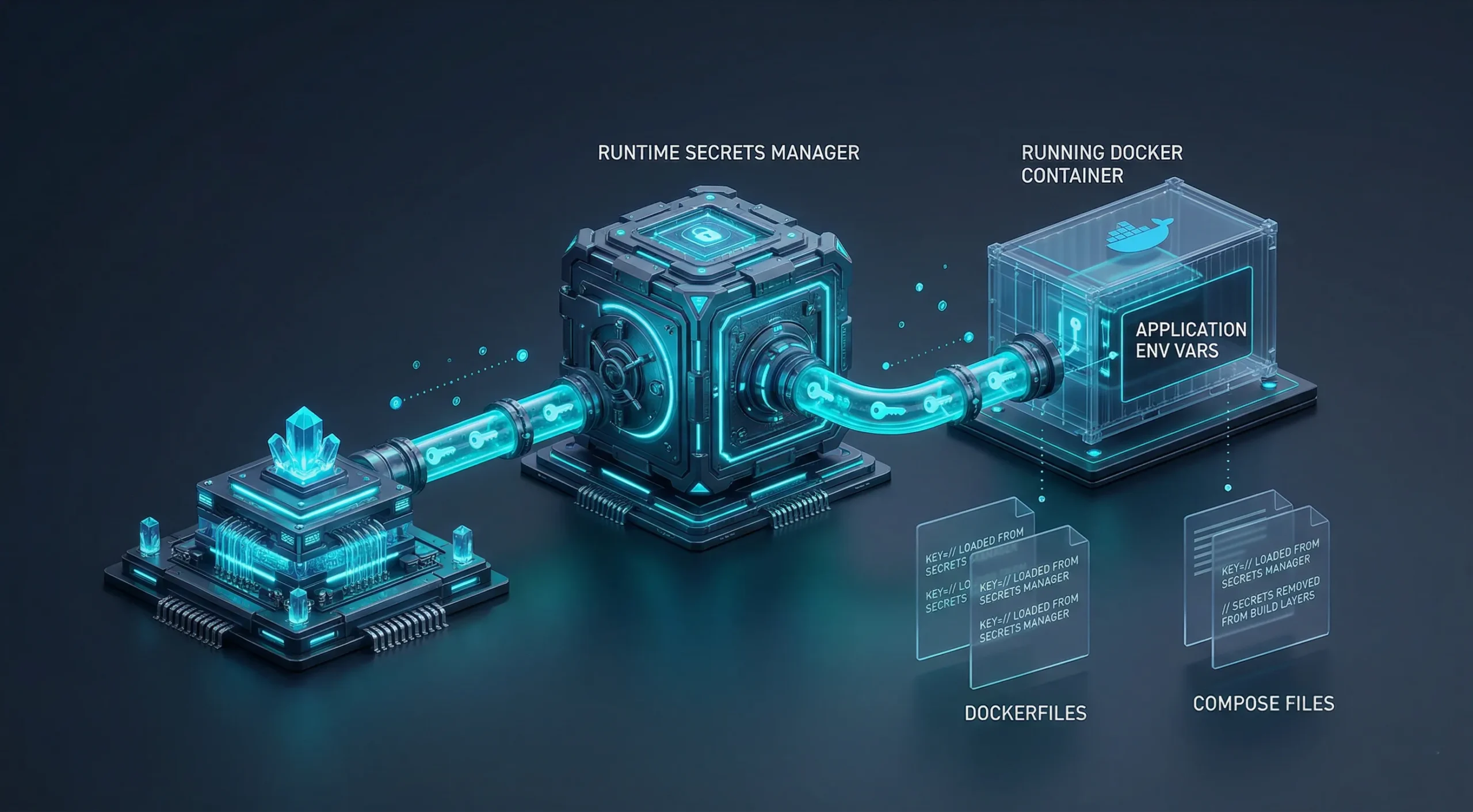
This is one of the most overlooked Docker security mistakes because it doesn’t cause visible problems during development. An API key in an ENV instruction works correctly. It’s also in your repository, baked into your image, and distributed wherever that image travels.
Modern Docker Compose supports a native secrets mechanism that mounts credentials at runtime without baking them into the image. Docker’s secrets API and external secrets managers follow the same principle. These are the options that keep credentials fully out of build artifacts and committed files.
Runtime environment variables are an improvement over hardcoded credentials, but they’re still exposed through Docker inspect output, logs, and crash dumps. They’re a step up from baked-in secrets, not a finished solution.
Not Updating Container Images Regularly
Running the same image for months is a common habit. Each day that passes after a new vulnerability is disclosed, but before you rebuild, your containers carry an exposure window that grows without any visible change.
Build a consistent rebuild schedule. Automate that process where possible, and run a vulnerability scanner periodically against your current images. The goal isn’t perfection. It’s narrowing the time between a patch being released and it being deployed.
Access control and monitoring can get deprioritized in fast deployments. They’re also the categories where incidents go undetected the longest.
Access Control and Visibility Gaps
After a container is running with a solid configuration and current images, two categories of failure remain. Both are invisible by nature: you won’t notice a weak access control problem until someone uses it, and you won’t notice a monitoring gap until you need to investigate activity that was never logged.
The same Red Hat 2024 research found that 42% of teams lacked sufficient capabilities to address container security and related threats.
We find that monitoring gaps typically surface during incident investigations, not before. By the time visibility becomes a priority, it’s often responding to something rather than preventing it.
Weak Authentication and Exposed Management Dashboards
A container management dashboard on a public IP without authentication doesn’t require a sophisticated attacker. It requires them to know the address. That’s a lower bar than most teams realize.
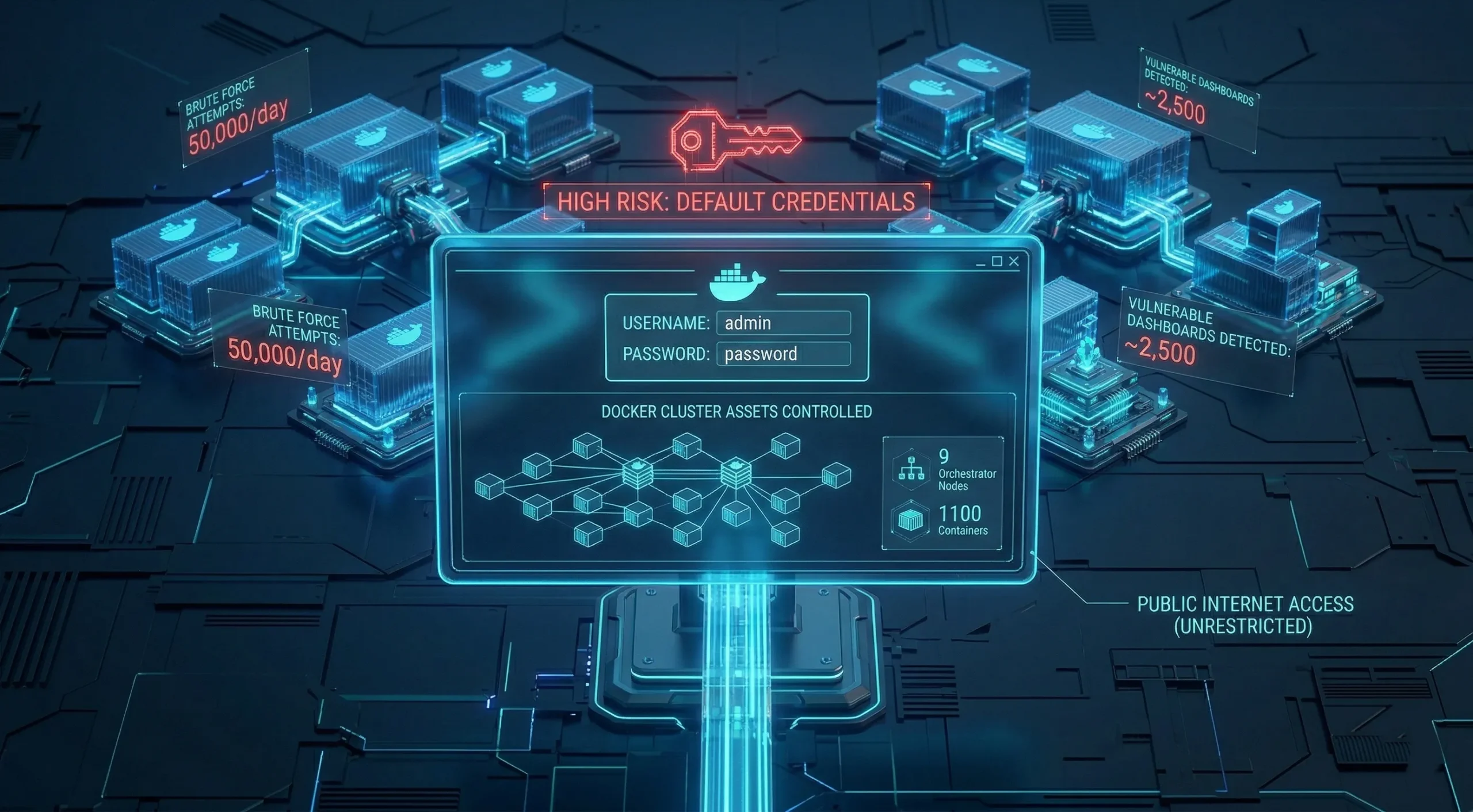
Self-hosted monitoring and management tools typically ship with a web interface accessible on all network interfaces. Leaving those on a public IP without auth in front of them is the container equivalent of leaving an admin panel unlocked.
Authentication, a reverse proxy, and private network placement are the baseline. Access control is a configuration step you add to any management interface, not something that ships enabled.
The same principle applies to Docker CLI and GUI management; admin-level access to the daemon carries the same risk regardless of the interface.
Not Monitoring What Your Containers Are Doing
If a container is compromised, the attacker’s activity creates a trail: process behavior changes, unusual network connections, and unexpected file modifications. Without log collection in place, that trail doesn’t exist in a form you can act on.
Centralized log collection, container audit logging, and runtime monitoring tools give you the data to detect abnormal activity before it compounds. The goal isn’t analyzing every line. It’s having the data available when you need to investigate.
Container setups that run silently in production with no log pipeline and no alerts aren’t low-maintenance. They’re uninspected. Those are two different operational states.
Why the Infrastructure Environment Also Matters
Container security starts with configuration, but configuration runs on top of infrastructure. A host with misconfigured networking, shared resources, or no network-level filtering creates conditions that affect every container above it. Getting the container setup right and the server configuration right are two separate tasks.
Many Docker security gaps are amplified by conditions the containers themselves inherit:
- A shared-tenancy server without hardware isolation between tenants
- A host kernel running unpatched
- A host with no built-in network-level filtering
This doesn’t remove the need for the configuration steps above, since proper container hardening matters regardless of the infrastructure layer. Starting on isolated infrastructure removes one layer of concern from the equation.
At Cloudzy, we offer two paths depending on what your setup requires:
- Linux VPS: a clean environment to deploy Docker yourself and apply the hardening steps in this article
- Portainer VPS: a one-click option with Portainer pre-installed; the server boots, and you are already in the dashboard
Both options run on the same infrastructure: KVM virtualization, AMD Ryzen 9 CPUs at up to 5.7 GHz boost clock, DDR5 memory, NVMe SSD storage, up to 40 Gbps network, and free DDoS protection via BuyVM filtering, across 16+ global locations with a 99.99% uptime SLA.
For a deeper look at running Portainer on a VPS, we cover it in a dedicated article.
A Practical Security Checklist for Docker Deployments
The Docker security mistakes above mostly come from single configuration decisions made once and never revisited. Running this checklist against an existing setup catches those gaps. It works as an audit, not a deployment guide.
These Docker security best practices cover how to secure Docker containers against the most common configuration failures described above.
Quick Reference: All 9 Mistakes
| Mistake | Category | One-Line Fix |
| Running as root | Configuration | Add USER directive to your Dockerfile |
| Ports bound to 0.0.0.0 | Configuration | Bind to 127.0.0.1 and route through a reverse proxy |
| No network isolation | Configuration | Split services across separate user-defined networks based on access needs. |
| Docker socket mounted | Configuration | Remove the mount; use scoped APIs or alternatives |
| Untrusted or outdated images | Image | Use official images with pinned version tags |
| Hardcoded secrets | Image | Move credentials to runtime env vars or a secrets manager |
| No image rebuild schedule | Image | Set a monthly rebuild cadence; automate where possible |
| Unauthenticated dashboards | Access | Add auth and move management UIs to private networks |
| No container log collection | Access | Set up centralized logging and runtime monitoring |
We recommend running it against existing setups first, since that’s where the gaps are most likely to already be present.
Containers running as non-root: Check your Dockerfiles for a USER directive. If none exists, the container runs as root.
Port bindings limited to localhost or proxied: Run docker ps and review port bindings. A 0.0.0.0:PORT entry can be publicly reachable on hosts where no upstream security group, external firewall, or DOCKER-USER chain rule blocks it.
Custom bridge networks in use: Containers on Docker’s default bridge can reach each other freely. Containers on the same user-defined bridge can still communicate with each other, so split services across separate networks by trust boundary for actual isolation.
Docker socket not mounted in containers: Check Compose files and run arguments. If /var/run/docker.sock appears as a volume, confirm it’s required and intentional.
Base images from verified publishers with pinned versions: A FROM ubuntu:latest pulls an unspecified, potentially outdated version. Pin to a specific release.
No secrets in Dockerfiles, Compose files, or build arguments: Image layer history persists credentials after container deletion. Use Compose secrets, Swarm secrets, build secret mounts, or an external secrets manager. Runtime environment variables are better than hardcoded values, but still appear in inspect output and logs.
Image rebuild schedule defined: Old images accumulate vulnerabilities. A monthly rebuild cadence keeps the exposure window manageable for most setups.
Management interfaces behind authentication: Any dashboard on a public IP without auth is an open entry point. Private network placement is preferable where possible.
Container logs being collected: Without a log pipeline, incident detection depends on visible system impact. That’s a late signal to act on.
Conclusion
Docker’s default configuration is built for convenience, not security. Most of the mistakes covered in this article trace back to settings that were never changed after initial deployment, not to sophisticated attacks.
The fixes are mostly one-time configuration decisions: a USER directive, a port binding change, a custom network, a rebuild schedule. None of them require new tooling for most setups.
Getting the container configuration right is the first task. The infrastructure it runs on is the second. Both matter, and neither substitutes for the other.