

If you’re a reseller or an end-user that makes use of Web Host Manager (WHM) or Control Panel (cPanel), you might have faced trouble along with invalid license errors.
These errors happen when the license file gets expired or the main IP of the server or account changes; however, you can fix them in a matter of seconds.
In this article, we’ll walk you through a step-by-step guide on how to fix cannot read license file error. So without losing time, let’s get straight off to it!
What is the cPanel/WHM license file error?
Supposing that you’re a system administrator that uses WHM or a client that puts through cPanel to manage their dashboard, you’d see error messages like “license file expired” or “cannot read license file”.
Depending on certain circumstances, the error message is similar to the previous message mentioned above. Simply put, the license error indicates an issue that your web host control panel can’t admit the license. So, WHM cannot read the license file is the same as cPanel cannot read the license file.

Manage websites easily with a cPanel VPS powered by AMD EPYC.
Deploy cPanel in 60sWhat causes cannot read license file cPanel?
There are mainly three occasions that lead to cPanel/WHM license errors. You’ll receive this message because:
- The license is outdated;
- The license file is expired;
- The central IP server is changed.
Okay, then how to fix it?
Continue reading and hold your horses! 🙂
How to Fix Cannot Read License File Error?
STEP 1
To begin with, solving the cPanel license error, you should ensure that you’ve got the main IP of your server. To find your cPanel IP address, run such following commands:
curl -w '\n' -s http://myip.cpanel.net/v1.0/
curl -w '\n' -s http://myip.cpanel.net:2089/v1.0/
STEP 2
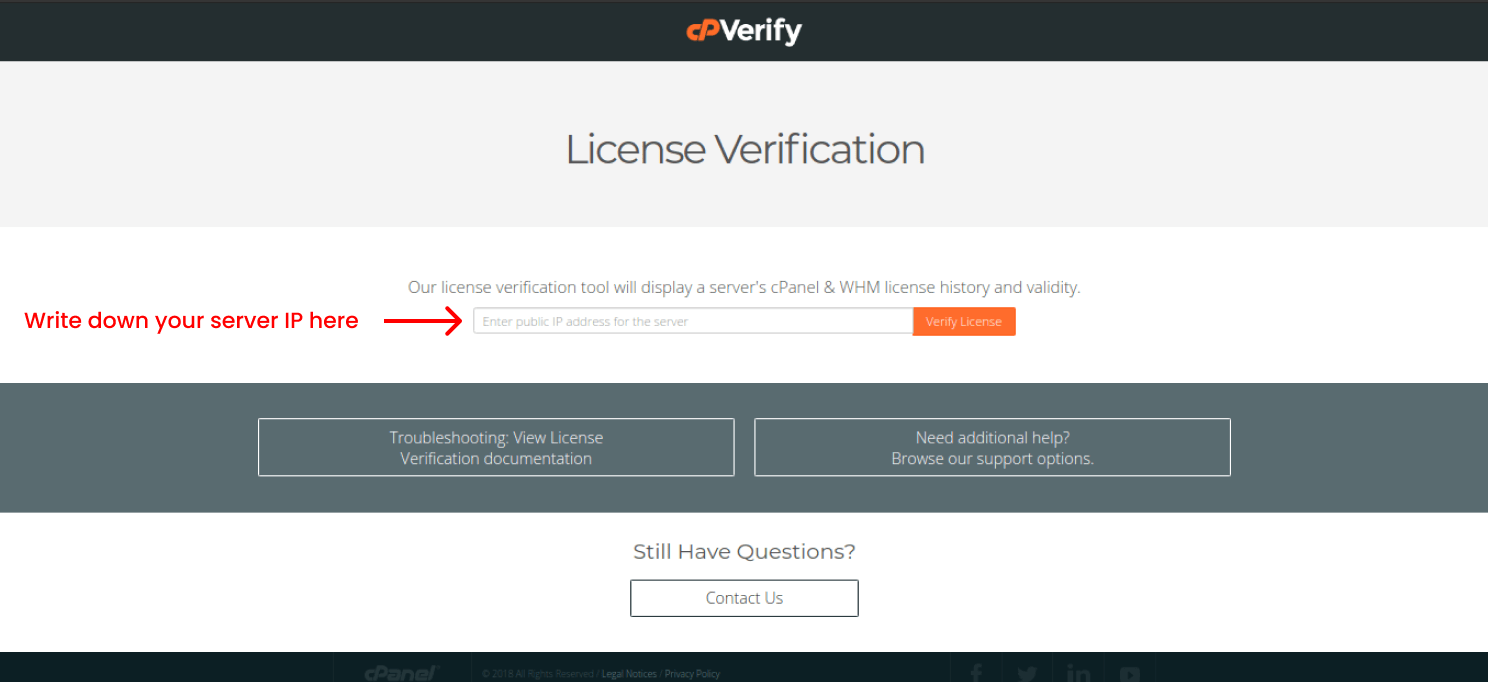
After finding the cPanel server’s IP, go to this address to check your license’s status. You’ll enter the public IP address of the server, that you found in the previous step, in the placeholder, then click verify the license. This will help you get the license history. Once done, you’ll see a record of your cPanel/WHM license files.
STEP 3
When you buy a license from the cPanel store, you should know if it’s active, so make sure that your license is active to proceed with the guide. If that’s true, and you’ve got the license, move on to the next step.
STEP 4

Open your secure shell (SSH). Enter your server IP address and the port afterward. To log into your account, you should write your username as “root” and go in for your root password. Once done, type
/usr/local/cpanel/cpkeyclt
to update the license.
You’d now see the “Update succeeded”, which means that the problem is resolved. Generally, after getting the license from cPanel, it should be activated and yet updated this way.
STEP 5
If the previous step didn’t fix the problem, give it a chance to edit the “resolv.conf” file. To edit the file, enter the command:
vim /etc/resolv.conf
Then write:
nameserver 8.8.8.8
nameserver 8.8.4.4
You can use any text editor; we use Vim for now. However, if you’re on Linux and new in the Vim editor area, you’d press Esc, then “Shift + ;” and write “wq” to save and exit.
For further issues, it’s highly recommended to contact cPanel Customer Service because sometimes problems are too sensitive that can’t be shared on the web.
Also Read: Best Free cPanel Antivirus Options
Conclusion
To access your account, you should consider that the cPanel license file should be active. If not, then there are two major things that led you through it. The IP shift and license expiration are two common roots of this problem that cause cPanel license errors.
Also, you might have received this problem because the license is deactivated or even outdated. After all, you can fix either cPanel or WHM license issues with ease with the solution provided above. In the steps mentioned above, we tried to cover the ways that you can fix Cannot Read License File Error, so you should be good to go.
FAQ
What is cannot read license error?
cPanel license error means that you don’t have the required license to access your account, which is rather similar to the WHM license error.
What causes cPanel license file error?
There are primarily two critical factors that lead to cPanel/WHM license file error: if your license gets expired or outdated, and once the main IP of the server changes, the control panel prevents you from logging into your account.
What to do with cannot read license file error or cPanel?
There’s nothing to worry about. You should firstly check the cPanel’s website to check your license status. Secondly, you open the SSH and enter “/usr/local/cpanel/cpkeyclt” to update the cPanel license. Lastly, drink your coffee and enjoy.
How to prevent my account from license file error?
You should keep in check the license file from the cPanel website to see if they’re working well, and also keep in mind that persisting with the primary IP of the account matters a lot.
My problem isn’t solved. What should I do?
At this point, we recommend you contact customer service to help you resolve the issue because problems vary to everyone differently.



Discussion
Comments
Sign in to join the discussion.