You searched for Chrome Remote Desktop and found the phrase “security risk” attached to it. That is a fair question to raise, and it deserves a precise answer rather than vague reassurance or a list of warnings without any context.
This article covers the actual Chrome remote desktop security concerns: what the tool protects well, where the real gaps are, and the concrete steps that close them. Be it a home user or an IT professional, the risks are identical; the stakes just differ.
How Secure Is Chrome Remote Desktop?
Chrome Remote Desktop is maintained under Google’s infrastructure standards, and its default protections are real rather than cosmetic. The Chrome remote desktop security flaw most users encounter does not sit in the encryption layer; it lives in account configuration and network setup.
Running a Chrome remote desktop security review means examining both what ships by default and what you configure afterward. The tool’s strengths deserve a fair look before the gaps come into focus, since dismissing it outright leads to poor decisions in both directions.
Encryption: TLS/SSL and AES
Every CRD transmission runs through a TLS/SSL-encrypted tunnel with AES encryption layered on top. Data moving between your device and the remote machine cannot be read by any third party in transit, including the network operator or your ISP.
The PIN and one-time codes are verified client-side and never sent to Google’s servers in readable form. Session content travels over a Direct, STUN, or TURN/relay path depending on network conditions; all remote desktop sessions are fully encrypted across all three modes, per Google’s own documentation.
For personal use on a trusted network, the security of Chrome Remote Desktop meets the same encryption standard applied in online financial transactions. Most users underestimate how solid this baseline is before the configuration gaps start to matter.
Google Account Authentication and Two-Factor Verification
CRD access requires an active, authenticated Google account backed by brute-force protections, suspicious login detection, and account-takeover alerts at the platform level. This authentication foundation is genuinely strong, separating CRD from tools that rely on standalone passwords alone.

Activating 2-Step Verification sharply lowers the risk of password-based account takeover on any CRD deployment. It does not remove post-authentication threats such as stolen session tokens, so it works best as one layer in a broader access hardening approach.
Our piece on What Is Chrome Remote Desktop? walks through the full access model and setup process in detail. The Chrome remote desktop security concerns become far more specific once you understand how the account layer works, and that is exactly where the next section begins.
Chrome Remote Desktop Security Risks
The security concerns with Chrome Remote Desktop map directly to documented breach patterns across the industry. According to the Sophos Active Adversary Report for 1H 2024, cybercriminals abused Remote Desktop Protocol in 90% of attacks handled by Sophos incident response in 2023.
External remote services served as the top initial access method in 65% of those cases, across 150-plus investigations spanning 23 countries. These figures cover remote desktop tools broadly; the sections below identify where those patterns apply to CRD in particular.
Privacy Concerns
CRD is embedded in the Google account ecosystem. Connection timestamps, device identifiers, and access frequency are all tied to that account. The Google Chrome remote desktop security issue here is structural: the tool’s entire identity model lives inside one Google account.
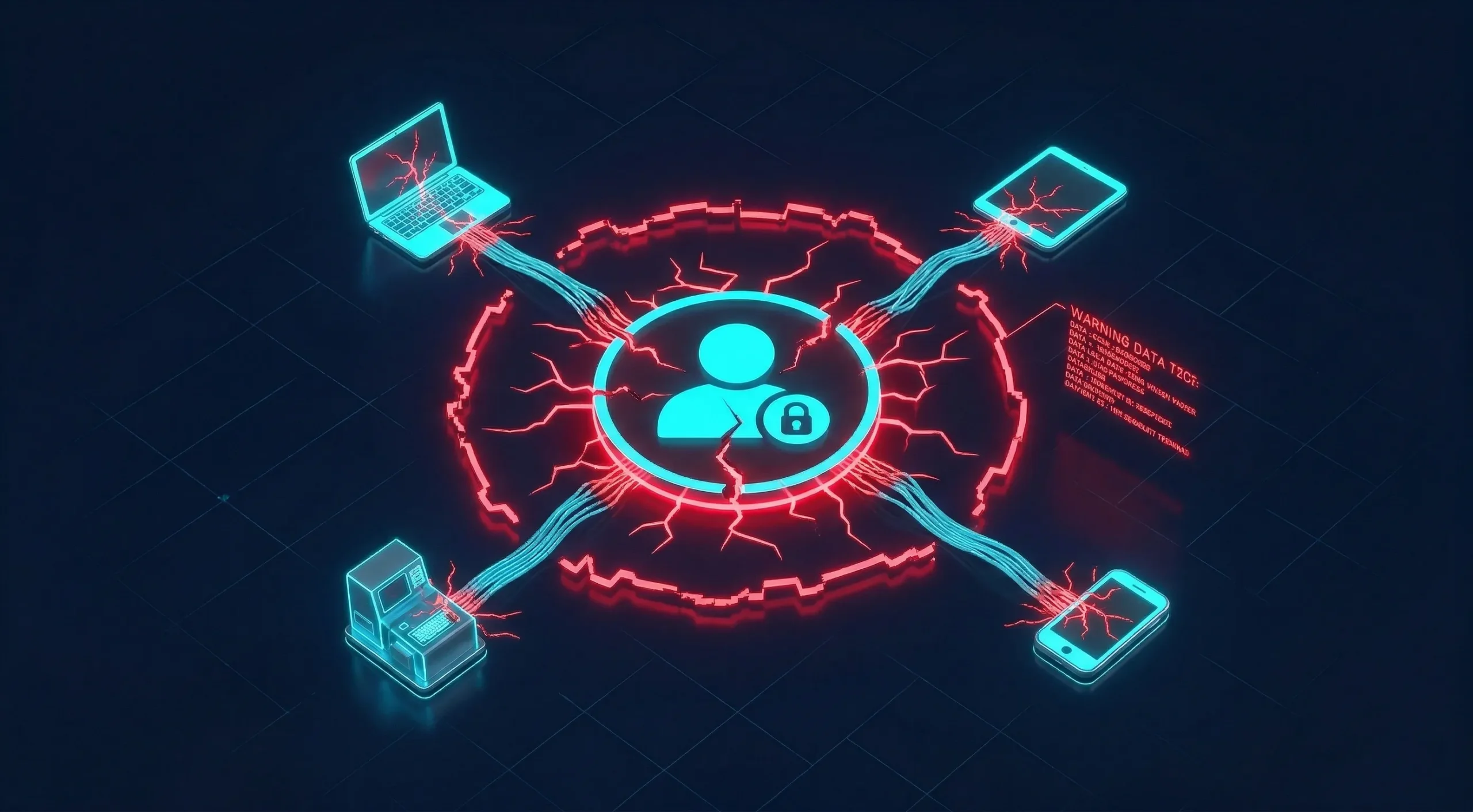
A compromised account through phishing or a browser token hijack gives an attacker direct visibility into all registered remote devices. This is not a standalone remote access breach; it is a full Google account compromise, meaning the exposure extends to every linked service, document, and contact stored within that account.
Public WiFi Vulnerability
Chrome Remote Desktop uses WebRTC for its connection pathway, with initial negotiation handled through Google services before a Direct, STUN, or TURN/relay session is established. On untrusted or public networks, traffic routing and network visibility conditions introduce risks that a controlled private network would not.
Those conditions matter because public WiFi environments are outside your control. Using CRD without additional precautions on a shared network expands your exposure surface beyond what the encryption layer alone covers.
A VPN can reduce exposure on untrusted networks, but it is an extra layer, not a fix for every CRD-related risk.
Firewall Issues and Compatibility
Most home routers pass CRD traffic without any configuration. Corporate networks running Deep Packet Inspection can flag the WebRTC signaling component and drop it without any notification to the user. On restrictive networks, admins may need to allow Chrome Remote Desktop’s service URLs plus traffic on TCP/UDP 443 and 3478.
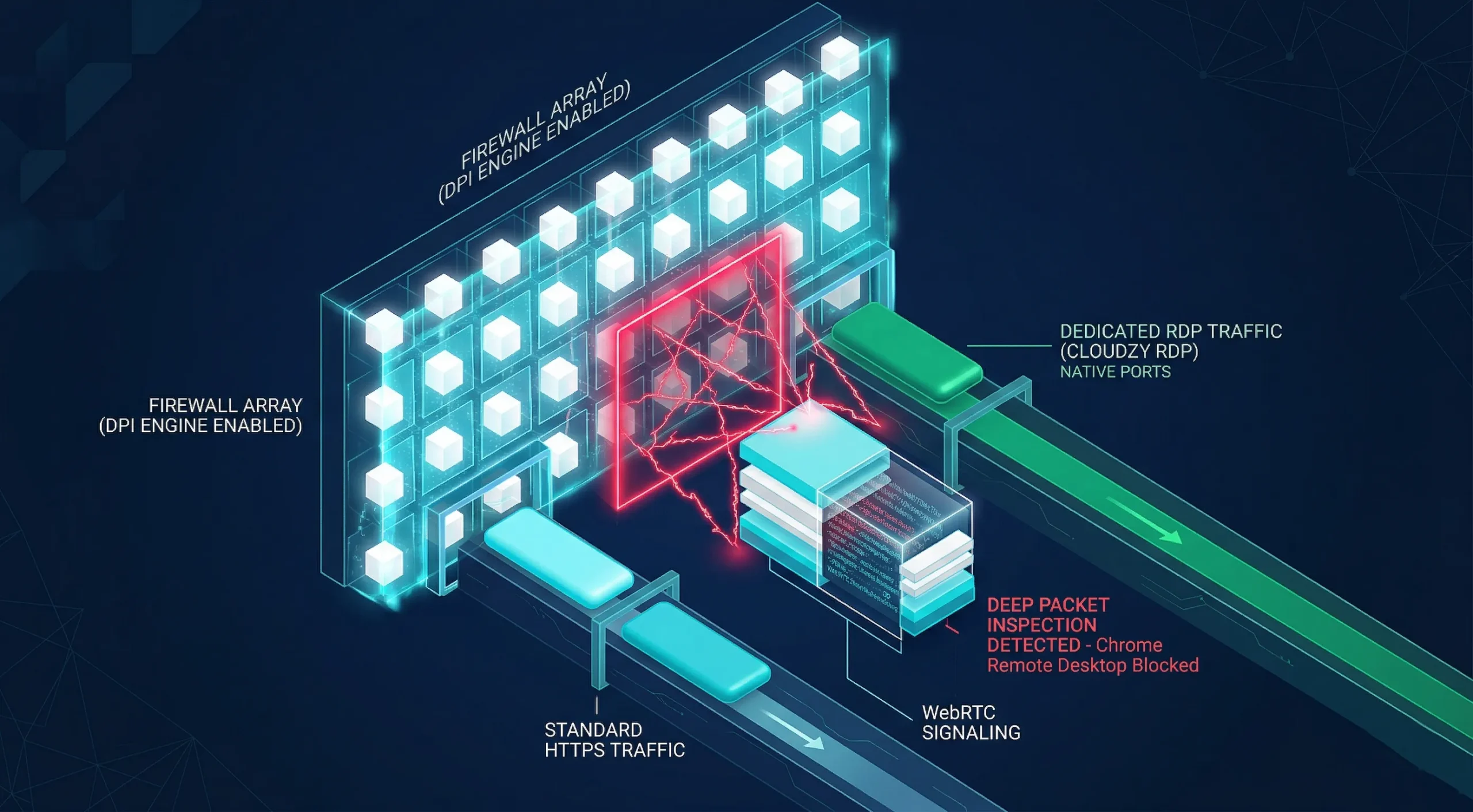
From the user’s perspective, the connection simply fails, with no error message pointing to the real cause. I’ve tracked this failure pattern across enterprise environments; it is consistently misdiagnosed as a CRD application fault rather than a firewall policy conflict.
If SSL certificate errors are appearing on the same network, How to Fix the HTTPS Not Secure Message in Chrome covers related port-level troubleshooting that applies in the same firewall environment and often resolves both issues in one pass.
Potentially Weak Credentials
CRD’s minimum PIN is six numerical digits. That threshold is not enough for anything beyond casual personal use. Most users select predictable patterns, which collapses the practical search space and makes brute-force attempts far more viable than the digit count suggests.
Password reuse at the Google account level compounds this. A breach at any unrelated service can hand attackers a tested credential to apply against the Google account that gates access to all registered CRD devices.

According to the IBM Cost of a Data Breach Report 2024, stolen credentials were the top initial attack vector in 2024, accounting for 16% of all analyzed breaches across 604 organizations studied in 16 countries.
Those credential-based breaches took an average of 292 days to detect and contain, the longest lifecycle of any attack type in the study. The Chrome remote desktop security risks tied to weak credentials follow this exact pattern in practice.
Disadvantages of Chrome Remote Desktop
All that said, the Google remote desktop security concerns extend beyond active threats. CRD was purpose-built for personal use and basic remote support; the limitations below are deliberate design choices, and they become deciding factors for any professional deployment.
No Enterprise Controls
For standard CRD deployments on Windows, Mac, or Linux, there is no connection recording and no role-based access controls. Managed ChromeOS environments do provide Admin console access and session-level audit logging through Chrome Enterprise, but those controls are absent outside that managed context.

We find this is the point where IT evaluators consistently disqualify CRD for organizational use. A single unlogged connection to regulated data can represent a compliance failure with no remediation path, even when every other hardening step is in place.
Account Dependency and Performance Limits
If the Google account tied to CRD becomes inaccessible, remote access can be disrupted, so it is a bad idea to make one consumer account your only path into a critical machine. Evaluating this dependency before deployment is a must-know for any team running CRD on production or business-critical systems.
Support access codes are one-time codes, and during a live sharing session the host is asked every 30 minutes to confirm continued sharing. File transfer is available in managed ChromeOS remote sessions but absent in standard Windows, Mac, and Linux deployments.
Beyond feature gaps, Chrome’s memory footprint combined with an active remote connection places a measurable load on host hardware, degrading performance on older machines in practice.
For development, server management, or professional workflows, a dedicated RDP Server removes these limits. At Cloudzy, our servers run on AMD Ryzen 9 processors at 4.2+ GHz, with up to 40 Gbps network, and a 99.99% uptime SLA.
Chrome Remote Desktop vs. Cloudzy RDP Server
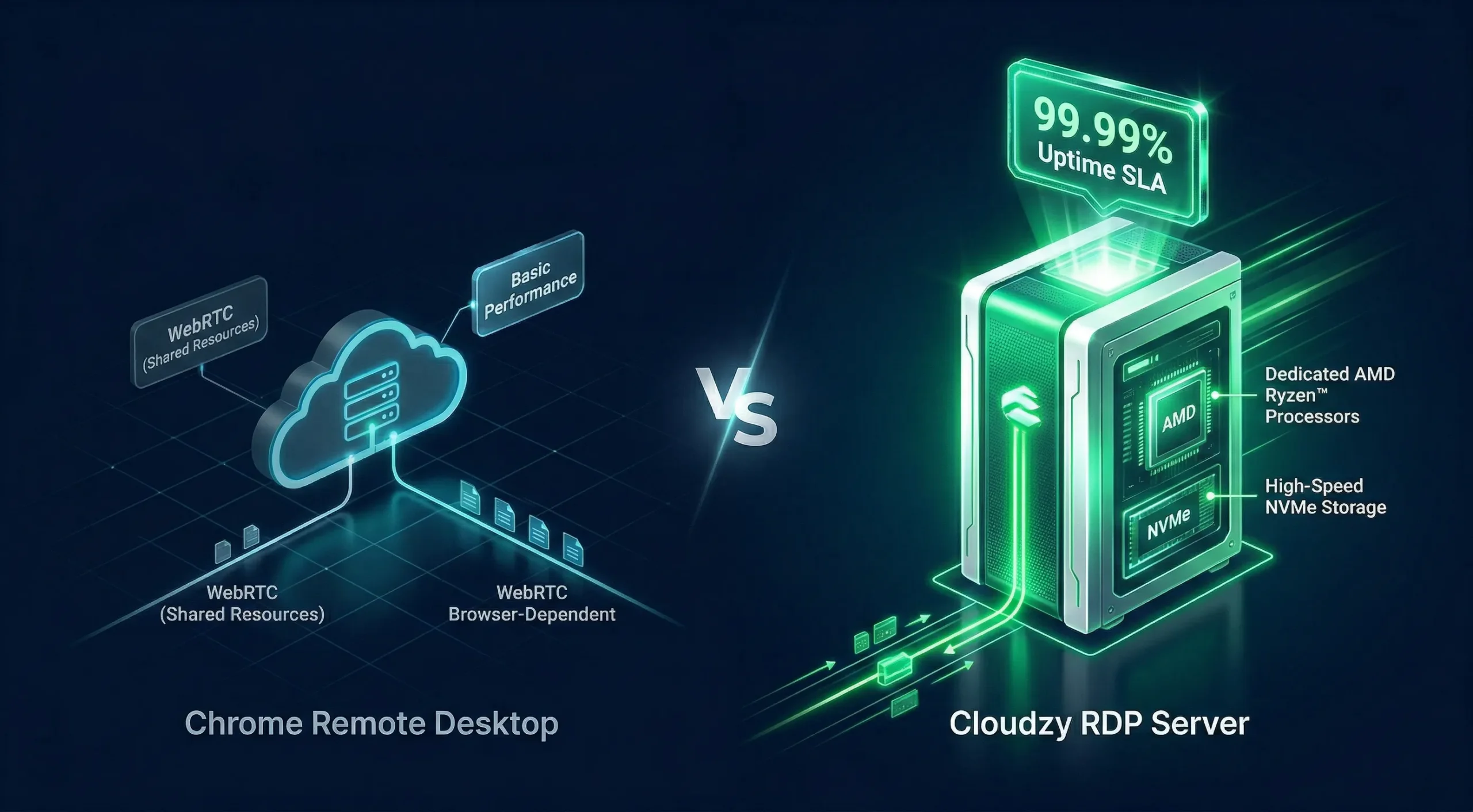
| Feature | Chrome Remote Desktop | Cloudzy RDP Server |
| Network Speed | Variable, WebRTC routing | Up to 40 Gbps dedicated |
| Processor | Dependent on host hardware | AMD Ryzen 9, 4.2+ GHz boost |
| DDoS Protection | None | FreeDDoS protection |
| Protocol | WebRTC over HTTPS | RDP on a KVM-isolated instance |
| Audit Logs | Not available | OS-level connection event logging via Windows Event Viewer |
| Uptime SLA | None | 99.99% |
| File Transfer | Limited; available in managed ChromeOS only | Native RDP support |
| Account Dependency | Single Google account | Independent Windows credentials |
Is Google Remote Desktop Secure?
“Google Remote Desktop” and “Chrome Remote Desktop” are the same product, which is why Google Remote Desktop security concerns and Google Remote Desktop security issues appear under both names across forums and product documentation. The architecture, risks, and hardening steps are identical.
Google Remote Desktop is secure for personal use when properly configured. TLS/SSL plus AES encryption meets the industry standard; with 2FA active, the authentication layer handles the most common threat types targeting personal and small-team deployments alike.
For teams with compliance requirements, audit trails, or access redundancy needs, CRD falls short as a standalone tool. The Google remote desktop security risk grows proportionally with the sensitivity of the systems being accessed and the number of users involved.
How to Make Chrome Remote Desktop More Secure?
Every Chrome remote desktop security risk identified above has a direct fix listed below. Steps are ordered by impact; work through them from top to bottom for the fastest, most meaningful upgrade to your setup without unnecessary technical overhead.
Activate Two-Step Verification on Your Google Account
Open myaccount.google.com, select Security, then 2-Step Verification. Choose an authenticator app or a hardware security key as your second factor. This single action closes the credential-based breach type that IBM 2024 data shows averages 292 days undetected.
The hardware security key offers the strongest protection against phishing; the authenticator app is the most practical option for most users. We find that teams who activate this step significantly reduce their exposure to credential-based attacks, though post-authentication threats like session cookie hijacking remain a separate risk to manage.
Set a Long, Complex PIN
Use at least 8 characters, mix letters and numbers, and avoid any sequence tied to personal data. To update an existing PIN, open remotedesktop.google.com/access, find the device in the Remote Devices panel, and select the pencil icon.
Rotating the PIN periodically matters, particularly after any shared temporary access or after a Google account shows suspicious login activity. Short numeric PINs are among the most consistently exploited weaknesses in CRD deployments we review.
Use a VPN on Any Public or Shared Network
Connect to your VPN before opening CRD on any network you do not personally control. Choose a provider with a verified no-logs policy and a kill switch that cuts internet access if the VPN drops unexpectedly, closing the brief exposure window.
Most users who skip the VPN on public networks have never encountered a visible incident, which creates a false sense that the network-layer risk is purely theoretical. Treat the VPN step as non-negotiable on any shared subnet.
Activate Curtain Mode on Windows
Curtain Mode blocks the host machine’s physical screen from displaying remote activity during an active CRD connection. Anyone at the host sees only a locked screen, regardless of what the remote user is doing. It requires Windows Professional, Ultimate, Enterprise, or Server.
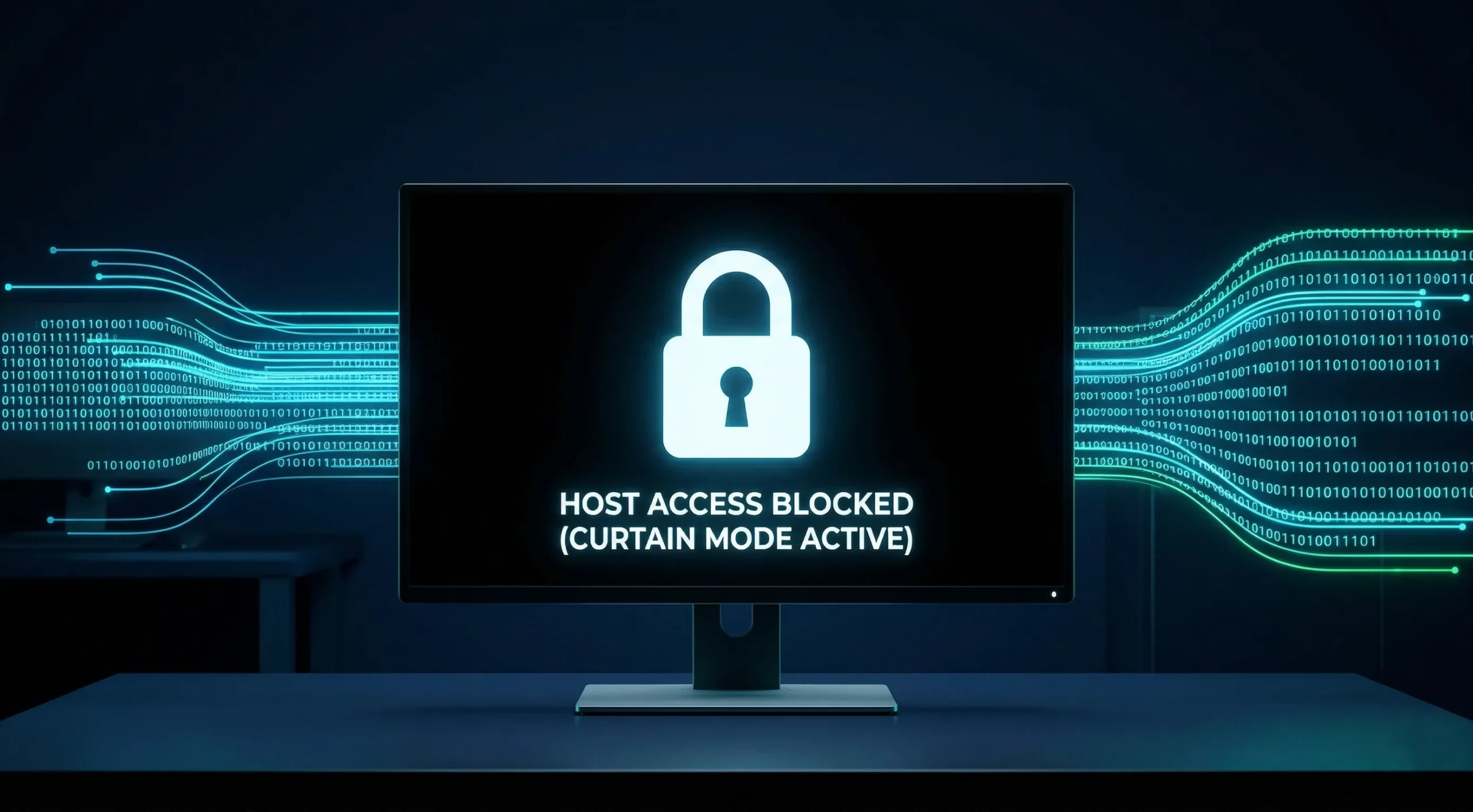
Google’s full Curtain Mode setup requires four registry keys on Windows. Set RemoteAccessHostRequireCurtain to 1 under HKLM\Software\Policies\Google\Chrome, fDenyTSConnections to 0 and UserAuthentication to 0 under the Terminal Server path, and on Windows 10 also set SecurityLayer to 1 under the RDP-Tcp path.
Google warns that a missed step causes the session to terminate immediately. Once all keys are set, restart the CRD host service to apply the change.
This setting is consistently underused across shared office deployments, and most IT teams configure it in under five minutes.
Keep Chrome Updated at All Times
CRD runs on Chrome’s infrastructure, so an unpatched browser means an unpatched CRD host. In 2025, Chrome recorded 205 published CVEs at an average CVSS score of 7.9; several involved remote code execution flaws directly affecting active CRD hosts.
Open Chrome, go to Help, then About Google Chrome, and confirm the current version status. Google recommends keeping auto-updates enabled so security patches apply as soon as they are available. Delaying or blocking Chrome updates leaves known vulnerabilities open on any active CRD host.
Conclusion
Chrome Remote Desktop ships with real protections: TLS/SSL encryption, PIN-based access, and a 2FA-capable authentication model. For personal use with the hardening steps applied, it is a solid choice for everyday remote access needs on trusted networks.
The structural limit is that the entire access model depends on one Google account. Be it performance consistency, compliance logging, or infrastructure reliability, the security concerns in professional settings consistently point toward a dedicated solution. For teams that have outgrown CRD, Cloudzy’s KVM-based servers offer a more reliable foundation.
The right tool depends on your context. CRD solves the personal access problem well. Once compliance, uptime, or multi-user access enters the picture, the architecture needs to match the stakes.