
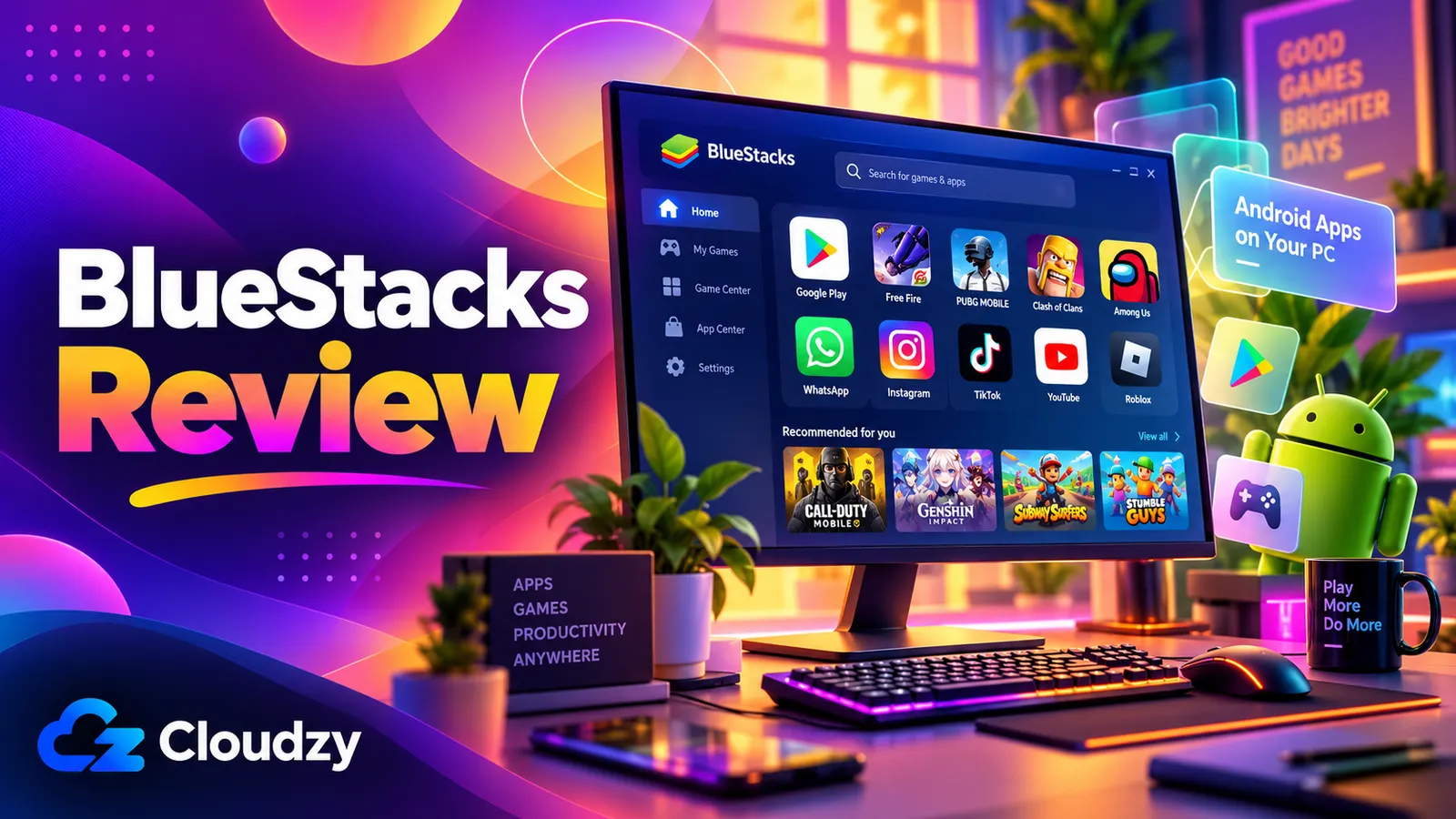
BlueStacks, made by now.gg, Inc., is a free Android emulator: a program that runs Android apps and games on a Windows PC by imitating an Android phone, Google Play Store included. On Windows the emulator is BlueStacks 5, also called the App Player; Apple Silicon Macs get a separate app, BlueStacks Air. Ads and an optional subscription pay for it.
Yes, BlueStacks is worth installing to run an Android-only app or game on a Windows 10 or 11 PC: it costs nothing, it’s actively maintained, and it gives you access to Google Play. Check the specific app before installing: some apps aren’t compatible, and some streaming services block DRM-protected playback on emulators. Download it only from bluestacks.com, switch off its ads, notifications and automatic game downloads in Settings, and skip the Prime subscription. It isn’t worth it on a PC that can’t turn on virtualization, on Windows 7 or 8, or on an Intel Mac, where no current BlueStacks runs. My rating: 3.5 out of 5.
BlueStacks Review: The Verdict in Full
BlueStacks’ 3.5-out-of-5 rating comes from one trade. It loses points because it behaves like a game storefront first, pushing promotions you have to switch off, and because it asks more of a PC (virtualization on, 8 GB of RAM recommended) than most programs. Free access to Google Play, in a program BlueStacks keeps updating, earns back the rest.
I read the two scores that cost it most for one app, extras and hardware, as problems you can largely handle. Hardware is a pass-or-fail check: if your PC fails it, don’t install. Four switches in Settings quiet most of the promotion. With both dealt with, the strengths carry it, so I put the overall at 3.5, a little above the plain average of the six section scores below (3.25).
It fits well when you need one Android-only app or a casual phone game from Google Play on a Windows 10 or 11 PC. That PC should have 8 GB of RAM and virtualization available, and you should be willing to spend a few minutes in Settings quieting BlueStacks down.
It’s the wrong pick on a PC that can’t turn on virtualization, or one sitting at the 4 GB minimum, half of what BlueStacks recommends. It’s also wrong for an Intel Mac, for a game Google Play Games on PC already carries, and for anyone who wants zero promotion without touching settings or paying.
Where BlueStacks Earns Its Place
The draw is the Google Play Store’s catalog, which BlueStacks’ sign-in guide puts at millions of apps and games. You aren’t stuck with one Android version. BlueStacks 5 offers five Android versions (Nougat 32-bit and 64-bit, Pie, Android 11 and Android 13), and you pick one for each separate Android setup in its Multi-instance Manager.
The rest of the feature list is aimed at players, with gamepad support and keyboard controls, and you don’t have to use any of it.
Maintenance is where BlueStacks looks strongest on paper. Its 5.22 release notes list 40 numbered builds from 5.22.0 in February 2025, the release that added Android 13 (Beta), to late September 2026. The flip side is that the program you install this month won’t quite be the program you’re running next month.
App access and features: 4/5.
Where BlueStacks Lets You Down
BlueStacks describes the App Player as “built for gamers”, and the free version behaves like it. The BlueStacks Store, its built-in game shop, can open on every launch. BlueStacks Services is the background part that sends Windows notifications. It pushes deals, game announcements and game recommendations, and BlueStacks’ notification guide says “By default, all notification types will be enabled.”
Then there’s BlueAI, introduced as an AI assistant inside BlueStacks that arrived in version 5.22.210 on 1 June 2026. Users in an r/BlueStacks thread about BlueAI complained it was installed with no option to decline it, and BlueStacks’ support account replied that there was “not an option to uninstall or completely remove it” at that point. One user there said it helps with daily rewards; the complaints were about how it arrived.
Version 5.22.260, released on 19 August 2026, changed that on Windows: BlueAI is now an on-demand install, and BlueStacks’ release notes describe uninstalling BlueAI from Windows. That change came about eleven weeks after the launch. The promotional settings described here can be switched off; the exact switches are in the free-version section below.
Bundled extras and control: 2.5/5.
BlueStacks 5, BlueStacks X, and BlueStacks Air: Which One Is Which?
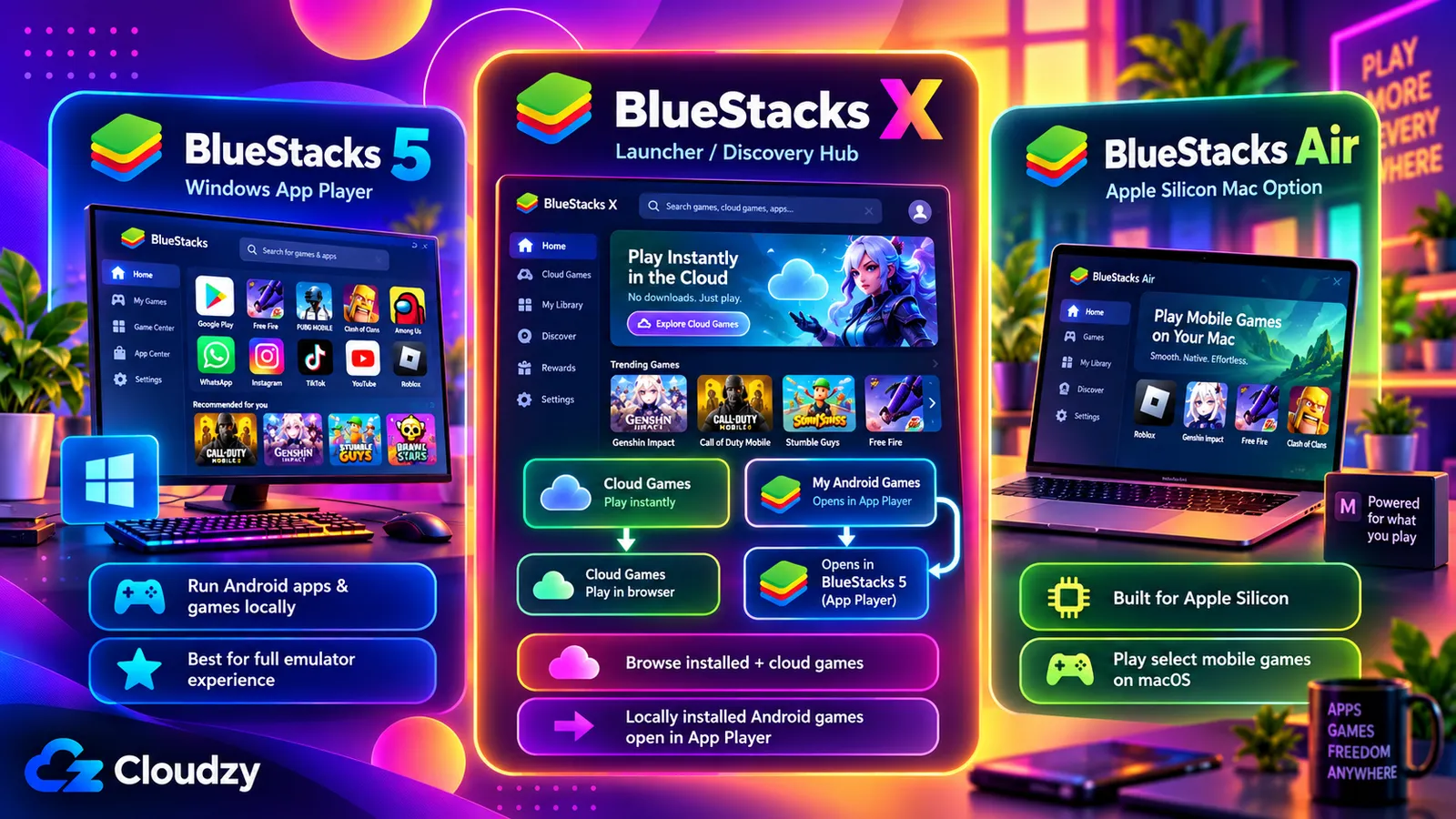
On Windows, bluestacks.com offers two downloads. BlueStacks 5, also called the App Player, is the emulator that runs your Android app. BlueStacks 10, also called BlueStacks X, is a game launcher that needs the App Player to run locally installed Android games. For one app, BlueStacks 5 is the one you want. On a Mac, the app is BlueStacks Air.
What Is the BlueStacks App Player?
“App Player” is the name BlueStacks uses for BlueStacks 5, the Windows program that runs your Android apps. As of 13 October 2026, the latest version listed in BlueStacks’ release notes is 5.22.285, released on 9 October 2026. It’s the window your Android app lives in, and BlueStacks’ download page lists it with links to specific versions.
What Is BlueStacks X?
BlueStacks X, which BlueStacks now also calls BlueStacks 10, is a launcher for Android, cloud and PC games. BlueStacks’ X guide has you install it from a separate “Download BlueStacks 10” button on bluestacks.com. Android games installed locally through it run in the App Player. PC versions install separately as Windows games, and the cloud “Try Instantly” option appears only for some games in some regions.
Inside BlueStacks 5, the built-in Store is what BlueStacks calls “your gateway to BlueStacks X”.
What Is BlueStacks Used For?
BlueStacks is used to run Android apps and mobile games on a Windows PC, with a bigger screen, a keyboard and mouse, or a gamepad. BlueStacks markets it mainly for gaming, but a non-game app installs from the Play Store and runs the way a game does. The common uses look like this:
- A compatible Android-only app, such as a creative tool, on a full-size screen
- A mobile game played with keyboard controls or a gamepad
- Two or more separate Android setups running side by side (BlueStacks calls each one an instance), for example to keep different accounts apart
All of it sits inside one boundary: BlueStacks’ terms limit use to “your own internal, personal, non-commercial use”.
Is BlueStacks Free? Ads, Smart Downloads, and BlueStacks Prime
Yes. BlueStacks 5 costs nothing to download or use, and BlueStacks says plainly that “Ads help keep BlueStacks 5 free.” BlueStacks Prime is an optional monthly subscription that removes ads and pop-ups. The free version already lets you switch off ads during gameplay in Settings, without paying anything.
What the Free Version Costs You
You pay for the free version in attention. BlueStacks’ ads guide says its ads “do not obstruct your gameplay by design.” That’s BlueStacks’ claim; users in a 2022 r/BlueStacks thread on pop-up ads disputed it.
Smart Downloads, added in BlueStacks 5.22.255 on 10 August 2026, goes further. According to BlueStacks’ Smart Downloads guide, when your PC has been idle for a while with no mouse or keyboard activity, BlueStacks can download a game “curated specifically for you” in the background. It never launches the game on its own; it asks whether you want to play now or later.
BlueStacks’ help center describes turning it on from the Smart Downloads tab with an Enable button. Turning it off stops future downloads only, so any game it already fetched stays until you uninstall it. An unrequested game is the opposite of a quiet tool, so make sure this toggle is off.
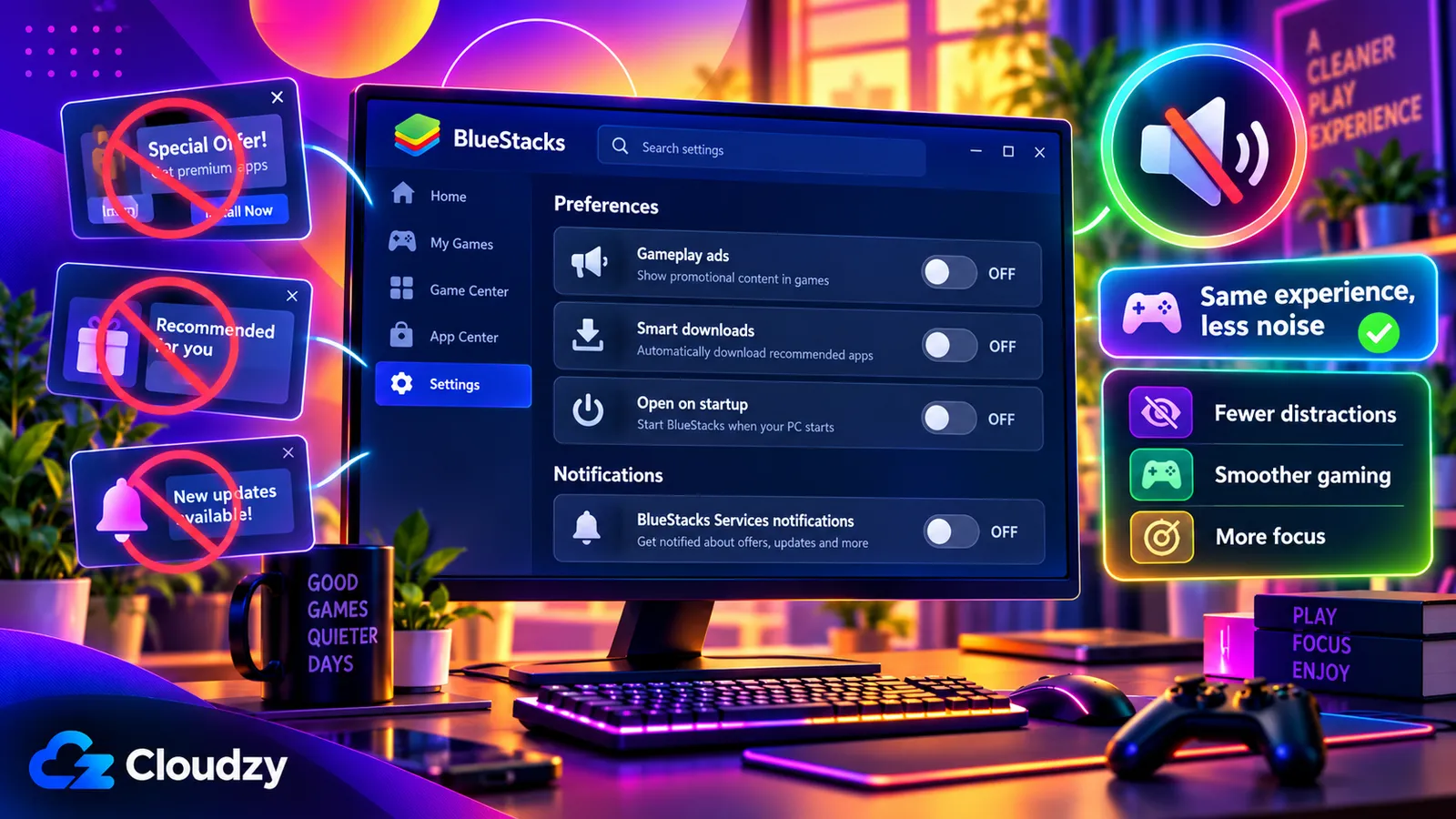
Four switches turn the free version into a quieter program. Three of them sit on the Preferences tab in Settings (the gear icon):
- On the Preferences tab, turn off Allow BlueStacks to show Ads during gameplay. Click Disable on the pop-up that asks you to keep ads, then click Save changes.
- Also on Preferences, turn off the Smart Downloads toggle.
- Still on Preferences, turn off Open BlueStacks Store on start and click Save changes.
- For desktop notifications, click the three dots on any BlueStacks notification and choose Turn off all notifications for BlueStacks Services. These controls also sit under the BlueStacks icon in the system tray and in App Player settings.
What BlueStacks Prime Removes
As of October 2026, BlueStacks Prime costs $7.99 a month, with a limited-time first month at $3.99. For that you get no ads and no pop-ups, 800 nowBux a month (BlueStacks’ in-app currency, which it values at $8), 15% extra savings on in-game purchases in BlueStacks Exclusive games, 5,000 AI credits a month for BlueAI, and priority support. BlueStacks now describes a newer BlueAI earning program separately, so confirm which AI benefits apply to your account before subscribing.
BlueStacks’ Prime guide also states that “refunds for Prime subscriptions are not available” and that Prime is “currently available only in select regions.” You need a now.gg/BlueStacks account to buy it, and you cancel from Manage Subscription.
Skip it. The four switches above deal with most of the nagging at no cost, and the rest of Prime’s value is gaming currency plus AI credits that are useful if you use BlueAI. At $7.99 a month, that’s about $96 a year with no refunds. Prime can pay off for someone who spends money in BlueStacks Exclusive games, provided the rewards and savings they actually use outweigh the fee. Its monthly nowBux and AI credits are valid for 30 days.
Cost and the free model: 3.5/5.
Will BlueStacks Run Well on Your PC?
On a Windows 10 or 11 PC with 8 GB of RAM or more, an SSD and virtualization turned on, BlueStacks gets the setup it’s designed for; that’s the spec BlueStacks recommends. Its minimum is 4 GB of RAM. Without virtualization you’re limited to an old build that BlueStacks warns may perform poorly. Windows 10 also needs separate attention: Microsoft’s standard support ended on 14 October 2025, so use Windows 11 or a Windows 10 installation covered by an ongoing security-update program.
BlueStacks System Requirements
BlueStacks’ system requirements page splits the specs into a minimum that works and a recommended setup for what it calls “a superior gaming experience”:
| Spec | Minimum | Recommended |
|---|---|---|
| Windows | Windows 7 or later (7 and 8 get older versions only) | Windows 10 or later |
| Processor | Any Intel or AMD processor | A multi-core Intel or AMD processor with a single-thread benchmark score above 1,000 |
| RAM | 4 GB | 8 GB or more |
| Storage | 5 GB of free space | An SSD |
| Graphics | Up-to-date graphics drivers | Built-in or separate Intel, NVIDIA or ATI graphics with a GPU benchmark score of at least 750 and up-to-date drivers |
| Virtualization | Not listed | Turned on |
| Admin rights | Required | Required |
Virtualization is a setting in your PC’s firmware (the low-level software that starts the computer before Windows). BlueStacks says it lets you run a different operating system, such as Android, on your PC. With it on, your PC can share its processor and memory between Windows and Android while keeping the two systems apart.
To see whether yours is on, open Task Manager (Ctrl + Shift + Esc), go to the Performance tab, and look for Virtualization: Enabled, as BlueStacks’ virtualization check describes. If it says Disabled, follow BlueStacks’ guide to turning it on. Without it, you’re limited to the old 5.14.22 build, which comes with the warning “you may encounter performance issues,” and you can’t give BlueStacks more than one CPU core.
Windows 7 and 8 can only use versions 5.21.300 and below; the latest version needs Windows 10 or later. Hyper-V, a virtualization feature built into Windows, no longer blocks BlueStacks: since version 5.20, BlueStacks runs with Hyper-V enabled or disabled.
Does BlueStacks Slow Down Your Computer?
Android Authority’s 2025 assessment is that BlueStacks won’t slow down most computers as long as virtualization is on. It still runs a second operating system on your PC: the article notes it uses “quite a fair bit of hardware resources,” and that leaving it open in the background can slow the whole PC.
Slow startups are a separate complaint. In June 2013, an asker on a Microsoft Q&A thread reported Windows taking 10 to 15 seconds longer to load after installing it. One answerer in an r/emulators thread suggested a friend’s slow boot most likely came from BlueStacks being set to start with Windows, and advised opening it only when needed and closing it right after.
Inside BlueStacks, the levers are Eco mode and Trim memory, which BlueStacks says cut what the program uses. Your browser competes for that RAM too, and some browsers are noticeably lighter on memory than others.
Hardware fit on an ordinary PC: 3/5.
Is BlueStacks Safe?
BlueStacks is a legitimate emulator, and its official website is the right place to get it. That isn’t a guarantee that every download or app is safe. If your antivirus flags the installer, don’t assume it’s a false positive: leave it blocked and have your antivirus provider review the detection before you proceed.
For the Play Store sign-in, a secondary Google account with two-step verification is a reasonable precaution, and Android Authority suggests both. A new-device alert immediately after your own Play Store sign-in may refer to BlueStacks’ emulated phone. Check the sign-in time, location and device details against your activity. If you don’t recognize the activity, follow Google’s steps to secure your account rather than assuming BlueStacks caused it.
BlueStacks’ privacy policy says it doesn’t rent or sell personal information in identifiable form, but it allows sharing with service providers and affiliated businesses for relevant services, and transfers in business transactions. It may share anonymized usage data with partners, uses Google Analytics, and doesn’t honor Do Not Track requests. Those data terms are why I stop this score at 3.5.
That’s a reading of documents, not an audit of the installer.
Safety, account and data: 3.5/5.
BlueStacks on Mac: What BlueStacks Air Changes
On a Mac, BlueStacks is a separate app, BlueStacks Air. Its system specifications list Apple Silicon chips (M1 through M4), macOS 11 (Big Sur) or later, 8 GB of RAM (16 GB recommended) and 12 GB of free storage. Apple Silicon is the only processor listed, so Intel Macs can’t run it.
BlueStacks says Air is “completely free”. With Windows 7 and 8 frozen at an older version and Intel Macs left out entirely, BlueStacks covers fewer machines than its “Windows, PC, laptop, and Mac” billing suggests.
Platform coverage: 3/5.
BlueStacks Alternatives Worth Knowing
Microsoft’s route is gone: Windows Subsystem for Android and the Amazon Appstore left the Microsoft Store on 5 March 2025. Google’s official option, Google Play Games on PC, is a games catalog, so it helps only when the one thing you want is a game it carries.
Other Android emulators, such as LDPlayer and MuMuPlayer, cover similar ground. The emulator inside Android Studio is a tool for developers testing their own apps.
Frequently Asked Questions
Why Is BlueStacks on My Computer?
BlueStacks gets onto a PC the way most programs do: someone downloads and installs it. BlueStacks’ “play on PC” pages for individual games, such as its Love and Deepspace page, link straight to the BlueStacks installer, so clicking the download button on one of those pages, or a game ad that leads to one, starts the download. It’s a normal Windows program, and you can remove it like any other.
What Is BlueStacks Services?
BlueStacks Services is the BlueStacks component that sends Windows desktop notifications. It’s installed along with BlueStacks, and you can silence all of its notifications in one step.
Is BlueStacks Legal?
BlueStacks is ordinary software that its maker distributes openly from bluestacks.com, and its terms allow personal, non-commercial use. Individual games and apps set their own rules, so check theirs if it matters to you.
Do You Need a Google Account for BlueStacks?
Only for the Google Play Store, which asks you to sign in just as it does on a new Android phone. You can skip the sign-in, but then you can’t install anything from Google Play.
How Do You Uninstall BlueStacks Completely?
Use BlueStacks’ cleaner tool, which removes all versions of BlueStacks 5, BlueStacks X and BlueStacks Services in one pass. Sync any game progress to an account first, because removal deletes your apps and game data. When the tool finishes, press Windows + R, type %temp%, and delete the files in the folder that opens. BlueAI on Windows uninstalls separately, from Add or remove programs.


Discussion
Comments
Sign in to join the discussion.