

在网站处理和网络管理方面,WordPress 是用户能做出的最明智选择。由于 WordPress 的巨大优势, 它获得了 在网页设计师中享有很高人气。根据统计数据, 显示全球访问量最高的 1000 个网站中,约 35% 是 WordPress 网站(由 WordPress 驱动的网站)。虚拟专用服务器 播放 在 WordPress 中起着至关重要的作用。通常建议在 VPS 上安装 WordPress 以获得网络开发的最大优势。如果你在寻找快速安装指南,我们建议观看下面的视频,它提供了简明概述。如需更详细的说明,建议阅读完整文章。
通常情况下,WordPress 的安装程序简单易用。但在 VPS 上安装时,用户可能会遇到困难,因为需要手动在 VPS 上安装 WordPress。这就是为什么我们准备了这篇详尽的文章,告诉你如何快速、无忧地在 VPS 上安装 WordPress。有多种方法可以实现,但我们认为最简单的方法是使用 cPanel 进行安装。该程序的各个步骤包含在下面。

即时部署,启动速度更快的 WordPress VPS。
获取 WordPress VPS在 VPS 上安装 WordPress(分步指南)
以下是在 VPS 上安装 WordPress 的完整分步指南。
第 1 步:下载 WordPress
首先,你需要下载最新版本的 WordPress。你可以在 wordpress.org/download/
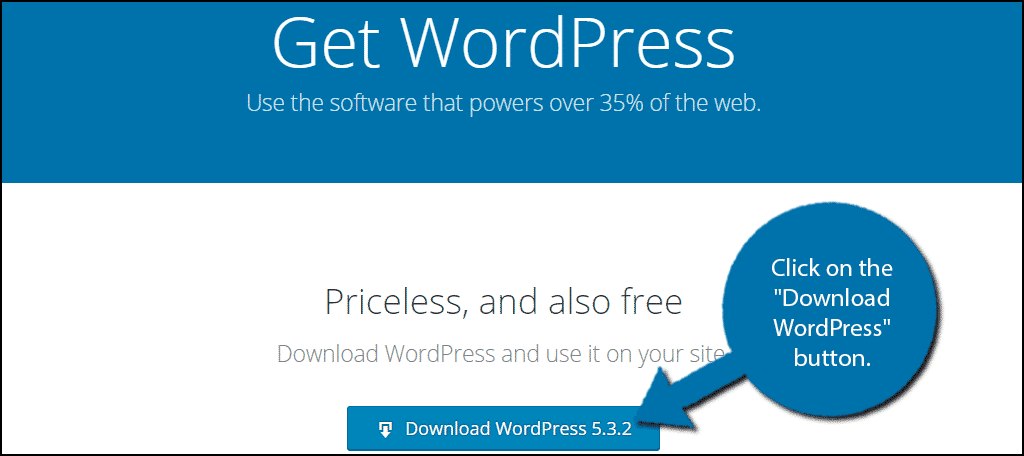
点击"下载 WordPress"按钮。
第 2 步:将 WordPress 上传到你的 VPS
下载 zip 文件后,需要将其上传到你的 VPS。这需要一个 cPanel 账户。你也可以使用 FileZilla 和 Cyberduck 等 FTP 程序,但如前所述,cPanel 是这里最便捷的方式。因此,我们将继续用 cPanel 来完成本教程。
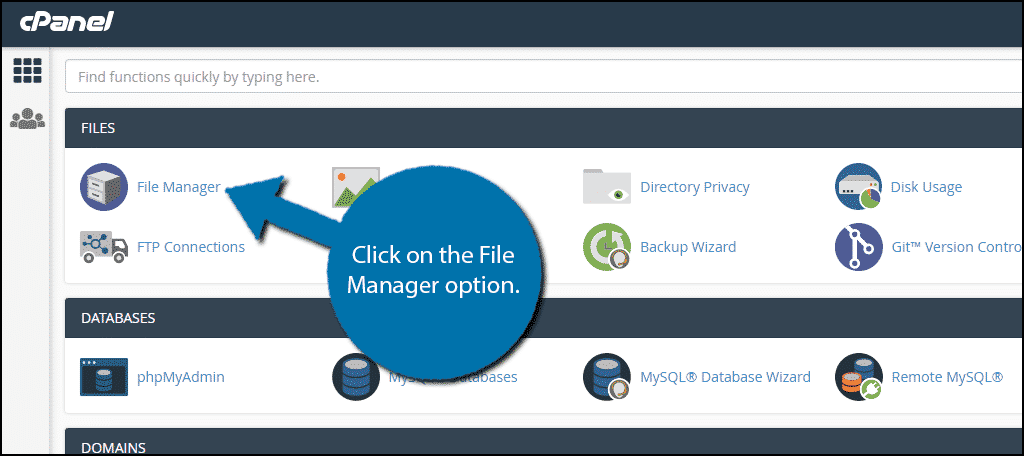
登录你的账户,然后打开 cPanel 文件管理器选项。
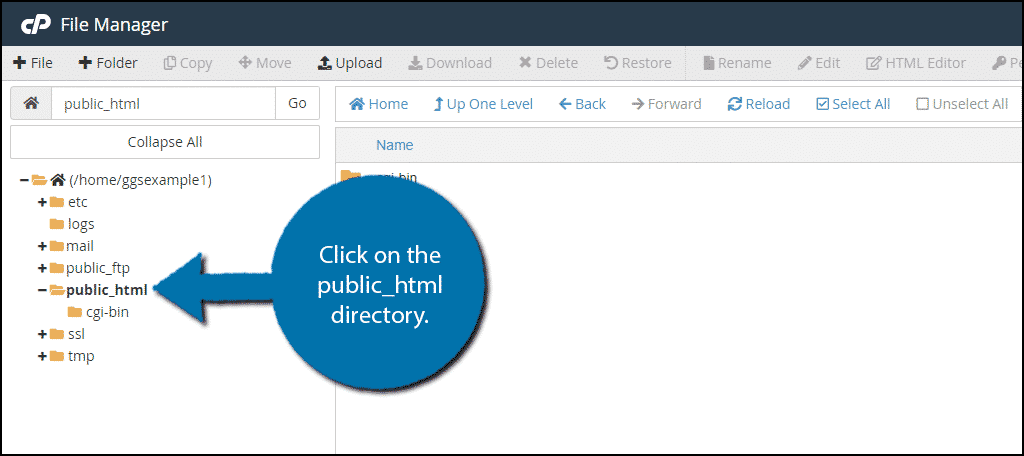
在文件管理器中找到 public_html 目录并点击它。
如果这是你第一次使用 cPanel File Manager,需要为你的网站创建一个新文件夹。如果已经有了,跳过这一步即可。
点击「+ Folder」按钮。
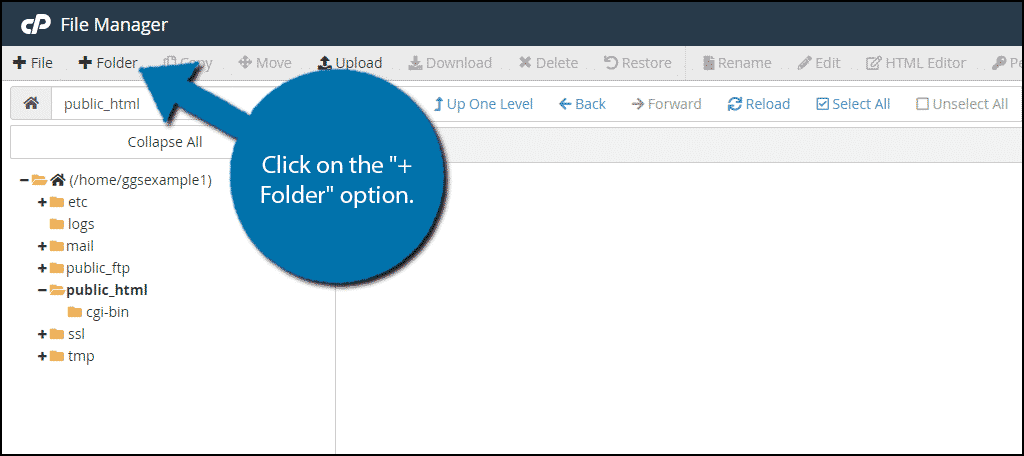
文件夹可以随意命名(我们建议用你的域名作为文件夹名)。 打开您刚刚创建的文件夹,然后点击上方的"上传"按钮。
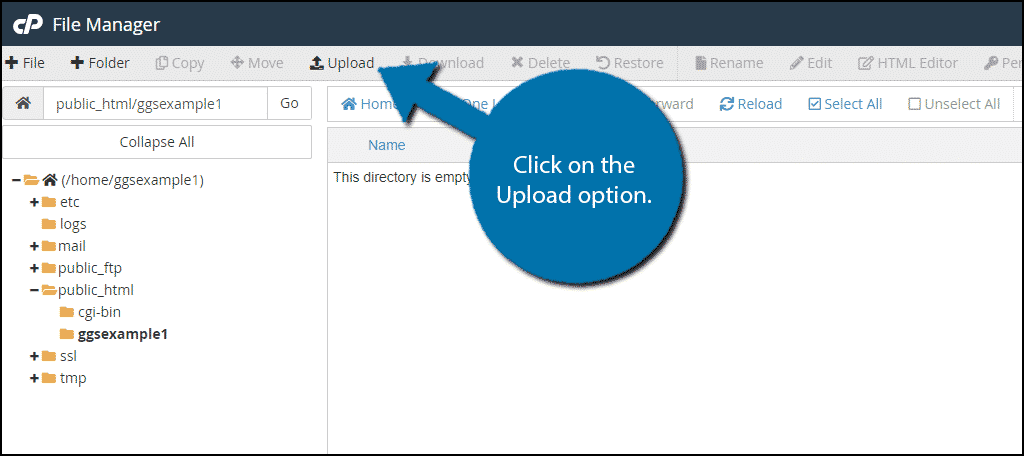
在打开的窗口中,点击"选择文件",然后选择您之前下载的 WordPress 压缩包。
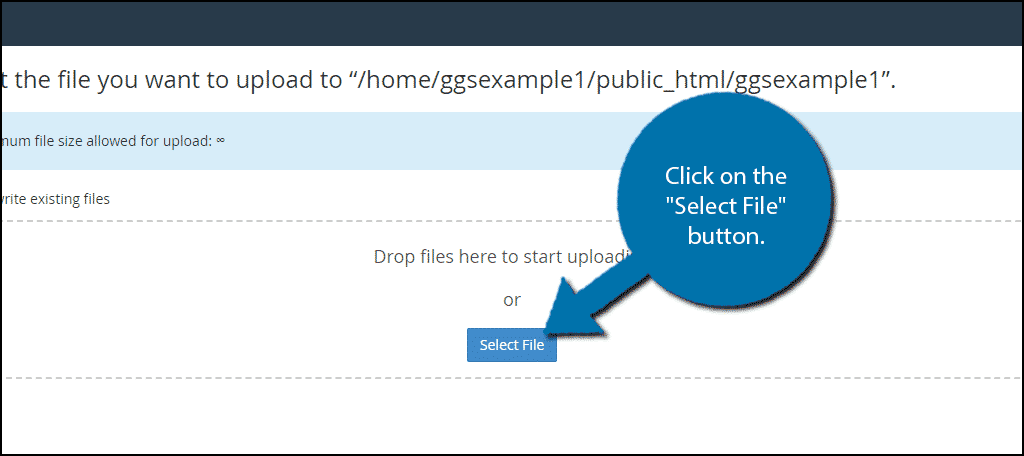
等待上传完成,然后点击下方链接重新进入文件目录。
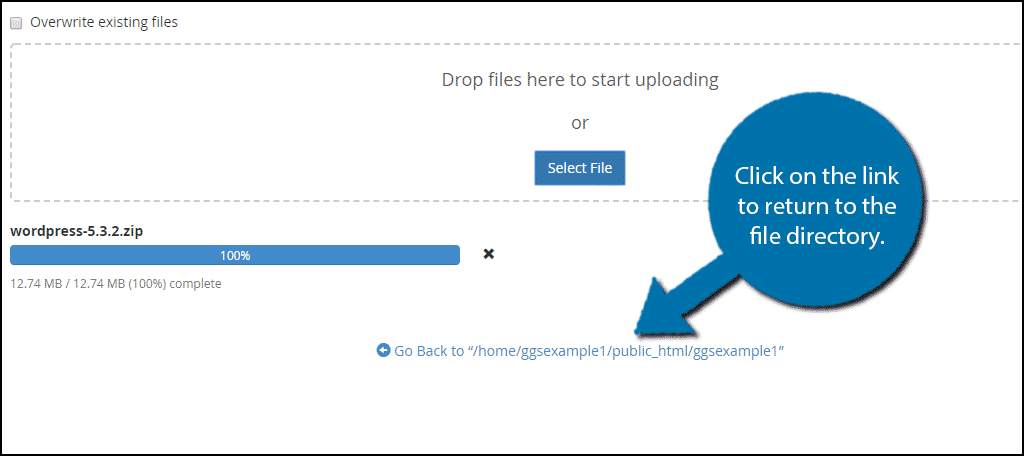
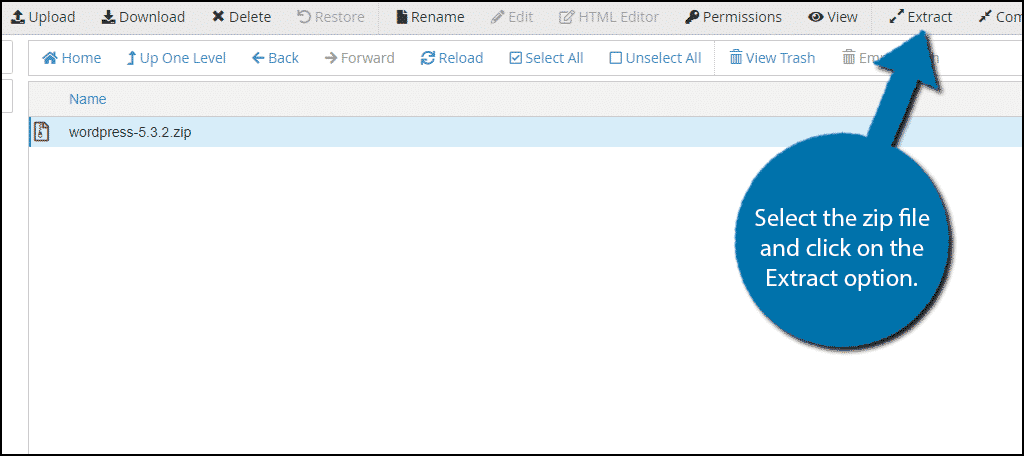
返回后刷新页面,您将看到刚刚上传的 zip 文件。选中它,然后点击"Extract"按钮。
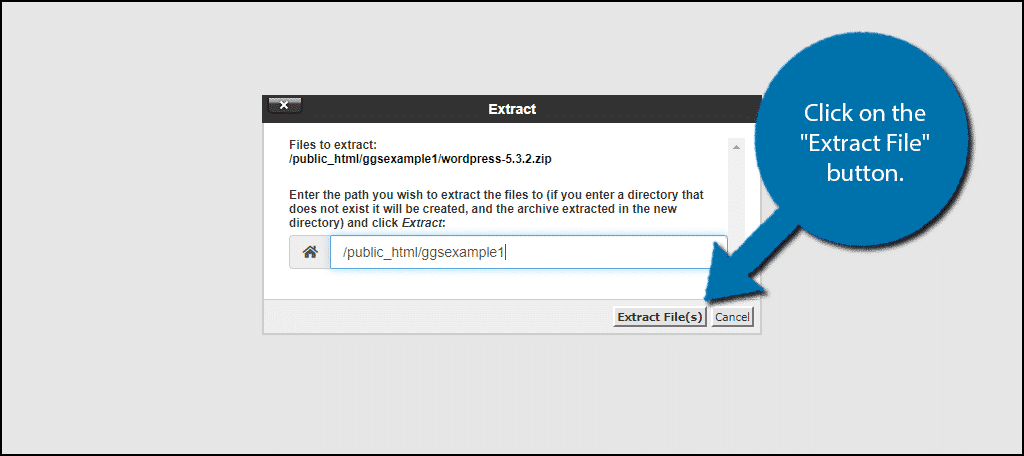
现在,你需要确认 提取文件的位置确认位置无误后,点击"Extract File(s)"。
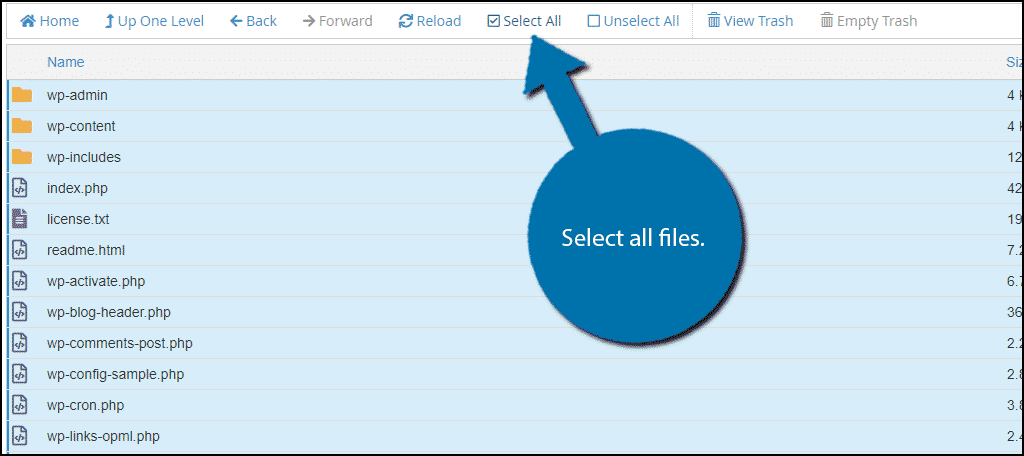
WordPress 现在已在你的文件目录中。如果需要,你可以安全地从文件目录删除它的 zip 文件。
第 3 步:将 WordPress 文件移至根目录
我们现在已经有了所有 WordPress 文件。只需要把它们移到正确的位置。打开 WordPress 文件夹,选中里面的所有文件。
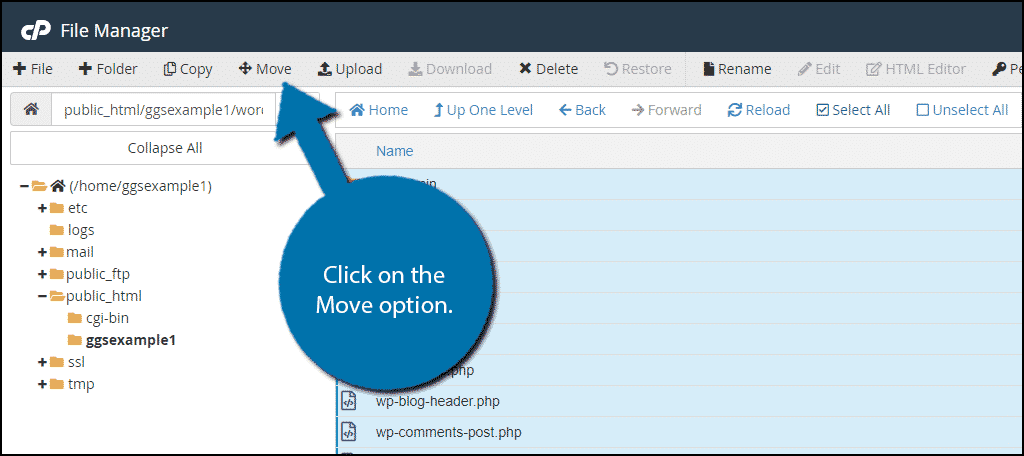
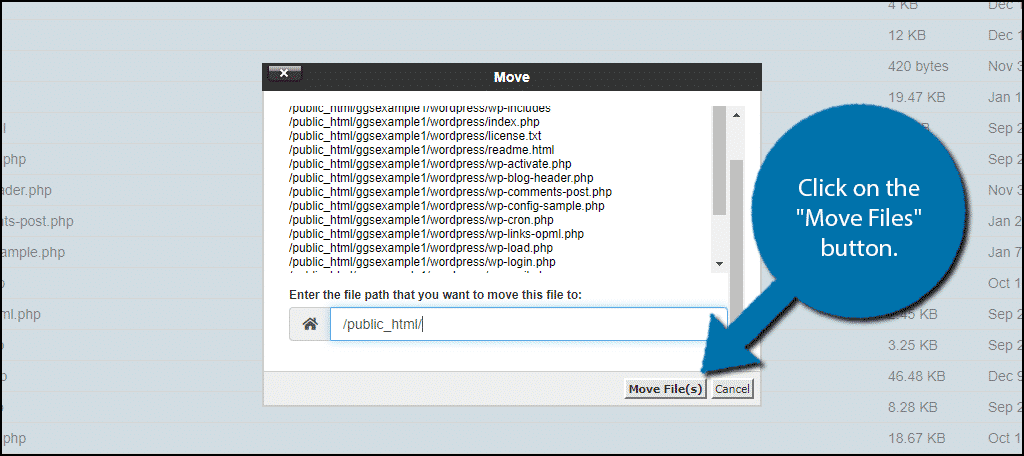
点击「移动」按钮,将所选文件移动到 public_html 目录。
选择位置后,点击"移动文件"按钮。
第 4 步:创建新数据库
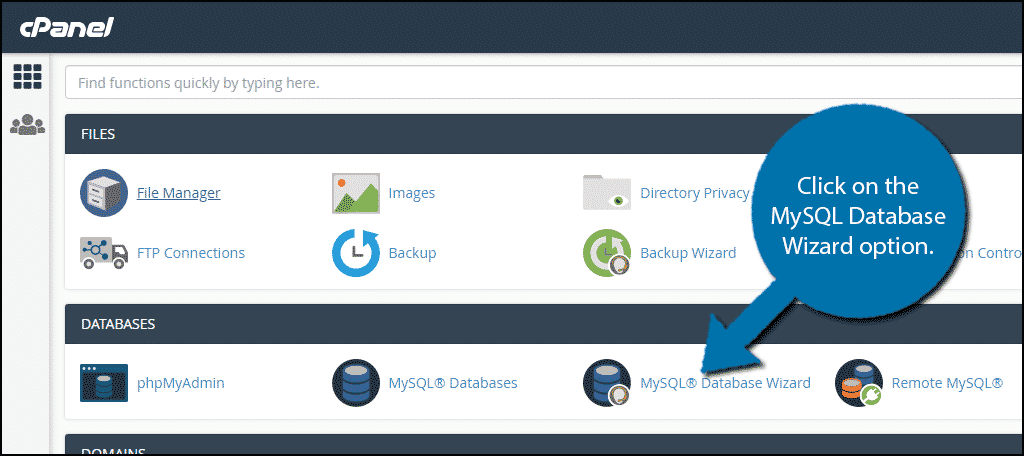
快完成了!现在需要创建一个新数据库。 返回您的 cPanel,找到"MySQL Database Wizard"并点击它。
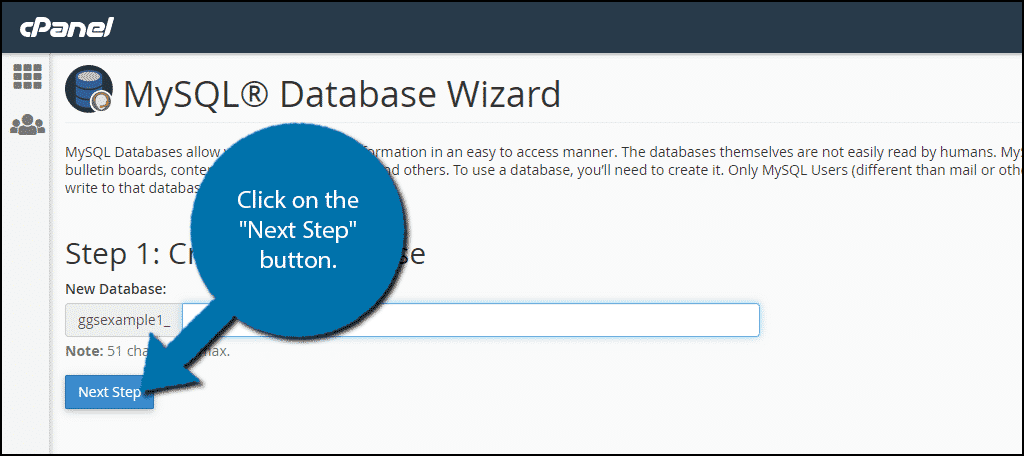
现在,你需要给数据库起个名字。我们建议用简单易记的名字,因为后续步骤还会用到它。 完成后,点击"下一步"。
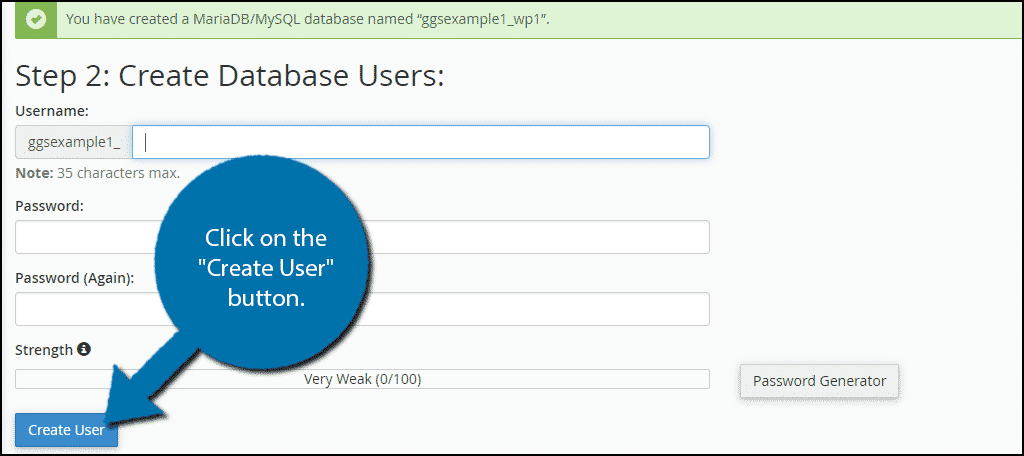
现在,请为已创建的数据库设置用户名和密码。完成后,点击"创建用户"。
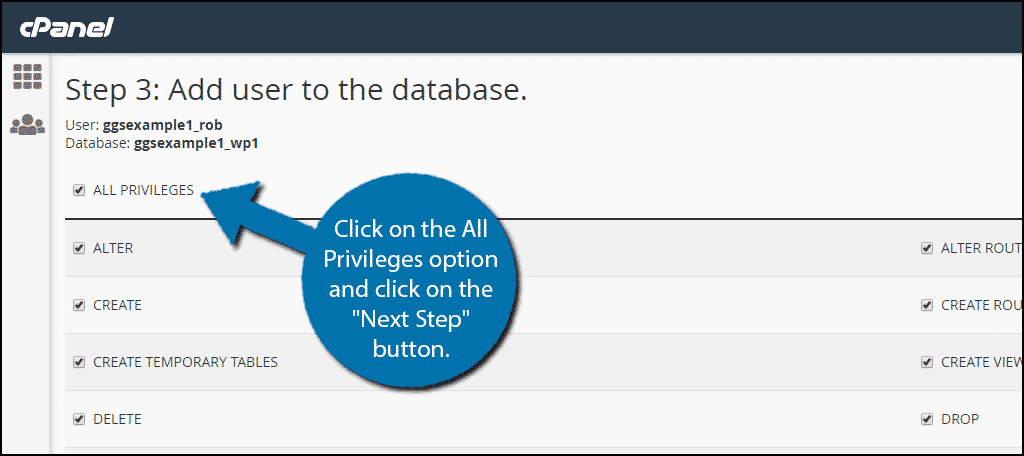
在打开的窗口中,您需要确认账户的权限。勾选"所有权限"选项即可。
您的数据库已创建。
注意:请记下数据库的名称、用户名和密码。连接 WordPress 到数据库时需要用到这些信息。
第 5 步:编辑 wp-config-sample.php 文件
成功创建数据库后,你需要确保 WordPress 使用这个数据库。只需编辑 wp-config-sample.php 文件即可。
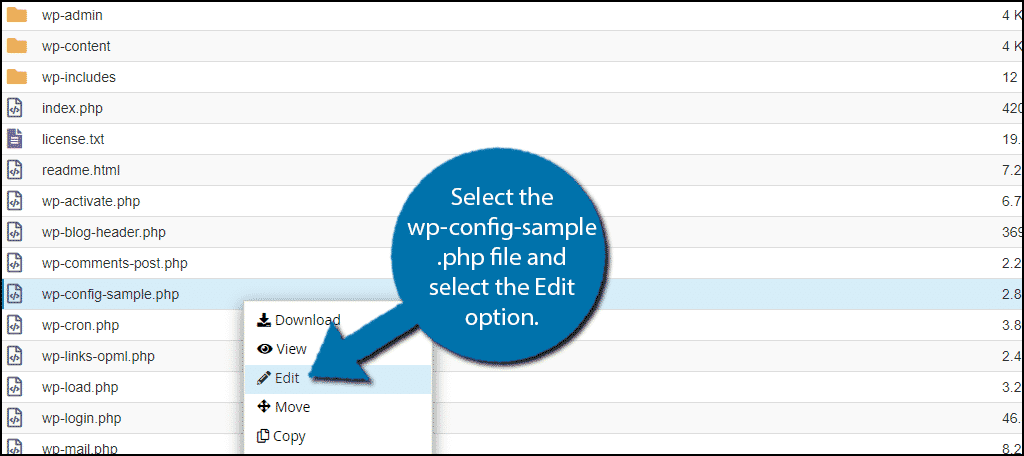
进入 public_html 目录,找到 wp-config-sample.php 文件并选中它,然后点击"编辑"选项。
在这个示例文件中,你需要找到并替换 3 行特定的代码,以确保文件能够连接到你之前创建的数据库。
首先,定位:
[ht_message mstyle=”info” title=”” show_icon=”” id=”” class=”” style=”” ]define( ‘DB_NAME’, ‘database_name_here’ );[/ht_message]
然后,把 database_name_here 替换为你的数据库名称。
然后,找到:
[ht_message mstyle=”info” title=”” show_icon=”” id=”” class=”” style=”” ]define( ‘DB_USER’, ‘username_here’ );[/ht_message]
现在,将 database_name_here 替换为你的数据库名称。
并定位:
[ht_message mstyle=”info” title=”” show_icon=”” id=”” class=”” style=”” ]define( ‘DB_USER’, ‘username_here’ );[/ht_message]
然后,把 username_here 替换为你之前定义的用户名。
最后,找到:
[ht_message mstyle=”info” title=”” show_icon=”” id=”” class=”” style=”” ]define( ‘DB_PASSWORD’, ‘password_here’ );[/ht_message]
并把 password_here 替换为你之前设置的密码。
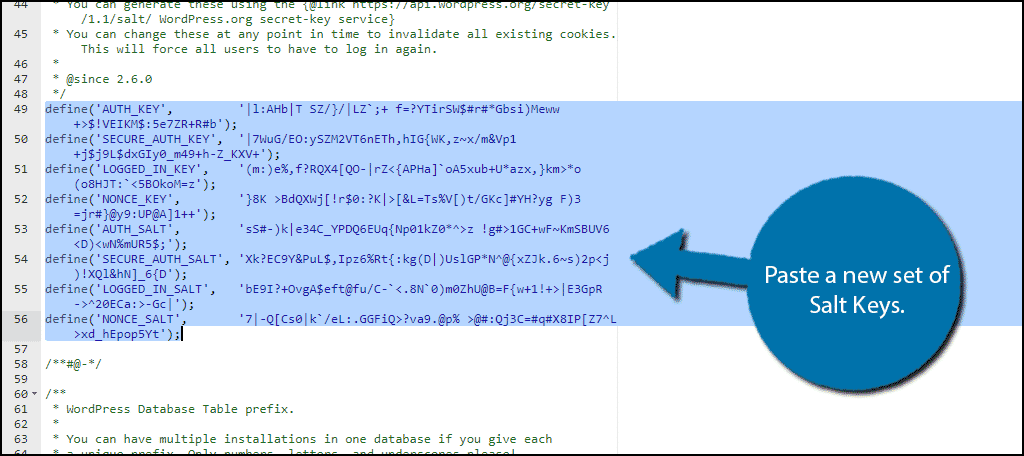
现在,你需要从 WordPress API 复制并粘贴一组新的 Salt Key。进入 Salt Key 生成器,把里面的内容全部复制下来就行。
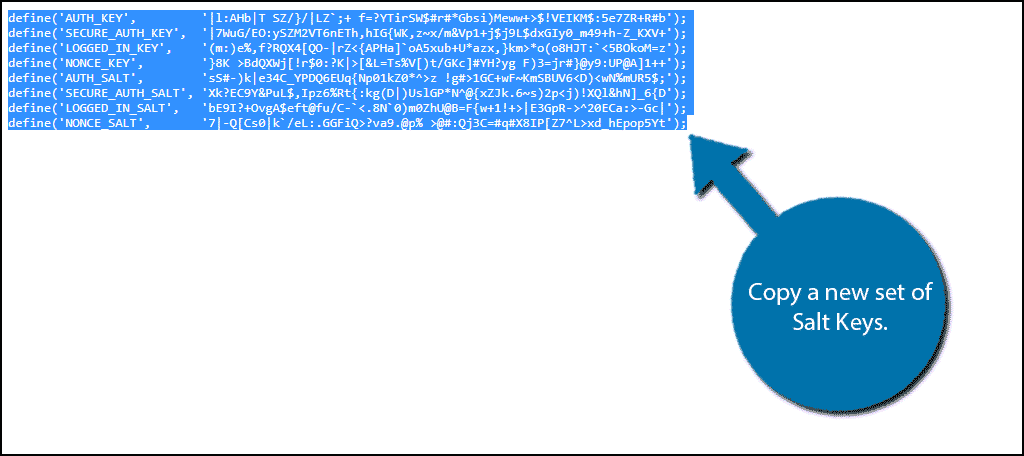
然后,用你刚才复制的盐密钥替换 wp-config-sample.php 文件中的盐密钥行。 复制完成后,点击"保存更改"。
PHP 文件不再是示例文件。请关闭它并将其重命名为 wp-config.php。
步骤 6:安装 WordPress
Go做得好!您已经完成了在 VPS 上安装 WordPress 的所有前置步骤。现在,访问您的网站并开始常规安装流程即可。前往 yourwebsite.com/wp-admin/install.php。
如果 WordPress 文件在其他位置(比如 WordPress),你需要访问 yourwebsite.com/WordPress/wp-admin/install.php。
恭喜,现在您已成功在虚拟专用服务器上安装了 WordPress。我们知道在 VPS 上手动安装 WordPress 并非易事,但这确实值得付出努力。在虚拟专用服务器上使用 WordPress 能为您的网站管理体验和搜索排名带来众多优势。
即时部署,启动速度更快的 WordPress VPS。
获取 WordPress VPS一个建议 – Cloudzy cPanel VPS 服务
我们建议在 VPS 上安装 WordPress 的最佳方式是通过 cPanel。这意味着用户首先需要在 VPS 上安装 cPanel,然后才能开始 WordPress 的安装流程。通常情况下,VPS 提供商不会预装 cPanel。
但是,Cloudzy 的顶级 VPS 套餐则完全不同。我们为全球用户提供世界一流的 cPanel VPS 方案(即预装了 cPanel 的 VPS)。对于希望获得极致且无忧 WordPress 托管体验的用户来说,我们的 cPanel VPS 将大有裨益。因此,我们强烈建议您 详细了解 Cloudzy 的强大功能 cPanel VPS (例如其 NVMe 存储和 1 Gbps 速度)。
推荐阅读: 共享主机 VS VPS
结语
我们刚才演示了如何通过 cPanel 在 VPS 上安装 WordPress。如你所见,手动安装 WordPress 有些复杂。不过我可以告诉你,这个教程采用的方法已经是最简单的了。我们还为你介绍了 Cloudzy。 cPanel VPS 可以为您简化 WordPress 的安装(以及其他实用优势)。如果您不确定 哪种 VPS 主机能满足 WordPress 的需求,在做决定前读一下这篇文章。
通过这篇教程,你能够自己安装 WordPress 到 VPS 上。但如果安装过程中遇到问题,可以直接在下方评论区留言,或者联系我们的技术团队寻求帮助。 这里.
常见问题
我可以在 VPS 上使用 WordPress 吗?
当然可以!你可以在虚拟私人服务器上手动安装 WordPress,并享受它的优势。
在 VPS 上安装 WordPress 的最佳方式是什么?
我们认为,使用 cPanel 是在 VPS 上安装 WordPress 最直接、最便捷的方式。
我能在 VPS 上自己安装 WordPress 吗?
可以,你可以通过 cPanel 在 VPS 上安装 WordPress(见上文)。
安装 WordPress 需要 cPanel VPS 吗?
cPanel VPS 不是必需的。不过我们建议安装,因为系统已经预装了 cPanel,可以帮助你安装 WordPress。



讨论
评论
登录后参与讨论。