
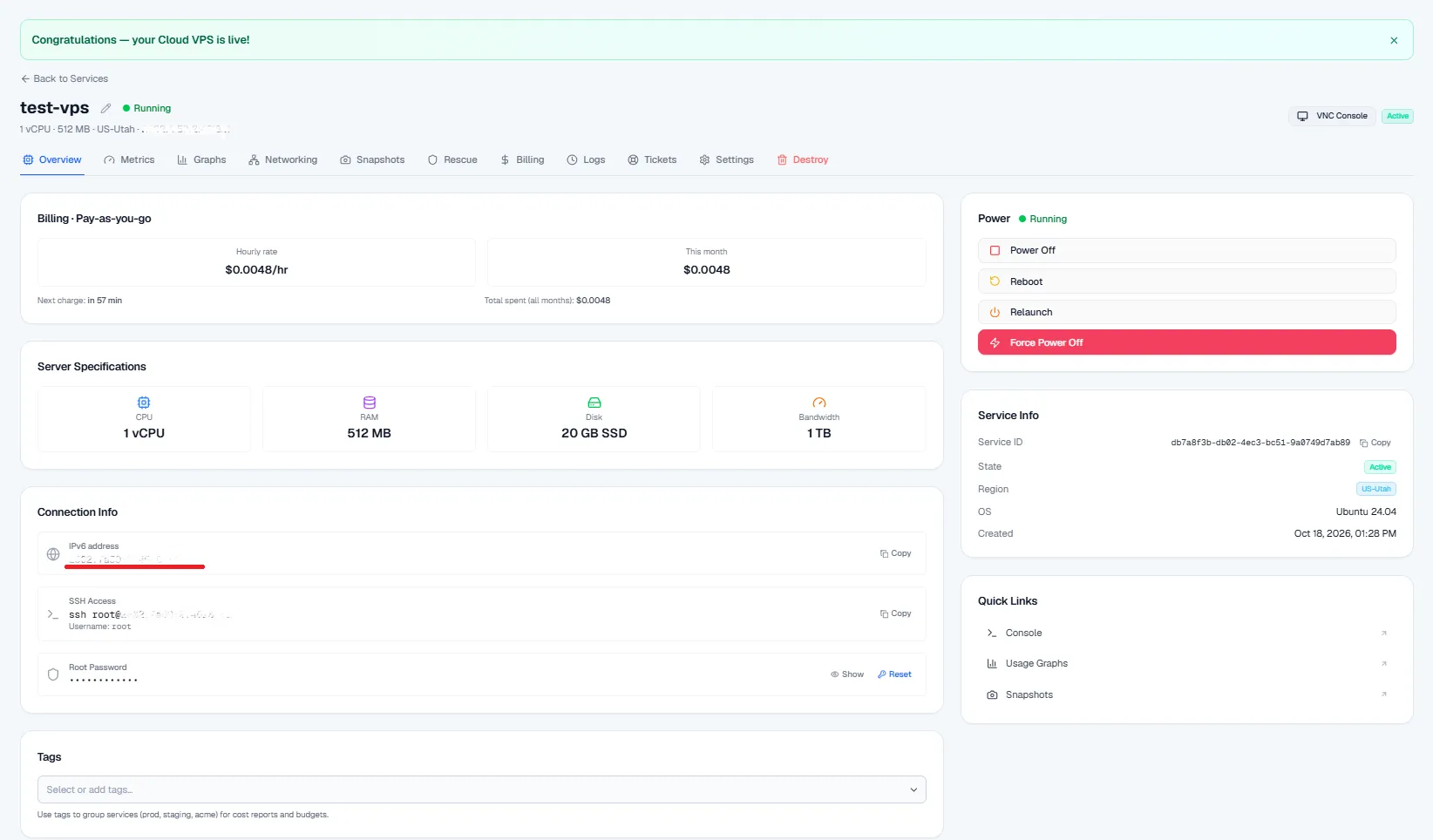
When you deploy a new VPS, you’ll be redirected to a dashboard page displaying your server’s connection details. Here, you can find your server’s IPv4 and/or IPv6 addresses, along with its password.
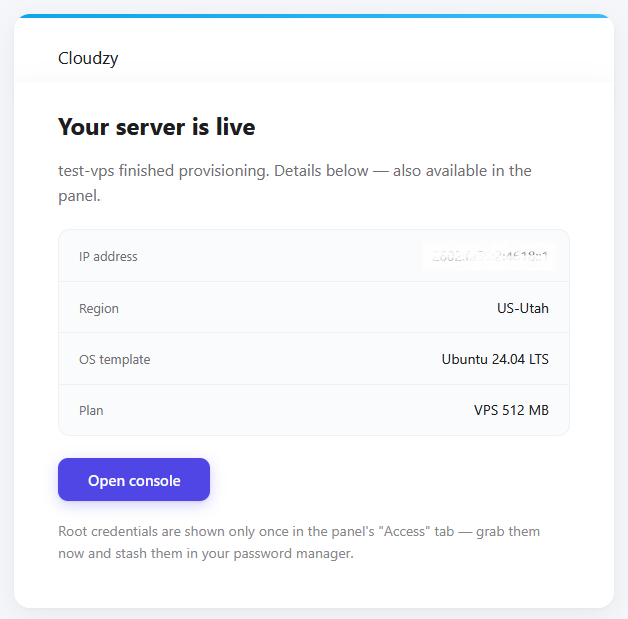
You’ll also receive a confirmation email once your server is live. The email includes your server’s IP address and other server details. Your root credentials are shown in the panel.
How to Find the IP Address of an Existing VPS
If you deployed your VPS previously and no longer have access to the confirmation email, you can find its IP address through the Cloudzy dashboard.
- Log in to your Cloudzy dashboard.
- Click Cloud VPS in the navigation menu.
- Select the VPS whose IP address you want to find.
- Locate the Connection Info section on the server details page. Your server’s IP address is displayed there.
Also in OS & VPS
Related guides.
Need help with something else?
Median response time under 1 hour. Real humans, not bots.