
You close your laptop, walk to a coffee shop, and open a browser on a tablet. Your full VS Code editor is right there, with a terminal running Claude Code alongside it, on a server you control. No local toolchain, no syncing, no waiting for a laptop to wake up.
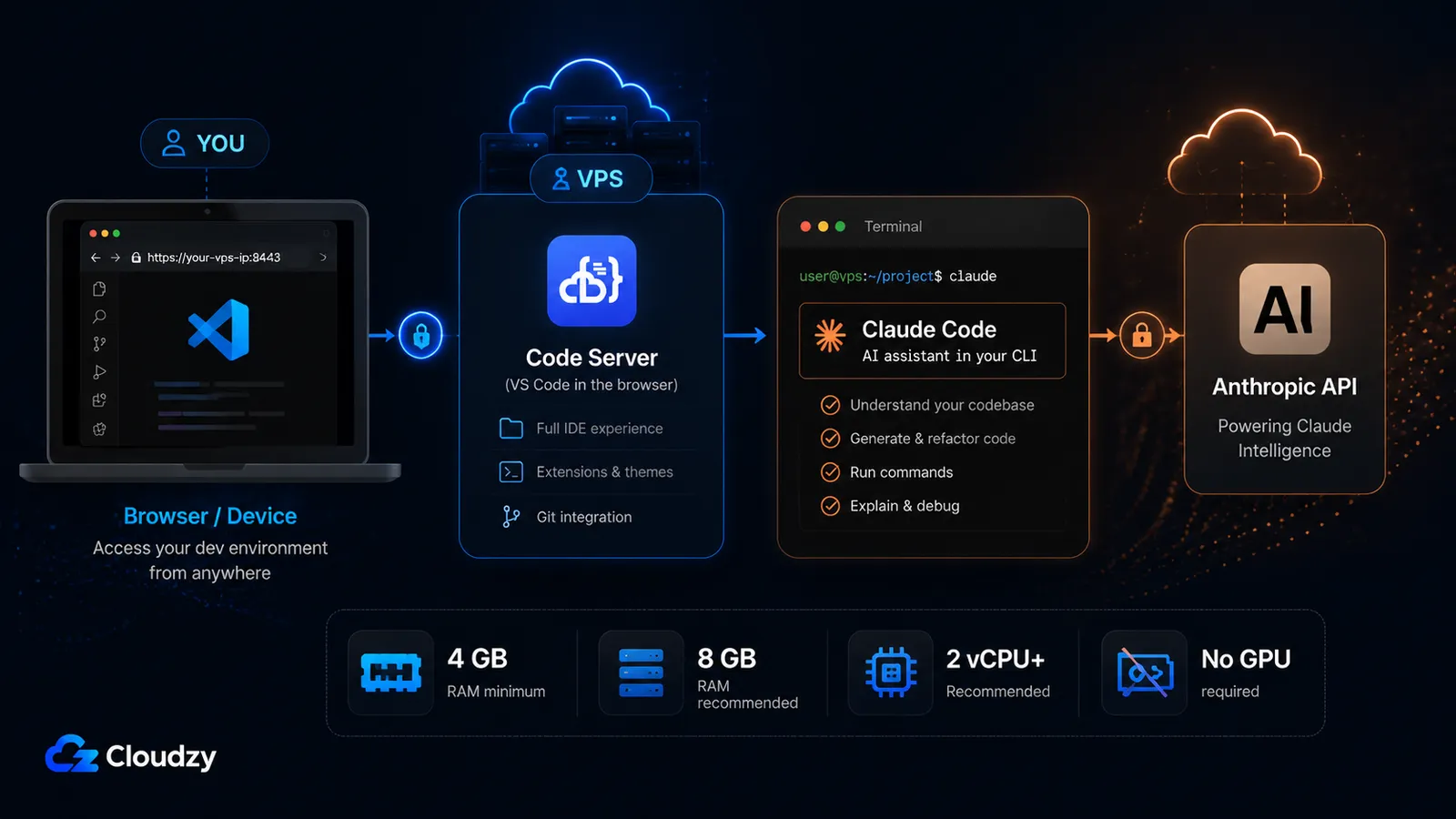
That combination is what this guide builds: Code Server (browser-based VS Code) and Claude Code (Anthropic's AI coding CLI) on a single Linux VPS. Plenty of tutorials cover one or the other, but running both on the same box gives you a Codespaces-style, AI-assisted IDE reachable from any device, for the cost of a VPS and with full root access. One point of clarification before you start: Code Server here means the open-source project from Coder (coder/code-server), not Microsoft's VS Code Server and not Coder's separate enterprise platform. They share a name and get confused constantly, so it is worth pinning down now.
By the end, you will have a working browser-based, AI-assisted development environment running on a VPS you own, secured with HTTPS and set up to survive a dropped connection.
The Short Version
- The stack: Code Server gives you VS Code in a browser tab; Claude Code adds Anthropic's AI coding assistant on the same server. You reach the whole thing from any device with a browser.
- The real RAM floor is 4 GB, and Claude Code is the reason. Code Server alone runs in 1 GB, but Claude Code requires 4 GB+, so the combined stack needs at least 4 GB RAM, 2 vCPU, and 120 GB of storage. Plan for 8 GB if you want comfort.
- Install order matters less than the auth step. The native installers for both tools are one line each. Authenticating Claude Code on a server with no browser is the part most setups get stuck on. You copy a login URL to your local browser, or use a token or API key.
- Claude Code is not free. It requires a paid Claude plan (Pro, Max, Team, or Enterprise) or an Anthropic API key. The free Claude.ai plan does not include it.
What You'll Need
Before you start, make sure you have the following in place. Each of these is referenced by a later step, so it is worth confirming them now rather than discovering a gap halfway through.
- A Linux VPS meeting the sizing floor below. Ubuntu 22.04 LTS is used throughout this guide; the commands are close to identical on Debian and other Ubuntu releases.
- The right size: at least 4 GB RAM, 2 vCPU, and 120 GB of NVMe storage. The 4 GB minimum comes from Claude Code, not Code Server (the sizing section explains why).
- A domain name (optional but recommended) if you want HTTPS with a real certificate. You can run Code Server on an IP address, but a domain makes the reverse-proxy step cleaner.
- A paid Claude plan or an Anthropic API key. Claude Code requires a Pro, Max, Team, or Enterprise subscription, or a Claude Console (API) account. The free Claude.ai plan does not include Claude Code access. Confirm which one you have before the install step, because it decides how you authenticate.
- Basic SSH access to the server with a sudo-capable user.
Choosing Your VPS
The first decision is size, and the common advice you will find for Code Server is wrong for this stack. Most Code Server guides quote a 1 GB RAM minimum, which is accurate for Code Server on its own. Once you add Claude Code, that floor moves.
Claude Code's own system requirements list 4 GB+ RAM (per the Claude Code setup docs). Code Server needs roughly 1 GB. Running both, plus your editor extensions, an active project, and the memory an agentic Claude Code session uses while it works, means the combined stack's realistic floor is:
| Resource | Minimum | Recommended |
|---|---|---|
| RAM | 4 GB | 8 GB |
| vCPU | 2 | 4 |
| Storage | 120 GB NVMe | 240 GB NVMe |
| OS | Ubuntu 22.04 LTS | Ubuntu 22.04 LTS |
The recommended column is where you want to be if you install several extensions, keep large projects with sizable node_modules directories on the server, or run Claude Code on agentic tasks that touch many files at once. The minimum will run the stack; the recommended spec keeps it comfortable.
Two points that save you money and confusion:
No GPU is required. Claude Code sends its work to Anthropic's API, so all model inference happens remotely. You are not running a model on your server. A standard CPU VPS is the correct choice, and paying for a GPU instance here buys you nothing.
Pick a datacenter close to you. A browser IDE is sensitive to network latency in a way a normal web app is not, because every keystroke and file edit travels over a WebSocket connection to the server and back. The closer the server is to where you physically sit, the more the editor feels local. If you code from one region most of the time, choose the location nearest to it.
Section key takeaway: Size for Claude Code, not Code Server. Claude Code's 4 GB requirement sets your floor. Code Server's 1 GB figure does not apply once both tools share the box.
Installing Code Server
This step produces a working VS Code editor reachable in your browser on port 8080. Code Server ships an install script that handles the package setup for you.
Run the official installer:
curl -fsSL https://code-server.dev/install.sh | shThe script detects your distribution and installs Code Server as a systemd service. Once it finishes, start the service and enable it so it comes back after a reboot:
sudo systemctl enable --now code-server@$USERCode Server binds to 127.0.0.1:8080 by default and generates a random password on first run. You need that password to log in. It lives in the generated config file:
cat ~/.config/code-server/config.yamlExpected output looks like this:
bind-addr: 127.0.0.1:8080
auth: password
password: 5f3a9c1b2e8d7460a1f2c3b4
cert: false
Copy the password value. You will enter it at the Code Server login screen once the server is reachable in your browser, which, right now, it is not, because it is bound to 127.0.0.1 (localhost only). That is intentional: exposing Code Server safely is a later step, done through a reverse proxy rather than by opening port 8080 to the internet.
Note: Code Server rate-limits login attempts. If you fat-finger the password a few times and get locked out briefly, that is the rate limiter, not a broken install. Wait a minute and try again.
If you would rather skip the manual install entirely, Cloudzy's marketplace has a one-click Code Server deployment that provisions the server with Code Server already installed. It is the faster path if you are choosing a host now; the manual steps above work on any Ubuntu VPS, so the rest of this guide stays provider-agnostic.
Installing Claude Code
This step adds the AI coding assistant to the same server. Claude Code installs as a single binary and runs from the terminal: the same terminal you will later open inside the browser IDE.
Use the native installer, which is Anthropic's recommended method:
curl -fsSL https://claude.ai/install.sh | bashConfirm it installed:
claude --versionIf you already run Node.js 18 or later and prefer to manage the tool through npm, that path exists as an alternative:
npm install -g @anthropic-ai/claude-codeThe native installer is the primary path in Anthropic's current documentation, and it auto-updates in the background. The npm package can also auto-update, but that depends on the npm global directory being writable; if it isn't, Claude Code shows a one-time notice instead of updating silently. Choose the native installer unless you have a specific reason to prefer npm.
Claude Code supports Ubuntu 20.04+, Debian 10+, and Alpine 3.19+, so the VPS you sized above already qualifies. It requires a paid Claude plan or an Anthropic API key, which you confirmed in the prerequisites, and the free Claude.ai plan does not include it.
For the authoritative install reference, the current docs live at code.claude.com. (Older links to docs.anthropic.com redirect there; use the code.claude.com address directly.)
Authenticating Claude Code on a Headless Server
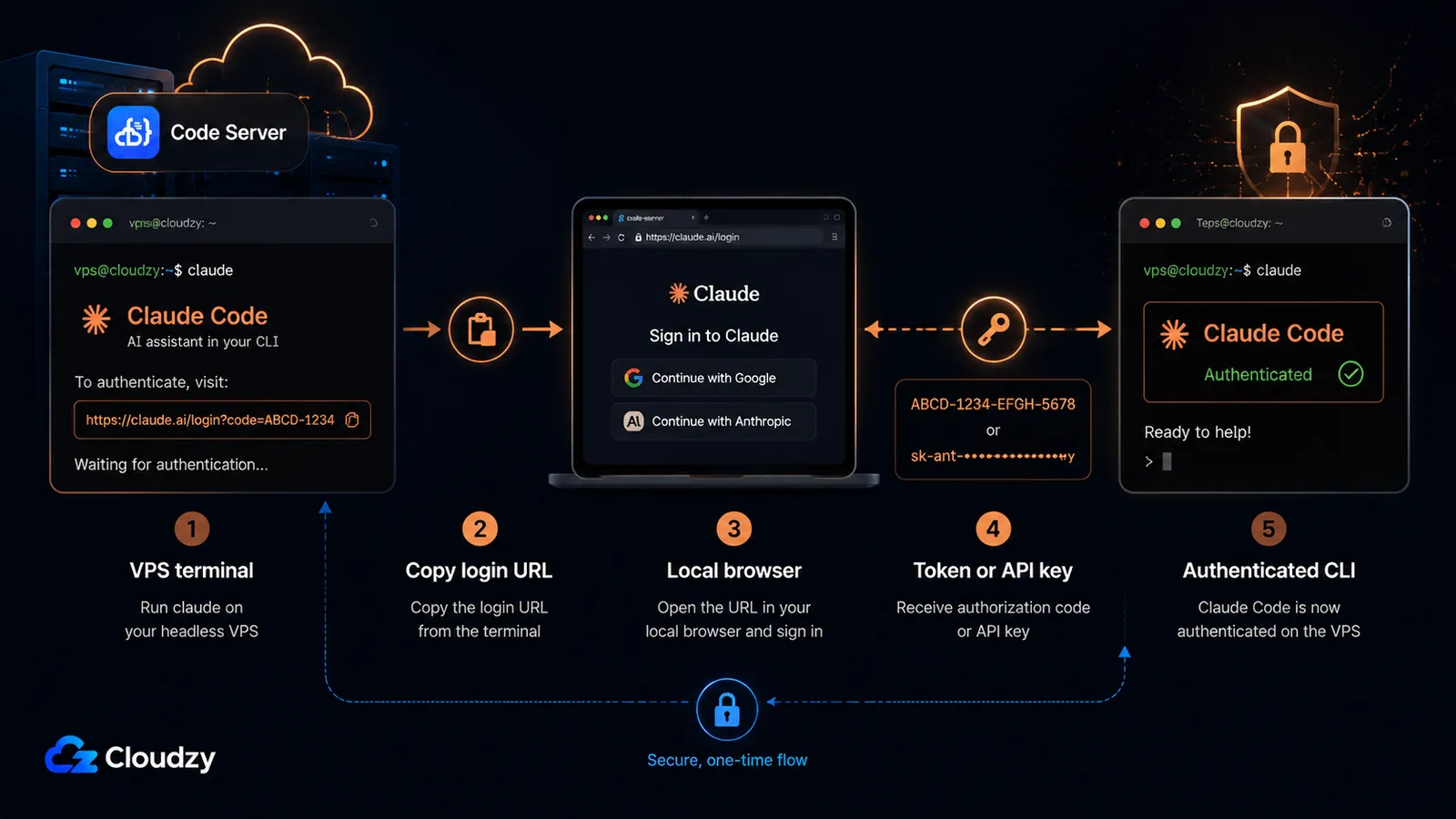
Run claude for the first time and it tries to open a browser window to complete the login. On a remote server reached over SSH, there is no browser to open. This is the single step that stops most server setups, and it has three clean solutions.
The direct method: copy the login URL to your local browser. When you run claude on the server, it prints a login URL (press c to copy it to your clipboard if it does not open automatically). Open that URL in the browser on your own machine, sign in, and complete the authorization. If the browser shows a login code instead of redirecting, paste that code back into the terminal at the Paste code here if prompted prompt. This is normal over SSH sessions and containers. This is the standard interactive path for a Pro or Max subscription.
The persistent method: a long-lived token. If you do not want to re-authenticate the server periodically, generate a one-year OAuth token:
claude setup-tokenThe command walks you through the OAuth authorization once and prints a token. It does not store the token for you, so copy it and set it as an environment variable so Claude Code picks it up on every run:
export CLAUDE_CODE_OAUTH_TOKEN=your-token-hereAdd that export line to your shell profile (for example ~/.bashrc) to make it persist across sessions. This token authenticates against your subscription and requires a Pro, Max, Team, or Enterprise plan.
The API-key method. If you use a Claude Console (API) account rather than a subscription, set your API key instead:
export ANTHROPIC_API_KEY=sk-ant-your-key-hereOne accuracy note so you are not surprised on a bill: an API key bills per token through the Claude Console, which is a separate billing path from a Pro or Max subscription. If you have both a subscription and ANTHROPIC_API_KEY set, the API key takes precedence once approved. So if you intend to use your subscription, do not leave a stray API key in your environment.
Section key takeaway: Three routes to auth on a headless box: copy the login URL to your local browser, run claude setup-token for a long-lived subscription token, or set ANTHROPIC_API_KEY for direct API billing.
Exposing Code Server Securely with HTTPS
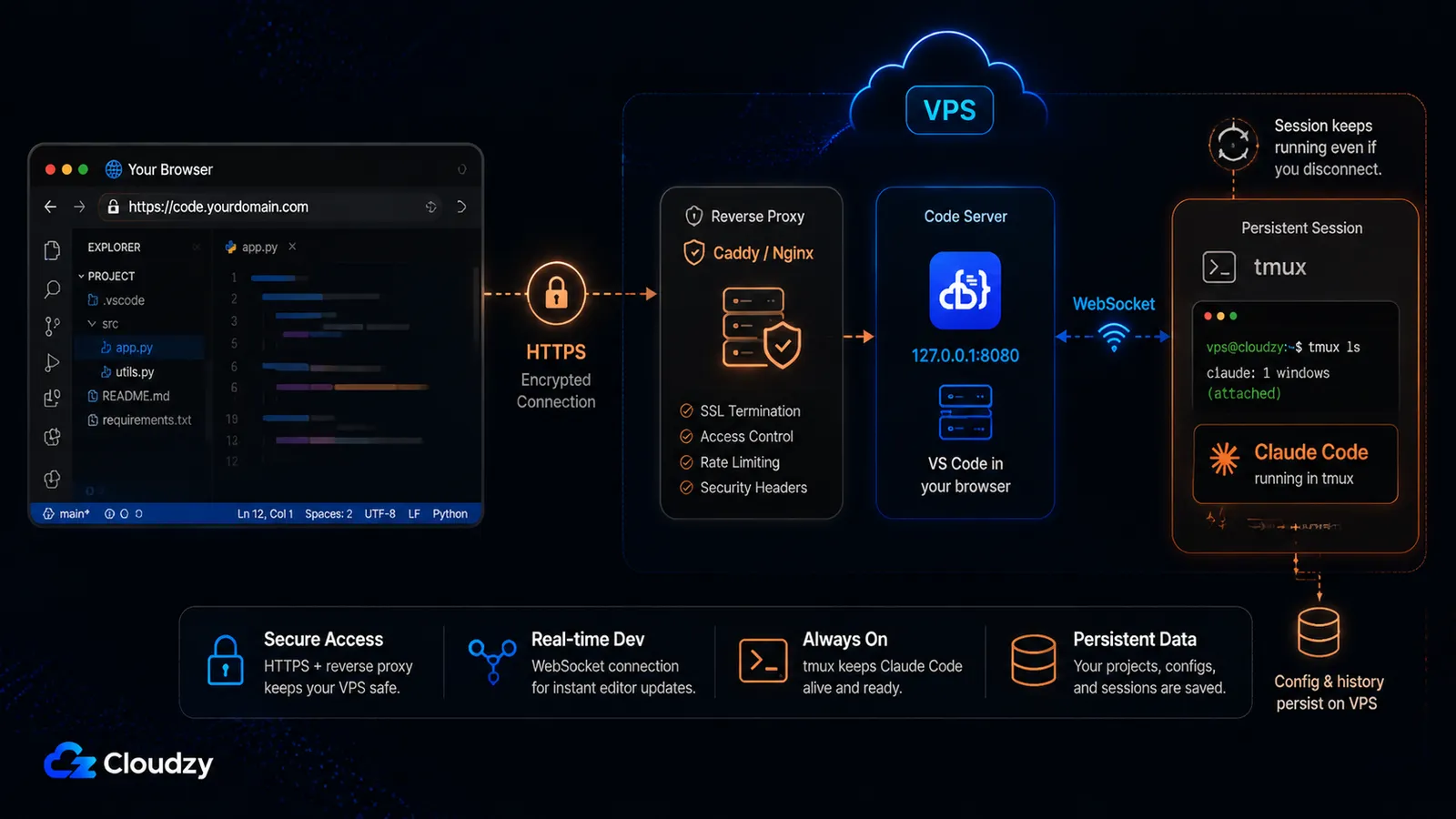
Right now Code Server is bound to localhost and serves plain HTTP. You do not want to open port 8080 to the internet and log in over an unencrypted connection, because anyone on the network path could read your session. The standard fix is a reverse proxy that terminates HTTPS in front of Code Server.
There is one hard constraint that shapes this step: Code Server depends on WebSockets (per Coder's requirements). The editor uses a persistent WebSocket connection for its live communication with the server, so your reverse proxy must forward WebSocket upgrades correctly. This is why the choice of proxy matters.
Use Caddy or Nginx. Both handle WebSocket proxying reliably, and both are available as Cloudzy marketplace one-click apps if you want to skip installing them by hand. Caddy is the shorter path because it obtains and renews a Let's Encrypt certificate automatically. A minimal Caddyfile for Code Server is:
# /etc/caddy/Caddyfile
code.example.com {
    reverse_proxy 127.0.0.1:8080
}
That is the whole configuration. Caddy detects the WebSocket upgrade and forwards it without extra directives, and it provisions HTTPS for code.example.com on its own. Reload Caddy with sudo systemctl reload caddy and browse to https://code.example.com, and you reach the Code Server login screen over an encrypted connection.
If you prefer Nginx, the config is longer because you set the WebSocket upgrade headers explicitly and obtain the certificate separately with Certbot:
# /etc/nginx/sites-available/code-server
server {
    listen 80;
    listen [::]:80;
    server_name code.example.com;
    location / {
        proxy_pass http://127.0.0.1:8080/;
        proxy_set_header Host $host;
        proxy_set_header Upgrade $http_upgrade;
        proxy_set_header Connection upgrade;
        proxy_set_header Accept-Encoding gzip;
    }
}
Note: Nginx and Caddy are the two proxies the official Coder docs document, and both are the reliable choices here. Apache can proxy Code Server too, but its WebSocket forwarding requires additional module configuration (proxy_wstunnel plus rewrite rules) that the official docs do not cover, and setups that miss those modules tend to end up debugging dropped editor connections. If you already run Apache for other sites, the simplest path is to put Code Server behind Nginx or Caddy on a separate vhost rather than configuring Apache to proxy it.
Keeping Your Sessions Alive
Two different things run on this server, and they behave differently when your connection drops. It is worth knowing which is which before you lose an hour of an agentic Claude Code run to a closed laptop lid.
Code Server itself survives disconnects because you installed it as a systemd service. Closing the browser tab or dropping SSH does not stop the Code Server service. In normal reconnects, you return to the same browser IDE session, although very long disconnects may require a window reload depending on Code Server's reconnection behavior.
Claude Code is different. When you run claude in an interactive terminal over SSH, it is tied to that terminal session. Close the browser tab holding that terminal, or drop the SSH connection, and the process dies with it, mid-task if it was working. The fix is to run Claude Code inside a terminal multiplexer so the session detaches from your connection and keeps running.
tmux is the standard tool for this. If you have not used it before, three commands cover what you need:
# Start a new named session
tmux new -s claude

# Run claude inside it as normal, then detach without stopping it:
# press Ctrl-b, then d

# Reattach later, from any new SSH session:
tmux attach -t claude
Start claude inside the tmux session, detach with Ctrl-b then d, and the agentic run continues on the server. Reattach with tmux attach -t claude whenever you reconnect (from a different device, if you like) and you are back in the same live session.
Note: screen works the same way if you already use it (screen -S claude to start, Ctrl-a then d to detach, screen -r claude to reattach). Either tool solves the same problem; pick the one you know.
Using Claude Code Inside the Browser IDE
Once both tools are on the box, there are two ways to reach Claude Code from the browser IDE: the integrated terminal, and the VS Code extension. One of these is reliable today; the other needs testing before you depend on it.
The terminal path works, by construction. Open Code Server in your browser, open its integrated terminal (Terminal > New Terminal, or Ctrl+`), and run:
claudeYou now have the full Claude Code CLI running inside the browser IDE, in the same directory as the project you have open. This is the dependable path: the terminal is a real shell on the server, and Claude Code is a CLI installed on that server, so it runs. Pair it with the tmux step above and the session survives a dropped connection.
The VS Code extension path is possible, but the terminal path is still the safer baseline for this setup. Anthropic publishes a Claude Code VS Code extension and its current docs say it can be installed from Open VSX, which matters because Code Server uses Open VSX rather than Microsoft's VS Code Marketplace. Try searching for "Claude Code" in Code Server's Extensions view, or install the Anthropic.claude-code extension from Open VSX if it appears in your instance. If the extension does not install cleanly, or if IDE integration behaves differently than it does in desktop VS Code, fall back to the integrated terminal. The CLI works in any terminal, and for this VPS setup, that is the reliable path.
Deploy Your Own Browser-Based AI IDE
You now have the full picture: a browser-reachable VS Code editor with Claude Code alongside it, secured with HTTPS and set up to survive a dropped connection, on a VPS you control.
The one part of this that is pure setup labor is the beginning: provisioning a server and getting Code Server installed before you can do anything interesting. If you want to skip that, we offer a one-click Code Server deployment in the Cloudzy marketplace that provisions the VPS with Code Server already running, so you land straight on the login screen and go directly to installing Claude Code and authenticating. For regular daily use, still put the instance behind HTTPS with Caddy or Nginx as shown above instead of treating the raw http://<server-ip>:8080 login as the final production access path.
The same Linux VPS hosts the whole stack (editor, AI CLI, and reverse proxy) with the root access this setup needs. From there, the steps above are all that stand between you and coding with AI from any browser.
If you are still weighing which AI coding CLI to commit to before you build this, our comparisons of OpenCode vs Claude Code and the broader agentic coding CLI showdown cover the trade-offs.
Frequently Asked Questions
What VPS Specs Do I Need for Code Server and Claude Code?
You need at least 4 GB RAM, 2 vCPU, and 120 GB of storage for the combined stack. The 4 GB minimum is driven by Claude Code, not Code Server (Code Server alone runs in about 1 GB). For comfortable use with extensions and larger projects, 8 GB RAM and 4 vCPU is the recommended size.
Is Claude Code Free?
No. Claude Code requires a paid Claude plan (Pro, Max, Team, or Enterprise) or an Anthropic API key through the Claude Console. The free Claude.ai plan does not include Claude Code access.
How Do I Authenticate Claude Code on a Server With No Browser?
Run claude and copy the login URL it prints into the browser on your local machine to complete the login, pasting the code back into the terminal if prompted. For a persistent server, run claude setup-token to generate a one-year OAuth token and set it as CLAUDE_CODE_OAUTH_TOKEN, or set ANTHROPIC_API_KEY to authenticate with a Claude Console API key.
Does the Claude Code VS Code Extension Work Inside Code Server?
Claude Code's CLI runs fully inside Code Server's integrated terminal, which is the most reliable way to use it in this browser IDE setup. The VS Code extension is also worth trying because Anthropic says it can be installed from Open VSX, and Code Server uses Open VSX rather than Microsoft's VS Code Marketplace. If the extension does not install cleanly or behaves differently in your instance, use the integrated terminal path instead.
Can I Use This From an iPad or Phone?
Yes. Code Server is browser-based, so any device with a modern browser (including an iPad or phone) reaches the full IDE. That device-agnostic access is the main advantage of a browser IDE over VS Code Remote SSH, which needs a local VS Code install to connect.


Discussion
Comments
Sign in to join the discussion.