
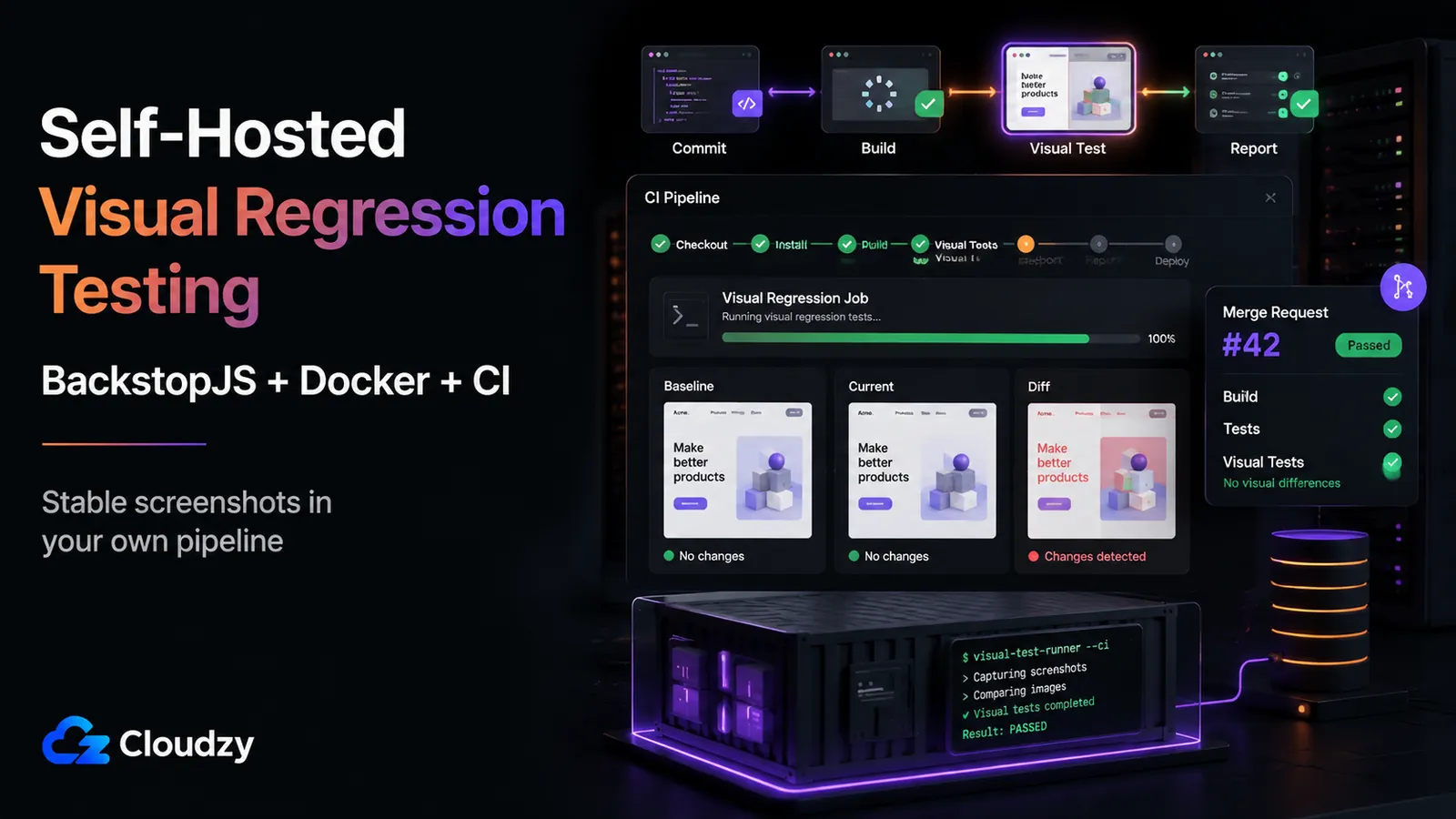
Your visual regression tests pass on your laptop. You push, the pipeline runs, and the same tests either crash the browser silently or flag fifty "changes" that are really just anti-aliasing differences. Nothing in your code changed, but CI disagrees.
That gap between "works locally" and "works in CI" is almost always an infrastructure problem, not a test problem. To self-host visual regression testing in a CI pipeline reliably, you need four pieces wired together correctly: a CI runner with a Docker executor, a container configured so headless Chromium doesn't run out of shared memory, a diffing tool set up to emit CI-readable reports, and a VPS sized for the memory that headless browsers actually consume.
This guide builds that stack end to end. By the end you'll have a working .gitlab-ci.yml (or a Gitea equivalent), a Docker environment that stops Chromium from crashing, BackstopJS producing JUnit reports your pipeline can read, and a right-sized VPS to run it all on.
TL;DR
- Run the browser in the same Docker image locally and in CI. Most false-positive diffs come from font and rendering differences between environments. Pin the image and they disappear.
- Fix the 64MB /dev/shm default. Docker's default shared-memory size starves Chromium's renderer, which crashes silently in CI. Set shm_size: '2gb' in docker-compose.yml, or pass --disable-dev-shm-usage to Chromium.
- Use BackstopJS as the primary self-hostable tool. It's MIT-licensed (v6.3.25), Docker-first via a --docker flag, and emits JUnit reports. If you already run Playwright, its built-in toHaveScreenshot() is a fine zero-install starting point.
- Size for 4GB RAM as the baseline. Budget memory generously. In practical CI runs, a Chromium screenshot job can consume far more memory during full-page captures than it appears to need at idle, so 4GB RAM is the safer baseline for one to two sequential or lightly parallel jobs.
What This Guide Doesn't Cover
This is a build guide for infrastructure you've already decided to stand up. A few things are deliberately out of scope:
- It's not a full tool comparison. This guide focuses on the stack you can actually operate in a self-hosted CI environment: BackstopJS, Docker, and your own runner.
- It doesn't cover self-hosting Argos. Argos is open source, but its public product flow and documentation focus on the hosted Argos app and CI integrations rather than a simple production self-hosting path. For this guide's goal, BackstopJS is the safer worked example.
- It doesn't recommend Lost Pixel. That project was archived in April 2026; use BackstopJS for new deployments.
- It doesn't re-argue self-hosting vs. managed SaaS. If you're here, you've already ruled out Percy or Chromatic.
Prerequisites
You'll need a few things in place before the first command:
- A self-hosted CI runner, or a plan to deploy one (covered below).
- Docker installed on the runner host.
- A Node.js project with an existing test target (a running app URL or a set of component routes to capture).
- Shell access to the VPS or host where the runner lives.
Why Visual Tests Pass Locally but Break in CI
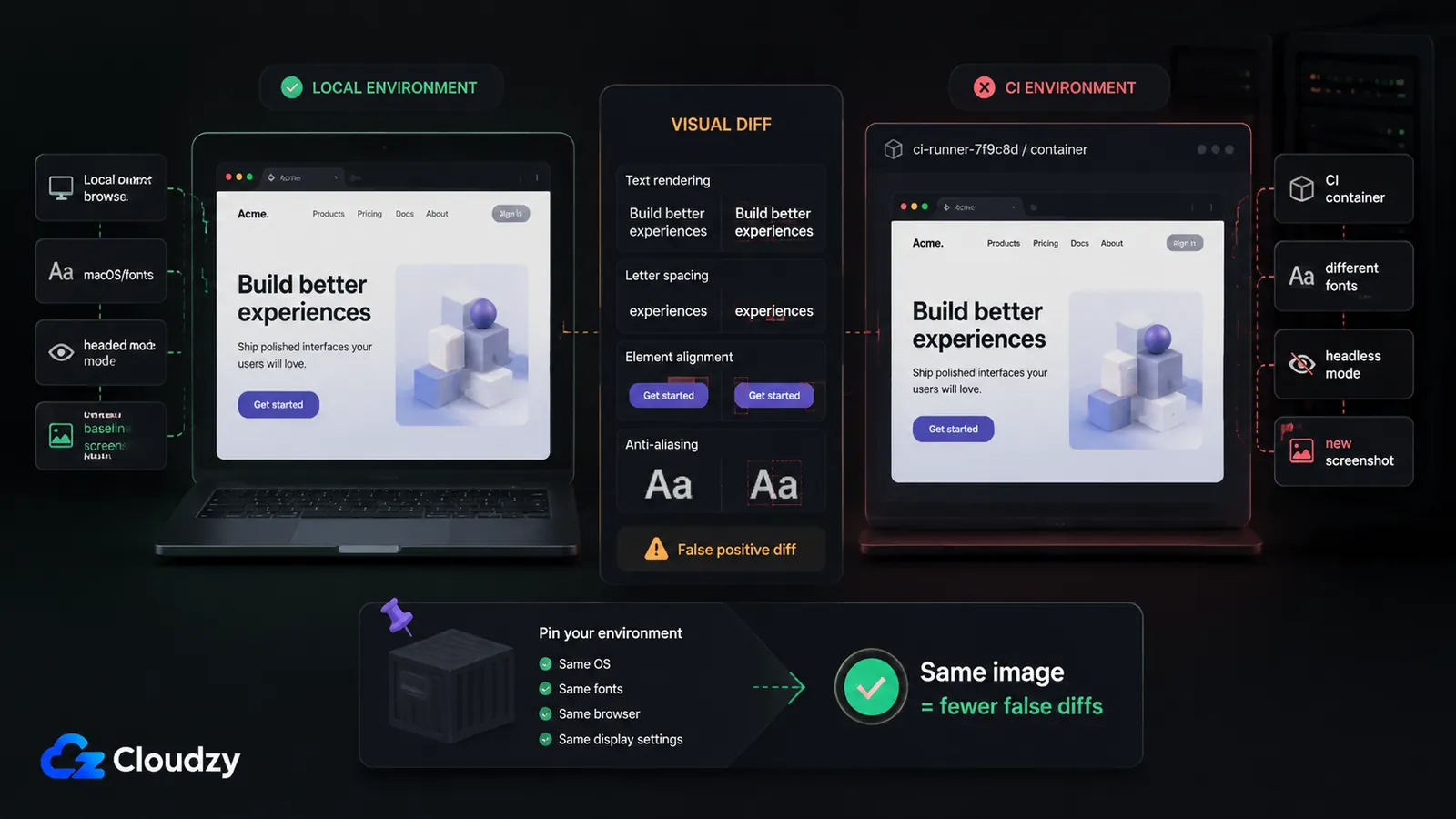
The browser that renders your baseline on macOS is not the browser that renders the comparison in a Linux CI container. Playwright's own documentation is blunt about this: browser rendering can vary based on the host OS, version, settings, hardware, power source, headless mode, and other factors. Its recommendation is equally direct: for consistent screenshots, run tests in the same environment where the baseline screenshots were generated.
That single recommendation is the reason the rest of this setup exists. Three mismatches account for nearly every false failure:
- Font and anti-aliasing differences. Your dev machine and the CI container ship different font packages and sub-pixel rendering. Text-heavy pages diff on every run even when nothing changed.
- Headless vs. headed rendering. A headed browser and a headless one can lay out the same page slightly differently.
- Shared-memory exhaustion. This is the silent one. Docker's default /dev/shm is 64MB, and headless Chromium uses shared memory for its renderer processes. When it runs out, Chromium crashes with no useful error. Your job just dies or hangs.
The first two are solved by pinning a single Docker image for both baseline generation and comparison. The third is solved in the Docker configuration section below. Fix all three and the tests that were "flaky in CI" become deterministic.
Choosing Your Tool: BackstopJS or Playwright's Built-In Diffing
If you already run Playwright for end-to-end tests, the fastest path is its built-in toHaveScreenshot() assertion: zero extra dependencies, pixel-level diffing, and platform-suffixed baselines out of the box. It's a legitimate stopping point for a small suite, and for teams under roughly fifty screens with no shared component library, it may be all you ever need.
Where it runs out of road is review workflow. Playwright's diffing is pixel-only and has no PR-review UI, so approving a legitimate batch of visual changes means regenerating snapshots by hand. Once your baseline count climbs, that manual approval loop gets painful.
BackstopJS is the dedicated tool built for exactly that loop. It's MIT-licensed (currently v6.3.25), Docker-first through a --docker flag, and it emits JUnit XML that a CI runner reads natively. Its baseline workflow (generate a reference, test against it, approve accepted diffs as the new baseline) is the operational model most self-hosted VRT setups end up wanting. For the rest of this guide, BackstopJS is the worked example.
Two tools you might see recommended elsewhere are off the table for this walkthrough: Argos is not covered here because its public product flow is centered on the hosted app and CI integrations, while Lost Pixel is archived. BackstopJS is the safer worked example for a practical self-hosted setup.
| Axis | BackstopJS | Playwright toHaveScreenshot() |
|---|---|---|
| PR review workflow | Built-in report and approve command | Manual snapshot regeneration |
| Baseline management | Reference / test / approve commands | Per-test snapshot files |
| Docker-normalized rendering | --docker flag | Bring your own image |
| Install overhead | Separate dependency | Already present if you use Playwright |
For a deeper bake-off across more tools and axes, the Argos vs Lost Pixel vs BackstopJS comparison covers the full selection decision.
Deploying a Self-Hosted CI Runner on a VPS
The piece that actually delivers rendering consistency is the Docker executor: the runner runs each job inside a container you define, which means the browser environment is identical every time. Pick the runner platform based on how much else you want it to do.
Self-hosted GitLab CE is the heavier option: repositories, CI/CD, registry, issues, and merge requests in one instance. The important part for this guide is GitLab Runner's Docker executor, which lets each visual-regression job run inside the same pinned container image every time. GitLab, Gitea, Jenkins, Forgejo, Portainer, and Docker are all available as one-click deployments on the Cloudzy marketplace, which shortens the setup considerably.
Gitea with act-runner is the lightweight alternative. Gitea is a Go-based Git service with a GitHub-Actions-compatible workflow engine (via act-runner), so if your team is comfortable with Actions syntax, it's a small, fast runner to stand up.
Whichever you choose, the configuration goal is the same: a runner that accepts jobs and executes them with a Docker executor. Everything downstream (the container config, BackstopJS, the sample pipeline) assumes that executor is in place.
Configuring Docker So Chromium Doesn't Crash
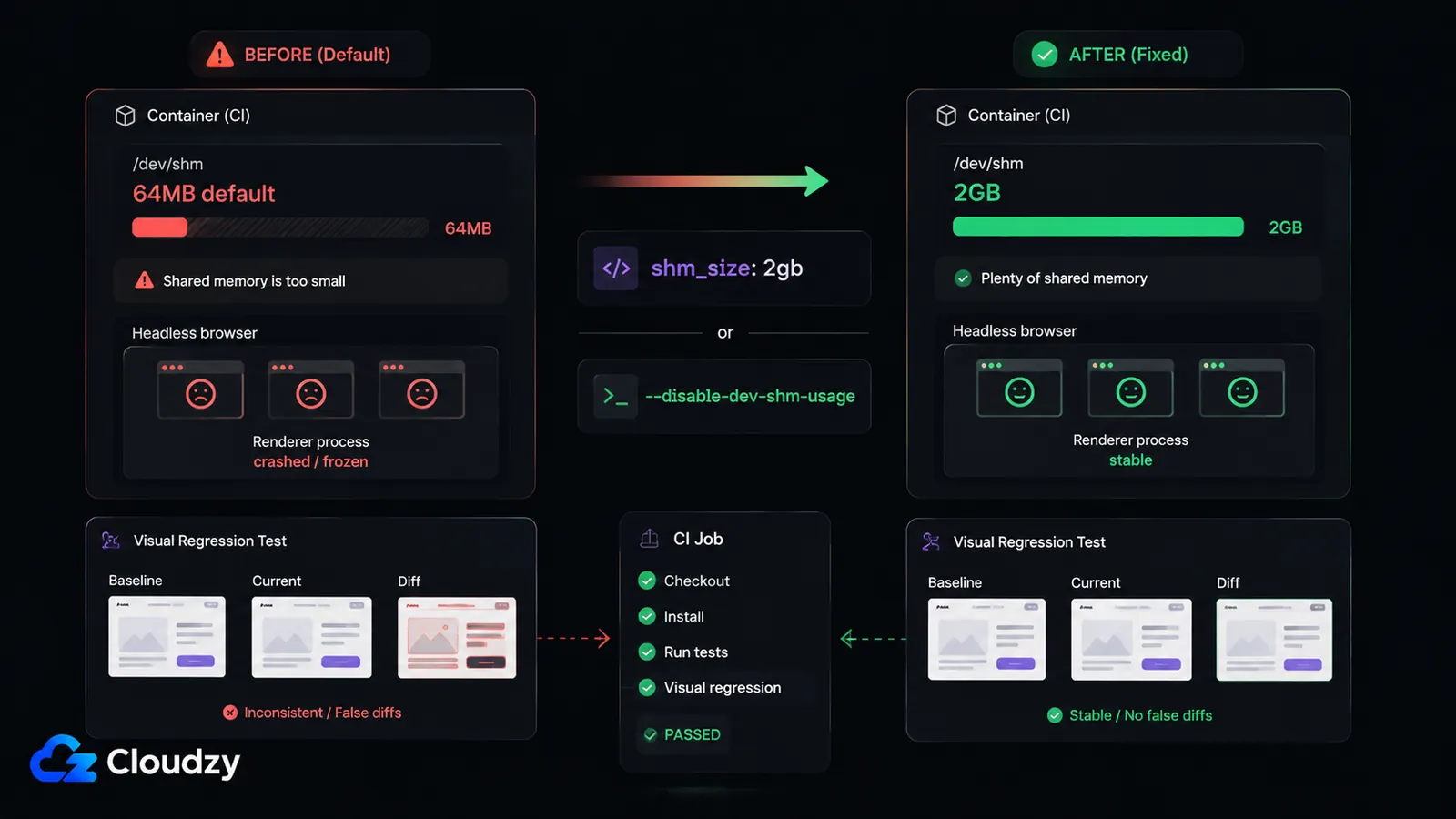
Here is the failure that costs people the most time. Docker mounts /dev/shm at 64MB by default. Headless Chromium uses that shared-memory partition for its renderer processes, and under a full-page screenshot it needs far more than 64MB. When it runs out, the renderer dies, often with no error message that points at shared memory. The job hangs, times out, or reports a generic browser crash.
There are two fixes, and either one works.
Fix A: raise the shared-memory size in Compose. The shm_size key sets the size of the container's /dev/shm partition. The Docker Compose file reference confirms that shm_size configures the size of the shared memory allowed by the service container. Set it in the service block:
# docker-compose.yml
services:
  vrt:
    image: backstopjs/backstopjs:6.3.25
    shm_size: '2gb'          # override the 64MB default
    volumes:
      - ./:/src
    working_dir: /src
Fix B: tell Chromium not to use /dev/shm at all. The --disable-dev-shm-usage flag makes Chromium write shared-memory files to /tmp instead of the shared-memory partition. Pass it in your browser launch arguments. In a backstop.json config, that's engineOptions; in Playwright, it's launchOptions:
// backstop.json (fragment)
{
  "engine": "puppeteer",
  "engineOptions": {
    "args": ["--disable-dev-shm-usage", "--no-sandbox"]
  }
}
Fix A is cleaner when you control the Compose file; Fix B is the portable choice when you can only touch the browser launch flags. Applying both does no harm.
Pro Tip
Use the exact same Docker image locally and in CI. BackstopJS gives you this for free with the --docker flag, which runs the capture inside a pinned reference image so your machine and the runner render identically. This is what eliminates the font-and-anti-aliasing false positives: pin the image once and stop chasing phantom diffs.
Setting Up BackstopJS for CI
BackstopJS produces a JUnit XML report that your CI runner reads to pass or fail the build, which is the whole point of wiring it into a pipeline rather than running it by hand. Install it and initialize a config:
npm install --save-dev backstopjs
npx backstop init
Then point backstop.json at the pages you want to capture and turn on the CI report:
// backstop.json (fragment)
{
  "id": "my_app_vrt",
  "viewports": [
    { "label": "desktop", "width": 1440, "height": 900 }
  ],
  "scenarios": [
    {
      "label": "Homepage",
      "url": "http://app:3000/",
      "selectors": ["document"]
    }
  ],
  "report": ["CI"],
  "engine": "puppeteer",
  "engineOptions": {
    "args": ["--disable-dev-shm-usage", "--no-sandbox"]
  }
}
The CI report setting is what emits JUnit XML. Use the --docker flag when running these commands locally from your host machine. Inside a CI job that already uses the backstopjs/backstopjs image, run backstop test directly instead. The baseline workflow is three commands:
npx backstop reference --docker   # capture the approved baseline
npx backstop test --docker        # run the comparison, emit the report
npx backstop approve              # accept the current diffs as the new baseline
One caveat on baseline management: every legitimate UI change means running approve to bless the new screenshots. Past roughly a hundred scenarios, that approval step is a real operational cost: someone has to eyeball the diffs and decide which are intended, and the burden scales with the team adopting it. That maintenance is the actual price of visual regression testing at scale, and it's worth budgeting for before you commit a large suite.
A Working CI Pipeline Configuration
The pipeline runs in two logical parts: generate the baseline once (or on demand), then compare against it on every change. The sample below is a GitLab CI configuration using a Docker executor, with the shared-memory fix already applied through the launch flags in backstop.json.
# .gitlab-ci.yml
stages:
  - visual-regression

visual_regression:
  stage: visual-regression
  image:
    name: backstopjs/backstopjs:6.3.25
    entrypoint: [""]
  script:
    - backstop test
  artifacts:
    when: always
    reports:
      junit: backstop_data/ci_report/xunit.xml
    paths:
      - backstop_data/bitmaps_test
      - backstop_data/html_report
    expire_in: 1 week
The junit line hands the report to GitLab so failures show up in the merge-request UI; the paths line keeps the diff bitmaps so you can look at what actually changed. On Gitea with act-runner, the same steps map into an Actions-style workflow:
# .gitea/workflows/visual-regression.yaml
name: Visual Regression
on: [push, pull_request]

jobs:
  vrt:
    runs-on: ubuntu-latest
    container:
      image: backstopjs/backstopjs:6.3.25
      options: --shm-size=2gb          # raise /dev/shm for the job container
    steps:
      - uses: actions/checkout@v4
      - run: backstop test
Note the --shm-size=2gb container option in the Gitea workflow. That's the same shared-memory fix as Fix A, applied at the job-container level where there's no separate Compose file to edit.
Sizing Your VPS for Headless Chromium
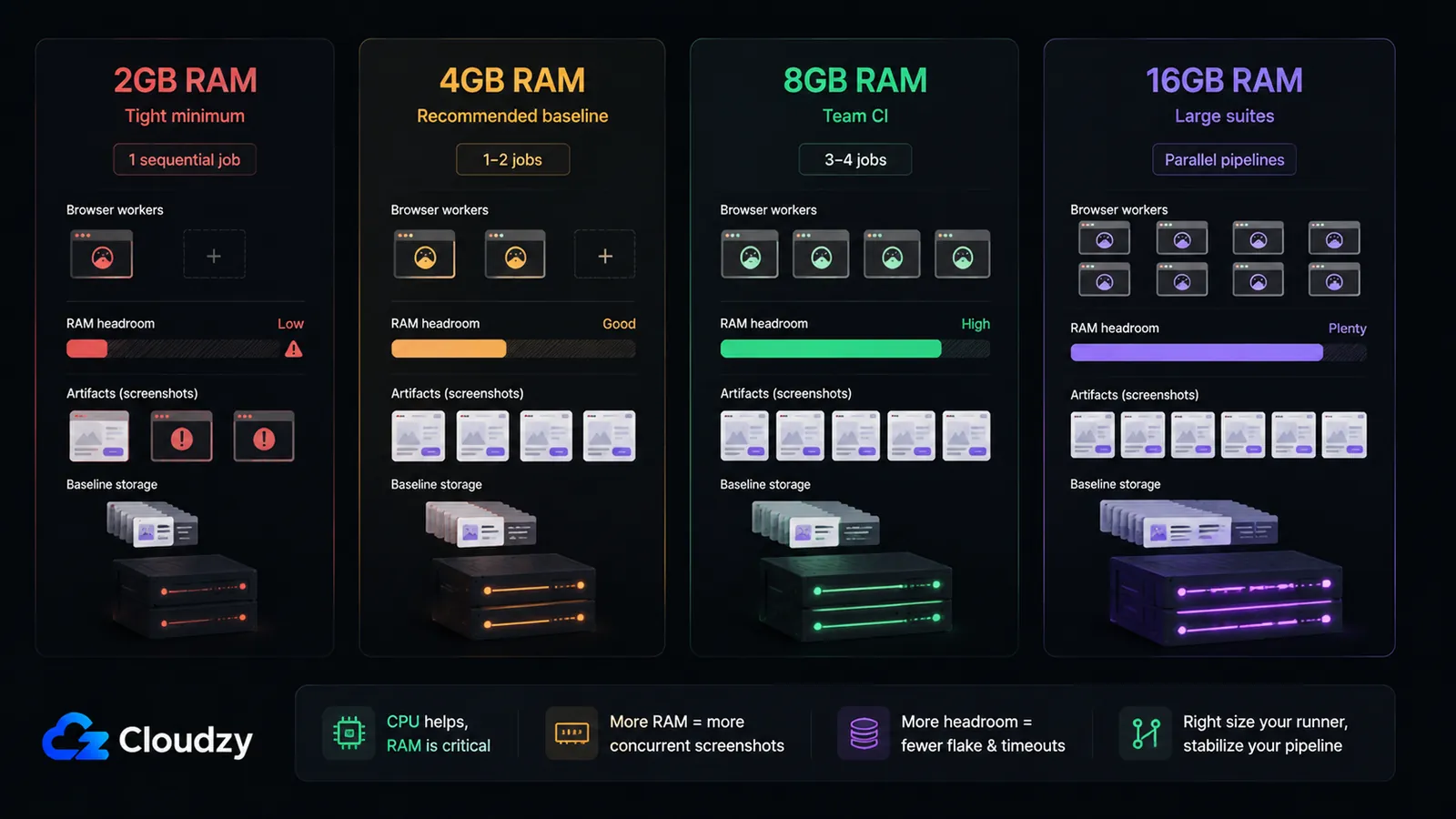
RAM is the constraint here, not CPU. Headless Chromium's CPU use is bursty (it spikes during a capture and idles between them), so a modest core count keeps up fine. Memory is the ceiling that decides how many jobs you can run at once. A headless Chromium process sits at roughly 300–500MB idle and climbs to 1–2GB while capturing a full-page screenshot, so your sizing driver is RAM per concurrent job.
| RAM | Suitable for |
|---|---|
| 2GB | Tight minimum: a single sequential job |
| 4GB | Recommended baseline: 1–2 concurrent jobs |
| 8GB | 3–4 concurrent jobs |
| 16GB | Large suites and parallel pipelines |
These figures are practitioner guidance drawn from real CI runs, not a vendor benchmark, so treat them as approximate starting points and watch your own peak memory.
Section key takeaway: 4GB RAM is the reliable baseline; add roughly 2GB of headroom per additional concurrent visual regression job.
The catch with self-hosted VRT is that a runner starved of memory doesn't fail loudly, it crashes Chromium silently, exactly the symptom this whole setup exists to avoid. Provisioning enough headroom is the cheapest insurance you can buy. If you'd rather not build a runner host from scratch, Cloudzy's marketplace has one-click deployments for self-hosted GitLab and self-hosted Gitea that get you to a running CI instance in a few minutes, on a VPS you can size for exactly the headless-Chromium headroom your suite needs.
Frequently Asked Questions
How Do I Set Up Visual Regression Testing in a CI/CD Pipeline?
Install BackstopJS, point backstop.json at your target pages, and set the CI report option to emit JUnit XML. Use backstop reference --docker and backstop test --docker when running from your local machine so screenshots render inside the pinned Docker image. In CI, run the job inside the backstopjs/backstopjs image and call backstop test directly, then publish the JUnit report from backstop_data/ci_report/xunit.xml. Use a self-hosted runner with a Docker executor, sized to at least 4GB RAM for headless Chromium.
What RAM Does Headless Chromium Need in a CI Container?
A headless Chromium process uses roughly 300–500MB idle and spikes to 1–2GB while capturing a full-page screenshot. For reliable CI, plan on about 4GB of RAM per one to two concurrent jobs, adding roughly 2GB for each additional parallel job. CPU is bursty rather than the constraint; RAM is what determines how many jobs you can run at once.
Why Do My Visual Regression Tests Pass Locally but Fail in CI?
Browser rendering differs across environments: fonts, anti-aliasing, headless vs. headed mode, and OS all change the output. The fix is to run baseline generation and comparison in the same Docker image so both render identically. BackstopJS's --docker flag does this by running captures inside a pinned reference image.
How Do I Fix the /dev/shm Error in Chromium Docker CI?
Docker's default /dev/shm is 64MB, which is too small for headless Chromium's renderer and causes silent crashes. Either raise it with shm_size: '2gb' in docker-compose.yml (or --shm-size=2gb on the job container), or pass --disable-dev-shm-usage in Chromium's launch flags so it writes shared-memory files to /tmp instead.
Should I Use Playwright toHaveScreenshot or a Dedicated Visual Regression Tool?
Playwright's built-in toHaveScreenshot() is enough for small suites: under roughly fifty screens with no shared component library and no need for a PR-review UI. Move to a dedicated tool like BackstopJS when you need a proper baseline-approval workflow, a review report, and Docker-normalized rendering, which becomes important once your baseline count grows.
Is Lost Pixel Still Maintained?
No. Lost Pixel was archived in April 2026 and is not a candidate for new deployments. Use BackstopJS for a self-hosted visual regression testing setup.
Discussion
Comments
Sign in to join the discussion.