
To change your Cloudzy Windows VPS’s Remote Desktop port, update the port and firewall settings inside the VPS, then reconnect from your laptop using the new port.
The same procedure applies to Windows 10/11 VPSs with Remote Desktop hosting enabled and Windows Server 2016 or later. RDP remains the protocol’s name. This guide uses Remote Desktop Connection (mstsc), which remains supported on Windows 10 and 11.
Before You Start
- Have administrator access to your VPS.
- Confirm you can open its VNC console through your Cloudzy dashboard. Perform all configuration steps through VNC only, not through an RDP connection. Here's a picture for reference:
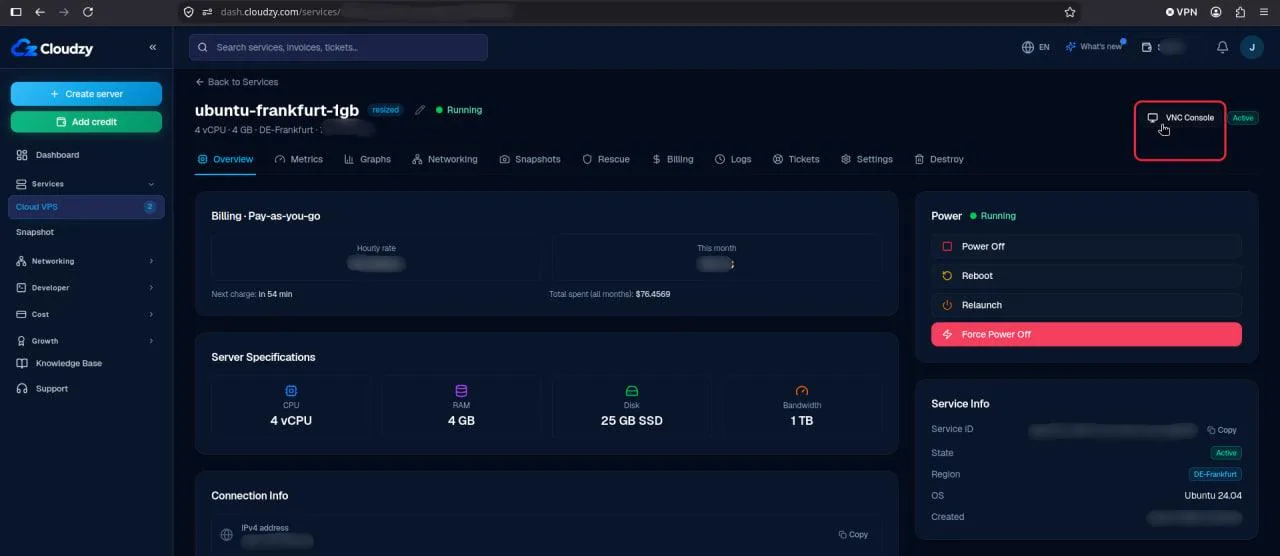
- Save your work. Restarting the Remote Desktop service will disconnect existing RDP sessions.
1. Open PowerShell on the VPS
Connect to your VPS through its VNC console. Inside its desktop, open Start, search for Windows PowerShell, and select Run as administrator.
Run this command and record the current port for recovery:
Get-ItemPropertyValue -Path 'HKLM:\SYSTEM\CurrentControlSet\Control\Terminal Server\WinStations\RDP-Tcp' -Name PortNumberThe default is 3389.
2. Allow the New Port
This example uses 54321. Check whether it is already in use:
Get-NetTCPConnection -LocalPort 54321 -ErrorAction SilentlyContinue

Get-NetUDPEndpoint -LocalPort 54321 -ErrorAction SilentlyContinue
If neither command returns entries, no current use of that port was detected, but if either command returns entries, try another port, such as 54322 or 54323. These examples are not guaranteed to be unused on your VPS. Replace the port number in both checks and run them again before continuing.
For this guide, choose a port between 49152 and 65535 that is not already used by another application. Avoid ports commonly used by other services, including 22 (SSH), 53 (DNS), 80 (HTTP), 443 (HTTPS), and 445 (Windows file sharing).
Once you have chosen another port, replace 54321 with that number throughout the remaining instructions, including the firewall commands, Remote Desktop setting, and connection address.
Add inbound Windows Firewall rules:
If your existing RDP rules restrict access to specific IP addresses, add -RemoteAddress with the same permitted IP addresses to both commands below before running them. Otherwise, run the commands as shown.
New-NetFirewallRule -DisplayName 'RDP-54321-TCP' -Direction Inbound -Action Allow -Protocol TCP -LocalPort 54321 -Profile Any

New-NetFirewallRule -DisplayName 'RDP-54321-UDP' -Direction Inbound -Action Allow -Protocol UDP -LocalPort 54321 -Profile Any
Allow the new port in any additional firewall you use. Resolve any firewall errors before continuing.
3. Configure the New Port in the Registry
Remain connected through VNC. Run the following script to set the Remote Desktop listening port in the Windows registry and display the saved value.
If you chose another port in Step 2, replace 54321 on the first line before running the script.
$portValue = 54321

if ($portValue -ge 1 -and $portValue -le 65535) {
    Set-ItemProperty `
      -Path 'HKLM:\SYSTEM\CurrentControlSet\Control\Terminal Server\WinStations\RDP-Tcp' `
      -Name 'PortNumber' `
      -Value $portValue

    Get-ItemPropertyValue `
      -Path 'HKLM:\SYSTEM\CurrentControlSet\Control\Terminal Server\WinStations\RDP-Tcp' `
      -Name 'PortNumber'
} else {
    Write-Error "Invalid RDP port. Use a value between 1 and 65535."
}
The output should match your chosen port: 54321 in this example. Resolve any errors or an incorrect output before continuing.
Keep the existing RDP firewall rules for recovery. These rules keep the original port permitted through the firewall if you need to restore it through VNC and restart the Remote Desktop service.
4. Restart the Remote Desktop Service
After saving all work, run this command through VNC:
Restart-Service TermService -ForceExisting RDP sessions will disconnect while the service restarts. Keep your VNC console open. You do not need to restart the VPS as part of this procedure.
5. Reconnect From Your Laptop
On your Windows 10 or 11 laptop, press Win + R, enter the following, and press Enter:
mstsc /v:YOUR_VPS_IP:54321Replace YOUR_VPS_IP with your VPS’s IPv4 address. Sign in with your existing VPS credentials.
A successful login confirms the new port works. Use IP:54321 for future connections and update any saved connection profiles.
If You Cannot Reconnect
Open the VPS through VNC in the Cloudzy panel. In administrator PowerShell, restore the previous port.
Before running these commands, replace 3389 if you recorded a different original port.
Set-ItemProperty -Path 'HKLM:\SYSTEM\CurrentControlSet\Control\Terminal Server\WinStations\RDP-Tcp' -Name PortNumber -Value 3389If the command completes without an error, restart the service:
Restart-Service TermService -ForceAfter the service restarts, reconnect using the original port.
Also in Windows / RDP
Related guides.
Need help with something else?
Median response time under 1 hour. Real humans, not bots.