
Use Windows App on your Mac to connect to your Cloudzy Windows VPS through Remote Desktop Protocol (RDP). This Microsoft app was previously called Microsoft Remote Desktop.
Before You Start
Have the following ready:
- A Mac running macOS 14 or later, as required by the current Windows App release.
- A running Windows VPS with Remote Desktop enabled.
- Your VPS’s public IP address, Windows username, and Windows password.
To find your VPS login details, open Services in your Cloudzy dashboard, click your server’s name, and select the Overview tab.
1. Install Windows App
On your Mac, open Windows App in the Mac App Store. Confirm the developer is Microsoft Corporation, then download and open it.
Complete or skip the introductory tour. You can connect directly to your VPS without signing in to Windows App with a Microsoft account.
2. Add Your VPS
Open the Devices tab.
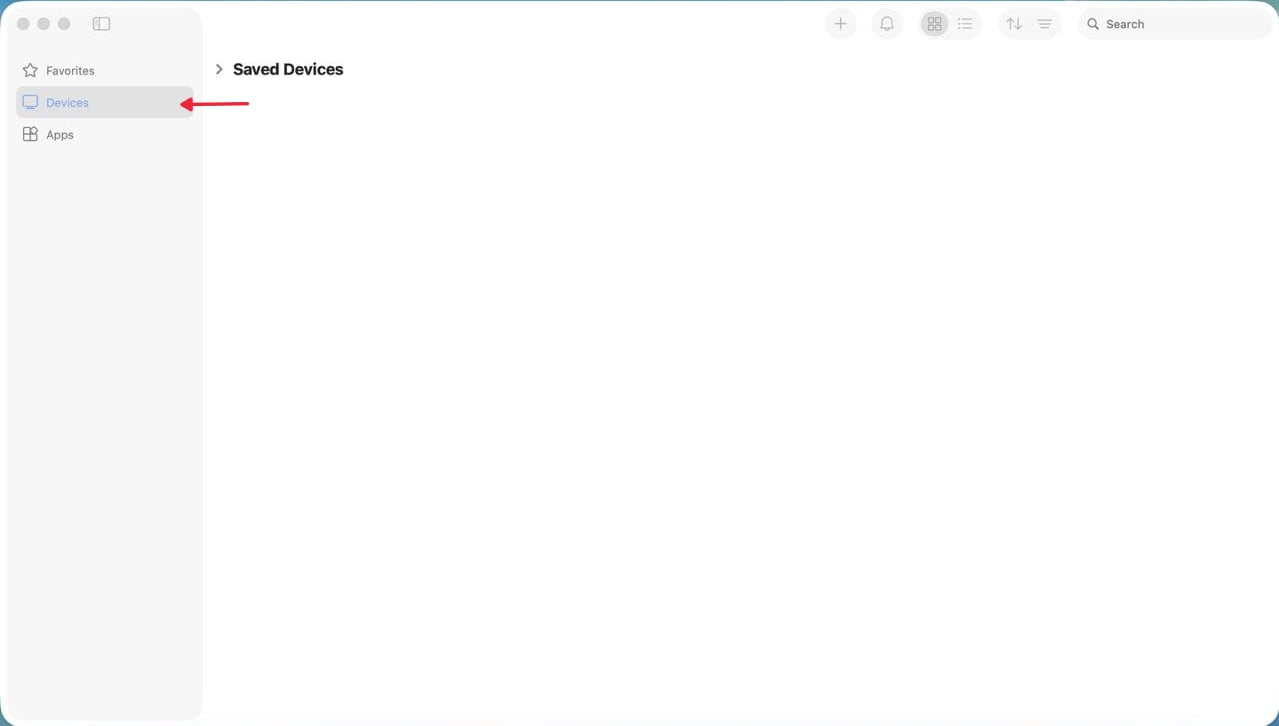
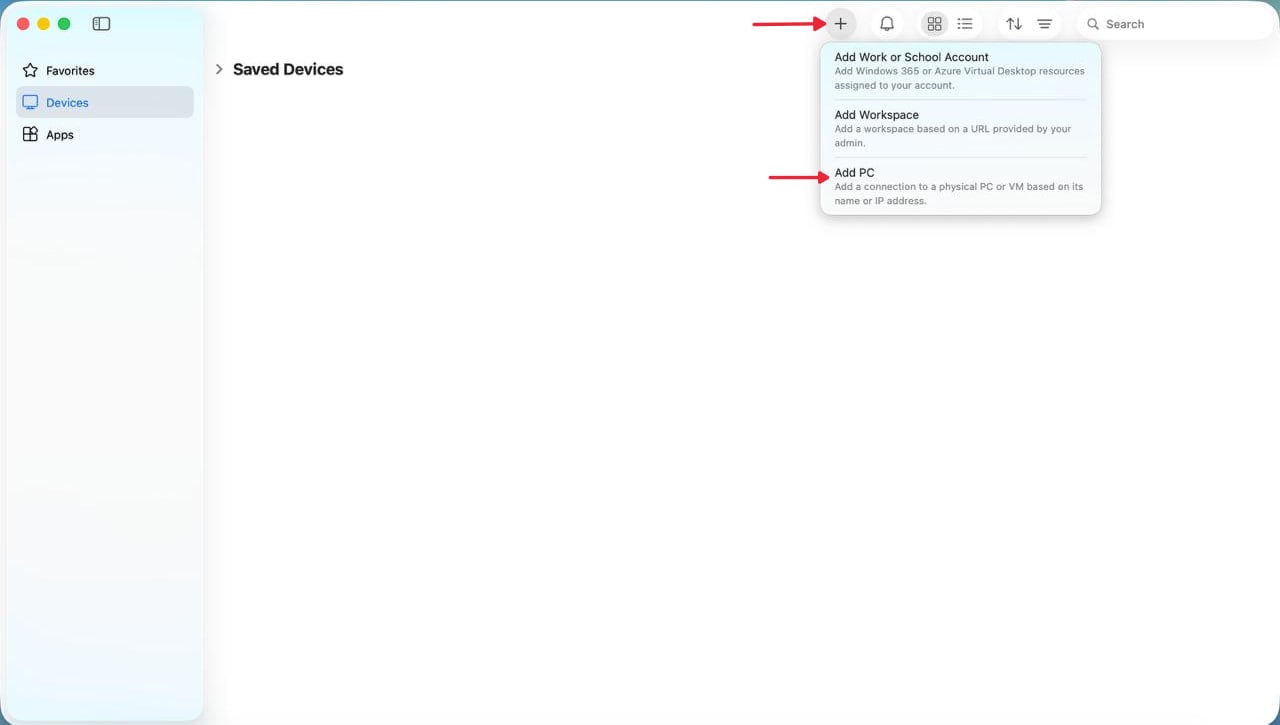
Click the + button and select Add PC.
In PC Name, enter your VPS’s public IP address.
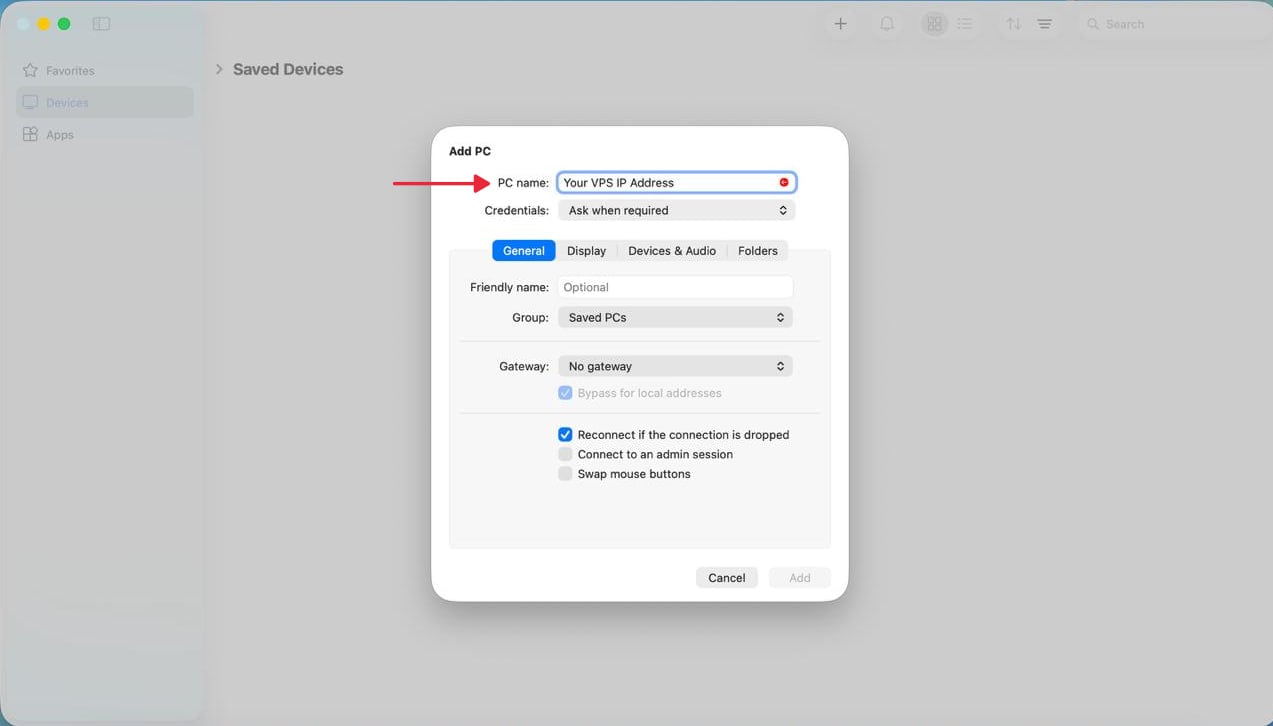
If you want to connect using a custom port (the default being 3389), make sure to add a :port_number immediately after your VPS’s public IP address in the PC Name field.
Leave the remaining settings at their defaults and click Add.
3. Connect and Sign In
On the Devices tab, double-click the VPS you added.
When prompted, enter your Windows VPS username and password. Use the username provided for your VPS, commonly Administrator.
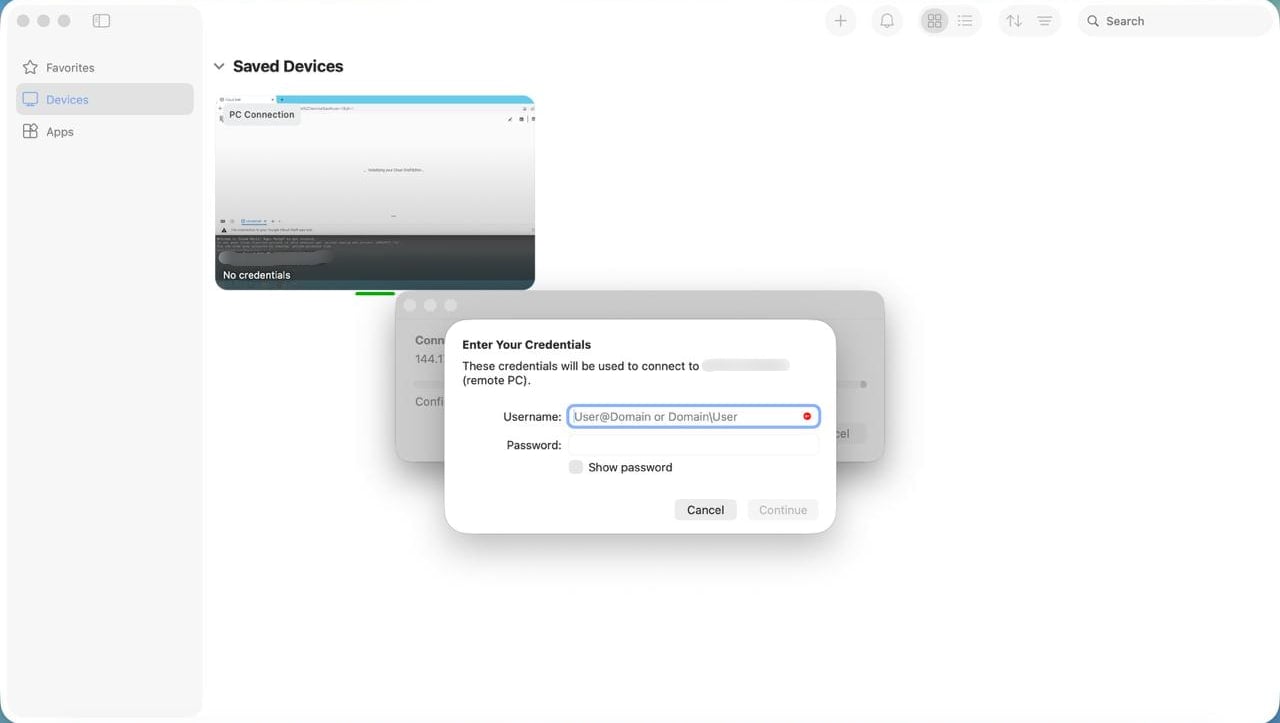
Once connected, your VPS’s Windows desktop appears. You can now use its applications and files from your Mac.
For future connections, open Windows App and double-click the saved VPS.
If You Cannot Connect
- Connection fails: Confirm the VPS is running in your Cloudzy dashboard, and check the IP address and RDP port. Also make sure the VPS firewall allows incoming Remote Desktop connections on port 3389, or your custom RDP port if you changed it. Check that your local network or internet provider isn’t blocking connections to that port.
- Login is rejected: Check your Windows VPS username and password against the details in the Overview tab. If the password still doesn’t work, reset it through your dashboard and try connecting again with the new password.
- Still unable to connect: Open the VPS through its VNC Console to check that Remote Desktop is enabled and its port is allowed through the firewall. If you need help, contact Cloudzy support and include the exact error message.
Also in Windows / RDP
Related guides.
Need help with something else?
Median response time under 1 hour. Real humans, not bots.