
Did you get locked out of your own server’s firewall? Perhaps you made a mistake with the settings and now it won’t even let RDP connections come through? These are the most urgent scenarios but there are many others. You will sometimes need to temporarily disable the Windows firewall to configure some part of your server. In this post, I’ll show you how to disable Windows Firewall using Group Policy Management Console. There are other, more secure ways as well, which I will briefly introduce, before finally suggesting an alternative solution that can simplify everything. If you are seeking instructions on how to disable the Windows firewall, the video below provides a basic overview. However, for comprehensive guidance, we recommend reading the full blog.
Before we start, you should know that Windows 10 does not have the Group Policy Management Console enabled by default. The console is only available by default on server editions of Microsoft Windows. So, if you’re trying to use these instructions on your Windows 10, first you have to download and enable the Group Policy Console. Enabling the Group Policy Management tools in general is always a good idea, since you may need them for other configurations, like disabling the annoying Windows Automatic Update attempts.
How to Enable Group Policy Management Console in Windows 10
Unlike some other versions of Windows, you won’t need to download anything to enable the Group Policy tools. You just need to use the Settings.
Step 1: Open Settings
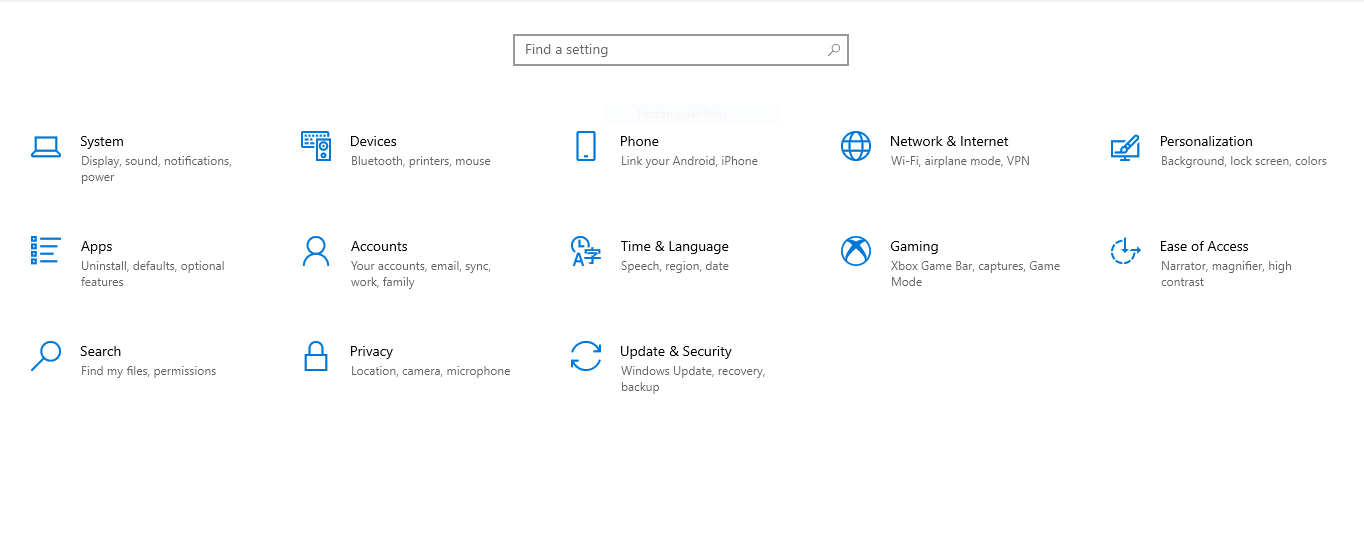
Use the Start Menu to find and click on the Settings icon. You will be greeted with the Settings screen (which is different from the Control Panel). Click on “Apps” to proceed to the next step.
Step 2: Open Optional Features
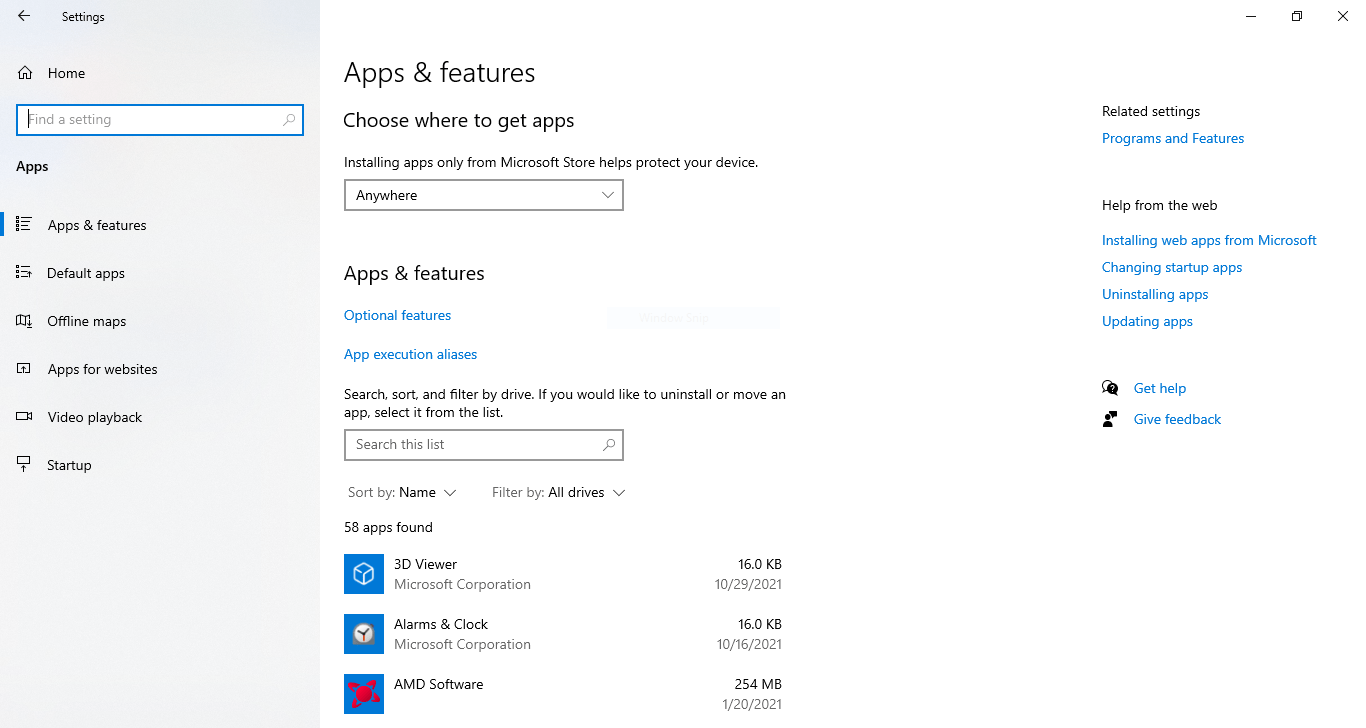
In the Apps & features screen, click on “Optional features”
Step 3: Find and Enable Group Policy Tools
Click on the “Add a feature” button or the “+” icon to open the menu for enabling extra applications or features. In the search box, enter “group policy” and select the option titled: “RESAT: Group Policy Management Tools” (see image below) before clicking on the “Install” button.
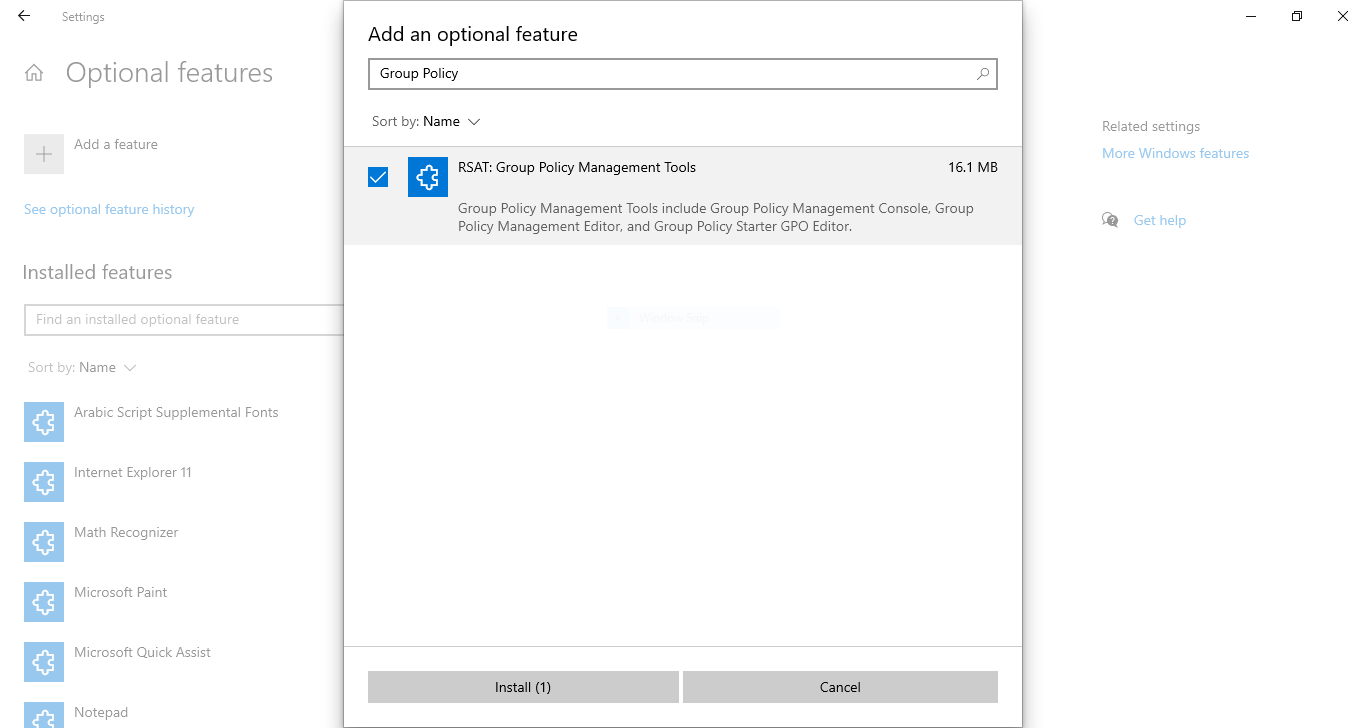
The installation will take a few minutes, after which you’ll be able to use the rest of these instructions and disable your Windows firewall.
How to Disable Windows Firewall Using Group Policy Console
Remember, you will need physical or remote access to the Windows server in question and administrator permission to go through with this task. If you’re not sure how to connect to your server, you can read this guide. That means you won’t be able to do it if you’re using shared-hosting, for example. To start, we need to launch the Group Policy Management Console.
Step 1: Opening the Group Policy Console
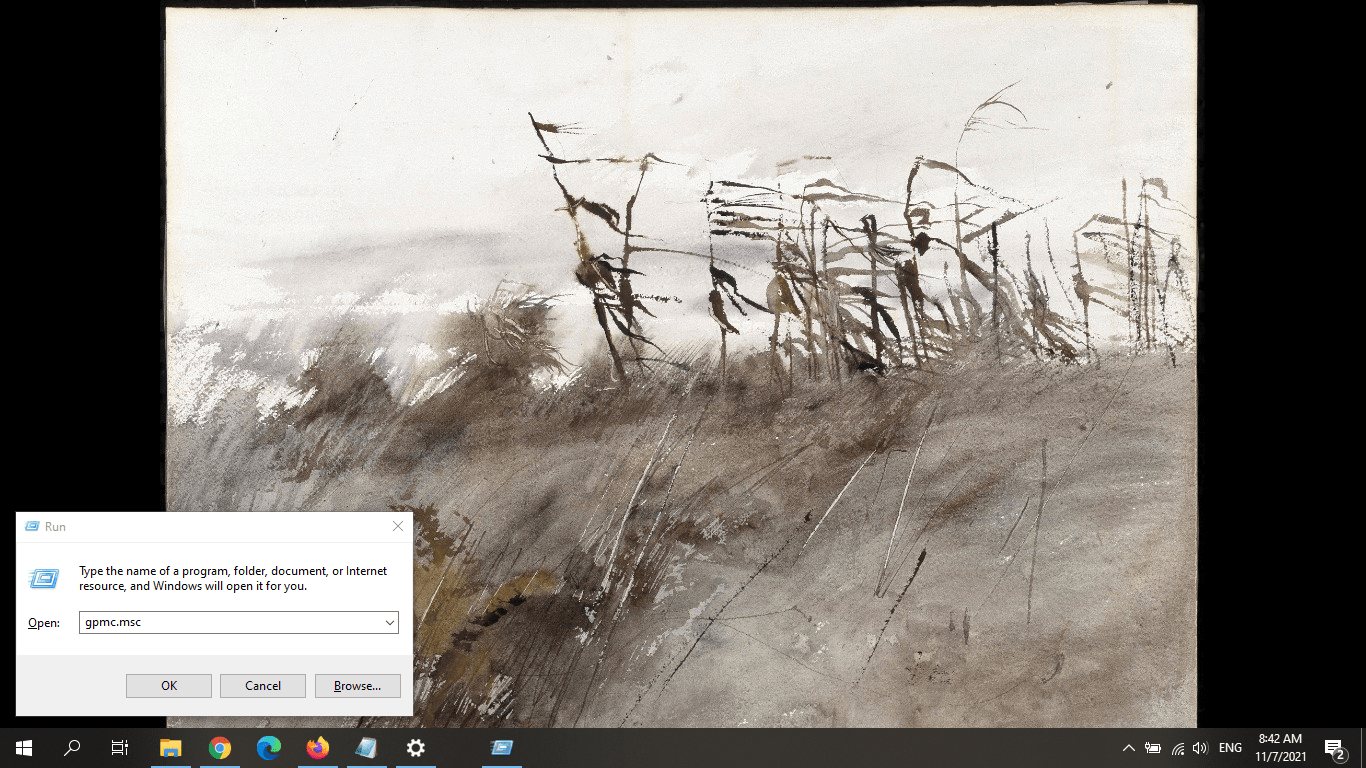
Press Windows Key (Winkey) + R to start the App Administrator. In the text box, enter: gpmc.msc and press OK.
Step 2: Create a GPO
Next, you need to create a Group Policy Object. A GPO is the basic unit of policy in Windows Server. In the console, find your domain name (local or otherwise) and right-click on it. From the menu, select “Create a GPO in this domain, and Link it here…”
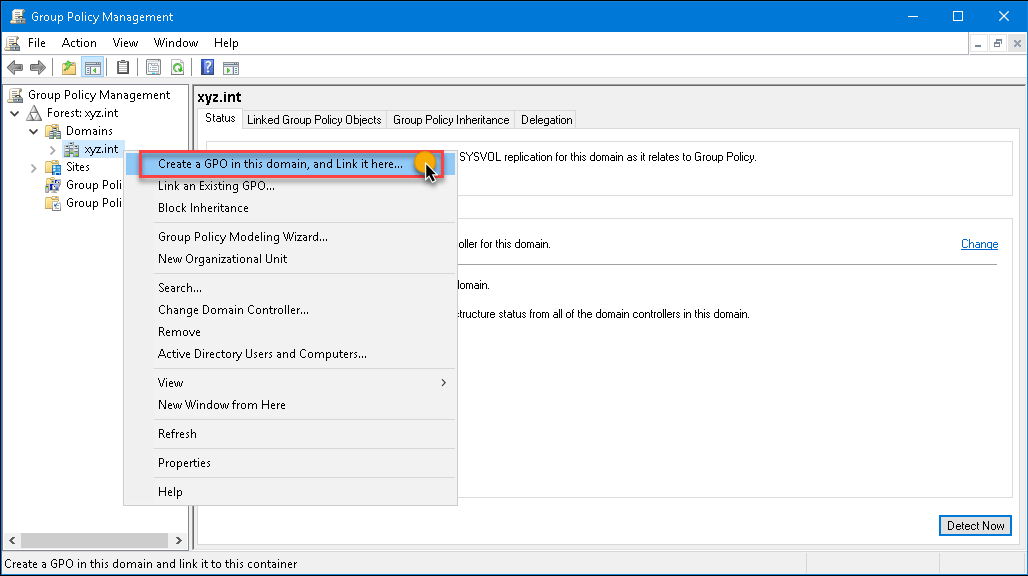
Step 3: Name the GPO
After clicking on “Create a GPO,” you’ll see the New GPO dialog box. Enter the following in the text box: Disable Windows Firewall. Click the OK button.
Step 4: Edit the Group Policy Object
Right-click on the GPO you created just now and choose “Edit” from the menu. That will launch the Group Policy Management Editor. On the left-hand panel, open the following folder:
Computer Configuration → Policies → Administrative Templates → Network → Network Connections → Windows Defender → Firewall → Domain Profile
Step 5: Edit Defender Settings
On the right panel, you’ll see several setting objects. Find and double-click on the one that reads: “Windows Defender Firewall: Protect all network connections.”
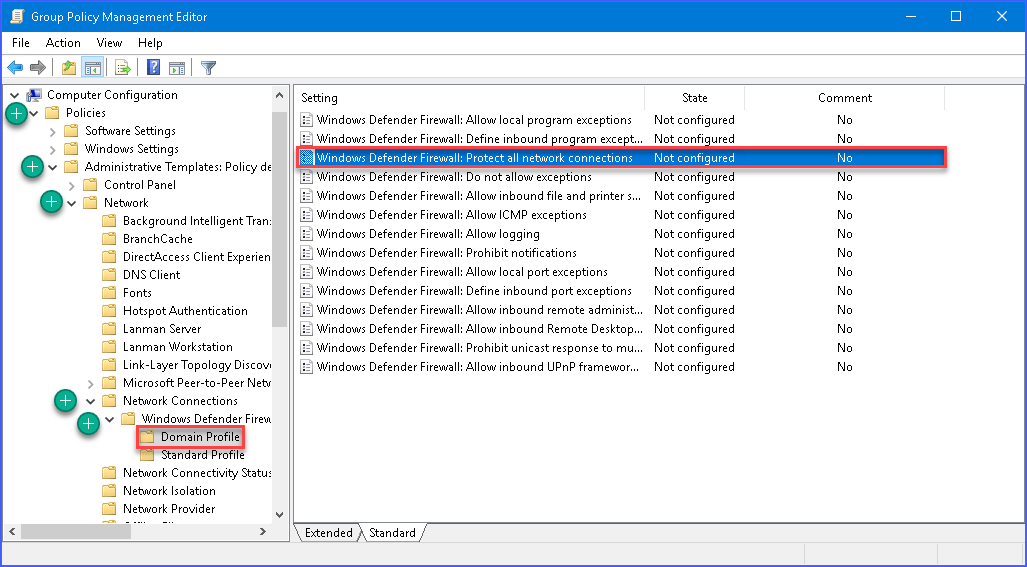
When the setting screen pops up, choose the Disabled option (see the image below). Repeat this step for “Standard Profile.”
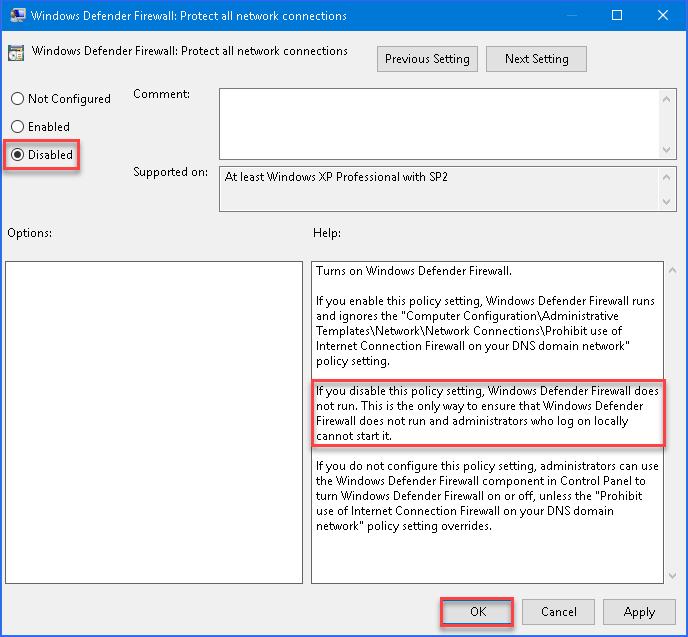
That’s it! Now you know how to disable Windows Firewall using Group Policy in just a few steps. Of course, they’re not exactly easy, but they’ll get the job done.
How to Disable Windows Firewall Using Command Line
Just to make sure you have a better alternative, I’ll leave the short version of instructions to disable the Windows Firewall using the Command Prompt.
Step 1: Run the Command Prompt
Press Windows Key (Winkey) + R and type cmd to open the Command Prompt.
Step 2: Enter the Command to Turn the Firewall Off Command
Enter the following command into the command prompt and press <Enter>
netsh advfirewall set allprofiles state off
Step 3: Turn the Firewall Back on
When you’ve finished making the adjustments you need, use the command below to turn the Windows Firewall back on.
netsh advfirewall set allprofiles state on
What to Do Next?
Now that you’ve managed to get your Firewall sorted out, it’s time to think about some other security measures. Here are some of the more important things you need to do to make sure your server is secure. Of course, there are always more things to be done and your Windows-powered server can never be secure enough. That’s exactly where that other solution I promised comes in.
Access a Windows 10 VPS from anywhere with full administrator control.
Windows Desktop VPSAt Cloudzy, we place your server’s safety first. Our proprietary smart firewall and DDoS protection mean you’re already behind a robust layer of security. With ultrafast NVMe storage and 1 Gbps bandwidth, our Windows VPS plans deliver top-tier functionality at reasonable prices. Not sure what a Windows VPS is good for? Read this article about 10 Windows VPS use cases and see if it’s right for you.
If you want to read an in-depth guide about “firewall”, different types of firewalls and their utility, check out our comprehensive comparison of hardware firewall vs software firewall. You can also take a look at security articles on our blog.