

A Playwright or Puppeteer job that runs successfully on your computer can still crash halfway through a batch on a Linux VPS. The usual mistake is treating every browser crash as the same memory problem. Node.js can exhaust its JavaScript heap, Chromium can consume more RAM than the machine has available, or Docker can kill the job after it reaches a container memory limit.
Start with the simplest fix: reduce the number of browser jobs running simultaneously, make sure every page and browser context closes after each task, and avoid loading resources your output doesn't need. If the job still fails, identify whether the limit belongs to Node.js, the container, or the host before changing memory settings.
This guide shows you how to diagnose the failure, apply the corresponding fix, and determine whether your VPS actually needs more RAM.
TL;DR
To fix Playwright and Puppeteer OOM errors on a Linux VPS:
- Start with one active browser job instead of running several pages concurrently.
- Close each page and its browser context in a
finallyblock, including when navigation or extraction fails. - Stream input and output instead of retaining an entire batch in memory.
- Block image requests only when the required output doesn't depend on them.
- Check whether Node.js, Chromium, Docker, or the host is actually exhausting its memory limit.
- Increase the relevant memory limit or VPS RAM only when the optimized workload still cannot complete within your required time.
For most browser jobs, reducing concurrency and cleaning up browser resources are the first changes worth testing. Increasing Node.js's heap limit alone won't fix Chromium or container-level memory exhaustion.
Apply the First Memory-Saving Fixes
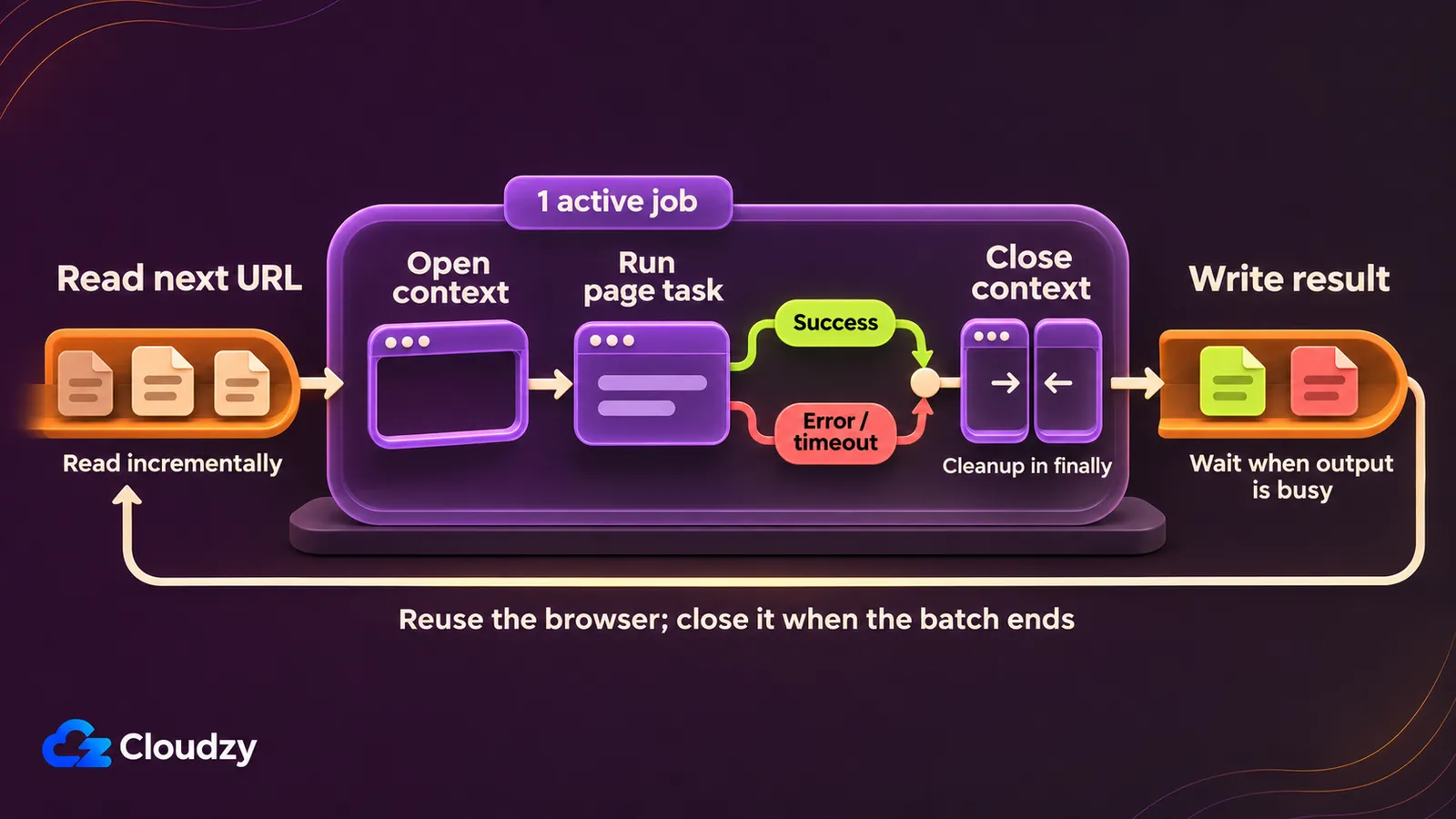
Before investigating kernel logs or changing your VPS configuration, make three changes to your existing browser job.
1. Run fewer pages simultaneously.
Set your browser-job concurrency to 1 and run the same workload again. Each active page can consume memory through Chromium's renderer, JavaScript execution, loaded resources, and browser processes. Running several pages together multiplies that demand.
If the job completes reliably, increase concurrency gradually while monitoring the entire browser process tree. Keep the highest setting that meets your completion deadline without exhausting the available memory budget.
2. Close resources after every job.
A browser page should not remain open after its task finishes. Create a separate browser context for each independent job and close it in a finally block so cleanup also happens after navigation failures, timeouts, and extraction errors.
The following example uses Playwright. If you're using Puppeteer, replace browser.newContext() with browser.createBrowserContext(); the remaining page and context cleanup pattern is the same.
async function processUrl(browser, url) {
  const context = await browser.newContext();

  try {
    const page = await context.newPage();

    await page.goto(url, {
      waitUntil: 'domcontentloaded',
      timeout: 30000
    });

    // Replace this with your actual extraction or rendering task.
    return await page.title();
  } finally {
    await context.close();
  }
}
The browser itself can remain open between jobs. Close it when the overall batch finishes, or let its owning application manage its lifecycle if other tasks share it.
3. Stop retaining completed work.
Avoid loading thousands of URLs into memory, keeping every page open until the batch ends, or accumulating every result in a JavaScript array.
Read URLs incrementally, process only the configured number of active jobs, and write completed results to a file, database, or downstream consumer. Respect output backpressure so a slow destination doesn't cause an ever-growing queue.
Retest these changes against representative pages before making more aggressive optimizations. If the job still crashes, identify which memory limit is being reached in the next section.
Identify Which Memory Limit Failed
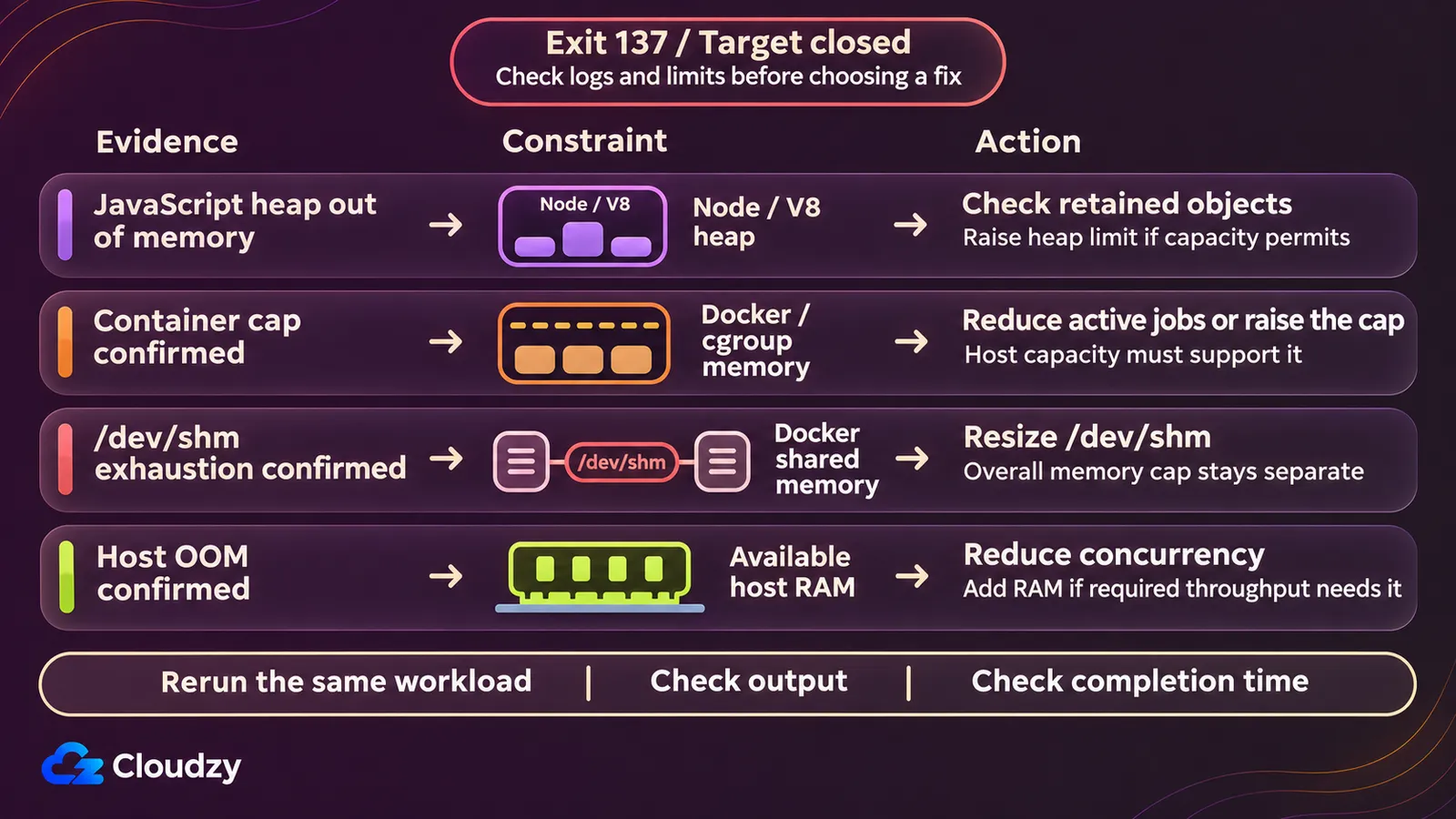
A killed Chromium process and a Node heap failure need different fixes. Match the process identity, failure timestamp and applicable memory limit before changing capacity. A large virtual-memory figure or a browser-closed message can't establish the cause. Collect evidence from the actual browser job and its runtime, then choose the matching branch.
Before you retest, retain the job's stderr, supervisor or container logs, installed versions, representative input and required outputs. You need access to the workload's process tree and memory settings; kernel logs may require elevated privileges. Missing permissions or expired logs limit the conclusion. An empty log doesn't disprove OOM.
A cgroup (control group) puts Linux processes under shared resource accounting and limits; its parents can impose limits too. Separate these cases in your evidence record:
| Observed Symptom | Evidence to Collect | Next Action |
|---|---|---|
Fatal Node/V8 JavaScript heap out of memory message |
Node stderr, process identity and heap observations around the failure | Investigate Node retention and the V8 old-space limit. |
| Node or Chromium process killed | Matching PID and timestamp in kernel records, plus host and workload-limit observations | Determine whether host pressure or a narrower memory boundary caused the kill. |
| Workload reaches a cgroup cap | Applicable workload and ancestor limits, event changes and matching runtime/kernel records | Review the evidenced cgroup constraint before changing host capacity. |
Page crash, disconnect or Target closed |
Browser stderr, lifecycle calls, process state and correlated memory evidence | Investigate the failure; the message alone doesn't identify OOM. |
Bash's Exit Status manual specifies 128+N for termination by fatal signal N. Exit 137 is compatible with SIGKILL; it doesn't tell you why the signal arrived.
Start with inspection commands, then identify the job's actual PID from its supervisor and parent/child relationships:
ps -eo pid,ppid,rss,vsz,comm --sort=-rss
free -h
sudo journalctl -k --since '15 minutes ago'
cat /proc/self/cgroup
df -h /dev/shm
read -r -p 'Actual browser job PID: ' job_pid

case "$job_pid" in
  ''|*[!0-9]*)
    echo 'Invalid PID: enter a numeric process ID.'
    exit 1
    ;;
esac
cat "/proc/$job_pid/cgroup"
RSS (resident set size) describes memory resident in RAM. VIRT/VSZ includes virtual address space; a large value isn't a physical-RAM measurement. Linux's proc filesystem documentation explains proportional set size (PSS), which apportions shared pages. Adding process RSS values indiscriminately can count shared pages more than once.
Node's process.memoryUsage reference reports the Node process. It doesn't include Chromium descendants. Use it to investigate Node retention, then inspect the browser workload separately. A quiet Node heap isn't enough evidence to raise your job cap.
/proc/self/cgroup describes the inspecting shell. For the job, use /proc/PID/cgroup with its numeric PID. The following cgroup-v2 check requires a host shell in the initial cgroup namespace, a full hierarchy mount and permission to read the job and ancestor counters. Use the job's host PID, not its container PID. cgroup v1 uses different interfaces.
Inspect /proc/self/mountinfo for rows containing - cgroup2. The kernel's mountinfo field reference identifies field 4 as the filesystem root and field 5 as the mount point. This check selects a row whose root is /, decodes its mount point, and appends the host-visible 0:: membership path. It then walks from the job directory to that mount root:
(
  job_path=$(awk -F: '$1 == "0" && $2 == "" {print $3}' "/proc/$job_pid/cgroup") || exit 1
  cgroup_mount=$(awk '$0 ~ / - cgroup2 / && $4 == "/" {print $5; exit}' /proc/self/mountinfo)
  cgroup_mount=$(printf '%b' "$cgroup_mount")
  case "$job_path" in
    ''|*/../*|*/..) echo 'Stop: ask the host admin to resolve the cgroup ancestry.'; exit 1 ;;
  esac
  if [ -z "$cgroup_mount" ] || [ ! -d "${cgroup_mount%/}$job_path" ]; then
    echo 'Stop: full cgroup-v2 hierarchy or job directory unavailable; ask the host admin.'
    exit 1
  fi
  printf 'cgroup-v2 root=/ mount=%s membership=%s\n' "$cgroup_mount" "$job_path"
  workload_cgroup="${cgroup_mount%/}$job_path"
  workload_cgroup=${workload_cgroup%/}
  while :; do
    printf '\n%s\n' "$workload_cgroup"
    for counter in memory.current memory.max memory.events memory.events.local; do
      if [ -r "$workload_cgroup/$counter" ]; then
        printf '%s: ' "$counter"
        cat "$workload_cgroup/$counter" || exit 1
      elif [ "$workload_cgroup" != "$cgroup_mount" ]; then
        echo "Stop: $counter unavailable; ask the host admin to inspect this hierarchy."
        exit 1
      fi
    done
    [ "$workload_cgroup" = "$cgroup_mount" ] && break
    parent=${workload_cgroup%/*}
    workload_cgroup=${parent:-/}
  done
)
The kernel's cgroup v2 memory controller documents these counters. A finite memory.max is a hard limit in bytes; max means no hard limit at that directory. A finite ancestor limit still applies to its whole subtree, including competing sibling work. Record each finite limit alongside that ancestor's memory.current and events; the leaf's value alone isn't your effective budget. The hierarchy root lacks these non-root memory interfaces. If the job's membership is 0::/, skip the walk shown above and inspect host memory and kernel logs. The walk expects a non-root job directory.
Capture the walk before and after a controlled run. Compare max, oom and oom_kill event changes at the leaf and restrictive ancestors; memory.events normally includes descendant events, while memory.events.local isolates that directory. An oom_kill increment counts processes killed by any kind of OOM killer. It doesn't independently prove that this directory's cap caused this incident. Correlate changes with the failed process, timestamp and limit context.
If you're inside a container, can't confirm the initial namespace, or hit an inaccessible directory, stop and ask the host administrator to run this inspection with the host PID. A visible root of / inside a container doesn't prove host ancestry is visible. Request the ancestor limits and before/after events; keep the cause unresolved until that evidence is available.
For a confirmed Node heap branch, the Node CLI reference defines --max-old-space-size in MiB for V8's old-memory section. Profile retained Node objects first. If you raise that limit, leave room for browser processes and other uses inside the applicable host/container budget. The flag doesn't enlarge Chromium's memory allowance.
Bound Jobs and Close Their Browser Resources
A timed-out navigation still owns a page and context until your cleanup closes them. Give each job a clear lifetime, limit how many jobs start together, and stream results to a destination that applies backpressure. Image blocking belongs only in jobs whose required output remains correct when image requests are aborted.
The shared CLI below extracts text. Its demonstrated readiness contract is #result becoming fixture-ok; it isn't a drop-in screenshot, PDF or production queue service. Replace ready, the selector and extraction with your actual contract before using your own URL list. Don't block images needed by the deliverable, and keep required scripts, CSS and API requests.
The team's controlled loopback tests used Ubuntu 24.04.4 LTS and Node 26.13.1, with Playwright 1.65.1 and Puppeteer 25.17.0. These are the library versions used in the fixture tests. The tests did not compare the libraries' memory use.
Use a supported Linux environment with working browser sandboxing and the required OS dependencies. Playwright's installation instructions cover its platform setup; Puppeteer's system requirements specify its supported runtime. In a project directory, install the pinned packages and matching browsers:
# If you use Playwright:
npm install --save-exact [email protected]
npx playwright install chromium

# If you use Puppeteer instead:
npm install --save-exact [email protected]
Save this as browser-jobs.mjs. It includes test-observation hooks; leave fixtureOnlyNoSandbox at its default false. That loopback-harness exception isn't exposed by the CLI and isn't an OOM remedy.
Playwright's BrowserType sandbox option defaults to false, so this launch explicitly enables Chromium sandboxing for normal use. Run as a non-root user with working sandbox support. Only the loopback fixture disables it; those root-run checks don't validate sandboxed production execution.
import { createReadStream } from 'node:fs';
import { createInterface } from 'node:readline';
import { once } from 'node:events';
import { pathToFileURL } from 'node:url';

export async function runJobs({ tool, urls, concurrency = 1, timeout = 10000,
  blockImages = false, disableGpu = false, write = async row => {
    if (!process.stdout.write(JSON.stringify(row) + '\n')) await once(process.stdout, 'drain');
  }, inspect = () => {}, fixtureOnlyNoSandbox = false }) {
  if (!['playwright', 'puppeteer'].includes(tool)) throw new Error('Choose playwright or puppeteer');
  if (!Number.isInteger(concurrency) || concurrency < 1 || concurrency > 32) throw new Error('Concurrency must be 1..32');
  if (!Number.isInteger(timeout) || timeout < 1) throw new Error('Timeout must be a positive integer');
  const args = disableGpu ? ['--disable-gpu'] : [];
  // QA harness uses only a loopback fixture in this root-run container.
  // Production callers leave this false and configure a working browser sandbox.
  if (fixtureOnlyNoSandbox) args.push('--no-sandbox');
  const lib = await import(tool);
  const browser = tool === 'playwright'
    ? await lib.chromium.launch({ headless: true, args, chromiumSandbox: !fixtureOnlyNoSandbox })
    : await lib.default.launch({ headless: true, args });
  inspect({ event: 'browser-version', version: await browser.version() });
  let active = 0;
  let failed = false;
  const one = async url => {
    let context;
    let started = false;
    try {
      if (url.length > 8192) throw new Error('URL is too long');
      const parsed = new URL(url);
      if (!['http:', 'https:'].includes(parsed.protocol)) throw new Error('Use HTTP(S)');
      active++;
      started = true;
      inspect({ event: 'start', active });
      context = tool === 'playwright'
  ? await browser.newContext({
      serviceWorkers: blockImages ? 'block' : 'allow'
    })
  : await browser.createBrowserContext();
      let page;
      try {
        page = await context.newPage();
        if (tool === 'playwright') {
          if (blockImages) await page.route('**/*', route =>
            route.request().resourceType() === 'image' ? route.abort() : route.continue());
        } else {
          if (blockImages) await page.setBypassServiceWorker(true);
          if (blockImages) {
            await page.setRequestInterception(true);
            page.on('request', request => {
              if (request.isInterceptResolutionHandled()) return;
              return request.resourceType() === 'image' ? request.abort() : request.continue();
            });
          }
        }
        const response = await page.goto(url, { waitUntil: 'domcontentloaded', timeout });
        if (!response || !response.ok()) throw new Error(`HTTP ${response?.status()}`);
        const ready = () => document.querySelector('#result')?.textContent === 'fixture-ok';
        if (tool === 'playwright') await page.waitForFunction(ready, undefined, { timeout });
        else await page.waitForFunction(ready, { timeout });
        const text = await page.$eval('#result', element => element.textContent.slice(0, 200));
        await write({ url, ok: true, text });
      } finally {
        if (page) await page.close();
      }
    } catch (error) {
      failed = true;
      await write({ url, ok: false, error: error.message.slice(0, 300) });
    } finally {
      try { if (context) await context.close(); }
      finally {
        if (context) inspect({ event: 'closed' });
        if (started) active--;
      }
    }
  };

  let batch = [];

  const flush = async () => {
    const current = batch;
    batch = [];

    const settled = await Promise.all(current);

    for (const result of settled) {
      if (result.status === 'rejected') {
        throw result.reason;
      }
    }
  };

  try {
    for await (const url of urls) {
      batch.push(one(url).then(
        value => ({ status: 'fulfilled', value }),
        reason => ({ status: 'rejected', reason })
      ));

      if (batch.length === concurrency) {
        await flush();
      }
    }

    await flush();
  } finally {
    await Promise.allSettled(batch);
    await browser.close();

    inspect({
      event: 'browser-closed',
      connected: tool === 'playwright'
        ? browser.isConnected()
        : browser.connected
    });
  }

  if (failed) {
    throw new Error('One or more URLs failed; inspect the JSONL output.');
  }
}
if (process.argv[1] && import.meta.url === pathToFileURL(process.argv[1]).href) {
  const [tool, input] = process.argv.slice(2);

  if (!input) {
    throw new Error('Usage: node browser-jobs.mjs playwright|puppeteer urls.txt');
  }

  const lines = createInterface({
    input: createReadStream(input),
    crlfDelay: Infinity
  });

  async function* urls() {
    for await (const line of lines) {
      if (line.trim()) yield line.trim();
    }
  }

  try {
    await runJobs({
      tool,
      urls: urls(),
      concurrency: Number(process.env.CONCURRENCY || 1),
      timeout: Number(process.env.TIMEOUT_MS || 10000),
      blockImages: process.env.BLOCK_IMAGES === '1',
      disableGpu: process.env.DISABLE_GPU === '1'
    });
  } finally {
    lines.close();
  }
}
Put one HTTP(S) URL per line in urls.txt, using pages that match your adapted readiness contract. Run either library:
CONCURRENCY=1 node browser-jobs.mjs playwright urls.txt
CONCURRENCY=1 node browser-jobs.mjs puppeteer urls.txt
The default concurrency of 1 is a conservative starting point, not a universal capacity recommendation. Your appropriate concurrency depends on the memory footprint of the pages, browser processes, and other services sharing the machine. Increase it only after measuring the complete workload.
For Playwright, follow the image-abort/other-request-continue branch in its network routing documentation, and install it before navigation as the CLI does. Keep the service-worker block deliberate too. Playwright's BrowserContext API documents that routing disables HTTP cache and explains service-worker behavior. Keep these changes only after your required output passes with them enabled.
For Puppeteer, keep the handled-state check beside abort/continue. Its request-interception guide requires them to happen synchronously together; inserting an await gives another handler time to resolve the request. Use its service-worker bypass API when requests must load from the network, as they do here. Neither adapter claims coverage of every transport a page might use.
Give each job its own created context, and keep the libraries' different waitForFunction argument positions when adapting the code. Cleanup must cover HTTP failures and timeouts too; the nested finally blocks handle that here. Puppeteer's context-close reference specifies that closing a created context closes its pages; the default context can't be closed this way.
Keep this bounded batch scheduler until your measurements justify a more complex queue. Stream input and results as shown; loading every URL or saving every result puts retained work back into the job. When stdout can't accept more data, waiting for drain applies backpressure so a slow destination stops new batches. You trade scheduling flexibility for an explicit bound; this isn't a claim of maximal throughput.
The CLI launches and owns its browser, then closes it at the outer boundary. Puppeteer's browser-management guide distinguishes this from disconnect(), which leaves the browser running. If your application shares a browser, assign shutdown to its owner instead of closing it after another caller's job.
Should You Disable GPU Acceleration?
Don't add --disable-gpu as a default memory optimization.
GPU-related browser behavior depends on the browser build, rendering workload, and available graphics support. Disabling GPU acceleration can change rendering behavior without necessarily reducing the browser's total memory consumption.
If you suspect GPU-related instability, compare runs using the same browser version, inputs, concurrency, and required output. Measure the complete browser workload rather than Node.js alone.
Keep the flag only if it resolves the observed problem without breaking required rendering or other functionality. Otherwise, leave GPU settings unchanged and focus on the memory limit identified during diagnosis.
Check Docker Shared Memory Separately
A Chromium crash inside Docker can require checking /dev/shm separately from the container's memory cap and available host RAM. Inspect the shared-memory mount and configured limit against the failure record. Increasing one resource doesn't establish that you've changed the other constraint, and a host upgrade doesn't rewrite an existing container cap.
First, inspect /dev/shm inside the actual container:
df -h /dev/shm
If the mount is consistently running out of space during browser execution, increase its configured size when recreating the container. For example:
docker run --init --shm-size=1g YOUR_IMAGE
The 1g value is an example, not a universal requirement. Choose a size appropriate for your workload and test it under representative conditions.
Playwright also recommends --ipc=host for Chromium:
docker run --init --ipc=host YOUR_IMAGE
This provides access to the host's IPC namespace, so consider its isolation implications before adopting it. Prefer an appropriately sized --shm-size when you want to retain a separate shared-memory mount.
Important: Increasing /dev/shm does not increase the container's overall memory limit. Check both settings. A container can have sufficient shared-memory space and still be killed after reaching its --memory limit.
For jobs running through a Docker executor, CI runner configuration also needs to carry the intended settings into the job container. Keep that surrounding CI setup separate from diagnosing this failure; copying a bundle of browser flags won't establish which resource ran out.
Decide Whether the Correct Workload Needs More RAM
A lower job cap that finishes the required work on time is a valid fix. Add host capacity when correct, bounded browser work still exceeds available RAM at the throughput you need. If a Node or container limit is the evidenced constraint, first determine whether that scoped limit can change within the host's available capacity.
Use representative inputs, including heavier pages, and run long enough to cover your actual job's behavior. Include startup peaks. Keep the output checks and required completion window fixed while changing one variable. For the baseline and each one-variable change, record whether the required outputs passed, the active job cap, workload peak memory and its measurement scope, applicable memory limits, headroom for other services, and completion time.
The effective budget is the memory the workload can use under its applicable limits while leaving room for other services and system work. Use the diagnosis section's process-tree observations or host-side cgroup walk, including restrictive ancestors. Reject a comparison that puts Node-only usage beside container-wide usage. Choose matching scopes before you use the record to justify more capacity.
Choose the next action from your measurements:
- The job succeeds with concurrency set to 1: Keep that setting if the batch finishes within your required time. If you need more throughput, increase concurrency one step at a time and measure again.
- Memory grows after completed jobs: Investigate retained pages, browser contexts, event listeners, queued results, and other objects that remain referenced after cleanup. More RAM may delay the failure, but it doesn't correct a leak.
- Node.js reaches its V8 heap limit: Profile retained JavaScript objects. Increase
--max-old-space-sizeonly when the workload genuinely needs a larger heap and the host or container has enough remaining memory for Chromium and other processes. - A Docker or cgroup memory limit is reached: Increase the specific container or workload limit if the host has sufficient available capacity. Check restrictive ancestor limits too.
- The host itself runs out of memory: Reduce concurrency or move the workload to a larger VPS. If the job still needs the same throughput, additional host RAM is the appropriate capacity fix.
After every change, run the same representative workload and verify both output correctness and completion time. A successful short test isn't sufficient if the production batch is substantially larger or contains heavier pages.
If the required job cap still exceeds your VPS's available RAM, size the host for that measured workload. Our Linux VPS supports up to 64 GB of RAM and can be resized from the control panel. Compare the capacity options for our Linux VPS.
FAQ
Does Switching From Puppeteer to Playwright Fix a Memory Leak?
Switching libraries isn't an established remedy without comparable evidence from your workload. Diagnose retained state and the failed limit first. Treat migration as a separate engineering change with its own output and resource tests. The functional fixture here doesn't compare library memory footprints or establish that either library cures a leak.
Can Swap Replace More RAM for Browser Jobs?
Swap can provide a buffer, but Docker's resource-constraints documentation describes it as slower than memory, with a performance penalty. It isn't equivalent to sufficient RAM for required work. Acceptability depends on your job's completion time and the effective container and swap settings; host swap availability alone doesn't settle that decision.
Should Every Browser Task Use a Full Browser?
If the required result comes from an ordinary HTTP response and needs no browser execution or rendering, test a browser-free path. Keep a browser when JavaScript execution or rendered output is part of the deliverable. Compare the candidate implementation against that output contract before replacing the existing job.


Discussion
Comments
Sign in to join the discussion.