
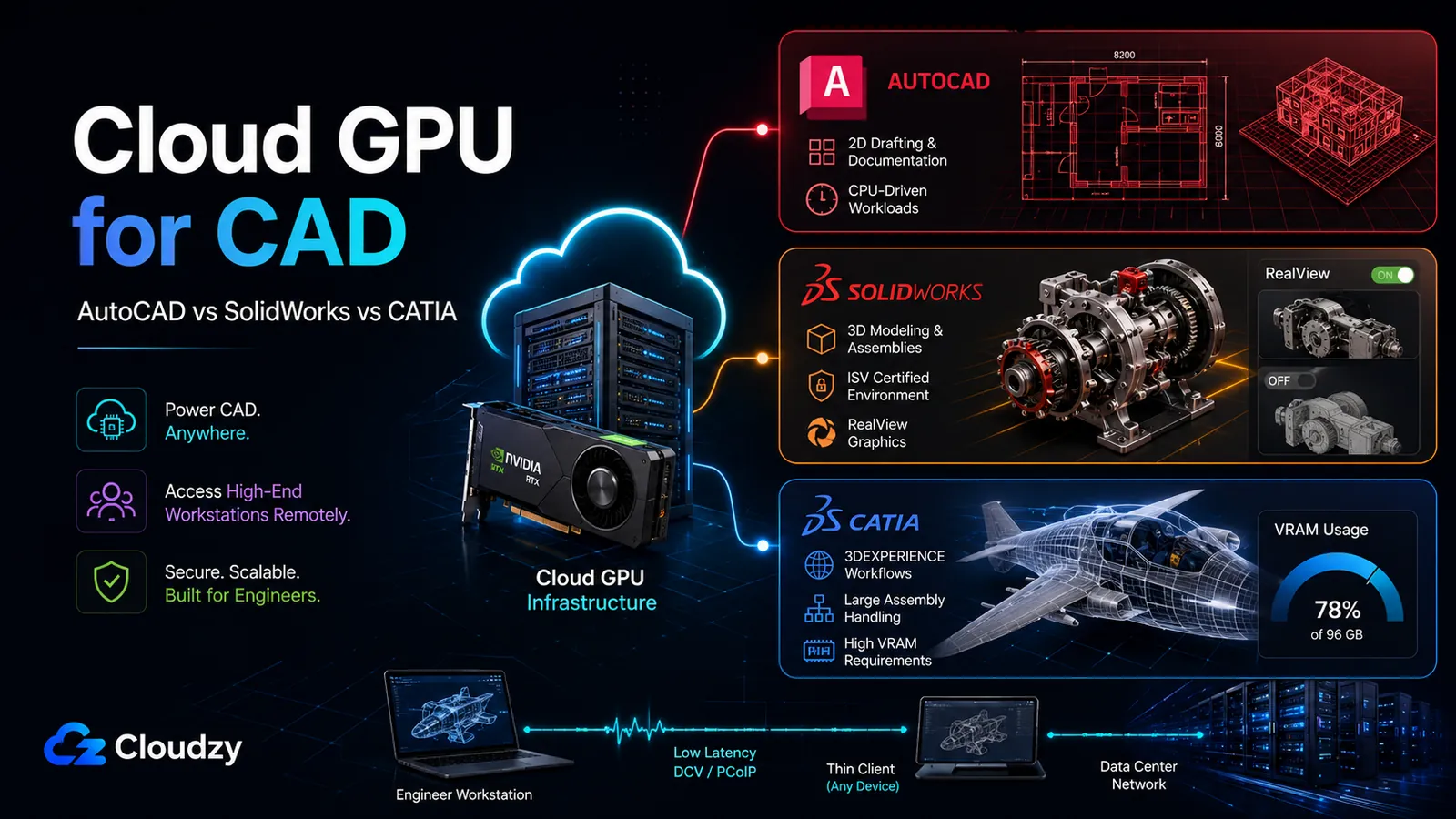
Open the system requirements page for a CAD platform and the GPU guidance will usually be technically true but operationally incomplete: a DirectX-capable card for AutoCAD, certified cards and drivers for SolidWorks, and certified workstation configurations for CATIA. Provision one Windows GPU server, point all three platforms at it, and they will behave nothing alike. One barely touches the GPU. One locks a marquee feature behind a certified driver and goes gray when it doesn't see one. One can swallow 48 GB of VRAM on a single assembly and then drag every frame through system RAM when it runs out.
A cloud GPU for CAD is not one decision. It is three, and they don't have the same answer. This is a platform-to-requirement map: bring your CAD license, provision a Windows GPU VPS, configure remoting, connect from a thin client, and size each platform to what the server actually has to provide. If you want the GPU fundamentals underneath all of this (what ISV certification is and how the CAD GPU landscape sorts out), that lives in the companion piece What GPU Do You Actually Need for CAD?. Here, the work is per-platform: rendering API, certification stakes, VRAM by workload size, the honest "when is the GPU overkill" answer, and the remoting layer that decides whether any of it feels usable.
The Short Version
- AutoCAD is the GPU-light one. It is bound by single-thread CPU clock more than by the graphics card; a premium GPU for an AutoCAD-only workflow is usually money spent in the wrong place. Any modern DirectX 12 GPU covers it.
- SolidWorks is where the certified-versus-consumer question has teeth, though narrower teeth than the forums suggest. A consumer card like the RTX 4090 runs the viewport and excels at Visualize rendering. What it loses is RealView (real-time materials), enhanced OpenGL optimizations, and SolidWorks support coverage. Raw viewport speed is not throttled.
- CATIA is two GPU stories wearing one name. V5 barely uses the GPU and is RAM-led; 3DEXPERIENCE genuinely leans on RT cores and can need up to 48 GB of VRAM on the heaviest projects.
- The A100 is not a rendering upgrade. It earns its place only for GPU-accelerated FEA/CFD simulation, where ECC memory and compute matter. For viewport and CUDA rendering it is the wrong card, with 6,912 CUDA cores against the RTX 4090's 16,384 and a compute-oriented architecture rather than a graphics one.
- Remoting decides usability. Standard RDP is fine for server administration, but it should not be treated as the production remoting layer for interactive 3D CAD. Hardware acceleration behavior varies by app, OS, and driver, and Autodesk explicitly does not support AutoCAD hardware acceleration over remote desktop.
What This Article Doesn't Cover
- CAD software tutorials. This maps GPU requirements; it does not teach the applications.
- Local workstation buying advice. The decision here is cloud GPU VPS, which is a different calculation than purchasing hardware.
- License-server setup in depth. SolidNetWork Manager or Dassault License Manager on a separate VPS is its own topic; treated in one line, not built out here.
- Managed CAD-as-a-Service reviews. This is about provisioning a raw Windows GPU server yourself, not buying a managed desktop product.
AutoCAD: Where the GPU Isn't Your Bottleneck
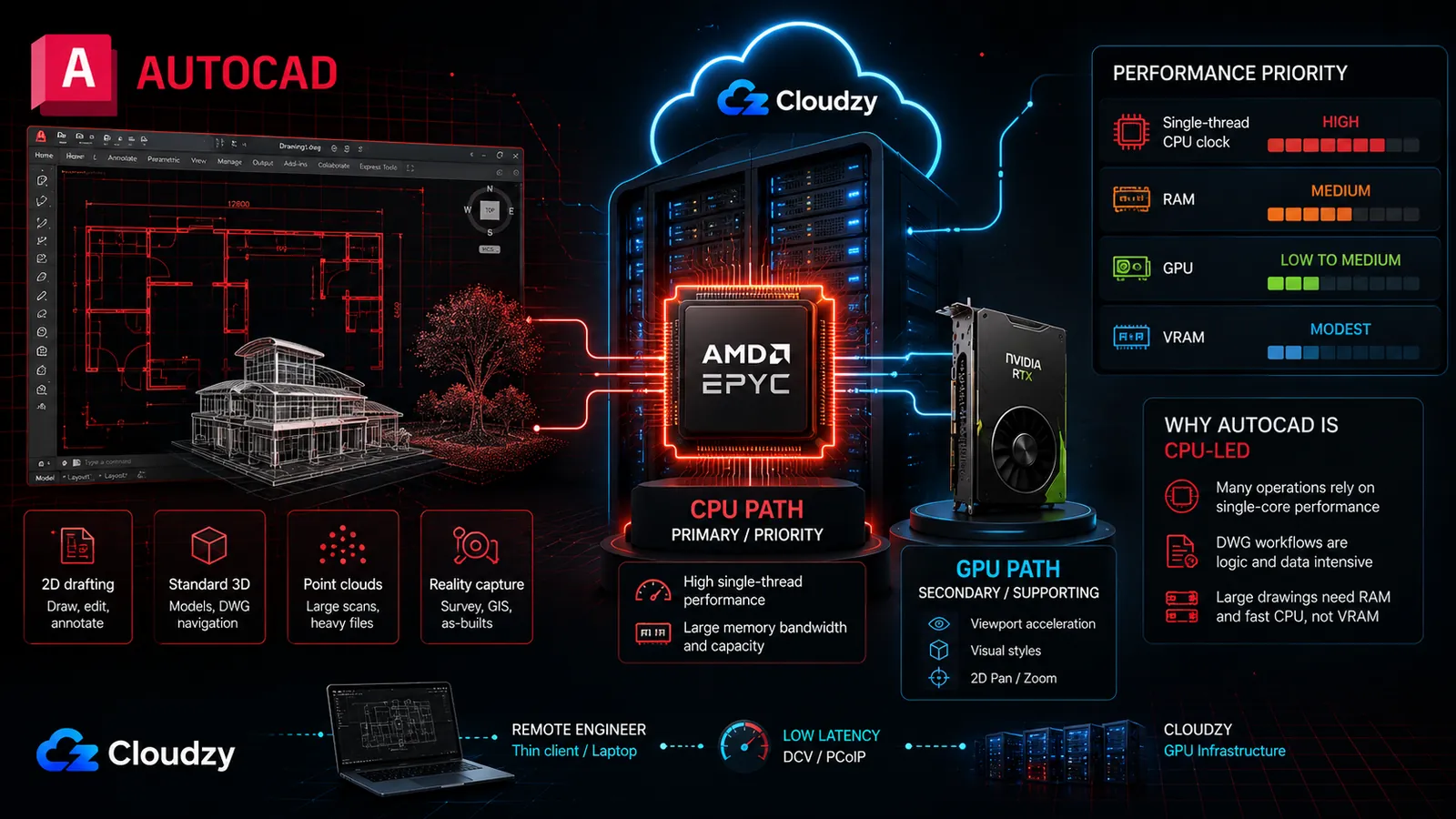
Spend on a premium GPU for an AutoCAD-only server and you have most likely optimized the variable that wasn't holding you back. AutoCAD leans on single-thread CPU performance far more than on the graphics card. Most of its core operations (regeneration, opening a drawing, running a command) ride one CPU core, and the clock speed of that core is what the user feels. The graphics card matters for 3D viewport responsiveness and for displaying point clouds, but for the 2D and light-3D work that fills most AutoCAD sessions, it is a supporting actor.
The rendering API is worth pinning down because it follows you into the remoting stack. AutoCAD moved off OpenGL years ago; current versions run on DirectX, with DirectX 11 as the floor and DirectX 12 Feature Level 12_0 required for the "Fast" visual style introduced in recent releases. That makes it a DirectX-capture workload for the remote protocol, which NICE DCV handles natively on Windows.
VRAM needs are modest and scale with what you're drawing:
- 2D drafting: 2-4 GB is enough for basic use; Autodesk's 2026 recommended display-card target is 8 GB.
- Standard 3D modeling: 4-8 GB.
- Large 3D scenes, point clouds, reality capture: 8-16 GB.
An RTX 4090's 24 GB of VRAM covers every AutoCAD case with room to spare. On certification, AutoCAD is the permissive platform of the three: the RTX 4090 is not on Autodesk's certified hardware list, but unlike SolidWorks there is no feature lock waiting behind that. The only consequences are that Autodesk graphics support won't cover you and that you carry a small risk of display artifacts or driver resets. In practice it works.
What GPU do I need for AutoCAD on a cloud server? Any modern DirectX 12 GPU is adequate. AutoCAD is bound by single-thread CPU clock more than by the GPU, so the graphics card is rarely the bottleneck. VRAM needs are light: 2-4 GB for basic 2D work, 4-8 GB for standard 3D, and up to 16 GB for point clouds and large 3D scenes. A consumer card runs it fine.
This is the fork that decides the AutoCAD answer. If AutoCAD shares a server with SolidWorks or CATIA, the GPU plan you'd pick for those covers AutoCAD as a free passenger, which is the right shape for a mixed stack. But if AutoCAD is the only thing the team runs, a high-frequency CPU plan often serves it better than a premium GPU plan, because the CPU clock is the variable that moves the experience. The GPU VPS earns its place here only when AutoCAD rides alongside a heavier platform.
Key takeaway: For AutoCAD, the GPU is not the bottleneck. Single-thread CPU clock is, and an AutoCAD-only team may not need a GPU plan at all.
SolidWorks: The Certification Wall and What Actually Breaks Behind It
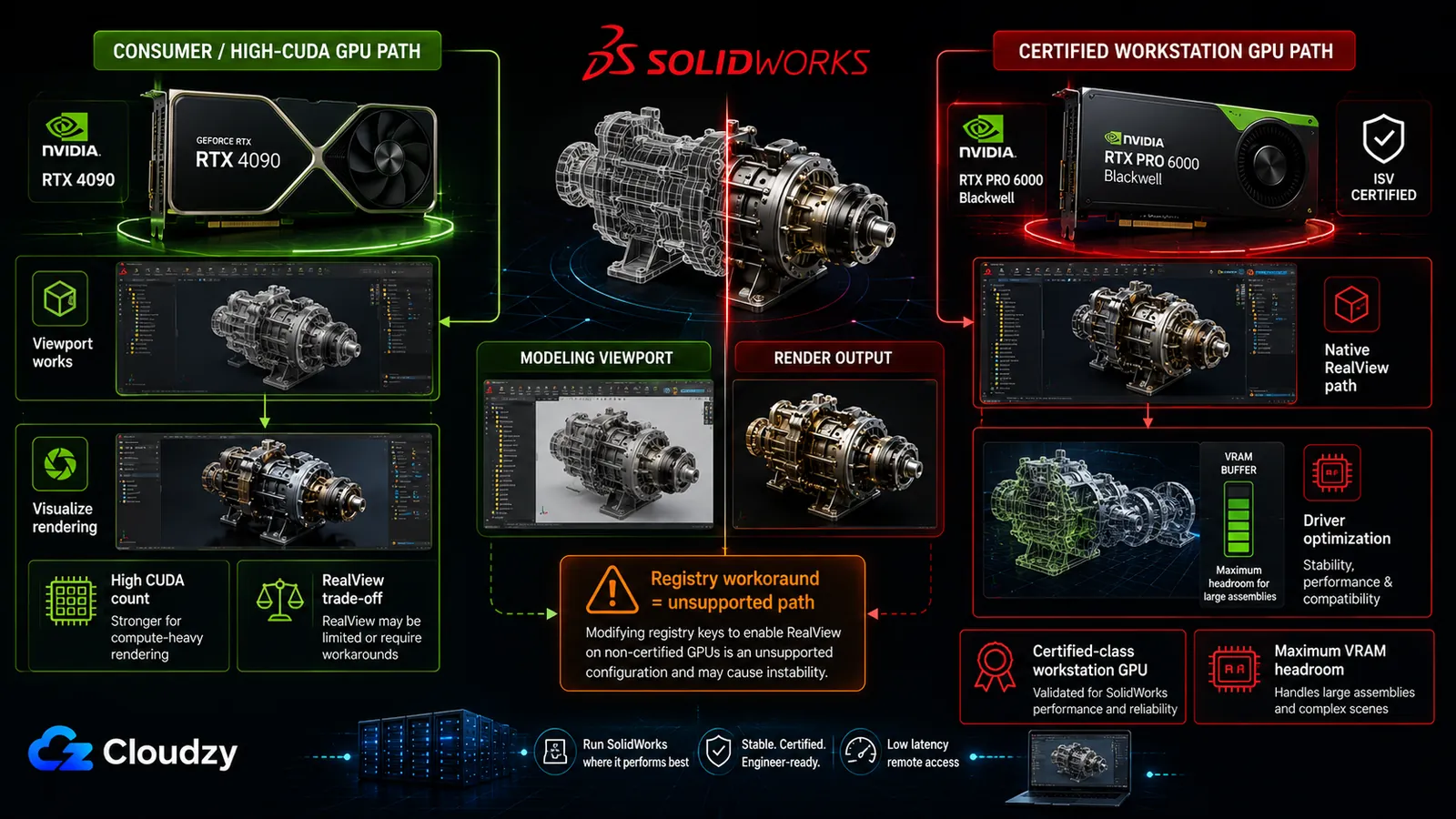
The first thing a consumer GPU loses in SolidWorks is not framerate. It is RealView. Drop an RTX 4090 into a SolidWorks server and the RealView Graphics button (the one that gives you real-time reflections, transparency, and environment lighting in the viewport) is grayed out. That is the certification wall, and it is a narrower wall than its reputation suggests.
SolidWorks runs its viewport on OpenGL 4.5, which is the architectural opposite of AutoCAD and matters when you get to remoting (OpenGL interposing rather than DirectX capture). For ISV certification, SolidWorks depends on specific certified workstation GPU-and-driver combinations. In practice, that means NVIDIA workstation cards across the RTX / RTX PRO / older Quadro naming stack, plus AMD Radeon Pro, not GeForce consumer cards. Consumer GeForce is not certified for any version. The instinct is to read "not certified" as "won't work." That reading is wrong.
Here is what actually breaks without a certified GPU, and what doesn't:
- Breaks: RealView Graphics is disabled. Enhanced OpenGL performance optimizations are lost. SolidWorks support will not assist with graphics or driver issues. There are community reports of instability in Motion Analysis on consumer cards.
- Still works: The basic shaded and wireframe viewport. Assembly manipulation. And the one people miss: SolidWorks Visualize, the GPU renderer, is not gated by RealView certification in the same way and can benefit heavily from high-CUDA-count NVIDIA cards.
That Visualize point reframes the RTX 4090's place. The 4090 carries 16,384 CUDA cores, which makes it excellent for Visualize and ray-trace rendering, better than many certified cards for that specific job. You lose the real-time RealView preview in the modeling viewport; you do not lose photorealistic output.
What the Registry Workaround Actually Buys You
There is a well-known registry edit (the "RealHack" lineage) that flips RealView back on for uncertified cards. It is widely practiced and the path is version-specific: SolidWorks 2023 and later moved it to HKEY_CURRENT_USER\SOFTWARE\SolidWorks\AllowList\Gl2Shaders. An evaluator should understand exactly what it does and does not buy.
It unlocks the RealView button. It does not turn the consumer GPU into a certified workstation configuration, and performance or stability can still vary by driver, SolidWorks version, and assembly complexity. The workaround is widely referenced in community threads, but it remains a community workaround rather than a supported deployment path. The feature may turn on, but the experience behind it can still degrade badly on complex assemblies. It can also break silently after major NVIDIA driver updates, which on a server you patch is a recurring maintenance liability rather than a one-time tweak.
There is a further, unresolved wrinkle for cloud deployment specifically. The workaround is documented on Windows 10 and 11 consumer editions. Whether it behaves the same in a Windows Server multi-user RDP environment is not verified: the HKEY_CURRENT_USER hive is per-session, so the edit's effect across server sessions is an open question that would need testing on the actual target OS before anyone relies on it.
Pro Tip
Treat the RealView registry workaround as a documented operational risk, not a deployment plan. It unlocks the feature, not certified performance; it breaks on driver updates; and its behavior on Windows Server has not been verified. If your team genuinely needs native RealView, that points at a certified-class card, not a hack on a consumer one.
On the question everyone actually fears (is the consumer card unusably slow?), the answer for SolidWorks is no, not in basic viewport terms. The certification wall is not a hard speed governor in the same way RealView is a hard feature gate. That said, workstation drivers still matter. Dell's 2026 professional-versus-consumer GPU comparison puts the RTX PRO 6000 Blackwell ahead of the GeForce RTX 5090 in SolidWorks and other driver-optimized professional workloads. The useful point for this article is that the gap is about ISV-certified driver optimization, OpenGL behavior, and workstation-class graphics features, not just raw memory capacity.
What you do have to size correctly is VRAM, and SolidWorks sizes by assembly complexity:
- Under 1,000 parts: 8-16 GB.
- 1,000-5,000 parts: 16-24 GB.
- 5,000+ parts: 24 GB and up.
The cliff to avoid is VRAM overflow. When an assembly exceeds the card's VRAM, SolidWorks spills into system RAM and framerate collapses. VDI-benchmarking guides describe this overflow as the single most common cause of poor CAD performance in virtualized environments. Note that these thresholds come from certified-tier vendor guides; they are directional for uncertified hardware, not a guarantee. When you'd go from "what the server needs" to "how to actually stand it up," the step-by-step lives in How to Run SolidWorks on a Cloud GPU VPS.
Does SolidWorks require a certified GPU? For supported, fully-featured use, yes. Without a certified GPU (NVIDIA RTX Pro or AMD Radeon Pro), RealView Graphics is disabled, enhanced OpenGL optimizations are lost, and SolidWorks support won't cover graphics issues. The basic viewport, assembly work, and CUDA-based Visualize rendering still function on a consumer card.
Can I use an RTX 4090 for SolidWorks? Yes, for most modeling and assembly work, and it's excellent for Visualize rendering thanks to its 16,384 CUDA cores. The trade-off is RealView, which is grayed out on consumer cards; you either accept the loss, apply the registry workaround (which unlocks the button, not certified performance), or move to a certified RTX PRO 6000 Blackwell for native RealView and maximum workstation-class VRAM headroom.
On the server-tier mapping: an RTX 4090, with its 24 GB and high CUDA count, covers standard assemblies and is the strong pick for Visualize-heavy work. For large assemblies, native RealView, and maximum workstation-class VRAM headroom, an RTX PRO 6000 Blackwell is the high-headroom choice rather than a minimum requirement.
Key takeaway: SolidWorks certification gates RealView, support coverage, and workstation-driver optimizations more than basic viewport usability. Consumer cards can still run modeling and Visualize, but RTX PRO 6000 Blackwell is the higher-headroom workstation choice when native RealView, certified-class behavior, and large assembly safety matter.
CATIA: Two Engines With Opposite GPU Appetites
Size a CATIA server without first asking "V5 or 3DEXPERIENCE?" and you will get it wrong in one direction or the other. The two share a name and almost nothing about how they use a GPU. V5 barely touches the GPU; 3DEXPERIENCE is one of the hungrier professional CAD tools you'll run. Provision a 48 GB card for a V5-only team and most of it sits idle; provision a mid-tier card for heavy 3DEXPERIENCE surfacing and you hit the VRAM cliff.
CATIA V5 is primarily CPU-bound. Practitioners report very low GPU utilization for typical interactive modeling. The card spends most of a V5 session nearly idle while the CPU and system RAM do the work. Dassault requires ISV certification (NVIDIA Quadro / RTX Pro, AMD Radeon Pro) for supported use, and unlike SolidWorks there is no community workaround ecosystem for running V5 on consumer GPUs. The registry-hack culture simply doesn't exist here. For a V5 workload, system RAM is the variable that pays off, not GPU horsepower.
CATIA on the 3DEXPERIENCE platform is a different machine. Dassault explicitly calls out NVIDIA RTX support, real-time ray tracing, super-sampling, and AI-powered denoising for 3DEXPERIENCE; the practical point is that this environment benefits from RTX-class workstation GPUs in a way V5 usually does not. Its VRAM appetite scales hard with project complexity:
- Small projects: ~8 GB.
- Medium: ~20 GB.
- Complex: ~32 GB.
- Extreme assemblies: ~48 GB.
These tiers come from a small number of authoritative workstation guides; treat them as directional sizing, not precise floors. A 96 GB RTX PRO 6000 Blackwell sits above that 48 GB tier, so in this article it should be read as a premium headroom choice, not as proof that every large 3DEXPERIENCE project needs 96 GB.
What's the difference between CATIA V5 and 3DEXPERIENCE GPU requirements? CATIA V5 is CPU-bound and barely uses the GPU; practitioners report it sitting nearly idle during typical modeling, so V5 is RAM-led and a mid-tier GPU is plenty. CATIA 3DEXPERIENCE uses RT cores and AI denoising and is genuinely GPU-hungry, scaling from roughly 8 GB of VRAM on small projects to 48 GB on extreme assemblies.
Where the A100 Actually Belongs
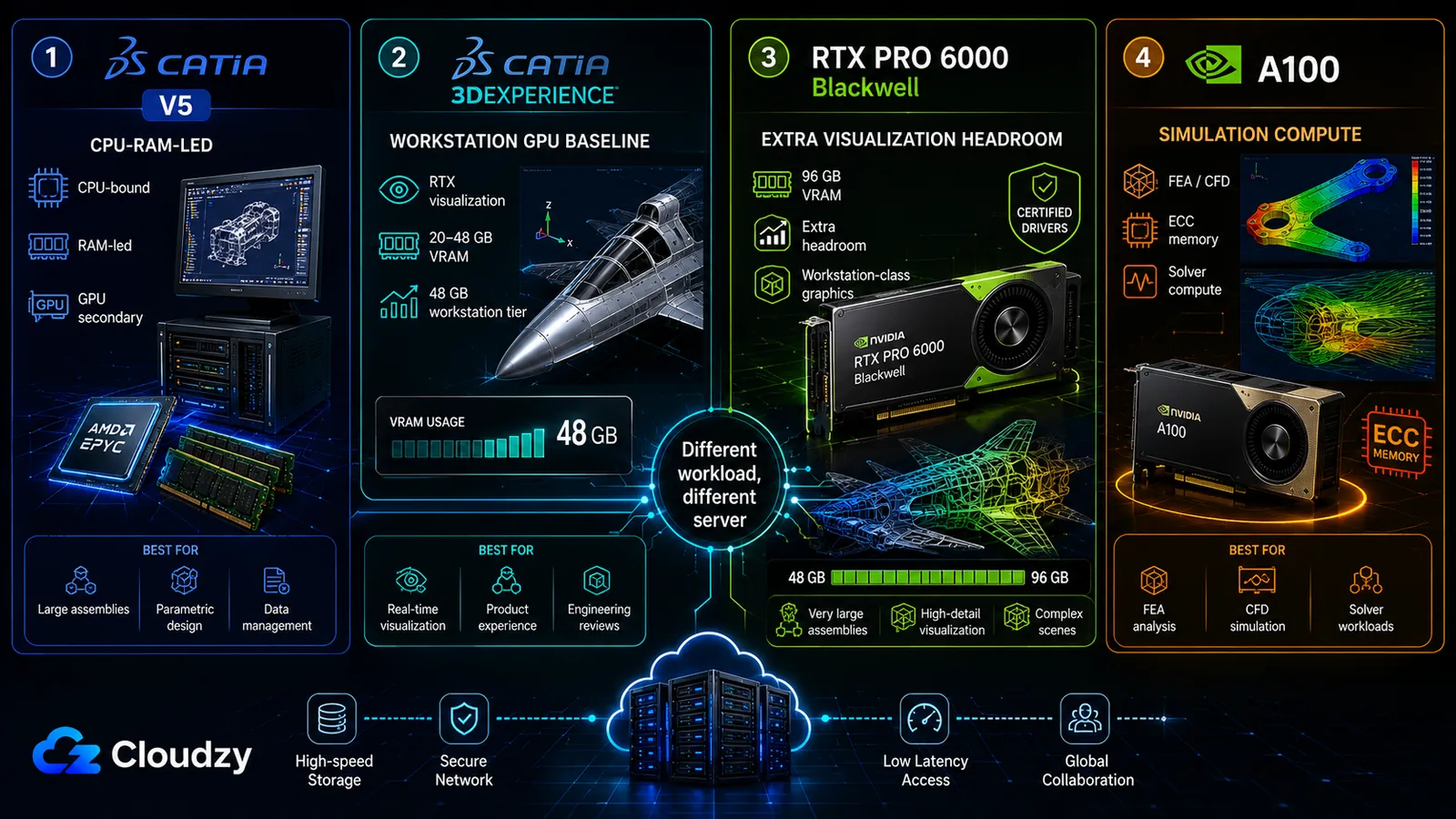
Simulation is the workload that trips up GPU sizing for CATIA, because two different things both get called "simulation." In 3DEXPERIENCE, the heavy FEA/CFD solving is often offloaded to Dassault compute tokens in the cloud, which means the local GPU is only handling viewport and visualization, a rendering job. But GPU-accelerated FEA/CFD running locally (SIMULIA solving on the box itself) is a genuinely different demand, and it is the one workload in this entire article where the A100 earns its place.
The A100 carries 80 GB of HBM2e VRAM with ECC, a compute-oriented silicon profile, and roughly 2 TB/s of memory bandwidth. For solver reliability, large datasets, and double-precision-heavy GPU acceleration, that combination is the reason the A100 enters the conversation. It does not make the CAD model "more accurate"; it gives the solver a compute-oriented GPU with ECC memory and very high memory bandwidth. What it is not is a rendering upgrade. The A100 has 6,912 CUDA cores against the RTX 4090's 16,384, but the bigger issue is architectural: the A100 is a data-center compute GPU, while RTX cards are built around the graphics, ray-tracing, driver, and certification story CAD teams usually need. For viewport work and RTX/OptiX-style rendering, it is usually the wrong card. It is built for compute throughput, not for pushing frames.
So the CATIA split is explicit: an RTX PRO 6000 Blackwell for 3DEXPERIENCE visualization and rendering when you want workstation-class drivers and headroom beyond the 48 GB sizing tier; the A100 (80 GB HBM2e) only for GPU-accelerated simulation compute. Choosing the A100 because it is the most expensive card and assuming that makes it the best for CAD is the exact mistake this section exists to prevent. For a full side-by-side of RTX 4090 versus A100 across every CAD sub-workload (viewport, Visualize rendering, and simulation), including the pricing decision, see RTX 4090 vs. A100 for CAD: Which GPU VPS Do You Actually Need?
On the V5 side, the mapping is almost the inverse: if you put V5 on a GPU plan at all, the GPU should not drive the decision. Pick the server tier by CPU clock, system RAM, storage, and remoting needs first; the GPU is secondary for V5.
Key takeaway: CATIA V5 barely uses the GPU and is RAM-led; 3DEXPERIENCE leans hard on RT cores; and the A100 belongs to simulation compute, never to rendering.
That CPU-versus-GPU split is why CAD infrastructure has to be sized by workload instead of by software name alone. Some teams need high-frequency CPU performance and reliable server-side file management more than a premium GPU. Others need a GPU tier because the work has moved into large assemblies, rendering, visualization, or simulation.
The University of Birmingham Rocket Propulsion Labs shows the first half of that story: server-backed engineering infrastructure that keeps CAD work and file management off fragile local machines.
"We rely on servers for computing power and CAD file management and for that, we trust Cloudzy. Their transparent pricing and unmatched AMD EPYC performance let us focus on engineering, not infrastructure."
Manan Dua, President of the University of Birmingham Rocket Propulsion Labs
Cloudzy sponsors UOBRPL.
That is the practical baseline for cloud CAD: stable compute, fast CPUs, and dependable server-side storage. The GPU decision comes after that. If your workload is AutoCAD-only or CATIA V5-heavy, CPU and RAM may matter more. If it is SolidWorks Visualize, large 3DEXPERIENCE assemblies, or GPU-accelerated simulation, that is when Cloudzy's GPU VPS tiers become the right fit.
Remoting: The Part That Decides Whether Cloud CAD Actually Feels Usable
A perfectly sized GPU server is wasted if the pixels can't reach you smoothly, and remoting is where most cloud-CAD plans quietly fall apart. The failure usually isn't the GPU; it's the protocol choice and the distance the frames have to travel.
Start with the protocol you should not treat as your production CAD remoting layer: standard RDP. It may be fine for administering the server, but hardware acceleration support is inconsistent by app, GPU driver, and OS policy, and Autodesk explicitly does not support AutoCAD hardware acceleration over remote desktop.
The protocols that do the job sort out like this:
| Protocol | 3D viewport | GPU requirement | Status |
|---|---|---|---|
| NICE DCV | Excellent for 3D CAD/CAE; DirectX/OpenGL hardware acceleration on Windows with GPU drivers; Linux virtual sessions can use dcv-gl/GPU sharing | No certified-CAD driver required | Active, widely used for cloud CAD/CAE |
| HP RGS | Professional workstation focus; SpaceMouse support | Pro card oriented | Active; HP-recommended transition path for workstation-class environments |
| Parsec | Good, NVENC-based, low latency; individual focus | Needs a virtual display on headless servers | Active (see headless caveat) |
| Citrix HDX 3D Pro | Built for large VDI estates; capable for 3D | Pro card oriented | Active; complex licensing |
| HP Anyware / Teradici PCoIP | Capable, long the CAD default | Pro card oriented | EOL path: new sales ended May 7, 2026 |
Two of those rows are load-bearing for anyone planning a deployment today. The first is HP Anyware / Teradici PCoIP: it was the default professional CAD remoting protocol for years, and it is now being retired. Per HP's lifecycle announcement, HP Anyware / PCoIP-based new sales ended on May 7, 2026. Existing customers have staged renewal and support windows, with some multi-year maintenance and support running up to October 31, 2029. It works today; it is the wrong foundation for a new deployment, and HP RGS is the safer HP-side transition path for workstation-class environments.
The second is Parsec, and the trap is specific to cloud servers:
Pro Tip
Parsec does not work out of the box on a headless GPU server. GPU VPS instances are inherently headless (there is no monitor attached), and Parsec needs a display to capture. Until you configure a virtual display (an EDID emulator or dummy-plug equivalent, or a virtual display driver), Parsec won't run on a cloud GPU instance at all. This catches people who tested Parsec on a desktop with a monitor and assumed it would behave the same in the cloud.
NICE DCV is the most broadly capable option for cloud CAD specifically. On Windows GPU instances, AWS documents DirectX and OpenGL hardware acceleration when the correct GPU drivers are installed. On Linux, DCV adds virtual sessions and GPU sharing through dcv-gl; that multi-session GPU-sharing detail should not be implied for Windows CAD desktops. DCV itself does not create a SolidWorks or CATIA certification requirement, but the CAD application may still require certified hardware and drivers for supported use. That combination is why it tends to be the default for multi-user cloud CAD/CAE.
If you'd rather own the remoting layer end to end, RustDesk, a self-hosted remote desktop server available as a one-click marketplace app, lets you run your own relay instead of depending on a third-party service, though you'll still face the same headless-display reality any GPU-streaming protocol does.
Then there is the variable that overrides protocol choice: latency, which is dominated by physical distance to the data center far more than by which protocol you picked. The directional thresholds that matter:
- Under 40 ms: feels local.
- 60-80 ms: workable for modeling, marginal for freehand sketching.
- Over 80 ms: frustrating for interactive 3D.
The practical consequence is that the single biggest latency decision you make is which data center, not which protocol. Provision the GPU server in the location closest to where the engineers actually sit, and a good protocol will feel responsive. Put it on the wrong continent and no protocol will save it.
Which remote desktop protocol is best for CAD on a cloud GPU? NICE DCV is the strongest general choice for multi-user cloud CAD/CAE: it supports GPU-accelerated DirectX/OpenGL workflows with the right server drivers, while Linux DCV adds virtual sessions and GPU-sharing options. DCV itself does not create a CAD certification requirement, but SolidWorks or CATIA may still require certified hardware and drivers for supported use. HP RGS is the professional-workstation choice now that HP Anyware / PCoIP-based new sales have ended. Parsec works for individuals but needs a virtual display on a headless cloud server. Standard RDP is fine for administration, but it should not be treated as the production remoting layer for interactive 3D CAD.
Key takeaway: For remoting, the data center's distance from the user dominates perceived latency more than the protocol does, so pick the nearest location first.
The Per-Platform GPU Map
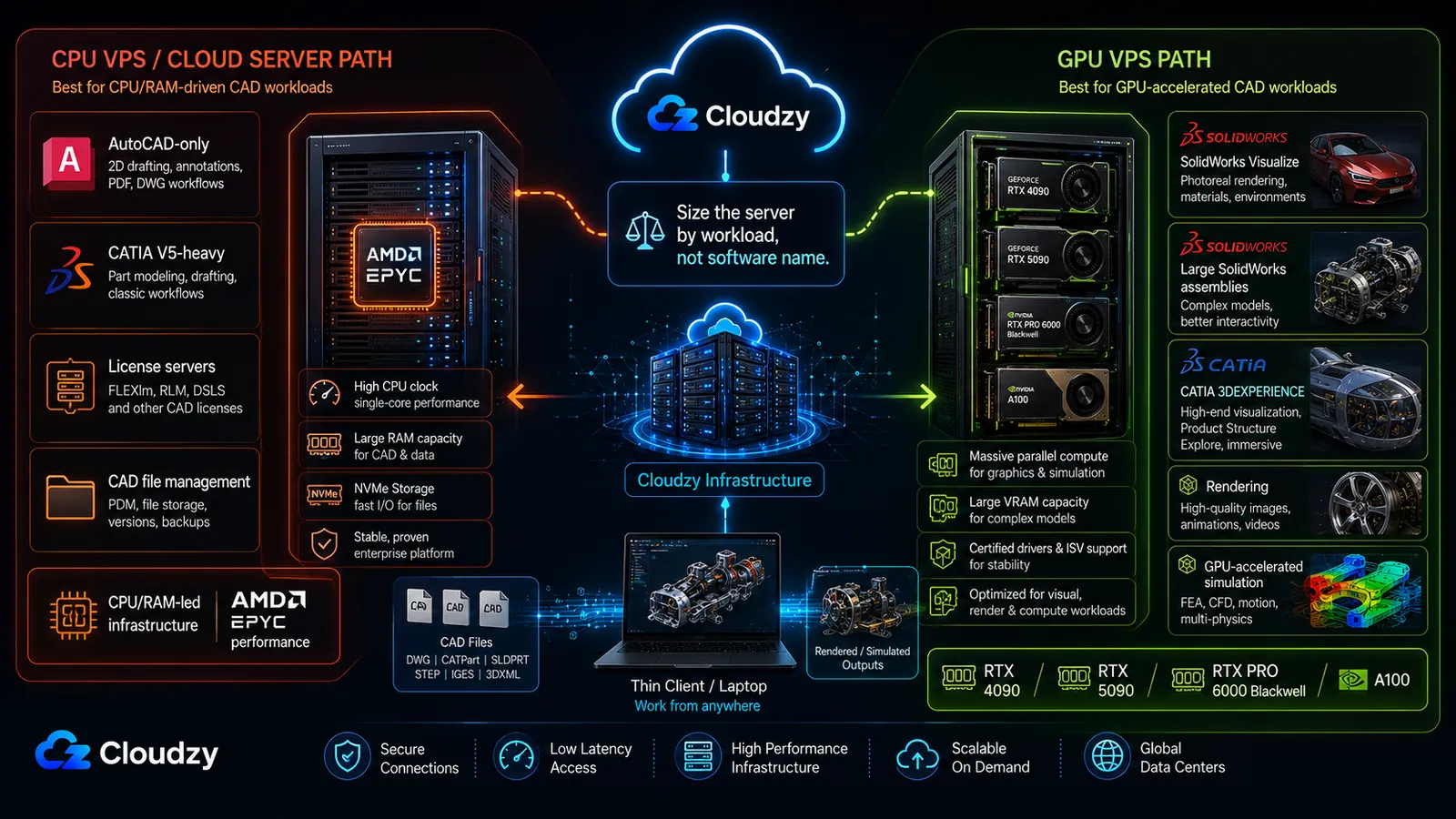
The three platforms split along three axes: how much they depend on the GPU, how much certification matters, and where their VRAM ceiling sits. The table maps each platform and workload to a GPU tier; the framework after it is how to read the table against your own stack.
| Platform / Workload | GPU dependence | Certification stake | VRAM need | Recommended GPU tier |
|---|---|---|---|---|
| AutoCAD (2D / standard 3D) | Low (CPU-clock-led) | None functional | 2-8 GB | Any modern GPU; CPU plan if AutoCAD-only |
| AutoCAD (point cloud / large 3D) | Low-medium | None functional | 8-16 GB | RTX 4090 |
| SolidWorks (standard assemblies) | Medium | RealView feature lock | 8-24 GB | RTX 4090 |
| SolidWorks (Visualize / CUDA render) | High (CUDA) | None | 16-24 GB | RTX 4090 |
| SolidWorks (large assemblies / native RealView) | Medium-high | Native RealView needs certified card | 24 GB+ | RTX PRO 6000 Blackwell |
| CATIA V5 | Very low (RAM-led) | Required for support; no workaround | Low | Mid-tier GPU; RAM-led |
| CATIA 3DEXPERIENCE (medium-large) | High (RT cores) | Required for support | 20-48 GB | 48 GB workstation GPU |
| CATIA 3DEXPERIENCE (extreme / extra headroom) | High (RT cores) | Required for support | 48 GB+ | RTX PRO 6000 Blackwell |
| GPU-accelerated FEA/CFD simulation | High (compute) | Compute, not graphics | 48-80 GB | A100 (80 GB HBM2e) |
Reading the map against your own stack comes down to a few decisions:
- AutoCAD only? Reconsider whether you need a GPU plan at all. The bottleneck is single-thread CPU clock; a high-frequency CPU plan may serve better than a premium GPU.
- SolidWorks, standard work? An RTX 4090 covers modeling, assemblies, and Visualize, accepting the RealView caveat.
- SolidWorks, large assemblies or native RealView? An RTX PRO 6000 Blackwell for certified-class workstation graphics and maximum VRAM headroom.
- CATIA V5? RAM-led. The GPU is secondary; don't overpay for one.
- CATIA 3DEXPERIENCE? A 48 GB workstation GPU is the baseline for medium-to-large visualization workloads; RTX PRO 6000 Blackwell is the premium headroom choice when you want workstation-class RTX performance beyond the 48 GB sizing tier.
- GPU-accelerated simulation (local SIMULIA solving)? The A100, and only for that, never as a rendering step-up.
Match your platform and workload to a tier in the map, then provision the server that fits it. For AutoCAD-only teams, CATIA V5-heavy workflows, license servers, CAD file management, and other CPU/RAM-led engineering infrastructure, a high-performance Cloudzy VPS may be the better starting point. That is the side of cloud CAD the University of Birmingham Rocket Propulsion Labs point to when they talk about relying on Cloudzy servers for CAD file management, computing power, and AMD EPYC performance.
When the workload becomes GPU-heavy (SolidWorks Visualize, large SolidWorks assemblies, CATIA on the 3DEXPERIENCE platform, rendering, or GPU-accelerated simulation), Cloudzy's GPU VPS plans span the RTX 4090, RTX 5090, RTX PRO 6000 Blackwell, and A100, covering the standard GPU, workstation-headroom, and simulation-compute tiers above. For teams that only need the heavy cards for burst or overnight simulation, monthly plans (with annual billing at a discount) mean you scale the heavy card up only for the project phase that needs it rather than carrying a premium card month-round.
Frequently Asked Questions
Does SolidWorks Require a Certified GPU?
For supported, fully-featured use, yes. Without a certified GPU (NVIDIA RTX Pro or AMD Radeon Pro), RealView Graphics is disabled, enhanced OpenGL optimizations are lost, SolidWorks support won't cover graphics issues, and there are reports of Motion Analysis instability on consumer cards. The basic viewport, assembly manipulation, and CUDA-based Visualize rendering all still work on a consumer GPU.
Can I Use an RTX 4090 for SolidWorks?
Yes for most modeling and assembly work, and it's excellent for Visualize rendering thanks to its 16,384 CUDA cores. The catch is RealView, which is grayed out on consumer cards. You either accept the loss, apply the registry workaround (which unlocks the button but not certified-driver performance, and breaks on driver updates), or use a certified RTX PRO 6000 Blackwell for native RealView and maximum workstation-class VRAM headroom.
How Much VRAM Does CATIA Need for Large Assemblies?
The answer splits by which CATIA you run. V5 uses very little GPU or VRAM and is RAM-led. 3DEXPERIENCE scales from roughly 8 GB on small projects to 20 GB medium, 32 GB complex, and around 48 GB on extreme assemblies. These figures are directional sizing from workstation guides, not hard floors.
What Remote Desktop Protocol Is Best for CAD on a Cloud GPU?
NICE DCV is the strongest general choice for multi-user cloud CAD/CAE: it supports GPU-accelerated DirectX/OpenGL workflows with the right server drivers, while Linux DCV adds virtual sessions and GPU-sharing options. DCV itself does not create a CAD certification requirement, but SolidWorks or CATIA may still require certified hardware and drivers for supported use. HP RGS is the professional-workstation choice now that HP Anyware / PCoIP-based new sales have ended. Parsec works for individuals but requires a virtual display on a headless cloud server. Standard RDP is fine for administration, but it should not be treated as the production remoting layer for interactive 3D CAD.
What GPU Do I Need for AutoCAD on a Cloud Server?
Any modern DirectX 12 GPU is adequate. AutoCAD is bound by single-thread CPU clock more than by the GPU, so the graphics card is rarely the bottleneck. VRAM needs are light: 2-4 GB for basic 2D work, 4-8 GB for standard 3D, and up to 16 GB for point clouds and large 3D scenes. That means an AutoCAD-only team may be better served by a high-frequency CPU plan than a premium GPU.



Discussion
Comments
Sign in to join the discussion.