
Your media server has an address. So does your photo library, and the download client adds another. The best self-hosted dashboards bring those service links together, with widgets when you need information before opening an app. Pick the editing workflow you're willing to keep using, then check what the page exposes and what you'll need to restore it.
If your bookmarks or existing portal already handle navigation, keep them. Another page needs to save you work before it deserves configuration time.
Compare Editing and Saved Data
Replace the container and your start page should survive. Before choosing a browser editor or configuration files, check which data and secrets you'll need to keep. A browser editor changes where you make adjustments; you'll still need a restorable copy of the configuration it creates.
YAML is a readable configuration file format. These are container-side paths; your host-side directories depend on your volume mappings. The linked project instructions document the storage locations.
| Tool | Editing | Preserve |
|---|---|---|
| Homepage | YAML / Docker labels | /app/config, deployment config and referenced secrets |
| Homarr | Browser board editor | /appdata, SECRET_ENCRYPTION_KEY, deployment config; external database if used |
| Dashy | YAML / UI config editor | /app/user-data |
| Homer | YAML | /www/assets |
| Glance | YAML | /app/config, configured assets and secret inputs |
Keep Homarr's encryption key with your protected restore materials; it isn't a directory you can mount. Include Glance's referenced environment inputs and custom assets, too. Record the host directory behind each mount so you can reconnect the saved files when replacing a container. Include deployment settings in that record so the restore check covers how you start the application as well as what it reads. Having the image again won't reconstruct your chosen settings.
Dashboard Recommendations by Task
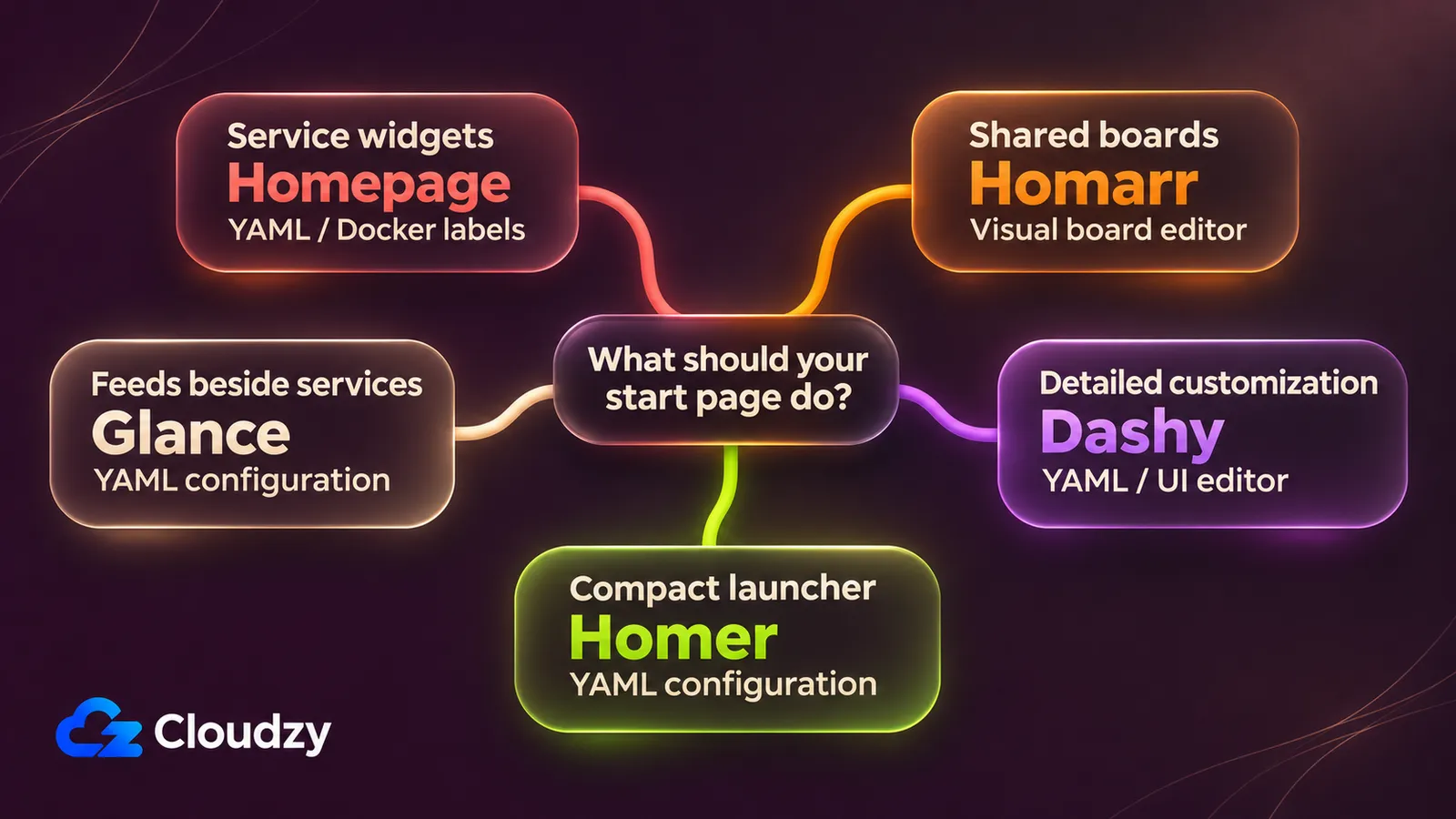
A download-status widget can save you opening an app; a news feed can give you another reason to stay on the page. Decide which of those jobs you want done. I'd choose around that task and add integrations selectively, because each one brings configuration you'll have to maintain.
Homepage for Service Widgets
Homepage is the Homarr alternative I'd choose for file-defined service widgets alongside containers. Its Docker configuration documentation shows service entries and widgets defined through labels. You can keep those definitions close to the container configuration. That's useful if you want to maintain them together; browser editing points you toward Homarr.
Homepage's installation documentation describes opt-in password or OIDC login (login through an identity provider). Don't mistake that gate for the complete public-access setup: Homepage doesn't rate-limit password attempts. Configure that protection at the reverse proxy, or keep access behind a VPN. You'll also need the allowed-hosts setting when using a non-localhost URL.
Homarr for Shared Boards
Homarr fits when you want to arrange a shared board visually and decide who can change it. Its board documentation describes public and private boards with View, Modify, and Full permissions. If that's already how you use Homarr, keep it. File-based configuration alone isn't a reason to switch.
The permission to check closely is viewing. Homarr's integration permissions documentation says board viewers can read integration data, including anonymous visitors on public boards. That covers supported integration data beyond the widget you've displayed. Limit shared integration credentials to information those viewers may see, and separate read access from permission to edit the board.
Dashy for Detailed Customization
Choose Dashy when you'll use its customization controls. The Dashy README documents themes, custom CSS, widgets and status indicators, along with multiple pages and views. If you've already arranged the page around those controls, keep Dashy. Otherwise, choose around the configuration work you want to stop maintaining.
Dashy's built-in authentication documentation makes a distinction you'll need before sharing it: auth.users alone gives you client-side login. Add ENABLE_HTTP_AUTH=true alongside configured users for server enforcement. That flag isn't a complete deployment recipe. For internet exposure, use an appropriate external authentication or VPN layer, with a proxy providing the required protections.
If you've chosen a separate server, our one-click Dashy deployment saves the initial installation work.
Homer for a Compact Launcher
Choose Homer as a Dashy alternative when you want a compact service launcher. The Homer README describes static HTML and JavaScript served over HTTP. Existing web hosting can be enough, and Docker is another documented option. I'd make this choice for the launcher workflow, without assuming a speed or memory advantage.
For a launcher on its own VPS, our one-click Homer deployment handles the initial installation.
For this static HTML/JavaScript setup, assume visitors can inspect the files their browser receives. Keep API keys out of browser-readable configuration, and limit dashboard access before adding private service details. I'd check those delivered files before sharing the page, including any YAML served with it. Calling a page static doesn't make its secrets private.
Glance for Feeds Beside Services
Choose the glanceapp dashboard when you want feeds beside your service links. Its project README lists RSS and news sources alongside service widgets. It's a sensible fit for catching up when you open the page. If feeds would get between you and your apps, I'd leave them out of the choice.
If you want that start page on a separate VPS, you can deploy Glance in one click through our Marketplace, then choose your feeds and widgets.
Glance has username/password login, but its authentication release notes say every account sees the same dashboard. Don't choose multiple accounts expecting separate layouts. The README's refresh FAQ also describes information fetched on page load with cached responses. Refreshing updates the display; choose around that behavior if you expect information to change while the page stays open.
Put the Dashboard Where Its Services Are Reachable
Your existing NAS or container host is a sensible place for a page serving private apps. A separate VPS fits a remote or shared page when you deliberately configure routes to its private APIs. Homer can use existing static HTTP hosting. Putting a tile online won't create a route into your home network.
On a new host, finish base server preparation before adding the dashboard. Keep the first setup small enough to check:
- Choose LAN-only, VPN, or authenticated public access.
- Preserve the data and secrets listed in the table. Stop Homarr before copying its complete
/appdatadirectory, as its installation instructions require. - Add one service link and one required widget. Check that they return the destination and data you intended.
- Test signed-out access. Save a configuration/data copy, then check that you can restore it before filling the page. Use a separate test deployment and keep the working page available until you've confirmed the restored configuration.
FAQ
Why Does a Service Link Work but Its Widget Fail?
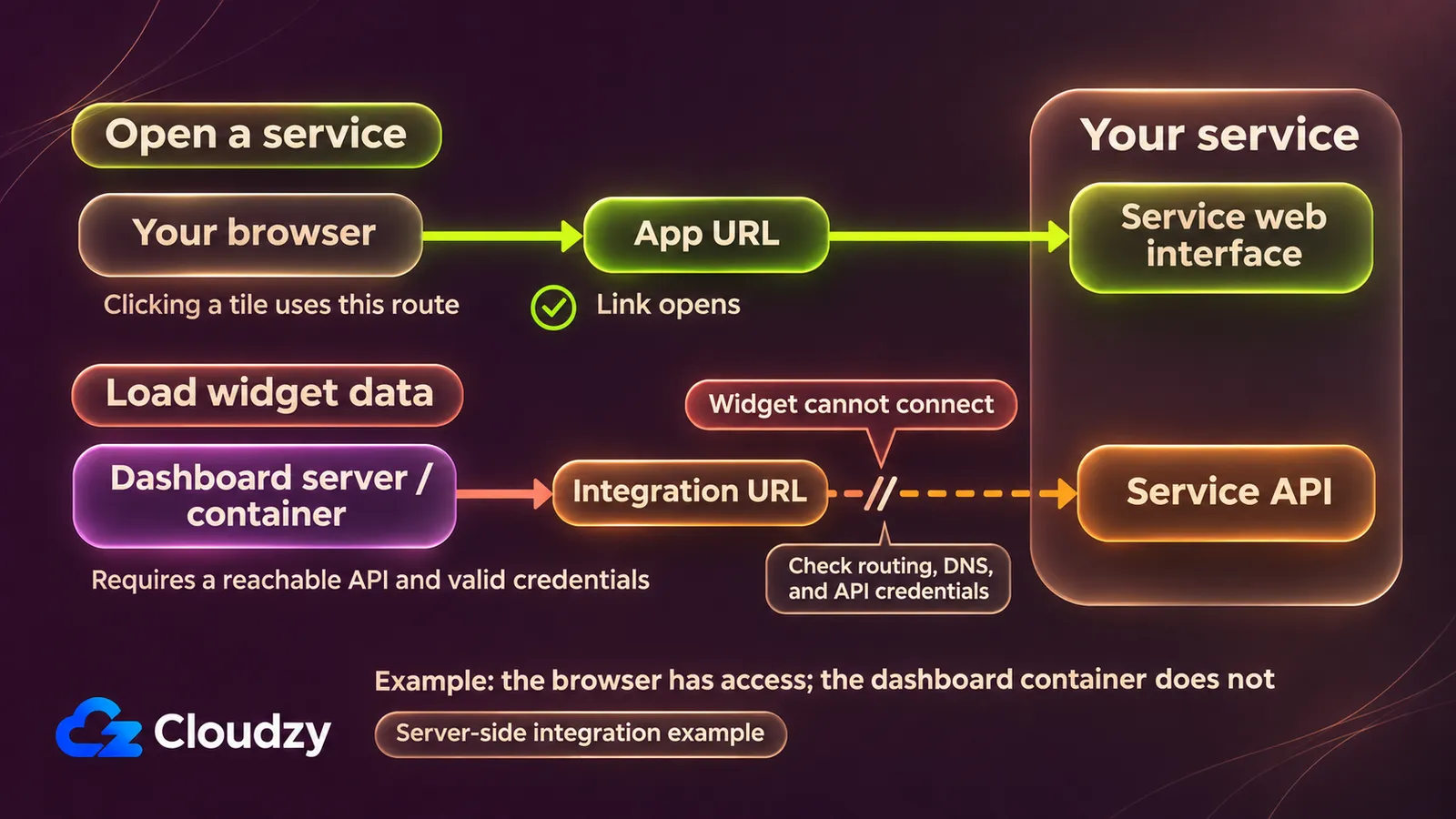
Your browser can reach an app while the dashboard container can't. Homarr's connection guidance requires a server-reachable integration URL, which may differ from the browser address. Check that route and the API credentials (the widget's service access credentials). Opening a link in your browser doesn't check either requirement.
Does a Dashboard Login Protect the Apps It Links To?
No. You'll still need authentication and authorization at each destination app. Homarr's app documentation describes links that open services; Dashy's visibility warning distinguishes hiding a tile from protecting the resource behind it. Check the destination directly while signed out. The dashboard's entry page is a separate access boundary.
Can These Dashboards Replace a Monitoring Stack?
Use service widgets for selected status beside your links. If you need historical metrics and alerts, I'd evaluate a Grafana and Prometheus stack separately. Write down which history you'll need and which failures should trigger a notification before choosing that setup. A useful start page doesn't settle those monitoring requirements.


Discussion
Comments
Sign in to join the discussion.