
The best Stirling-PDF alternatives depend on the operation you need to replace. Combining selected pages, correcting existing text and converting a document call for different capabilities. A browser toolbox can cover several jobs; an installed page utility may be enough for a recurring split and merge task. Choose against the output you need, then consider how you want to access the tool.
Keep Stirling-PDF when its tools, outputs and access path already work for you. Its current documentation still describes a broad tool set. Replacing one inconvenient step can be useful without moving every PDF operation to a new application.
For a first pass, match your most frequent PDF job to the options presented in the following section.
Match the Tool to the Job
The processing location matters too: BentoPDF runs in your browser, while the other four tools are installed desktop applications.
| Tool | Choose It For | Where It Runs |
|---|---|---|
| BentoPDF | Page assembly and existing-text edits in one browser toolbox | In your browser, using the public or a self-hosted app |
| PDF24 Creator | Varied offline PDF work on Windows | Windows desktop |
| PDFsam Basic | Selected page ranges, interleaving scans and bookmark splits | Windows, macOS and Linux desktop |
| Sejda Desktop | Occasional existing-text corrections | Windows, macOS and Linux desktop |
| PDF Arranger | Visual page reordering, rotation and cropping | Windows and Linux/BSD desktop |
These matches narrow the shortlist. The next step is to check what each tool can do within that workflow, including the limits and setup requirements that could affect your choice.
BentoPDF: Best for a Browser-Local Toolbox
BentoPDF suits a workflow that alternates between page assembly and existing-text edits while keeping document processing in your browser. Its project README documents both jobs in a self-hostable toolbox. The public application and a copy you serve yourself use the same processing route: your device handles the PDF operations.
Merge, split and reorder cover routine assembly; the text-editing tool addresses changes inside a page. Keeping those operations in one application is useful when separate programs would complicate a recurring workflow. For a conversion or text change, inspect the resulting formatting in the part you edited before deciding that this operation can replace your current tool.
Browser processing also differs from operating without network access. The README says WASM modules (runtime components the browser loads) come from jsDelivr by default. A self-hosted copy therefore needs deliberate dependency configuration if external requests are unacceptable. Office conversion adds another condition: a secure context and cross-origin isolation, which permits the memory sharing its converter requires. An ordinary HTTP address on your local network may be insufficient. Try the required operation on a synthetic file or duplicate in the public application. If you later serve a copy, check dependency delivery and the Office-conversion requirements before treating it as an offline replacement.
Give your team a shared PDF toolbox on a VPS you control. Our one-click BentoPDF VPS handles the initial setup, while document processing stays in each user’s browser.
PDF24 Creator: Best for Broad Offline Work on Windows
On Windows, PDF24 Creator covers assembling documents and adjusting the resulting PDF in one installed toolkit. The Creator product page documents offline processing with files kept on your PC. That combination suits varied local page work, especially when preparing the output is part of the job and shared browser access adds little.
A useful trial is a packet assembled from several duplicate documents: keep the relevant pages, remove unwanted ones, rotate scans and combine the result. Creator documents adding, extracting, sorting and moving pages, alongside merge and split operations. Its compression and output settings also give you choices when preparing the final file for delivery. Those controls are a reason to consider the broader toolkit over a utility chosen for one page operation.
Creator's Windows requirement determines whether this installed workflow is an option. PDF24's browser tools are a separate route; a similarly named web tool doesn't provide Creator on macOS or Linux. If changing existing words is essential, check a documented text-editing tool before choosing an application for its page assembly. Download Creator through the product page and build a packet from copies. Use a document with the page orientations and output settings your usual work requires.
PDFsam Basic: Best for Offline Splitting and Page Assembly
Selecting known page ranges, interleaving scans and splitting at bookmarks are reasons to choose PDFsam Basic for offline assembly. The Basic product documentation lists local operation on Windows, macOS and Linux. Basic suits a job where you can specify which source pages belong in the destination before assembling it.
For example, take selected ranges from several reports instead of merging every page. Basic accepts page selections for each input. If a single-sided scanner leaves odd and even pages in separate files, its Mix operation can interleave them. A bookmarked document presents a different job: split it at a chosen bookmark level to produce separate sections. These are distinct assembly requirements you can identify before installing anything.
Basic is the page-operations edition; an editing, conversion or OCR requirement needs a separate capability check against the relevant PDFsam edition. The vendor states that Basic adds no watermarks and imposes no file-size limit. Your computer's capacity still determines which documents it can comfortably process. Download Basic through its product page, then run your exact range, Mix or bookmark operation on duplicate inputs. Pick the job that currently costs you manual page selection; there is no need to exercise every module.
Sejda Desktop: Best for Occasional Existing-Text Edits
Correcting existing words inside a PDF calls for text editing, which makes Sejda Desktop a candidate for occasional local edits. Its Desktop product page lists adding, editing and moving text, plus Word and Excel exports. Consider the conversion route when the next stage of your work belongs in an Office file.
Changing an incorrect word is a different requirement from inserting a page containing corrected wording. Sejda's documented text tools address the former. Conversion gives you another route when you want to continue working in an Office file, but a listed export format does not guarantee that your particular layout will survive unchanged. Check the text and formatting that carry meaning in the document.
The free edition allows 3 tasks per day. Its general document cap is 50 MB and 200 pages, with separate limits for specific operations: combining permits up to 30 files and 50 pages. Check the selected operation's allowance before counting on the general cap. Paid Pro is available if the free allocation does not suit your workload. Install Desktop for this local route; Sejda Web uploads files to the vendor's servers. Change existing text in a copy, or export the document you need, and inspect the result before using an original. Keep the daily allowance in view when planning several revisions.
PDF Arranger: Best for Visual Page Reordering and Cropping
A packet with uncertain page order or crops calls for visual inspection, and PDF Arranger fits that job. Its project README documents a graphical interface for merging, splitting, rotating, cropping and rearranging pages. You can make the assembly decisions by looking at individual pages and their placement in the packet.
Consider a packet with sideways scans, wide margins and attachments in the wrong order. A visual page workflow lets you decide which pages belong together and where a crop should fall. The reason to choose it is that inspection step. Range-based assembly starts with page numbers you already know; this job starts with looking at the pages and deciding what to change.
The README points to Windows releases and Linux/BSD distribution packages. Use those acquisition paths when they match your platform; check installation requirements separately if you need macOS. The documented page workflow is enough to evaluate Arranger for this job. Existing-text edits, OCR and conversion remain separate selection requirements if your packet also needs them. Get the Windows release or your distribution's package through the project instructions. Export a duplicate after moving and cropping the relevant pages. Include a page with content close to the edge so you can decide whether the crop is acceptable.
Choose a Processing Route Before Serving a Shared URL
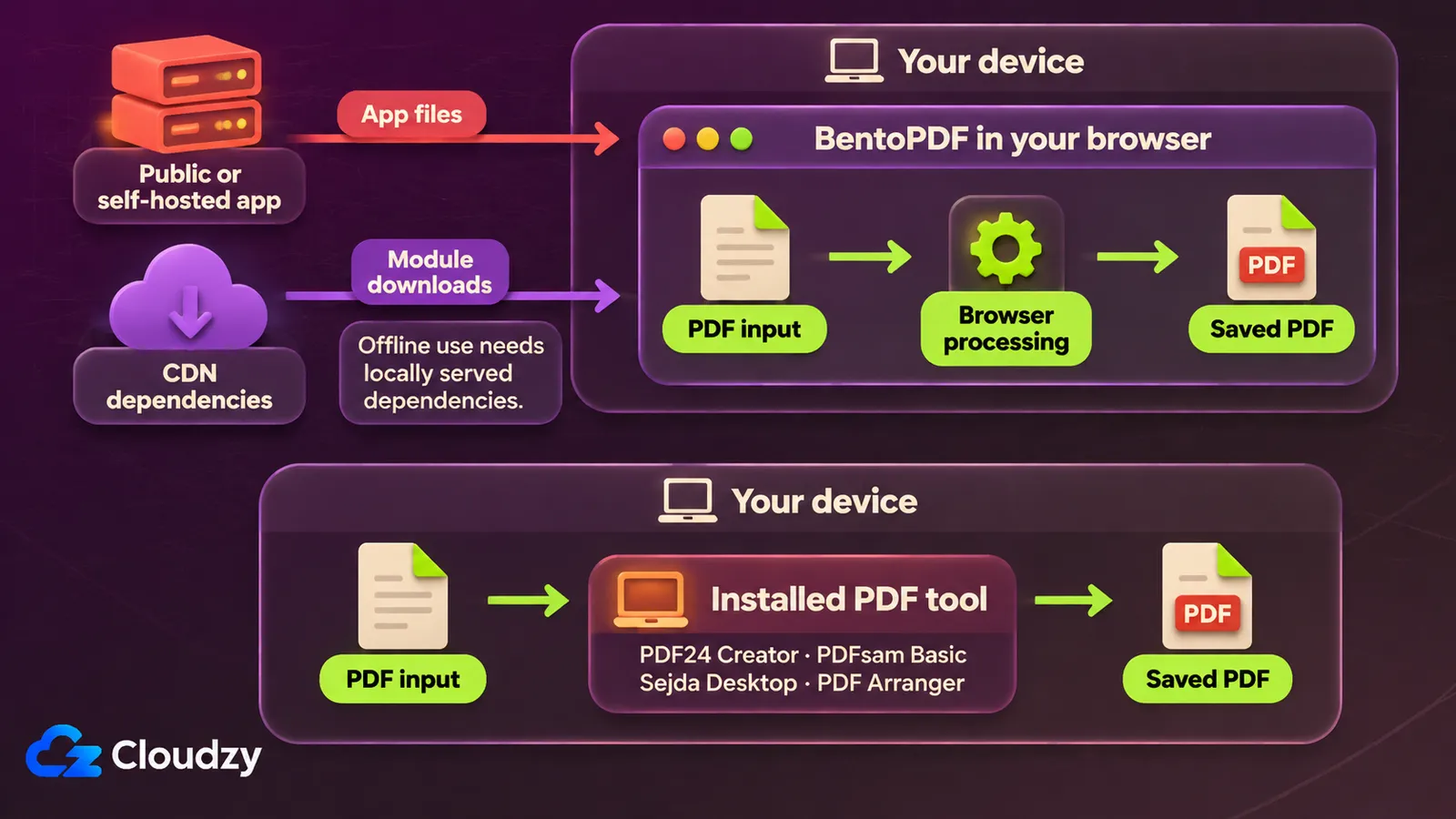
An installed PDF tool needs no hosted application for these jobs, and a public browser app may be sufficient. Serve your own BentoPDF copy when a persistent shared URL and control over the delivered app are useful. Existing local or static hosting remains a valid route; a VPS is an optional independent host.
BentoPDF's self-hosting instructions describe static serving; the host delivers the application while browsers process documents. For an independent shared copy, you can deploy BentoPDF using our one-click app. If you operate a Linux server, make deliberate configuration part of the setup, using the Linux VPS security checklist as general operating guidance.
Check One Representative File Before Switching
Take a copy of a representative PDF and perform the operation you intend to replace. Check the resulting page count and order, readable text and layout, and whether the file opens on the recipient's intended device. Confirm the relevant task and file limits before making the new tool your default.
Use a sample with the awkward detail your routine work contains: a rotated scan, a text correction or a selected range inside a larger document. Keep your existing workflow available until that job passes. If you also depend on conversion, give that operation its own sample before moving it to the new tool.
Frequently Asked Questions
Does a PDF Toolbox Replace a Document Archive?
A PDF toolbox handles operations on a file, such as splitting, merging or changing pages. A document archive addresses organizing and retrieving a collection over time. If finding a saved document later is the problem, evaluate how you will organize and retrieve the collection before choosing the archive.
Can These Tools Replace a Recipient-Signing Workflow?
Recipient signing involves sending documents to recipients and retaining evidence of the completed signing process. Adding a signature mark addresses only the document itself. Evaluate delivery and retained evidence separately using the recipient-signing workflows and evidence comparison before selecting a tool for that job.
Can I Keep Stirling-PDF for Comparing Documents?
Yes. Stirling-PDF's Tools documentation lists Compare for showing text differences between two PDFs. You can replace routine page work while retaining that operation. Check what your comparison task requires before removing the incumbent; choosing a replacement for one job does not require replacing every operation together.



Discussion
Comments
Sign in to join the discussion.