
You go looking for how to overclock your GPU safely, you open a well-ranked guide, and every number in it is a frames-per-second number. Add core clock, watch the FPS counter climb, done. But you don’t spend most of your GPU’s life in a game. You render in Blender, you run a model locally, you stream, or you do some mix of all three, and the guide has nothing to say about any of it. It treated a graphics card as if the only workload that exists is the one it was thinking about.
That gap is the reason this guide exists. Overclocking is decades old and thoroughly documented for gamers, but the one idea that reframes it for everyone else almost never makes the page: what you overclock matters as much as how much. Core clock and memory clock do not help the same work. Pick the wrong lever for your workload and you get heat, instability, and a benchmark that barely moves. Match the control to the measured bottleneck, and the change is more likely to produce a measurable improvement.
So this is one procedure for overclocking a GPU safely, followed by a workload-by-workload look at gaming, rendering, AI inference, streaming, and laptops across NVIDIA, AMD, and Intel Arc. The general testing method is consistent, but the bottleneck, available controls, and potential benefit are not.
The Short Version
The most important point is that there is no universal safe GPU overclock. Start from stock settings, change one variable at a time, and pause for any error, thermal issue, performance regression, or boost clocks repeatedly constrained by the power limit.
Core versus memory: a higher core clock can help shader- or compute-limited workloads, while a higher memory clock can help bandwidth-limited workloads. Games, renderers, and AI workloads can move between those bottlenecks, so test the two clocks separately instead of assuming one always matters more.
Temperatures: use the maximum GPU and hotspot temperatures published for your exact card or laptop. Leave operating headroom below those limits rather than treating one temperature range as safe for every GPU.
Process: record a stock baseline, tune the core in small steps, return to stock and tune memory separately, then combine the stable settings and validate them with multiple tests and your real workload.
Tools: start with the current NVIDIA, AMD, or Intel utility for your GPU. MSI Afterburner remains useful for cross-brand manual tuning where the driver and firmware expose the required controls.
What This Guide Doesn’t Cover
This is safe, everyday overclocking using conventional air or liquid cooling and software-exposed controls. A few adjacent topics are deliberately out of scope because they carry different risks and serve a different audience:
- Extreme overclocking with liquid nitrogen and other sub-ambient cooling, a different sport with different rules.
- BIOS flashing and power-limit unlocking beyond what the vendor tools expose, which is too risky for a general guide.
- Crypto-mining tuning, a different optimization target (efficiency per watt, not peak performance).
- AI training overclocking: training stresses the card differently than inference, so on the AI side this guide is inference-only.
What Do Core Clock, Memory Clock, and Power Limit Actually Do?
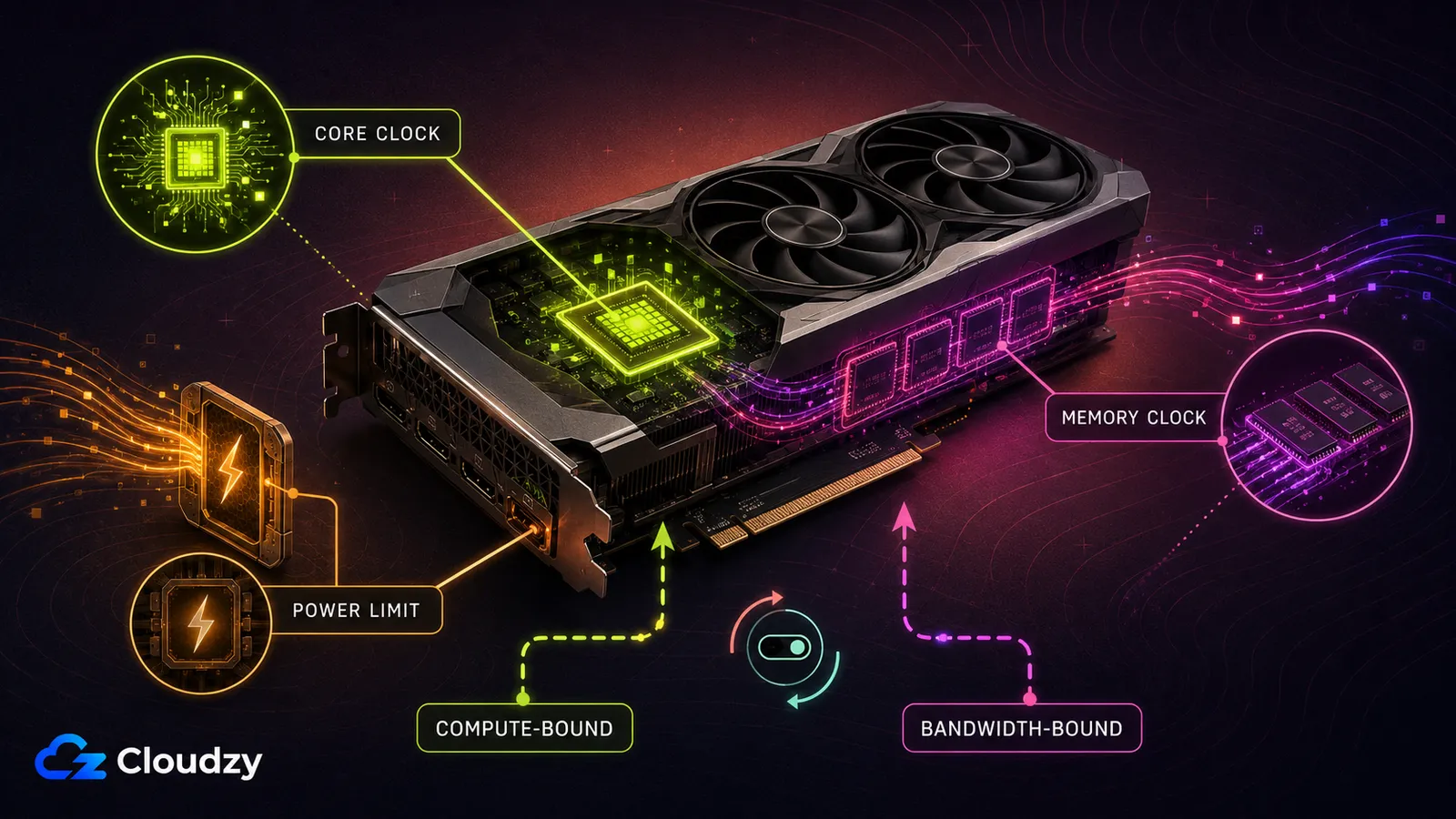
Core clock controls the operating frequency of the GPU’s processing units. Memory clock controls the effective transfer rate of the VRAM. Power limit sets the amount of board power the GPU may use before its boost behavior has to reduce frequency. None of these controls guarantees more performance on its own.
A workload is compute-limited when the GPU’s processing units are the main bottleneck. It is bandwidth-limited when moving data between VRAM and the GPU is the limiting factor. These are not permanent labels: the bottleneck can change between games, scenes, models, inference phases, settings, and batch sizes.
Start with the default power limit. If monitoring shows that the power limit is repeatedly constraining the card’s boost clocks, and the power supply, cooling, and card specifications provide enough headroom, you can raise it within the range exposed by the approved tuning utility. Setting it to maximum is not a prerequisite for a safe overclock, and beginners should leave voltage at its default value.
Section takeaway: identify the bottleneck through measurements. Do not assume that every game needs more core clock or that every rendering and AI workload needs more memory clock.
Which GPU Overclocking Tool Should You Use in 2026?
MSI Afterburner remains an officially available cross-brand tuning and monitoring utility. However, the controls it exposes depend on the GPU, driver, firmware, and software version. This matters particularly with newly released GPUs and Intel Arc cards, so verify that your exact model is supported before applying a profile.
The current vendor utilities are NVIDIA App, AMD Software: Adrenalin Edition, and Intel Graphics Software. NVIDIA App provides Automatic Tuning, which NVIDIA says will not damage the GPU or invalidate its warranty. AMD Adrenalin provides automatic and manual GPU, VRAM, fan, and power tuning on supported Radeon cards. Intel exposes tuning on selected desktop Arc products; mobile Intel Arc GPUs cannot be overclocked through Intel’s supported method.
Use more than one stability test. FurMark is useful for exposing cooling and power behavior under a very heavy load, but it should not be your only stability test. Combine a benchmark or stress test such as OCCT, 3DMark, or Unigine with the games, renders, or compute jobs you actually run.
Automatic tuning is generally easier to use, while manual tuning provides more control. There is no reliable fixed percentage by which manual tuning outperforms automatic tuning, so compare both methods on your own card and workload.
| Tool | Supported hardware | Warranty consideration | Best use |
|---|---|---|---|
| MSI Afterburner | Multiple brands where controls are exposed | Depends on the card manufacturer and cause of any damage | Manual offsets, fan curves, monitoring, and V/F tuning |
| NVIDIA App | Supported NVIDIA GPUs | NVIDIA says Automatic Tuning does not invalidate its warranty | Conservative one-click tuning |
| AMD Software: Adrenalin Edition | Supported AMD Radeon GPUs | AMD says running beyond stock specifications voids the AMD product warranty | Native Radeon GPU, VRAM, fan, and power tuning |
| Intel Graphics Software | Selected desktop Intel Arc GPUs | Intel says overclocking an Intel-branded card with it does not void the warranty; partner cards follow the board maker | Supported Arc performance tuning |
| OCCT, 3DMark, Unigine, and FurMark | Depends on the individual test | Not tuning utilities | Thermal, power, benchmark, VRAM, and stability testing |
How Do You Overclock a GPU Step by Step?
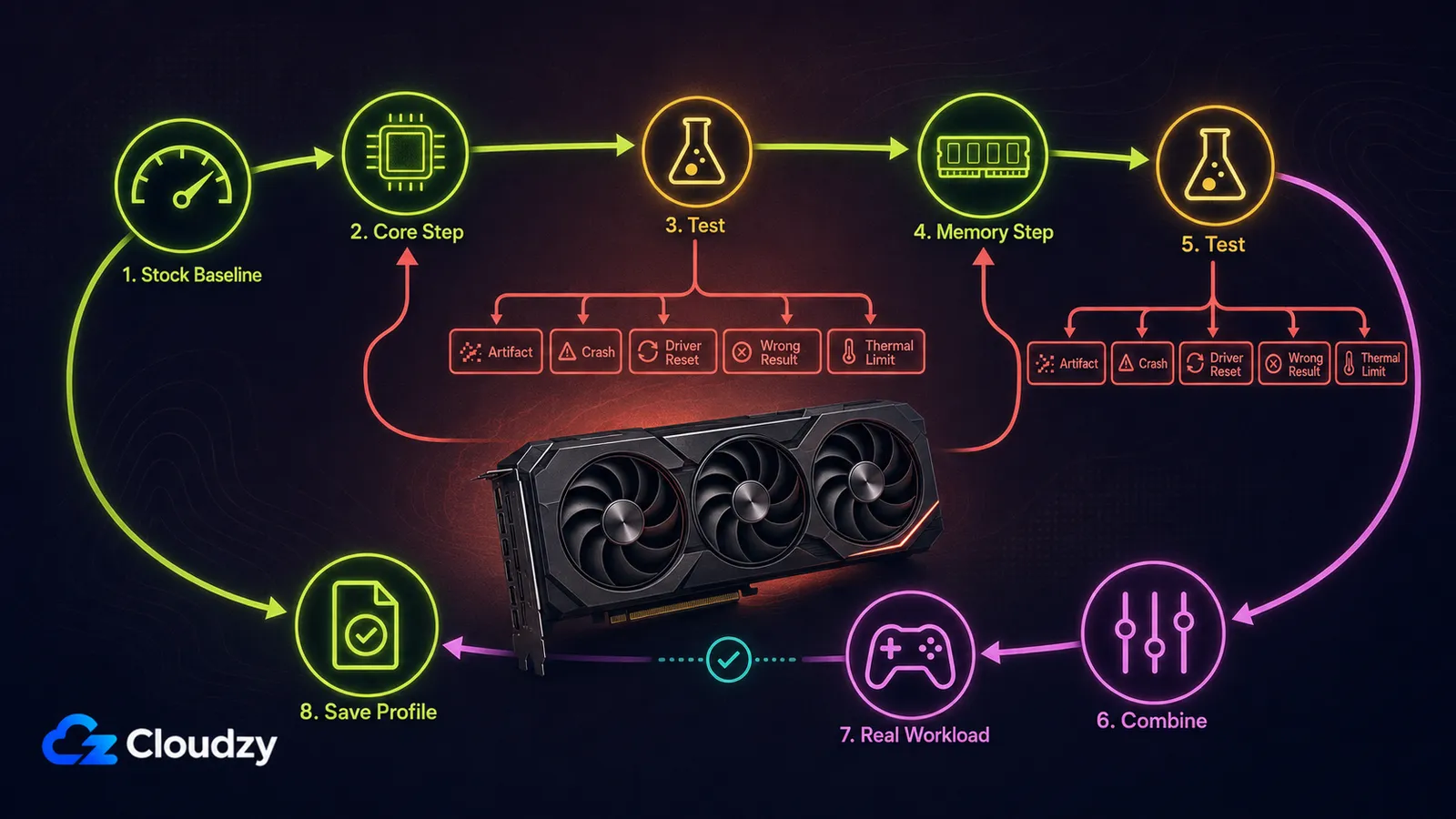
The safe method is to establish a stock baseline, tune one control at a time, test every change, and leave a margin below the first unstable setting. Do not apply an overclock automatically at startup until it has passed final validation.
- Confirm that tuning is supported. Update the GPU driver and tuning utility, identify the manufacturer’s temperature and power specifications, and make sure the power supply and cooling system are adequate. Reset every tuning control to stock.
- Record a stock baseline. Run the same benchmark or workload you will use during tuning and let the GPU reach a steady temperature. Record the score or completion time, sustained clock, temperature, hotspot temperature where available, power draw, and fan speed.
- Prepare the cooling and power settings. Adjust the fan curve if necessary. Leave voltage at stock. Raise the power limit only if monitoring shows that the power limit is repeatedly constraining boost clocks and the card has sufficient thermal and power headroom.
- Tune the core clock. Increase it by a small increment, commonly 15 to 25 MHz, then rerun a short test. Continue until you see an error, crash, driver reset, artifact, thermal problem, or lower score. Return to the last stable setting and reduce it slightly to leave a margin.
- Tune the memory separately. Return the core to stock, then raise memory in small displayed increments, commonly around 50 to 100 MHz. Different utilities and memory generations report offsets differently, so do not copy a number from another tool or GPU. Test for visual corruption, application errors, incorrect results, and performance regression.
- Combine the stable core and memory settings. A core setting and memory setting that pass independently may fail when combined because they share power and thermal headroom. Reduce either setting if the combined profile is unstable.
- Run final validation. Use more than one benchmark or stress pattern, followed by a full-length session of your actual game, render, stream, or compute workload. For rendering and compute work, include a repeatable correctness check rather than relying only on whether the application crashes.
Only save the profile or enable “apply at startup” after the combined settings pass final validation.
Pro tip: artifacts do not identify the unstable component with certainty. Core instability, memory instability, insufficient power, excessive heat, and driver problems can all produce visual errors or crashes. If a failure appears, return to the last known-good setting and isolate the variables again.
How Does Overclocking Affect Your Specific Workload?
The payoff differs sharply by workload. In short: GPU-bound gaming often benefits most from core clock; rendering can be limited by compute, memory bandwidth, VRAM capacity, or another part of the pipeline; AI inference can shift between compute-intensive prefill and bandwidth-sensitive decode; hardware-encoder quality does not improve from either clock; and laptop gains are often thermally limited or locked by the manufacturer.
| Workload | Core-clock potential | Memory-clock potential | Realistic expectation |
|---|---|---|---|
| GPU-bound gaming | Often useful | Can matter in bandwidth-heavy settings | Usually modest; benchmark each game and setting |
| Blender/Cycles rendering | Can be important | Scene- and backend-dependent | No universal percentage; test the actual scene |
| LLM inference | More relevant to prompt processing | Often more relevant to low-batch decoding | Depends on model, batch size, context, and runtime |
| Hardware streaming | May improve game headroom | No direct encode-quality benefit | Encoding quality does not improve from an OC |
| Laptop GPU | OEM- and cooling-dependent | OEM- and cooling-dependent | Often locked or thermally limited |
How Much FPS Does Overclocking Add in Games?
In a genuinely GPU-bound game, a higher core clock often produces the clearest benefit, while memory clock can matter at high resolutions or settings that create heavier memory traffic. A CPU-limited or engine-limited game may show almost no improvement. Compare identical built-in benchmark runs and inspect frame times as well as average FPS, because a higher average is not useful if the overclock introduces stutter or instability.
Does Overclocking Speed Up Blender and Rendering?
It can, but large scenes are not automatically memory-bandwidth-bound. Blender Cycles can be limited by shader and ray-tracing compute, VRAM bandwidth, VRAM capacity, or another part of the rendering pipeline, depending on the scene and backend. More memory clock does not increase VRAM capacity, so it cannot make an oversized scene fit.
Test core and memory separately with the same Blender scene and rendering backend. Keep the setting that measurably reduces render time without changing the output or causing errors. Treat any fixed render-time gain you read elsewhere as unverified unless it comes with the card model, scene, backend, stock result, tuned result, and a reproducible benchmark. For help selecting the underlying hardware, see Cloudzy’s GPU for CAD guide.
Does Overclocking Help AI/LLM Inference?
Sometimes, but the useful setting depends on the inference phase. Prompt processing, or prefill, is generally compute-intensive, while autoregressive token generation, or decode, is commonly constrained by memory bandwidth at small batch sizes. Larger batches, long contexts, quantization, attention kernels, and the inference runtime can change the balance.
A memory overclock may improve decode speed, while a core overclock may matter more to prompt processing. Measure time to first token and output tokens per second separately. Do not trust a specific RTX 4090 memory offset quoted as a fixed token-per-second gain; measure it on your exact model, runtime, quantization, batch size, and context length.
Consumer tuning instructions also should not be applied to data-center accelerators such as the A100. Cloud and hosted GPUs commonly keep clock and power controls under administrator or provider control.
Does Overclocking Improve Streaming Quality?
No, overclocking does not directly improve hardware-encoder quality. NVIDIA NVENC and AMD’s hardware encoder, exposed through AMF, use dedicated encoding hardware. Stream quality is primarily controlled by the encoder generation, codec, bitrate, resolution, preset, and streaming settings.
An overclock may improve the game’s frame rate if the game is GPU-bound, but it can also make a long stream less stable. Validate the complete gaming-and-streaming workload rather than testing the game alone.
Can You Overclock a Laptop GPU?
Sometimes, but access depends on the GPU and laptop manufacturer. Intel states that mobile Intel Arc graphics cannot be overclocked through its supported tuning method. NVIDIA and AMD laptop controls vary by OEM, firmware, GPU power configuration, and cooling design.
Do not treat 95 to 100°C as a universal normal operating range for laptop GPUs. Use the limits documented for the exact laptop and GPU, and do not bypass a firmware lock. On thermally constrained laptops, cleaning the cooling system, improving airflow, adjusting the fan profile, or using a supported undervolt may produce better sustained performance than an overclock.
How Much Can You Safely Overclock Your GPU?
There is no architecture-level offset that is safe for every card. Two cards using the same GPU can have different factory clocks, board power limits, coolers, firmware, VRAM modules, and silicon quality. An offset that works on one RTX 4090, RX 7900 XTX, or Arc B580 may fail on another.
Start every clock at zero and discover the individual card’s limit through testing. Offset values also are not directly comparable between MSI Afterburner, AMD Adrenalin, and Intel Graphics Software.
Section takeaway: a safe overclock is a tested result for one specific card, not a number copied from an architecture table.
| Setting | Safe starting point | Change only when | Default advice |
|---|---|---|---|
| Core clock | 0 offset | Stock operation is stable and temperatures are controlled | Increase in small tested steps |
| Memory clock | 0 offset | Core testing is complete and memory can be isolated | Test separately before combining |
| Power limit | Default | Power limit repeatedly constrains boost clocks and adequate headroom remains | Do not maximize automatically |
| Voltage | Default | The user understands V/F tuning and accepts the added risk | Leave unchanged for beginner tuning |
| Apply at startup | Disabled | The combined profile passes final validation | Enable only after full validation |
What Temperatures and Signs Tell You the Overclock Is Safe?
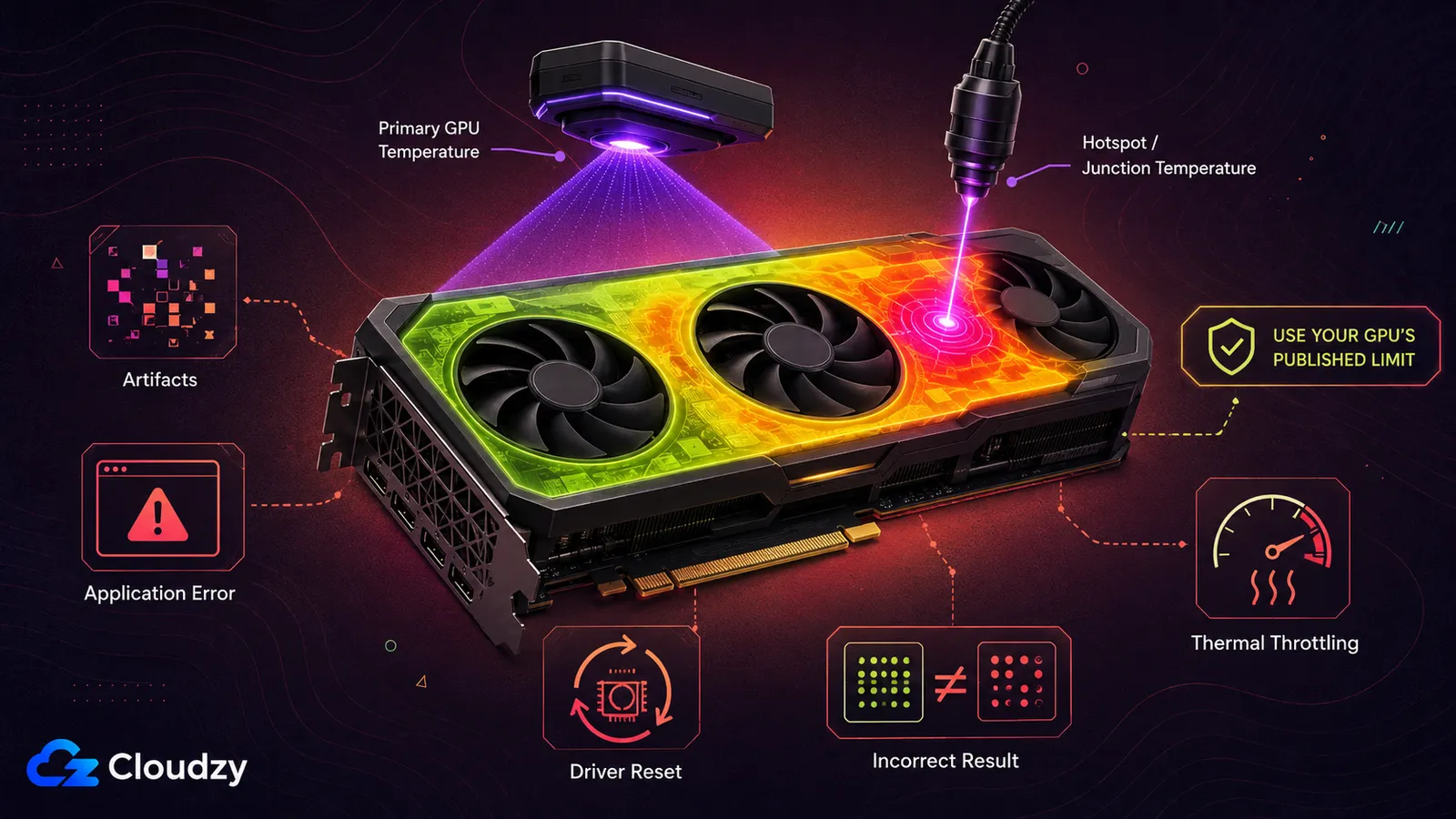
No single temperature limit is safe for every GPU. The linked NVIDIA GeForce specifications provide only a model-specific example: the maximum GPU temperature varies by card. Use the exact card or laptop manufacturer’s published GPU, hotspot, and junction limits. Treat those values as limits, not operating targets, and leave enough headroom for changes in room temperature, dust buildup, fan aging, and longer workloads.
Monitoring tools may report a primary GPU temperature and a hotspot or junction temperature. Vendors calculate and use these values differently, so do not assume the primary value is a die-wide average or a universal thermal-control input. Hotspot or junction temperature usually reflects the hottest reported sensor location on supported GPUs. It is normally higher, but judge both readings and their gap against the exact model’s specifications and normal behavior.
Instability can appear as artifacts, black screens, application errors, driver resets, reboots, incorrect benchmark results, or lower performance caused by throttling. Core and memory instability can produce overlapping symptoms, so a visual artifact does not prove that only the core clock is responsible.
If the GPU repeatedly reaches its configured thermal limit, reduce the overclock or improve cooling. Be skeptical of any guide that calls 80 to 85°C universally safe, 88 to 90°C a universal warning zone, or 95 to 100°C normal for every laptop.
Does Overclocking Void Your GPU Warranty?
Overclocking does not have one cross-vendor warranty rule. NVIDIA says Automatic Tuning in the NVIDIA App will not damage the GPU or invalidate its warranty. AMD states that running any AMD processor beyond its stock specifications voids the applicable AMD product warranty, even when AMD’s own hardware or software exposes the controls. Intel says that overclocking an Intel-branded desktop Arc card with Intel Graphics Software does not void its warranty, while warning that overclocking can still damage the card or shorten its lifespan. For an Arc card built by another manufacturer, Intel points you to that board maker’s policy. Laptop manufacturers, retailers, and system builders may impose additional terms.
Do not assume the lenient reading, that coverage is only at risk when the damage can be proven to have come from the overclock. The warranty terms for your exact card are what control. If warranty protection matters, use the manufacturer’s supported tuning utility, avoid BIOS flashing and unsupported voltage changes, save the stock configuration, and read the warranty for the actual card or laptop before tuning.
Conclusion
Safe GPU overclocking is not about finding an offset online and copying it. It is a controlled test: establish a stock baseline, change one variable, measure the result, and leave a margin below the first unstable setting. The correct balance of core clock, memory clock, power, and cooling depends on the specific card and workload.
If an overclock produces only a tiny improvement, more heat, or uncertain output, return to stock. Stability and correct results matter more than a benchmark score. And if the real limitation is insufficient VRAM or compute capacity, no overclock will fix it; a larger local GPU or a GPU VPS is the more relevant upgrade.
Frequently Asked Questions
Is It Safe to Overclock a GPU?
Usually, if you use supported software, change one setting at a time, monitor the exact GPU’s temperature and power limits, and test thoroughly. Unsupported voltage changes, BIOS modifications, inadequate cooling, and untested startup profiles add substantial risk.
Should I Overclock the Core Clock or the Memory Clock?
Test them separately. Core clock can help compute-limited work; memory clock can help bandwidth-limited work. Because games, renderers, and AI inference can shift between bottlenecks, use measurements from the actual workload.
Is MSI Afterburner Still Working in 2026?
Yes. MSI still distributes Afterburner. Available controls depend on the GPU, driver, firmware, and software version. For newly released hardware, verify support or use the GPU vendor’s current tuning utility.
How Much Can I Overclock My GPU?
No universal offset is safe, even for two cards with the same GPU. Start from zero, increase one clock in small steps, back down after the first error, thermal problem, regression, or instability, then validate the combined profile on the real workload.
How Do I Know if My GPU Is Stable After Overclocking?
Use several tests. Check temperatures, clocks, power limits, artifacts, driver errors, benchmark consistency, and output correctness, then run the real workload at full length. Do not apply the profile at startup until it passes.


Discussion
Comments
Sign in to join the discussion.