With the ever-rising demand for local LLMs, many users find themselves confused when choosing the most suitable one, but using them isn’t as simple as you might think. Being moderately power-hungry, some more than others, many prefer not to go near them, not to mention the many hours beginners might spend staring at the terminal box.
There are, however, two prominent candidates that make life simpler. Ollama and LM Studio are two of the most widely used platforms with cutting-edge performance for running local LLMs. But choosing between the two can prove to be difficult, since each is designed to serve different workflows. Without further ado, let’s look at the competition regarding Ollama vs LM Studio.
Ollama as a Tech-Savvy Tool for Experts
As far as local LLM runners go, Ollama is a strong option thanks to its many features. Not only is it highly configurable, but you can also access it for free, since it’s a community-backed open-source platform.
Although Ollama makes running local LLMs simpler, it’s CLI-first (command line interface), so it still requires some terminal knowledge. Being CLI-first is a huge plus for development workflows due to its simplicity. Although it’s not an easy task to work with a CLI, it’s less time-consuming to wrap your head around compared to running local LLMs on your own.
Ollama implements your personal computer as a local mini-server with an HTTP API, giving your apps and scripts access to its many models, which means that it responds to prompts the same way an online LLM would, without sending your data to the cloud. Not to mention that its API enables users to integrate Ollama and plug it into websites and chatbots.
Due to its CLI nature, Ollama is also pretty lightweight, making it less resource-intensive and more performance-focused. This, however, doesn’t mean you can run it on your potato computer, but it’s still somewhat promising for users who want to squeeze every bit of resource and funnel it to the LLM model itself.
With all that said, you might have guessed by now that Ollama is heavily focused on development workflows, and you’re right. Thanks to its easy integration, local privacy, and API-first design, it’s a no-brainer to choose if you’re more oriented toward a developer mindset.
In the Ollama vs LM Studio debate, Ollama may be more preferable due to its API-first development. If a CLI runtime is too foreign for you, stick around for a lighter option designed with ease of use in mind.
LM Studio: A User-Friendly Option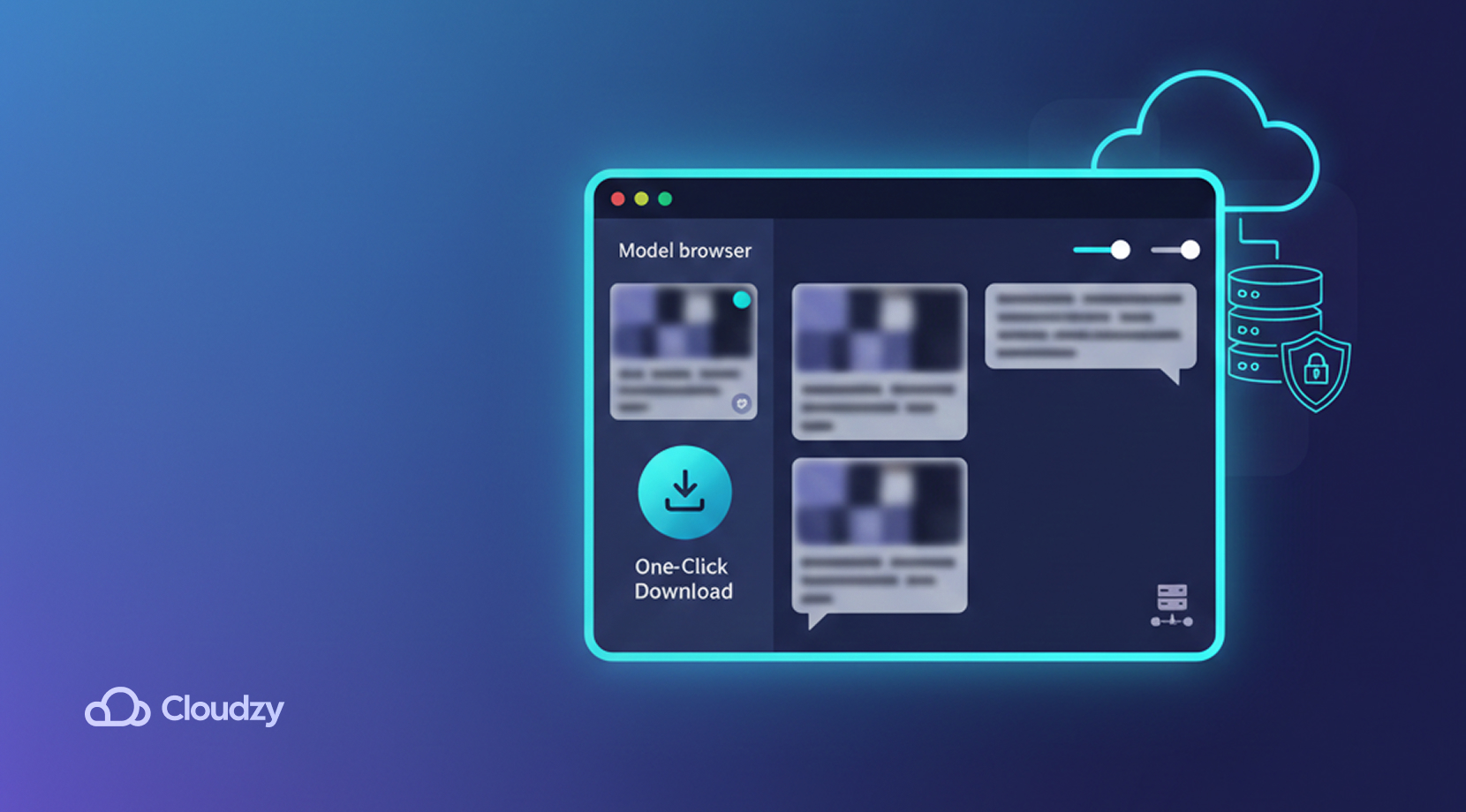
LM Studio stands in heavy contrast to Ollama. Instead of being a full-duty CLI interface, it doesn’t require any terminal commands to run, and because it’s equipped with a GUI (graphical user interface), it looks just like any other desktop app. For some newbies, Ollama vs LM Studio comes down to CLI simplicity vs a GUI.
LM Studio’s approach to removing technical barriers goes a long way to provide a simple space for any user. Instead of adding and running models with command lines, you can just use the menus provided and type in a chat-like box. It seems as if anyone can use LM Studio to play around with local LLMs, since it looks seamless to ChatGPT.
It even comes with a neat in-app model browser where users can discover and deploy any model of their liking, ranging from lightweight models aimed for casual actions, up to heavy-duty ones for tougher tasks. Moreover, this browser provides short descriptions of available models and recommended use cases, and allows users to download models with a single click.
Although most models are free to download, some might include additional licenses and usage rights. For some workflows, LM Studio can also provide a local server mode for easy integrations, but it is designed mainly around an easy desktop UI for beginners. But, with all that said, let’s look at both Ollama and LM Studio side by side.
Noteworthy Observations: Ollama vs LM Studio
Before we progress any further, one critical issue must be mentioned: the phrase “Ollama vs LM Studio” might suggest that one is objectively better than the other, but that’s not the whole story, as they are meant for different audiences. Here’s a quick Ollama vs LM Studio rundown.
| Feature | Ollama | LM Studio |
| Ease of use | Less friendly at first, requires terminal knowledge | Beginner-friendly, requires clicking your mouse a bunch |
| Model support | Many popular open-weight models, gpt-oss, gemma 3, qwen 3 | Just the same as Ollama. gpt-oss, gemma3, qwen3 |
| customization | Highly customizable, easily integrates via API | Less freedom, adjust common settings via toggles/slides |
| Hardware demands | That depends; larger models are slower without enough hardware | Again, depends on the model size and your own hardware |
| Privacy | Great privacy by default/no additional external API | Chats stay local; the app still contacts servers for updates and model search/download. |
| Offline usage | Fully supports offline after downloading models | Also excellent offline once models are downloaded |
| Available platforms | Linux, Windows, macOS | Linux, Windows, macOS |
- Advanced models hardware headache: Almost anyone would go for a larger, more capable model when possible. Running them on most laptops, however, can cause serious issues, since larger models are more RAM- and VRAM-hungry. This can mean slow responses, limited context length, or the model not loading at all.
- Battery issues: Running LLMs locally can quickly drain your battery under heavy load. This can lead to reduced battery life, not to mention the irritating noise the fans and heatsink would make.
Ollama vs LM Studio: Pulling Models
Another aspect of Ollama vs LM Studio is their different approaches to pulling models. As mentioned earlier, Ollama doesn’t install local LLMs with a single click. Instead, you need to use its native terminal box and command lines to do that. The commands, however, are simple to understand.
Here’s a quick way to run models on Ollama.
- Pull your favourite model by typing ollama pull gpt-oss or any other model of your liking(Don’t forget to include a tag, which you can pick from the library).
Example: ollama pull gpt-oss:20b - You can then run the model in question with the command ollama run gpt-oss
- Additional coding tools can be added as well. You can add Claude, for instance, with ollama launch claude
If terminals and commands aren’t what you’re used to, give LM Studio a chance. You don’t have to type anything into any terminal for it to start working and pulling models. Simply scroll over to its built-in model downloader and search for LLMs by keywords like Llama or Gemma.
Alternatively, you can enter full Hugging Face URLs in the search bar.
There’s even an option to access the discover tab from anywhere by pressing ⌘ + 2 on Mac, or Ctrl + 2 on Windows / Linux.
Ollama: Superior in Terms of Speed
Sometimes speed is all that matters to users and businesses. Turns out, when talking about Ollama vs LM Studio in terms of speed, Ollama is faster, but that might still vary among different configurations and hardware setups.
In the case of one Reddit user in the r/ollama subreddit, Ollama processed faster than LM Studio.
Not a baseless statement, though, because the user tested both Ollama and LM Studio by running qwen2.5:1.5b five times and calculated the average tokens per second.
Ollama vs LM Studio: Performance and Hardware Requirements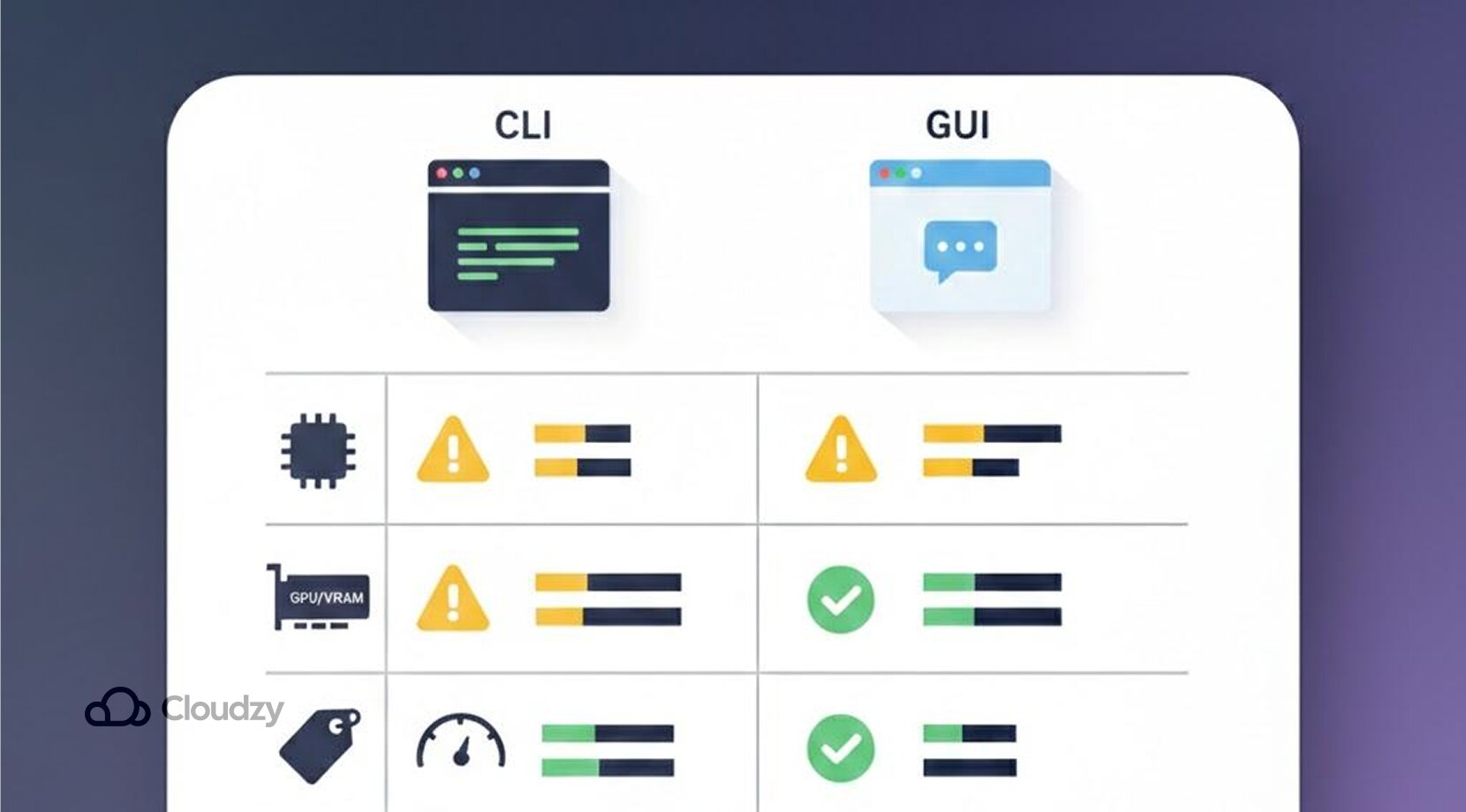
Performance is where Ollama vs LM Studio becomes more about hardware rather than UI. Experiencing local LLMs for the first time is definitely something else compared to the cloud LLMs we’re used to. It feels empowering to have an LLM just to yourself, until you hit a performance wall.
Considering how the prices of RAM and VRAM have skyrocketed in the past few years, it’s pretty tough to equip your machine with enough power to run large LLMs.
Popular Models Tend to Gobble up 24-64GB of RAM
Yes, you heard it. Hardware requirements aren’t about who wins in Ollama vs LM Studio. If you want a smooth experience when running popular mid- to large models without slowdowns or failures, your best bet is to install 24-64GB of RAM. In most cases, however, even that amount of RAM becomes irrelevant with longer context and heavier workloads.
You can, however, run smaller, often called quantized models, on 8-16GB of RAM, but you don’t get the same luxury or performance as with the larger ones, not to mention there will still be some quality and speed trade-offs. Unfortunately, RAM isn’t the only issue; other components must be robust as well.
Strong GPUs are a Cornerstone for Keeping Frustration at bay
Although models can run on CPUs, your graphics processing unit still plays a key role in enabling your model. Without a fast GPU and a great deal of VRAM, you will experience slow token-by-token generation, long delays for longer responses, and everything quickly turns unbearable.
Don’t get your hopes up because not even the almighty RTX 5070Ti nor the RTX 5080 is enough for serious deep learning. That’s because for some 60k+ context setups, Ollama itself mentions ~23GB VRAM, which is much more than the typical 16GB VRAM you get from those GPUs.
Going for anything above that power range is also astronomically expensive. If price isn’t something you worry about, there are still some GPU options to consider when running local LLMs.
By now, you might have gotten confused about how to assemble a machine strong enough to run larger local LLM models. This is the turning point for many people as they consider a different solution.
One alternative approach that enthusiasts consider is using virtual machines with robust, pre-installed hardware. Using a VPS (virtual private server), for example, is a great way to connect your home laptop or other personal hardware to a private server of your choosing, with all the prerequisites already set up.
If using a VPS sounds like a good solution to you, then we seriously recommend Cloudzy’s Ollama VPS, where you can work in a clean shell. It comes with Ollama preinstalled, so you can jump right into working with local LLMs with complete privacy. It is affordable with 16+ locations, 99.99% uptime, and 24/7 support. Resources are plentiful, with dedicated VCPUs, DDR5 memory, and NVMe storage over an up to 40 Gbps link.
Ollama vs LM Studio: Who Needs Which
As said earlier, both platforms are highly functional, and neither is preferable, but here’s the catch. Each fits a different type of workflow, so it depends on what you need.
Choose Ollama for Automation and Development
Your goal when using Ollama isn’t just to chat with a model, but to use it as a component inside another project. Ollama is ideal for:
- Developers building products like chatbots, copilots, and other products requiring deep learning
- Workflows involving a ton of automation, like report summarizing scripts or draft generation on a schedule
- Teams that want consistent model versions in any environment
- Any user seeking an API-first approach, so that other tools can connect to models on a regular basis
Ultimately, if you want models to be dependable for your apps, Ollama might be your best bet.
LM Studio is the Easier Option to Approach Local LLMS
If you’re looking to explore local AI setups without technical hassle, LM Studio is definitely the better option.
In general, LM Studio is better for:
- Beginners who are terrified of the terminal and its command lines
- Writers, creators, or students who are in need of a simple chat box like AI assistance
- People who try different options, seeking to quickly compare various models to find their own niche
- Anyone who is just getting used to prompting and wants to adjust settings without typing
In short, if you want to download and hop right on some local LLMs, let LM Studio satisfy your needs.
Ollama vs LM Studio: Final Recommendation
If you set aside the hype around the competition between Ollama and LM Studio, what really matters is your day-to-day experience, centered on your workflow and hardware limits.
Ollama is in general:
- Flexible and developer-centered
While LM Studio is:
- Available for beginners with a dedicated GUI
Both require heavy, expensive hardware to work smoothly. Many people don’t have the luxury of running a large local LLM all on their own. Therefore, if you want to run advanced models without stressing your hardware, consider trying Ollama on a dedicated GPU VPS. Below are some common questions about Ollama vs LM Studio.