
If your Playwright or Selenium scraper slows down on a VPS or misses its deadline, more RAM may help, but a timeout alone cannot tell you what to upgrade. Size a VPS for web scraping by measuring the complete job, including browser processes, result writing and any services sharing the host. Then adjust concurrency and check whether the required data finishes on time.
Test a Candidate VPS Size Against Your Workload
For a browser job with controlled concurrency and few companion services, I would start by testing 4 GB RAM / 2 vCPU. Evaluate 8 GB RAM / 4 vCPU if the smaller allocation cannot complete the job on time or leaves too little room for other services. These are starting points for testing, not official Playwright or Selenium minimums or guaranteed browser counts.
| Starting point | When to Test It |
|---|---|
| 4 GB RAM / 2 vCPU | A browser job with controlled concurrency and few companion services |
| 8 GB RAM / 4 vCPU | Measurements show the smaller allocation lacks capacity for the job or companion services |
| A different RAM/CPU balance | Measurements identify a need the first two configurations do not address |
| Lower concurrency or less browser work | Additional parallel work hurts completion, or the required data is available without rendering |
Keep the existing host as a candidate. If it already completes the required extraction within the operating conditions you need, the record can justify keeping it. If you’re testing a new host, explore our Linux VPS plans for a RAM and vCPU configuration that fits your workload. We provide root access so you can install Playwright or Selenium and configure the browser environment and resource limits you need to test.
Also check whether the data requires a rendered page. If an authorized HTTP or API path returns the required data, evaluate that workload separately. Preserve the output requirements when making the comparison; returning fewer fields or skipping difficult pages changes the job. There is no useful capacity comparison between a complete extraction and an incomplete one.
Count the Whole Browser Workload
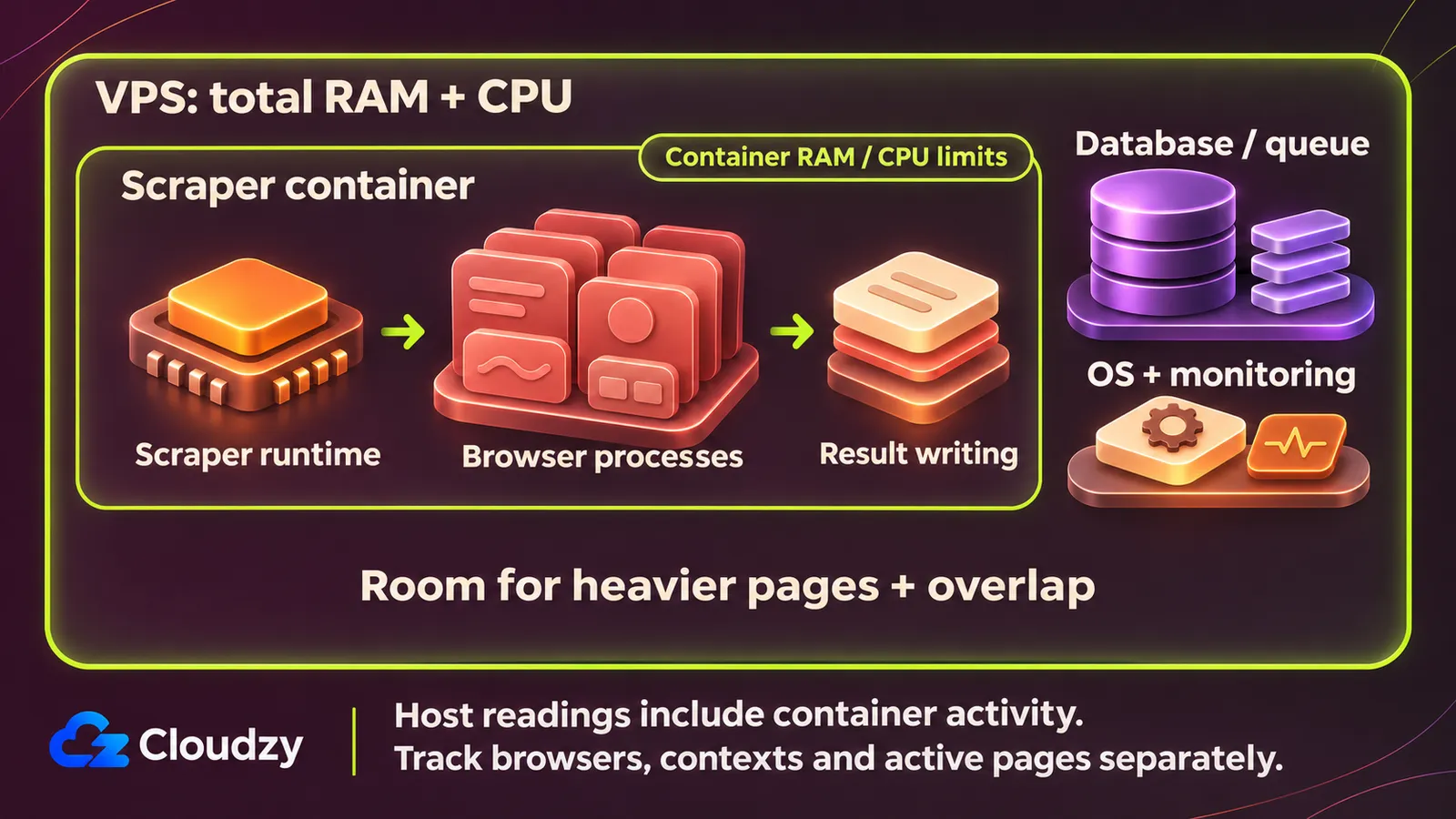
A scraper running beside a database must fit its runtime, browser processes, active pages and database work into the usable budget. Chromium's multi-process architecture separates the browser process from renderers and other process types. My sizing recommendation is to account for the full workload before interpreting any individual process reading.
A browser instance is the running browser managed by the automation code. In Playwright, a context provides isolated browser state, and pages belong to a context. Playwright's browser-context documentation describes incognito-like isolation and allows multiple contexts in one browser. Its description of contexts as cheap to create supplies no numerical RAM allowance. Account for the pages doing work inside them.
The same documentation distinguishes manually created library contexts from Playwright Test's automatic context creation. A scraper using the library needs its own concurrency cap; test-runner worker settings do not establish that cap. Record the number of browser instances, contexts and active pages separately. Do not substitute one count for another or assume a fixed relationship between tabs and Chromium processes.
For Selenium, record the driver sessions and their browser processes. Its driver-session documentation distinguishes local and remote execution and recommends quit to end a session. Closing a window is a different operation. In Playwright, the context-close API closes the context's pages. Keep cleanup behavior consistent across runs; do not leave completed work's sessions in the next test's starting state.
Write a manifest before collecting resource values:
- OS, architecture, runtime version, automation package version and browser versions.
- Native or container execution, plus where the runtime, browser and output services run.
- Browser instances, Playwright contexts and active pages, or Selenium sessions; the concurrency cap and cleanup behavior.
- Target/page mix, extraction operations, result-writing behavior, downloads, logs and storage requirements.
- Companion services, including databases, queues and monitoring that share the host.
- Container memory, CPU and IPC settings, where applicable.
- Schedule, expected overlapping runs, normal duration and completion deadline.
Include any desktop dependency. Unattended operation and headless operation are separate considerations: a workflow that manipulates a desktop UI still needs its graphical session. The GUI versus headless boundary becomes relevant if the surrounding automation reaches beyond browser pages. Keep that additional work in the manifest instead of attributing its resource demand to Playwright or Selenium.
Measure a Representative Run Before Increasing Concurrency
Start with one active extraction, measure successful completions and elapsed time, then increase the concurrency cap gradually with the workload held fixed. I recommend recording host observations alongside container observations where applicable. Validate the chosen cap over normal operation and scheduled overlap before accepting it as the deployment's operating limit.
Use your existing permitted extraction job. The commands below observe the machine and container; they do not launch a scraper or establish a benchmark. You need shell access to the Linux host. Docker observations additionally require daemon access and an existing container. Replace scraper with that container's name.
-
Record the configuration and baseline. Complete the manifest and note host memory and CPU behavior before starting extraction. Keep companion services in their normal state. For native execution, account for the runtime and the whole browser process tree using your process observations; omit the Docker commands and container fields. For containers, establish which processes run inside each container and which remain outside it.
-
Observe the host and effective container limits. Run the host commands on the host, with streaming monitors in separate terminals while the job runs:
free -h
vmstat -y 1
docker inspect --type=container scraper
docker stats scraper
free -h prints a snapshot in human-readable units. The procps free manual defines available as an estimate of memory usable for new applications without swapping. Read that estimate alongside the workload; the free column counts unused memory and answers a narrower question. Repeat snapshots during the run and retain the lowest available value you observe.
vmstat -y 1 reports repeating observations at a one-second interval. The procps vmstat manual documents -y as omitting the first report, which otherwise includes statistics since boot. The si and so fields show memory swapped in and out per second. CPU fields include id for idle time, wa for I/O wait and st for time stolen from the virtual machine. These are observations to correlate with the job's progress and errors, not independent root-cause diagnoses.
Docker's inspect command reference documents the JSON configuration output and the container type filter. Record the effective memory, CPU and IPC configuration. Review inspection output for environment secrets before sharing it. Docker's resource-constraints documentation distinguishes the --memory ceiling from CPU constraints such as --cpus and CPU quota. A quota restricts CPU execution time; host vCPU inventory alone does not describe a container's allowance. Record unset limits too, and check the swap configuration.
Docker's stats command reference explains the live CPU, memory usage/limit, network and block I/O readings. On Linux, the CLI subtracts cache from memory usage, so its figure and another accounting source may differ. PIDS includes processes and kernel threads; it is not a browser counter. Host observations already encompass container activity: do not add host and container memory readings as disjoint budgets. Keep units as displayed, including GiB or MiB versus GB and raw bytes. Stop streaming monitors with Ctrl-C.
-
Run one active extraction across the page mix. Include representative lighter and heavier pages, startup, navigation, extraction and writing the results. Record completed and failed extractions and total elapsed time. Define completion by the required saved output. Count a retry's eventual result once as completed work, while retaining the failed attempts in the error record. This is a proposed accounting convention, not a tool default.
-
Raise the cap gradually. Keep versions, topology, page mix, output and other settings fixed. Make a separate record for each cap. Stop increasing when useful completions cease improving, errors rise, the deadline is missed or the remaining reserve is inadequate. Those are recommended test boundaries, not universal utilization thresholds. An increase in work in progress earns no credit by itself.
-
Validate sustained operation and overlap. Run the selected cap for the normal job duration and during expected schedule overlap with companion services or another scheduled extraction. Repeat the run before accepting the configuration. When comparing another host, keep the work fixed and change one resource at a time where practical. A bundled increase in RAM and vCPU does not isolate a RAM effect and cannot establish proportional speedup.
For each VPS configuration and concurrency cap, record the resource limits, memory and CPU readings, swap activity, completed and failed extractions, elapsed time and final decision.
Call the highest value seen in the samples a sampled high value. Sampling can miss short peaks; Docker's --no-stream option returns only the first result and cannot establish a run's peak. Leave unobserved values unknown. Filling a blank with an estimate would weaken the comparison.
Operating reserve is the capacity left for heavier pages, variation between runs and overlapping work. Base it on the conditions you tested rather than a fixed headroom percentage. If the job barely meets its deadline or leaves no room for those conditions, lower the concurrency cap or test a larger allocation.
Choose a Configuration Fix or More Capacity
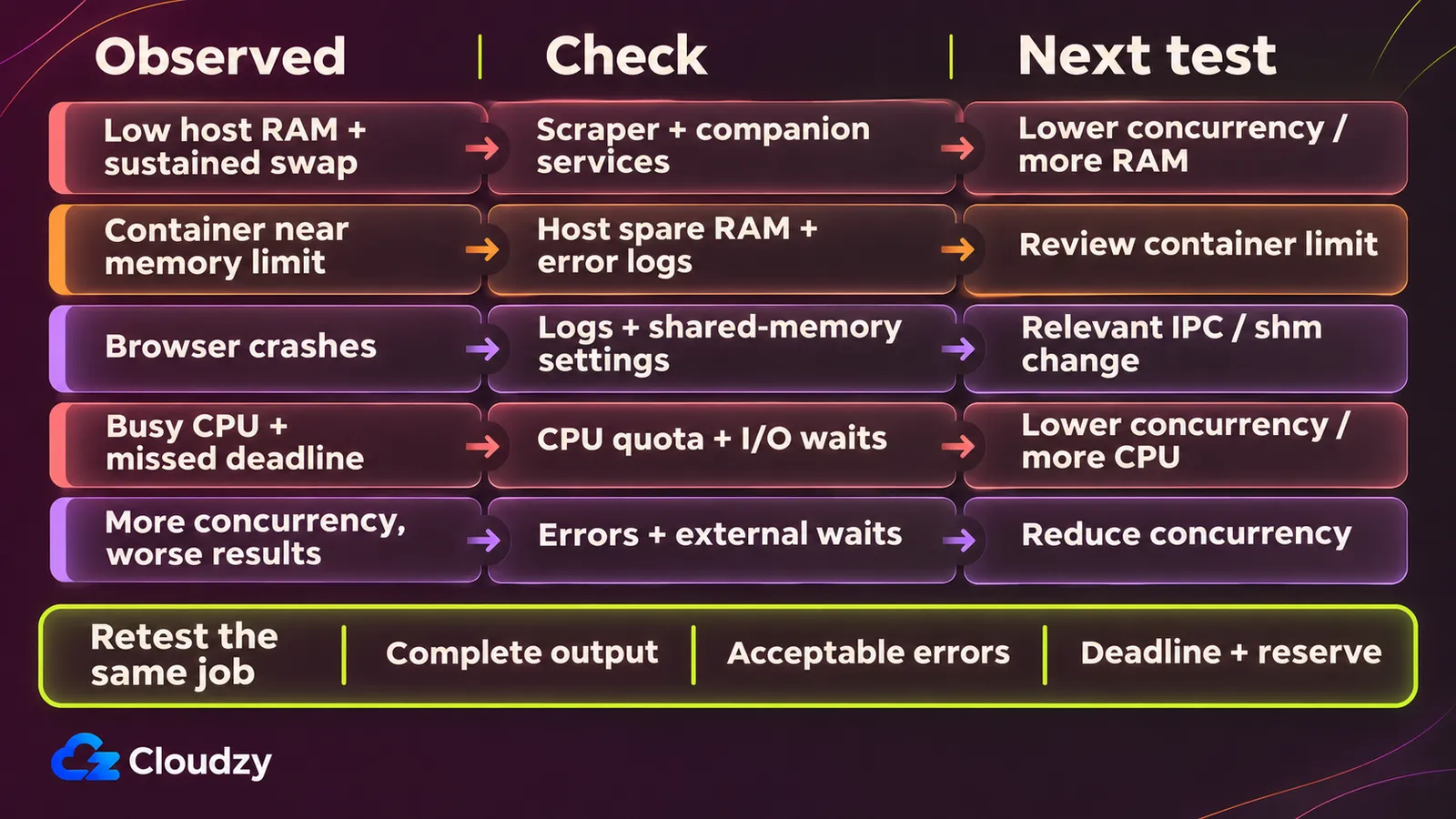
If a container reaches its memory limit while the host still has spare RAM, check that limit before upgrading the VPS. If the host itself is under pressure, compare lower concurrency with a larger allocation. Use the table below to choose the next change, then repeat the same extraction and compare completed output, errors and elapsed time.
| Observed Pattern | Next Check / Action | Acceptance After Change |
|---|---|---|
| Host available memory falls and sustained swapping accompanies poor completion | Compare the full workload and companion services; evaluate lower concurrency or more RAM | Repeated extraction meets its deadline with explained reserve |
| Container approaches its configured memory ceiling while the host has room | Inspect the actual ceiling and failure/log evidence before deliberately revising the limit | Retest the workload; more host RAM alone is insufficient evidence of a fix |
| Browser crashes warrant checking shared-memory configuration | Distinguish /dev/shm from total RAM; inspect Chromium's Docker IPC guidance |
Retest the relevant configuration; an error string alone does not diagnose OOM |
| CPU stays busy, or a configured CPU ceiling is implicated, and the deadline is missed | Check quota, workload and I/O/wait context; evaluate the cap or CPU allocation | More successful work finishes within the deadline; assume no proportional speedup |
| Higher concurrency raises errors or elapsed time without useful completion gains | Reduce the cap and inspect workload behavior and external waits | The required data completes successfully within its window |
Chromium's shared-memory backing depends on its build and launch configuration. For configurations that use /dev/shm, inspect the container's shared-memory filesystem. Docker's container-run reference says --shm-size controls /dev/shm and defaults to 64m when omitted. That setting sizes the shared-memory filesystem; it is not the container's total RAM allowance. Raising a Playwright Docker memory limit and adjusting shared-memory configuration are different interventions.
Playwright's Docker configuration guidance recommends --ipc=host for Chromium and --init for process handling. Its crawling guidance recommends a separate user and seccomp profile for untrusted sites; running browsers as root disables Chromium's sandbox. Apply the relevant crawling configuration as a whole. An IPC setting is not a general security recommendation, and a trusted end-to-end testing example is not an untrusted crawling recipe.
Retain the accepted workload record with the job's configuration. Recheck after changes to page mix, versions, effective limits or overlapping schedules.
If the measurements justify another Linux host for container deployment, we provide a one-click Docker deployment. Use the accepted workload record to select its allocation and carry the tested container settings into the deployment.
Frequently Asked Questions
Does a Remote Browser Remove the Scraper's Local RAM Requirement?
A remote browser still leaves the local runtime/client, extraction logic and output handling to budget wherever they execute. Playwright's remote-connection documentation describes a server running separately from the calling code. Measure the client and remote service separately; this architecture does not establish a numerical local memory saving.
Does Async Make Playwright Use Less RAM?
Not necessarily. Compare the async implementation with your current implementation at the same concurrency cap, using the same pages and output requirements. Record RAM use, completed extractions and elapsed time before claiming a saving. Docker’s resource-constraints guidance recommends testing application memory requirements before production.
Can I Use Selenium Grid's RAM Reference to Size a Scraping VPS?
Selenium's Grid sizing documentation gives an approximate reference of 1 CPU and 1 GB RAM per browser, explicitly warning that it may not apply to your context. It recommends continuous performance measurement. Use that Grid-specific reference with its qualification; it establishes neither a scraper capacity formula nor a local WebDriver minimum.

Discussion
Comments
Sign in to join the discussion.