So you’ve decided to use MongoDB, a great alternative to MariaDB for building a MERN stack app, an analytics platform, or any document-based system, but have hit a wall with good old Linux command lines and countless terminal errors.
No worries, though, because this guide provides everything you need to know from A to Z to install MongoDB on Ubuntu.
MongoDB uses X.Y.Z versioning. 8.0 is a major release series, and 8.2 is a minor release within that 8.0 cycle. Minor releases add features inside the same major cycle and, starting with 8.0, are also offered for on-prem installs for specific use cases (for example, Search and Vector Search). MongoDB 8.0 on Ubuntu supports 24.04 (Noble), 22.04 (Jammy), and 20.04 (Focal) on 64-bit systems, with ARM64 support on select platforms.
GnuPG and Curl Prerequisites
Before installing the official mongodb-org package, Ubuntu requires two prerequisites: GnuPG and Curl. These tools give Ubuntu permission to download MongoDB, because Ubuntu’s own mongodb package is not maintained by MongoDB Inc. and conflicts with the official mongodb-org package. If you have already installed mongodb make sure to uninstall it.
Next up, run the command sudo apt-get install gnupg curl. Curl is a tool for downloading files from the internet and is needed to retrieve MongoDB’s security key. GnuPG is what Ubuntu uses to verify software authenticity. If GnuPG is missing, Ubuntu fails to verify MongoDB packages.
Make sure your terminal successfully installed GnuPG and Curl. If it did, it should look like this: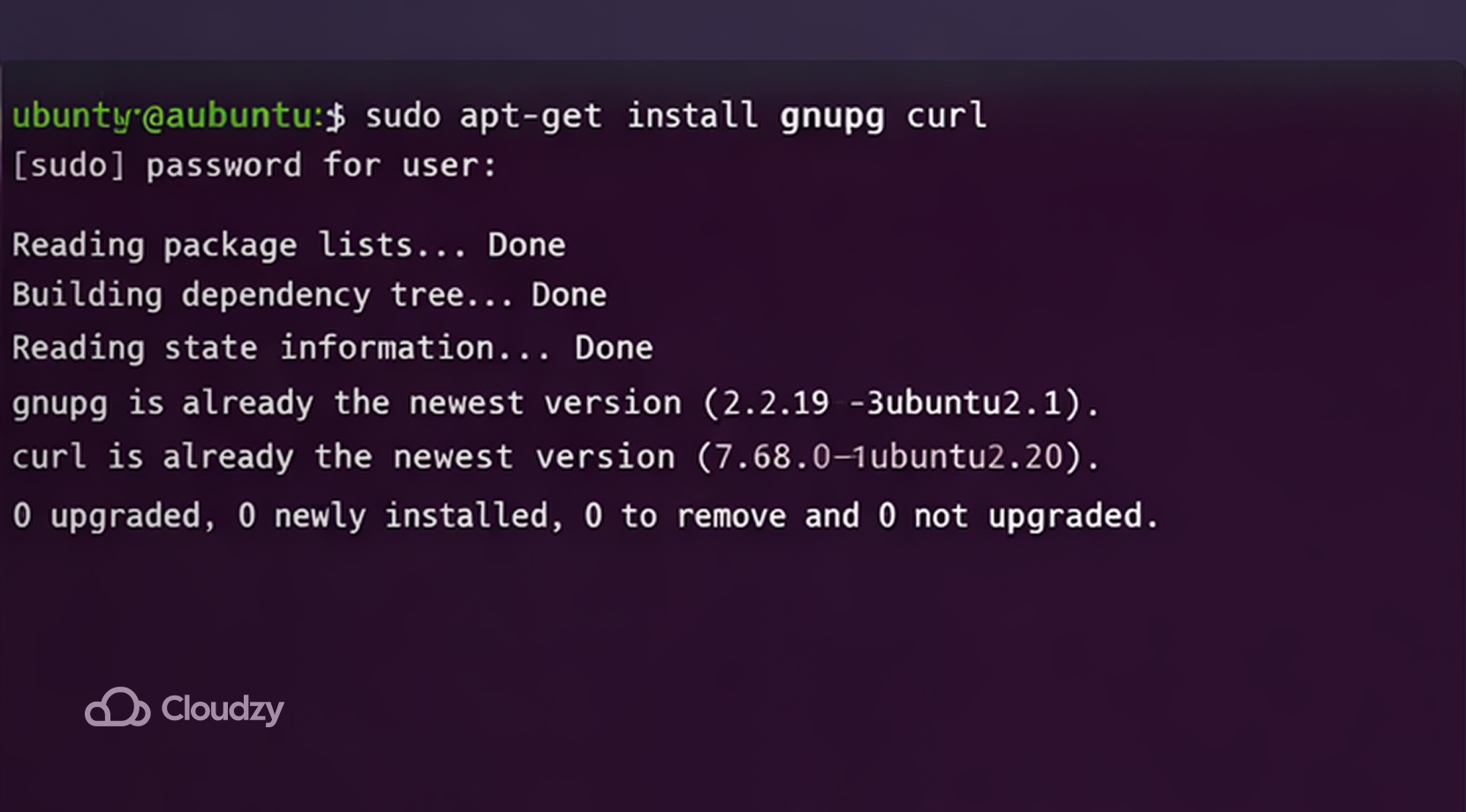
Importing MongoDB GPG Key
Ubuntu’s package manager, APT, uses GPG keys to verify packages before installation. Without this GPG key, Ubuntu doesn’t allow MongoDB’s repositories to be added. Type the following command in your terminal to add the key:
curl -fsSL https://www.mongodb.org/static/pgp/server-8.0.asc | \
   sudo gpg -o /usr/share/keyrings/mongodb-server-8.0.gpg \
   --dearmor
If it works, your terminal output should look like this: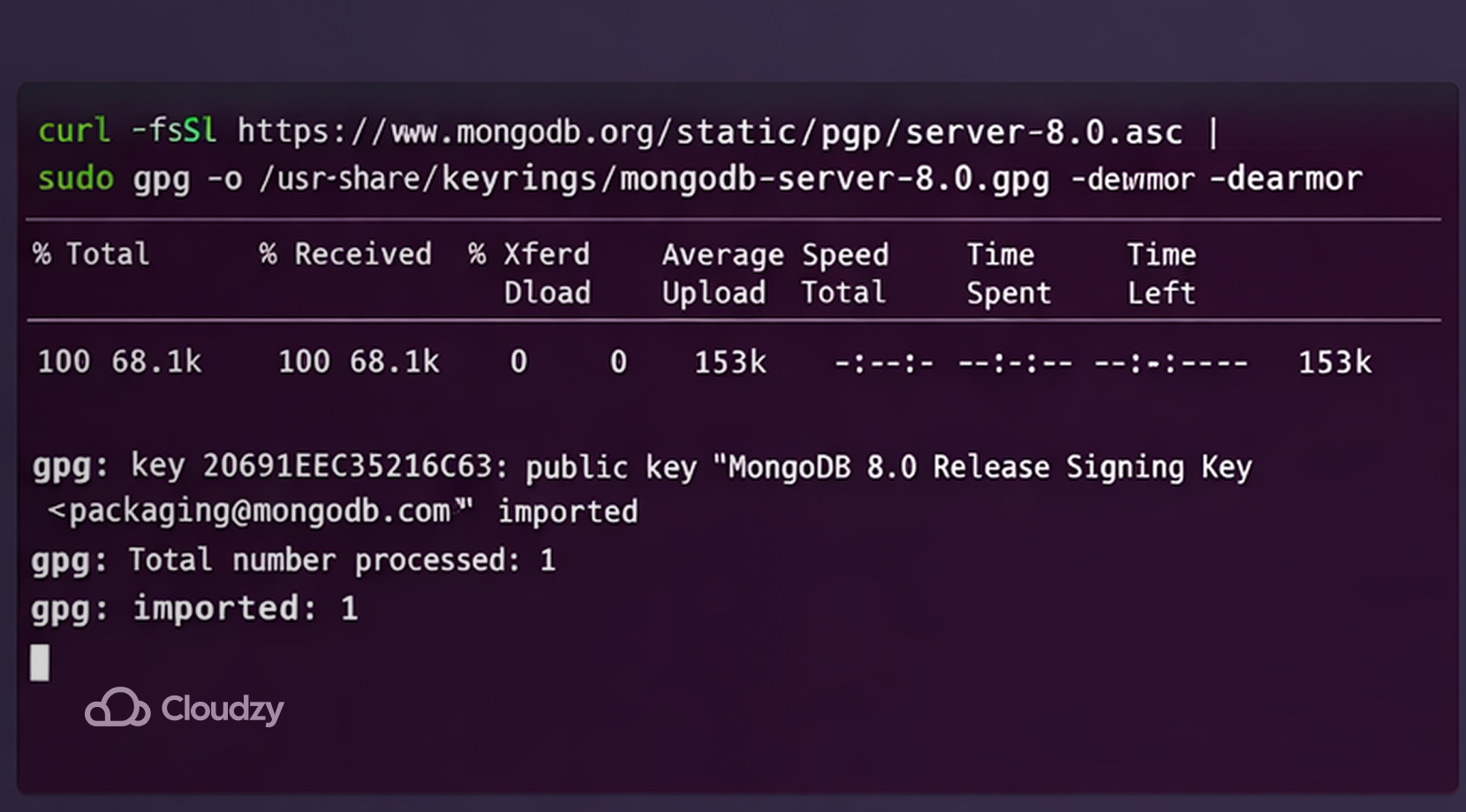
To put it simply, this command downloads MongoDB’s security signature, converts it into a format Ubuntu can read, and saves it in a secure system folder. Here’s a breakdown of the command line section by section:
- curl -fsSL URL downloads MongoDB’s official key
- –dearmor converts the key from text format into binary for Ubuntu to understand
- -o /usr/share/keyrings/mongodb-server-8.0.gpg saves the binary file to a folder where Ubuntu stores trusted keys
If you match every command line perfectly, the public GPG key will be added without any issues. Some users, however, encounter issues when downloading MongoDB because of a mismatched GPG key. Errors like:
NO_PUBKEY
The following signatures couldn't be verified
public key not available
Happen when you don’t follow the exact GPG key commands earlier and instead use sudo apt-key because modern Ubuntu doesn’t recommend it.
Add MongoDB Repository
Adding MongoDB’s Repository creates a file telling Ubuntu that MongoDB packages are live at a specific internet address. Create the list file at /etc/apt/sources.list.d/mongodb-org-8.0.list by writing the repository line into it using echo … | sudo tee …
This is where it gets tricky, since different versions of Ubuntu demand a different variation of this command. We will now examine how to import the list file on the three versions of Ubuntu mentioned earlier.
Ubuntu 24.04 (Noble)
In order to create the list file on Ubuntu 24.04, simply put echo “deb [ arch=amd64,arm64 signed-by=/usr/share/keyrings/mongodb-server-8.0.gpg ] https://repo.mongodb.org/apt/ubuntu noble/mongodb-org/8.0 multiverse” | sudo tee /etc/apt/sources.list.d/mongodb-org-8.0.list on your terminal.
This might look confusing, but don’t sweat it. Once we break down the command into sections, it’ll be crystal clear.
- echo prints text
- /etc/apt/sources.list.d is the folder in which Ubuntu stores software source definitions. Every file with .list format inside the folder points Ubuntu to a specific location to download software from
- You can’t write anything in system folders by default as a normal user. tee gives the user special permission to write text into system files, while using sudo
- noble is the codename for Ubuntu 24.04. Every Ubuntu version has a codename like:
| Version | Codename |
| 20.04 | Focal |
| 22.04 | Jammy |
| 24.04 | Noble |
If you don’t match your version of Ubuntu with the right Command line, Ubuntu fails to recognize MongoDB’s repository.
Ubuntu 22.04 (Jammy)
Adding the list file to Ubuntu Jammy looks just the same, but you must enter the command line while replacing noble with jammy, like this:
echo "deb [ arch=amd64,arm64 signed-by=/usr/share/keyrings/mongodb-server-8.0.gpg ] https://repo.mongodb.org/apt/ubuntu jammy/mongodb-org/8.0 multiverse" | sudo tee /etc/apt/sources.list.d/mongodb-org-8.0.listMake sure that’s the one matching your Ubuntu version, otherwise it’ll fail again.
Ubuntu 20.04 (Focal)
Follow the same steps here, but instead of noble or jammy, put in focal:
echo “deb [ arch=amd64,arm64 signed-by=/usr/share/keyrings/mongodb-server-8.0.gpg ] https://repo.mongodb.org/apt/ubuntu focal/mongodb-org/8.0 multiverse” | sudo tee /etc/apt/sources.list.d/mongodb-org-8.0.list
Now with the repository set up, you can proceed to installing mongodb-org.
Refresh the Package Database
Now that the repository is recognized by Ubuntu, you need to reload the package database inside it, so from now on it includes MongoDB as well. Issue the command mentioned below:
sudo apt-get updateThis command remains the same across every Ubuntu version, and if it’s skipped, Ubuntu won’t include MongoDB. If the command does its job, your terminal output should be: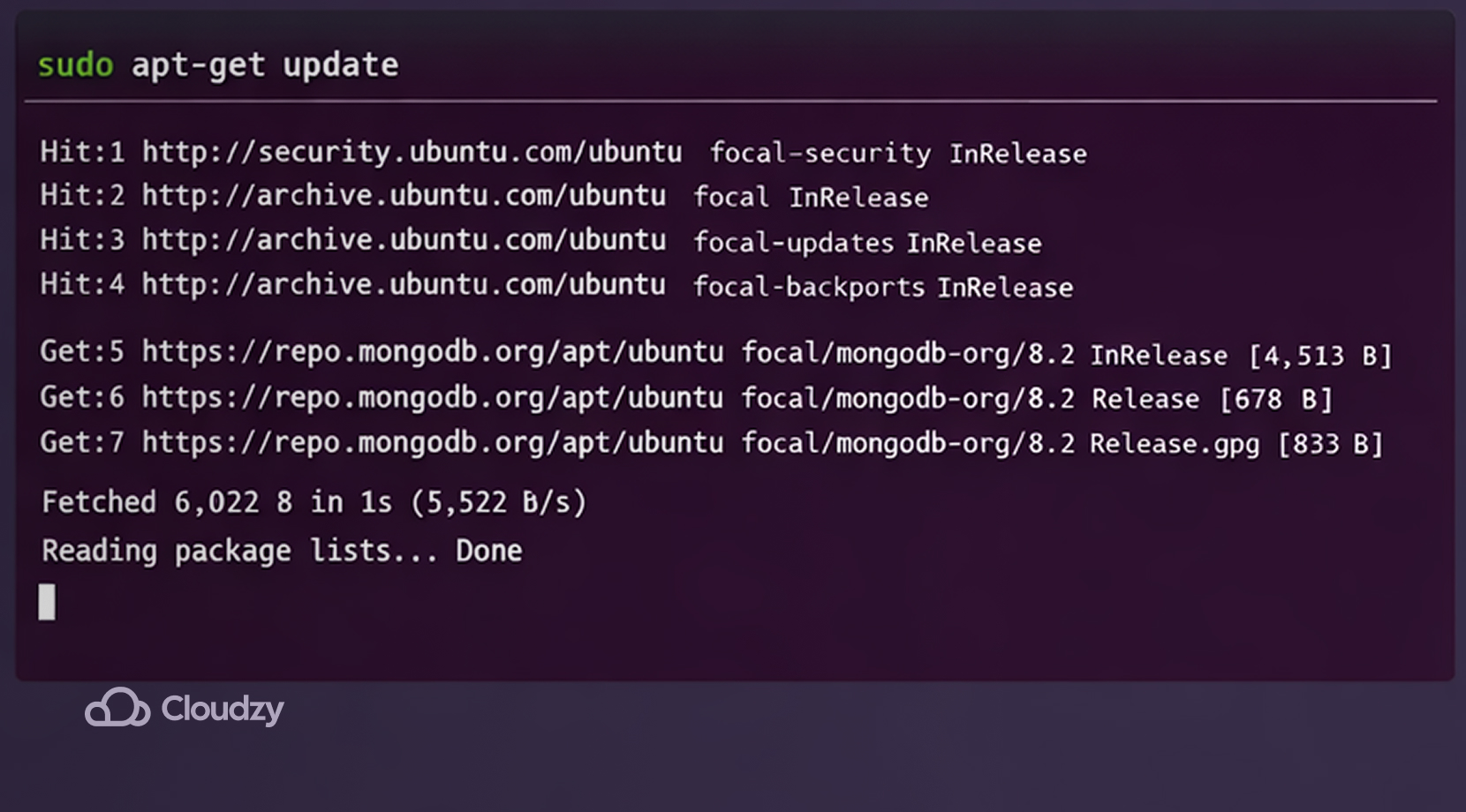
Now, after reloading your package database, it’s time to download MongoDB packages.
Install MongoDB Community Server
There are various MongoDB releases to install, but users tend to go with the latest stable version since it’s more preferable. To install the latest stable version, run sudo apt-get install -y mongodb-org
Ubuntu has now downloaded the MongoDB packages, installed them, created a MongoDB user account and a data directory, and registered MongoDB as a system service. By now, we have covered how to download MongoDB on Ubuntu. Now let’s start it up.
How to Start MongoDB
Now, in order to run MongoDB, we need to tell Ubuntu’s service manager, “systemd”, to recognize MongoDB as a background service, and to do that, you need to type the following command in your terminal:
sudo systemctl start mongodIf the command does its job, Ubuntu will now open MongoDB as a background application. If the command doesn’t do its job, however, you might receive an error similar to Failed to start mongod.service.
This might happen due to several common issues:
- Config file error in /etc/mongod.conf (YAML indentation mistakes are common)
- Port conflict (port 27017 is already occupied)
- Permission issue on data or log directories (var/lib/mongodb or var/log/mongodb)
- Disk full or corrupted filesystem state
Three Commands to Diagnose the Issue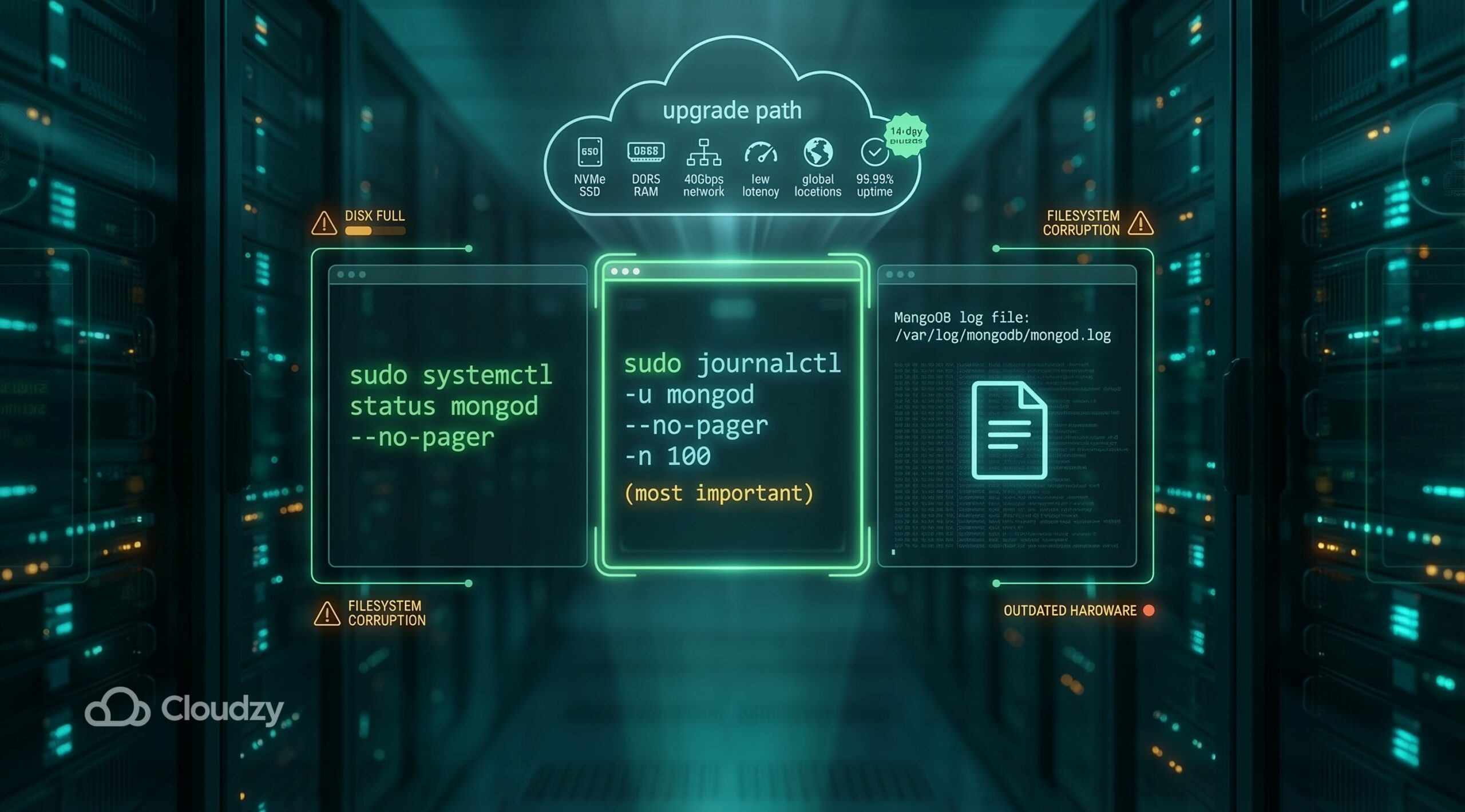
It’s easy to say what might be wrong with your configuration that MongoDB doesn’t run, but it’s much harder to pinpoint the exact cause. Three easy ways you can diagnose where the error might come from are:
- Check service status: sudo systemctl status mongod –no-pager
- Check detailed logs (most important): sudo journalctl -u mongod –no-pager -n 100
- Check MongoDB’s own log file
But please note that if your disk is full or system files are corrupted, the fixing will be more about your hardware rather than software. Users may have to buy better equipment for their server setup in order to run MongoDB efficiently if their current setup is outdated.
If buying a full-on server isn’t in your budget, consider checking out Cloudzy’s Ubuntu VPS for a clean experience on your own private server with an Ubuntu distro of your liking. It comes with 24/7 support and up to 40Gbps network speed, thanks to its NVMe SSD and DDR5 RAM storage.
Moreover, it has minimal latency, 99.99% uptime, and a 14-day money-back guarantee. Not only that, but it’s also available in 16+ locations all across the globe at an affordable price.
Three Most Common Fixes to Make MongoDB Run
There is no absolute way to both recognize your system’s exact problem with MongoDB and to fix it with one easy step. So here are some common fixes you can use to hopefully make your MongoDB start running.
- YAML config indentation error. Suppose you edited /etc/mongod.conf re-check the indentation by prompting sudo nano /etc/mongod.conf. The YAML file is pretty sensitive to whitespaces, so make sure there are only two spaces per level in /etc/mongod.conf.
- Occupied port 27017. If something else is using port 27017, shut it down or change MongoDB’s port in mongod.conf. If you’re unsure about anything running on port 27017, feel free to run sudo ss -lntp | grep 27017 to check it out
- Permission problem in the data directory. Sometimes MongoDB lacks permission to run on your system and, therefore, doesn’t run at all. First run sudo chown -R mongodb:mongodb /var/lib/mongodb /var/log/mongodb, then restart MongoDB with sudo systemctl restart mongod
According to MongoDB’s official website, one other way to get around this issue is to reload the daemon with sudo systemctl daemon-reload, and run the first command, sudo systemctl start mongod, again.
If there is no mongod.service, the install did not place the systemd unit, so reinstall the mongodb-org package set.
With all that said, you can then verify if MongoDB has started successfully with sudo systemctl status mongod. If the terminal says active (running), you’re good to go. But there are still some further configurations that make your experience much smoother.
Make MongoDB Automated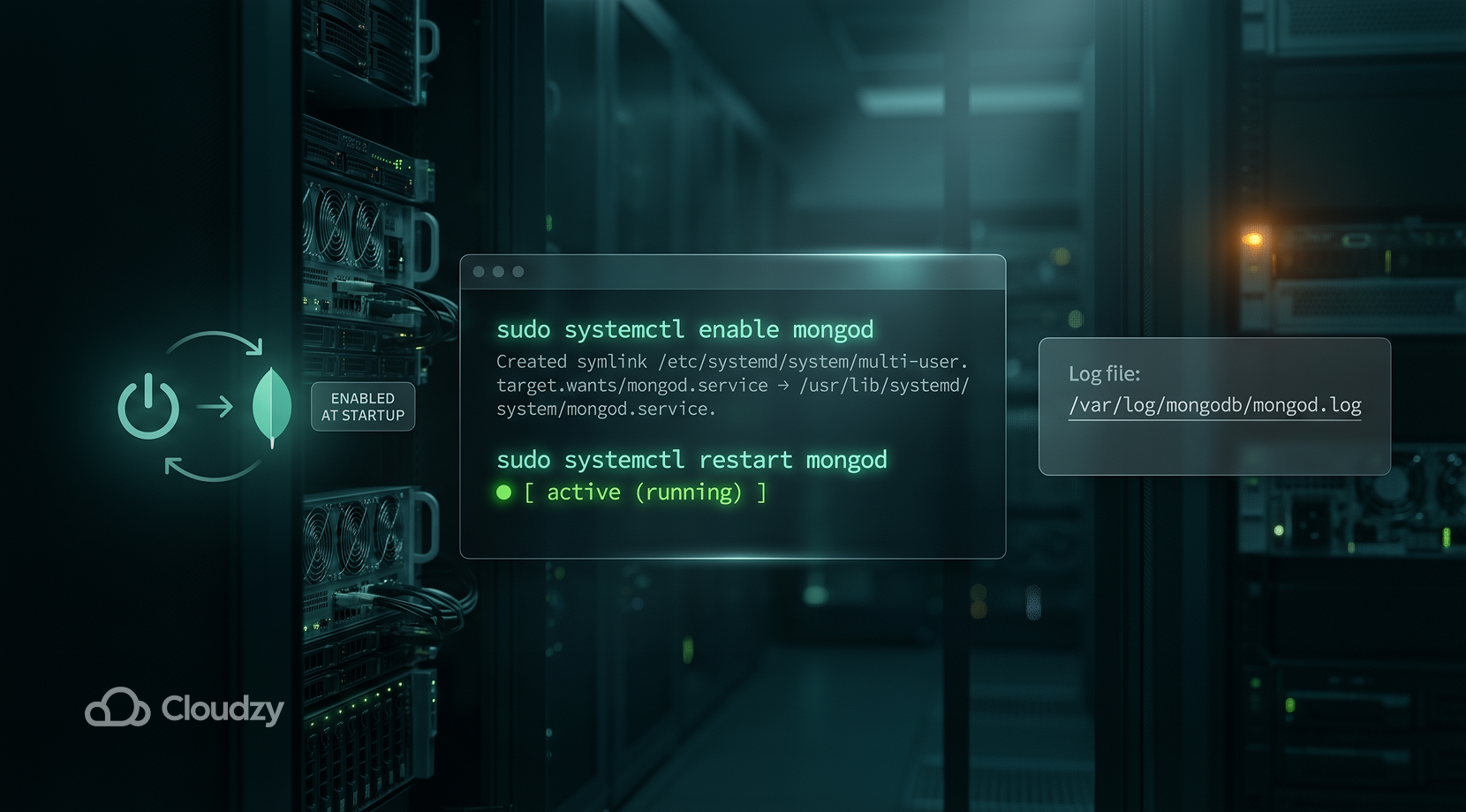
MongoDB doesn’t automatically open up every time you turn on your server; you will have to repeat some of the steps mentioned each time. Optionally, you can tell Ubuntu to start MongoDB after booting into your desktop.
Simply run sudo systemctl enable mongod on your terminal, which, from now on, will tell your system to run MongoDB after every reboot. Moreover, you can restart the mongod process by issuing the command sudo systemctl restart mongod. Additionally, users may need to follow the process for any errors or important messages by reviewing the output in the file:
/var/log/mongodb/mongod.log
Now that all that’s set up, let’s start using your mongod.
Opening the MongoDB Shell
To interact with their database, users must open a MongoDB shell by issuing the command mongosh. Think of it as a dedicated command prompt terminal for MongoDB or a MySQL console. Alternatively, you can interact with MongoDB with GUI tools, such as MongoDB drivers. But if you want to interact with it from the terminal, mongosh is made to make that happen.
Your MongoDB will now be fully functional, but there are some additional steps you must consider to make it secure.
Make MongoDB Authenticated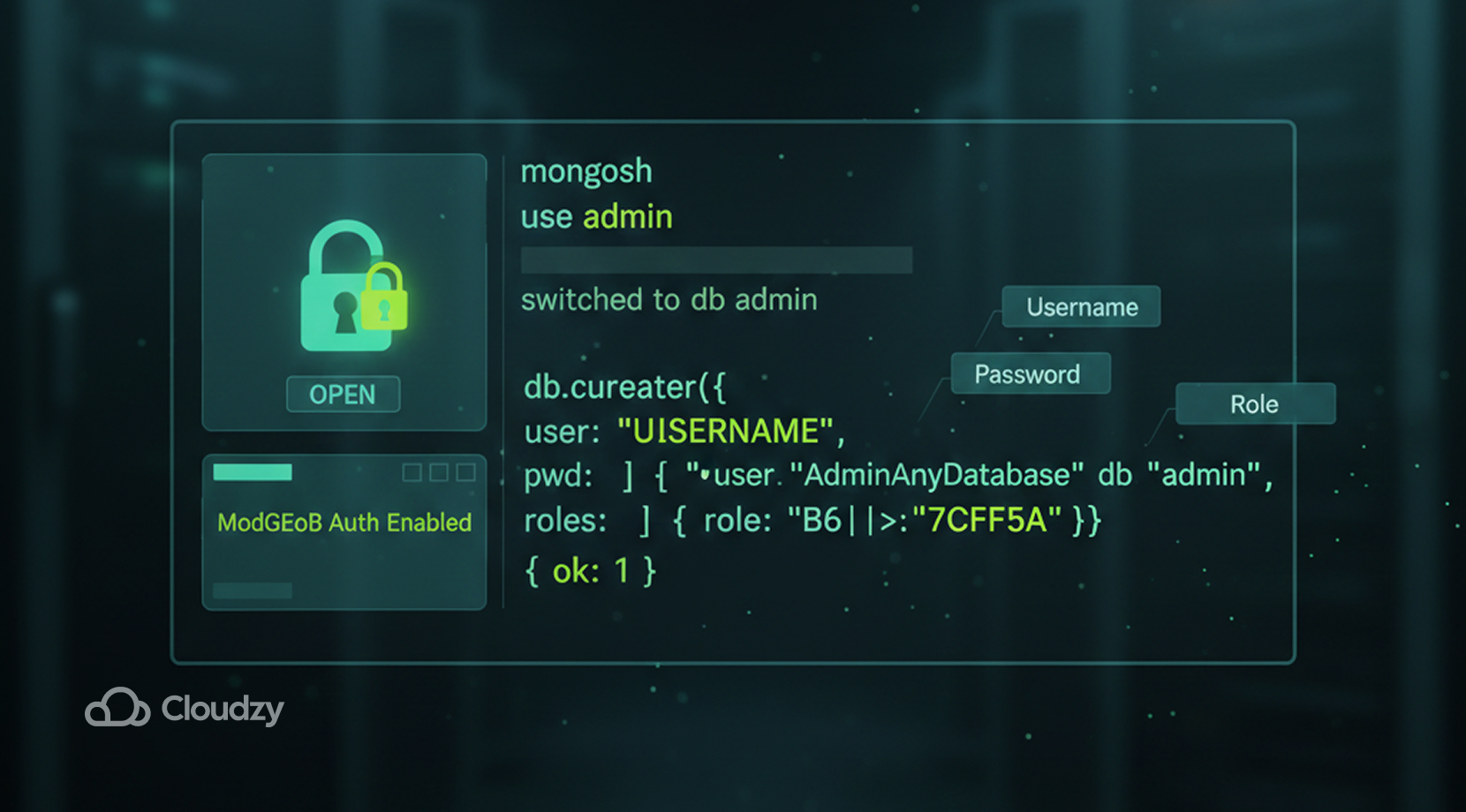
MongoDB, by default, has no password protection because you must already have access to create a user. Here’s a simple way to make that happen
Create an Admin User
First, you need to switch to the admin database with:
use adminThen create a user with db.createUser({…}). Fill it in with your
- Username
- Password
- Role
For role, preferably type root which means full control or admin.
Enable Authentication
Now that we have our own user set up, we need to edit the /etc/mongod.conf file. That’s because this file controls how MongoDB behaves. But keep in mind that by editing the file you must always restart the mongod service afterwards with sudo systemctl restart mongod. What we need to change here is one parameter called authorization that looks like this:
security:

  authorization:
To complete the authentication process, simply change the authorization value like this:
security:

  authorization: enabled
From now on, MongoDB requires a login, so your authentication is finalized. Let’s now proceed to another configuration that fully utilizes MongoDB.
Open Up Your Firewall
As mentioned earlier, MongoDB runs on port 27017. Since firewalls block ports by default, you have to tell your firewall to allow applications to run on 27017. To make that happen, simply issue the command:
ufw allow from YOUR_IP to any port 27017Alternatively, you can also issue the command ufw allow 27017, but be careful, because running this will allow the entire internet to access that port. It might be your safest bet to just go with the first option since it allows traffic to access the port only from your IP address.
Users may still face challenges when running MongoDB, such as the remote access issue. Stick around to find out how to fix it.
Remote Access Problem
MongoDB launches with bindIp. bindIp limits MongoDB to 127.0.0.1, allowing only local connections. Therefore, if you were to connect to your MongoDB server from somewhere else, you wouldn’t be allowed access, since MongoDB is configured by default to allow only on-site connections unless configured otherwise.
Again, head out to /etc/mongod.conf, and you will see three lines like this:
net:

  port: 27017

  bindIp: 127.0.0.1
If you want to allow remote connections to your mongod user, change the values presented above like this:
net:

  port: 27017

  bindIp: 0.0.0.0
Afterwards, restart your mongod service with sudo systemctl restart mongod as with every other edit you don on the file.
You have now granted your mongod service permission to accept remote connections. But be careful, as by doing this, you will expose your database to the whole internet if you haven’t yet authenticated your mongod user. There are many bots that constantly scan for open MongoDB ports, so always make sure your mongod user has a password.
Big Picture Summary
Congrats, you have now done everything to create an optimized MongoDB service for your Ubuntu system. Here’s also a mental map to track every step presented in this article.
| Command | What It Does |
| apt update | Refresh software list |
| apt install | Install software |
| curl | Download file |
| gpg | Manage encryption keys |
| echo | Print text |
| tee | Write to protected file |
| systemctl start | Start service |
| systemctl enable | Start on boot |
| systemctl status | Check service |
| mongosh | Enter MongoDB shell |
| Edit /etc/mongod.conf | Enable authentication |
| ufw | Manage firewall |
| bindIp | Allow remote access |
That should help you better understand the whole process. But if setting up MongoDB on your own is too much for you, make sure to spin up Cloudzy’s MongoDB VPS for your own private Ubuntu 24.04 LTS server with MongoDB preinstalled.
It comes with 99.99% uptime, 24/7 support, and a 14-day money-back guarantee. Apart from that, it supports up to 40 Gbps of bandwidth thanks to its DDR5 RAM and NVMe SSD storage. Don’t even worry about where you live, because it’s also available in 16+ locations across the world at an affordable price.
But with all that said, you have finally managed to set up your own capable MongoDB service equipped with every configuration to support production-level workloads and businesses.