
You have a VPS with five or six Docker services on it: Nextcloud, Uptime Kuma, a Ghost blog, maybe a Vaultwarden. One public IP. And you want each one on its own subdomain with HTTPS, without hand-editing Nginx config files every time you add a container. That is the exact problem Nginx Proxy Manager exists to solve.
This is a review and a full Nginx Proxy Manager VPS setup in one guide. Nginx Proxy Manager (NPM) is a Docker app that wraps Nginx in a web UI: you point subdomains at backend containers and request Let's Encrypt certificates through a dashboard instead of writing directives by hand. The guide is for self-hosters and sysadmins who already run Docker and now need a reverse proxy that does not require touching nginx.conf.
By the end you will know whether NPM fits your case, you will have it running with HTTPS on your VPS, and you will know the criteria for switching to Caddy or Traefik when NPM stops being the right tool.
The Short Version
- What NPM is: a Docker app that puts a web UI on top of Nginx for managing proxy hosts and automatic Let's Encrypt HTTPS. It suits people who want a GUI and run a small, fairly static stack of services.
- The trade-offs: configuration lives in an SQLite database, so it is not version-controllable or diffable like a config file. As of July 12, 2026, the latest tagged release is affected by CVE-2026-40519, so new deployments should wait for a tagged release containing the fix. Its admin panel on port 81 is the main thing you have to lock down.
- Sizing: NPM itself idles around 50 MB of RAM. A 1 GB VPS is the practical baseline; 2 GB is comfortable once you add the services behind it.
- When to switch: stay on NPM for a small, mostly static stack where a GUI matters. Use Caddy when you want configuration as code and a smaller footprint. Use Traefik when frequent container changes make Docker auto-discovery more valuable than manual host registration.
What This Guide Doesn't Cover
This is a VPS deployment guide, not a reference manual. To keep it focused, the following are out of scope:
- Deep Nginx directive customization (custom location blocks beyond what the NPM UI exposes).
- Load-balancing architecture at scale.
- Kubernetes ingress comparison.
- NPM on Windows.
- The Cloudflare Tunnel path for setups without a static IP.
What Nginx Proxy Manager Does (and Where It Bites You)
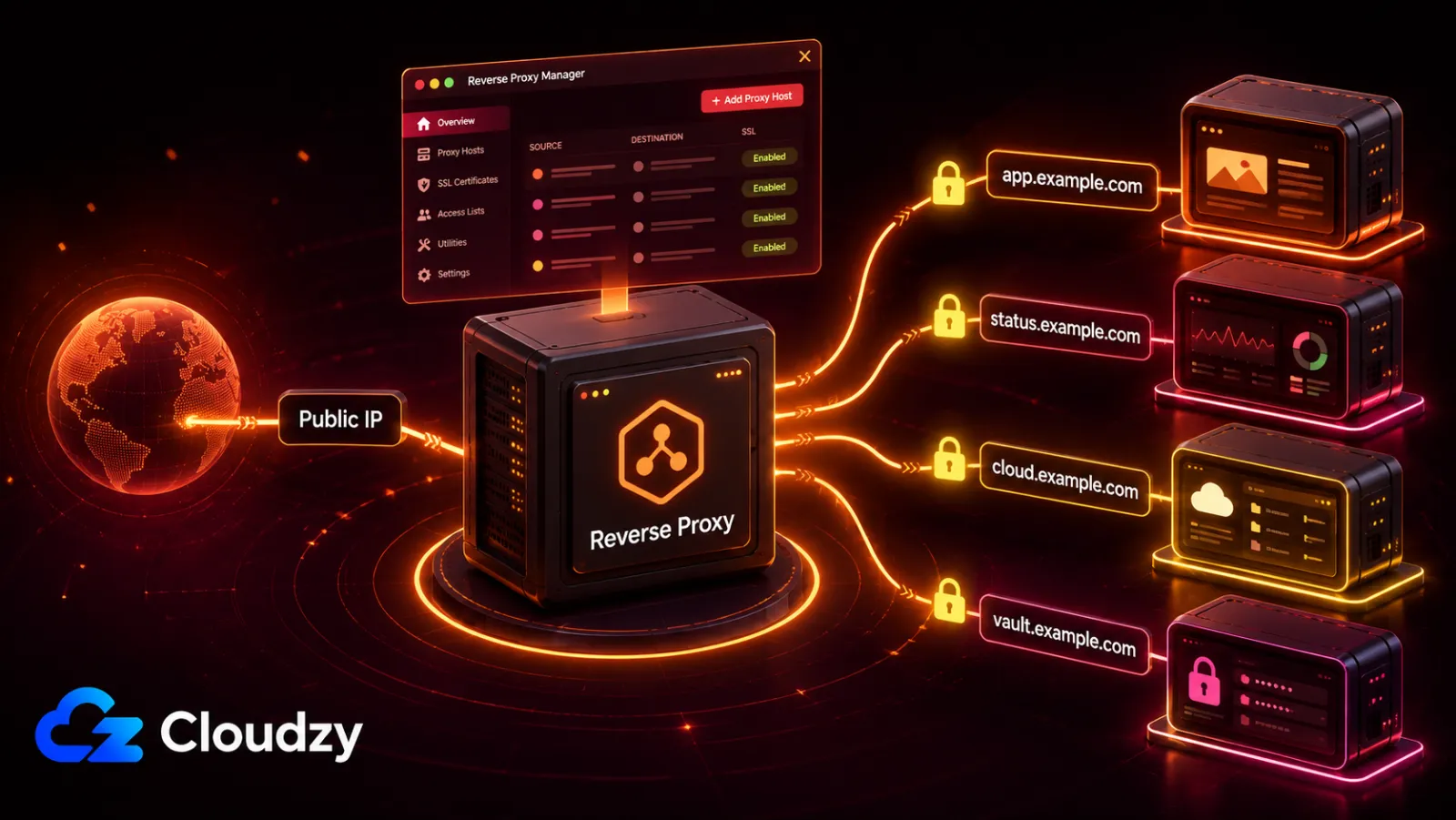
Nginx Proxy Manager is a Docker application that runs Nginx underneath and adds a web dashboard on top. You create proxy hosts (subdomain to backend container and port) and request Let's Encrypt certificates through forms instead of config files. It suits a small, fairly static stack of self-hosted apps on one VPS.
Beyond the basics, the dashboard also handles access lists and raw TCP/UDP stream forwarding. For a stack of apps on one VPS, that is a real convenience: you add a container, open the dashboard, point a subdomain at it, click to issue a certificate. Done.
The main trade-off is that NPM's source-of-truth configuration lives in an SQLite database by default. NPM does generate readable Nginx files under /data/nginx/proxy_host/, but those files are generated artifacts rather than the declarative configuration you edit and version-control. You can inspect them, but they are not a clean replacement for a Caddyfile or Traefik labels, and the reliable way to reproduce the deployment is to restore the NPM data and certificate volumes. For a small static stack, that may be acceptable. For a Git-driven infrastructure workflow, it is a real limitation.
As of July 12, 2026, the latest tagged release is v2.15.1, published on June 3, 2026. The project remains active and MIT-licensed, but its current security position needs an important caveat: NVD lists versions 2.9.14 through 2.15.1 as affected by CVE-2026-40519, an authenticated command-injection vulnerability fixed in commit a5db5ed but not yet included in a newer tagged release. Before deploying, check the release page and use the first tagged version that contains that fix. NPM is maintained, but v2.15.1 should not currently be described as fully patched.
On footprint, NPM idles at roughly 50 MB of RAM according to byte-guard's reverse-proxy comparison. That is light enough that NPM is almost never the thing straining your VPS. The services behind it are.
My take: NPM is a reasonable 2026 choice if you want a GUI and you run a small Docker stack. If you live in version control and want your proxy config in Git, look at Caddy instead. The SQLite-backed config is the deciding factor, not anything wrong with the proxying itself.
NPM trades config portability for a GUI. That trade is fine for a small static stack and annoying for a Git-driven workflow.
NPM vs Caddy vs Traefik: Which Reverse Proxy Fits Your VPS
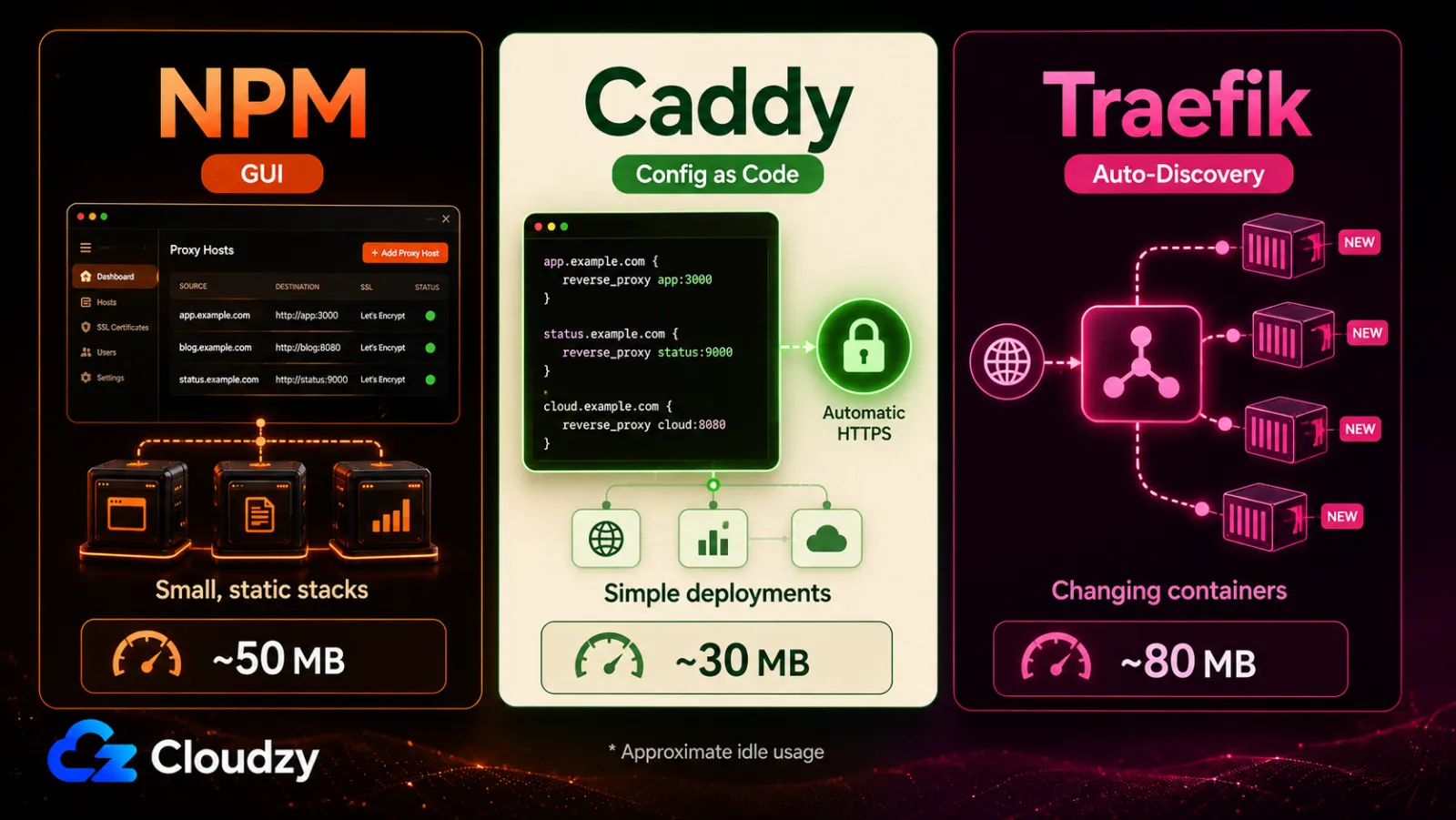
The three tools split along four axes that decide the choice: how you configure them, how they handle HTTPS, how they scale with service count, and how much RAM they idle at. Here is the comparison.
| Attribute | Nginx Proxy Manager | Caddy | Traefik |
|---|---|---|---|
| Config model | Web GUI, stored in SQLite | Caddyfile (text, version-controllable) | Docker labels / YAML |
| Auto-HTTPS | Yes, request per host in the UI | Yes, by default, zero config | Yes, requires ACME resolver config |
| Docker auto-discovery | No | No | Yes, via container labels |
| Idle RAM | ~50 MB | ~30 MB | ~80 MB |
| Best-fit case | GUI users, small/static stacks | Config-as-code, lowest footprint | Dynamic Docker stacks with frequent container changes |
The idle-RAM figures are approximate observations from one 2026 comparison, not fixed requirements. Actual usage varies by image version, enabled features, traffic, and logging.
The switching criteria follow directly from that table. If you want a dashboard and you run a handful of services that do not change often, NPM is the right tool. If you prefer configuration as code, want the smallest footprint, or appreciate Caddy's automatic HTTPS provisioning and renewal with zero ACME setup, use Caddy. I reach for Caddy myself on single-site deployments because the SSL handling is automatic and the Caddyfile is short. If you frequently add, remove, or redeploy containers, Traefik's label-based auto-discovery means you stop hand-registering every new host.
There is also bare Nginx with Certbot, which some administrators prefer for precise control or non-Docker deployments. Certbot can automate certificate renewal, but you still manage the virtual-host routing and Nginx configuration yourself. If your main reason for considering NPM is avoiding manual proxy configuration, bare Nginx is unlikely to be the better fit.
One note on the choice: byte-guard's comparison lands on Caddy as the lightest option in that comparison, and for a fresh 2026 single-host setup that is a reasonable choice. Caddy wins on being lighter than NPM, but if you specifically want a GUI, it isn't your best bet.
For a deeper side-by-side of the underlying engines, see the Caddy vs Nginx on a VPS comparison.
Prerequisites: What You'll Need
Before you deploy, have these ready. This is a short list, but skip any item and the certificate step will fail later.
- A VPS with Docker and Docker Compose installed (Ubuntu 22.04 LTS or Debian 12 is fine).
- A domain name, with a DNS A record (and AAAA if you use IPv6) pointing at your VPS public IP.
- SSH access to the VPS.
- Ports 80 and 443 open to the internet on your firewall.
- Port 81 reachable by you only, not open to the public (covered in the security section).
Setting Up Nginx Proxy Manager on Your VPS with Docker Compose
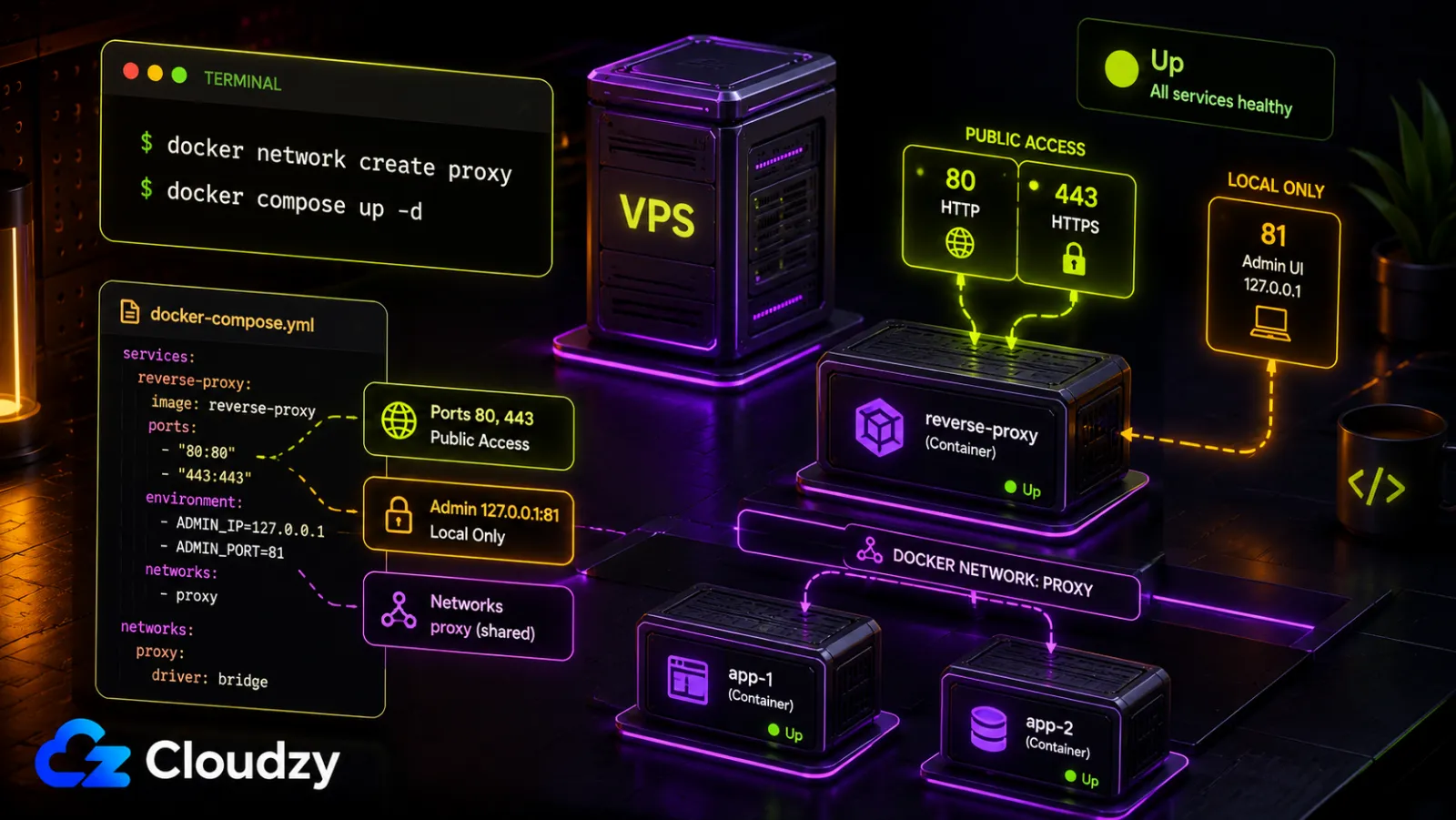
This section deploys NPM using Docker Compose. Once your DNS records resolve to the VPS, the container setup itself is quick, although DNS propagation and certificate issuance may take longer.
The setup uses one Docker Compose file and a one-time command to create a shared Docker network. Create a directory, create the network, add the docker-compose.yml file below, and bring up the container.
First, create the shared Docker network:
docker network create proxyThen create the following docker-compose.yml file:
# docker-compose.yml
services:
  npm:
    image: 'jc21/nginx-proxy-manager:<PATCHED_VERSION>'
    restart: unless-stopped
    ports:
      - '80:80'                 # public HTTP
      - '443:443'               # public HTTPS
      - '127.0.0.1:81:81'       # admin UI, reachable only from the VPS itself
    volumes:
      - ./data:/data
      - ./letsencrypt:/etc/letsencrypt
    networks:
      - proxy
networks:
  proxy:
    external: true
Attach every backend container that NPM must reach by service name to the same external proxy network. This lets NPM resolve the container by its service name without publishing the backend application's port on the VPS.
Back up both ./data and ./letsencrypt before upgrades. The data directory contains NPM's database and generated configuration, while the Let's Encrypt directory contains its certificate material.
A few things about this file. The image defaults to a SQLite database stored in the ./data volume. That is the default backend and it is correct for most single-VPS deployments. If you need an external database, NPM supports MariaDB/MySQL and PostgreSQL, which means adding a database service and the matching environment variables. For a single VPS, SQLite is still the simplest default unless you have a clear reason to move the database out of the data volume. The restart: unless-stopped policy means NPM comes back up if the VPS reboots, which is what you want for a service that sits in front of everything else.
Bring it up and confirm it is running:
docker compose up -d
docker compose ps
Expected output: the npm container with state Up, ports 80 and 443 publicly mapped, and port 81 bound only to 127.0.0.1. The first start takes a couple of minutes while NPM generates a JWT key, initializes the database, and creates the default admin user. The official setup docs describe this first-run sequence.
Create an SSH tunnel from your local computer before opening the admin interface:
ssh -L 8181:127.0.0.1:81 user@your-vpsThen open http://127.0.0.1:8181 in your browser. On a fresh installation, sign in with [email protected] and changeme, then immediately replace the default email and password. Do not make the dashboard publicly reachable while the default credentials are active.
Once you have changed the admin credentials, add your first proxy host:
- In the dashboard, go to Hosts, then Proxy Hosts, then Add Proxy Host.
- Set the Domain Name to your subdomain (for example
cloud.example.com). - Set Forward Hostname / IP to the backend container name or IP, and Forward Port to the port it listens on.
- Save. The proxy host appears in the list, and traffic to that subdomain now reaches your container.
If you run a Docker management UI alongside this, the same pattern applies: point a subdomain at the container-management tool the same way, and do the same for a Prometheus and Grafana monitoring stack you want to sit behind the proxy.
Configuring Automatic HTTPS for a Subdomain
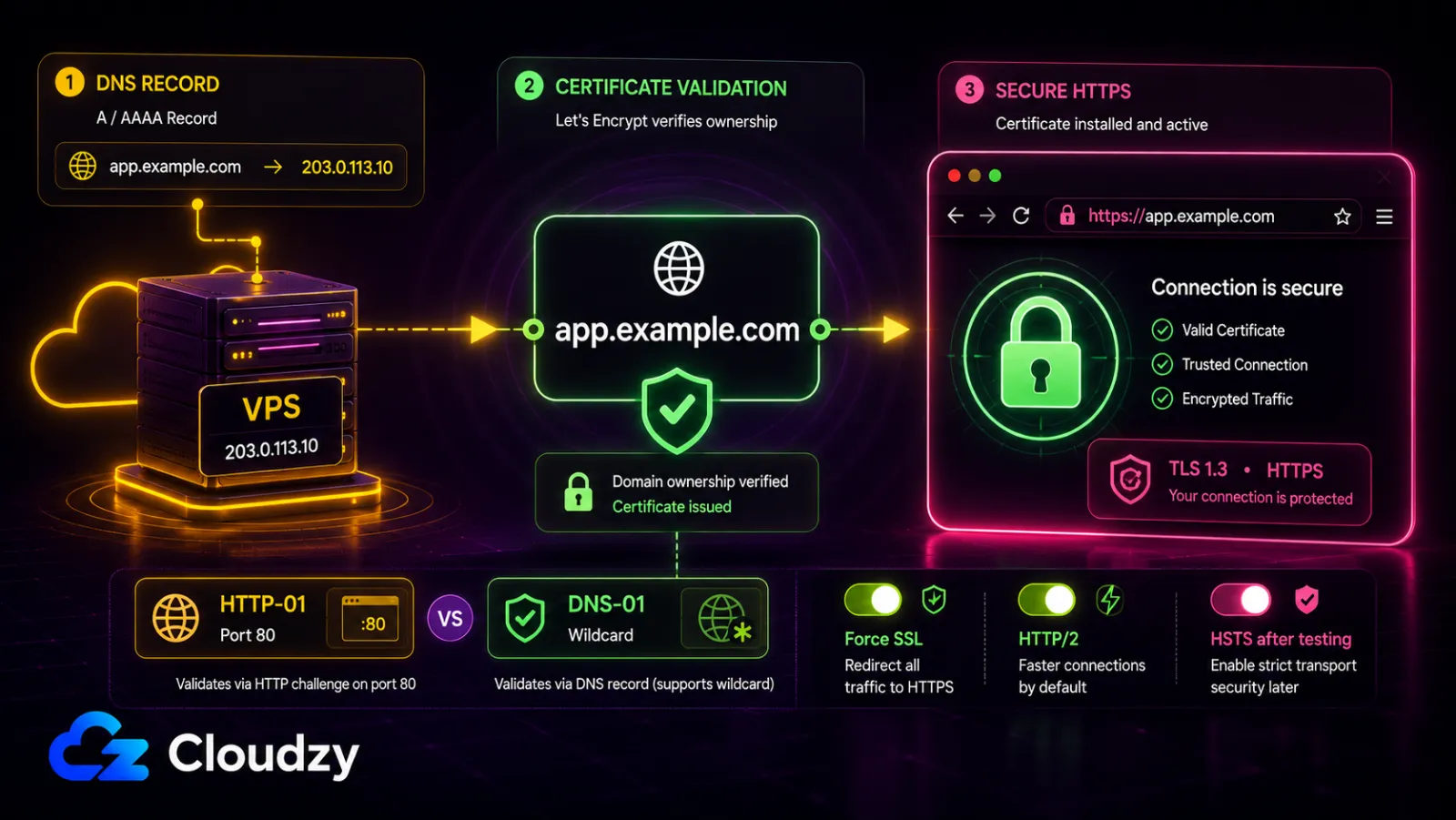
This section gets you a valid, auto-renewing Let's Encrypt certificate for your subdomain. The prerequisite is the one that catches people: the DNS A record for that subdomain has to already point at your VPS, and port 80 has to be reachable from the internet, because Let's Encrypt verifies the domain by connecting back to it.
With the proxy host created, request the certificate:
- Edit the proxy host, open the SSL tab.
- Under SSL Certificate, choose Request a new SSL Certificate.
- Enable Force SSL and HTTP/2 Support. Turn on HSTS only after confirming that HTTPS works correctly, because browsers can cache the policy and make recovery from a certificate or proxy configuration mistake more difficult.
- Agree to the Let's Encrypt terms and save.
By default, NPM uses the HTTP-01 challenge for non-wildcard names, validating each requested hostname over port 80. A certificate can contain multiple non-wildcard names, but HTTP-01 cannot issue wildcard certificates. Wildcard names such as *.example.com require the DNS-01 challenge with a supported DNS provider. For a normal one-subdomain-per-service setup, HTTP-01 is all you need, and renewals are automatic.
If the certificate request fails, check port 80 first. Common causes include an unreachable port 80, an incorrect cloud firewall or security-group rule, and DNS that has not finished propagating. Let's Encrypt cannot validate a domain it cannot reach.
Securing the NPM Admin Panel on a VPS
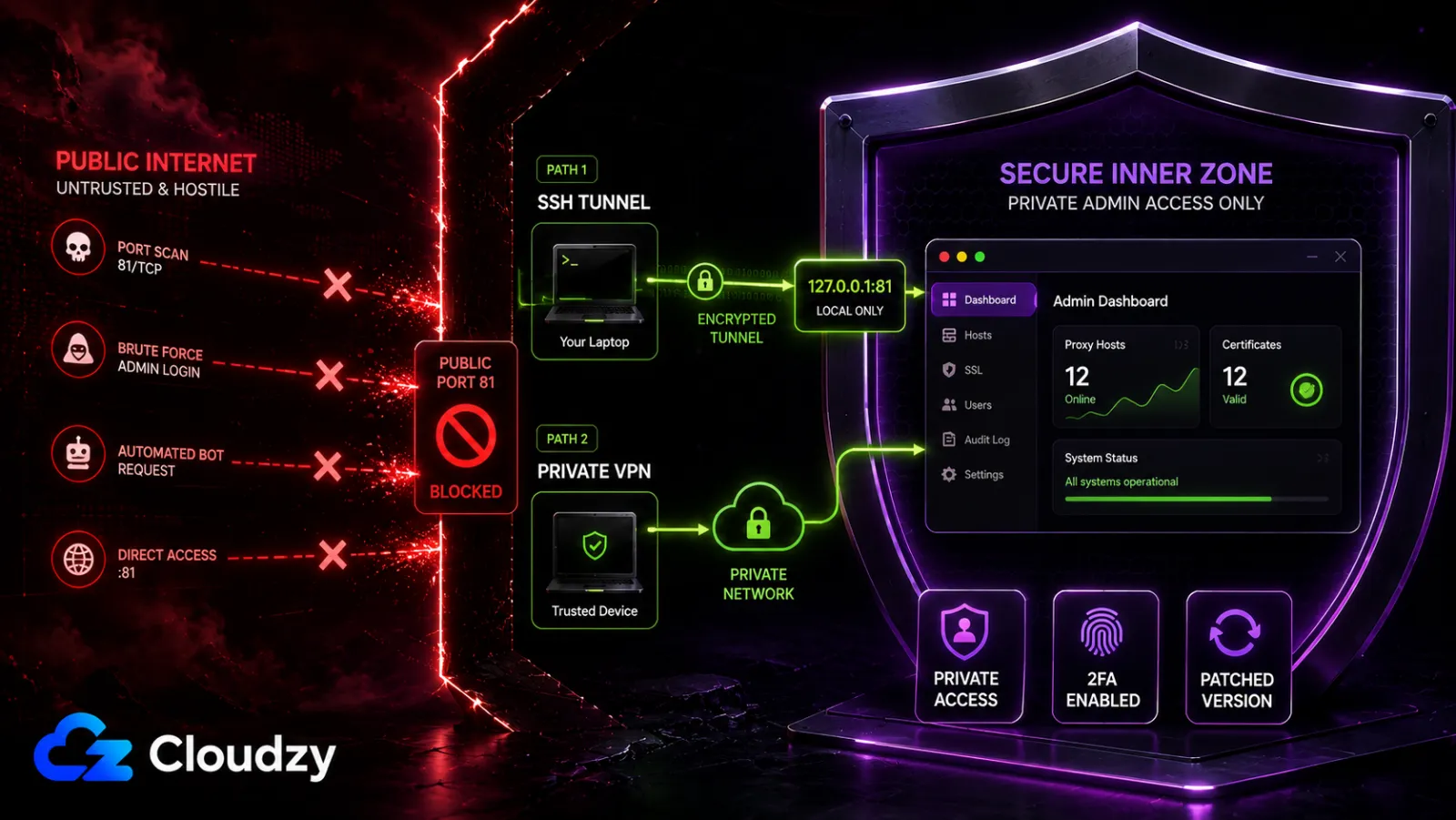
The admin interface on port 81 is the main exposure on an NPM deployment, and this section locks it down. This is operational hardening, not a security audit: three things, done once, and the risk profile drops sharply.
First, and most important, keep port 81 bound to 127.0.0.1 as shown in the Docker Compose file. Reach the dashboard through the SSH tunnel described earlier. If you need persistent remote access, make the admin interface reachable only through a private VPN. Do not publish port 81 on the VPS's public IP.
Second, enable TOTP two-factor authentication on your admin account. NPM added TOTP-based 2FA in version 2.13.6, so any current install has it. Turn it on.
Third, keep NPM patched and verify the exact release rather than assuming the latest tag is safe. CVE-2026-40519 affects versions 2.9.14 through 2.15.1 and can allow authenticated remote code execution through malicious DNS-provider credentials. CVE-2026-50892 affects v2.14.0 and can allow an authenticated attacker to obtain Let's Encrypt private-key material. An earlier issue, CVE-2025-50579, affected v2.12.3 through a CORS flaw that could expose JWT tokens. The practical rule is simple: keep port 81 private, enable two-factor authentication, pin a known patched version, and verify the security advisories before upgrading.
Port 81 stays private and NPM stays patched. Do those two things and the main known risks become much easier to manage for a normal single-VPS setup.
Sizing Your VPS for Nginx Proxy Manager
NPM itself is light; the sizing question is really about NPM plus the services sitting behind it. The proxy's idle footprint is rarely the constraint. A Nextcloud instance or Ghost blog will use more resources than the proxy itself.
Here is how the tiers work out in practice:
- Minimum practical baseline: 1 GB RAM, 1 vCPU, and 10 GB storage. One third-party sizing guide uses the same baseline, but treat it as planning guidance rather than an official NPM requirement. It is enough for NPM, the operating system, and a few light services, but it leaves limited headroom.
- Comfortable: 2 GB RAM, 1 vCPU, 20 GB storage. NPM plus three to five services with room to breathe. This is the sweet spot for most self-hosters.
- Step-up: 4 GB RAM, 2 vCPU. For eight to twelve services, or a setup with meaningful traffic where you want CPU headroom for TLS termination.
The number you size against is the sum of the proxied apps, not NPM. Add up the RAM footprints of the services you intend to run, add the proxy's small idle overhead on top, and pick the tier above that with margin.
Sizing the box is the easy part. Getting NPM running still means provisioning the VPS, installing Docker, pulling the image, and walking through that first-run setup. If you would rather skip the provisioning steps, Cloudzy's marketplace has a one-click Nginx Proxy Manager deploy on an NVMe VPS. It stands the container up on a fresh server, so you go straight to the dashboard and your first proxy host. Either way, the sizing tiers above are what you provision against.
Frequently Asked Questions
What Is the Difference Between Nginx and Nginx Proxy Manager?
Nginx is the web server and reverse proxy engine itself, which you configure by editing text files. Nginx Proxy Manager is a Docker application that runs Nginx underneath and adds a web UI on top, so you manage proxy hosts and Let's Encrypt certificates through a dashboard instead of writing config files. NPM is the GUI layer; Nginx is the engine doing the work.
Is Nginx Proxy Manager Still Worth Using in 2026?
Yes, for GUI-preferring users running a small Docker stack, but only after you verify that the image you deploy includes the latest security fixes. As of July 12, 2026, v2.15.1 is the latest tagged release, and NVD lists it as affected by CVE-2026-40519. If you prefer configuration as code, Caddy remains the better fit; NPM's SQLite-backed configuration is its main operational limitation.
What Is the Minimum RAM for Nginx Proxy Manager?
NPM itself idles at roughly 50 MB of RAM. A 1 GB VPS is a practical baseline, enough for NPM plus a couple of light services. 2 GB is comfortable once you add more proxied apps. The real RAM requirement is driven by the services behind NPM, not by NPM itself.
Should I Expose Port 81 to the Internet?
No. Keep port 81 bound to localhost and access it through an SSH tunnel, or make it reachable only through a private VPN. Do not publish the admin interface on the VPS's public IP.
Can I Run Nginx Proxy Manager Without Docker?
No. NPM is distributed and designed as a Docker container, and there is no supported non-Docker install. If you cannot or will not run Docker, use bare Nginx with Certbot, or Caddy as a single binary, instead.
Does Nginx Proxy Manager Support Wildcard Certificates?
Yes, through a DNS-01 challenge with a supported DNS provider configured. Standard single-hostname certificates use the HTTP-01 challenge over port 80; wildcard certificates (*.example.com) require DNS-01 because the certificate authority validates control by writing a DNS record rather than reaching a single host.



Discussion
Comments
Sign in to join the discussion.