
Start the Android Emulator with hardware acceleration on a server that doesn't expose CPU virtualization and it can stop with an error such as "x86 emulation currently requires hardware acceleration!" The latest BlueStacks build won't start there either. What usually decides it is whether the provider passes the processor's virtualization features through to your VPS, so picking the best VPS for Android emulators starts with that setting, before RAM or price.
The setting takes a minute to check. After it come the RAM floor, the choice between Windows and Linux, and how five providers handle virtualization, Windows licensing, and billing.
The Short Answer
For current BlueStacks builds and hardware-accelerated Android emulation, first check that the provider exposes Intel VT-x or AMD-V. Start with 8 GB of RAM for one BlueStacks instance on Windows, then test graphics compatibility. Cloudzy advertises virtualization enabled by default and a BlueStacks one-click image, with a trial Windows license or your own. AWS and Azure support nesting on selected instances and offer Windows license-included pricing, but that isn't BlueStacks certification. Contabo supports nesting on its Max Performance VPS/VDS line, with BlueStacks unverified. Google Compute Engine supports Linux KVM for nesting, not Hyper-V. BlueStacks itself doesn't list Windows Server among its supported operating systems.
Why Most VPS Plans Can't Run BlueStacks
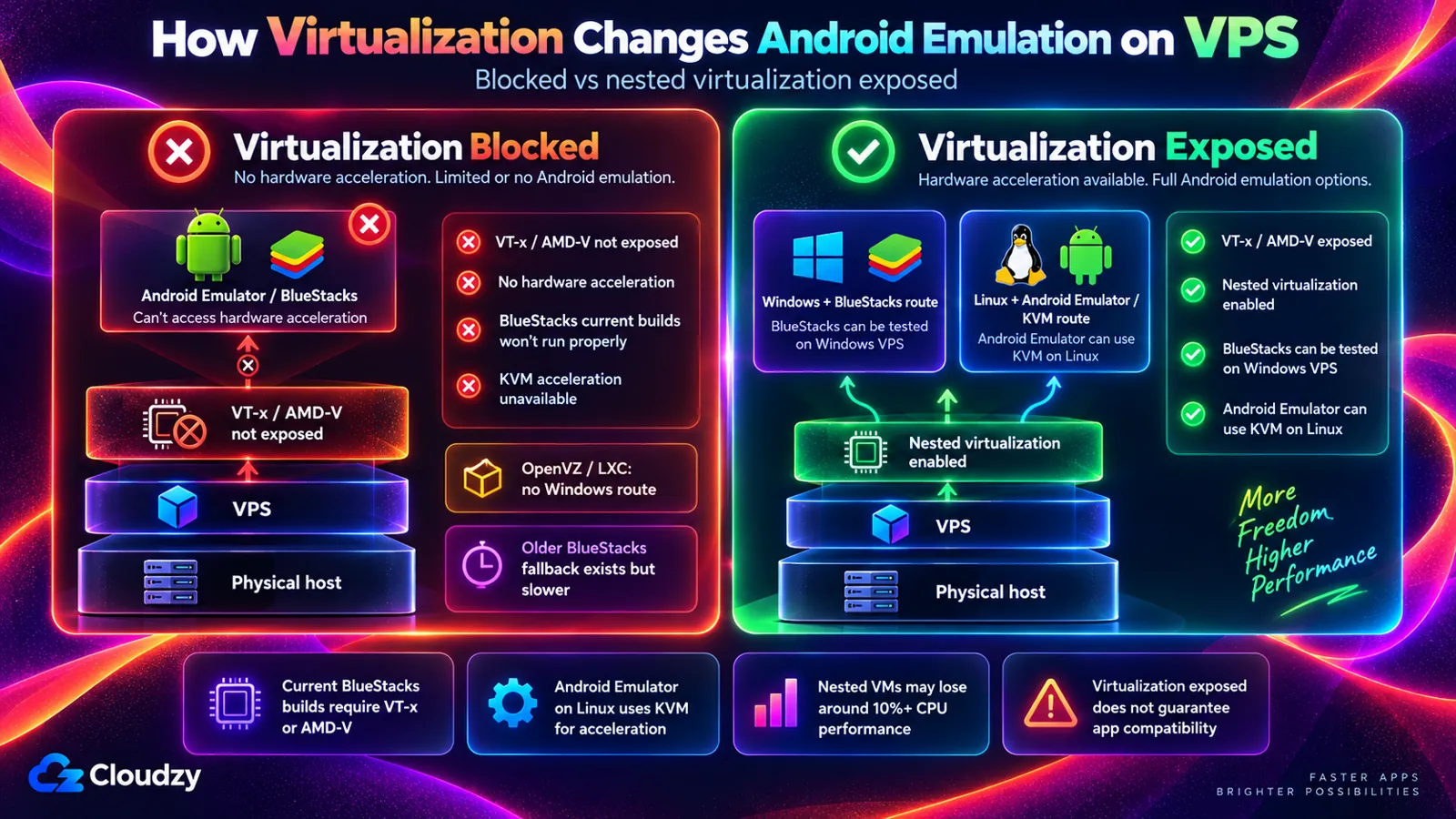
Current BlueStacks builds require Intel VT-x or AMD-V. Google's Android Emulator uses those processor features for hardware-accelerated execution. A VPS is already a virtual machine, so those features exist inside it only if the provider passes them through. That pass-through is called nested virtualization, and some providers leave it off.
Without it, BlueStacks' help center points you to an older 32-bit release, version 5.14.22, and attaches a warning to it:
"You may encounter performance issues on BlueStacks 5.14.22."
The same help center says you need virtualization before you can give BlueStacks more than one CPU core. On Linux, Google's emulator gets its speed from KVM (the Linux kernel's built-in hypervisor, the software layer that runs virtual machines), which needs VT-x or AMD-V to work; without them, KVM acceleration isn't available.
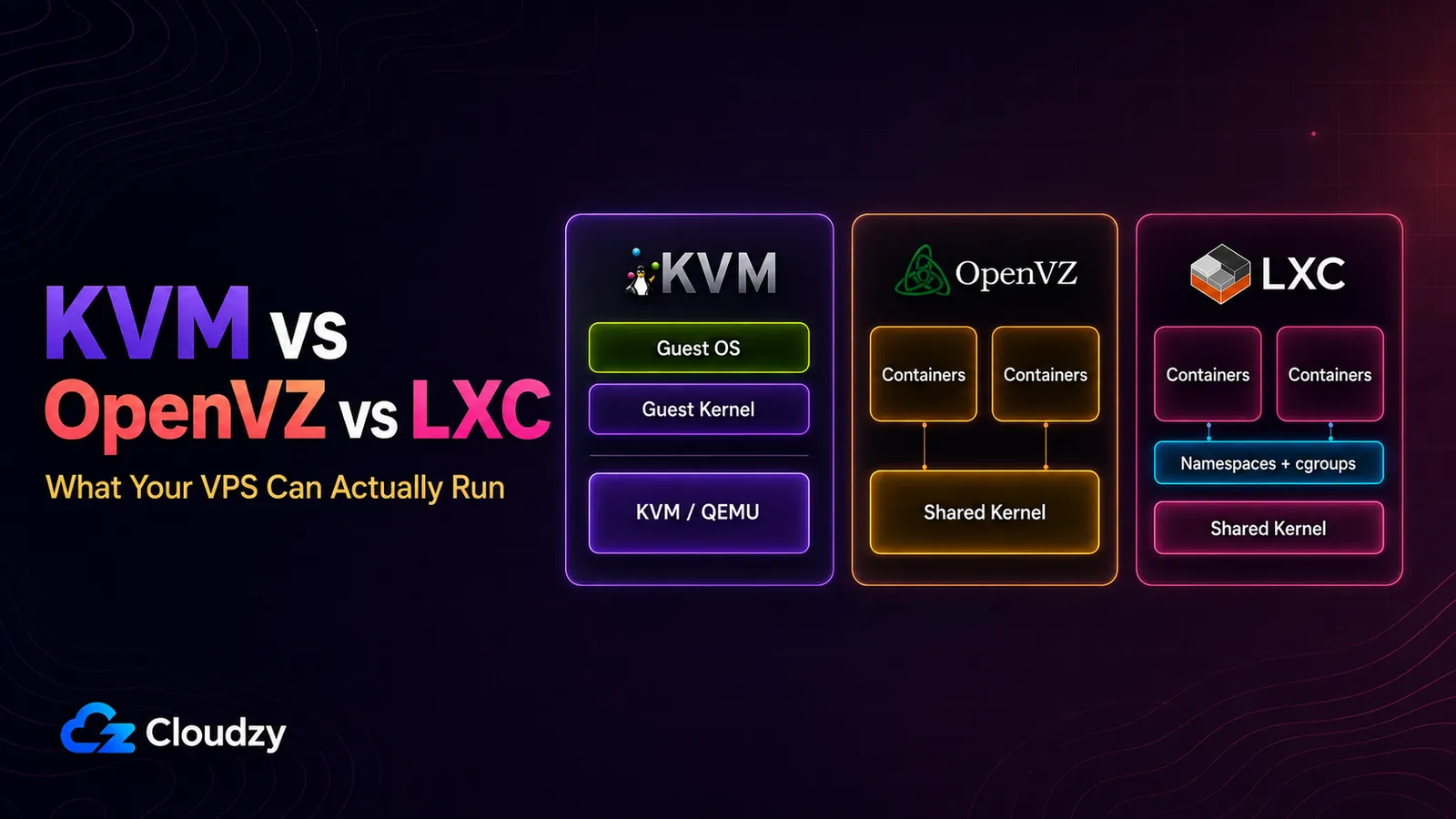
OpenVZ and LXC plans are out for BlueStacks before you check anything: they share the host's kernel and can't run Windows. You can't count on the emulator there either.
Even with nested virtualization switched on, you give up some speed for it. Google's documentation says nested VMs "might experience a 10% or greater decrease" in performance on CPU-bound work, and possibly more when the work is mostly disk and network traffic.
How to Check Whether a VPS Exposes Virtualization
On a Linux VPS, counting the vmx or svm flags in /proc/cpuinfo tells you whether virtualization reaches your server. Run the check within the first hour on an hourly-billed server, before you pay for a full month, because it checks a prerequisite for hardware acceleration on that specific VPS, not whether the emulator will work.
egrep -c '(vmx|svm)' /proc/cpuinfo/proc/cpuinfo is the file where Linux lists what the processor exposes; vmx is Intel's virtualization flag and svm is AMD's. Google's emulator acceleration guide reads the count this way: "An output of 1 or greater means that virtualization is supported."
A 0 is where people misread it. Google's page says 0 means your CPU doesn't support hardware virtualization, which is true on a physical PC. On a VPS, 0 means the provider isn't passing virtualization through to you (or, on AWS, Azure, and Google, that the setting is still off for that server). It says nothing about the age of the hardware.
A second check looks for KVM's device:
ls -l /dev/kvmThe device's presence is a useful sign, not a complete usability test. The emulator's user also needs permission to access it. With the Android SDK installed, run the emulator's -accel-check test as the user who will launch it. On Ubuntu, sudo kvm-ok from the cpu-checker package provides an additional check.
On a Windows server, BlueStacks' own help article has you open Task Manager, go to the Performance tab, and read the Virtualization line. That article is written for PCs, and a virtual server may not show the line at all. A Linux VPS of the same size can help screen a provider, but it doesn't verify your Windows instance. Check the provider's settings for the actual Windows VPS, then test BlueStacks and your app there.
Four of the five providers compared below price by the hour or finer. I'd create the size you plan to use, run the check, and delete the server if it prints 0. On AWS, Azure, or Google, confirm you switched the setting on for that server before you delete it.
How Much RAM an Android Emulator Needs on a Server
This is not a 1 GB job. For one BlueStacks instance on a Windows server, plan on 8 GB of RAM. BlueStacks' system requirements ask for at least 4 GB and recommend 8 GB or more, and Microsoft's minimum for Windows Server with its desktop is 2 GB, before the emulator starts.
The 8 GB figure is my practical starting point, not a guaranteed requirement for every app. BlueStacks' 4 GB minimum refers to the whole PC, not a separate 4 GB allocation on top of Windows. A 4 GB server meets that memory floor but leaves less headroom; 1 GB and 2 GB plans fall below it. Cloudzy's BlueStacks one-click image separately requires at least 8 GB.
BlueStacks also wants 5 GB of free disk space and recommends an SSD, so check available storage as well as the drive type.
For CPU, BlueStacks' allocation guidance is 2 cores and 2 GB for an app that isn't graphically demanding, and 4 cores and 4 GB for one that is. That guidance is per instance. A 4 vCPU server is a starting point, not proof that a demanding app will run well. BlueStacks warns against allocating every host CPU core to the emulator, so leave capacity for Windows and other processes.
Windows With BlueStacks, or Linux With an Emulator
Two routes lead to Android on a server. A Windows VPS with BlueStacks gives you the familiar desktop over remote desktop, but it costs a Windows license and sits outside what BlueStacks supports. Linux with Google's Android Emulator, or with Android in a container, avoids the license, but you do more of the setup yourself.
Windows With BlueStacks
You connect with a remote desktop client, and BlueStacks runs on the server's Windows desktop the way it would on a PC. When you disconnect, the server and the emulator keep running. That desktop stays reachable from the internet around the clock, so lock down the remote desktop login before you leave it running.
BlueStacks doesn't list servers among its supported systems. Its requirements page names desktop Windows, "Microsoft Windows 7 and above", with Windows 10 or later needed for the latest version, and Windows Server doesn't appear. BlueStacks' support account was blunter when a user asked about running it over RDP:
"BlueStacks itself being a type of virtual machine, running one virtual machine inside the other is not really recommended and may not work or lead to issues."
I read that as a support boundary: when something breaks, you're troubleshooting BlueStacks on your own.
Linux With the Android Emulator, Redroid, or Android-x86
Google's Android Emulator runs on Linux and uses KVM for VM acceleration. However, Google's acceleration guide warns against running a VM-accelerated emulator inside another VM, so a provider's nested-virtualization feature alone isn't a guarantee of a supported emulator setup. You run it headless or through an xRDP desktop you set up yourself. Google recommends a host with 16 GB of RAM when you run the emulator inside Android Studio.
Redroid takes a different path. It runs Android inside a Docker or Podman container rather than a nested VM, so it doesn't need KVM. It needs Android Binder support and a compatible shared-memory mechanism, using ashmem or memfd depending on the setup. On a container-based VPS, the provider must expose the required kernel features and permissions; root access inside the container is not enough. It runs as a privileged container that you control over adb and scrcpy, and its docs warn against exposing the adb port on a public network, so keep that port firewalled.
Android-x86 is the classic way to put Android on a PC. Its newest release branch is Android 9, and the most recent item in the project's news feed dates from April 2022. Treat it as the historical option and start with the emulator or Redroid.
How Five Providers Handle Virtualization, Windows, and Price
Each of these five providers documents hardware virtualization on at least one offering, which is the bar for this list. They differ on where it's available, whether Windows can sit on top of it, and what the Windows license costs.
Two familiar names are missing on purpose. Hostinger's help center says nested virtualization isn't supported on its VPS plans, and DigitalOcean offers no Windows at all and doesn't document nested virtualization as a feature.
| Provider | Where Virtualization Is Exposed | Windows + BlueStacks Route | Windows License | Price or Billing Basis |
|---|---|---|---|---|
| AWS (Amazon EC2) | Recent Intel-based instances (7th and 8th generation), after you turn it on for that instance | Possible on paper (Hyper-V supported); not documented by AWS or BlueStacks | Included in the Windows price | On-demand pricing varies by region. Example size: c7i.xlarge (4 vCPU, 8 GiB). Windows Server licensing is included in the Windows rate; EBS storage and applicable networking charges are separate. See EC2 On-Demand pricing. |
| Cloudzy | Every plan, on by default | Provider offers a BlueStacks one-click image for Windows Server 2016, 2019, and 2022; test app and graphics compatibility. | Trial license or bring your own | Regular price: $52.95/month; currently advertised at $26.48/month with a 50% promotion. Same advertised compute pricing with Linux. Includes 4 vCPU, 8 GB RAM, and 240 GB NVMe; a permanent Windows license is extra. |
| Contabo | Top dedicated-core tier only, not its standard VPS | Windows available; Hyper-V doesn't run there; BlueStacks unverified | Paid add-on that scales with server size; no bring-your-own | Check current Max Performance VPS/VDS pricing and the Windows add-on fee before ordering |
| Google Compute Engine | Most Intel-based machines, after you turn it on; not its cost-optimized, memory-optimized, Arm, or most AMD machines | No: only Linux KVM is supported inside | n/a | Not compared (no Windows route) |
| Microsoft Azure | Compute-optimized and current general-purpose Intel sizes, not burstable ones, with the security type set to Standard | Possible on paper (Hyper-V supported); not documented by Microsoft or BlueStacks | Included in the Windows price | Pay-as-you-go pricing varies by region. Example size: Standard_F4s_v2 (4 vCPU, 8 GiB). The standard Windows rate includes Windows Server licensing; managed disks and applicable networking charges are separate. See Azure Windows VM pricing. |
AWS and Azure are not included in a numerical monthly-cost ranking.
AWS (Amazon EC2)
AWS opened nested virtualization to regular, non-bare-metal EC2 instances in its February 16, 2026 announcement. You turn it on per instance, and an existing instance has to be stopped first.
AWS lists KVM and Hyper-V (Microsoft's hypervisor) as the supported options inside, names "Android Studio emulators" among its use cases, and charges nothing extra for the feature. On Windows, turning it on switches off Credential Guard automatically, and hibernation stops working. For performance-sensitive work, AWS itself points you to bare-metal instances, which rent you the whole physical server.
Current BlueStacks versions run with Hyper-V on, so the pieces line up on paper, and paper is as far as it goes: neither AWS nor BlueStacks documents the pairing. Pick AWS if your work already runs there or you need the license on a company invoice. For one emulator, I'd compare a simpler VPS setup first unless you need AWS integration or Windows licensing on the same bill.
Cloudzy
Cloudzy exposes hardware virtualization on every plan by default, Windows included, with no support ticket, opt-in setting, or plan upgrade. Windows Server 2016, 2019, and 2022 are available, and there's a BlueStacks one-click app for those images that asks for at least 8 GB of RAM.
The catch is the license. Cloudzy's Windows VPS ships with a trial license or your own, so budget for a permanent Windows license on top of the table price. Cloudzy's support handles the VPS itself and leaves BlueStacks configuration to you.
Pick Cloudzy for its ready-made BlueStacks image, with a permanent Windows license budgeted separately.
Contabo
Contabo splits by tier. Its help center states that "You cannot set up nested virtualization with Contabo Virtual Private Servers", so the standard VPS is out. Its top dedicated-core tier supports nested virtualization (Contabo names Proxmox VE, KVM, and XenServer), so check the current eligible sizes before ordering. Windows there is a Contabo-provided license sold as an add-on, and bringing your own isn't permitted.
Contabo's documentation also says Hyper-V doesn't run on that tier with Windows Server, while its knowledge base says VMware Workstation Player "has been tested and confirmed to work". As I read that, BlueStacks' Hyper-V build is off the table there, and neither Contabo nor BlueStacks documents its standard build on that setup, so test it before you rely on it.
Pick Contabo for its dedicated-core configurations, if you'll test BlueStacks yourself and include its Windows add-on in the budget.
Google Compute Engine
Google lets you turn nested virtualization on per VM on most of its Intel-based machines, with the exclusions listed in the table. Google's hypervisor list rules it out for BlueStacks: its documentation says only Linux KVM is supported inside the VM, and Hyper-V isn't. Windows with BlueStacks sits outside what Google supports.
Google bills per vCPU and per GB of memory, with a one-minute minimum and per-second billing after that.
Pick Google only for the Linux emulator route, say for app testing, and mainly if your work already lives in Google Cloud.
Microsoft Azure
Azure marks nested virtualization size by size. Azure's compute-optimized Intel size page lists it as supported, as do the current general-purpose Intel sizes, while the burstable sizes list it as not supported. The trap is the default security type, Trusted Launch, which doesn't support nested virtualization, so choose Standard when you create the VM.
BlueStacks is in the same on-paper position as on AWS: Hyper-V is supported inside, and neither Microsoft nor BlueStacks documents the pairing. One user on Microsoft Q&A reported that the Android Studio emulator's boot "takes hours" on an older general-purpose size, which is one report, not a benchmark.
Pick Azure when your work is on Azure now, and check the size page before you buy.
Which Provider to Pick
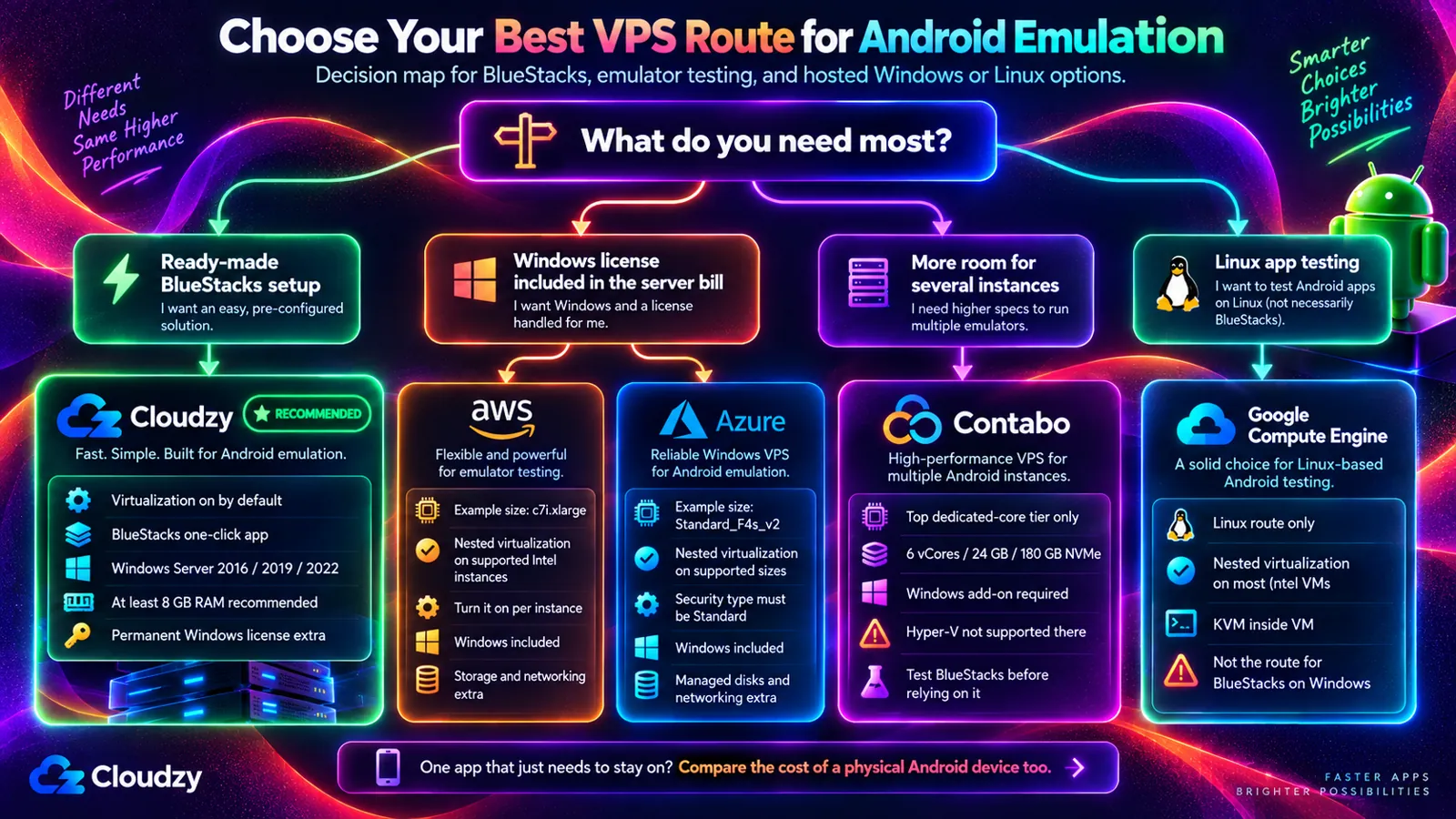
For BlueStacks on Windows with a ready-made image, I'd pick Cloudzy, as long as you're fine providing an eligible Windows license. If your company already runs on AWS or Azure, or wants the Windows license bundled into the server bill, the answer flips to them, with Windows included in their server price. Compare the complete bill against Cloudzy plus an eligible Windows Server license, rather than comparing compute prices alone.
If you need room for several instances and will test BlueStacks yourself, it flips to Contabo's top tier. Two cases don't need a Windows server at all:
- If you're testing your own app on the Linux emulator, Cloudzy, AWS, Azure, and Google offer configurations that expose the CPU virtualization features it needs; emulator and graphics compatibility still need testing. The difference is whether virtualization is on from the start or a setting you switch on per server.
- If the job is one app that just has to stay on, I'd price a cheap physical Android device first. It may cost less than a few months of any server here, and it has its own graphics hardware.
If the goal is BlueStacks on a Windows desktop you can reach from any device, the short list is a server that passes virtualization through, runs Windows, and has at least 8 GB of RAM. Cloudzy's BlueStacks one-click app deploys BlueStacks together with Windows Server, so it's already on the desktop the first time you connect. The 14-day money-back guarantee then gives you time to confirm your app works without a GPU, which counts for more here since BlueStacks doesn't support servers itself. Choose the location closest to where you'll connect from and deploy BlueStacks on Cloudzy in one click.
Frequently Asked Questions
Can I Run Several BlueStacks Instances on One VPS, and How Much RAM Do They Need?
Yes. BlueStacks' Multi-instance Manager sets CPU cores and memory per instance, so separate apps, or one app on different Android versions, run side by side. Add each instance's allocated memory to the actual memory used by Windows, BlueStacks' host processes, and other software. Three instances allocated 2 GB each already reserve 6 GB, so an 8 GB server may be too tight; measure total usage rather than assuming the remaining 2 GB is sufficient. BlueStacks recommends Low Memory mode at 8 GB or less and for many instances at once.
Can I Turn On Virtualization Inside My VPS Myself?
No, not from inside the server. The provider adds it at the host: Google's nested-virtualization docs, for example, describe Compute Engine adding VT-x or AMD-V instructions to its VMs. On AWS, Azure, and Google, you switch it on in the provider's settings for that server. If your VPS doesn't expose it, ask the provider or move.
Does BlueStacks Need Hyper-V Turned Off?
No, not since version 5.20. BlueStacks' Hyper-V requirements page says you can run BlueStacks 5 with Hyper-V, Microsoft's built-in hypervisor, enabled or disabled. With Hyper-V on, your Windows account must be in the Hyper-V Administrators group, and the installer picks the Hyper-V compatible version by itself. Advice to switch Hyper-V off predates that change.
Will BlueStacks Work on a VPS Without a GPU?
Not guaranteed. A VPS without GPU passthrough still needs a graphics environment compatible with your BlueStacks version and Android instance. Nested virtualization does not establish that compatibility, and BlueStacks doesn't document a universal CPU-rendering fallback for Android apps on arbitrary Windows VPS configurations. Test BlueStacks and your actual app on the exact server image before committing, especially for 3D workloads.
Can I Use BlueStacks on a VPS From a Mac or a Phone?
Yes. Any device with a remote desktop (RDP) client, including a Mac, an iPhone, or an Android phone, can connect to the server's Windows desktop, and BlueStacks keeps running after you disconnect. On a phone, connecting to a Windows VPS from Android takes an RDP app plus the server's address and login.

Discussion
Comments
Sign in to join the discussion.