SSH is a secure network protocol that creates an encrypted tunnel between systems. It remains popular with developers who need remote access to computers without requiring a graphical user interface. While SSH has been around for decades and has served countless users reliably, it can still be affected by certain errors.
Many of these errors have become well-known in the SSH community, and their workarounds are widely documented. These include firewall incompatibility, SSH public key injection issues, SSH file key mode problems, and the “Warning: Remote Host Identification Has Changed” error.
This error occurs across all major operating systems, including Windows, Linux, and macOS. The source of the problem might be a legitimate security concern rather than a simple technical glitch. In this article, we’ll explain why this happens, what it means for your SSH connection security, and how to resolve it on each major platform.
What Triggers the Warning: Remote Host Identification Has Changed (and Should You Worry?)
The “Warning: Remote Host Identification Has Changed” appears when the SSH public key stored in your known_hosts file doesn’t match the key the server is currently presenting. This mismatch triggers SSH’s built-in security mechanism to protect you from potential threats.
Legitimate Reasons for Host Key Changes
Several innocent reasons explain why a server’s host key might change. Sometimes you’ll see variations like “RSA host key has changed,” depending on the specific key type being used.

Server-Related Changes:
- The server operating system was reinstalled or upgraded
- The server was rebuilt or restored from backup
- The server’s SSH configuration was reset
- The physical or virtual machine was replaced
- Server migration to new hardware
Network Configuration Changes:
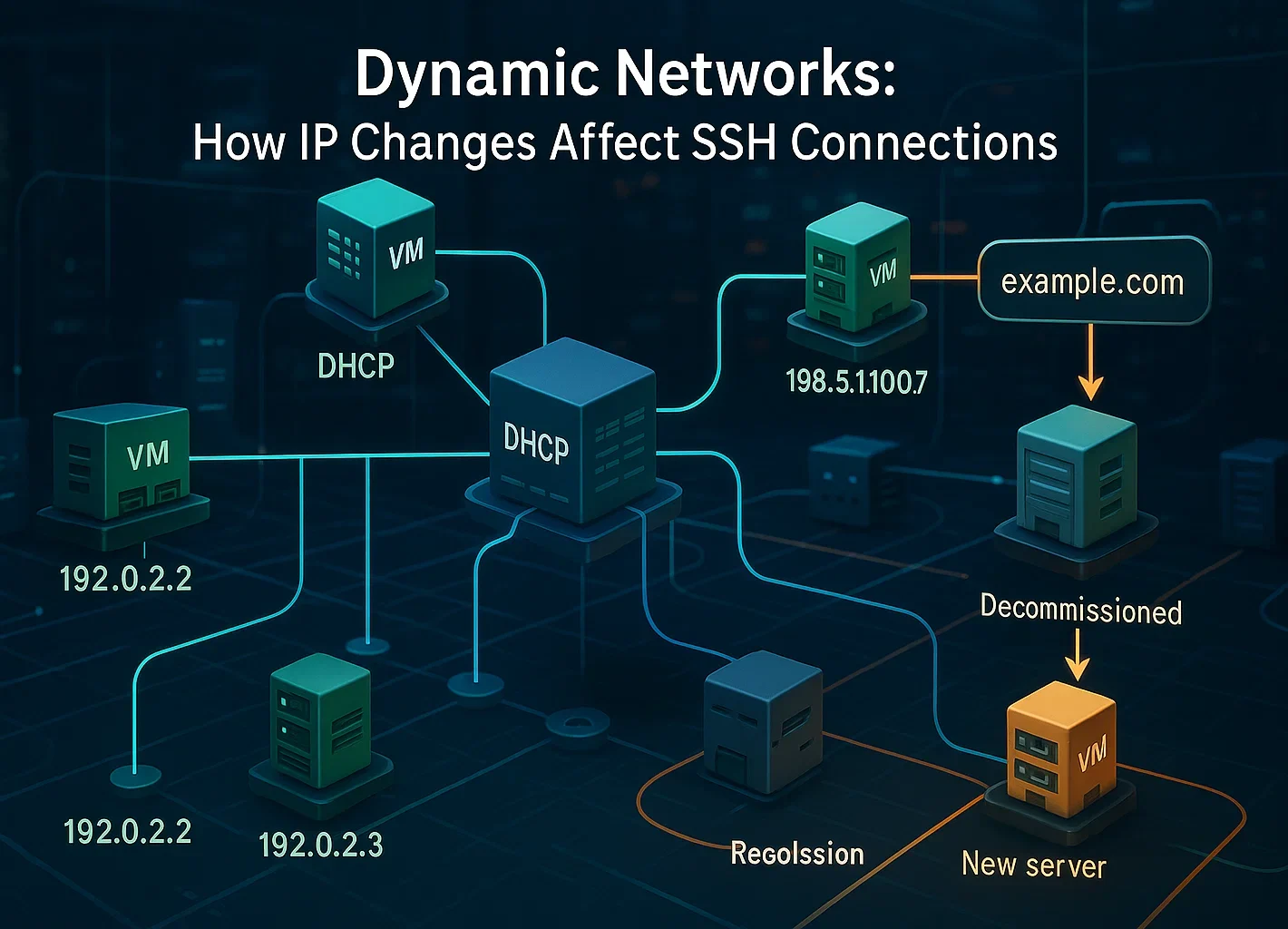
- Cloud providers recycle IP addresses over time, or your connection routes through a load balancer.
- DHCP reassigned an IP address to a different machine
- A decommissioned server’s IP was assigned to a new system
- DNS records were updated to point to a different server
Key Management Actions:
- System administrators manually regenerated host keys for security purposes
- SSH server software was reinstalled
- Security policies required key rotation
It’s important to recognize that user password changes do not affect host keys. These represent separate authentication mechanisms. Host keys change only when the server itself or its SSH configuration is modified.
When to Take the Warning Seriously
While many host key changes are legitimate, this could indicate a genuine security threat. You should be concerned if:
- You didn’t make any changes to the server or know of any scheduled maintenance
- You cannot verify the reason for the key change with the server administrator
- The server is accessed over public networks or untrusted connections
- You’re connecting to production systems or servers containing sensitive data
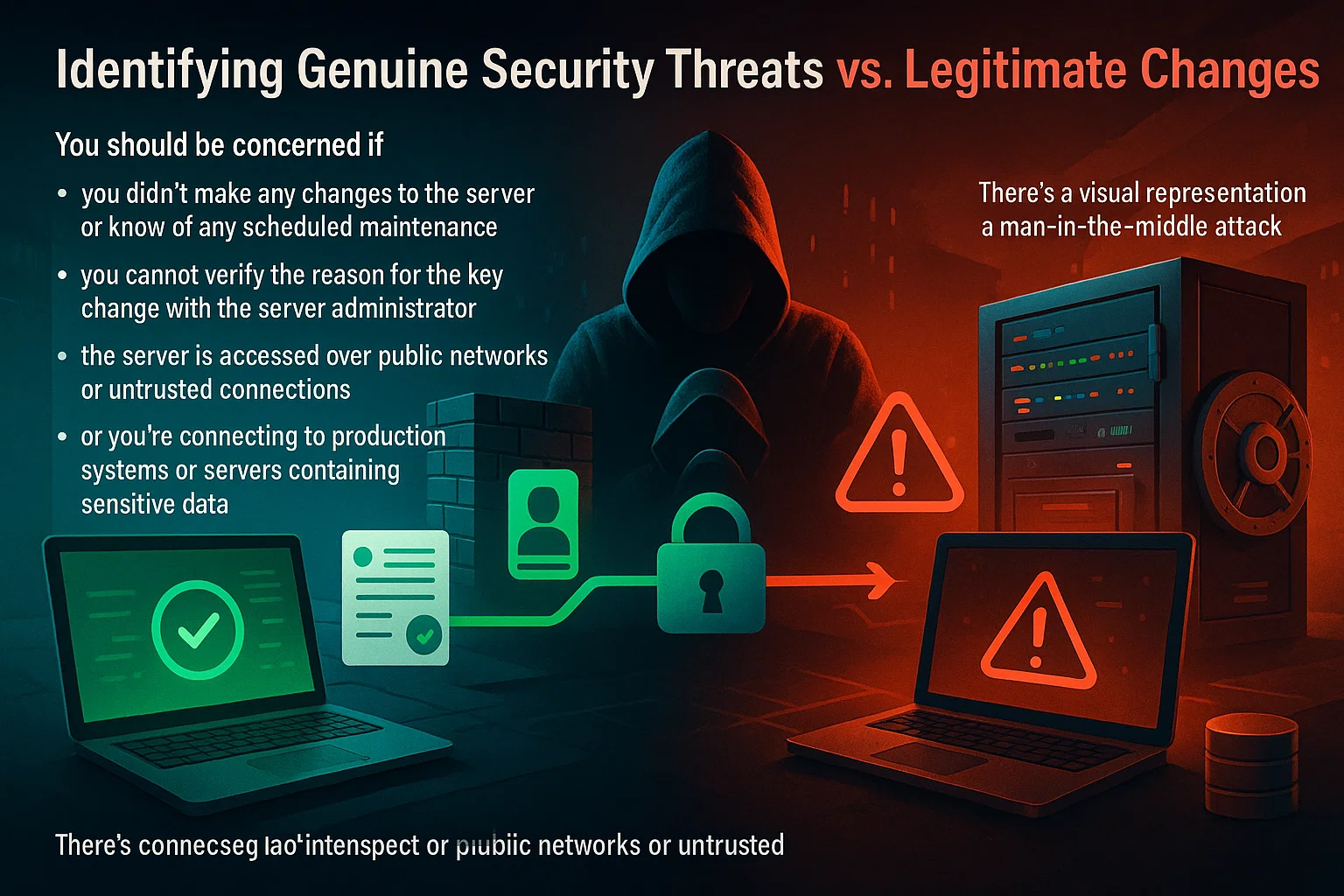
Man-in-the-middle attacks, while relatively rare, do occur. In such attacks, an adversary positions themselves between your computer and the legitimate server, intercepting all traffic.
Human error and social engineering account for 68% of security breaches, which makes vigilance key. You can protect your systems further by learning about brute-force attack prevention.
Recent statistics from IBM show that the global average cost of a data breach was $4.44 million in 2025, with detection times averaging eight months. This demonstrates why SSH’s host key verification mechanism exists and why you should never ignore these warnings without investigation.
How to Verify if the Warning is Safe
Before proceeding to fix the issue, take these verification steps:
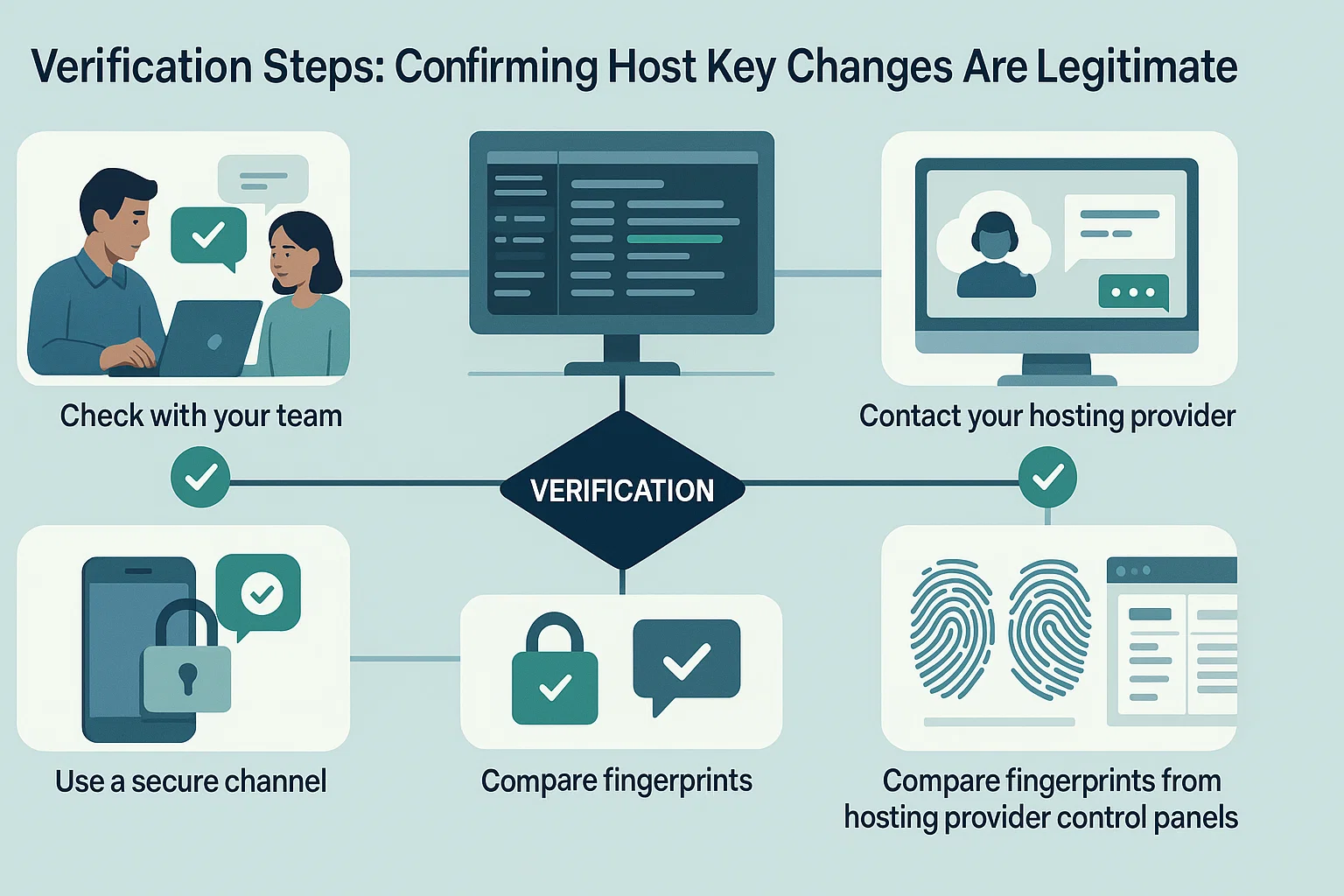
- Check with your team: If you share server access, ask colleagues if they made changes
- Review server logs: Check maintenance records or change logs for recent activity
- Contact your hosting provider: If using cloud services, verify if maintenance occurred
- Use a secure channel: If possible, connect via a known secure network to verify the fingerprint
- Compare fingerprints: Some hosting providers display current SSH fingerprints in their control panels
If you can confirm that the key change was legitimate, you can safely proceed with removing the old key and accepting the new one.
If you want to avoid dynamic IP reassignment or host key conflicts, the infrastructure you choose plays a big role.
Cloudzy provides SSH VPS hosting with dedicated static IPs. You run on AMD Ryzen 9 processors with NVMe storage for instant command execution. Our network reaches 40 Gbps across 16+ global locations. Plus, we include free DDoS protection to keep your connection secure.
How to Fix the “Remote Host Identification Has Changed” Error
The fix is simple: remove the old key record from your system. This clears the mismatch and lets you save the new key the next time you connect. Check out our guide on SSH clients for more tools.
Plus, you can do this with a single command or by editing the file manually.
Method 1: The Command Line (Fastest)
This method works for macOS, Linux, and Windows 10+ (using OpenSSH). It is the quickest way to resolve the error. For more info, you can read the ssh-keygen man page.
- Open your terminal.
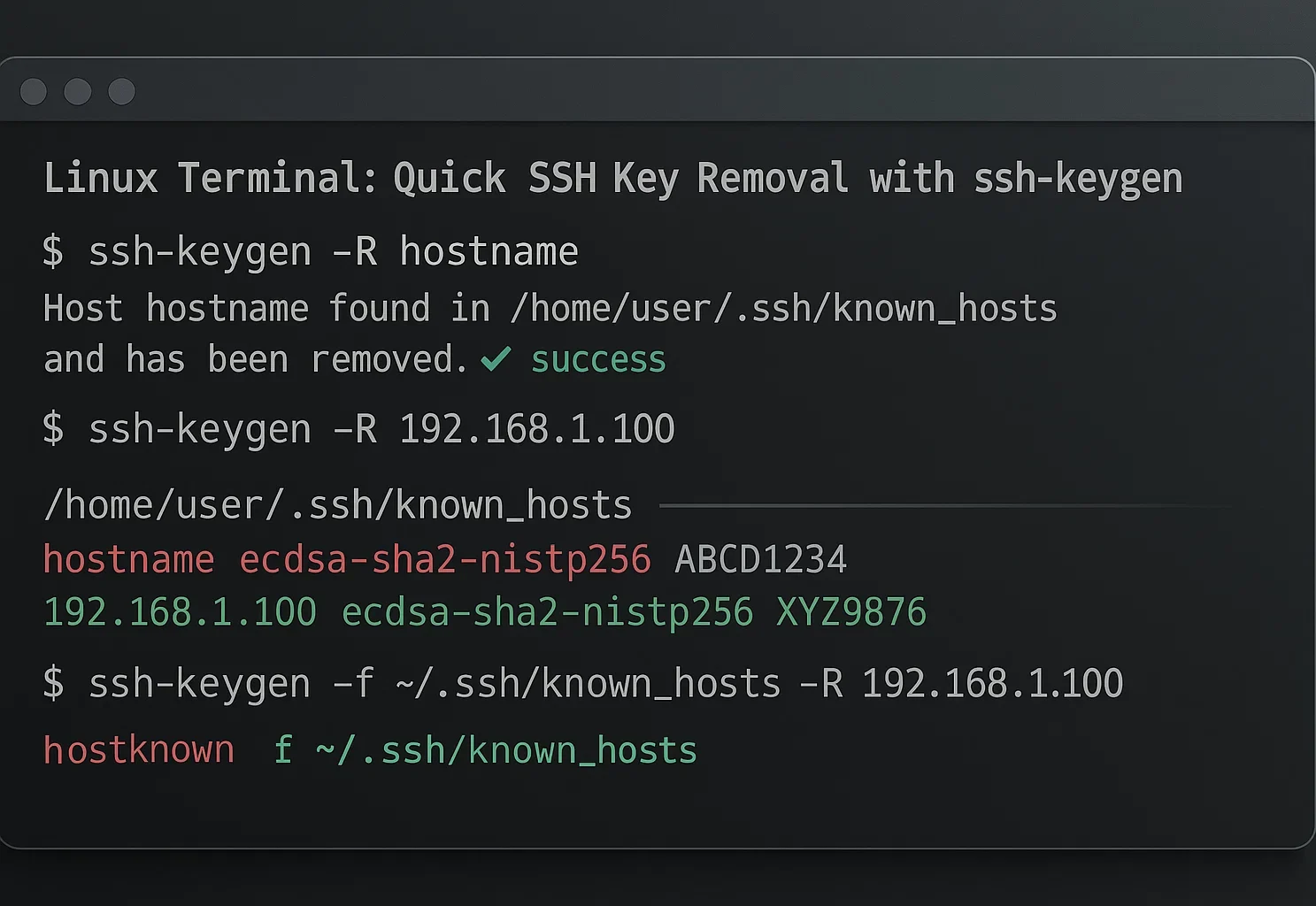
- Run this command (replace hostname with your server’s IP or domain):
ssh-keygen -R hostnameIf you prefer a visual editor, you can delete the key yourself. The error message usually tells you exactly which line number to remove.
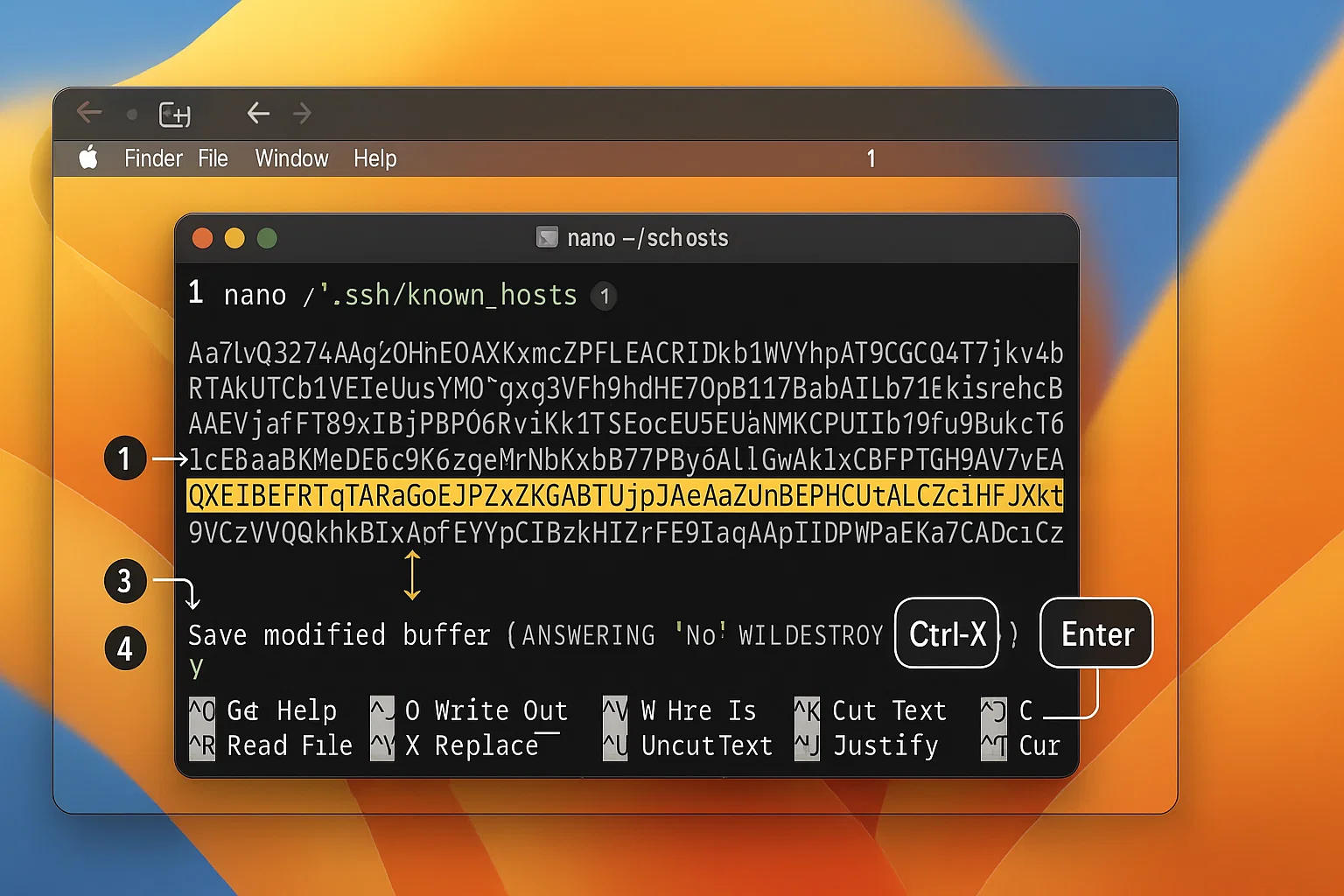
Open your terminal and edit the file with Nano:
nano ~/.ssh/known_hosts
Find the line from your error message. Delete it, then press Ctrl + X and Y to save.
Solution for Windows
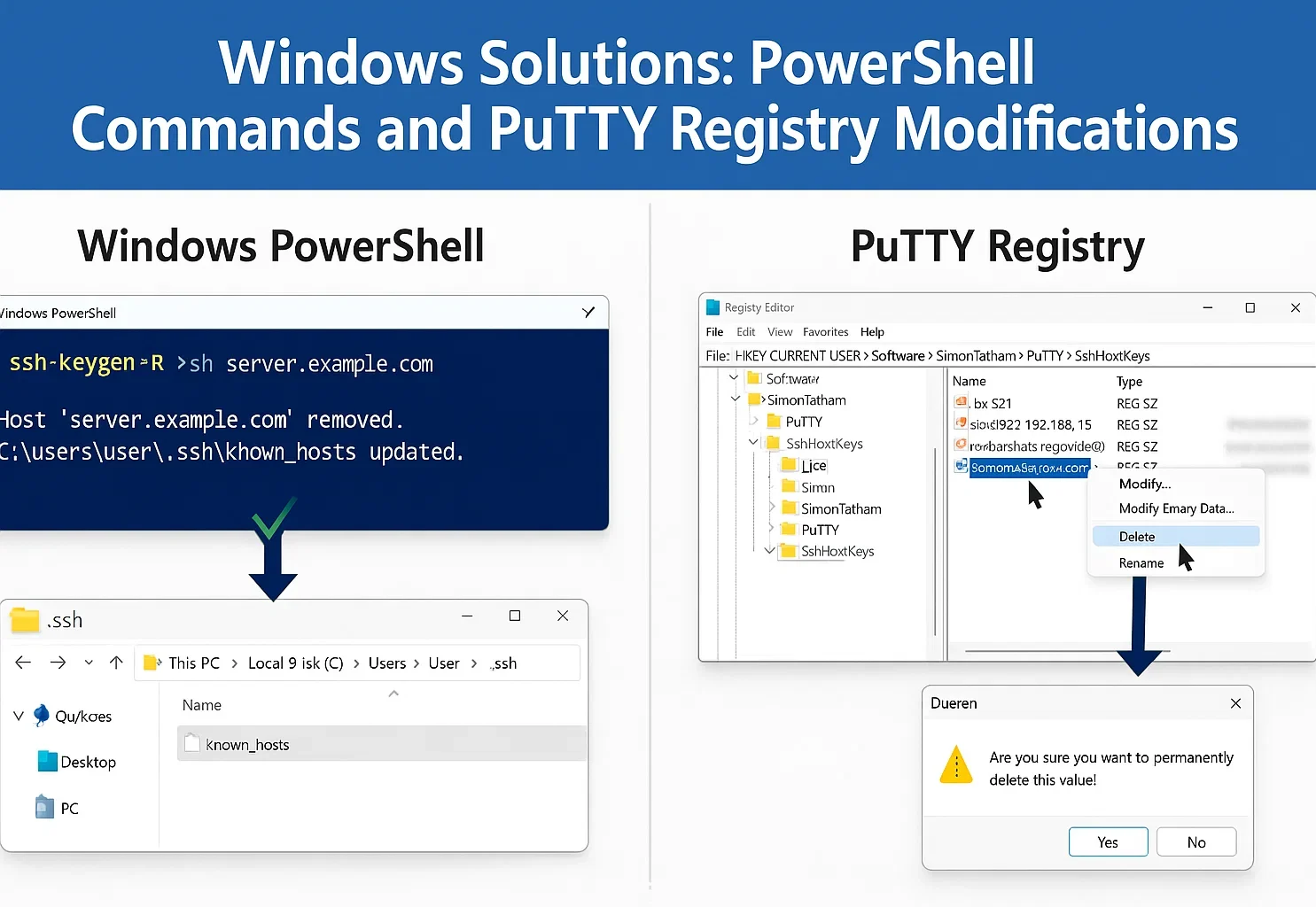
Windows users typically use either the built-in OpenSSH client or PuTTY.
Option 1: Windows OpenSSH (Windows 10/11)
On Windows 10 and 11, OpenSSH is an optional feature. Add it through Settings > Apps > Optional features. Server 2025 includes the client, but you must turn it on.
If you use PowerShell or Command Prompt, the ssh-keygen command from Method 1 works here too.
To edit the file manually instead:
- Press Windows Key + R.
- Type %USERPROFILE%\.ssh and press Enter.
- Open the known_hosts file with Notepad.
- Delete the line causing the error and save the file.
For managing keys properly, see our guide on generating SSH keys in Windows.
Option 2: Using PuTTY
PuTTY stores keys in the Windows Registry rather than a file.
- Open the Registry Editor (Press Windows Key + R, type regedit, and hit Enter).
- Navigate to: HKEY_CURRENT_USER\Software\SimonTatham\PuTTY\SshHostKeys\
- Find the entry that matches your server’s hostname or IP.
- Right-click it and select Delete.
Solution for Linux
The ssh-keygen command we covered in Method 1 is the standard way to fix this on Linux. It is fast and natively supported.
Manual Editing
If you prefer to see the file content, you can edit it with a text editor like Nano.
- Open your terminal.
- Type nano ~/.ssh/known_hosts and press Enter.
- Find the line number mentioned in your error message.
- Delete the line, then press Ctrl + X and Y to save.
You can also use Vim (vim ~/.ssh/known_hosts) if you are familiar with it.
A Warning on Disabling Checks
You can force SSH to connect without verification, but this is risky. It bypasses the protection against man-in-the-middle attacks.
Only use this approach for local testing on trusted networks. For macOS and Linux, type this:
ssh -o StrictHostKeyChecking=no -o UserKnownHostsFile=/dev/null [email protected]If you are on Windows, the Unix path fails. You must use NUL to make the bypass work:
ssh -o StrictHostKeyChecking=no -o UserKnownHostsFile=NUL [email protected]Do not run these overrides on public connections or live servers.
Fixing key mismatches is routine maintenance, but you can do more to secure your connection. Bots often target the default port 22 with brute-force attacks. You can avoid most of this background noise by changing SSH ports in Linux to something less predictable.
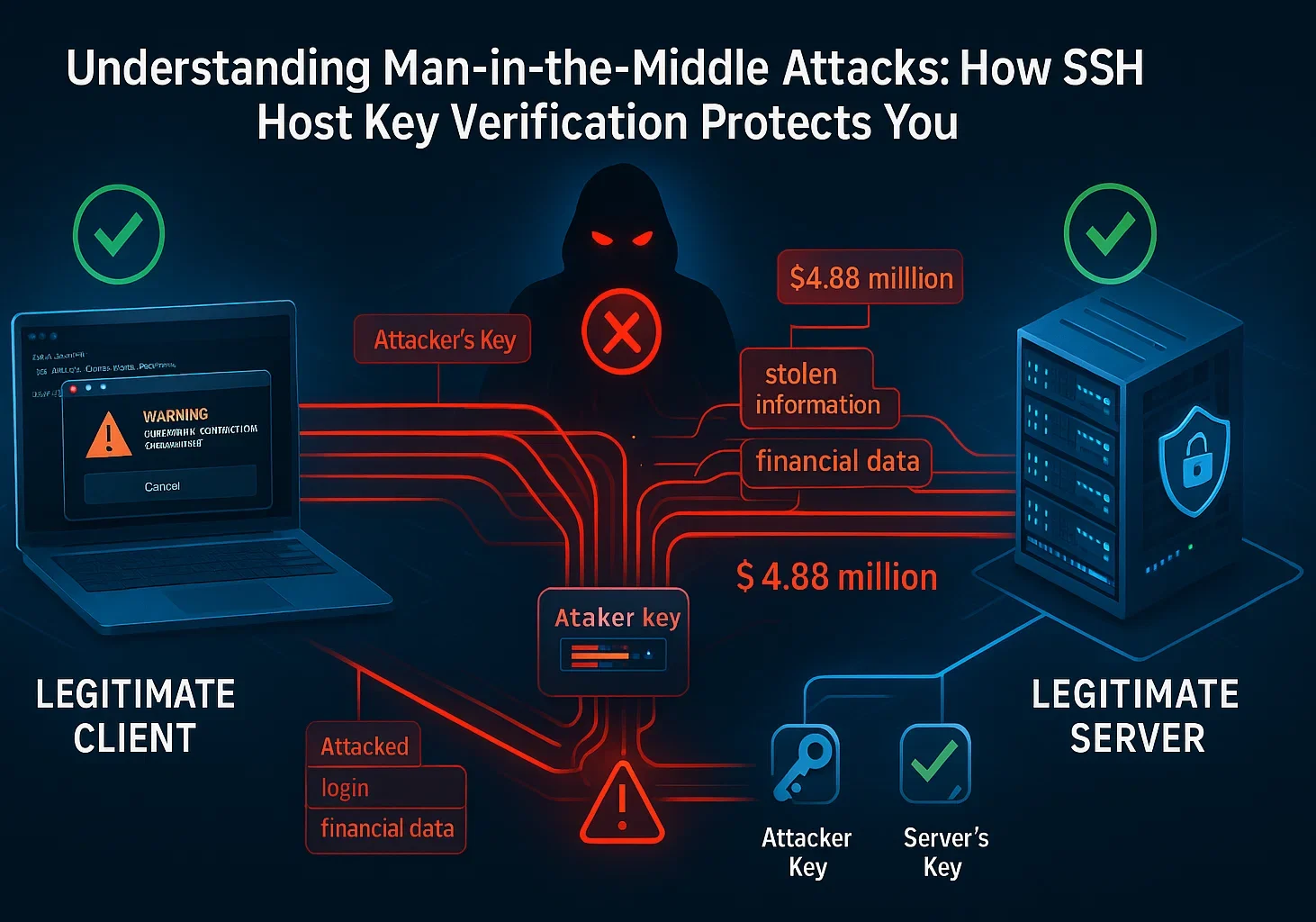
Never use this method for production servers or over untrusted networks.
How to Prevent the “Remote Host Identification Has Changed” Message Next Time
While you can’t always prevent legitimate host key changes, you can minimize disruptions and maintain better security practices.
Quick Reference Guide
| Your Role | Key Strategies |
| System Administrators | Back up keys, document changes, use certificates, and rotate keys regularly |
| Regular Users | Maintain inventory, verify through secure channels, and monitor logs |
| Cloud Environment
Users |
Use DNS names, leverage provider tools, and implement infrastructure as code |
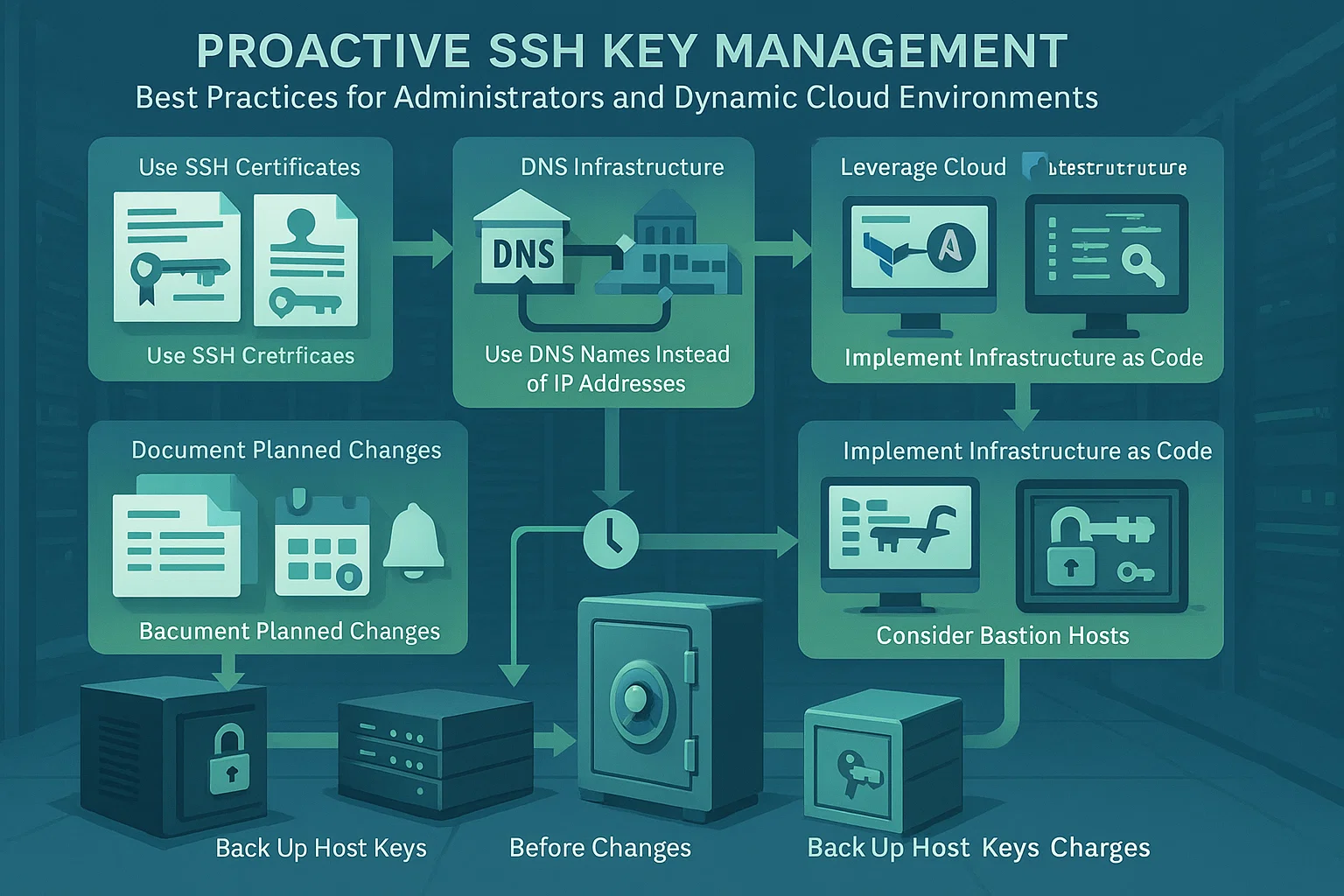
For System Administrators
Back Up Host Keys: Save keys from /etc/ssh/ before reinstalling the OS. Restore them afterwards to prevent warnings for your users.
Document Planned Changes: Alert users before changing keys and share the new fingerprints securely. This allows them to verify the connection.
Use SSH Certificates: Large teams should use a central certificate authority. This signs host keys and removes the need for manual verification.
Implement Key Rotation: Schedule your host key changes. Predictable updates are easier for your team to handle than surprise ones.
For Regular Users
Maintain an Inventory: Keep a personal record of server fingerprints or use your team’s secure documentation.
Verify via Out-of-Band: Confirm keys against a trusted source like the cloud console, not casual messages.
Monitor Logs: Check your local SSH logs regularly for strange connection patterns or repeated errors.
Use Config Management: Use SSH config files to handle dynamic dev environments without lowering security settings.
For Dynamic Cloud Environments
Use DNS Names: Connect using hostnames rather than IPs. This maintains consistency when the underlying address changes.
Leverage Cloud Tools: Use provider consoles to retrieve current fingerprints. Verify keys against these tools before accepting changes.
Infrastructure as Code: Automate key verification with tools like Terraform. For advanced setups, you can also use SSH SOCKS5 proxies.
Bastion Hosts: Set up jump servers with stable keys. These act as secure entry points to your dynamic infrastructure.
Conclusion
The “Warning: Remote Host Identification Has Changed” serves as an important security feature of SSH, not a flaw to be ignored. While this warning often appears for legitimate reasons like server maintenance or configuration changes, it plays a key role in protecting you from man-in-the-middle attacks and unauthorized access.
When you encounter this warning, verify the cause before proceeding. In most cases, the solution is straightforward: remove the old host key using the methods outlined for your operating system, then accept the new key on your next connection.
By learning how SSH host keys work and following best practices, you can maintain both security and convenience in your remote access workflows. For more on transferring files securely, see copying files over SSH.