Up to 50% off all plan, limited-time offer. Starting at $2.48.

Webmin is a great option if you are looking for an easy-to-use
interface for managing your VPS. Let’s see how to install Webmin on a
VPS.

Step 1: Install
Dependency Packages

First, you need to install the dependency packages. Enter the
following command in your terminal.

sudo yum install nano -y

Step
2: Add the Webmin Repository to the Repository List

Open a terminal and enter the following command to add the Webmin
repository:

sudo nano /etc/yum.repos.d/webmin.repo

Step 3: Write in the New
File

Add the following lines to the opened file:

[Webmin]

name=Webmin Distribution Neutral

#baseurl=http://download.webmin.com/download/yum

mirrorlist=http://download.webmin.com/download/yum/mirrorlist

enabled=1

Step 4:
Download and Install the GPG Key

Now, you need to download and install the GPG key by using the
following command:

wget http://www.webmin.com/jcameron-key.asc
sudo rpm --import jcameron-key.asc

Step 5: Update the
Repository

Type in this command to update the repository:

sudo yum check-update

Step 6: Install
Webmin

Now, enter the following command to install Webmin:

sudo yum install webmin -y

If installation fails because the dependencies are not ready, just
re-enter the installation command.

Step 7: Start the
Service

To start the service and make it start automatically, use this
command:

chkconfig webmin on
service webmin start

Step 8:
Change Firewall Settings to Allow Webmin

If you have a firewall, you should enable Webmin through the firewall
by entering the following command:

firewall-cmd --permanent --add-port=10000/tcp
firewall-cmd --reload

Step 9: Log in to
Webmin

Now, you can log in to Webmin. Open the following website in your
browser:

https://your-ip-addres:10000

Step 10: Enter
Username and Password

Then, Enter your username and password by using the HTTPS protocol.
By default, the username is root, and the password is the root user’s
password.

Step 11: Configure your
VPS

Now, it’s time to configure your VPS with Webmin by going to
Webmin configuration.

Step 12: Change the
Standard Port

If your Webmin VPS has a public IP, go to ports and
addresses
and put the standard port on
some.

Here you go. Now you know how to install Webmin on a VPS.

If you want to change your Webmin password, you can enter this
command:

/usr/libexec/webmin/changepass.pl /etc/webmin root NEWPASSWORD

But changing the password for a specific user for Webmin is not
recommended.

Webmin Virtual Host

One of Webmin’s many features is the Webmin virtual host. This allows
you to host multiple websites on a single server. After you install
Webmin on a VPS, you can create virtual hosts by following these
steps:

Step 1: Go to the control
panel
.

Step 2: Update your Webmin to ensure you use its
latest version.

Step 3: Log in to Webmin and click on the
Servers icon.

Step 4: Click on Apache
WebServer
.

Step 5: Select any address in the
Create a New Virtual Server part.

Step 6: In the port section, enter
80, and choose the last radio button.

Step 7: In the document root
section, put the name of the HTML files your virtual host will be.

Step 8: Enter the domain name in the server
name
section.

Now, you’ve created the Webmin virtual host.

How
to Install Webmin on an Ubuntu Server or Debian-Based
Server

In the first section, we discussed installing Webmin on a REHL-based
VPS. Now, we will show you how to install Webmin on an Ubuntu or
Debian-based server.

First, you need to install the dependency packages by typing the
following command:

sudo apt install software-properties-common apt-transport-https -y

Add the Webmin repository and the GPG
key
.

sudo wget -q http://www.webmin.com/jcameron-key.asc -O- | sudo apt-key add -
sudo add-apt-repository "deb [arch=amd64] http://download.webmin.com/download/repository sarge contrib"

Finally, install Webmin:

sudo apt install webmin -y

If you have a firewall, you should allow it by using this
command:

sudo ufw allow 10000/tcp

That’s it! You successfully installed Webmin on your server. The
default username is root, and the password is your
current root password.

Now, you need to open your web browser and navigate to the following
address:

https://localhost:10000/

Sometimes Debian or Ubuntu distributions do not allow users to log in
by the root user and its pass. In that case, you must
enter sudo for the username.

After you log in, you can configure your web server according to your
needs and goals.

Perfect! You now know how to install Webmin on your Linux VPS. If you
have any questions, don’t hesitate to contact us by submitting a
ticket
.

Since Python is great for development, scripting, and data analysis,
installing it on Linux is important for many projects. In this guide,
we’ll show you how to install it on Ubuntu and CentOS. With these simple
steps you can get Python working on your system.

Prerequisites

Before installing Python on Linux, make sure:

  1. Active Cloudzy Linux VPS: You’re on a Cloudzy
    VPS with Ubuntu or CentOS.

  2. Command-Line Skills: You’re familiar with using
    the Linux command line.

  3. Admin Rights: You have root access or can use
    ‘sudo’ for commands.

These steps prepare you for Python installation on your Cloudzy
VPS.

Installing Python on
Ubuntu

  1. Update Packages:
  • SSH to your VPS.

  • Type sudo apt update to refresh
    packages.

  1. Install Python:
  • Install Python with sudo apt install python3. This
    gets the latest Python 3.
  1. Check Version:
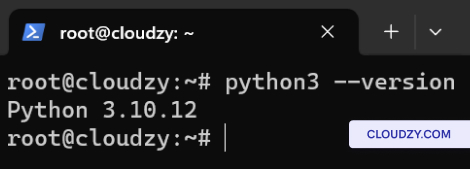
  • Confirm by typing python3 –version. It shows the
    Python version.
Check Python version

Installing Python on
CentOS

  1. Update Packages:
  • SSH to your VPS.

  • Type sudo dnf update for updating system
    packages.

  1. Install Python:
  • Run sudo dnf install python3 to install Python.
    This gets the default Python 3 from your CentOS repo.
  1. Check Version:
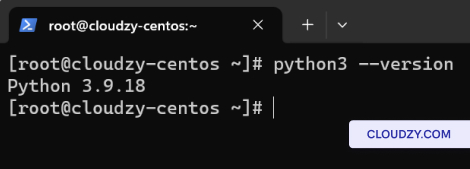
  • After installing, verify with python3 –version. It
    shows the installed Python 3 version.
Check Python version CentOS

Congratulations! You’ve successfully instaledl Python on Ubuntu and
CentOS in Cloudzy VPS. If you need any more information or further
assistance, feel free to contact our support team by submitting a
ticket
.

This guide provides a straightforward approach to installing the
latest version of Nextcloud, a self-hosted productivity platform, on an
Ubuntu server. Nextcloud Hub 6 (27.1.3) offers file hosting,
collaboration, and more, with the flexibility of a private server.

Prerequisites

  • A server running Ubuntu 20.04 LTS or later.

  • Basic familiarity with the command line interface.

Installation Process

Follow these steps to install Nextcloud Hub 6 (27.1.3) on your Ubuntu
server:

Step 1: Update Your
Server

Ensure your server’s package list and the system itself are up to
date:

sudo apt update && sudo apt upgrade -y

Step 2: Install Apache
Web Server

Install Apache, which will serve your Nextcloud files:

sudo apt install apache2 -y

Step 3:
Install PHP and Required PHP Modules

Nextcloud requires PHP to run. Install PHP along with the necessary
modules:

sudo apt install php libapache2-mod-php php-mysql php-dom php-xml php-mbstring php-gd php-curl php-zip -y

Step 4: Install MariaDB
Server

Install MariaDB, a database server to store Nextcloud data:

sudo apt install mariadb-server -y

Step 5: Create a
Database for Nextcloud

First, log in to the MariaDB shell:

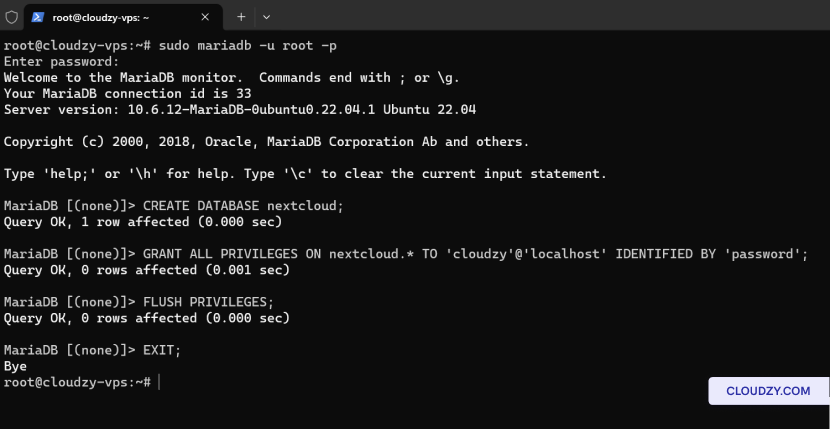
sudo mariadb -u root -p

After logging in, create a database for Nextcloud and a user with the
desired credentials:

CREATE DATABASE nextcloud;
GRANT ALL PRIVILEGES ON nextcloud.* TO 'your_desired_username'@'localhost' IDENTIFIED BY 'your_desired_password';
FLUSH PRIVILEGES;
EXIT;
Create database for nextcloud

Step 6:
Install Unzip, and Download Nextcloud

Before downloading Nextcloud, make sure you have unzip installed to
extract the downloaded file:

sudo apt install unzip -y
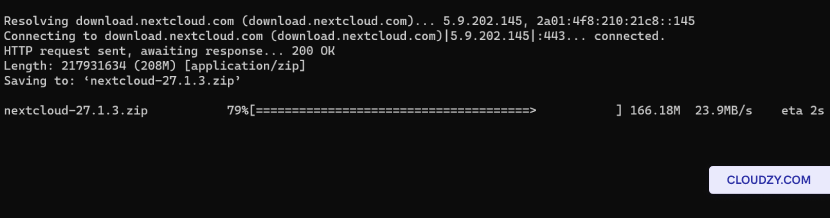
wget https://download.nextcloud.com/server/releases/nextcloud-27.1.3.zip

Step 7:
Extract Nextcloud and Set Permissions

Unzip the Nextcloud package to the web root directory and set the
correct permissions:

unzip nextcloud-27.1.3.zip -d /var/www/html/
sudo chown -R www-data:www-data /var/www/html/nextcloud/
Unzip Nextcloud packages

Step 8: Configure
Apache for Nextcloud

Create an Apache configuration file for Nextcloud:

sudo nano /etc/apache2/sites-available/nextcloud.conf

Insert the following configuration and save the file:

Alias /nextcloud "/var/www/html/nextcloud/"
<Directory /var/www/html/nextcloud/>
  Require all granted
  AllowOverride All
  Options FollowSymLinks MultiViews

  <IfModule mod_dav.c>
    Dav off
  </IfModule>
</Directory>

Enable the new site and rewrite module:

sudo a2ensite nextcloud
sudo a2enmod rewrite
sudo systemctl restart apache2

Step
9: Complete the Installation Through the Web Interface

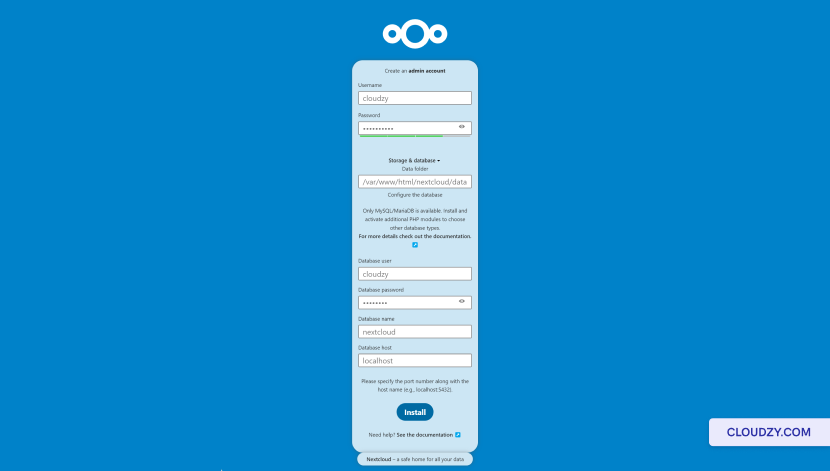
Open your web browser and navigate to
http://your_server_ip/nextcloud. Complete the setup by
providing the following information:

  • Admin account details: Choose a username and
    password for the Nextcloud administrator CD account.

  • Data folder: Confirm the path to the data folder
    where Nextcloud will store its files.

  • Database configuration: Enter the credentials
    for the database user and name you created earlier. Use
    localhost for the database host unless your database is
    on a different server.

Complete the installation through the web interface

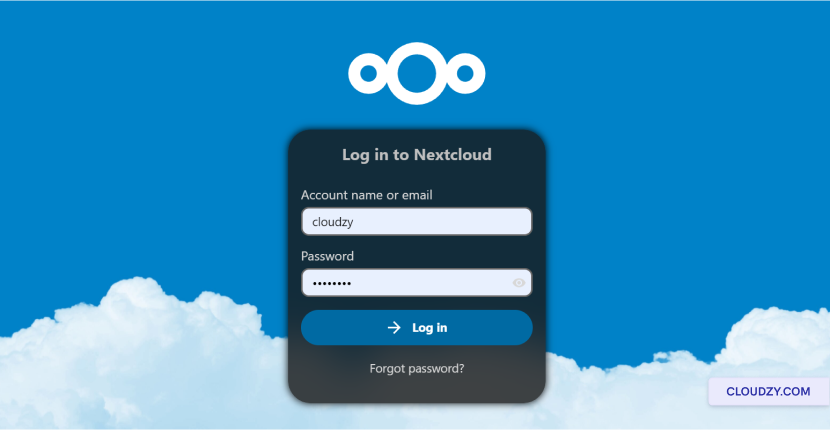
After entering the details, click the Finish setup
button to complete the installation and then navigate to
http://your_server_ip/nextcloud/index.php/login if you
didn’t redirect automatically.

Login

You now have a running instance of Nextcloud Hub 6 (27.1.3) on your
Ubuntu server. Begin by exploring the dashboard and configuring your
Nextcloud environment to suit your personal or business needs. If you
need any more information or further assistance, feel free to contact
our support team by submitting a
ticket
.

Many users can benefit from the ability to run both Windows and Linux
simultaneously on a Windows machine. The Windows Subsystem for Linux
(WSL) allows you to install a Linux distribution (such as Ubuntu,
OpenSUSE, Kali, Debian, Arch Linux, etc) and use Linux applications,
utilities, and Bash command-line tools directly on Windows, unmodified,
without the overhead of a traditional virtual machine or dual-boot
setup.

Prerequisites:

Before you begin, it’s essential to ensure you’re running the right
version of Windows:

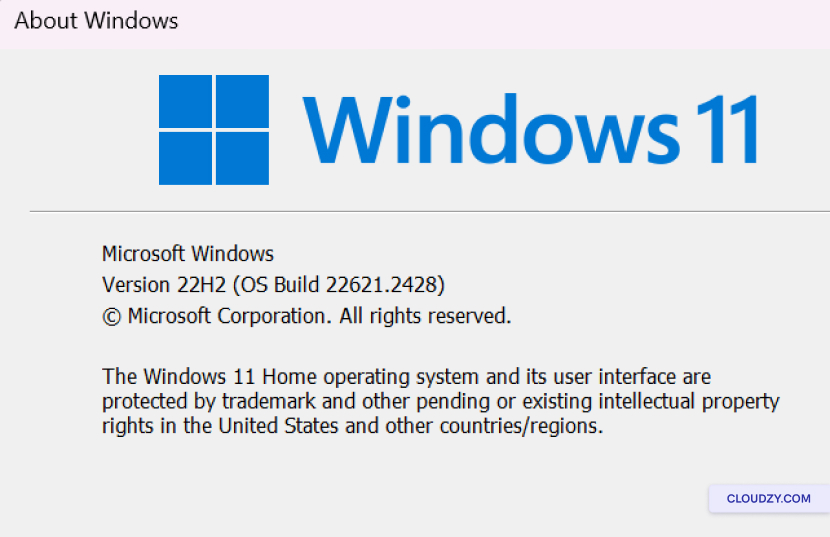
Check Windows Version:

To determine your Windows version, follow these steps:

  • Press Windows + R to open the Run dialog.

  • Type winver and press Enter.

  • A window will pop up displaying your Windows version and build
    number. Make sure you are running Windows 10 version 2004 and higher
    (Build 19041 and higher) or Windows 11 to use the commands
    below.

Check Windows Version

Install WSL

You can now install everything you need to run WSL with a single
command. Here’s how to do it:

Step
1: Open a Command Prompt in Administrator Mode

  1. Right-click on the Windows Start button.

  2. Select Windows Terminal (Admin) or
    Command Prompt (Admin). This is essential as
    administrative privileges are required for installation.

Step 2: Enter the
Installation Command

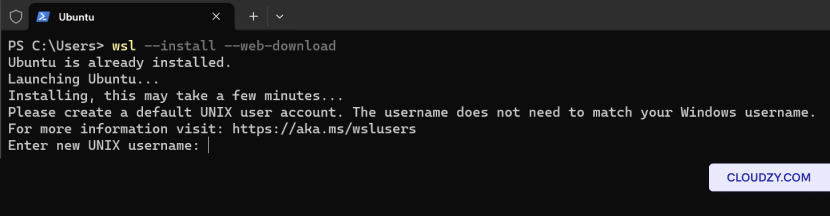
In the Command Prompt or Windows Terminal with admin privileges,
enter the following command:

wsl --install --web-download
Enter the Installation Command

Change the
Default Linux Distribution

By default, the installed Linux distribution will be Ubuntu. However,
you can change this default distribution using the -d
flag.

To change the distribution installed, follow these steps:

  1. Open a Command Prompt or Windows Terminal.

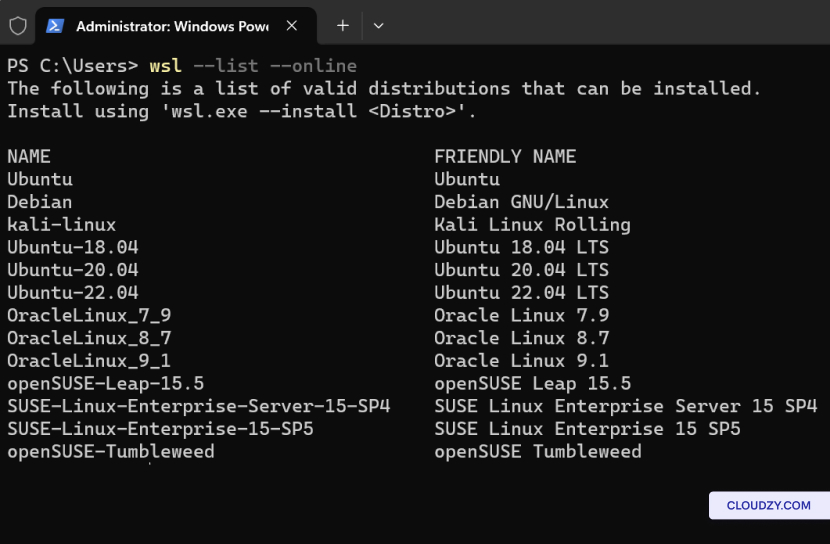
  2. Enter wsl –list –online to see a list of
    available Linux distributions for download through the online
    store.

Open a Command Prompt
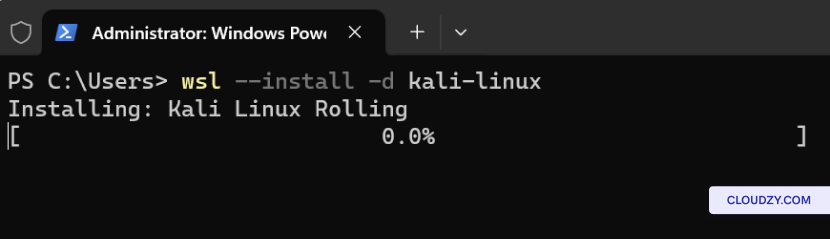
  1. Replace Distribution Name with the name of the
    distribution you would like and run:
wsl --install -d <Distribution Name>
Install Distro

How to Run a
Linux Distribution with WSL

Once you’ve installed a Linux distribution using Windows Subsystem
for Linux (WSL), you can easily launch it and start working. Here’s how
to run your Linux distribution:

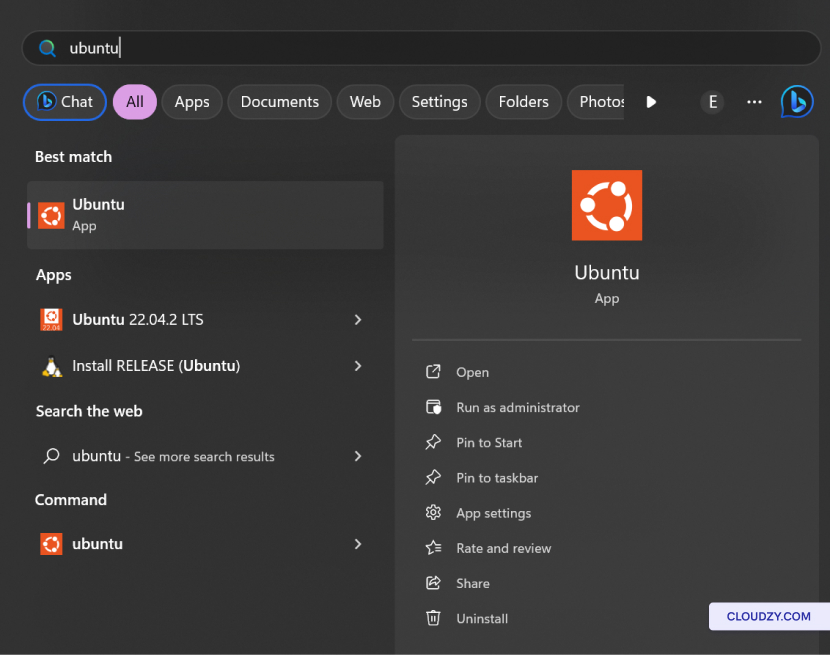
  1. In the Windows Start search bar, type the name of your installed
    Linux distribution. For example, if you have Ubuntu installed, simply
    type Ubuntu.

  2. Windows will display your Linux distribution in the search
    results. Click on it to launch your distribution.

Start Menu Search

Option 2: Command
Line

You can also run your Linux distribution from the command line in
Windows. Here’s how:

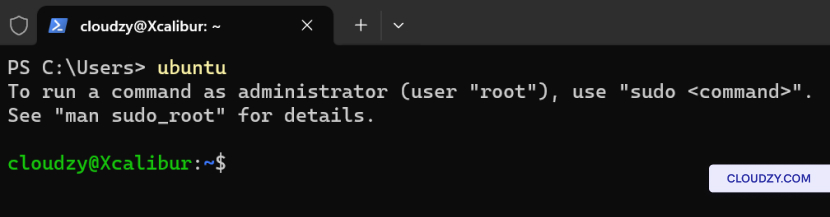
  1. Open a Command Prompt or Windows Terminal.

  2. Type the name of your installed distribution. For example, if you
    have Ubuntu, type ubuntu and press Enter.

Choose distro

Basic Commands for
WSL

Now that you have WSL installed and have set up your Linux
distributions, it’s important to familiarize yourself with some basic
commands to work effectively within the Linux environment. Below are
some key commands you can use within WSL.

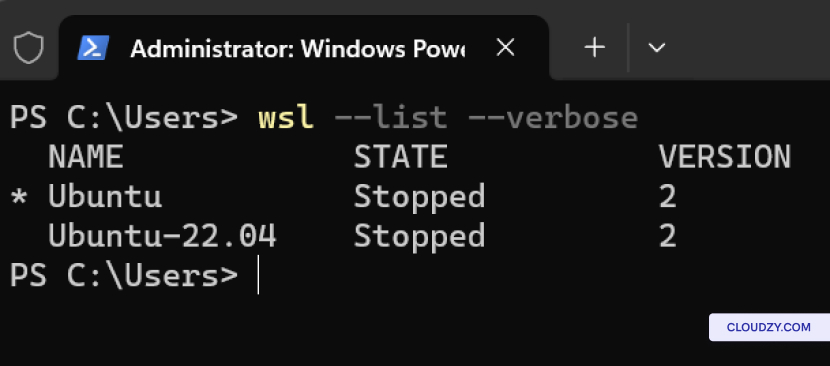
List Installed Linux
Distributions:

To view a list of the Linux distributions installed on your Windows
machine, including their state and WSL version, use:

List of distros

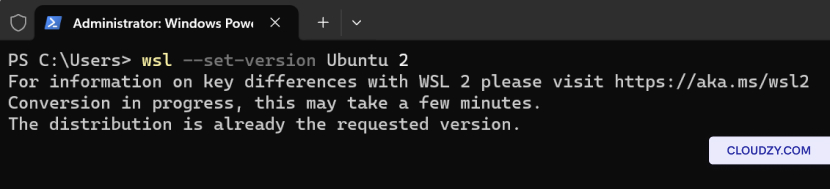
Set WSL Version:

To set the version of WSL (1 or 2) for a specific Linux distribution,
use:

wsl --set-version <distribution name> <versionNumber>
Set WSL version

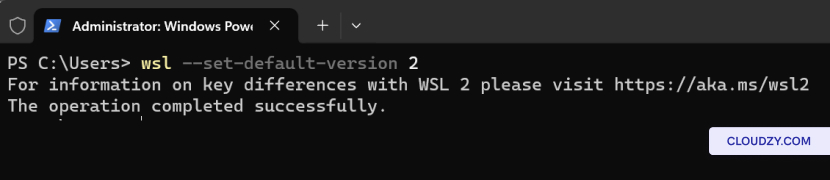
Set Default WSL
Version:

To set a default version of WSL (1 or 2) for new Linux distribution
installations, use:

wsl --set-default-version <Version>
Set default WSL version

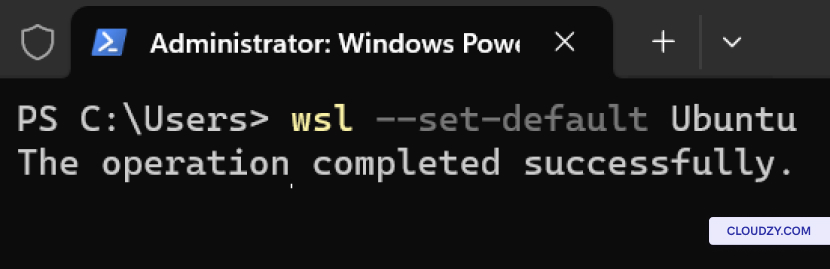
Set Default Linux
Distribution:

To set the default Linux distribution used with the wsl command,
use:

wsl --set-default <Distribution Name>
Set default Linux distro

Run a Specific Linux
Distribution:

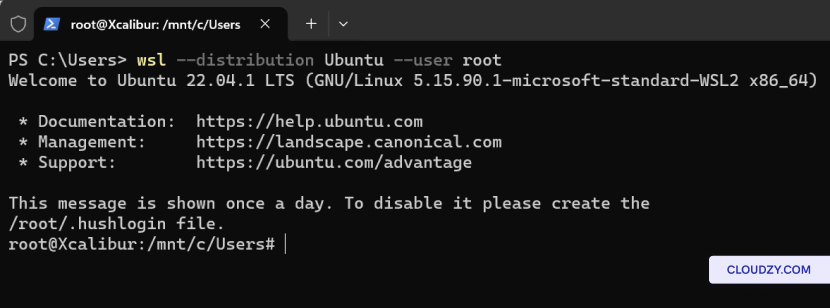
To run a specific Linux distribution with a specific user, use:

wsl --distribution <Distribution Name> --user <User Name>
Run a specific Linux distro

Removing a
Specific Linux Distribution

If you want to remove a specific Linux distribution from your WSL
setup, follow these steps:

  1. Open a Command Prompt or Windows Terminal.

  2. Run the following command and replace distro
    name
    with the name of the distribution you want to
    remove:

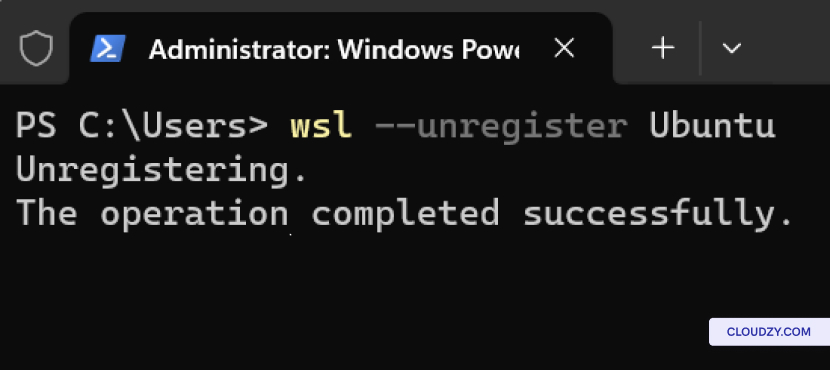
wsl --unregister <distro name>
Remove a specific Linux distro

This command will unregister the specified distribution from WSL,
removing it from your system. Please note that all data, settings, and
software associated with that distribution will be permanently lost.

Uninstall WSL from
Your Computer

If you want to completely uninstall WSL from your computer, follow
these steps:

  1. Open a Command Prompt or Windows Terminal.

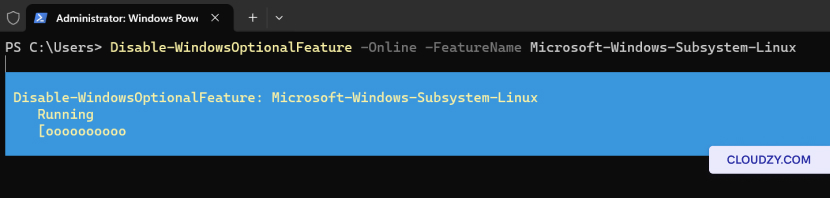
  2. Below command will disable the Windows Subsystem for Linux
    feature on your system. Once disabled, WSL will be removed from your
    computer.

Disable-WindowsOptionalFeature -Online -FeatureName Microsoft-Windows-Subsystem-Linux
Uninstall WSL

With WSL, the integration of Windows and Linux becomes seamless. From
ensuring you have the right Windows version to executing commands for
installation and running Linux distributions, the process is
straightforward. Additionally, you can manage your Linux distributions
efficiently with basic WSL commands. If you need any more information or
further assistance, feel free to contact our support team by submitting a
ticket
.

Navigating the complexities of web hosting can often lead to the
underutilization of server resources, especially when managing multiple
websites. This article addresses this challenge by demonstrating how to
host multiple websites on a single server. By leveraging the
capabilities of Apache on Linux systems (Ubuntu and CentOS) and Internet
Information Services (IIS) on Windows, users can maximize their server’s
potential, streamline website management, and significantly reduce
overhead costs. This guide empowers server administrators with
step-by-step instructions to optimize their hosting environment,
ensuring each website operates seamlessly under a consolidated server
setup.

Apache
Configuration for Ubuntu and CentOS

This section guides you through the process of configuring Apache to
host multiple websites on a single server, specifically tailored for
Ubuntu and CentOS systems.

Prerequisites

Update your system’s package database:

Ubuntu/Debian:

sudo apt update
sudo apt upgrade -y

CentOS/RHEL:

sudo yum update -y

Ensure you have sudo privileges to perform
administrative tasks.

Step 1: Install
Apache

Ubuntu/Debian:

sudo apt install apache2 -y

CentOS/RHEL (The package is named httpd):

sudo yum install httpd -y

Step 2: Create
Directories

Create a root directory for each website:

sudo mkdir -p /var/www/domain.com/public_html
sudo mkdir -p /var/www/domain2.com/public_html

Replace domain.com and domain2.com with
your actual domain names.

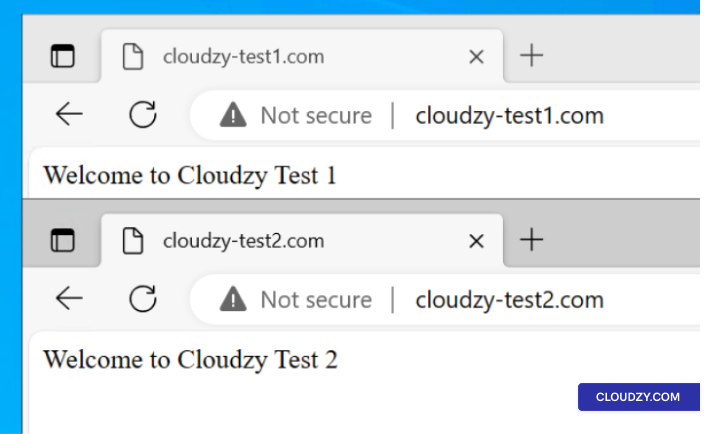
Create Directories

Step 3: Assign
Permissions

Set the permissions to allow the web server to access the
content:

sudo chown -R $USER:$USER /var/www/domain.com/public_html
sudo chown -R $USER:$USER /var/www/domain2.com/public_html
sudo chmod -R 755 /var/www
Assign Permissions

Step 4: Create Index
Pages

Create a simple index.html file for each domain:

echo "Welcome to domain.com" | sudo tee /var/www/domain.com/public_html/index.html
echo "Welcome to domain2.com" | sudo tee /var/www/domain2.com/public_html/index.html

Step 5: Configure
Virtual Hosts

Copy the default configuration file and edit it for each domain:

sudo cp /etc/apache2/sites-available/000-default.conf /etc/apache2/sites-available/domain.com.conf
sudo cp /etc/apache2/sites-available/000-default.conf /etc/apache2/sites-available/domain2.com.conf

Edit the virtual host file for domain.com:

sudo nano /etc/apache2/sites-available/domain.com.conf

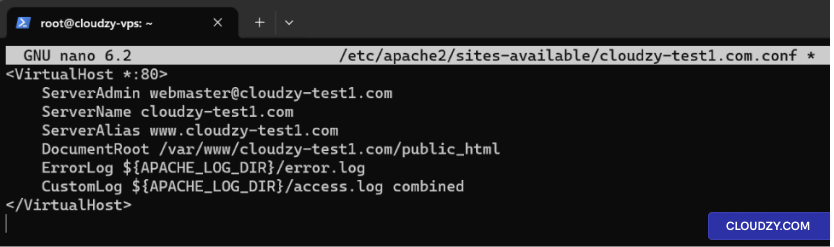
Inside the file, make the necessary changes:

<VirtualHost *:80>
    ServerAdmin [email protected]
    ServerName domain.com
    ServerAlias www.domain.com
    DocumentRoot /var/www/domain.com/public_html
    ErrorLog ${APACHE_LOG_DIR}/error.log
    CustomLog ${APACHE_LOG_DIR}/access.log combined
</VirtualHost>
Configure Virtual Hosts

Repeat the process for domain2.com.

Step 6: Enable Sites

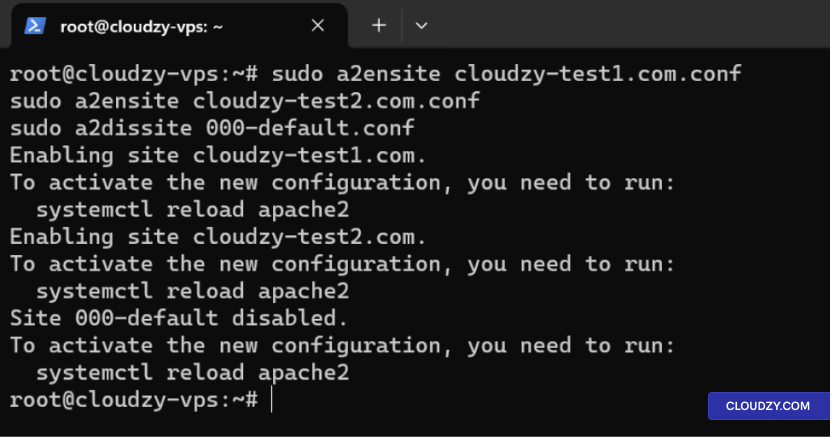
Enable the new sites and disable the default site:

sudo a2ensite domain.com.conf
sudo a2ensite domain2.com.conf
sudo a2dissite 000-default.conf
Enable Sites

Step 7: Restart
Apache

Restart Apache to apply the changes:

Ubuntu/Debian:

sudo systemctl restart apache2

CentOS/RHEL:

sudo systemctl restart httpd

Step 8: Edit
Hosts File and Test Websites

Edit Hosts File:

  • Open the hosts file with a text editor:
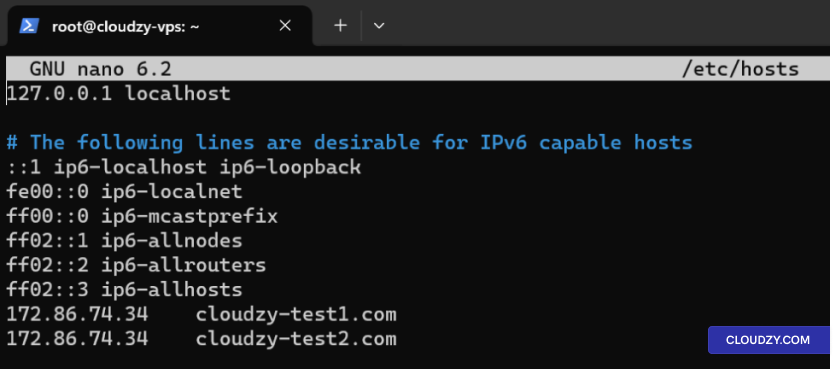
sudo nano /etc/hosts
  • Add entries for your domains pointing to the server’s IP address,
    for example:
192.168.1.10 domain.com
192.168.1.10 domain2.com
Edit Hosts File
  • Save and close the file.

Alternatively Update DNS A Records:

If you have registered domains, update the A records in your DNS
settings to point to your server’s IP address.

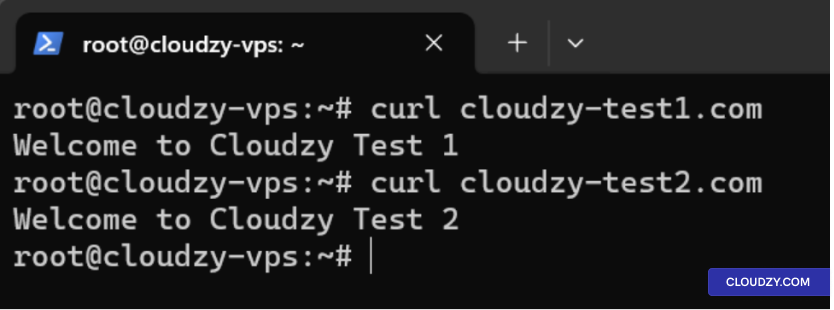
Test Websites with Curl:

Test your websites to ensure they are accessible:

curl http://domain.com
curl http://domain2.com
Test Websites with Curl

IIS Configuration
for Windows Server

This section provides a comprehensive walkthrough for setting up
multiple websites on a single server using Internet Information Services
(IIS) on Windows Server.

Step
1: Install IIS using Add Roles and Features Wizard

  1. Open Server Manager: Click on the Server Manager
    icon on the taskbar, or open it from the Start menu.

  2. Launch Add Roles and Features Wizard: In the
    Server Manager dashboard, click on Manage and then
    select Add Roles and Features.

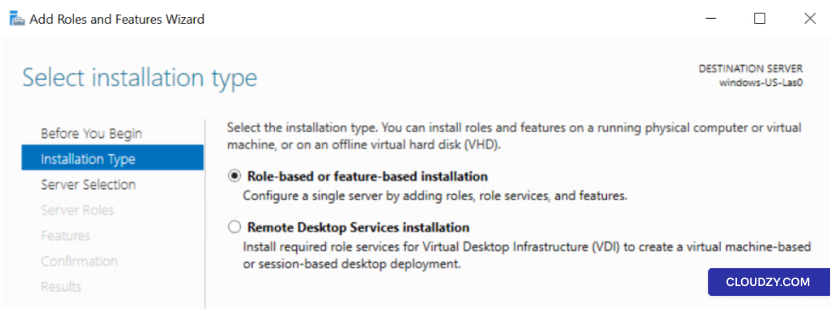
  3. Role-Based or Feature-Based Installation: Choose
    Role-based or feature-based installation and click on
    Next.

Select Installation Type
  1. Select Server: Choose the server on which you
    want to install IIS and click on Next.

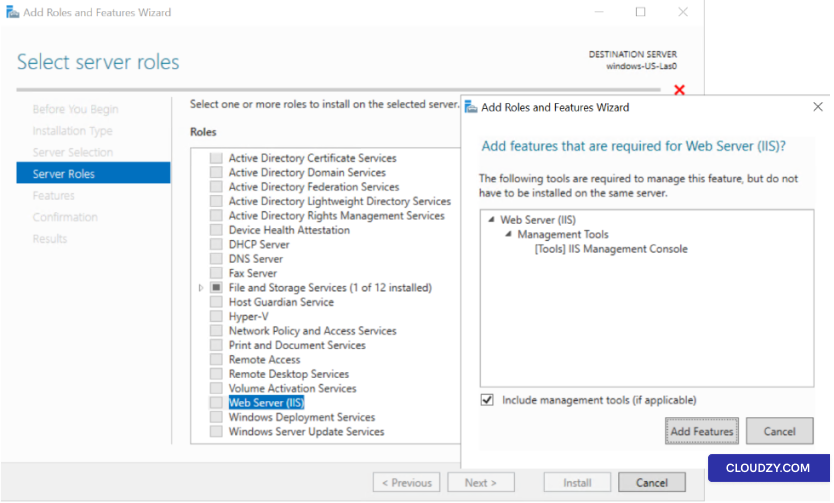
  2. Add Roles: In the Roles section, check the box
    for Web Server (IIS). When prompted to add features that
    are required for Web Server (IIS), click on Add
    Features
    .

Select Server Roles
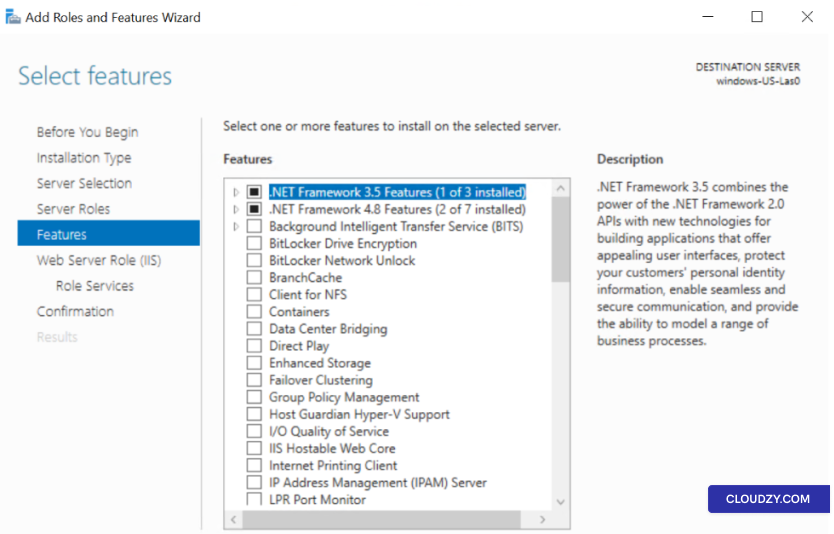
  1. Features: No additional features are required
    unless you have specific needs. Click on Next.
Select Features
  1. Web Server Role (IIS): Review the information
    and click on Next.

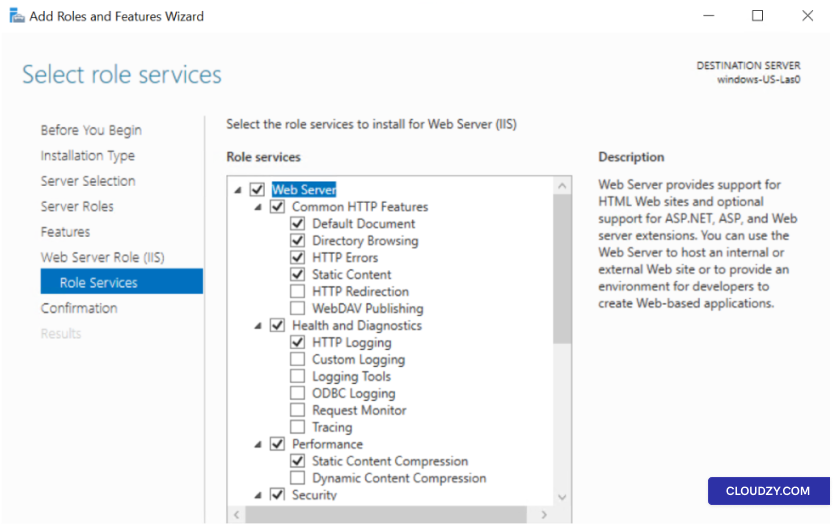
  2. Role Services: Select the IIS role services to
    install. For a basic web server, the default selections are typically
    sufficient. Click on Next.

Select Role Services
  1. Confirmation: Review your selections and click
    on Install. The installation process will
    begin.

  2. Completion: Once the installation is complete,
    click on Close.

Step 2: Add Websites

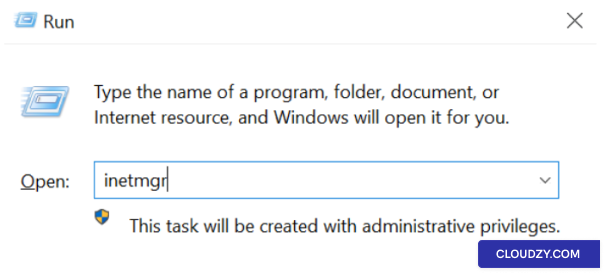
  1. Open IIS Manager: Press Windows key +
    R
    , type inetmgr, and press
    Enter.
Open IIS Manager
  1. Create a New Website: Right-click on the
    Sites folder in the IIS Manager and select Add
    Website
    .

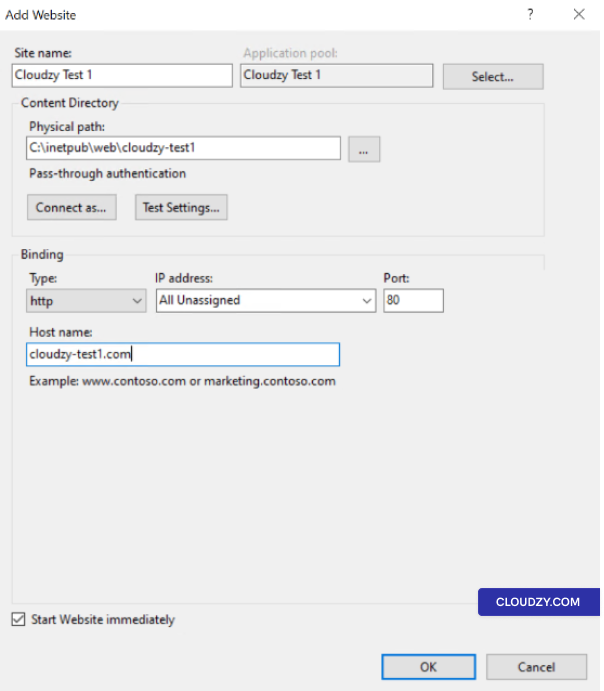
  2. Website Details:

  • Site name: Enter a descriptive name.

  • Physical path: Select the folder containing your
    website’s files.

  • Type: Usually http.

  • IP address: Select an IP or leave as All
    Unassigned
    .

  • Port: Typically 80 for
    HTTP.

  • Host name: Enter the domain name.

Add Website
  1. Repeat for Additional Websites: Follow the same
    steps for each website.

Step 3: Configure Host
Headers

  1. Select a Website: Click on the website in IIS
    Manager.

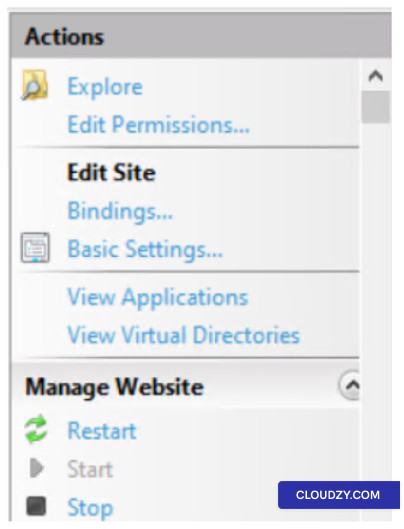
  2. Open Bindings: In the Actions
    panel, click on Bindings.

Open Bindings
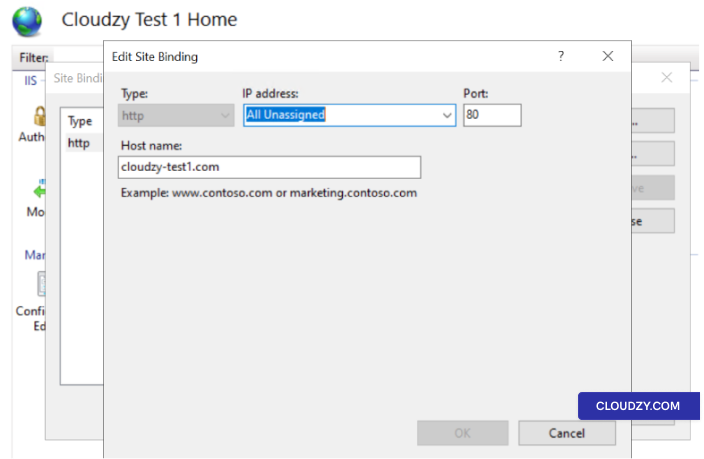
  1. Edit or Add Binding: In Site
    Bindings
    , edit an existing binding or click on
    Add.

  2. Specify Host Name: Enter the hostname in the
    Host name field.

Specify Host Name
  1. Repeat for Additional Websites: Follow the same
    steps for each website.

Step 4: Manage
DNS and Edit Hosts File

  1. Update DNS Records: For your domain names to be
    resolved to your IIS server, update the DNS A records to point to the
    server’s public IP address. This is necessary if you are using
    registered domain names.

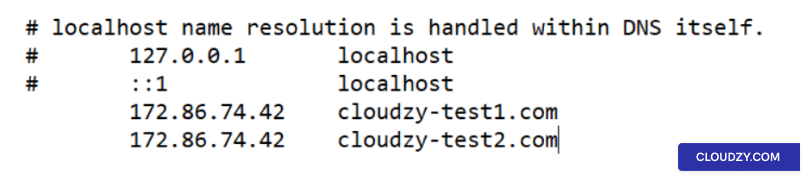
  2. Edit the Hosts File (Optional): If you don’t
    have a domain and want to test locally, you can edit the hosts file on
    your local machine (not the server). This file is typically located at
    **C:*. Add entries for each of your websites pointing to the IP address
    of your IIS server. For example:

192.168.1.10 domain.com
192.168.1.10 domain2.com

Replace 192.168.1.10 with the IP address of your
Windows Server. Remember, this change will only make the websites
accessible on the machine where you edit the hosts file.

Edit the Hosts File

Step 5: Verify
Websites

Open a web browser and navigate to each domain to ensure that the
websites are being served correctly. If you edited the hosts file, do
this on the machine where you made the edits. You should see the content
of the website if everything is configured properly.

Test in Browser

Step 6:
Additional Configurations (Optional)

  1. SSL Certificates: If you plan to use HTTPS,
    you’ll need to install and configure SSL certificates for each
    site.

  2. Application Pools: Consider creating separate
    application pools for each website for better management and
    security.

  3. Security Settings: Review and configure security
    settings as per your requirements.

Each website will be accessible via its own domain name, sharing the
same server resources.

In conclusion, hosting multiple websites on a single server using
Apache or IIS is efficient and cost-effective. By following the detailed
steps provided for Ubuntu, CentOS, and Windows Server, you can
streamline web management and optimize server resources, ensuring a
robust online presence. If you have any questions, feel free to contact
us by submitting
a ticket
.

After upgrading your Cloud VPS, you may find the need to extend the
server’s drive partition to utilize the new space fully. This can be
done without losing any data, ensuring a smooth transition to greater
storage capacity. This guide will explain how to safely expand your
Windows VPS’s drive partition following a VPS resize on Cloudzy.

Prerequisites

Before you begin the drive expansion, ensure the following:

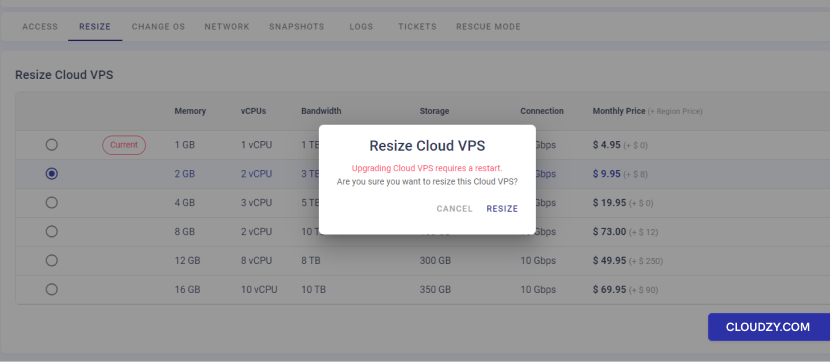
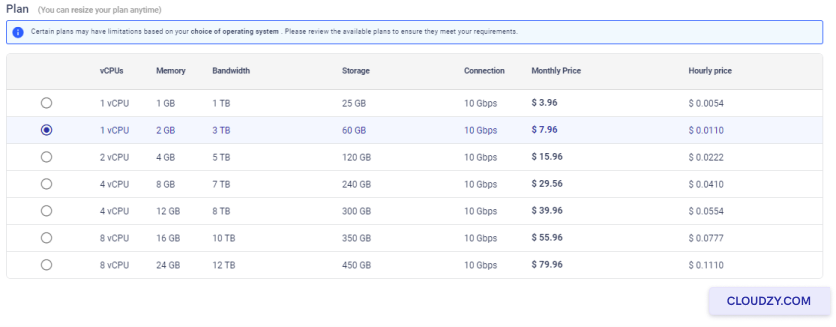
  1. Complete VPS Resize: Finish resizing your Cloud VPS
    via the Cloudzy panel. To do this, navigate to the ‘Resize’ tab on your
    VPS management page, select the new plan with increased resources, and
    confirm the resize. Remember, resizing may require a VPS restart.
Complete VPS Resize
  1. Backup Your Data: It’s crucial to back up your
    VPS data before making changes to disk partitions. You can use Windows
    Backup features or a third-party tool to secure your data.

  2. Administrator Access: You must have
    administrator privileges on your VPS. Log in to your Windows VPS with an
    account that has these rights.

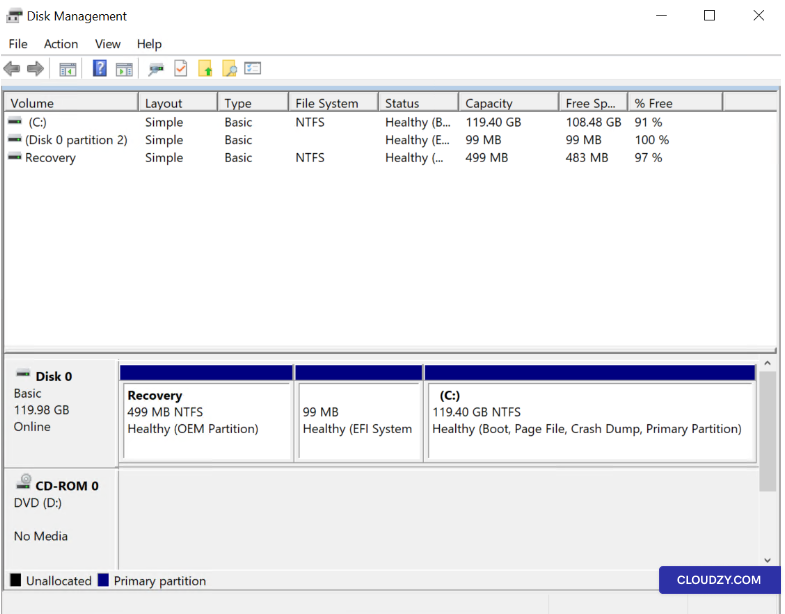
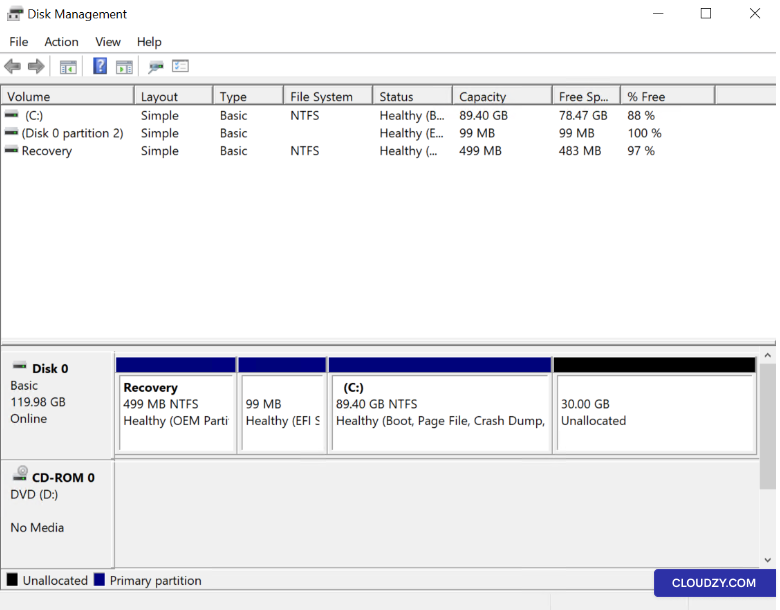
  3. Check Disk Management: Access the Disk
    Management utility by right-clicking Start on the
    desktop, selecting Disk Management. Make sure the new
    space is listed as Unallocated next to your current
    partition(s).

Check Disk Management

These detailed prerequisites will prepare you for a safe and
effective drive expansion.

Expanding Your
Windows VPS Server Drive

After making sure the prerequisites are met, follow these steps to
expand your server drive:

Step 1: Access Disk
Management

As described before through Start or access Disk
Management through the Windows Run dialog:

  1. Press Win + R to open the Run dialog
    box.

  2. Type diskmgmt.msc and press Enter or click on
    OK.

  3. The Disk Management utility will open, displaying your current
    disk configuration, including any unallocated space.

Step 2: Locate
Unallocated Space

In Disk Management, find the Unallocated space that
appeared after your VPS resize.

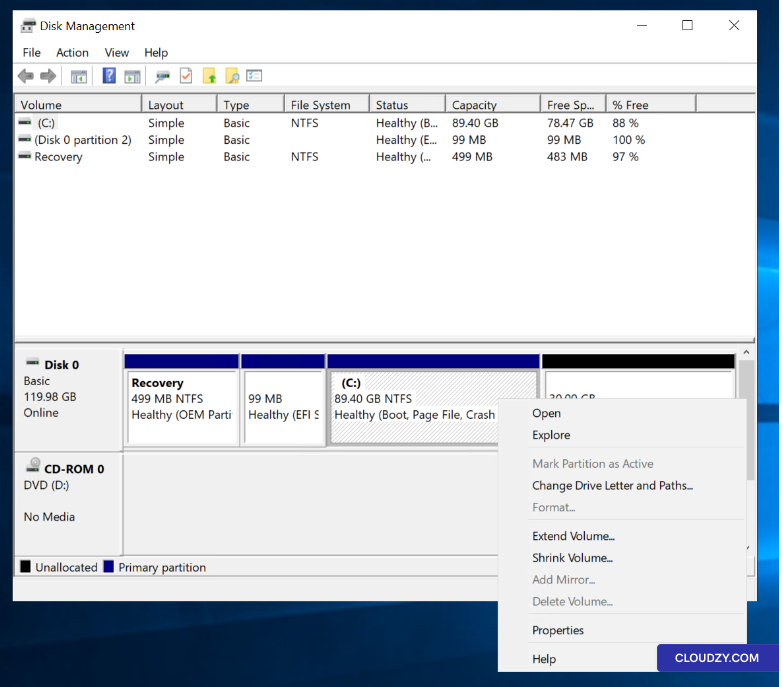
Step 3: Extend
Volume

Right-click on the partition you wish to expand (often the C: drive)
and choose Extend Volume….

Extend Volume

Step 4: Extend Volume
Wizard

The Extend Volume Wizard will launch. Click on Next
to proceed.

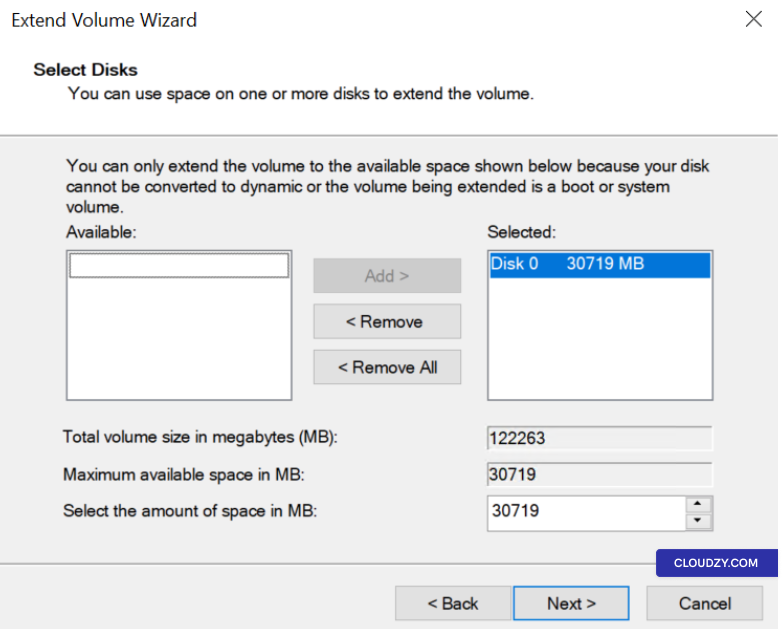
Step 5: Select Disk
Space to Add

Specify the amount of unallocated space to add to the existing
partition. The wizard may auto-select the maximum available space by
default.

Select Disk Space to Add

*Step 6: Complete the
Extension

Click on Next and then Finish to
apply the changes. The partition will be extended without a restart and
without losing data.

Select Disk Space to Add

With the expanded partition, your Windows VPS now has more available
space to support your applications and storage needs, ensuring your
server’s capabilities match its new, larger configuration. If you have
any questions, feel free to contact us by submitting a
ticket
.

Remote Desktop is a powerful tool that grants users the ability to
connect to a computer from a remote location, giving them direct access
to the remote system’s desktop interface. Windows Server 2022 comes
equipped with the Remote Desktop Services (RDS) feature, which
facilitates the connection of multiple users simultaneously, enabling
them to access applications and the server’s desktop remotely. This
functionality is particularly useful for IT professionals engaged in
remote server administration.

Enable
Remote Desktop on Windows Server 2022

  1. Accessing the Server:

First, log in to your Windows Server 2022 using a local administrator
account. This account will provide you with the necessary privileges to
make changes to the system settings.

  1. Opening Server Manager:

After logging in, launch the Server Manager, which is a comprehensive
management tool that allows you to configure and manage various aspects
of your server.

Server Manager
  1. Navigating to Local Server Properties:

Within the Server Manager interface, locate and select the
Local Server section. This section contains crucial
server-related settings that can be configured according to your
requirements.

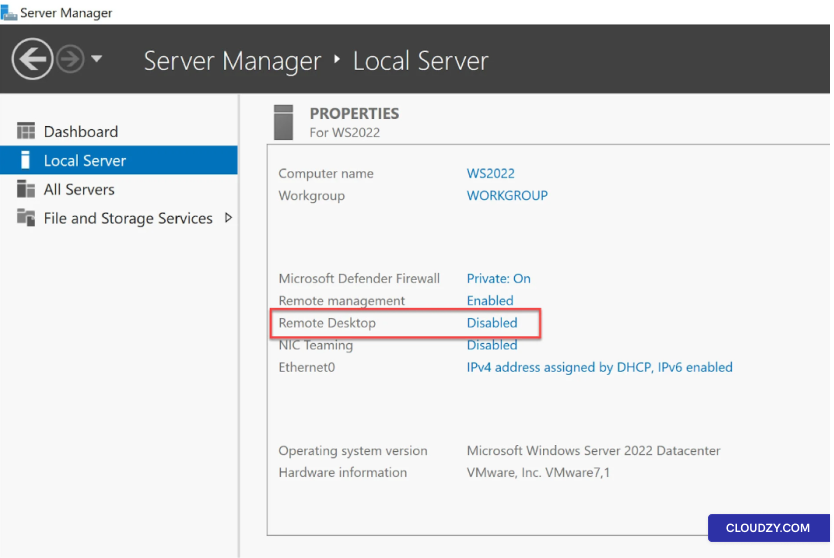
  1. Enabling Remote Desktop:

In the Properties section of the Local Server tab,
look for the Remote Desktop option. By default, it might be marked as
Disabled, which means that remote desktop access is
currently inactive.

  1. Activating Remote Desktop:

Click on the Disabled status next to Remote Desktop.
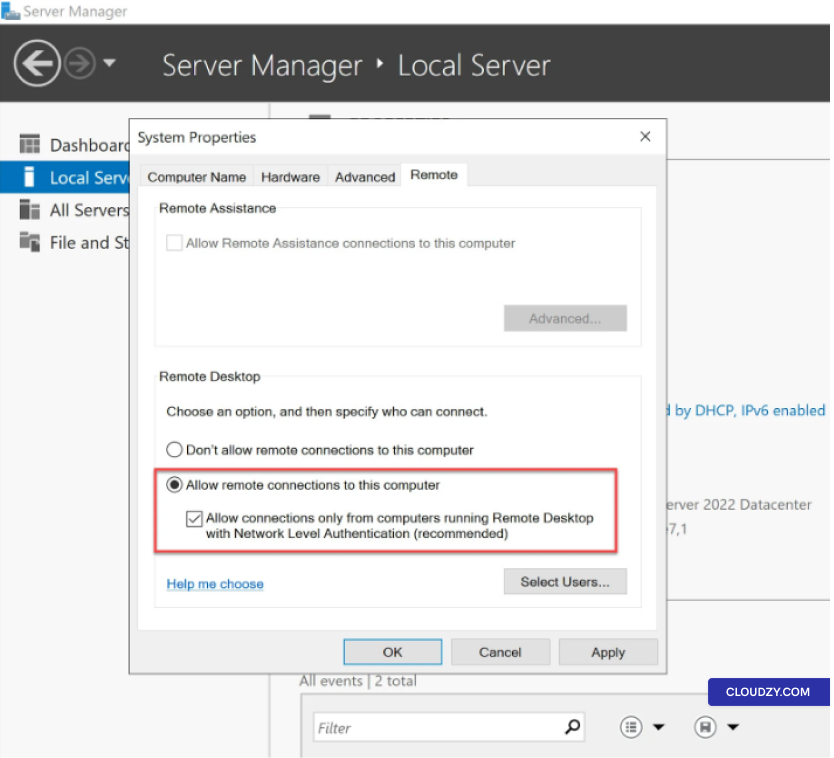
A new window, the System Properties dialog, will pop up.

  1. Configuring Remote Connection Settings:

Within the System Properties dialog, go to the
Remote tab. Here, you’ll find the option Allow
remote connections to this computer
. Make sure this option is
checked to enable remote desktop access.

Systwm Properties
  1. Enhancing Security:

For enhanced security, it is recommended to check the box labeled
Allow connections only from computers running Remote Desktop
with Network Level Authentication (NLA)
. This adds an
additional layer of protection to your remote connections.

  1. Granting User Access (Optional):

If you want specific users to have remote desktop access to your
Windows Server 2022, click on Select Users. You can add
individual users who require remote access. In case your server is part
of a domain, you can also select domain users for remote access
privileges.

Alternative Access
Method

If you prefer using a command-line approach, you can open the remote
desktop settings window by running the command
sysdm.cpl. This command opens the System Properties
window, and from there, you can navigate to the Remote
tab and enable the Remote Desktop settings.

Creating
a New User and Assigning Remote Desktop Permissions

To enable multiple administrators to establish simultaneous remote
desktop connections on Windows Server 2022, it’s essential to create new
user accounts and grant them remote desktop access permissions. This
section outlines the step-by-step process for creating a new user and
configuring remote desktop permissions:

Step 1: Accessing
the Server Manager

  1. Log in to your Windows Server 2022 using an existing
    administrator account. This account should have the necessary privileges
    to make changes to the system settings.

  2. Launch the Server Manager, a comprehensive management tool that
    allows you to configure various aspects of your server.

Step 2: Creating a New
User

  1. In the Server Manager, navigate to the Tools
    menu and select Computer Management. This opens the
    Computer Management console.

  2. In the Computer Management console, expand the Local
    Users and Groups
    section, and right-click on
    Users.

  3. Select New User to create a new user
    account.

  4. Follow the prompts to fill in the user’s details, including their
    username and password. Ensure the password meets the server’s security
    requirements.

Step 4:
Granting Remote Desktop Permissions

Now that you’ve created a new user account, it’s time to grant remote
desktop access permissions to this account.

  1. Go back to the Server Manager and navigate to the Local
    Server
    section as mentioned earlier.

  2. In the Properties section, find the
    Remote Desktop option. By default, it might be marked
    as Disabled for new user accounts.

  3. Click on the Disabled status next to the new
    user’s account name, and a window, the System Properties dialog, will
    appear.

  4. Within the System Properties dialog, go to the
    Remote tab.

  5. Here, you’ll find the option Allow remote connections to
    this computer
    . Ensure this option is checked to grant remote
    desktop access to the newly created user.

  6. For added security, consider checking the box labeled
    Allow connections only from computers running Remote Desktop
    with Network Level Authentication (NLA)
    .

  7. Click on OK to save your changes.

Step 5:
Logging in with the New User Account

The new user account is now set up with remote desktop access
permissions. The user can connect remotely to the server using their
username and password.

Enabling Remote Desktop on your Windows Server 2022 is a
straightforward process that empowers you with the ability to manage
your server remotely. This feature, coupled with the security
enhancements provided by Network Level Authentication, ensures a safe
and efficient remote administration experience. If you need any more
information or further assistance, feel free to contact our support team
by submitting a
ticket
.

<BlogFAQSection data={[ { title: ‘How does enabling simultaneous
RDP connections benefit server administrators?’, answer: ‘Enabling
simultaneous RDP connections empowers server administrators to
efficiently manage multiple tasks and user sessions remotely. This
capability enhances productivity, flexibility, and the ability to
troubleshoot server issues without needing physical access.’, }, {
title: ‘What is Remote Desktop Services (RDS) on Windows Server 2022?’,
answer: “Remote Desktop Services (RDS) is a feature that enables
multiple users to connect to and use applications and the server’s
desktop remotely. It’s particularly useful for scenarios involving
remote administration and multi-user access to server resources.”, }, {
title: ‘Is enabling RDP on Windows Server 2022 secure?’, answer: “Yes,
enabling RDP on Windows Server 2022 can be secure when proper security
measures are applied. It’s recommended to enable Network Level
Authentication (NLA) to enhance security. NLA ensures that only
authenticated users can connect remotely, adding an extra layer of
protection.”, }, { title: ‘Can I enable RDP on Windows Server 2022 using
a local administrator account?’, answer: ‘Yes, you can enable RDP on
Windows Server 2022 using a local administrator account. This account
provides the necessary privileges to configure system settings,
including remote desktop access.’, }, { title: ‘How can I grant specific
users remote desktop access on Windows Server 2022?’, answer: ‘To allow
specific users remote desktop access, click on “Select Users” in the
Remote Desktop settings. From there, you can add individual users who
require remote access. If your server is part of a domain, you can also
grant remote access to domain users.’, }, ]} />

Nested Virtualization is the technology that allows you to create
virtual machines on your Cloud VPS. for example, if you want to work
with Hyper-V or run Andriod Emulators on your VPS, you need to activated
Nested Virtualization from your Cloud panel. The guide below will teach
you how to do so.

Enabling
Nested Virtualization During VPS Creation

Enabling Nested Virtualization must happen during the creation of
your Cloud VPS. This step is crucial because you can’t enable it for an
existing VPS. If you’ve already created a VPS without enabling Nested
Virtualization and need this feature, you’ll have to create a new VPS
with Nested Virtualization enabled.

Now that you’re aware of the importance of enabling Nested
Virtualization before VPS creation let’s walk you through the
process.

Step 1: Access Your
Cloudzy Panel

Log in to your Cloudzy
account
and access your Cloudzy panel.

Step 2: Initiate VPS
Creation

Once you’re logged in, click the + New Cloud VPS
button to initiate the VPS creation process.

Step 3: Choose
Your OS and Configuration

During the VPS creation, you’ll be prompted to select your desired
operating system and configure other settings as needed.

Step 4: Enable
Nested Virtualization

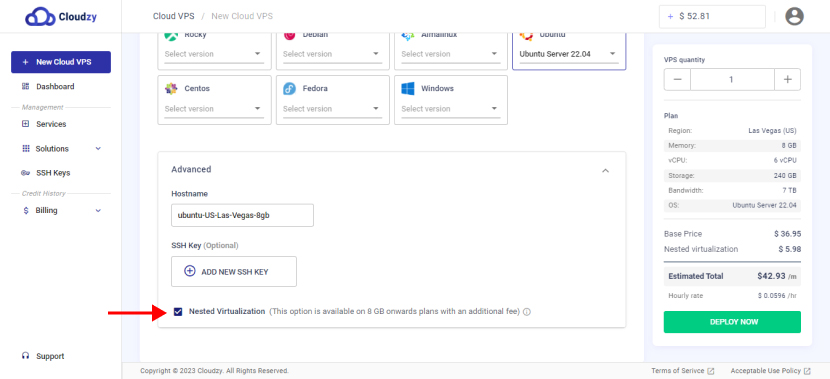
In the advanced configuration menu, look for the Nested
Virtualization
checkbox. Ensure it is checked. This step is
crucial to activate Nested Virtualization for your VPS.

Enable Nested Virtualization

Minimum Memory
Requirement

Note that your VPS should have a minimum of 8GB of memory to enable
Nested Virtualization successfully. If your VPS has less than this
amount of memory, the checkbox may be grayed out, and you won’t be able
to activate Nested Virtualization.

By following these steps, you have successfully enabled Nested
Virtualization for your Cloudzy Cloud VPS, thereby opening up a wide
range of opportunities for running virtual environments within your VPS.
If you have any questions, don’t hesitate to contact us by submitting a
ticket
.

<BlogFAQSection data={[ { title: ‘Can I Enable Nested
Virtualization for an Existing VPS?’, answer: “Unfortunately not. Nested
Virtualization must be enabled before creating your Cloud VPS. If you’ve
already created a VPS without enabling Nested Virtualization and require
this feature, you’ll need to remove the old one and create a new VPS
with Nested Virtualization enabled.”, }, { title: ‘How Does Nested
Virtualization Affect Pricing?’, answer: ‘Keep in mind that Cloudzy
offers various VPS plans, and the cost of a VPS with Nested
Virtualization may vary depending on the plan you choose. For detailed
pricing information, please review the pricing details in your Cloudzy
panel.’, }, ]} />

This guide dives into the process of enabling audio during Remote
Desktop sessions. Sometimes, users need to interact visually and
auditory with their remote system. In these situations, audio
transmission from a remote computer to a local device is highly
important. For example, access to the remote system’s sound can enhance
productivity and communication in remote support or collaborative
working environments. This guide will detail the steps to configure both
the remote and local machines for seamless audio integration in Remote
Desktop sessions.

Prerequisites

Before beginning the process, make sure the following prerequisites
are met:

  1. Remote Desktop Access: You should have Remote
    Desktop access set up between your local and remote computers.

  2. Administrative Rights: Make sure you have
    administrative privileges on remote and local machines to modify system
    settings.

  3. Sound Hardware: The local computer should have
    sound hardware (like speakers and microphones).

  4. Updated Software: Make sure that the local
    system is updated with the latest operating system patches and drivers,
    especially for sound devices.

  5. Basic Technical Knowledge: Familiarity with the
    Remote Desktop interface and basic computer settings (like sound
    configuration).

Step
1: Enable Remote Audio on the Remote Computer

first, establish a Remote Desktop connection to your VPS. Once
connected, follow these steps:

  1. Access Sound Settings on Remote Computer:

Right-click on the Sound icon in the system tray and
select Sounds. This action opens the Sound
settings
window where you can manage audio devices.

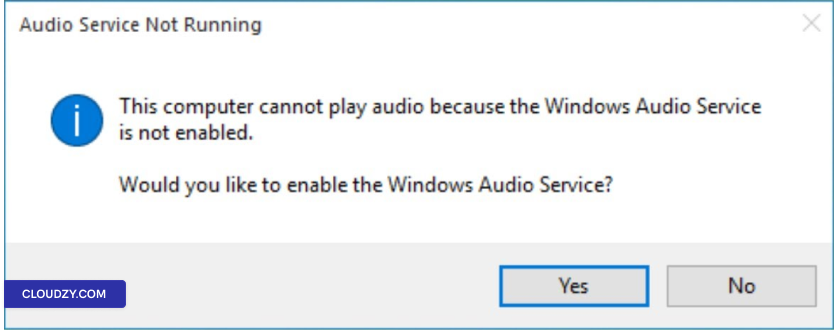
  1. Respond to Audio Service Prompt:

If prompted with a message that the audio service is not running,
click on Yes to enable the Windows Audio Service. This
makes sure that essential audio services for sound playback and
recording are operational.

Respond to Audio Service Prompt
  1. Manually Enable Audio Services:

If needed, manually start or restart the audio services. Press
Windows Key + R, type services.msc,
and press Enter. Locate Windows Audio
in the list, right-click it, and choose Start or
Restart.

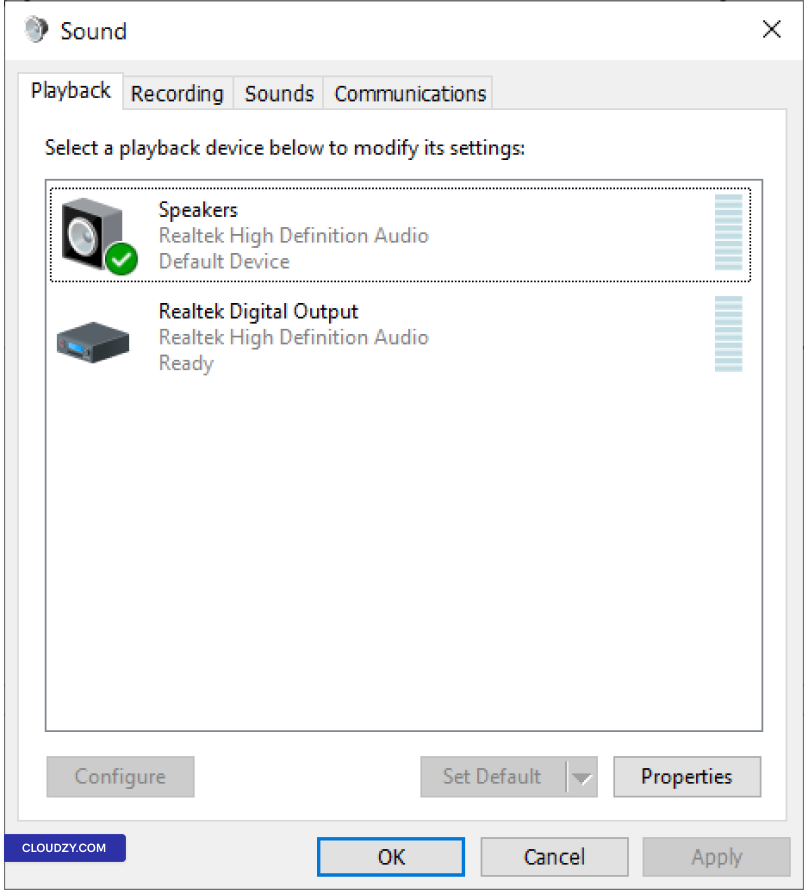
  1. Set Default Playback and Recording Devices:

Within the Sound settings, under the
Playback tab, make sure the correct playback device is
enabled and set as the default. Similarly, under the
Recording tab, enable and set the default recording
device if necessary.

Set Default Playback and Recording Devices

By completing these steps, you make sure the remote computer is
configured to handle audio output and input.

Step 2:
Configure Remote Desktop Client Settings

  1. Open Remote Desktop Connection Client:

On your local computer, open the Remote Desktop
Connection
client. You can find this in the Start menu under
Windows Accessories, or launch it by typing
mstsc in the Run dialog (Windows Key +
R).

  1. Access Advanced Settings:

Before connecting, click on Show Options to reveal
more settings. This expands the interface to include additional
configuration options.

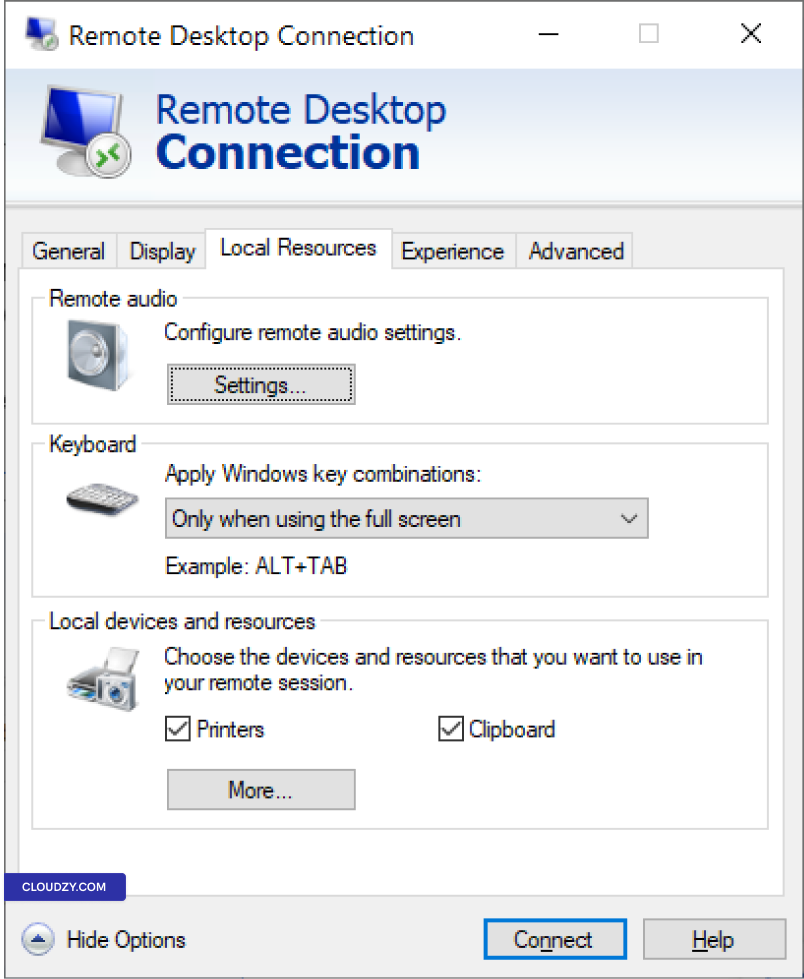
  1. Navigate to Local Resources:

Go to the Local Resources tab. This tab contains
settings for local devices and resources, including audio.

Local Resources
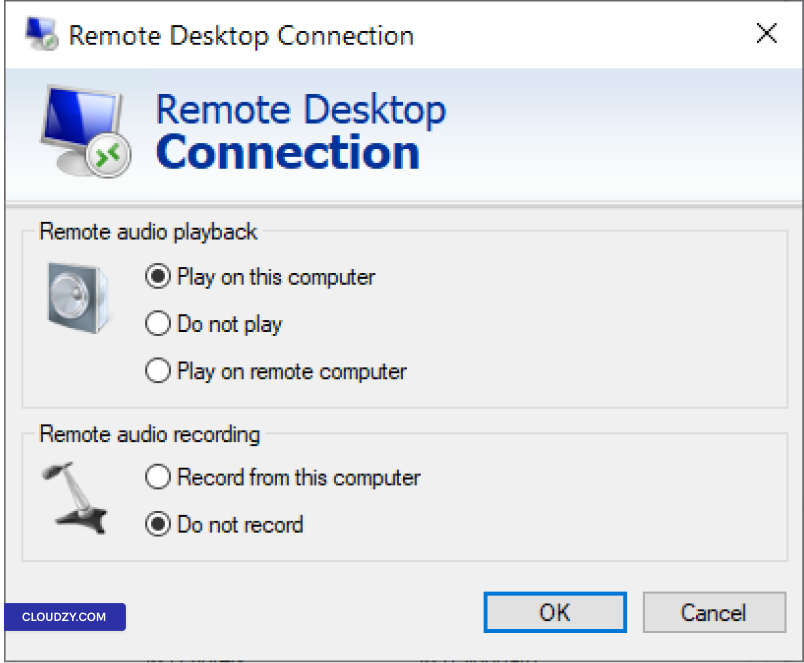
  1. Configure Remote Audio Settings:

Click on the Settings button under the
Remote audio section.

Here, select Play on this computer for audio
playback. Now, your local computer’s speaker will play the audio.

Optionally, if you want to use a microphone connected to your local
computer for audio input on the remote computer, select Record
from this computer
.

Configure Remote Audio Settings
  1. Save and Connect:

Save these settings and then proceed to connect to the remote
computer as usual.

These settings adjustments on the Remote Desktop client make sure
that audio is transmitted from the remote computer to your local machine
during Remote Desktop sessions. If you need any more information or
further assistance, feel free to contact our support team by submitting a
ticket
.

There’s nothing more frustrating than having your server
automatically restart in the middle of an important task or during
business hours due to Windows updates. This guide will walk you through
the steps to disable automatic restarts after Windows updates on Windows
Server 2012 and 2022. Whether you want to prevent restarts when users
are logged in or disable them entirely, we’ve got you covered.

Using
Group Policy Editor to Disable Automatic Restarts

The Group Policy Editor is a powerful tool that
allows Windows Server administrators to fine-tune various system
settings and policies. In this section, we’ll explore how to leverage
the Group Policy Editor to disable automatic restarts after Windows
updates on Windows Server 2012 and 2022.

Disabling automatic restarts is useful in two main scenarios:

  • when you want to prevent automatic restarts during critical work
    hours

  • when users are actively logged in to the server

Follow clear instructions to configure the necessary settings in the
Group Policy Editor, ensuring a smoother update experience on your
Windows Server.

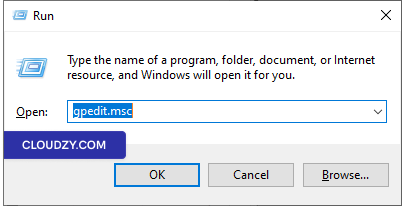
Step 1: Open Group
Policy Editor

Press Win + R, type “gpedit.msc,” and press
Enter to open the Local Group Policy Editor.

Open the Local Group Policy Editor

Step 2:
Navigate to the Windows Update Policy

In the Group Policy Editor, go to Computer Configuration ->
Administrative Templates -> Windows Components -> Windows
Update.

Step
3: Configure “No auto-restart with logged on users for scheduled
automatic updates installations”

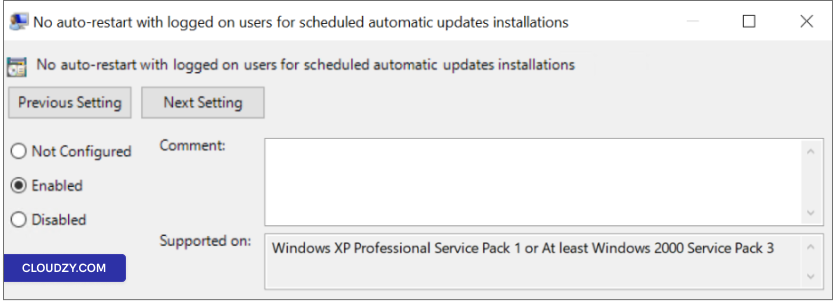
  1. Locate the policy called “No auto-restart with logged on users
    for scheduled automatic updates installations.”

  2. Double-click on this policy setting.

  3. If you set the status to “Enabled,” Automatic Updates
    will not restart the computer automatically during a
    scheduled installation if a user is logged in. Instead, it will notify
    the user to restart the computer. Please be aware that the computer must
    be manually restarted for the updates to take effect.

Change policy settings

Note: If the status is set to “Disabled” or “Not
Configured,” Automatic Updates will notify the user that the computer
will automatically restart in 5 minutes to complete the
installation.

Step 4: Apply and
Save

Click on Apply and then OK to save
your changes.

Step 5: Restart (if
necessary)

To ensure the changes take effect, you may need to restart the
server.

By following these steps and configuring the “No auto-restart with
logged on users for scheduled automatic updates installations” policy,
you can have more control over automatic restarts and ensure they align
with your server management needs.

Using
Task Scheduler to Prevent Automatic Restarts

If you prefer an alternative method to control automatic restarts
after Windows updates, you can leverage Task Scheduler. Follow these
steps to prevent automatic restarts using this approach:

Step 1: Open Task
Scheduler

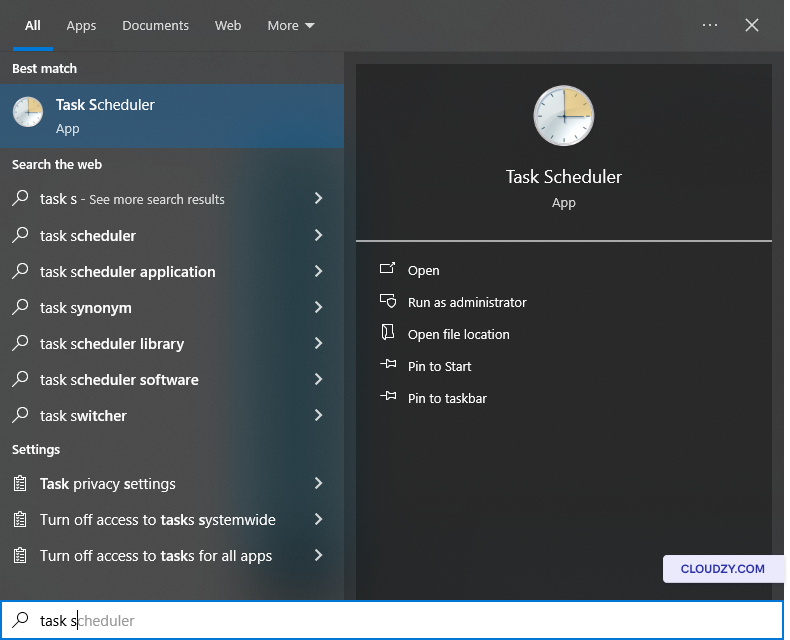
Click on Start and type “Task Scheduler” in the
search bar. Select Task Scheduler from the results.

Open Task Scheduler

Step 2:
Navigate to the Update Orchestrator

In Task Scheduler, navigate to Task Scheduler Library -> Microsoft
-> Windows -> UpdateOrchestrator.

Step 3: Disable the
Reboot Task

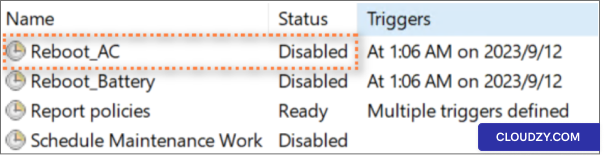
Locate the task named “Reboot_AC” (or Reboot). If it is enabled,
right-click on Reboot_AC and select
Disable. This action will prevent the automatic reboot
task from executing.

Disable the Reboot Task

By following these steps and ensuring that the “Reboot_AC” task is
disabled, you can effectively prevent automatic restarts after Windows
updates using Task Scheduler. This method provides you with an
additional layer of control, allowing you to manage reboots to suit your
server’s specific needs.

Additional Windows
Update Settings

In addition to using Group Policy Editor and Task Scheduler, you can
explore additional Windows Update settings to fine-tune your control
over automatic restarts. Here’s how:

Step 1:
Open Advanced Windows Update Options

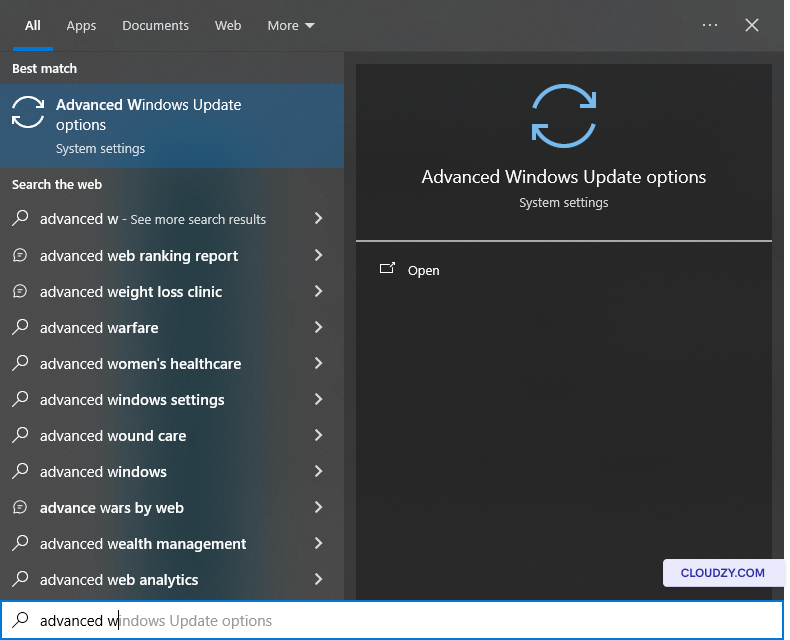
Open the Start menu and search for Advanced Windows Update
options
.

Advanced Windows Update options

Step 2: Disable
Immediate Restart

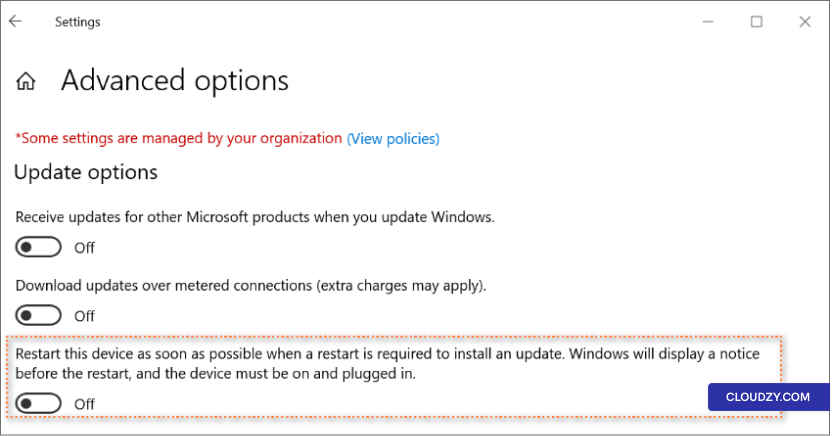
In the Advanced Windows Update options, make sure that “Restart this
device as soon as possible when restart is required to install an
update” is toggled off. This setting prevents immediate
restarts, giving you more control over when updates are applied.

Disable immediate restart

By adjusting this setting, you can further customize your update and
restart preferences, ensuring they align precisely with your server’s
operational requirements.

Managing automatic restarts after Windows updates is crucial for
system security and productivity. This guide equips you to balance
security needs with minimizing disruptions, ensuring your Windows Server
operates smoothly. If you have any questions, contact us by submitting a
ticket
. Our support agents will be happy to guide you.

This guide shows you how to set up Cloudzy’s WordPress One Click App
(OCA). With the One Click App, you can quickly start using applications
on a Virtual Private Server (VPS) like WordPress without handling the
usual setup steps. This is great if you want to get your website running
fast and efficiently.

Prerequisites

Before you start with WordPress OCA on your Cloudzy VPS, you need
these prerequisites in place:

  • Enough Credit in Account: Your Cloudzy account
    should have the credit to set up and use WordPress OCA.

  • Account Ready to Go: Make sure your account is
    active.

  • Operating System Considerations: The app is
    already set up on Ubuntu. You can switch to a different version of
    Ubuntu if needed. Here are the versions you can choose from: Ubuntu
    18.04, Ubuntu 20.04, and Ubuntu 22.04.

Launch Your
WordPress Site with OCA

Step 1: Choosing Your
Application

  1. Log in to your Cloudzy dashboard.

  2. Click on Applications on the left
    sidebar.

Applications
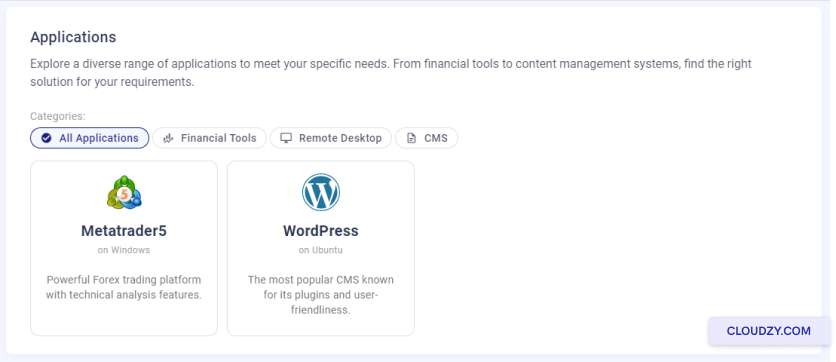
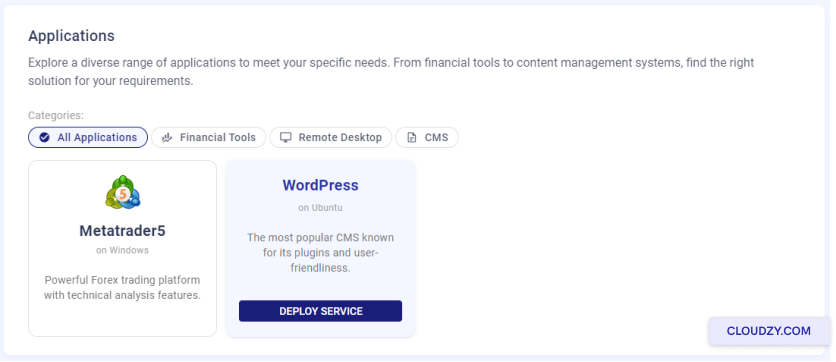
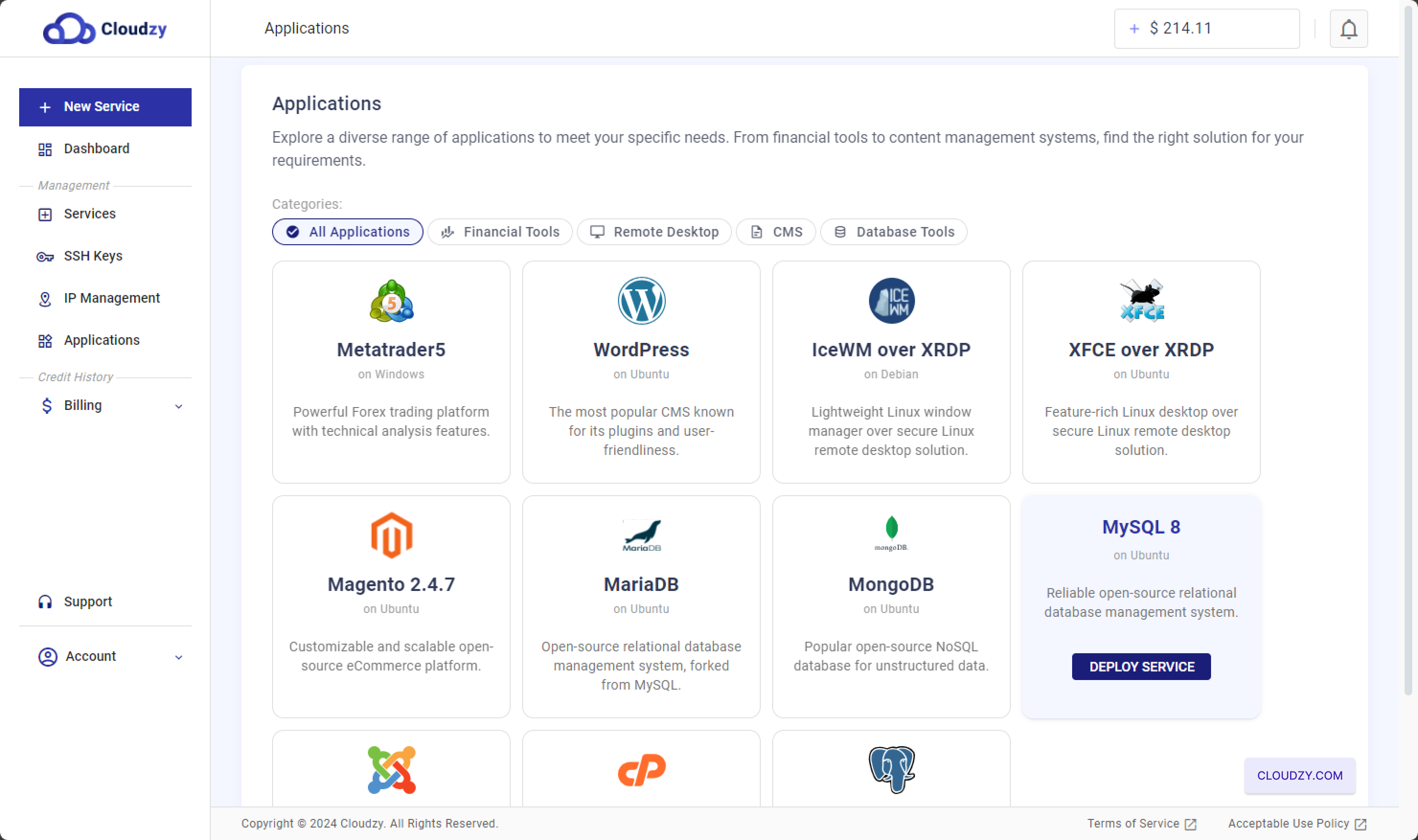
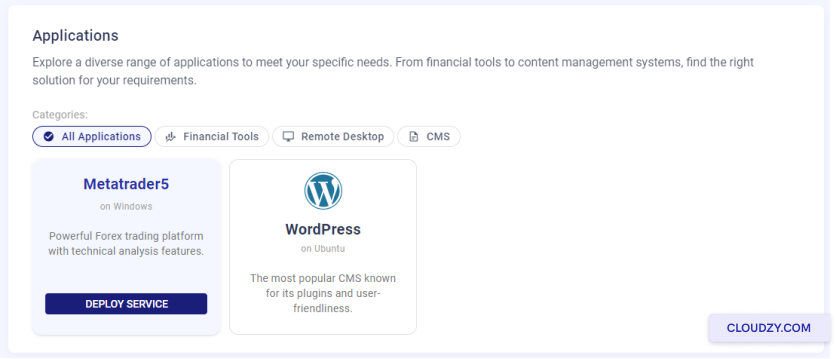
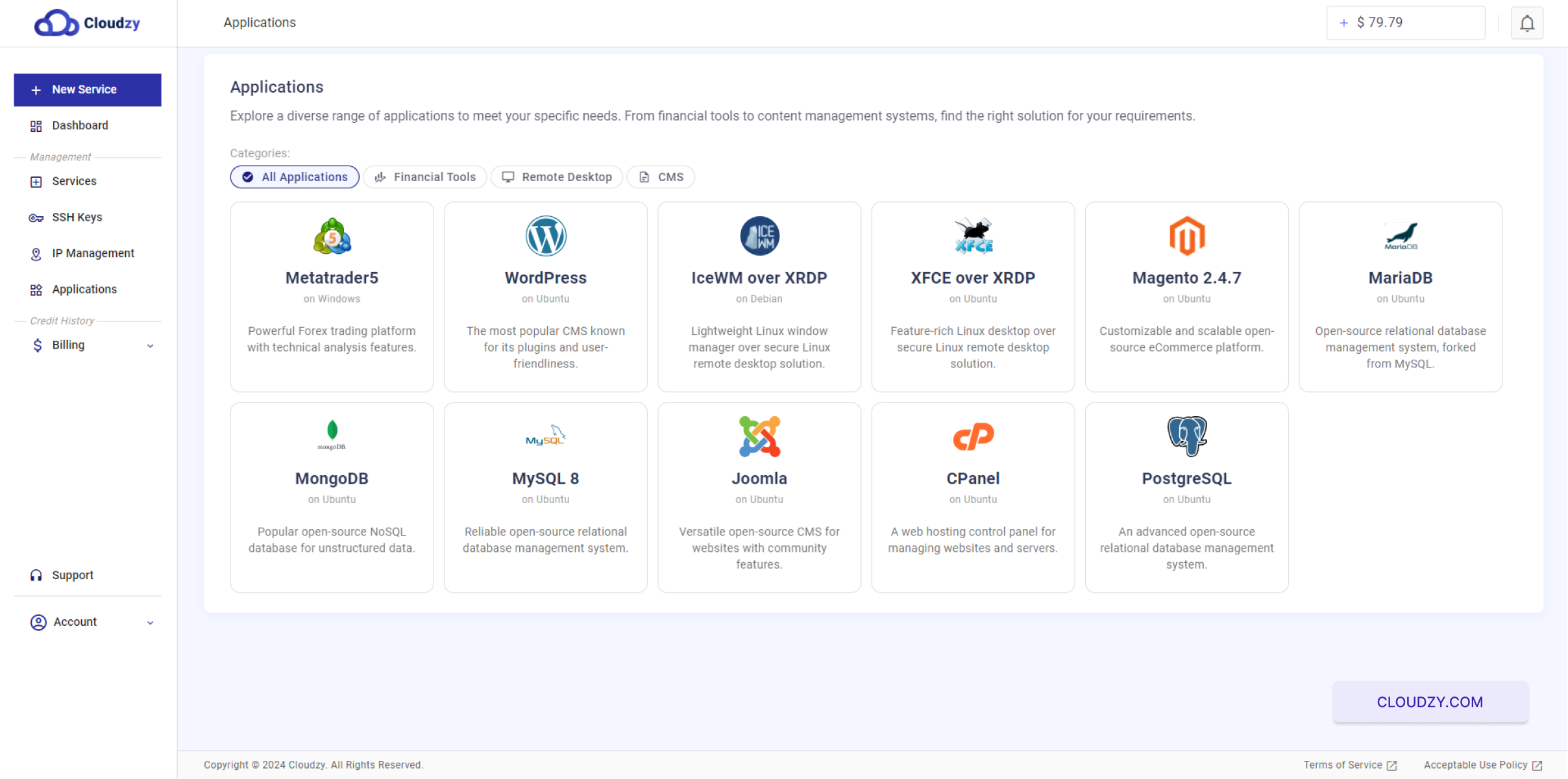
  1. You’ll see different apps, like Metatrader5 and WordPress. Let’s
    pick WordPress. Under WordPress, click on DEPLOY
    SERVICE
    .
WordPress

Step 2: Configuring
Your Service

  1. You will be taken to the New Service
    page.

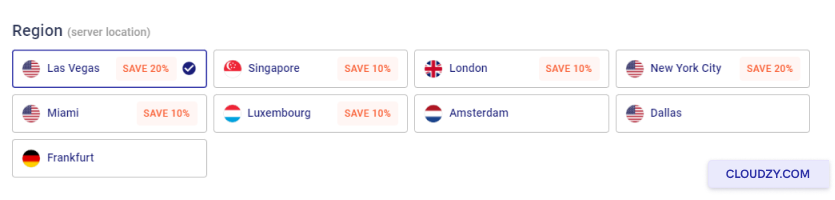
  2. First, choose your server location. Options like Las Vegas,
    Dallas, or Amsterdam might be available.

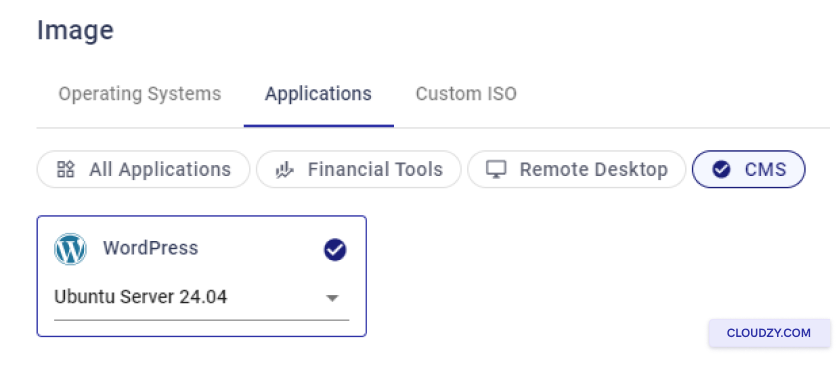
  3. Next, select the operating system. WordPress is used on Ubuntu,
    you can choose the Ubuntu version you’d like to work with.

Choose OS
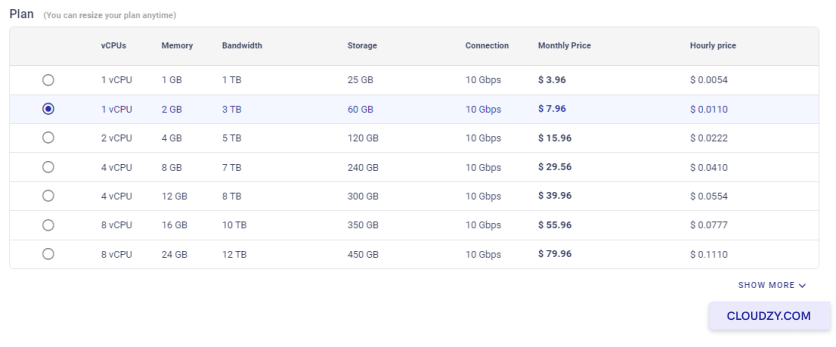
  1. Now, you need to choose your plan. Based on your requirements,
    select the plan that provides your needed resources. Remember that more
    vCPUs and memory will result in a more powerful server.
Choose Plan
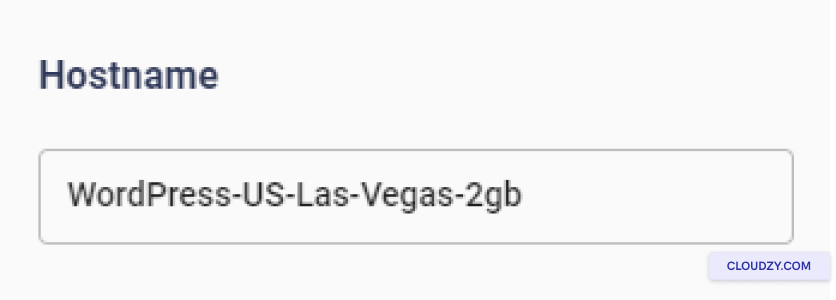
  1. Set a name for your service in the Hostname
    field.
Choose Hostname

Step 3: Review and
Purchase

  1. Review your selections. The monthly and hourly prices are
    shown.

  2. Check the ‘Estimated Total’ price at the bottom.

  3. If everything looks good, click on Deploy
    Now
    .

Step 4: Deployment
Process

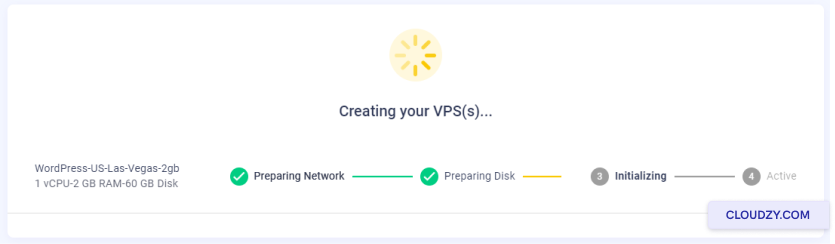
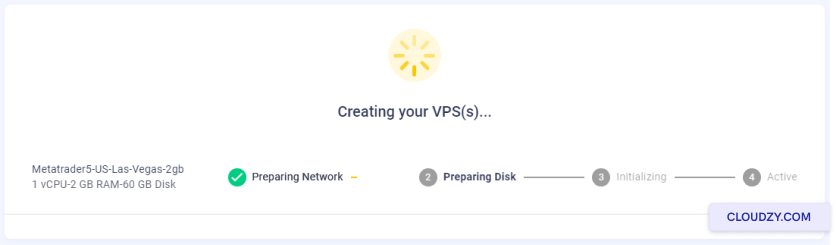
  1. After deploying, you’ll see a progress bar. It shows steps like
    Preparing Network and Preparing
    Disk
    .
Deploy Process
  1. Wait for the progress bar to finish. It will show
    Active when your VPS is ready.

Step 5:
Accessing Your WordPress Installation

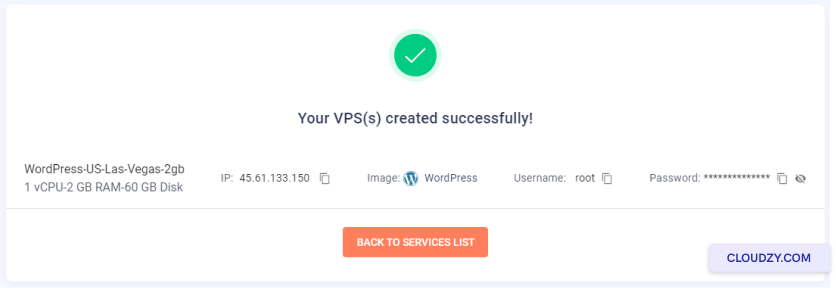
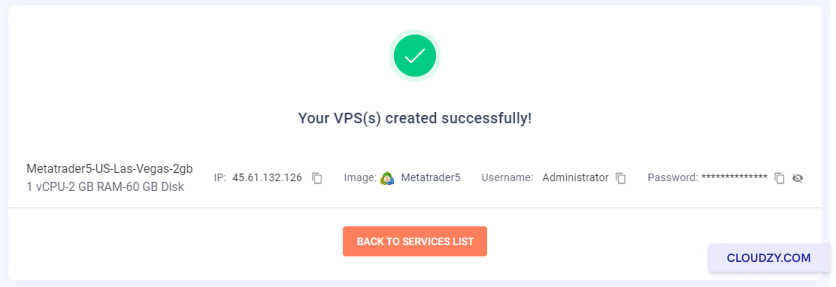
  1. Once your VPS is active, you’ll get an IP address, username, and
    password. Keep these details safe.
VPS Created
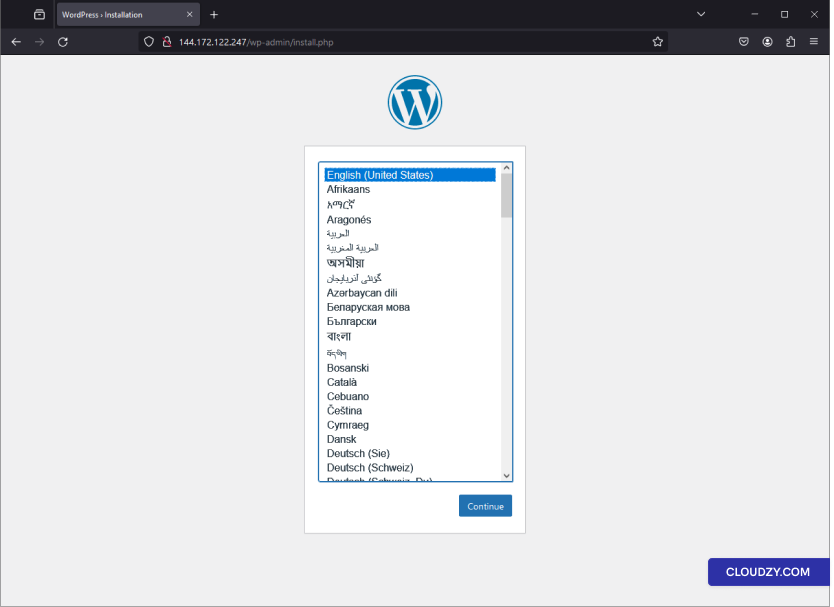
  1. Enter the IP address in your web browser.

  2. You’ll see the WordPress language selection page. Pick your
    language and click on Continue.

WordPress Language

Step 6: WordPress
Setup

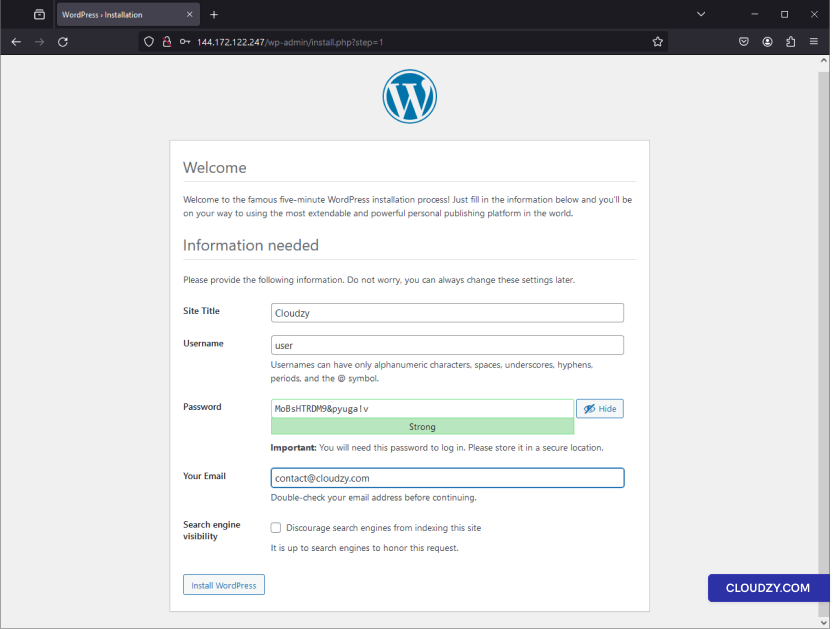
  1. You’re now at the WordPress installation page.

  2. Fill in the Site Title,
    Username, Password, and Your
    Email
    .

  3. For security reasons, it’s best to uncheck the box that says
    Discourage search engines from indexing this
    site
    .

  4. Click on Install WordPress.

Install WordPress

Step 7: Installation
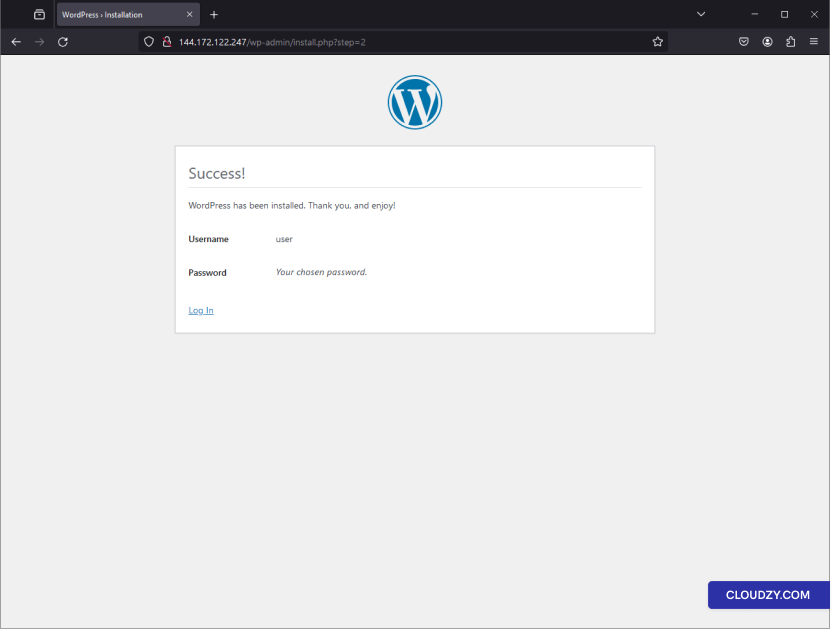
Complete

  1. A success message appears. It says Success! WordPress has
    been installed. Thank you, and enjoy!

  2. You will see the username you chose and a prompt to log in with
    the password you set.
Install Complete

Step 8: Logging into
WordPress

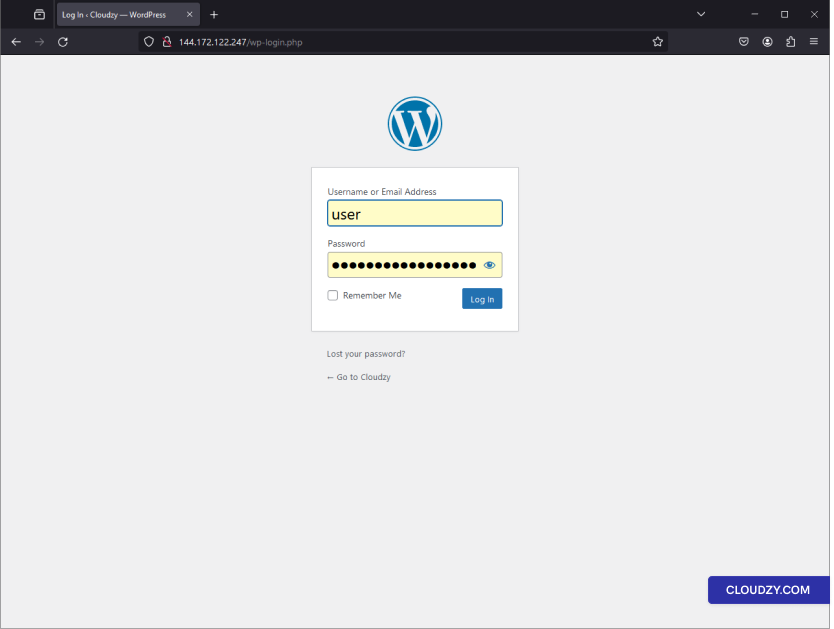
  1. Go to the WordPress login page. It’s your IP address followed by
    /wp-login.php.

  2. Enter your username and password.

  3. Click on Log In to access your WordPress
    dashboard.

WordPress Login

Step 9: WordPress
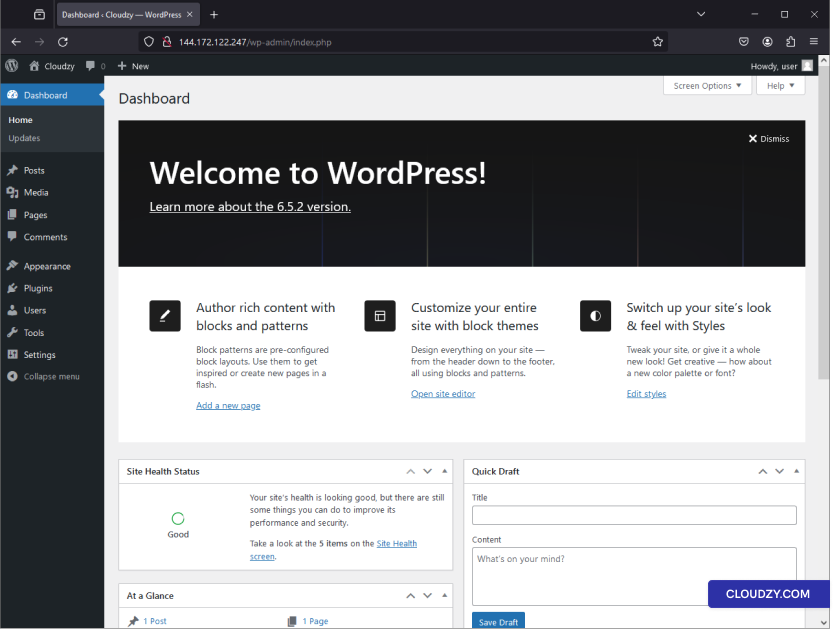
Dashboard

  1. Now you’re in the WordPress Dashboard, where you manage your
    website.

  2. You can start customizing your site, writing posts, adding pages,
    and installing plugins from here.

WordPress Dashboard

And that’s it! Your WordPress site is ready to go, all set up with
Cloudzy’s One-Click App service. You can start creating content and
customizing your site as you wish. If you need any more information or
further assistance, feel free to contact our support team by submitting a
ticket
.

Cloudzy offers users the flexibility to upload and utilize Custom ISO
files, allowing for a more tailored and personalized virtual private
server (VPS) experience. This feature is especially useful for users who
require specific operating systems or configurations that are not
available through predefined templates. By following this guide, you
will learn how to upload a Custom ISO, deploy a VPS from the uploaded
ISO, and manage your VPS effectively. Whether you are an experienced IT
professional or a beginner, this step-by-step guide will help you take
full advantage of Cloudzy’s Custom ISO capabilities.

Prerequisites

Before you begin using Custom ISOs on Cloudzy, ensure you have the
following prerequisites:

  • Active Cloudzy Account: You must have an active
    account with Cloudzy.

  • Sufficient Credits: Ensure your account has
    enough credits to create and deploy virtual private servers.

  • Knowledge of Custom OS Installation and Network
    Configuration:
    Familiarity with installing operating systems
    and configuring network settings is essential.

  • Publicly Available HTTPS Link for the ISO File:
    Obtain an HTTPS link for the ISO file you wish to use. The ISO file
    should be publicly accessible to upload successfully.

How to Upload a
Custom ISO on Cloudzy

Uploading a Custom ISO on Cloudzy is a straightforward process.
Follow these steps to get started:

Access the Custom ISO
Feature

  1. Log in to your Cloudzy account.
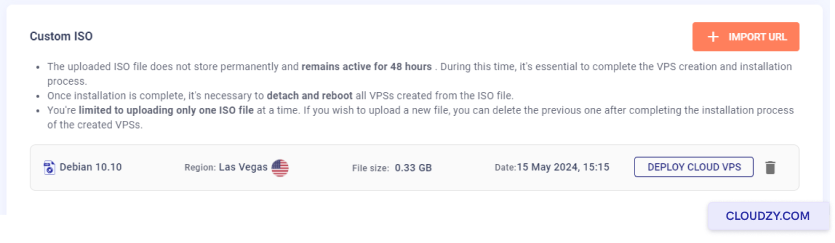
  2. Navigate to the Services page and click on the
    Custom ISO tab.

Custom ISO

Initiate the Upload
Process

Click on the Import URL button to open the upload
window.

Provide ISO Details

  1. In the upload window, enter the URL of the ISO file you want to
    upload. Ensure that the URL is an HTTPS link and publicly
    accessible.

  2. Specify the ISO file name. It should end with
    .iso (e.g., linux.iso).

Provide ISO Details

Choose a Region

Select the region where you want to upload the ISO. This region
should be the same as where you plan to create the VPS.

Complete the Upload

  1. Click on the Upload ISO button to start the
    upload process.

  2. Wait for the upload to complete. You can monitor the progress in
    the Custom ISO tab.

Complete the Upload

Verify the Upload

Once the upload is complete, the uploaded ISO file will be listed
under the Custom ISO tab.

Verify the Upload

You can now use this ISO to deploy your Cloud VPS.

Following these steps, you can easily upload a Custom ISO to your
Cloudzy account and prepare it for deploying a new VPS.

How to Deploy a
VM Using a Custom ISO

Deploying a Virtual Machine (VM) using a Custom ISO on Cloudzy can be
done through multiple methods. Follow the steps below to deploy your VM
successfully.

Method 1:
Deploy Cloud VPS from the Custom ISO Tab

  1. Navigate to the Custom ISO Tab:
  • Log in to your Cloudzy account.
  • Go to the Services page and click on the
    Custom ISO tab.
  1. Deploy the VPS:
  • Locate the uploaded ISO file in the Custom ISO
    tab.

  • Click on the Deploy Cloud VPS button next to the
    ISO file.

Deploy Cloud VPS
  1. Configure Your VPS:
  • Select the region where your ISO was uploaded.

  • Choose the desired plan (vCPUs, memory, storage, and
    bandwidth).

  • Enter a hostname for your VPS.

  • Click Deploy Now to create your VPS.

Deploy Now

Method
2: Deploy New VM from the Services Page via Custom ISO

  1. Access the Create Cloud VPS Page:
  • Log in to your Cloudzy account.

  • Click on the New Service button on the
    sidebar.

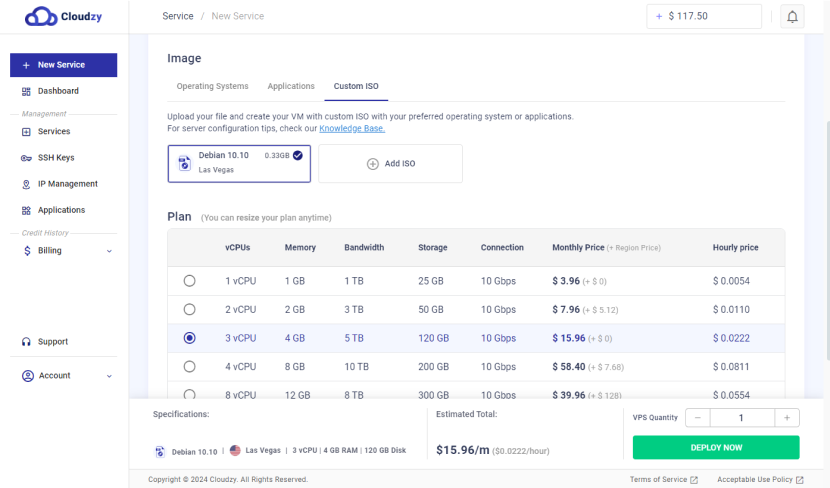
  1. Select Custom ISO:
  • On the Create Cloud VPS page, select the
    Custom ISO tab.

  • Choose the uploaded ISO file from the list.

  1. Configure Your VPS:
  • Ensure the region matches the one where your ISO was
    uploaded.

  • Select the desired plan (vCPUs, memory, storage, and
    bandwidth).

  • Enter a hostname for your VPS.

  • Click Deploy Now to create your VPS.

Additional Steps

  1. Access VPS Console:

Once the VPS is deployed, you can use the VNC button to access the
VPS console and continue with the OS setup.

Access VPS Console
  1. Detach and Reboot:

After completing the OS setup, click on the Detach &
Reboot
button to remove the ISO file and reboot the VPS.

Detach and Reboot
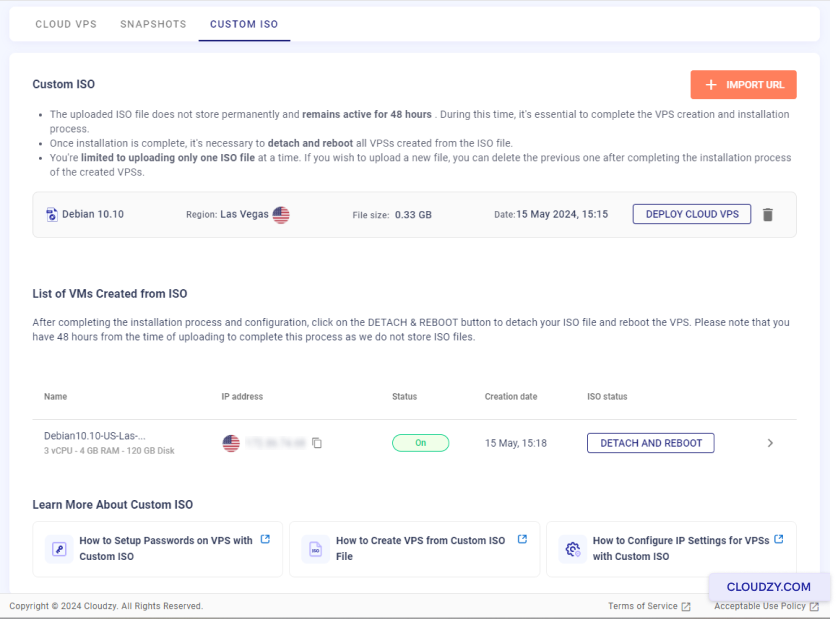
  1. Verify and Manage:

Navigate back to the Services page and the
Custom ISO tab to view the list of VMs created from the
ISO.

Verify and Manage

You can manage your VMs, including rebooting and detaching the ISO
file from this section.

Important Notes

  1. Region Limitation:

You can only deploy a VPS in the same region where the ISO file was
uploaded. If you need to deploy in a different region, you must delete
the current ISO and re-upload it to the desired region.

  1. Time Constraint:

You have 48 hours from the time of uploading to
complete the deployment and setup process, as Cloudzy does not store ISO
files permanently, and your ISO file will be deleted after 48 hours.

By following these methods, you can deploy a VM using a Custom ISO on
Cloudzy, ensuring a customized and flexible VPS setup tailored to your
specific needs.

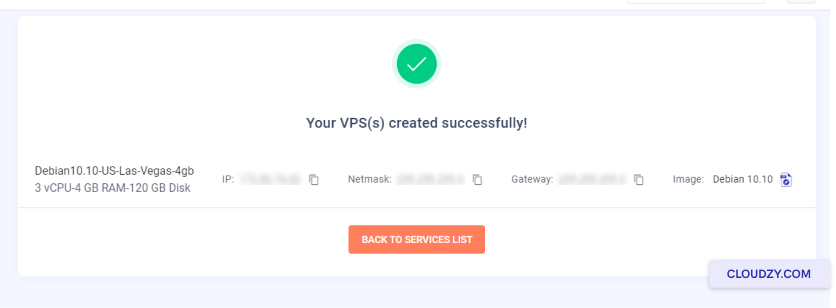
Configuring
IP Address and DNS for New Custom VPS

New custom virtual private servers may not come pre-configured with
an IP address. Ensure you take note of the IP address, subnet mask, and
default gateway provided during the VPS creation process. Later, use the
VNC button available in the Cloudzy panel to access the VPS console and
configure the IP address.

Configuring IP

For DNS configuration, you can use public DNS servers such as:

Google Public DNS:

  • Primary: 8.8.8.8

  • Secondary: 8.8.4.4

Cloudflare DNS:

  • Primary: 1.1.1.1

  • Secondary: 1.0.0.1

OpenDNS:

  • Primary: 208.67.222.222

  • Secondary: 208.67.220.220

By configuring these settings, you can ensure your VPS has proper
network connectivity and DNS resolution. If you have any questions, feel
free to contact us by submitting a
ticket
.

Deploying PostgreSQL on your Cloudzy VPS with the One-Click App is a
quick and straightforward way to establish a robust database
environment. This guide will take you through each step, from selecting
your VPS configuration to accessing and confirming your PostgreSQL
installation. Whether you’re setting up a new database for development,
testing, or production purposes, this comprehensive tutorial will ensure
your PostgreSQL server is operational, secure, and ready to meet your
needs in no time.

Prerequisites

Before you begin, make sure you have the following:

  1. Active Cloudzy Account: Ensure that you have an
    active Cloudzy account.

  2. Available Service Credit: Verify that you have
    enough credit in your Cloudzy account to deploy a new VPS.

  3. Operating System Compatibility: The PostgreSQL
    One-Click App is compatible with the following Ubuntu versions: Ubuntu
    Server 20.04, Ubuntu Server 22.04, and Ubuntu Server 24.04.

Step 1:
Select PostgreSQL from the Applications Menu

  1. Log in to your Cloudzy Account: Start logging
    into your account through the Cloudzy Control Panel.

  2. Navigate to Applications: Go to the
    “Applications” section in the left-hand menu.

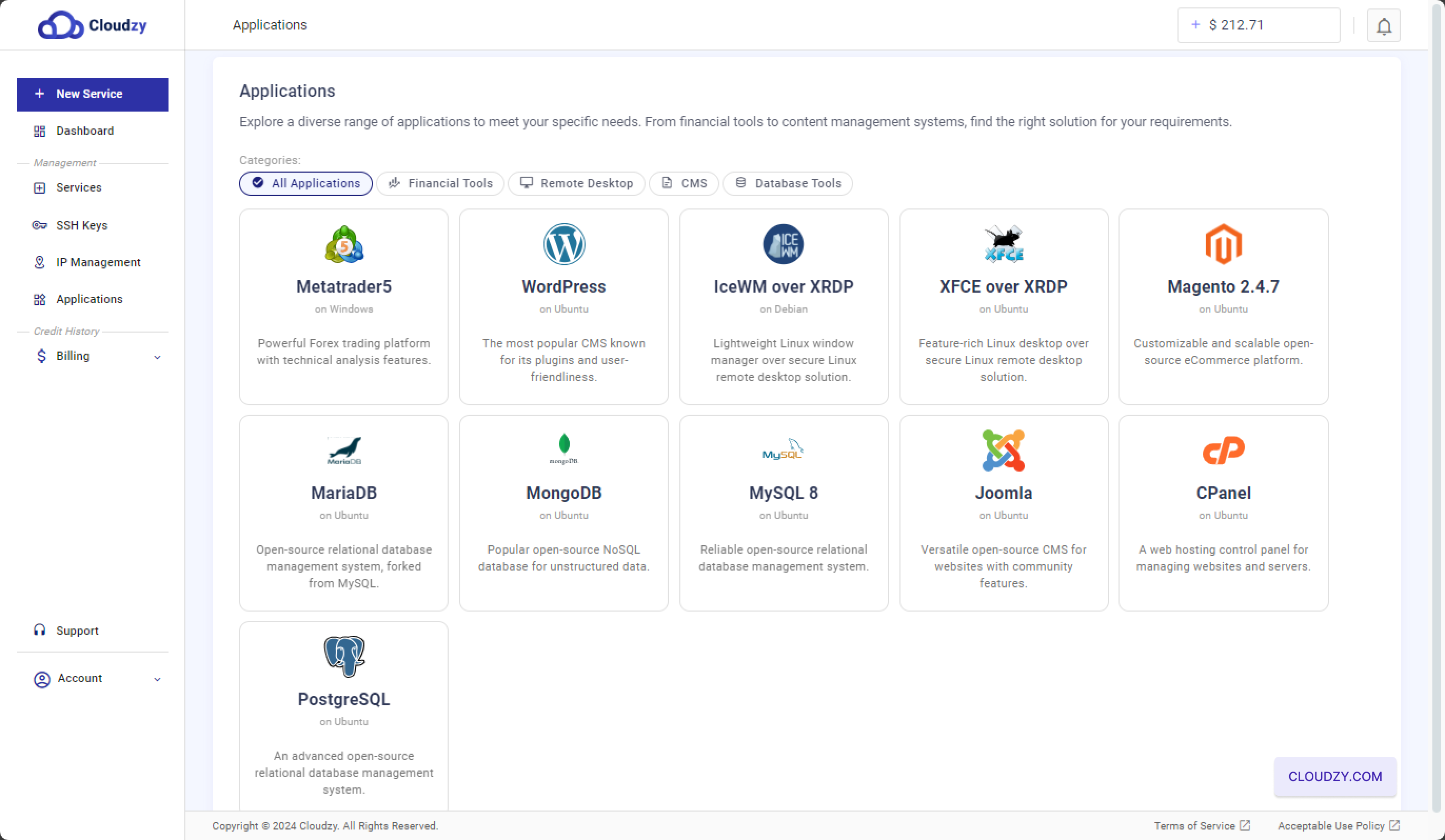
  3. Select PostgreSQL: In the Applications section,
    under the “All Applications” category, find and select the
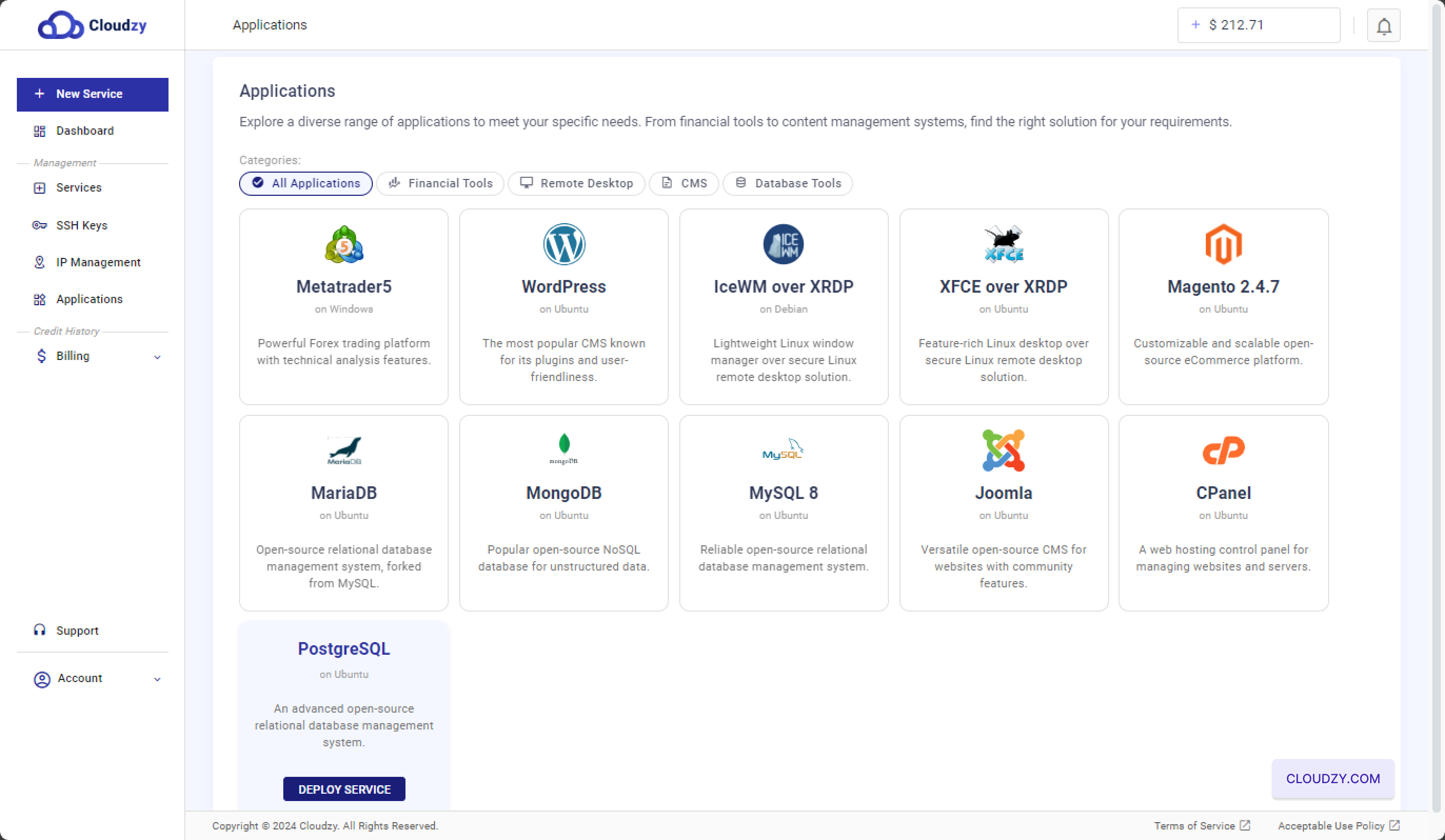
    PostgreSQL application. This will take you to the next
    step, where you can configure your new VPS with PostgreSQL.

Deploy Service
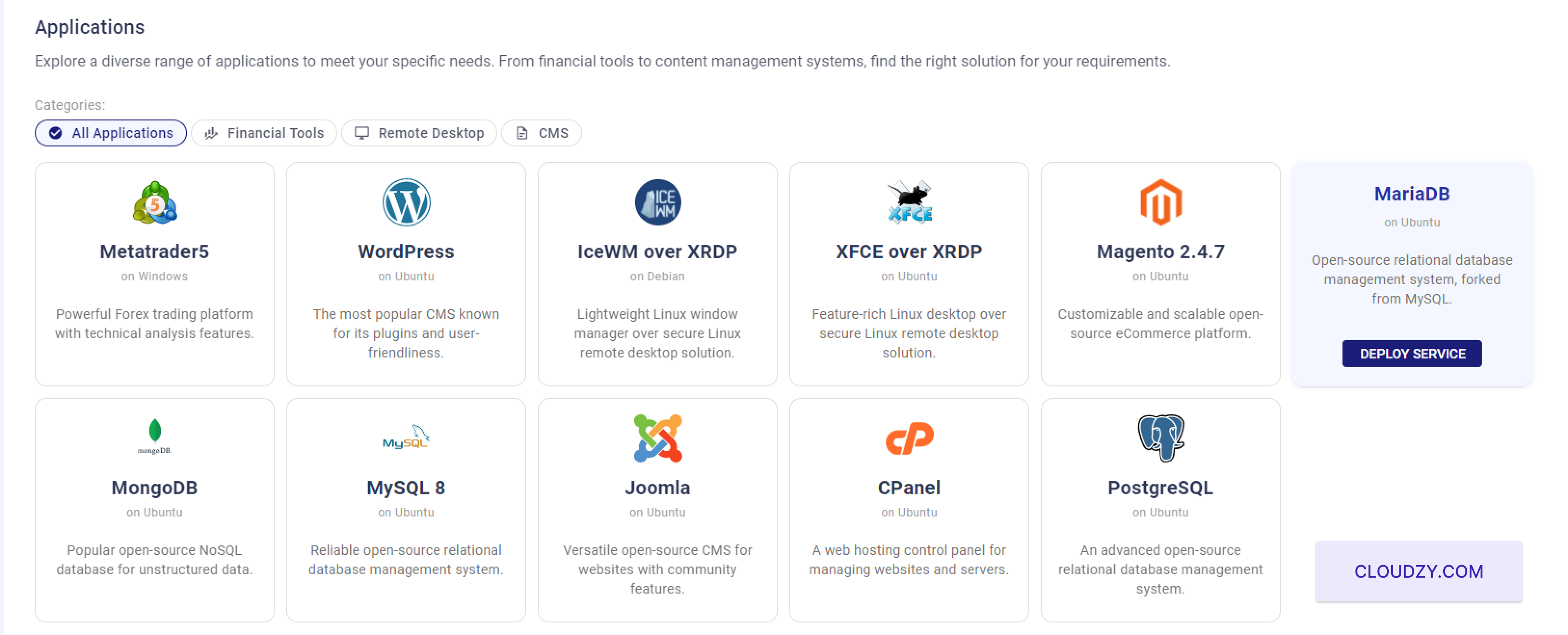
  1. Click Deploy Service: A blue “Deploy Service”
    button will appear after selecting the PostgreSQL application. Click on
    this button to start setting up your PostgreSQL VPS.
Deploy Service

Step 2: Configure Your
VPS

  1. Select Your Server Location: On the
    configuration page, you’ll be prompted to choose a server location from
    the available options. For optimal performance, pick a location that
    aligns with your audience’s geographical area. Options may include
    regions like Miami, Las Vegas, or Frankfurt.

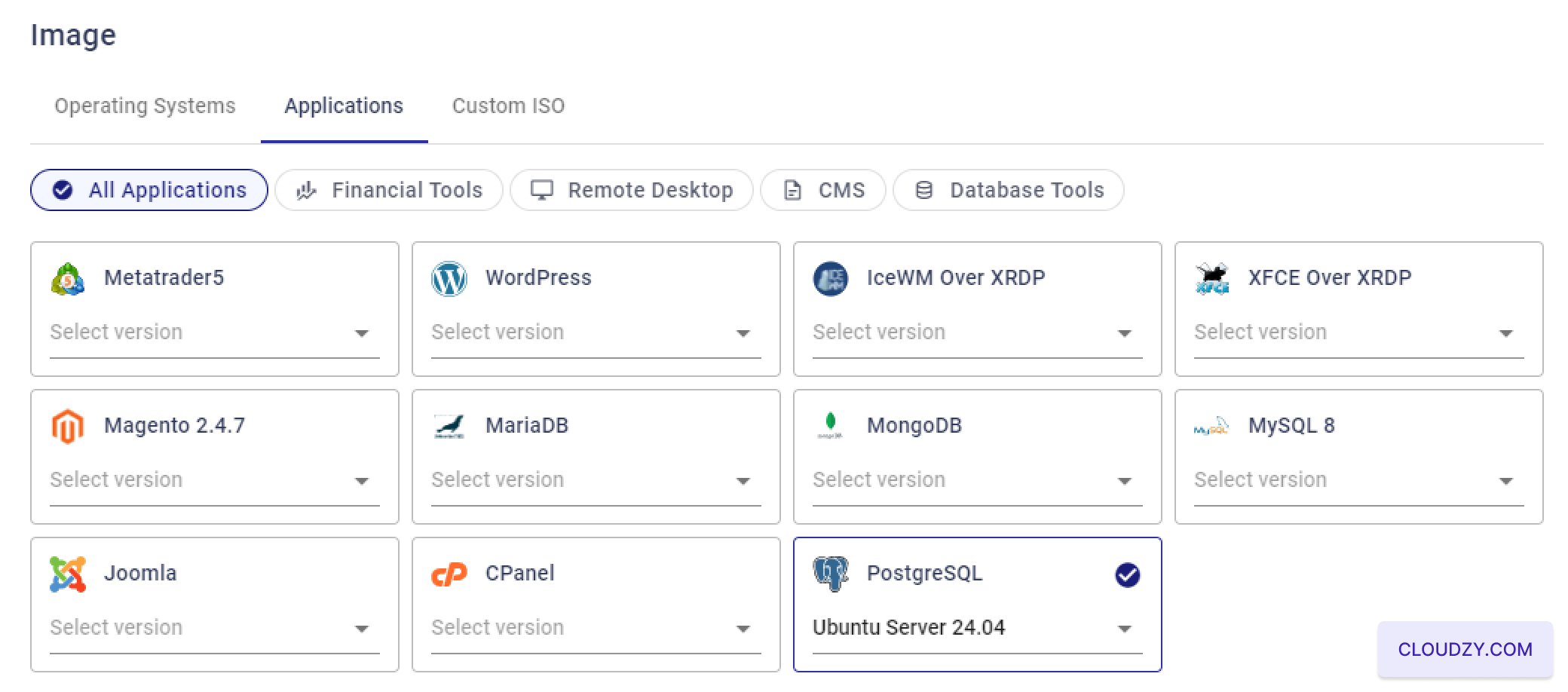
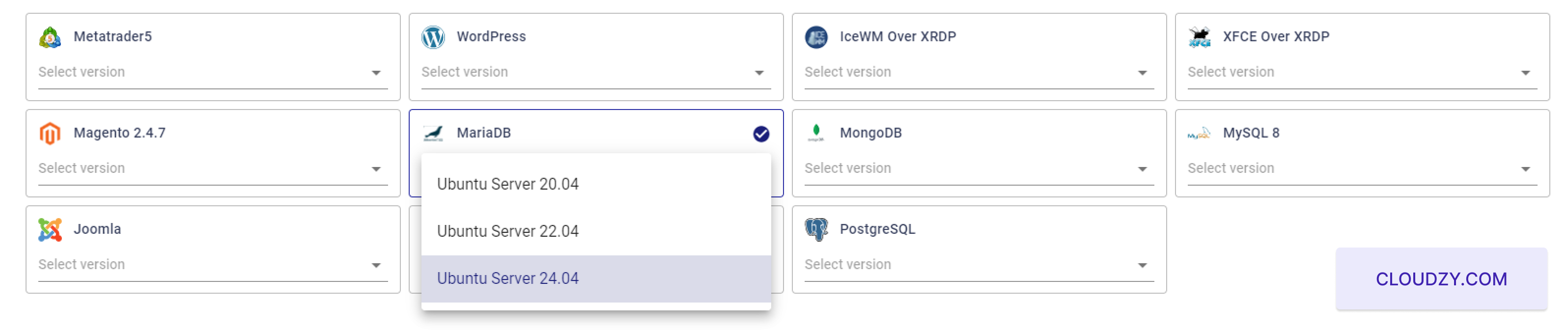
  2. Choose Your Operating System:

Under the “Image” section, select the operating system on which
PostgreSQL will run. The PostgreSQL One-Click App is compatible with
Ubuntu Server 20.04, 22.04, and
24.04. Choose the version that best suits your
requirements.

Deploy Service
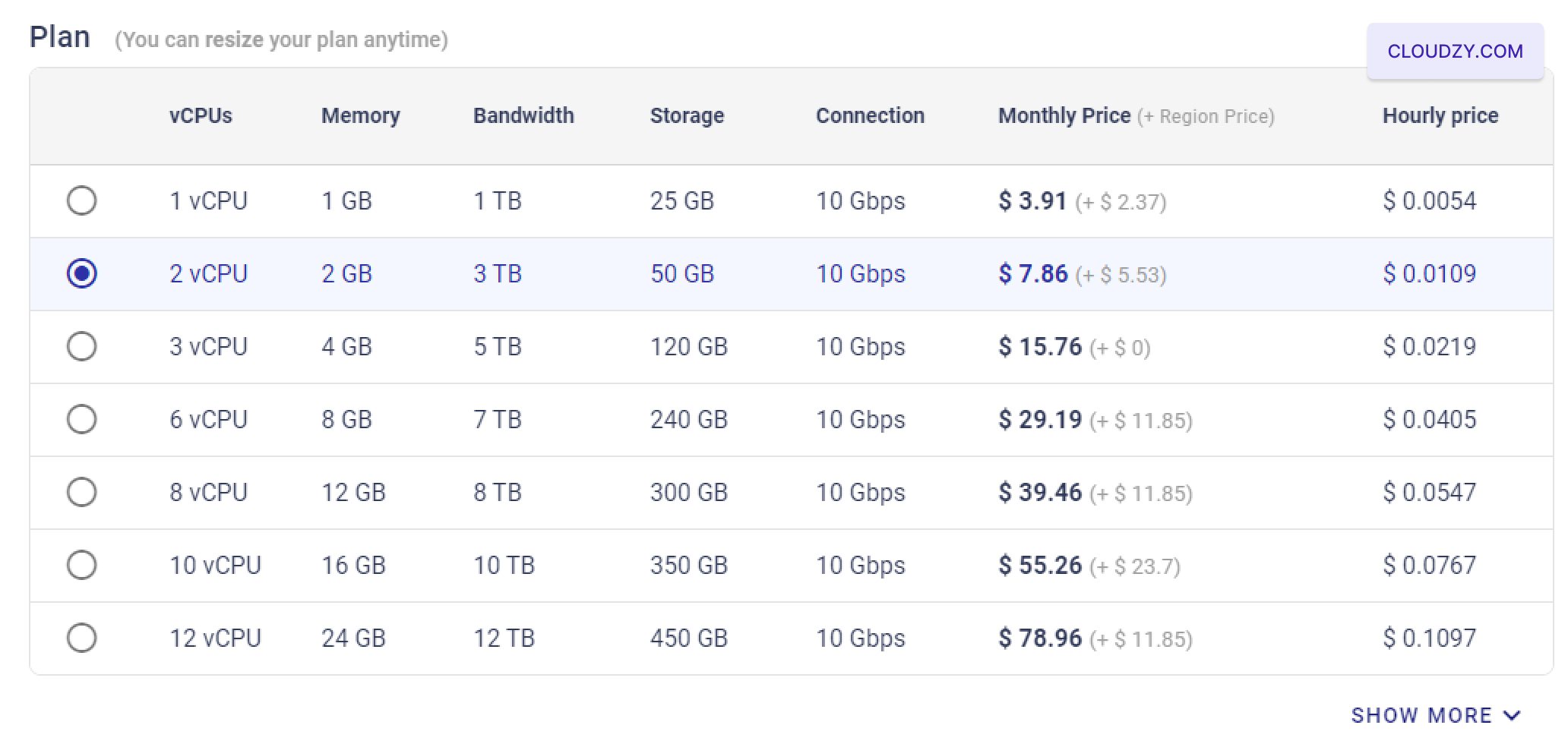
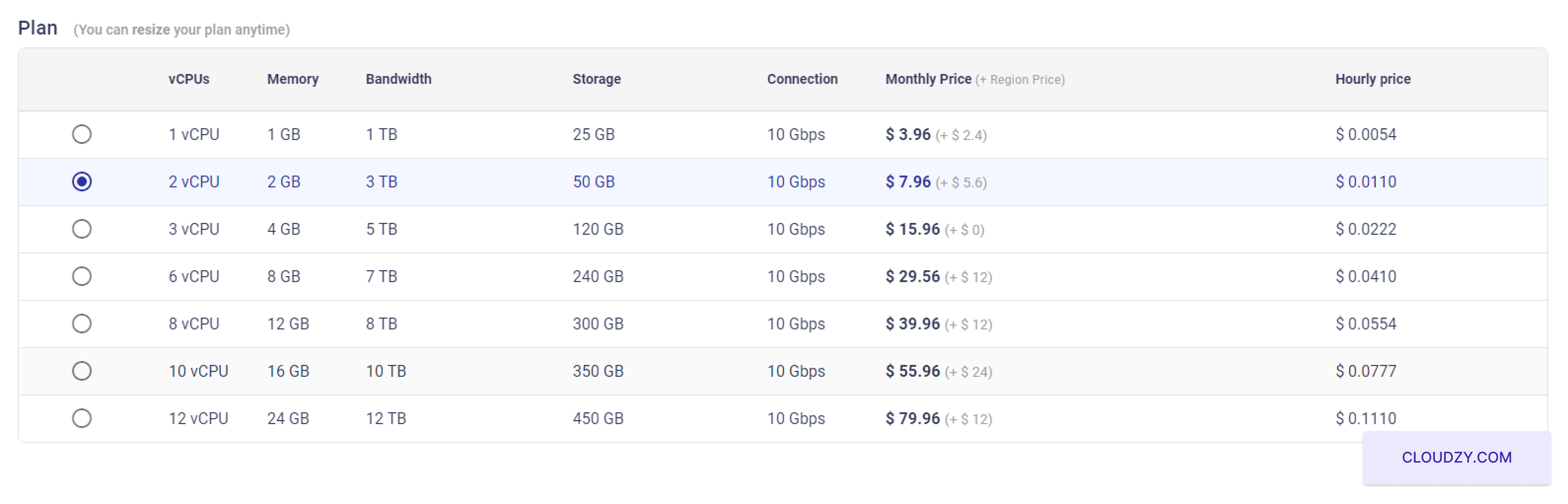
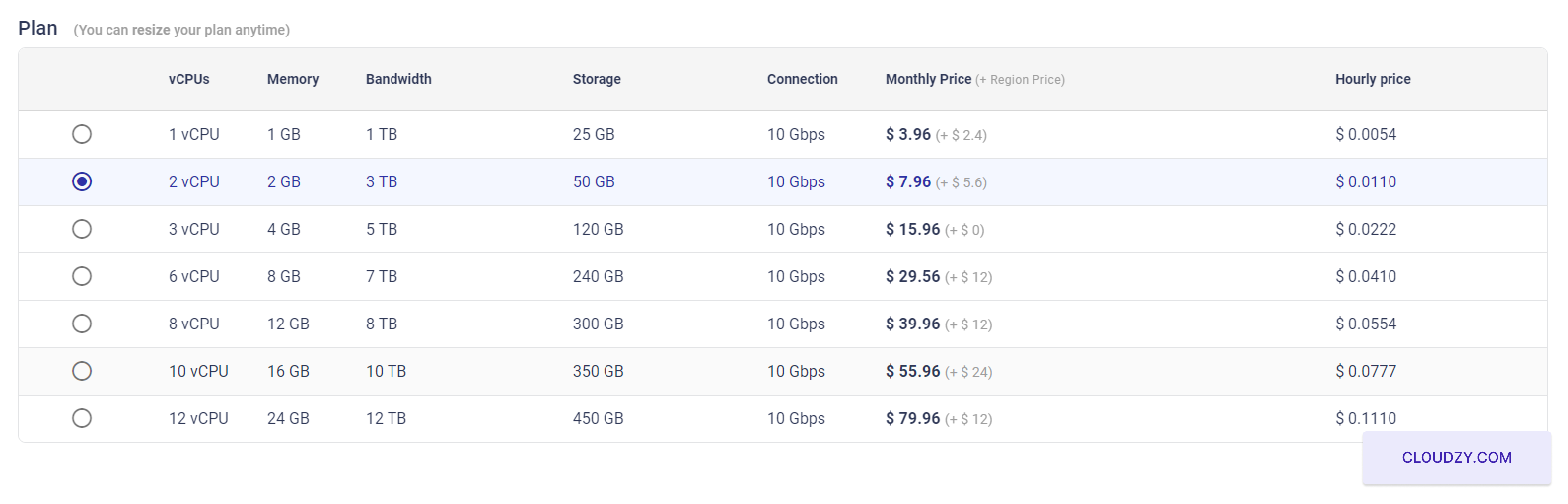
  1. Select Your VPS Plan: Choose a VPS plan that
    matches your needs in terms of CPU, memory, storage, and bandwidth. For
    a moderate workload, you might opt for a plan with 2 vCPUs, 2 GB of RAM,
    and 50 GB of storage.
Select Plan
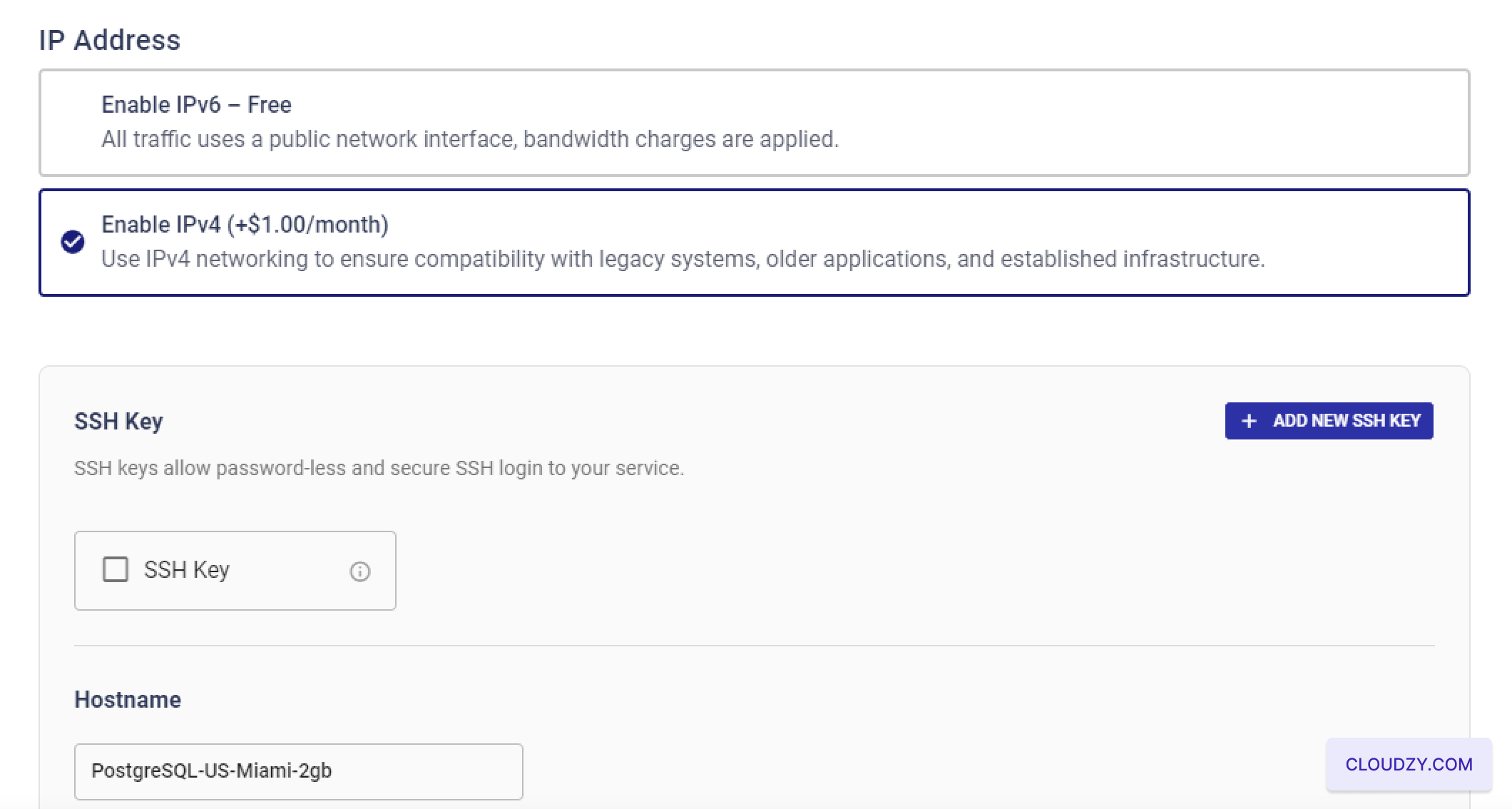
  1. Set Up SSH Key (Optional):

For secure, passwordless access to your VPS, you can add an SSH key
by clicking “Add New SSH Key.” If you need help with setting up or using
SSH keys, check out https://cloudzy.com/kb/linux/connection/[].
If you prefer not to use SSH keys, you can skip this step. Additionally,
consider the IPv4 and IPv6 options, which may vary in pricing depending
on your selection.

  1. Assign a Hostname: Input a hostname for your VPS.
    This can be something like “PostgreSQL-US-Miami-2gb” or any other custom
    name that helps you easily identify your server.
SSH
  1. Assign a Hostname: Input a hostname for your VPS.
    This can be something like “PostgreSQL-US-Miami-2gb” or any other custom
    name that helps you easily identify your server.
SSH
  1. Review and Deploy: Double-check all your
    configuration settings. Once you’re satisfied, click the “Deploy Now”
    button to start the deployment of your PostgreSQL VPS. The system will
    then initiate the setup process, which you can monitor through the
    progress bar.
DEPLOY

Step 3: Access
Your PostgreSQL Server

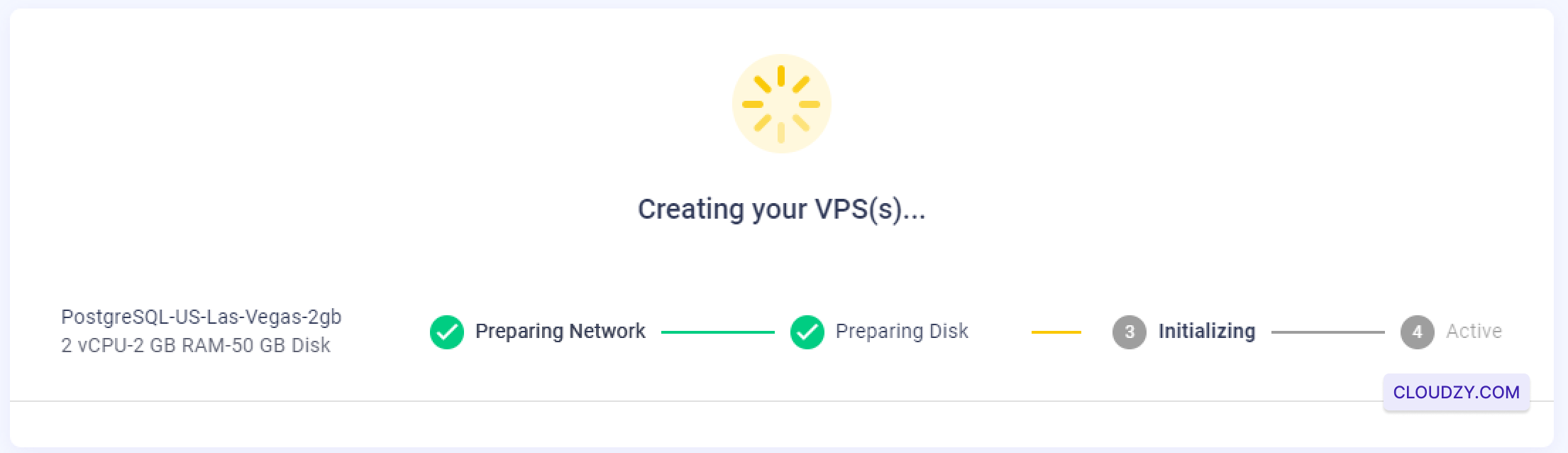
  1. Wait for VPS Creation: After clicking “Deploy Now,”
    the system will begin creating and configuring your VPS. This process
    typically takes a few minutes, during which you’ll see a progress
    indicator showing steps like “Preparing Network,” “Preparing Disk,”
    “Initializing,” and finally, “Active.”
DEPLOYING
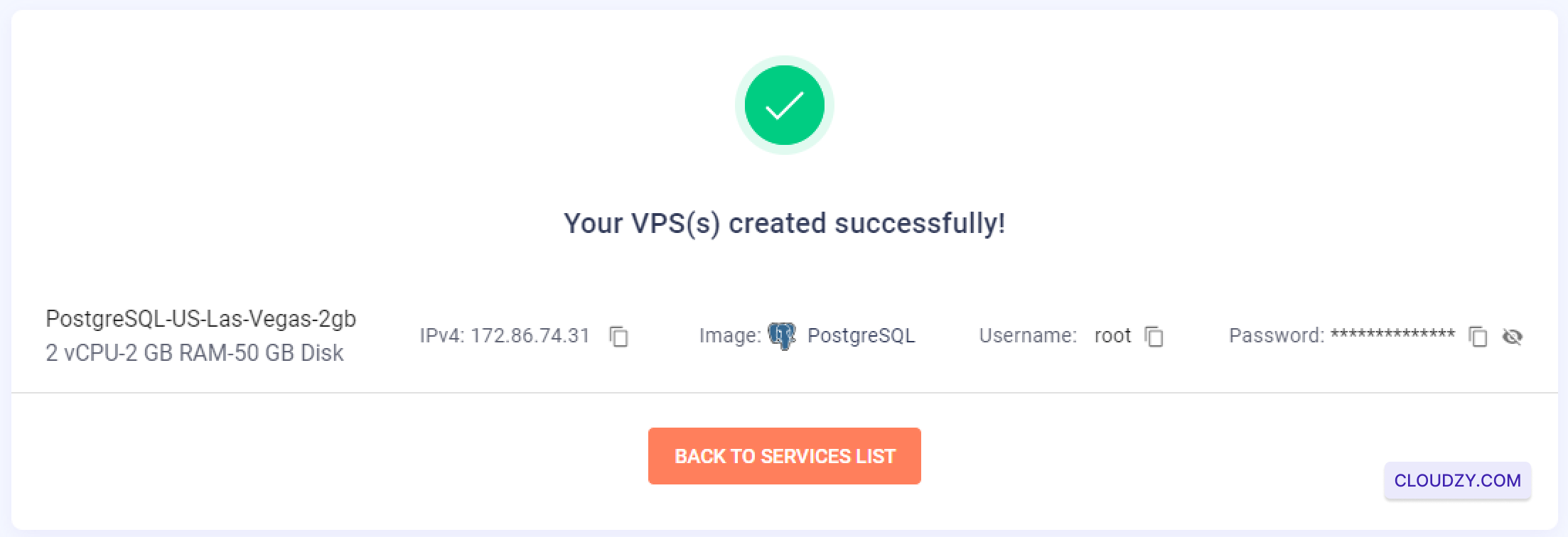
  1. Retrieve Login Information: Once the VPS creation
    is complete, you’ll be directed to a confirmation screen that displays
    your server’s IP address, username, and password. It’s crucial to note
    these details, as you will need them to access your PostgreSQL
    server.
DEPLOYED
  1. Connect via SSH: You can now connect to your VPS
    via SSH using the provided credentials. If you’re unfamiliar with SSH or
    need guidance on connecting, refer to https://cloudzy.com/kb/linux/connection/.

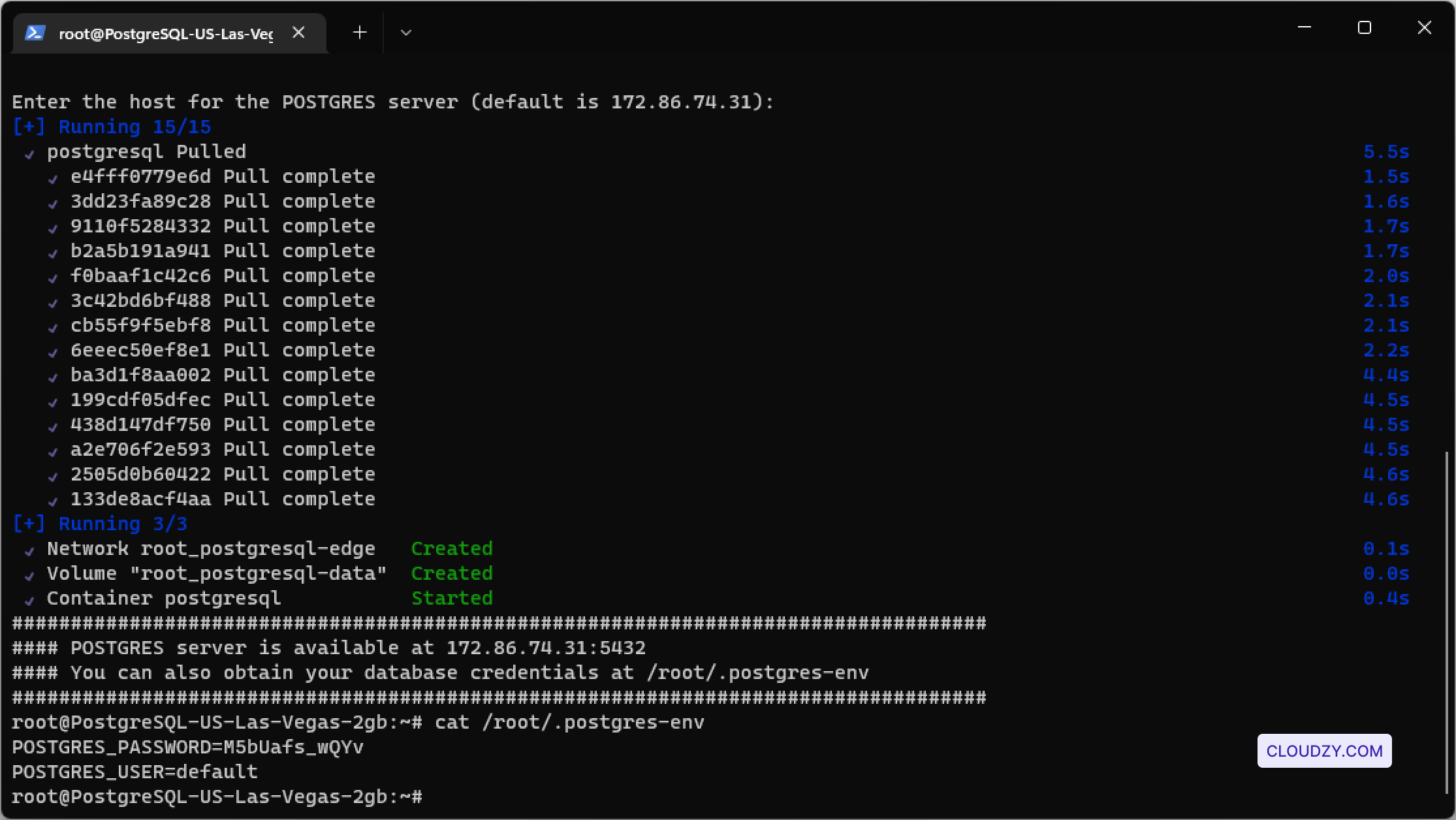
  2. Select the Default Server for PostgreSQL
    Installation:
    Upon connecting to your VPS via SSH, you’ll be
    prompted to enter the host for the PostgreSQL server. You can press
    Enter to accept the default server IP provided. This step will trigger
    PostgreSQL’s final setup and configuration on your VPS.

Terminal
  1. Verify PostgreSQL Installation: After confirming
    the server host, the installation process will be complete, and your
    PostgreSQL server will be ready. You can verify the PostgreSQL
    installation and retrieve the credentials by accessing the
    /root/.postgres-env file. To view the contents, use the following
    command:

cat /root/.postgres-env

This file contains important details, such as the PostgreSQL user and
password, which you will use to manage your databases. Make sure to
securely store this information for future use.

Your PostgreSQL server is now fully set up and ready for you to start
managing your databases securely and efficiently.

Deploying MySQL 8 on your Cloudzy VPS using the One-Click App is a
simple and efficient way to set up a powerful database server. This
guide will walk you through the entire process, from configuring your
VPS to accessing and verifying your MySQL installation. Whether you’re
setting up a new database for development, testing, or production, this
step-by-step tutorial will help you get your MySQL server up and running
quickly and securely.

Prerequisites

Before you start deploying MySQL 8 on your Cloudzy VPS, ensure you
have the following prerequisites:

  1. Sufficient Credit: Ensure your Cloudzy account
    has enough credit to deploy the MySQL 8 One-Click App.

  2. Active Account: Your Cloudzy account should be
    active and ready for use.

  3. Operating System Compatibility: The MySQL 8
    One-Click App is compatible with Ubuntu. You can choose from:

-Ubuntu Server 20.04 -Ubuntu Server 22.04 -Ubuntu Server 24.04

  1. SSH Key (Optional): It is recommended that you set
    up an SSH key for secure access. https://cloudzy.com/kb/linux/connection/
    explains more about SSH keys and how to use them.

Step 1:
Access the Cloudzy Applications Page

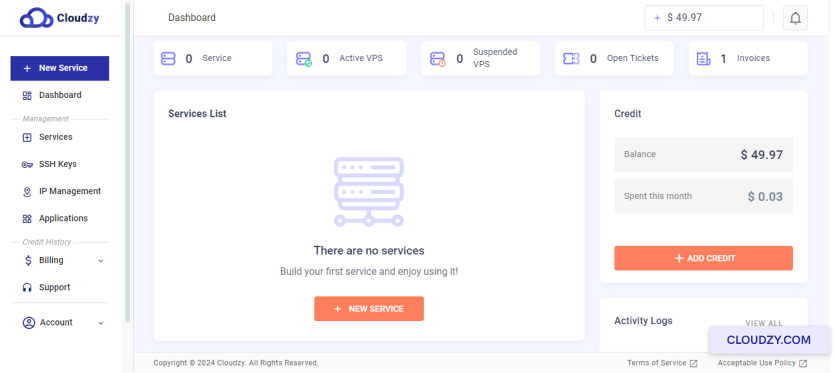
  1. Log in to your Cloudzy account.

  2. Navigate to the Applications section from the
    left-hand menu on your Cloudzy dashboard.

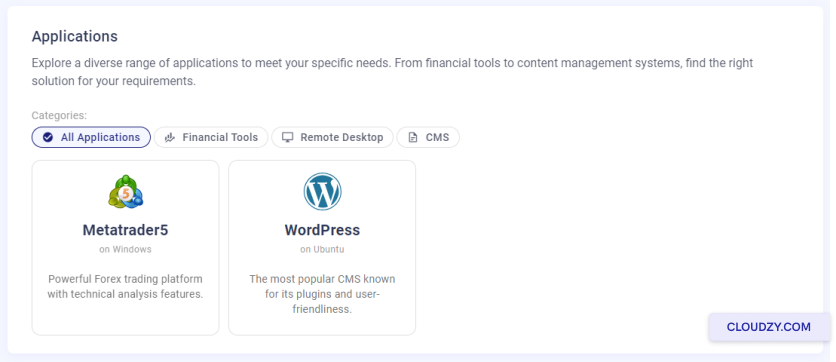
  3. Locate and click on the MySQL 8 application
    under the Database Tools category.

  4. Click the Deploy Service button to begin the
    setup process.

Deploy Service

This will take you to the service configuration page, where you can
select your server location, operating system, and other deployment
options.

Step 2: Configure Your
VPS

  1. Choose Your Region: Start by selecting the
    server location for your VPS. The region you select can affect the
    performance and latency, so it’s recommended to choose a location
    closest to your user base

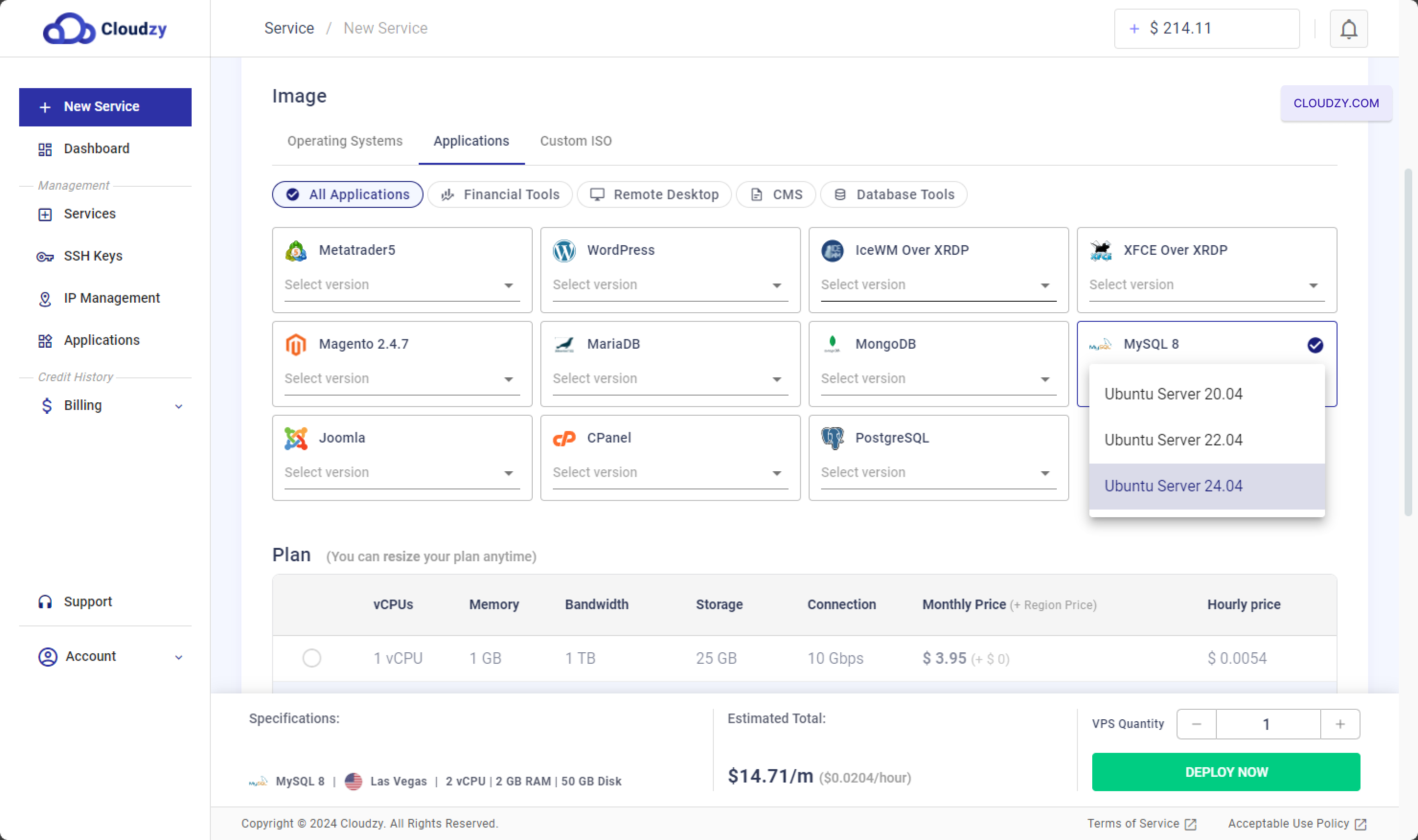
  2. Select Your OS and Application:

    -Under the Image section, click on the
    Applications tab. -Choose MySQL 8 as
    your application. -Select the OS version compatible with MySQL 8, such
    as Ubuntu Server 20.04, Ubuntu Server 22.04, or Ubuntu Server 24.04.
    Deploy Service

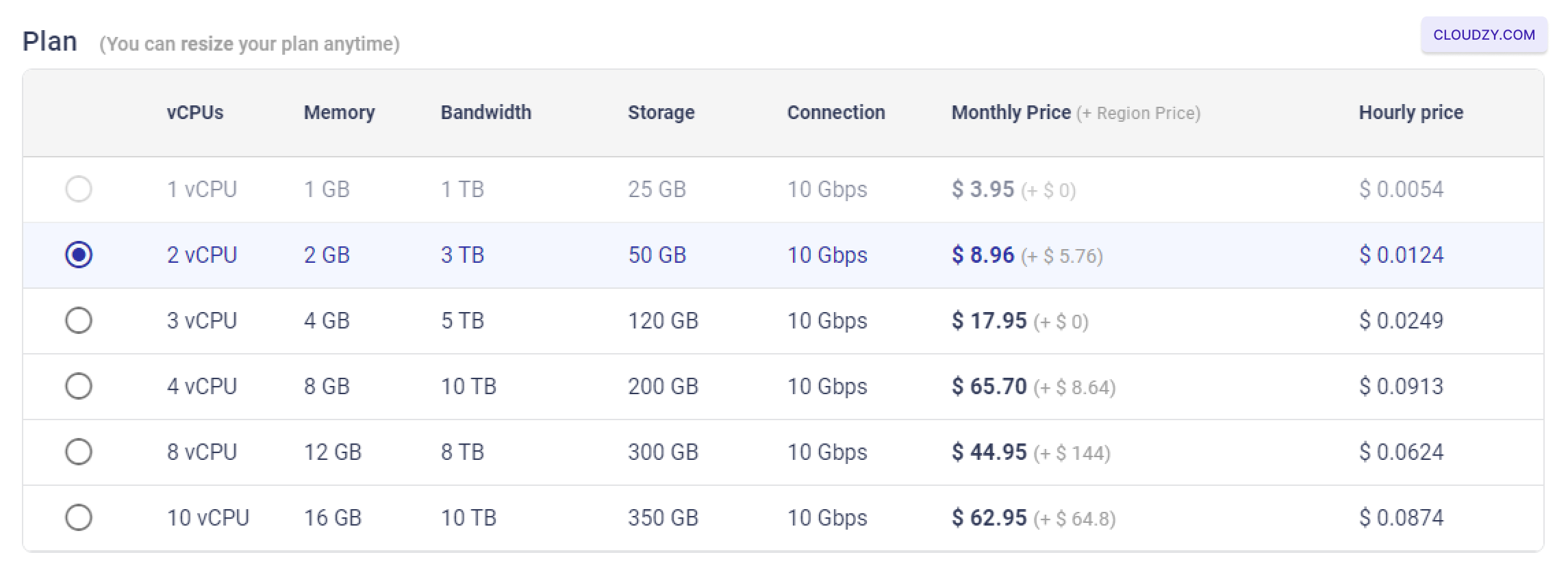
  3. Choose a Plan: Scroll down to the
    Plan section, where you can select the appropriate VPS
    plan for your MySQL server. Plans vary based on CPU cores, memory,
    bandwidth, storage, and monthly price.

    -For example, a plan with 2 vCPUs, 2 GB RAM, and 50 GB storage is
    ideal for a small to medium-sized database. -Higher plans with more
    resources are available if you anticipate a heavier workload. Select Plan

  4. Configure Additional Options:SSH
    Key
    : If you prefer a secure passwordless login, you can add an
    SSH key. Refer to https://cloudzy.com/kb/linux/connection/ on how
    to configure and use SSH keys.

SSH

Hostname: Set a hostname for your VPS, such as
“MySQL8-US-Las-Vegas-2gb” to easily identify your server.

HOSTNAME
  1. Deploy Your VPS: Once you’ve selected the region,
    configured your OS and application, chosen your plan, and added any
    additional options, click on the Deploy Now button to
    initiate the deployment of your MySQL server.
DEPLOY

Step 3: Access Your
MySQL Server

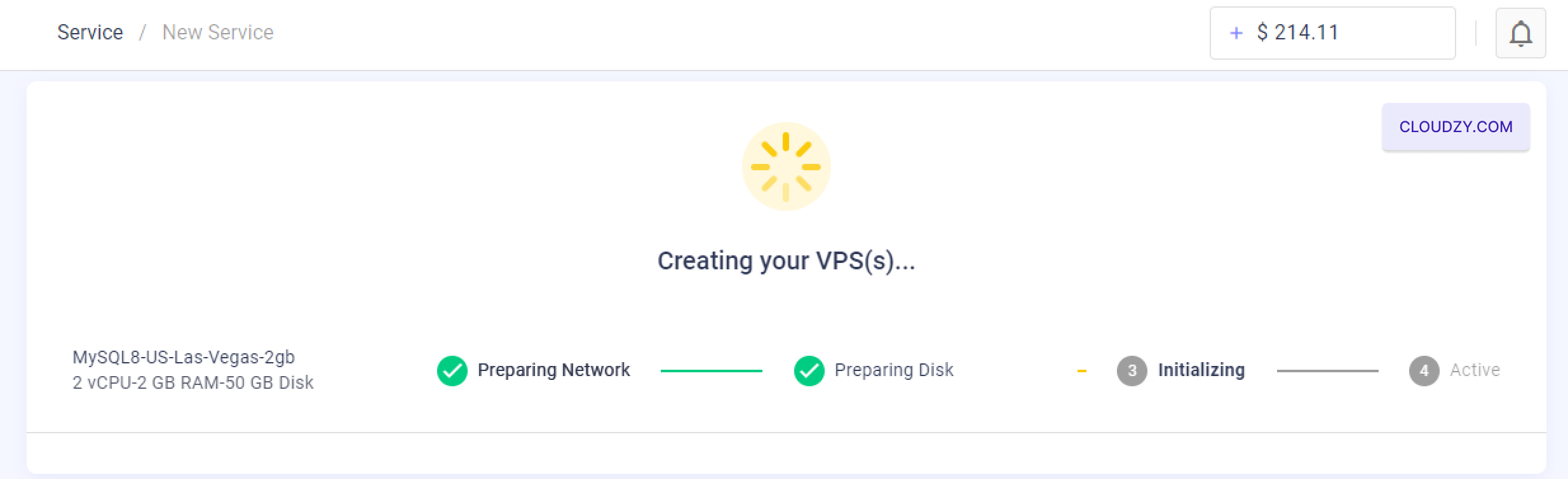
  1. Wait for VPS Creation: After clicking “Deploy Now,”
    the system will take a few minutes to create and configure your VPS.
    You’ll see a progress indicator showing the steps, such as “Preparing
    Network,” “Preparing Disk,” “Initializing,” and finally, “Active.”
DEPLOYING
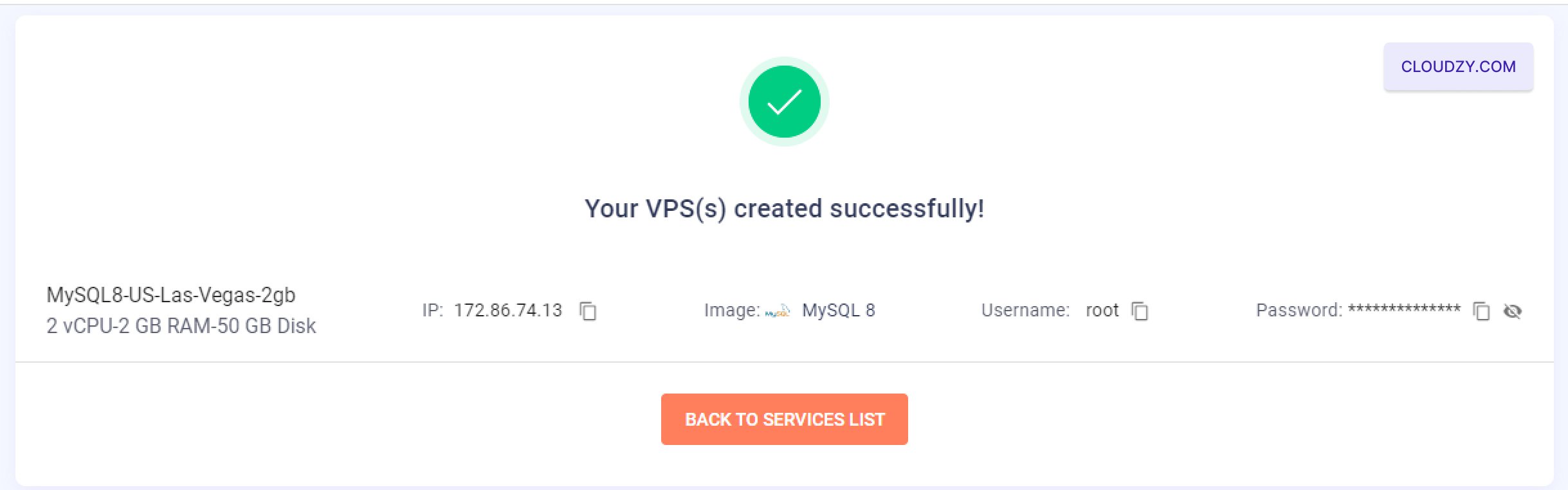
  1. Retrieve Login Information: Once your VPS is
    successfully created, you’ll be taken to a confirmation screen
    displaying your server’s IP address, username, and password. Be sure to
    note these details when accessing your MySQL server.
DEPLOYED
  1. Connect via SSH: You can now connect to your VPS
    via SSH using the provided credentials. If you’re unfamiliar with SSH or
    need guidance on connecting, refer to https://cloudzy.com/kb/linux/connection/.

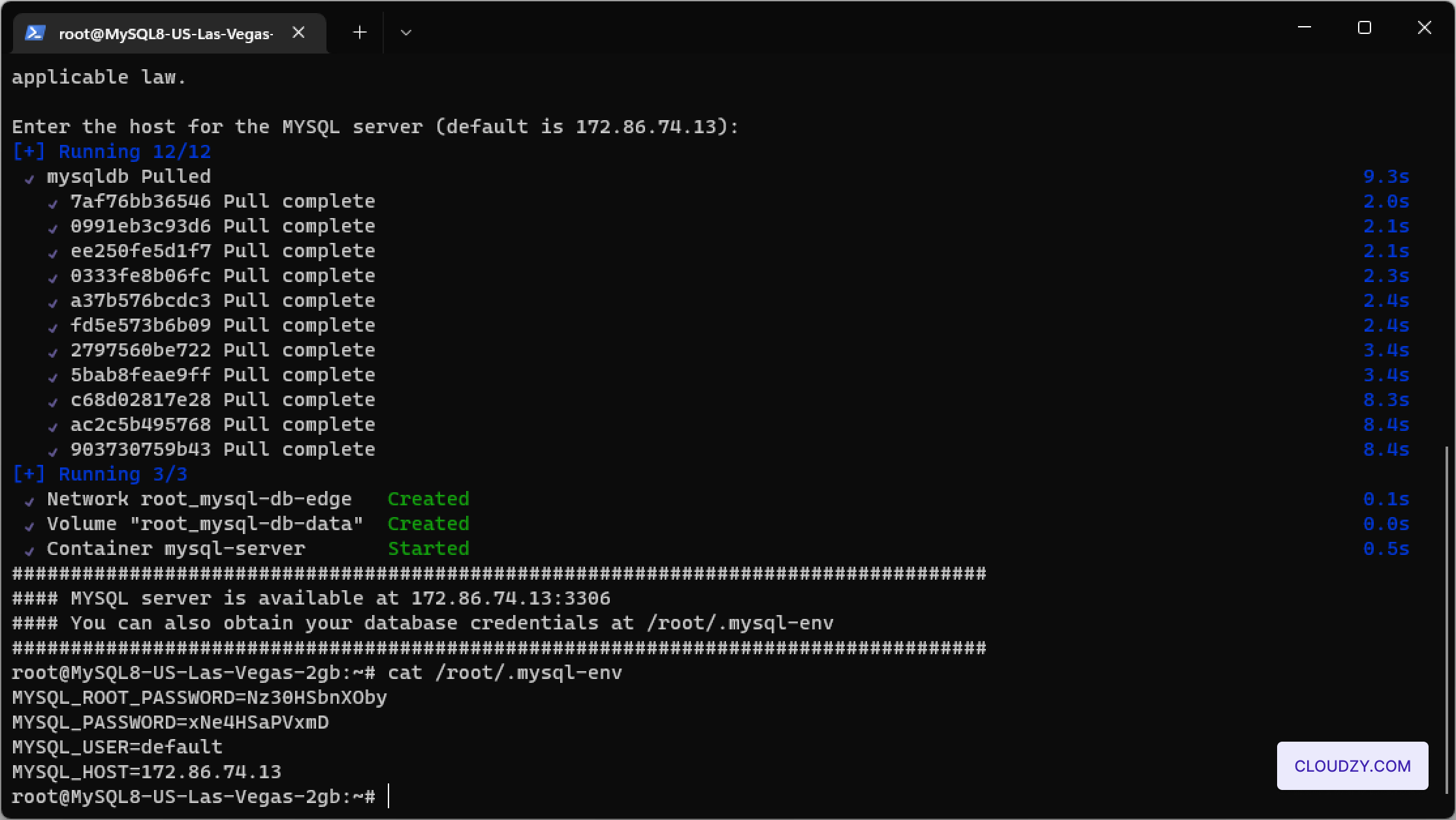
  2. Select the Default Server for MySQL
    Installation:
    Once connected via SSH, the setup process will
    prompt you to enter the host for the MySQL server. You can press Enter
    to select the default server IP provided.

  3. Verify MySQL Server Installation: After
    selecting the server, the MySQL server will complete its installation.
    You can verify the installation by accessing the MySQL server details,
    including the host and credentials, by viewing the /root/.mysql-env file
    using the following command:

cat /root/.mysql-env.

TERMINAL

Your MySQL server is now fully set up and ready for secure and
efficient database management.

Cloudzy has a service called One Click App (OCA). This service
includes pre-installed and ready-to-use programs on your VPS, so you can
start using your app quickly without installation. You can put MT5 on
any VPS, but MT5 OCA speeds things up and doesn’t cost extra. It’s there
to help you get started quickly.

Prerequisites

Before you start with MT5 OCA on your Cloudzy VPS, you need these
prerequisites in place:

  • Enough Credit in Account: Your Cloudzy account
    should have the credit to set up and use MT5 OCA.

  • Account Ready to Go: Make sure your account is
    active.

  • Operating System Considerations: You can later
    switch your operating system based on its hardware needs. For example,
    if you want to switch to Windows Server 2022, you must upgrade your plan
    to ensure the server meets the necessary hardware specifications.
    Alternatively, you can reinstall the OCA server’s current operating
    system.

Set Up MT5 OCA

  1. Go to your Cloudzy Dashboard: Sign in to Cloudzy
    and go to the Dashboard area.
Login
  1. Find ‘Applications’: On the menu to the left, click
    on Applications.
Applications
  1. Choose MetaTrader 5: You’ll see a list. Look for
    ‘MetaTrader 5’ and click on the DEPLOY SERVICE
    button.
MetaTrader 5
  1. Select your server location: You’ll see a list of
    locations. Pick a location that suits your trading needs.
Choose Location
  1. Pick your server plan: Cloudzy offers different
    CPU, memory, and price plans. Choose the one that fits your needs.
Choose Plan
  1. Name your server: In the ‘Hostname’ box, type a
    name you’ll remember for your server.
Choose Hostname
  1. Start building your server: After you’ve checked
    your choices, click on DEPLOY NOW. This will build your
    server with MT5, which is ready to use.

  2. Watch the setup process: You’ll see a few steps,
    like Preparing Network. Wait until it says
    Active. This means your server is ready.

Setup Process

Connect to your
VPS with Remote Desktop

  1. Get your VPS details: Cloudzy will give you an IP
    address and a password. Write these down.
VPS Details
  1. Start Remote Desktop: Search for ‘Remote Desktop
    Connection’ on a Windows computer. Open it.

  2. Connect with your details: Enter the IP address
    and press Connect. Then, enter your password.

Open MT5

  1. Look for MT5 on your VPS: You’ll see the MT5
    icon once in your VPS. It should be on the desktop.

  2. Start MT5: Double-click the MT5 icon to open
    it.

  3. Sign in to MT5: Log in using your trading
    account details.

Sign in to MT5

You can now use MT5 on your VPS to trade! If you need any more
information or further assistance, feel free to contact our support team
by submitting a
ticket
.

This guide provides a straightforward approach to deploying and
configuring MongoDB on a Cloudzy Virtual Private Server (VPS) using the
One-Click App service. It covers the necessary steps to quickly set up a
MongoDB server, from accessing the server and configuring settings to
retrieving database credentials. Follow these simple instructions to
efficiently start using MongoDB for your projects.

Prerequisites

Before you start deploying MongoDB on your Cloudzy VPS using the
One-Click App, make sure you have the following:

Enough Credit: Ensure your Cloudzy account has
sufficient credit to set up and use the MongoDB One-Click App.

Active Account: Your Cloudzy account should be
active and ready for use.

Operating System Compatibility: The MongoDB
One-Click App is compatible with Ubuntu. You can choose from Ubuntu
Server 20.04, Ubuntu Server 22.04, and Ubuntu Server 24.04 versions.

Step 1:
Selecting the MongoDB Application

  1. Log into your Cloudzy account: Start by signing
    into your Cloudzy dashboard using your credentials.

  2. Navigate to the Applications section: On the
    left side menu, click on ‘Applications’ to view the available
    applications.

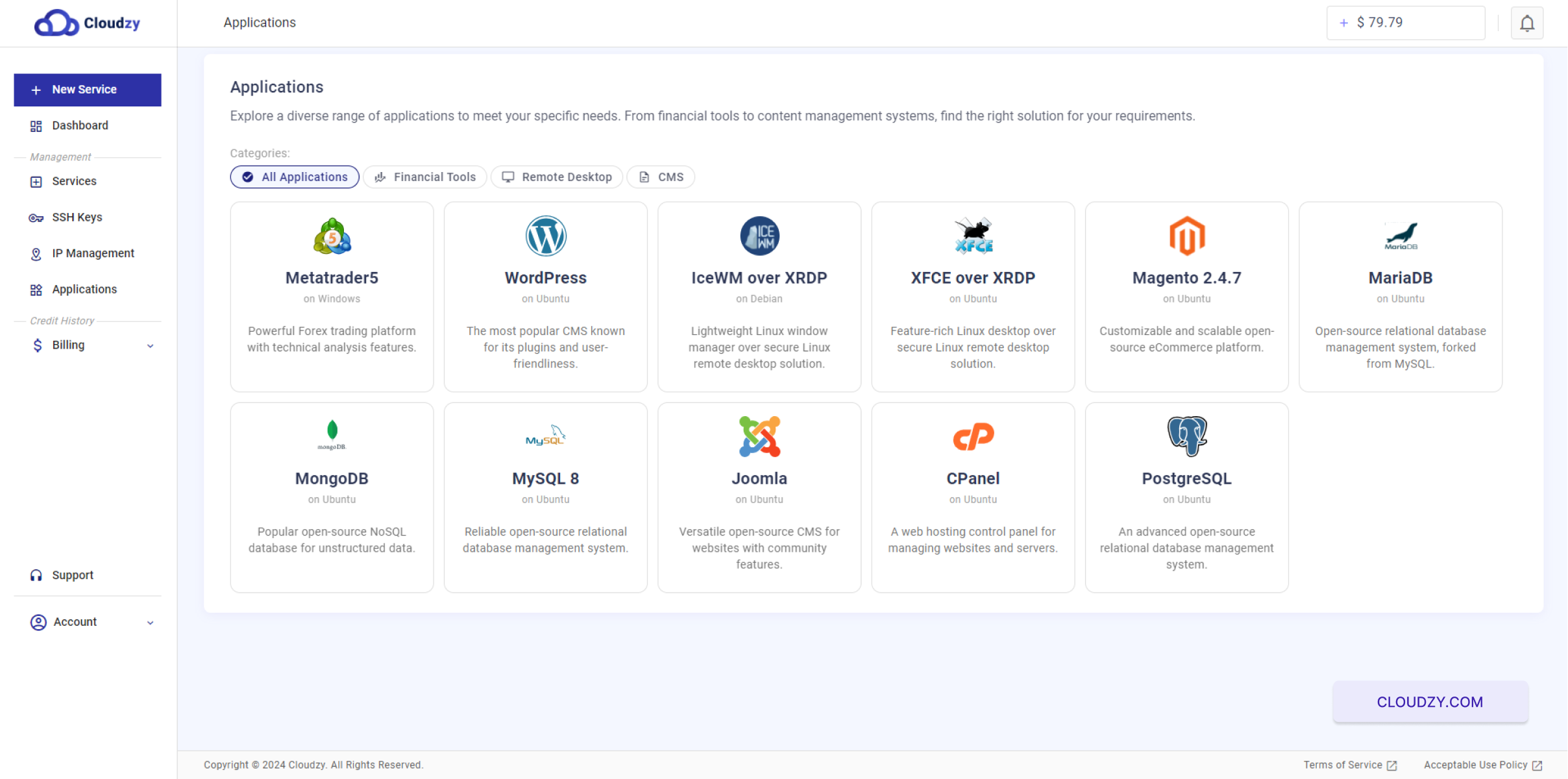
Applications page
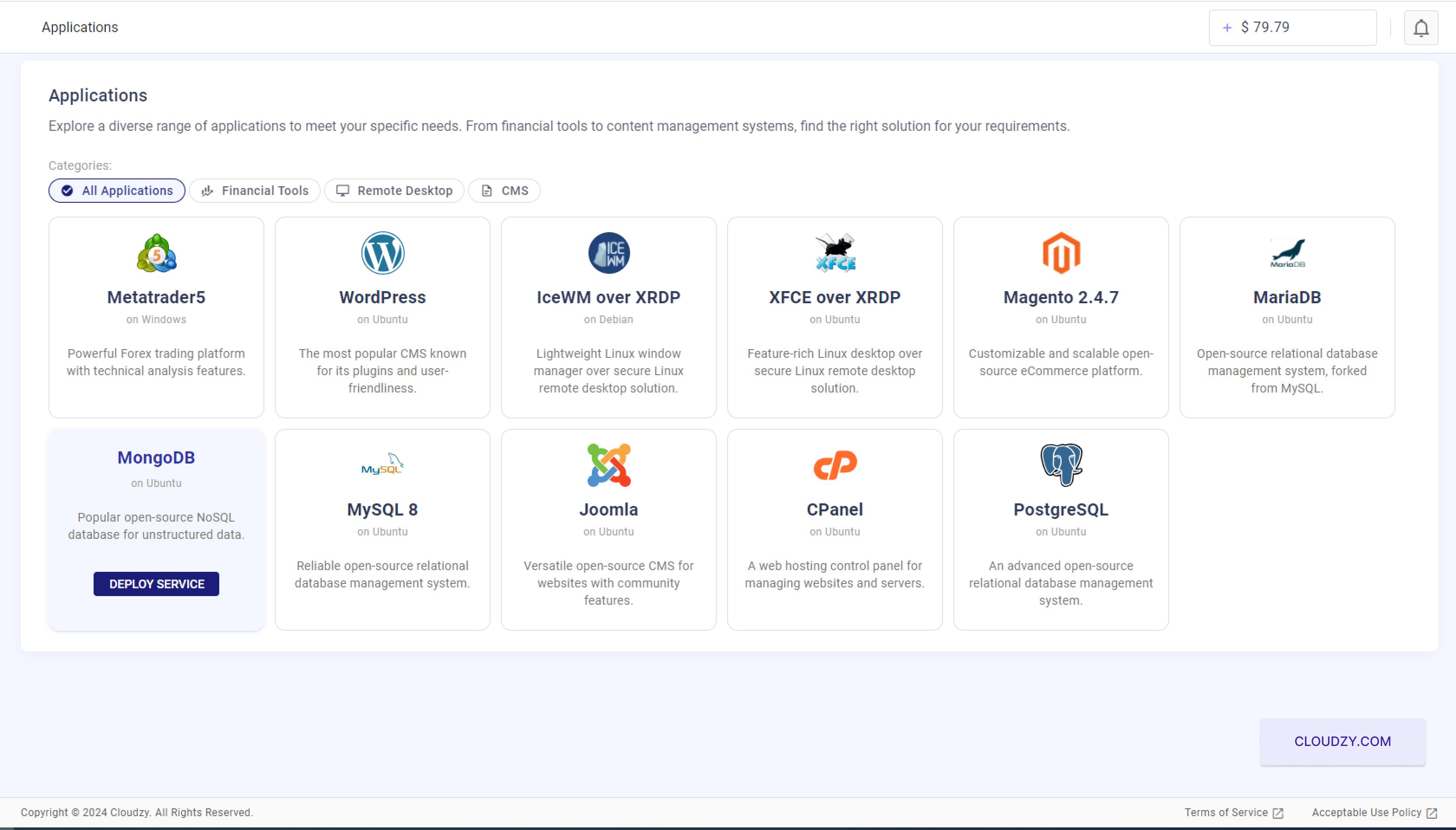
  1. Choose MongoDB: Among the various applications
    listed, find MongoDB. You can use the search bar or scroll through the
    list. Once found, click on ‘Deploy Service’ below the MongoDB icon.
Applications page
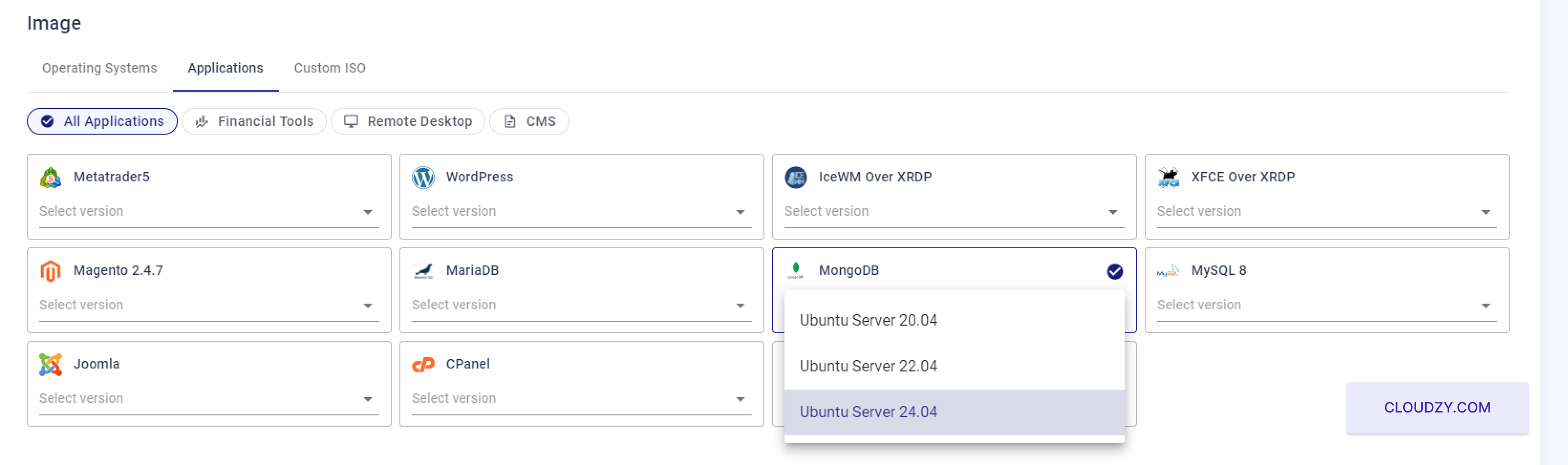
  1. Select the operating system version: Choose the
    appropriate version of Ubuntu (20.04, 22.04, or 24.04) for your MongoDB
    application. This ensures compatibility and optimal performance.
Applications page

This will prepare your system for the MongoDB installation with the
settings you need for a successful deployment.

Step 2:
Configuring Your VPS Settings

Before completing your order, you must create an account. To do this,
fill out the registration form with your name, email address, and a
strong password. You can also sign up with your Google account by
selecting the Continue with Google option.

  1. Select a Service Plan:

After choosing MongoDB and its compatible operating system, you’ll be
taken to the service configuration page. Review the VPS plans available,
each differing in vCPUs, memory, bandwidth, and storage capacity. For
MongoDB, opt for a plan with more memory and CPU resources to ensure
better performance.

Plans
  1. Set Up SSH Key (Optional but Recommended):

To enhance security, consider adding an SSH key for secure server
access.

ssh keys

If you don’t have an SSH key, it’s advisable to create one for
secure, password-less access. For guidance on how to configure and use
SSH keys, refer to Cloudzy’s SSH key setup guide. Cloudzy’s
SSH key setup guide

  1. Enter a Hostname:

Assign a hostname for your VPS, which serves as your server’s network
identifier.

Choose a meaningful hostname that reflects the server’s purpose, like
mongodb-server-01.

  1. Deploy Your VPS:

Once all configurations are confirmed to your satisfaction, click on
the ‘Deploy Now’ button to start the VPS provisioning process. deploy The setup will begin, and your server will
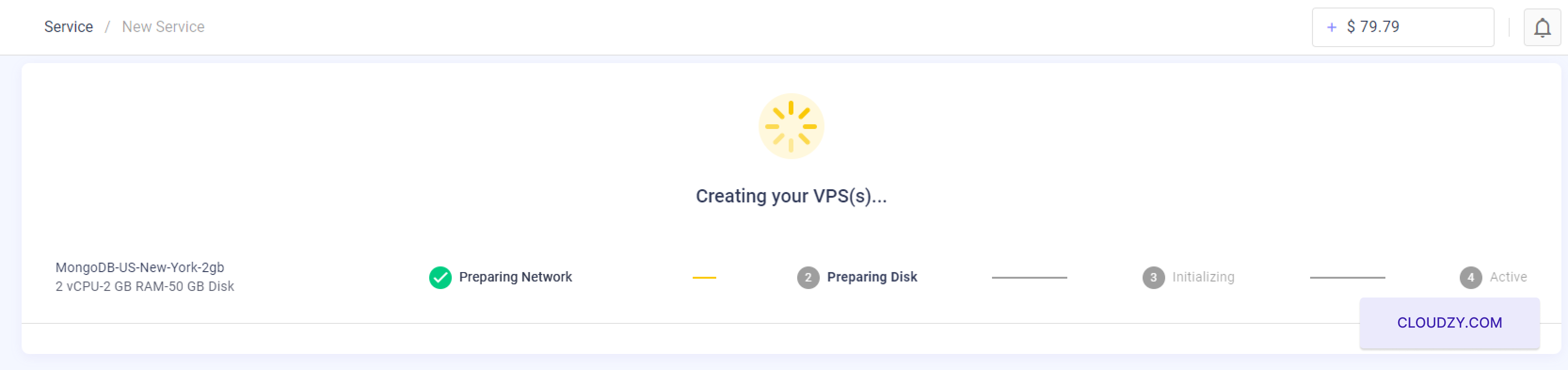

be prepared with MongoDB installed.

This process ensures that your MongoDB server is properly configured
with the necessary resources and security measures tailored to hosting a
database efficiently.

Step 3:
Monitoring the Deployment Process

  1. Track the Deployment Progress:

After clicking ‘Deploy Now’, you will be redirected to a status page
where you can monitor the deployment process of your VPS. This page
displays various stages such as ‘Preparing Network’, ‘Preparing Disk’,
‘Initializing’, and finally ‘Active’. Each stage gives you insights into
what is currently happening with your server setup.

initializing
  1. Deployment Completion:

The progress bar will indicate when each stage is completed. Wait for
all stages to reach the ‘Active’ status, which signifies that your
MongoDB server is fully deployed and operational.

This process might take a few minutes depending on the selected
configurations and network speed.

initializing
  1. Access Server Details:

Once the deployment is successful and the server status shows
‘Active’, you will receive information such as the server’s IP address,
username, and initial password.

success

Note down these details carefully. You will need them to access your
MongoDB server.

Completing these steps ensures that your MongoDB server is up and
running. You can now connect to your server using the provided
credentials to start using MongoDB for your applications.

Step 4:
Accessing and Using Your MongoDB Server

  1. Connect to Your Server:

Use the IP address, username, and initial password provided at the
end of the deployment process to connect to your server. If you need
help connecting via SSH, refer to Cloudzy’s
SSH connection guide
. If you don’t have enough credit, a Low
Balance
pop-up will show up, and you can click on Add
to Credit
.

  1. Initial Setup of MongoDB:

After logging into your server, proceed to configure your MongoDB
instance.

Enter the Admin Username: When prompted in the
command line, input your chosen admin username. This username will be
used to manage your MongoDB environment.

Specify the Database Host: You will be prompted to
enter the host for your MongoDB database. If a default IP is suggested
and it suits your setup, you can accept it, or enter a different one as
required.

Terminal
  1. Confirm Installation and Access Server:

Upon completion of the initial setup, the system will confirm that
your MongoDB server is operational, typically indicating an accessible
URL like mongodb://your-server-ip:27017. Replace your-server-ip with the
actual IP address provided.

  1. Access Database Credentials:

To view your MongoDB database credentials, use the command line to
navigate to the credentials file. Enter the following command:

cat /root/.mongo-env

This command will display the database credentials stored in the
.mongo-env file, including the MongoDB username and password.

Terminal

By following these steps, your MongoDB server will be configured with
an admin user and prepared for database operations. This setup ensures
that your server is fully operational and secure for immediate use.

Deploying MariaDB on your Cloudzy VPS is straightforward with the
One-Click App. This guide will walk you through the process step by
step, ensuring you have your database server up and running quickly.
Whether you’re a beginner or an experienced user, this tutorial will
help you get started with MariaDB efficiently.

Prerequisites

Before you start deploying MariaDB on your Cloudzy VPS, ensure you
have the following prerequisites:

Enough Credit: Ensure your Cloudzy account has
sufficient credit to set up and use the MariaDB OCA.

Active Account: Your Cloudzy account should be
active and ready for use.

Operating System Compatibility: The MariaDB
One-Click App is compatible with Ubuntu. You can choose from Ubuntu
Server 20.04, Ubuntu Server 22.04, and Ubuntu Server 24.04 versions.

Step 1:
Selecting the MariaDB Application

  1. Navigate to the Applications section: On your
    Cloudzy dashboard, go to the “Applications” section.

  2. Choose MariaDB: Find and select the “MariaDB”
    option from the list of available applications.

Applications page
  1. Click on Deploy Service: Click the “DEPLOY SERVICE”
    button to proceed.
Applications page

Step 2: Configure Your
Service

  1. Select Server Location:

Choose the region where you want your server to be hosted. For
example, you can select “Miami”.

  1. Choose Operating System:

MariaDB server. You can choose from Ubuntu Server 20.04, Ubuntu
Server 22.04, and Ubuntu Server 24.04.

Applications page
  1. Choose Server Configuration:

Under the “Plan” section, select the server configuration that suits
your needs. For example, you can choose a plan with 2 vCPUs, 2 GB
memory, and 50 GB storage.

Applications page
  1. Add SSH Key:

If you want to use SSH keys for secure login, add your SSH key. Refer
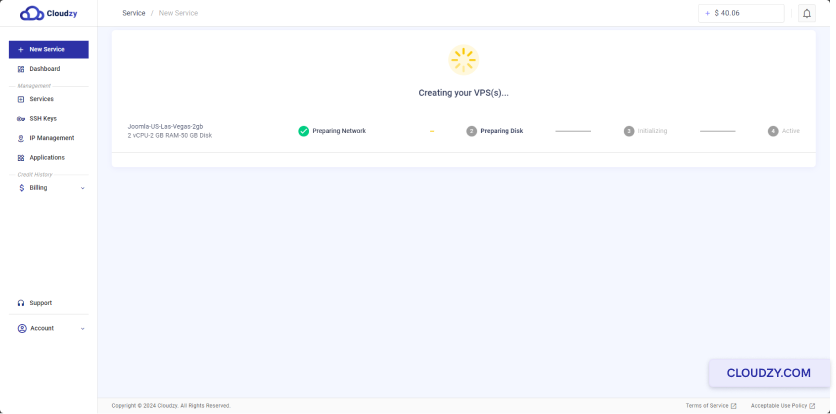
to these guides about how to configure and use SSH keys Cloudzy SSH Key
Guide
.

ssh keys If you want to use SSH keys for
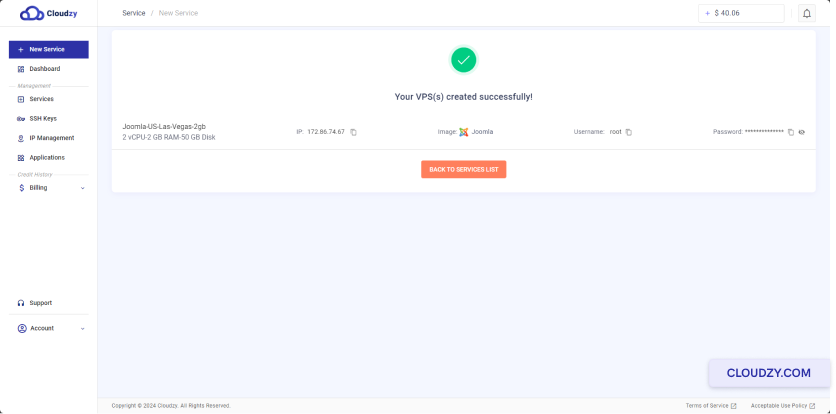
secure login, add your SSH key. Refer to these guides about how to
configure and use SSH keys: Cloudzy SSH Key Guide. Once all
configurations are confirmed to your satisfaction, click on the ‘Deploy
Now’ button to start the VPS provisioning process.

  1. Set Hostname:

Enter a hostname for your MariaDB server. For instance,
“MariaDB-US-Miami-2gb”.

Step 3: Deploy Your
Service

  1. Deploy the Service:

Click the “Deploy Now” button to start the deployment process.

  1. Wait for Deployment:

The deployment process will begin, and you will see status updates as
your VPS is being set up.

initializing
  1. Service Ready:

Once the deployment is complete, you will see a confirmation message
indicating that your VPS has been created successfully. Note down the IP
address, username, and password for your MariaDB server.

success

Note down these details carefully. You will need them to access your
MongoDB server.

Completing these steps ensures that your MongoDB server is up and
running. You can now connect to your server using the provided
credentials to start using MongoDB for your applications.

Step 4: Access Your
MariaDB Server

  1. Connect to Your Server:

Use the provided IP address, username, and password to connect to
your MariaDB server via SSH. If you need help connecting via SSH, refer
to this
guide
.

  1. Initial Configuration:

Once logged in via SSH, you will be prompted to enter the following
details:

Username for Database: Enter the username for the
admin user, such as “cloudzy”.

Name of Database: Enter the name of the database,
for example, “cloudzy”.

Host for Database: Press Enter to select the current
server as the host.

Terminal
  1. Access Database Credentials:

To view your database admin credentials, access the file located
at

/root/.maria-env

on your server. Use the command

cat /root/.maria-env

to see the credentials.

Terminal

By following these steps, your MariaDB server will be configured with
an admin user and prepared for database operations. This setup ensures
that your server is fully operational and secure for immediate use.

Setting up web applications can be tricky and takes a lot of time.
But it’s much easier with Cloudzy’s One-Click Application (OCA). OCA
helps you quickly set up apps on a Virtual Private Server (VPS). You
don’t need a lot of technical skills or to do complicated steps. This
guide will show you how to deploy Joomla, a popular content management
system, using Cloudzy’s OCA. Whether new or experienced, you’ll have
your Joomla site running quickly.

Prerequisites

Before you start with Joomla OCA on your Cloudzy VPS, make sure you
have these ready:

  • Enough Credit: Your Cloudzy account needs enough
    credit to set up and use Joomla OCA.

  • Active Account: Your Cloudzy account should be
    active and ready.

  • Operating System: Joomla OCA works on Ubuntu.
    You can choose from Ubuntu 20.04, Ubuntu 22.04, and Ubuntu
    24.04.

Step 1: Choosing Your
Application

  1. Log in to your Cloudzy dashboard.

  2. Click on Applications on the left
    sidebar.

  3. Click on Joomla.

Applications
  1. Click on the DEPLOY SERVICE button under
    Joomla.
Deploy Service

Step 2: Configuring
Your Service

  1. You will be taken to the New Service
    page.

  2. Choose your server location.

  3. Select the operating system. Joomla is used on Ubuntu, you can
    choose from Ubuntu 20.04, Ubuntu 22.04, and Ubuntu 24.04.

  4. Choose your plan. Pick the one that fits your needs. More vCPUs
    and memory will give you a more powerful server.

Choose plan
  1. Set a name for your service in the Hostname
    field.
Choose Hostname

Step 3: Review and
Purchase

  1. Review your selections. The monthly and hourly prices will be
    shown. Please note that you will not be paying any additional fees for
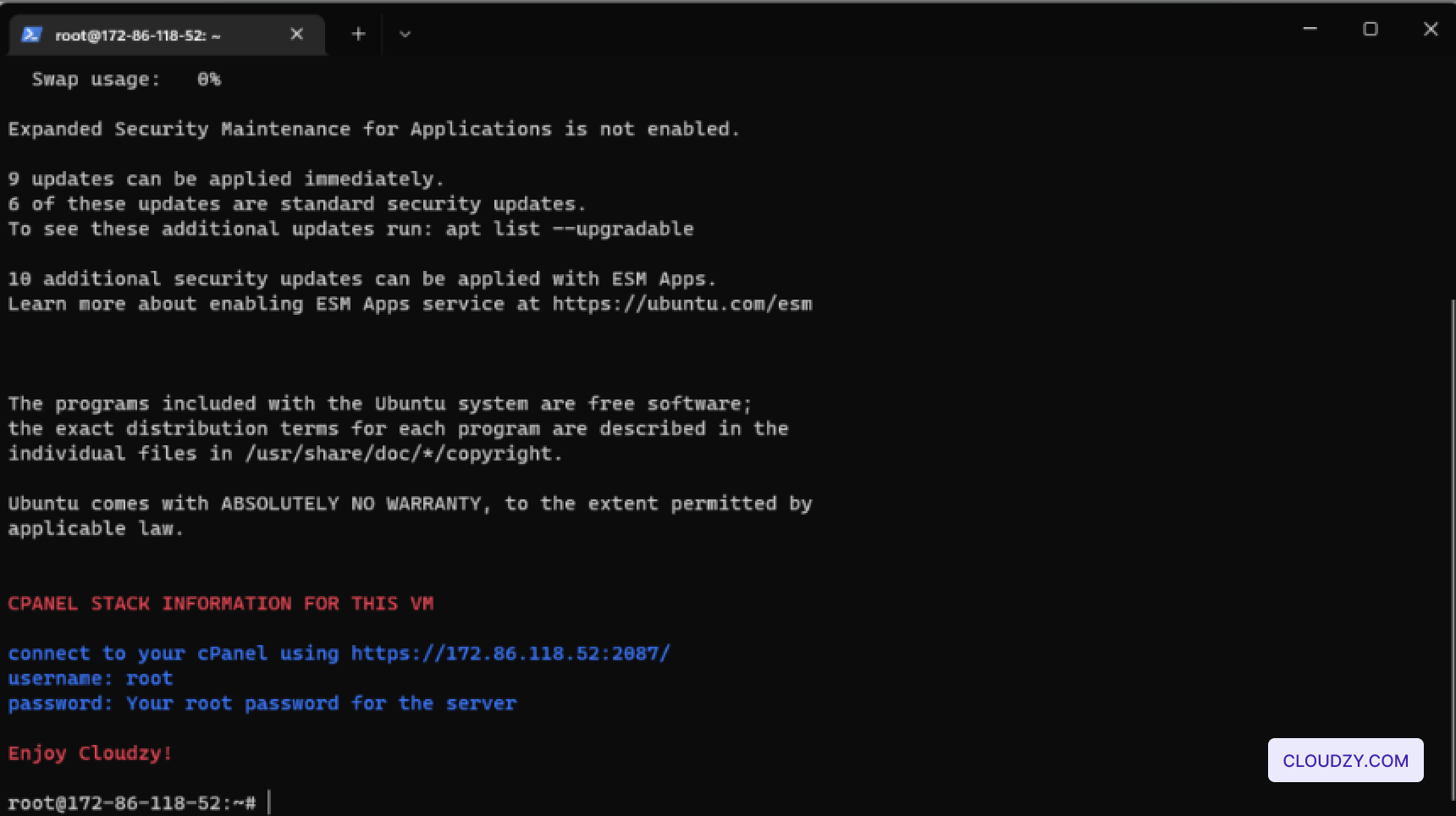
    the CMS.

  2. Check the Estimated Total price at the
    bottom.

  3. If everything looks good, click on Deploy
    Now
    .

Step 4: Deployment
Process

  1. After deploying, a progress bar will appear. It shows steps like
    Preparing Network and Preparing
    Disk
    .

  2. Wait for the progress bar to finish. It will show
    Active when your VPS is ready.

Deploy Process

Step 5:
Accessing Your Joomla Installation

  1. Once your VPS is active, you’ll get an IP address, username, and
    password. Keep these details safe.
VPS Details
  1. Enter the IP address in your web browser.

Step 6: Joomla Setup

  1. On the setup page, enter your site name.

  2. Click Setup Login Data to continue.

Joomla Setup
  1. Enter the required information for your Super User account,
    including name, username, password, and email address.
Login Data
  1. Click on Setup Database Connection.

Step 7: Database
Configuration

  1. Enter the database details provided in your VPS’s SSH terminal:
  • Database Type: MySQLi

  • Host Name: joomladb

  • Username: joomla

  • Password: (your password from SSH terminal)

  • Database Name: joomla_db

Database Configuration
  1. Click on Install Joomla to start the
    installation.
Install Joomla

Step 8: Completing
the Installation

  1. Wait for the installation process to complete. You will see a
    progress bar.
Installation Process
  1. Once the installation is done, you will see a confirmation message
    saying Congratulations! Your Joomla site is ready.
Installation Complete
  1. Click on Open Site to see your new Joomla
    site.
Joomla Site
  1. Click on Open Administrator to log in to the Joomla
    admin panel.
Joomla Admin Panel

Your Joomla site is ready to go, all set up with Cloudzy’s One-Click
App service. You can start creating content and customizing your site as
you wish. If you need any more information or further assistance, feel
free to contact our support team by submitting a
ticket
.

Setting up a graphical desktop environment for remote access can be
challenging and time-consuming. However, with Cloudzy’s One-Click
Application (OCA), you can quickly deploy IceWM over XRDP on your
Virtual Private Server (VPS) with minimal effort. This guide will walk
you through the process of setting up IceWM over XRDP using Cloudzy’s
OCA, making it accessible even if you have limited technical knowledge.
Whether you are a beginner or an experienced user, you’ll have your
remote desktop environment up and running in no time.

Prerequisites

Before you start deploying IceWM over XRDP on your Cloudzy VPS,
ensure you have the following prerequisites:

  1. Enough Credit: Ensure your Cloudzy account has
    sufficient credit to set up and use the IceWM over XRDP OCA.

  2. Active Account: Your Cloudzy account should be
    active and ready for use.

  3. Operating System: IceWM over XRDP OCA is
    compatible with Debian. You can choose from Debian 10, Debian 11, and
    Debian 12.

Having these prerequisites in place will ensure a smooth setup
process for your IceWM over XRDP environment.

Step 1: Choosing Your
Application

  1. Log in to Your Cloudzy Dashboard: Open your web
    browser and log in to your Cloudzy account.

  2. Navigate to the Applications Section: Click on
    Applications on the left sidebar of the
    dashboard.

Applications
  1. Select IceWM over XRDP: Find and click on
    IceWM over XRDP from the list of available
    applications.

  2. Deploy the Service: Click on the Deploy
    Service
    button under IceWM over XRDP.

Deploy Service

This will take you to the next step, where you will configure your
service settings.

Step 2: Configuring
Your Service

  1. Navigate to the New Service Page: You will be
    taken to the New Service page, where you can configure
    your VPS.

  2. Choose Your Server Location: Select the server
    location that best suits your needs. For better performance, this
    location could be closer to you or your end users.

Server Location
  1. Select the Operating System: Choose the operating
    system for IceWM over XRDP. The available options are Debian 10, Debian
    11, and Debian 12.
Select OS
  1. Choose Your Plan: Select a plan based on your
    requirements. The plan includes options for vCPUs, memory, bandwidth,
    storage, and connection speed. Choose the one that suits your
    performance and budget needs.
Select Plan
  1. Set a Hostname: Enter a name for your service in
    the Hostname field. This could be anything descriptive
    that helps you identify this VPS.
Select Hostname

After configuring these settings, you can review and finalize your
deployment.

Step 3: Review and
Purchase

  1. Review Your Selections: Carefully review all the
    selections you have made for the server location, operating system, and
    plan. Ensure that everything is correct and meets your needs.

  2. Check Pricing: The monthly and hourly prices for
    your selected plan will be displayed. Note that there are no additional
    fees for using the One-Click App for IceWM over XRDP. Verify the
    Estimated Total price at the bottom of the
    page.

  3. Deploy Your Service: If everything looks good,
    click on the Deploy Now button to proceed.

This will start the deployment process for your IceWM over XRDP
VPS.

Step 4: Deployment
Process

  1. Monitor the Deployment: After clicking
    Deploy Now, you will see a progress bar that shows the
    different stages of the deployment process, such as Preparing
    Network
    and Preparing Disk.
Deployment Process
  1. Wait for Completion: The deployment process may
    take a few minutes. Wait until the progress bar ends and the status
    shows Active.
Wait for Completion

Once the deployment is complete, your VPS will be ready, and you will
receive essential details such as the IP address, username, and
password. Keep these details secure for the next steps.

Step
5: Accessing Your IceWM over XRDP Installation

  1. Retrieve Connection Details: Once your VPS is
    active, note down the IP address, username, and password provided. You
    will need these details to access your VPS.

  2. Connect via Remote Desktop: Open your Remote
    Desktop Client on your local machine. Enter the IP address of your VPS
    in the Remote Desktop Client.

RDC
  1. Log In to Your VPS: When prompted, enter the
    username and password provided. You should now be logged in to your
    IceWM desktop environment over XRDP.
Login to VPS

With these steps, you should be successfully connected to your VPS
running IceWM over XRDP.

Your IceWM over XRDP setup is now complete, and you can enjoy a fully
functional remote desktop environment on your Cloudzy VPS. If you need
any more information or further assistance, feel free to contact our
support team by submitting a
ticket
.

Deploying cPanel on your Cloudzy VPS using the One-Click App is a
straightforward process that allows you to set up and manage your web
hosting environment quickly. This guide will walk you through each step,
from configuring your VPS to accessing and setting up cPanel. Whether
you’re a beginner or an experienced user, this tutorial ensures that
your cPanel server is up and running efficiently, ready for you to
manage your websites and services with ease.

Prerequisites

Before deploying cPanel on your Cloudzy VPS using the One-Click App,
ensure you have the following prerequisites:

Enough Credit: Ensure your Cloudzy account has
sufficient credit to create and maintain a VPS with cPanel
installed.

Active Account: Your Cloudzy account must be active
and ready for use.

Operating System Compatibility: The cPanel One-Click
App is compatible with Ubuntu Server 22.04.

Step 1: Access
the Cloudzy Control Panel

  1. Log in to your Cloudzy Account: Start logging
    into your account through the Cloudzy Control Panel.

  2. Navigate to the Applications section: Go to the
    “Applications” section in the left-hand menu.

  3. Select cPanel: In the Applications section,
    under the “All Applications” category, find and select the
    cPanel application. This will take you to the next
    step, where you can configure your new VPS with cPanel.

  4. Click Deploy Service After selecting the cPanel
    application, a blue “Deploy Service” button will appear. Click on this
    button to start setting up your cPanel VPS.

Applications page

Step 2: Configure Your
VPS

  1. Choose a Server Location:

On the configuration page, you’ll see a selection of server
locations. Choose the location that best suits your needs from the
available options. For example, you might choose Miami,
Frankfurt, or another location based on your target
audience or performance requirements.

  1. Select an Operating System:

Under the “Image” section, ensure that Ubuntu Server
22.04
is selected, as it is the compatible operating system for
cPanel on Cloudzy.

Applications page
  1. Choose Your VPS Plan:

Select the VPS plan that fits your requirements. You can choose from
various configurations depending on your needs for CPU, memory, storage,
and bandwidth. For example, select a plan with 2 vCPUs,
2 GB of RAM, 50 GB of storage, and
10 Gbps connection.

Plans
  1. Set Up SSH Key (Optional):

If you prefer password-less SSH login, you can add an SSH key by
clicking on ”Add New SSH Key”. If you’re unfamiliar with SSH keys or need
guidance on setting them up and using them, refer to this guide on
configuring and using SSH keys. You can skip this step if you do not
want to set up an SSH key.

  1. Hostname:

Enter a hostname for your VPS, such as
”cPanel-US-Miami-2gb”, or customize it based on your
preferences.

ssh keys
  1. Review and Deploy:

Finally, review your configuration settings and click on the
”Deploy Now” button to create your VPS with cPanel. The
system will begin preparing and initializing your server, as indicated
by the progress bar.

deploy

Step 3: Access Your
cPanel

  1. Wait for VPS Creation:

After clicking “Deploy Now,” the system will take a few minutes to
create and configure your VPS. You’ll see a progress indicator showing
the steps, such as “Preparing Network,” “Preparing Disk,”
“Initializing,” and finally, “Active.”

initializing
  1. Retrieve Login Information:

Once your VPS is successfully created, you’ll be taken to a
confirmation screen displaying your server’s IP address, username, and
password. Be sure to note these details when accessing your cPanel.

initializing
  1. Optional SSH Access:

You can also SSH into your VPS using the provided login information
to check the cPanel configuration or configure your VPS. If you’re
unfamiliar with using SSH, refer to this guide on configuring and using
SSH keys: Cloudzy SSH
Guide
.

panel
  1. Login to cPanel:

To access your cPanel, open a web browser and enter the URL provided
on the confirmation screen. It will be in the format
https://[Your-IP-Address]:2087/. For example,
https://172.86.118.52:2087/.

panel
  1. Enter Your Credentials:

On the login page, enter the root username and password provided on
the confirmation screen. Then, click the ”Log in”
button to access your cPanel dashboard.

  1. First-Time Setup:

Upon logging in for the first time, you will be prompted to agree to
the cPanel & WHM End User License Agreement. Review the agreement,
select the checkbox indicating you have read and agree to the terms, and
click ”Continue” to complete the setup process.

panel Following these steps, your cPanel
server will be fully set up and ready to manage your websites and
hosting environment. This ensures your server is operational and secure,
allowing you to start managing your web services.