Up to 50% off all plan, limited-time offer. Starting at $2.48.

We offer two different ways to create your own Cloud VPS. The first
is by selecting one of the Cloud VPS plans on the Cloudzy website and
placing an order. The second is within the Cloudzy panel to deploy a
Cloud VPS with your desired specifications. In both ways, you can get
your desired VPS with flexible pricing. In the following sections, we
will guide you step-by-step through each method so that you can choose
the best plan for your requirements and preferences.

1. Browse Cloud
VPS Plans from the Pricing Page

Step 1: Choose Your Preferred
Plan

Discover the plans from Cloudzy pricing page and choose
a plan that suits your needs. In this example, we’re choosing 8 GB RAM
Linux VPS.
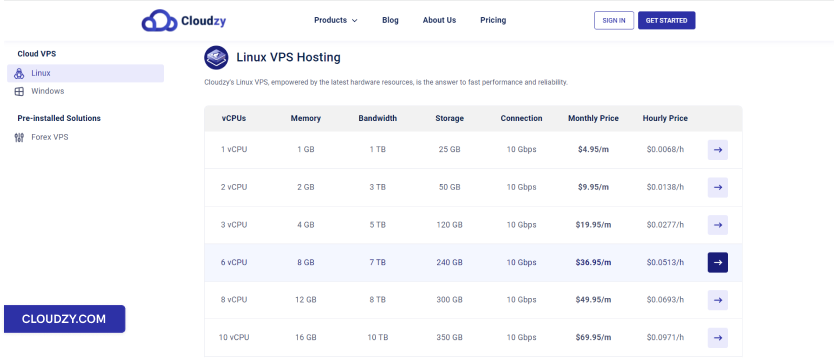
Pricing page

Step 2: Create an Account

Before completing your order, you must create an account. To do this,
fill out the registration form with your name, email address, and a
strong password. You can also sign up with your Google account by
selecting the Continue with Google option.
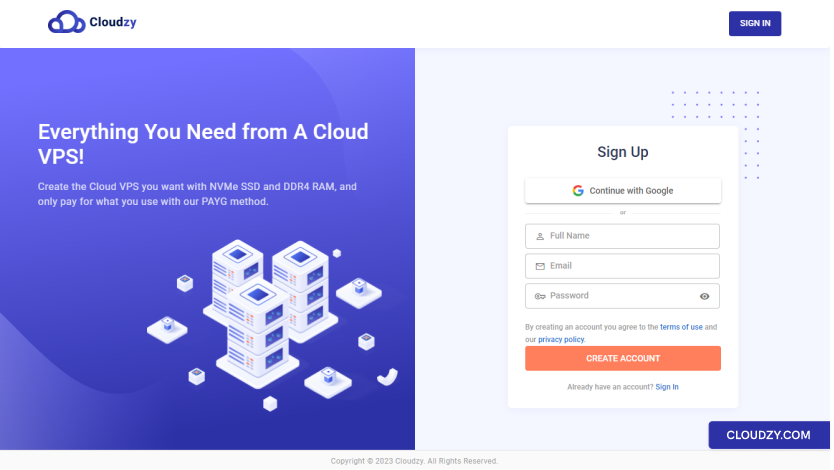
Panel login

Step 3:
Choose Server location, OS, and Advanced Options

After logging in to your account, you can:

a. Select Server Location

In the Region (server location) section, select the
region where you want to create your Cloud VPS.
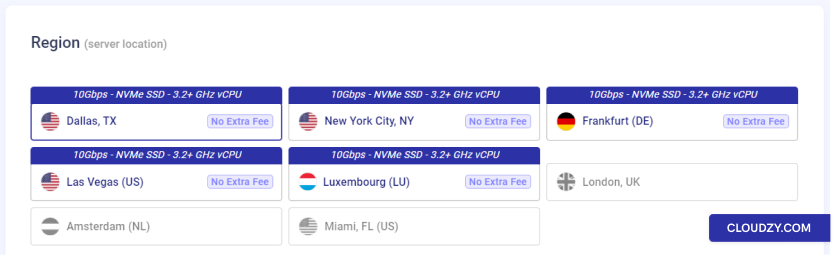
Region

b. Choose the Operating System of Your Cloud VPS

Next, you can choose the operating system version you want to
use.

Note: You can change your OS anytime you want.
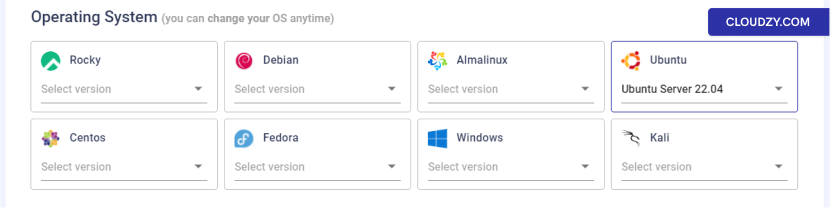
Operating System

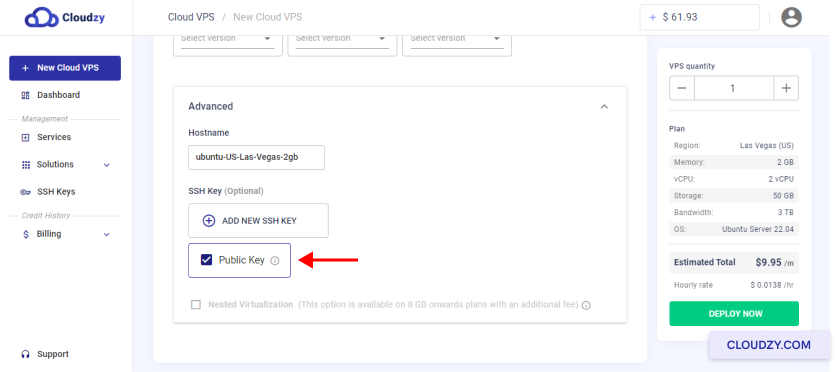
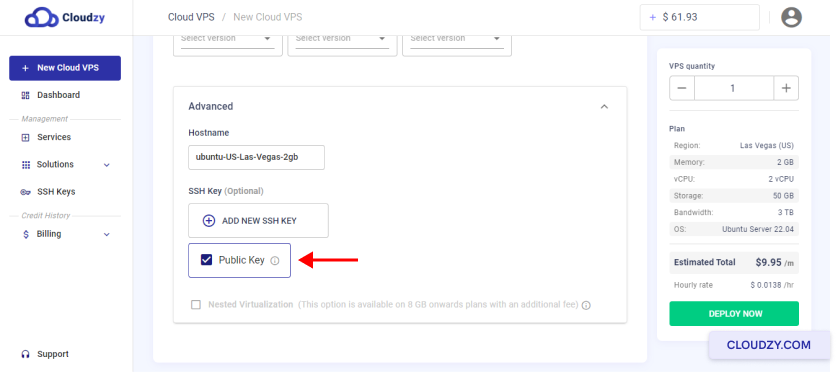
c. Advanced Options (Optional)

You can choose the hostname that will be assigned to your Cloud VPS.
By default, the creation process assigns a strong password to your VPS
that will not be saved in our databases. However, we recommend using SSH
key pairs instead of password-based logins for managing your VPS. If you
also prefer using an SSH key, you can add SSH Keys in this section.

You can check the Nested Virtualization checkbox
(only for 8GB plan and above), if you want to run VMs and emulators on
your Cloud VPS.
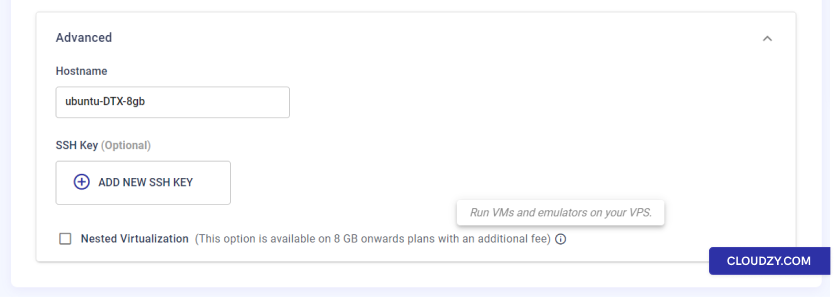
Operating System

d. Deploy Now

After all of these configurations, you can click on the
DEPLOY NOW button.
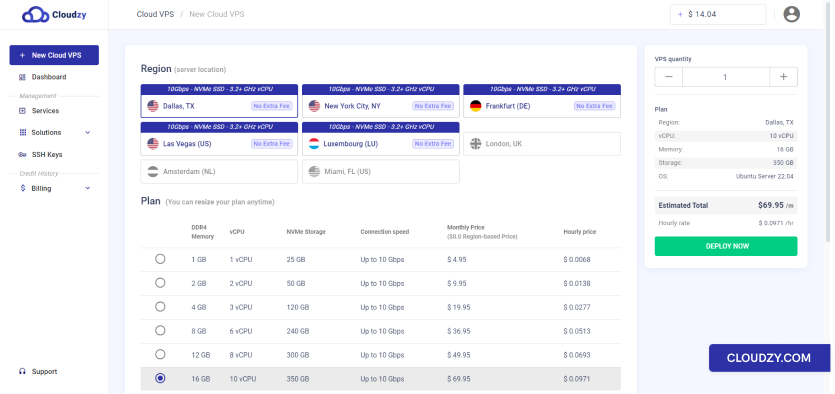
Operating System

Step 4: Add Credit

If you don’t have enough credit, a Low Balance
pop-up will show up, and you can click on Add to
Credit
.

Add to Credit

Step 5: Payment Methods and
Coupons

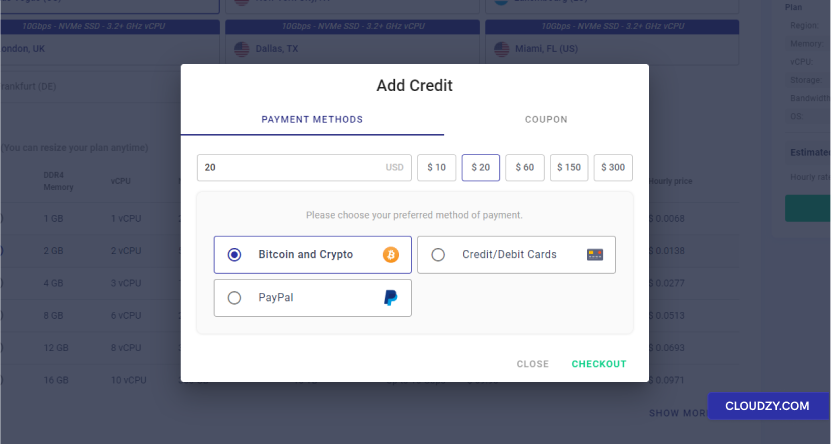
Now, you’ll need to charge your account balance to deploy your Cloud
VPS. As mentioned in the Low Balance pop-up in the
previous step, the minimum credit that you can add is the minimum credit
required for 5 days of usage. You can enter the desired amount to charge
your account or choose from preset choices. If you have any coupons,
please add them from the Coupon section. Finally, you
can choose your preferred payment method and click on the
CHECKOUT button to proceed to the payment gateway
page.
Payment

Step 6: Deploy Your Cloud VPS

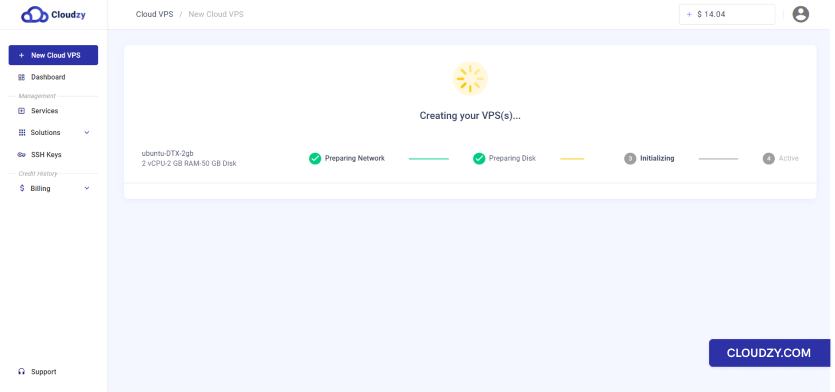
Once your payment is processed, your Cloud VPS will be deployed
automatically. Depending on your chosen operating system, the deployment
process may take up to 5 minutes.
Deploy Cloud VPS

Step 7: Access Your Cloud VPS

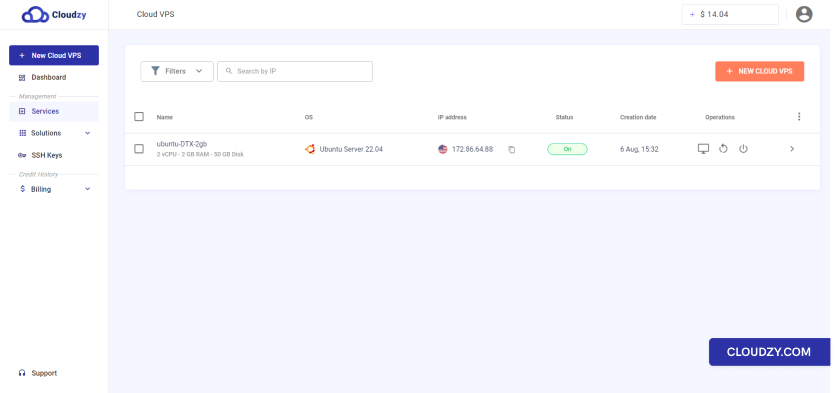
You can access your Cloud VPS once the deployment process is complete
(from Services in the sidebar). The information about
the Cloud VPS you created will be sent to you by email.

Note: To protect your Cloud VPS, please keep the
password provided to you in a secure and private place.
Access Cloud VPS

2. Deploy a Cloud VPS
Within the Panel

Cloud virtual private servers are easy to manage and maintain in the
Cloudzy panel. In order to create your own Cloud VPS, you’ll need to
follow these steps:

Step 1: Create an Account

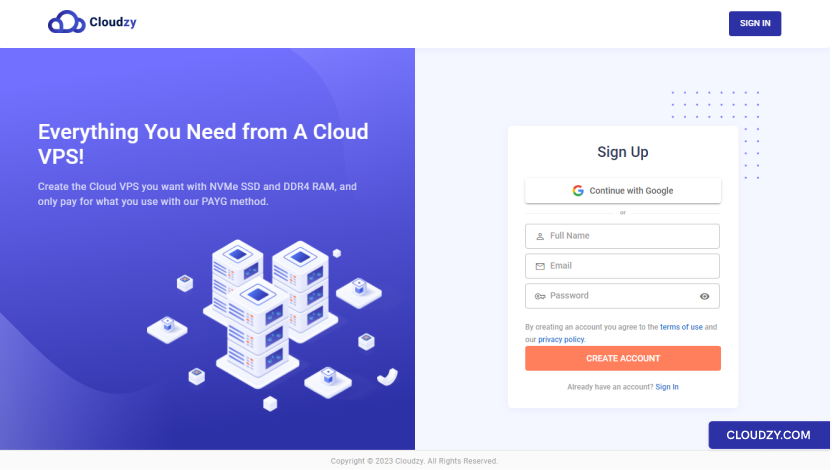
If you don’t have an account, you can create one at Cloudzy. Once you’ve created
your account, you’ll need to increase your account credit balance in
order to create your desired Cloud VPS (We will discuss this
further).
Panel Singup

Step 2: Navigate to
the New Cloud VPS Tab

After you’ve logged in to your account, navigate to the New
Cloud VPS
tab.
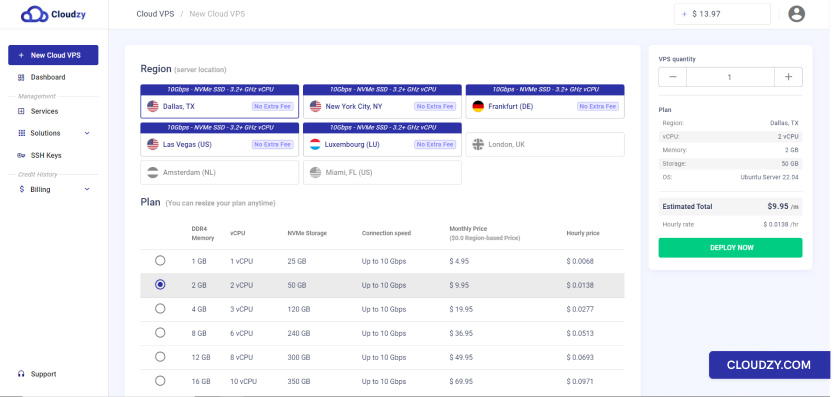
New Cloud VPS

Step 3: Choose the
Cloud VPS Specifications

a. Select Server Location

In the Region (server location) section, select the
region where you want to create your Cloud VPS.

b. Choose Your Plan with Preferred
Specifications

Now you can choose a plan with the specific amount of memory (RAM),
storage, and CPU cores your Cloud VPS will have.

Note: You can resize your selected plan anytime you
want.

c. Choose an Operating System

Next, you can choose an operating system that you want to use.

Note: You can change your OS anytime you want.

d. Advanced Options (Optional)

You can choose the hostname that will be assigned to your Cloud VPS.
By default, the creation process assigns a strong password to your VPS
that will not be saved in our databases. However, we recommend using SSH
key pairs instead of password-based logins for managing your VPS. If you
also prefer using an SSH key, you can add SSH Keys in this section.

You can check the Nested Virtualization checkbox
(only for 8GB plan and above), if you want to run VMs and emulators on
your Cloud VPS.

e. Deploy Now

After all of these configurations, you can click on the
DEPLOY NOW button from the right sidebar.

Step 4: Add Credit

If you don’t have enough credit, Low Balance pop-up
will show up and you can click on Add to Credit.
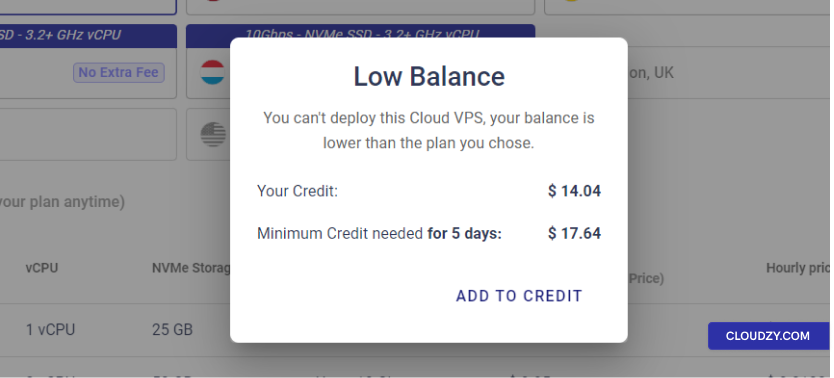
Add Credit

Step 5: Payment Methods
and Coupons

Now, you’ll need to charge your account balance to deploy your Cloud
VPS. As mentioned in the Low Balance pop-up in the
previous step, the minimum credit that you can add is the minimum credit
required for 5 days of usage. You can enter the desired amount to charge
your account or choose from preset choices. If you have any coupons,
please add them from the Coupon section. Finally, you
can choose your preferred payment method and click on the
CHECKOUT button to proceed to the payment gateway
page.
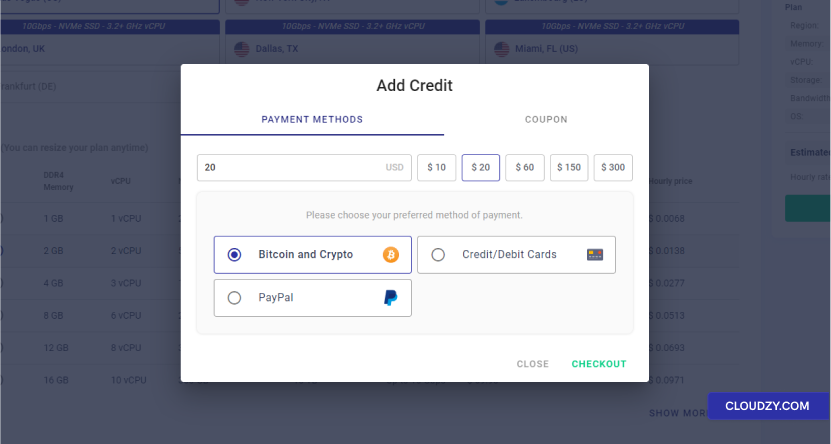
Payment Options

Step 6: Deploy Your Cloud
VPS

Once your payment is processed, your Cloud VPS will be deployed
automatically. Depending on your chosen operating system, the deployment
process may take up to 5 minutes.
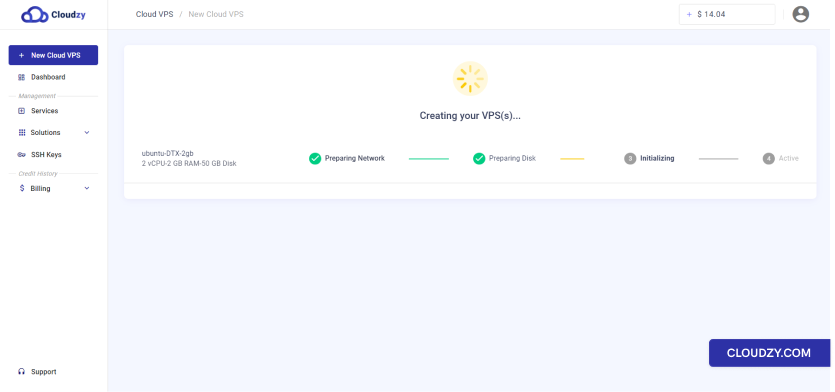
Deploy Cloud VPS

Step 7: Access Your Cloud
VPS

You can access your Cloud VPS once the deployment process is
complete. The information about the Cloud VPS you created will be sent
to you by email.

Note: To protect your Cloud VPS, please keep the
password provided to you in a secure and private place.
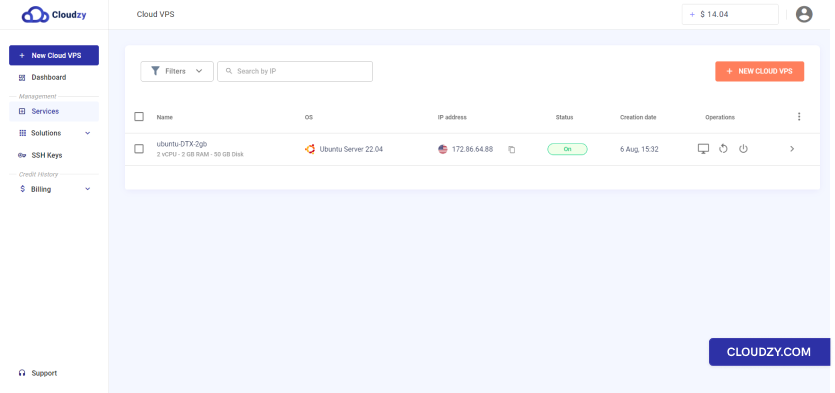
Access Cloud VPS

We hope this guide helps you easily purchase the Cloud VPS service
you need. If you have any questions or encounter any issues during the
ordering process, feel free to create a ticket
and contact our customer support team for assistance.
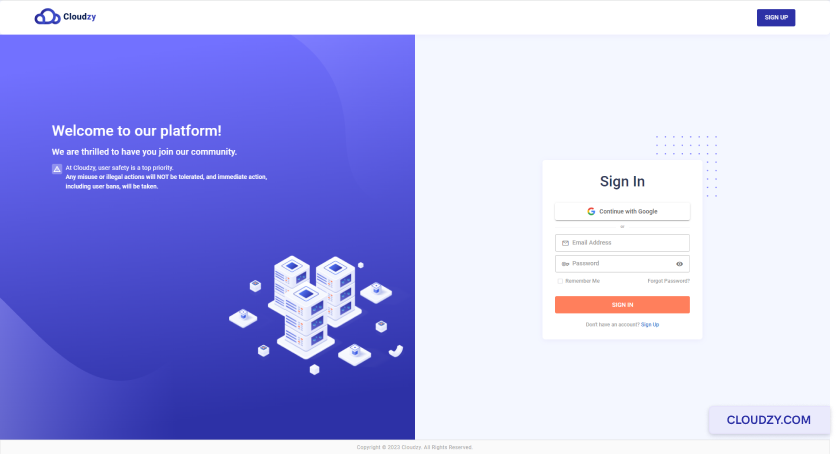
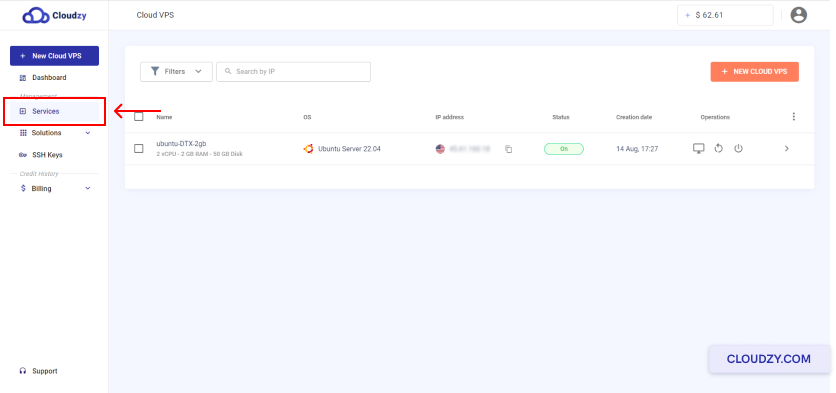
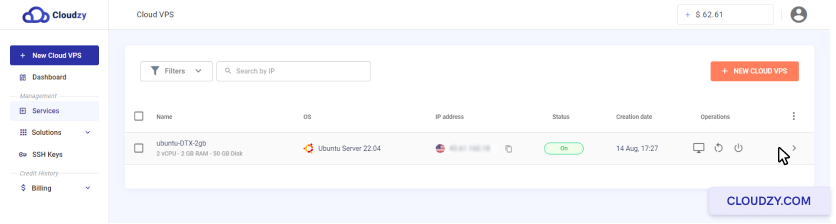
Deleting a Cloud VPS can be done in a few simple steps. It also stops
your Cloud VPS billing and resource usage. To delete your Cloud VPS,
please follow the steps bellow:

  1. Log in to your account in the Cloudzy panel.
Login
  1. From the sidebar on the left side, click on
    Services.
Click on Services
  1. Click on the row of the Cloud VPS you want to delete.
Choose VPS
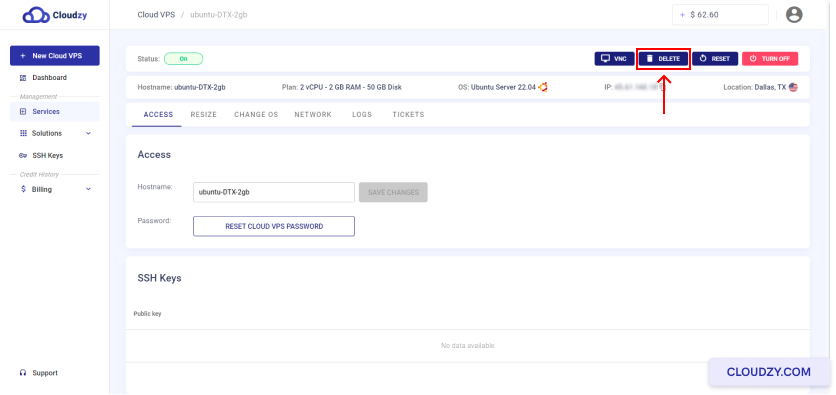
  1. At the top of the page, click on the DELETE
    button.
Click on DELETE
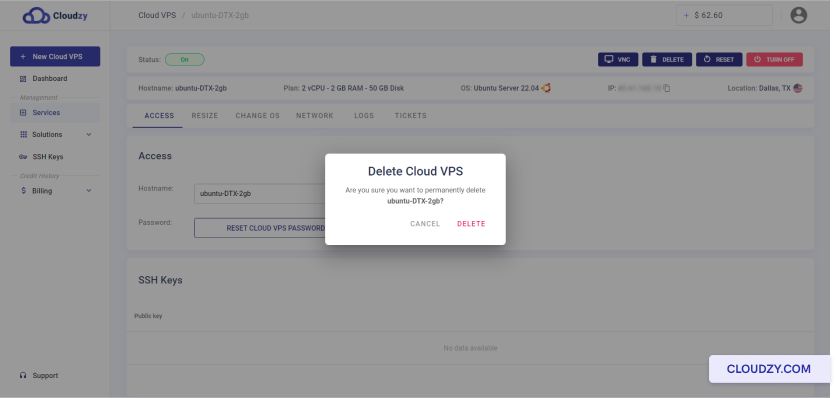
  1. Confirm action by clicking on DELETE.
Confirm the request

You have now successfully managed to delete the chosen Cloud VPS. If
you need any more information or further assistance, feel free to
contact our support team by submitting a
ticket
.

In this step-by-step guide, we will touch upon one of the most
questioning issues between users of VPS and Microsoft Windows which is
about how they can connect to Windows VPS using RDP. We used Windows 10
just for the sake of illustration; bear in mind that the process is the
same in all Windows versions.

Step
1: Open the Remote Desktop Connection Software

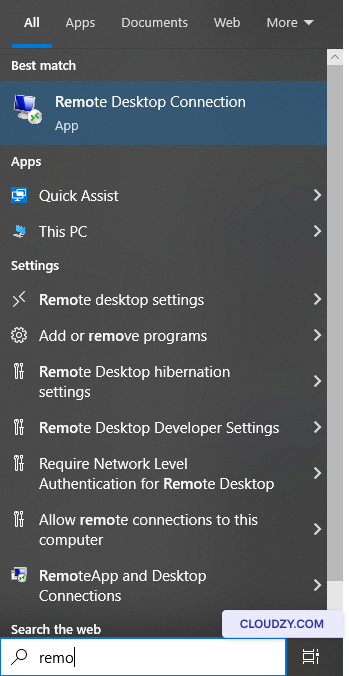
On your toolbar, search for Remote Desktop
Connection
.

connect windows vps using rdp

Step 2: Enter the IP
Address

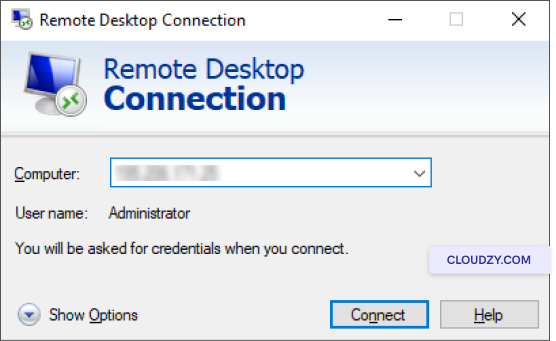
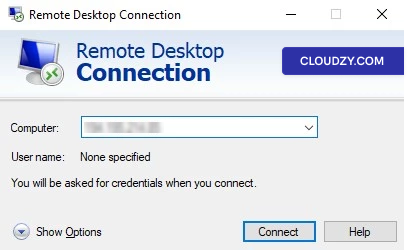
In the opened window, enter your server’s IP address in the
Computer field and click on
Connect.

enter the ip address

Step 3: Enter
Your Username and Password

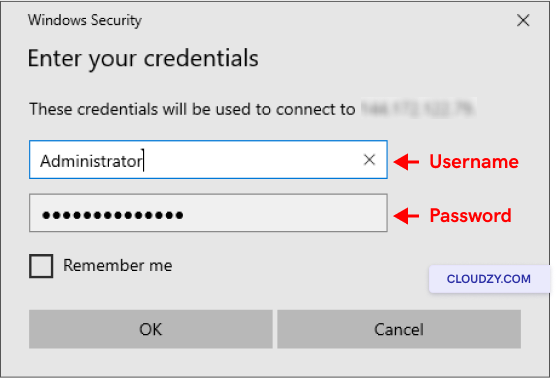
In this stage, the window below will pop up. You need to enter your
username and password here, and then click on Ok.

enter username and password

You can check the Remember me box to save your
username and password for future connections.

Congratulations! You are now connected to your Windows VPS via RDP.
It’s time to start using your Windows VPS and run any software you wish,
just like your own computer. RDP internal error is a common error that
may occur when you are trying to access a remote desktop connection and
here
are some useful tips.

How to Close the RDP
Session?

Once your work is done, you can easily close the Remote Desktop
connection following the instructions below:

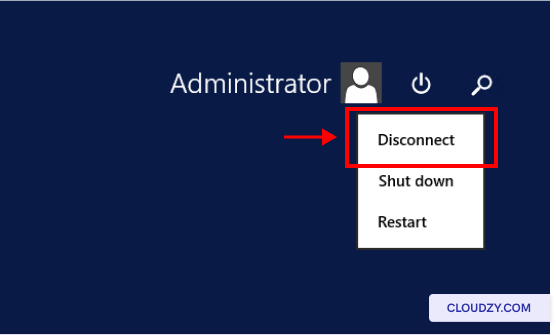
close rdp session
  1. Click on the Start Menu button
  2. Find the user icon, and click on it
  3. Click on Disconnect

It is necessary for you to kill the RDP connection after you finished
your work, especially if you used a public non-secure computer. However,
if it is your local device and if you plan to return to the RDP session
soon, it’s fine to keep the connection alive.If any credentials
error
has occurred you can check this fix.

This guide will explain the required steps for connecting to a
Windows Cloud VPS from a Linux system.

An
Easy Guideline for Connecting to a Windows Cloud VPS From
Linux

To connect to a Cloud VPS from a Linux-based local machine with the
RDP protocol, you must use Remmina.

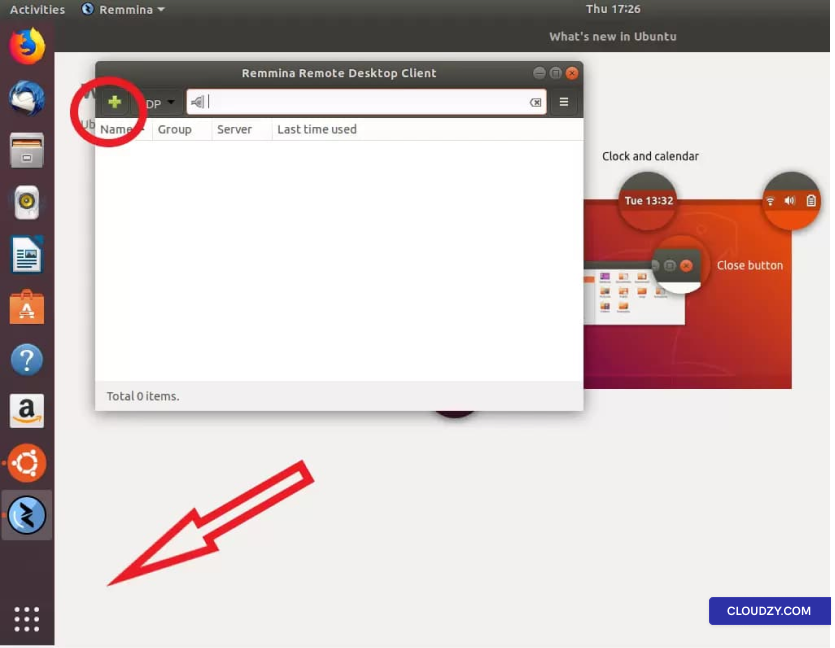
In the default Ubuntu layout, you can find this free built-in tool
under the Show Applications button in the bottom left
corner.

Show application’s button

Once you have launched Remmina, you need to click on the plus
sign
to create a new connection profile.

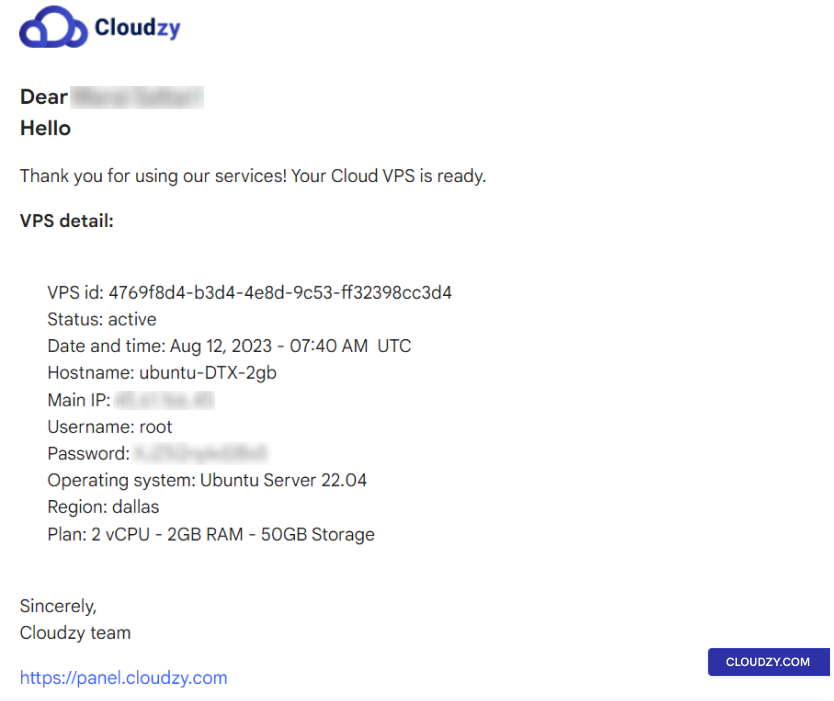
To create a new connection profile, you need your Cloud VPS
information which has been sent to you in your welcome email. The email
contains all the necessary information, including server IP, login
(Administrator by default), and password.

If you have not received the email, please check your spam
folder.

welcome email containing your information

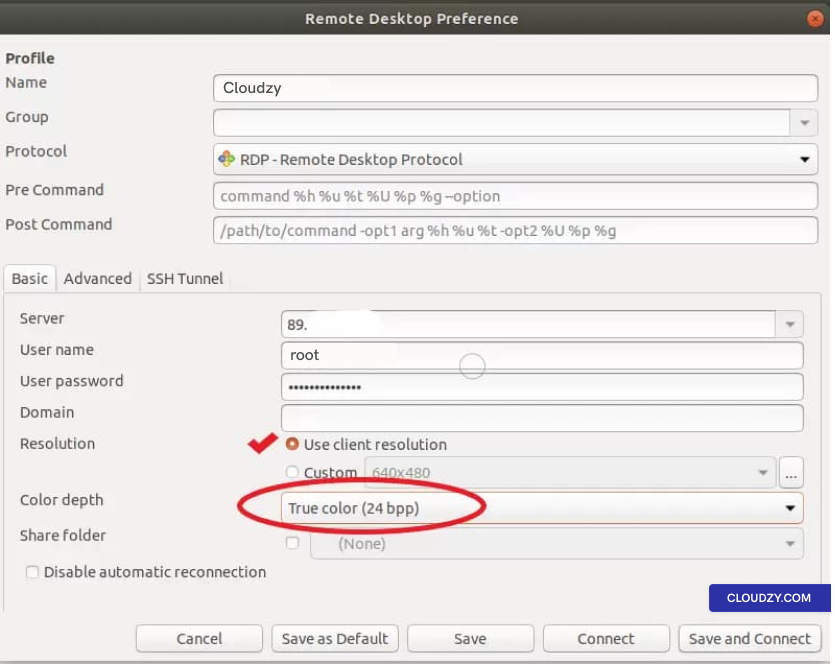
Enter this information while creating a new connection profile on
Remmina and give your new connection a name. The profile should look
like the below:

remote desktop preference window

Check the Use client resolution option from the
checkbox and set the color depth to True color
(24bit)
.

Then click on either Save to exit without connecting
or Save and Connect to connect to your Cloud VPS
immediately.

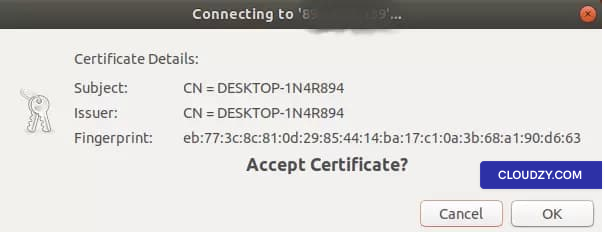
When you connect for the first time, you will get the following
message; click OK to proceed.

Certificate details window before connecting

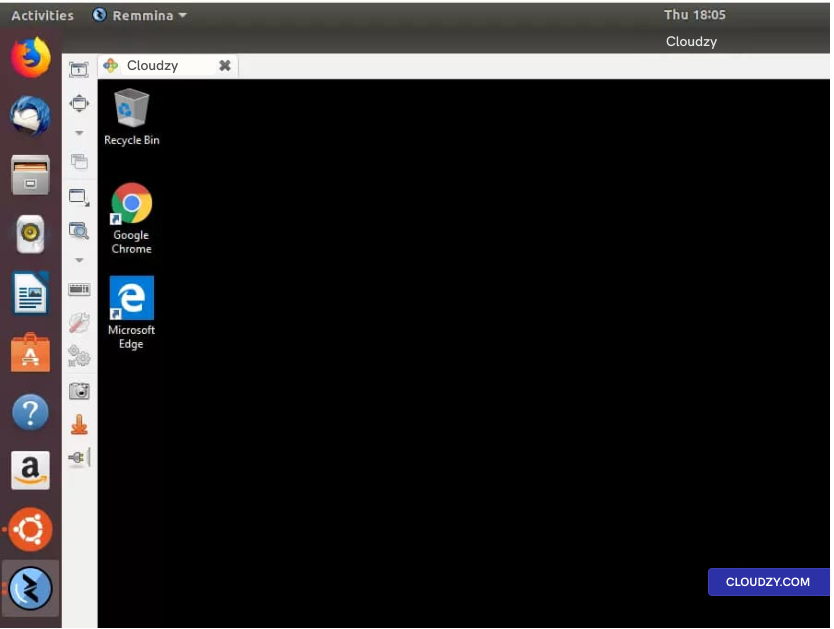
You are now connected to your Windows VPS!

Desktop after successful connection

Connecting to a Windows VPS from any Linux distro is as simple as
you’ve seen in this guideline. If you need any more information, don’t
hesitate to contact us by submitting a
ticket
. We’ll be happy to help!

Remote Desktop Protocol
attributes to a variety of software that provides an easy connection
between your Windows machine and any other type of operating system.
Microsoft Remote Desktop application on Google Play store facilitates
controlling your Windows VPS on an android device. There are a few
simple steps to install this useful app on your mobile phone. Let’s go
ahead and explain them.

Step 1: Download the
Application

The first step of using every application is to download it unless it
is a web application. The most crucial tip to download an application is
to download it from a reliable source.

The Google Play Store website or application could be a good choice
for downloading the Remote
Desktop application
.

Step 2: Open the
Application

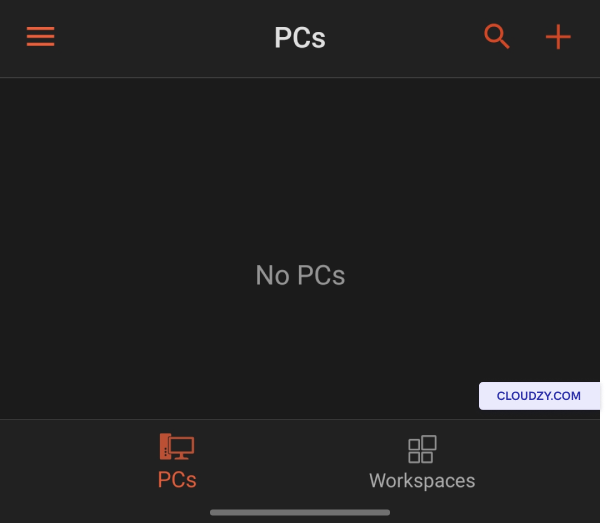
Open application

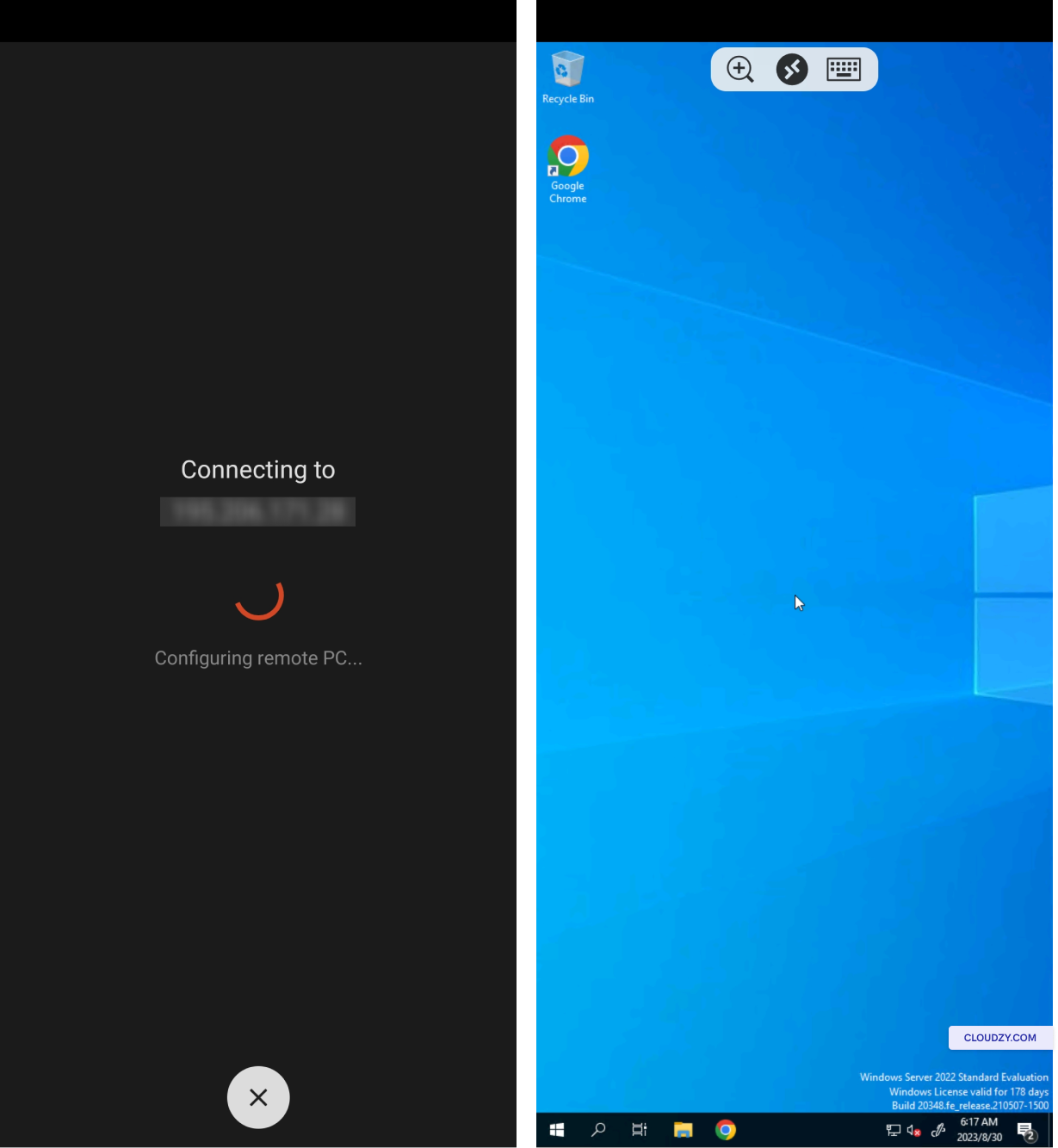
After downloading, open the application. You will see No
PCs
according to the image below.

Step 3: Add a New
Connection

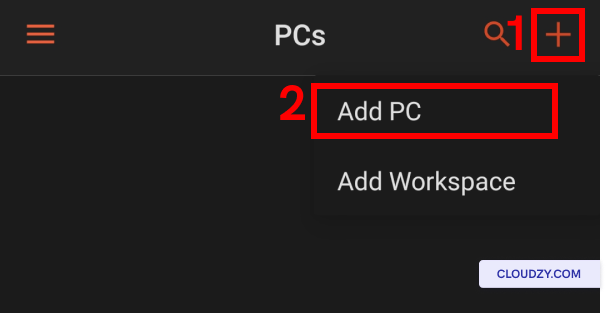
Add new PC

Tap on the plus or + button and then choose
Add PC.

Step 4: Enter the
Credentials

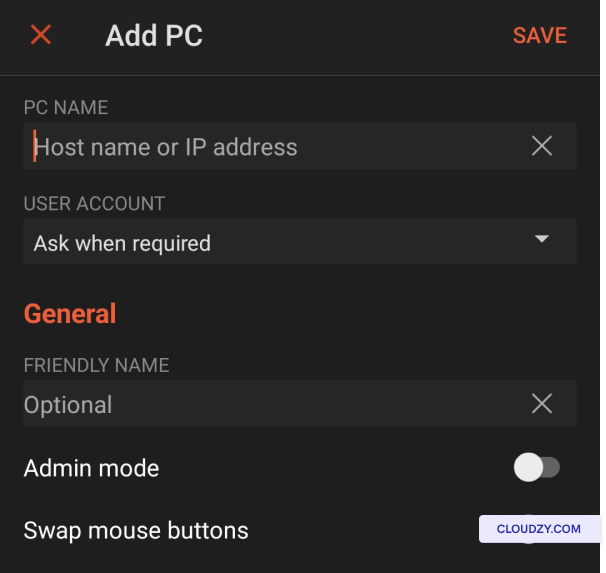
Enter credentials

In this step, you need to add your Windows VPS credentials. Go ahead
and put the server’s IP address in the first field and fill the next
requirements as you wish.

Step 5: Connect to the
VPS

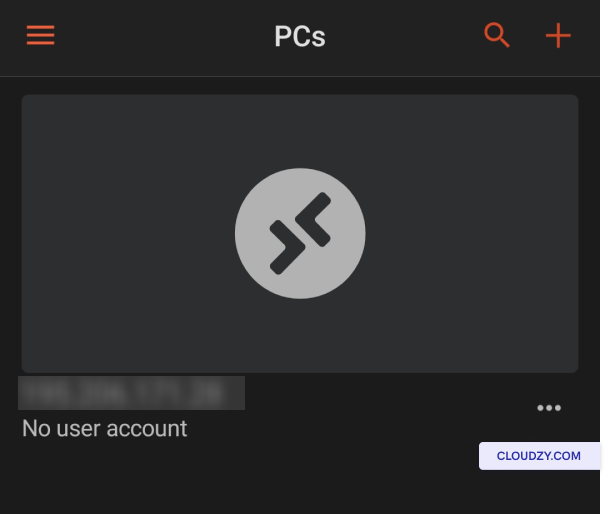
PC added to list

Now you can see that your Windows VPS is added to the PC list. Tap on
it to start a connection.

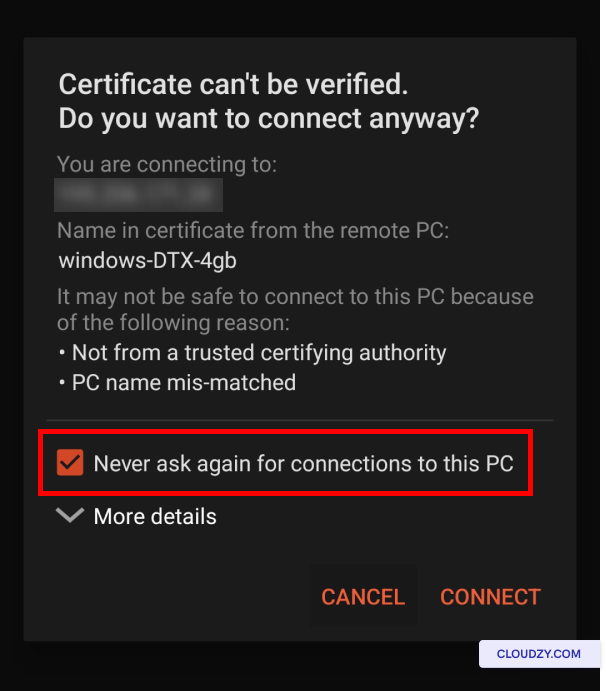
Connect

In this new window, make sure the Never ask again for
connections to this PC
option is ticked, and then tap on
CONNECT.

Step 6: Start Using Your
VPS

VPS is connected

As you can see, you are now connecting to your VPS and can start
using it on your Android device!

If you have any questions, feel free to contact our support team by
submitting a
ticket
.

XRDP is the implementation of RDP on other operating systems, the
Linux server in our case, which equips the user with the same features
as RDP. This guide reviews how to connect to a Linux server using
xRDP.

Install
and Connect to a Linux server with xRDP

In this tutorial, we will show you how to install and connect to a
Linux server, Ubuntu in our case, with XRDP.

Step
1: Install GNOME or Xfce Desktop Environment

As a preliminary step, we are about to install a desktop environment
(DE) on Ubuntu since we want to interact with our Linux server by more
than using commands only.

Note: Ignore this step if you are on a desktop
version of Ubuntu.

Note: To successfully install a DE, we first need to
add a sudo user on Ubuntu and run the associated commands using
administrative privileges from there.

GNOME is a default DE in Ubuntu 20.04, and we only need to pass in a
few commands to install it.

sudo apt update
sudo apt install ubuntu-desktop

After running the last line, you are asked whether you want to
proceed or abort the installation, as 2111 MB of additional disk space
will be used.

Install GNOME

Type in Y and press Enter, and wait
for a while until the GUI packages are completely downloaded.

There is also another DE called Xfce as the second option, which is
fast and graphically appealing. Execute the following commands and the
rest of the process is similar to installing GNOME.

sudo apt update  && sudo apt install xubuntu-desktop
Install GNOME2

Step 2: Install XRDP

Ubuntu already contains the XRDP packages. Type in the following
command to install them.

sudo apt install xrdp

XRDP will start functioning promptly after the completion of
installation, but you may also check out the status of XRDP by executing
the below commands.

sudo systemctl status xrdp

XRDP is unable to function properly just yet. Linux Groups have been
defined for security reasons; as a result, certain users are denied
access to certain files. We can manually grant users the required access
if they need the extra privilege.

In this case, XRDP needs to read
“/etc/SSL/private/ssl-cert-snakeoil.key”, but it is not a member of the
associated group. Only the members of “ssl-cert” group are permitted to
use this file. You are supposed to grant permission to XRDP users. Do so
by executing the following command:

sudo adduser xrdp ssl-cert

Let’s restart XRDP to enforce the new setting.

sudo systemctl restart xrdp

Done! XRDP installation is finished.

Step 3: Check the
IP address in Ubuntu

There are tons of ways to extract your IP address. One simple way
that does not include distracting information is to execute this
command.

hostname -I

Step 4:
RDP connect on Local Windows or Linux

RDP connect

Now we are supposed to put in the last Lego brick of our fancy bridge
to connect to the remote Linux machine. If your local machine is on
Windows, you may use the default Remote Desktop Connection to build the
connection. Just simply open RDC, which acts as Remote Desktop Protocol,
pass in the remote server’s IP address and click on
Connect.

Later on, you will be asked for credentials, and done! You are in
control of the remote Linux server. If your local machine is on Linux
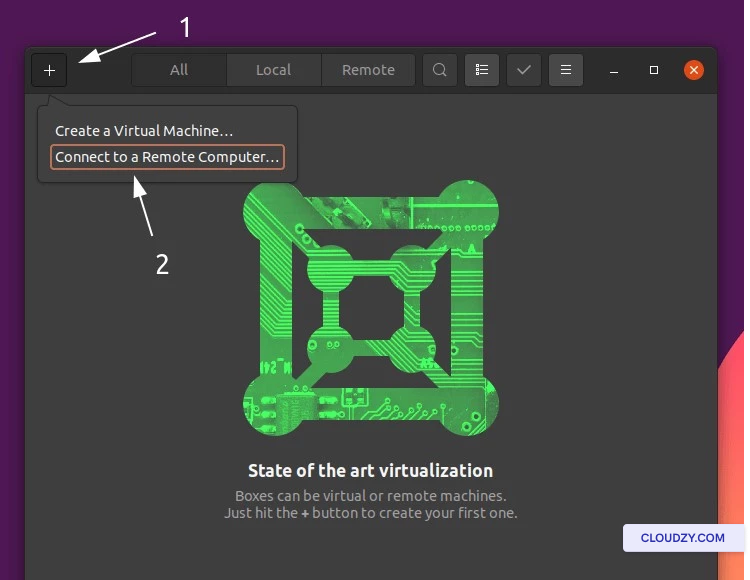
(Ubuntu), you may choose GNOME Boxes to set up RDP.
Type in the following commands:

sudo apt install gnome-boxes

Once the installation is finished, start GNOME Boxes and do as
illustrated in the picture below.

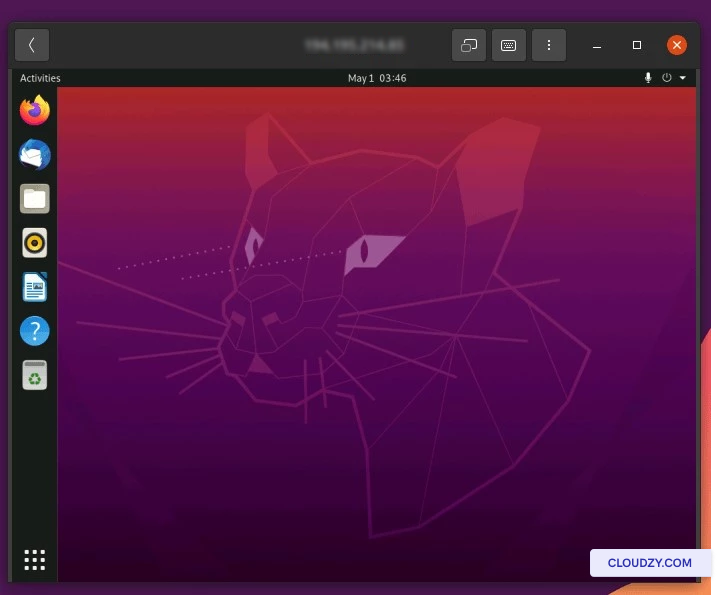
GNOME Boxes

After that, pass in the IP address of the remote machine and click on
Connect.

Connect

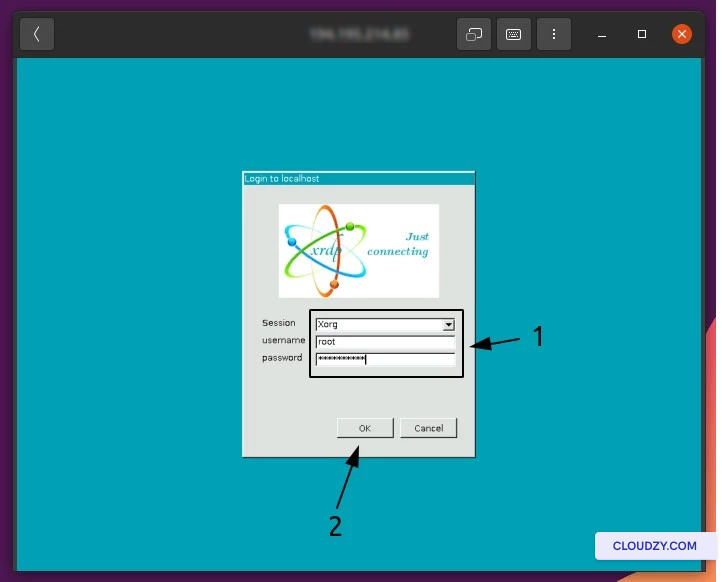
In the picture below, the session should remain as
Xorg. Also, you may pass in the remote machine’s
credentials and click on OK to proceed.

Xorg session

At this point, you are connected to your Linux server.
Congratulations! If you have any questions, feel free to contact us by
submitting a
ticket
.

To connect to a Linux VPS, you need to work with SSH keys. This guide
will teach you how to connect to a Linux VPS using SSH keys and also,
how to use PuTTY. Note that in order to use SSH keys, you need OpenSSH
installed on your device and server. The OpenSSH server application is
already installed on all Cloudzy Linux virtual private servers.

How to
Connect to the Linux VPS Using SSH

Ensure you have OpenSSH client installed on your device. You can then
create a secure remote connection to your Linux VPS with the following
instructions:

Step 1: Open the SSH terminal on your computer and
launch the following command:

ssh your_username@host_ip_address

Step 2: Type your password and press
Enter. Note that you won’t get any feedback on the
screen when you type. If you paste your password, ensure it is stored
securely and not in a text file.

Step 3: When you connect to a VPS for the first
time, you’ll be asked if you want to continue connecting. Just type
yes and press Enter. This message
would only appear the first time because the remote server is not
identified on your local computer.

You are now connected to the remote server.

Creating and Using SSH
keys

SSH keys are the secure alternative to connect to a remote server
without a passphrase. It is highly recommended to use this method
instead of using passwords.

The standard procedure for creating a Secure Shell public/private key
pair is as follows.

Step 1: Start
the key generation program

ssh-keygen

The output would be as follows:

message2

Step
2: Enter the path to the file that will hold the key

By default, the file name id_rsa, representing an RSA v2 key, appears
in parentheses. You can select this file by pressing
Enter or type an alternative filename.

Note that the public key ends with .pub, but the private key does not
have this at the end.

Step 3:
Enter a passphrase for using your key

This passphrase is used for encrypting your private key. A null entry
means no passphrase is used, but this entry is discouraged for more
security. However, you can leave it empty if you’re not doing something
significant on your server. Note that the passphrase is not displayed
when you type it in.

Enter passphrase (empty for no passphrase):  <Type the passphrase>

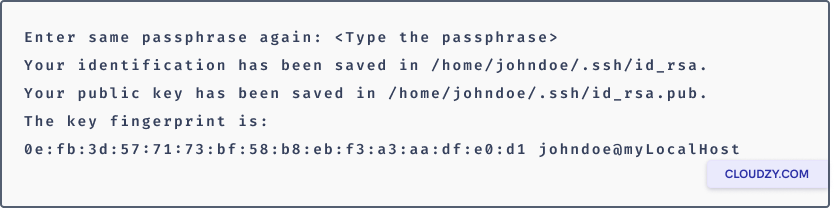
Step 4:
Re-enter the passphrase to confirm it

message3

Step 5: Check the
results

The key fingerprint (a colon-separated series of 2-digit hexadecimal
values) is displayed. Check that the path to the key is correct. In the
example, the path is /home/johndoe/.ssh/id_rsa.pub. At this point, you
have created a public/private key pair.

Step 6: Append the
key

Copy the public key and append the key to the
/home/johndoe/.ssh/authorized_keys file in your home directory on the
remote host.

When you create the SSH key, you can add it to your virtual private
servers and connect via SSH without the need to enter the password every
time, and it is much more secure as it can not be cracked easily like
regular passwords.

Connecting to a
Linux VPS from Windows

PuTTY is a popular Windows terminal emulator, but not limited to the
Windows operating systems. Being free and open-source, it’s also popular
with Linux users. It offers a text user interface for remote computers
running any supported protocols, including SSH and Telnet.

Step 1: Download PuTTY
on Windows

If you don’t have PuTTY installed, please visit the Download PuTTY page and download the
Windows installer from the Package Files section of the page.

Step 2: Configure
PuTTY

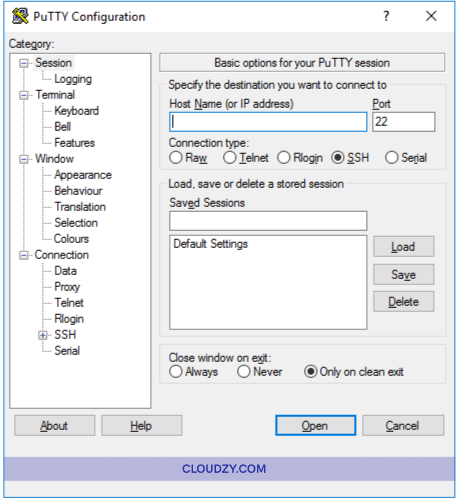
The main session configuration screen will appear when you launch
PuTTY. Begin by entering the server’s IP address you’re
trying to connect to.

The port will be set to 22 by default, as this is the standard port
for SSH on most servers.

Suppose you do not use a private key to connect to your server and do
not want to save your configuration for later use. In that case, you can
click Open to enable an SSH immediate connection to your server that
authenticates it with your instance’s password.

If this is the first time you are connecting to your Linux VPS, PuTTY
will show a Security Warning to inform you that it does
not have a key in the registry for this server. It’s usual for your
first connection.

PuTTY configuration

You will see a new window; if the connection is successful, you will
be asked to enter your password. If you entered it all correctly, you
would now be connected to a shell on your server.

Step 3: Authenticate SSH
Key

PuTTY may also be configured to use SSH keys. SSH keys are safer and
sometimes more convenient methods of authentication.

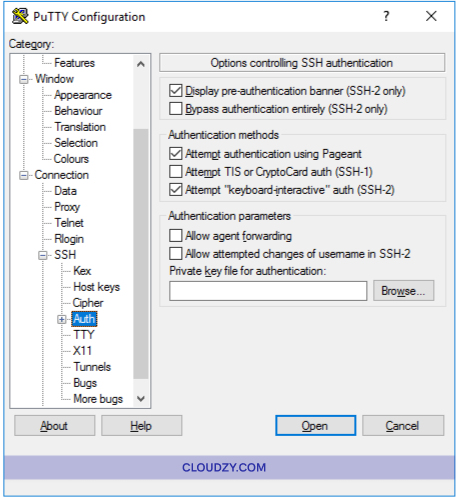
After generating an SSH key pair and uploading the public key to your
server, you need to click on Auth to display the
authentication options in the sidebar of the main configuration
panel.

Click on Browse at the bottom of the screen next to
the Private key for authentication and pick the saved
PPK SSH key file from your local device.

Putty authentication SSH

Click on the Open tab, type the password, and then
connect.

Step 4: Save the
PuTTY Configuration

PuTTY allows you to save the configuration you use to connect to a
server, so you don’t have to type all the information each time. After
filling in all the necessary fields and being ready to connect, ensure
you are on the main session configuration screen described above.

You can see the hostname and port number of your server. Enter the
name of your saved SSH session configuration in the text box under
Saved Sessions and click on Save.

You now have all the information to connect to a Linux VPS. If you
have any questions, feel free to contact us by submitting a
ticket
.

This article will guide you through the process of generating SSH
keys in Chrome OS Terminal, importing them to the Cloudzy Portal, and
establishing a secure connection to your Linux VPS. By embracing SSH
keys, you can bolster your server’s security, simplify remote access,
and efficiently manage your VPS through the Chrome OS command-line
interface. Let’s embark on a journey into the world of SSH keys,
harnessing their potential for secure and streamlined server
management.

Install ChromeOS
Terminal

To enable the Terminal on Chrome OS, begin by navigating to the
ChromeOS settings. In the “Linux” section, turn on the Linux feature.
This action will prompt a window with a series of installation prompts.
Choose your preferred username and disk size, then click “Install” to
initiate the process. Once the installation is complete, a Terminal
window will open, ready for use.

When you launch the Terminal for the first time, you’ll notice that
the window opens immediately and displays the progress of starting up
the Linux container. With the Terminal installed and operational, you
can now proceed with generating SSH keys, importing them to the Cloudzy
Portal, and establishing secure connections to your Linux VPS instances.
Let’s continue our journey towards secure and efficient server
management using SSH keys in Chrome OS Terminal.

Install ChromeOS Terminal

Understanding
Terminal in Chrome OS

Chrome OS provides a powerful terminal application, allowing users to
access a text-based command-line interface to the underlying Linux
shell. Chrome OS Terminal empowers users to interact directly with the
operating system, enabling a wide range of tasks and system
operations.

To open the Chrome OS Terminal, Press Ctrl + Alt + T
to launch the Terminal application.

With Chrome OS Terminal at your disposal, you gain the power to
execute various commands efficiently, making it an indispensable tool
for SSH key generation and VPS management.

Generating SSH Keys on
Chrome OS

SSH keys comprise a pair of cryptographic keys—a private key (kept
confidential) and a public key (used for authentication). Generating SSH
keys on Chrome OS Terminal is a straightforward process:

  1. Launch the Chrome OS Terminal by pressing Ctrl + Alt +
    T.

  2. Execute the following command in the Terminal window:

ssh-keygen -t rsa
  1. The key generation process will prompt you to specify the storage
    location for the keys. Accept the default location by pressing the ENTER
    key, and set a passphrase for enhanced security (not recommended to skip
    this step).

⚠️Warning! You will need to enter the passphrase twice to
continue.

  1. After confirming the passphrase, the system generates the key
    pair.
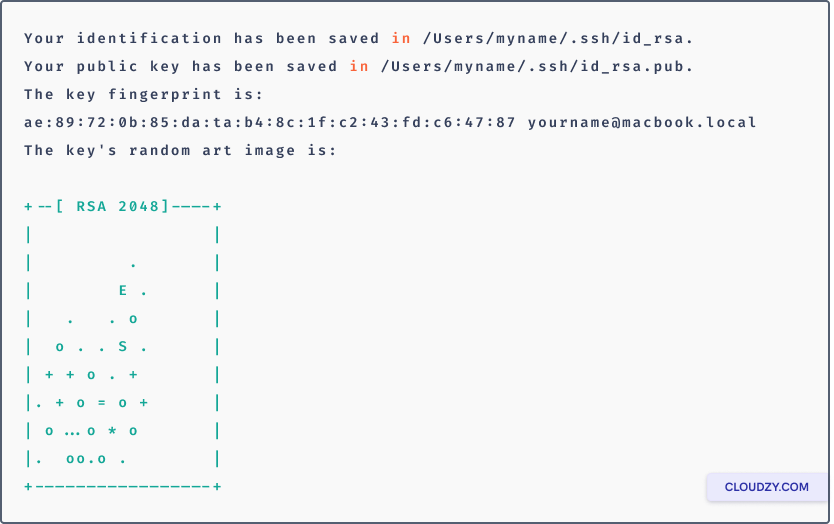
After confirming the passphrase, the system generates the key pair.
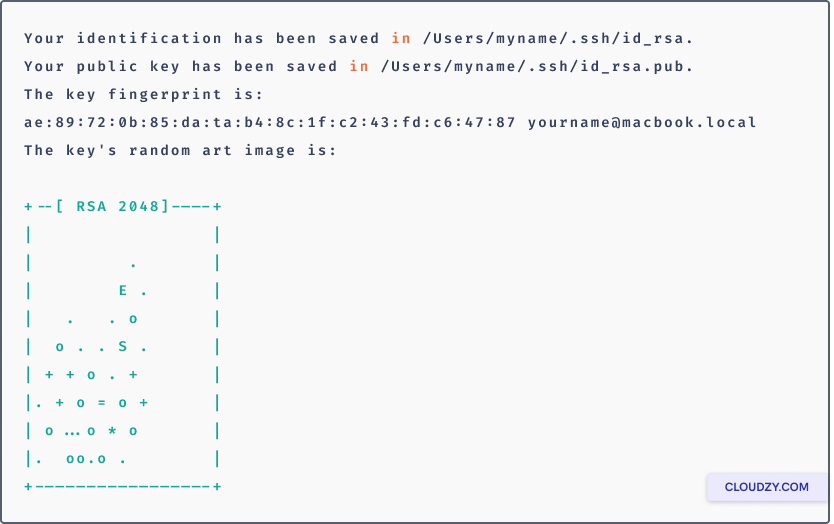
Your identification has been saved in /home/your_username/.ssh/id_rsa.
Your public key has been saved in /home/your_username/.ssh/id_rsa.pub.
The key fingerprint is:
ae:89:72:0b:85:da:ta:b4:8c:1f:c2:43:fd:c6:47:87 [email protected]
The key's random art image is:
+--[ RSA 2048]----+
|                 |
|         .       |
|        E .      |
|   .   . o       |
|  o . . S .      |
| + + o . +       |
|. + o = o +      |
| o...o * o       |
|.  oo.o .        |
+-----------------+
  1. Your private key is saved to the id_rsa file in the .ssh directory,
    while the public key is stored in id_rsa.pub.

⚠️Important: Never share your private key with
anyone!

  1. Save the public key to your clipboard by running this command:
cat ~/.ssh/id_rsa.pub
  • The extensive key will manifest, replete with letters, numbers,
    and intermittent + symbols. The commencement of this
    prolonged key is indicated by: ssh-rsa. The [email protected]
    address will be at the tail end of the key, constituting a component of
    it.

  • From the ssh-rsa prefix onward, select and encompass the complete
    key using your cursor. Upon releasing the cursor, an ephemeral
    notification reading Copied will briefly materialize on
    the screen.

Importing
Your SSH Key to the Cloudzy Portal

Now, import the copied SSH key to the Cloudzy Portal for secure
server management:

  1. After copying the SSH key to the clipboard, log in to your
    Cloudzy account page.

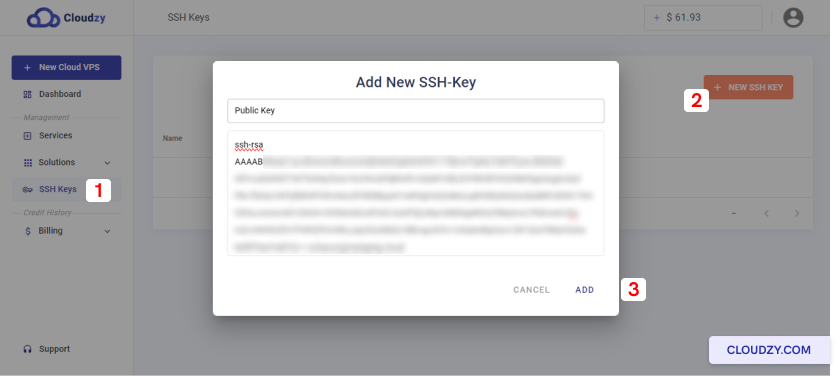
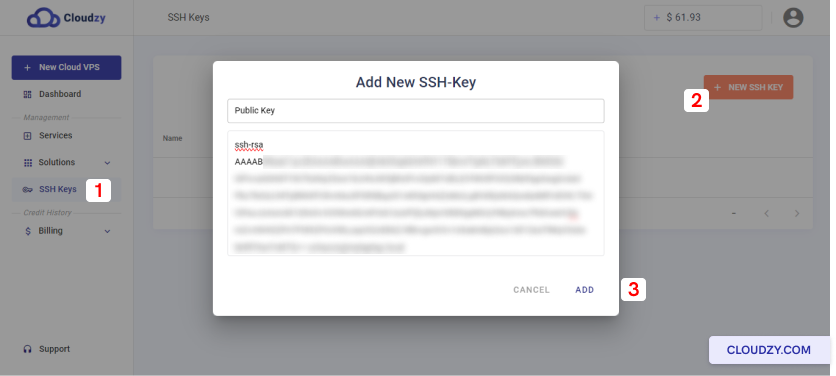
  2. In the left sidebar, choose SSH Keys and click
    on NEW SSH KEY in the top right corner.

  3. Name your key descriptively and paste the contents of the public
    key into the Public Key area.

Add new SSH key

With your SSH key successfully imported, you’re well-prepared for
streamlined VPS creation and heightened server security.

Public Key

Connecting
to Your VPS Server via Chrome OS Terminal

Now, let’s delve into the process of establishing a secure connection
to your VPS server using the Chrome OS Terminal, with a deeper look at
the -i option for added security:

  1. Launch the Chrome OS Terminal by pressing Ctrl + Alt +
    T.

  2. Compose the following command in the terminal, ensuring you
    replace username with your VPS server’s username and
    your_server_ip with your VPS’s IP address or domain
    name:

ssh username@your_server_ip
  1. If this is your first connection, confirm the host authenticity and
    enter the passphrase you set for your SSH key during generation.

Introducing the -i Option: To enhance the security
of your connection, you can utilize the -i option followed by the path
to your private SSH key. This key-based authentication adds an extra
layer of protection by ensuring that only those with the private key can
access the server.

ssh -i /home/your_username/.ssh/id_rsa username@your_server_ip

By implementing the -i option and specifying the full path to your
private SSH key, you’re bolstering the security of your connection.

By harnessing the power of SSH keys and Chrome OS Terminal, you have
unlocked a secure and efficient approach to connecting and managing your
Linux VPS. Through the process of generating SSH keys, importing them to
the Cloudzy Portal, and establishing connections via Terminal, you have
fortified your server’s security and simplified remote management.
Embrace this newfound knowledge and enjoy the seamless and secure
experience of managing your VPS with ease. If you have any questions,
feel free to contact us by submitting a
ticket
.

<BlogFAQSection data={[ { title: ‘Can I use the same SSH key for
multiple Linux servers?’, answer: ‘Yes, you can use the same SSH key to
connect to multiple Linux servers. Once you have imported your SSH key
to the Cloudzy Portal, you can select it from the advanced options while
creating new servers, simplifying server management.’, }, { title: ‘Is
setting a passphrase during SSH key generation necessary on Chrome OS?’,
answer: ‘While setting a passphrase is optional, it is highly
recommended for added security. A passphrase acts as an extra layer of
protection for your private key, preventing unauthorized access to your
servers in case your key gets compromised.’, }, { title: ‘Is Chrome OS
Terminal suitable for managing my Linux VPS securely?’, answer:
‘Absolutely! Chrome OS Terminal provides a secure and efficient
command-line interface, allowing you to manage your Linux serverss
directly. With SSH keys for authentication, you eliminate the risks
associated with password-based access and ensure a robust security
posture.’, }, { title: ‘Can I use additional ssh command options in
Chrome OS Terminal?’, answer: ‘Yes, Chrome OS Terminal supports
additional ssh command options, such as port forwarding or specifying
your private key file location. These options provide flexibility and
customization when connecting to your VPS securely.’, }, { title: ‘How
do SSH keys enhance the security of my VPS management on Chrome OS?’,
answer: ‘SSH keys offer a high level of security by using asymmetric
encryption. They eliminate the risk of password-related vulnerabilities
like brute-force attacks, ensuring only authorized users with private
keys can access your servers.’, }, { title: ‘Can I revoke or delete my
SSH key from the Cloudzy Portal on Chrome OS?’, answer: ‘Yes, you have
the option to manage your SSH keys on the Cloudzy Portal. If needed, you
can remove or delete SSH keys from your account. Be sure to delete keys
that are no longer in use to maintain optimal security.’, }, ]}
/>

In this guide, we will explore the process of generating SSH keys in
macOS Terminal, importing them to the Cloudzy Portal, and establishing a
secure connection to your Linux VPS. With SSH keys, you can fortify your
server’s security, simplify remote access, and manage your VPS
efficiently through the macOS command-line interface.

Understanding Terminal in
macOS

Terminal serves as a terminal emulator on macOS, providing users with
a text-based command-line interface to the Unix shell. This powerful
tool enables direct interaction with the operating system, facilitating
a wide range of tasks and system operations.

To open the macOS Terminal, follow these steps:

  1. Launch Finder and select Utilities from the Applications
    folder.
  2. Locate the Terminal in the Utilities list and open it.

Generating SSH Keys on macOS

SSH keys consist of a private and public key pair, where the private
key must be kept confidential, and the public key allows secure login to
your provisioned Linux VMs. To generate SSH keys in macOS, follow these
steps:

  1. Launch the Terminal application on your macOS system.
  2. Execute the following command in the Terminal window:
ssh - keygen - t rsa

The key generation process will prompt you to specify the storage
location for the keys. Accept the default location by pressing the ENTER
key, and set a passphrase for enhanced security (not recommended to skip
this step).

⚠️Warning! You will need to enter the passphrase twice to
continue.

After confirming the passphrase, the system generates the key
pair.

one

Your private key is saved to the id_rsa file in the .ssh directory,
while the public key is stored in id_rsa.pub.

⚠️Important: Never share your private key with anyone!

Save the public key to your clipboard by running this command:

pbcopy < ~/.ssh/id_rsa.pub

Importing Your SSH
Key to the Cloudzy Portal

Now, import the copied SSH key to the Cloudzy Portal for secure
server management:

After copying the SSH key to the clipboard, return to your Cloudzy
account page.

In the left sidebar, choose SSH Keys and click on NEW SSH KEY in the
top right corner.

Name your key descriptively and paste the id_rsa.pub contents into
the Public Key area.

two

With your SSH key is successfully imported, you’re well-prepared for
streamlined VPS creation and heightened server security.

three

Connecting to Your VPS via
Terminal

Now, let’s explore the process of establishing a secure connection to
your VPS server through macOS Terminal, and gain a deeper understanding
of the SSH -i option for enhanced security:

  1. Launch the Terminal application on your macOS system.
  2. Compose the following command in the Terminal, ensuring you replace
    username with your virtual private server’s username and
    “your_server_ip” with your server IP address or domain name:
ssh username @your_server_ip
  1. If this marks your initial connection, you will be prompted to
    confirm the authenticity of the host and subsequently enter the
    passphrase you designated for your SSH key during its generation.

Introducing the -i Option: To elevate the security of your
connection, you can make use of the -i option followed by the path to
your private SSH key. This mechanism is founded on key-based
authentication, which adds an additional layer of protection by allowing
only individuals with the associated private key to access the
server.

ssh - i / home / username /.ssh / id_rsa username @your_server_ip

By integrating the -i option and specifying the complete path to your
private SSH key, you are fortifying the security of your connection.

You now know how to easily connect to a Linux VPS from macOS using
SSH keys. If you have any questions, feel free to contact our support
agents by submitting a ticket.

<BlogFAQSection data={[ { title: ‘Is setting a passphrase during
SSH key generation necessary?’, answer: ‘While setting a passphrase is
optional, it is highly recommended for added security. The passphrase
acts as an additional layer of protection for your private key. If you
skip this step, anyone with access to your private key can potentially
gain unauthorized entry to your VPS.’, }, { title: ‘Can I use my SSH key
for multiple virtual private servers?’, answer: ‘Yes, you can use the
same SSH key to access multiple servers. Once you have imported your SSH
key to the Cloudzy Portal, you can select it from the advanced options
when creating new VPS instances, enabling you to manage multiple servers
seamlessly.’, }, { title: ‘Is it safe to store my private key on my
macOS system?’, answer: ‘It is essential to keep your private key safe
and confidential. By default, your private key is saved to the id_rsa
file in the .ssh directory on your macOS system. Ensure that you do not
share or expose your private key to unauthorized individuals, as it
grants access to your VPS instances.’, }, { title: ‘Can I revoke or
delete my SSH key from the Cloudzy Portal?’, answer: “Yes, you have the
option to manage your SSH keys on the Cloudzy Portal. If needed, you can
remove or delete SSH keys from your account. However, it’s important to
note that revoking an SSH key from the Cloudzy Portal does not
automatically remove the key from the actual VPS it was associated with.
You may need to manually revoke the key from the VPS itself to ensure
that unauthorized access is prevented.”, }, ]} />

While iOS does not provide a built-in SSH client for connecting to
Linux servers, you can use third-party applications like the xTerminal
SSH client. By following these steps, you can enhance your server’s
security and efficiently manage your VPS, all from the convenience of
your iOS device.

Generating SSH Keys

Before utilizing xTerminal to connect to your Linux VPS securely, you
should generate SSH keys on your Windows, macOS, or Linux computer.
Follow these step-by-step instructions to generate SSH keys:

1. Launch
Your Computer’s Terminal Application

On Windows, you can use applications like, PowerShell, or CMD. On
macOS and Linux, open the terminal application.

2. Execute the
SSH Key Generation Command

In the terminal, enter the following command to generate your SSH
keys:

ssh-keygen -t rsa

3. Set the Key Storage
Location

The key generation process will prompt you to specify the storage
location for the keys. Accept the default location by pressing the ENTER
key, and set a passphrase for enhanced security (not recommended to skip
this step).

⚠️ Warning! You will need to enter the passphrase twice to
continue.

4. The Key Pair is
Generated

After confirming the passphrase, the system generates the key
pair.

Generated keys

Your private key is saved to the id_rsa file in the
.ssh directory, while the public key is stored in
id_rsa.pub.

⚠️ Important: Never share your private key with
anyone!

5.
Importing Your SSH Key to the Cloudzy Portal

Now, import the copied SSH key to the Cloudzy Portal for secure
server management. After copying the SSH key to the clipboard, return to
your Cloudzy account page. In the left sidebar, choose SSH
Keys
and click on NEW SSH KEY in the top right
corner.

Name your key descriptively and paste the id_rsa.pub contents into
the Public Key area.

Add new SSH-key

With your SSH key successfully imported, you’re well-prepared for
streamlined VPS creation and heightened server security.

Public key

Installing xTerminal

To connect to your Linux VPS with SSH keys on your iOS device,
install xTerminal from the App Store by following these steps:

Download xTerminal from the App Store: xTerminal
on App Store

Importing
Private SSH Keys to xTerminal

Now that xTerminal is installed on your iOS device, you can import
the SSH private keys generated earlier. Here’s how:

  1. Launch xTerminal on your iOS device.

  2. From the app’s home page, choose Add a
    server
    .

Add a server
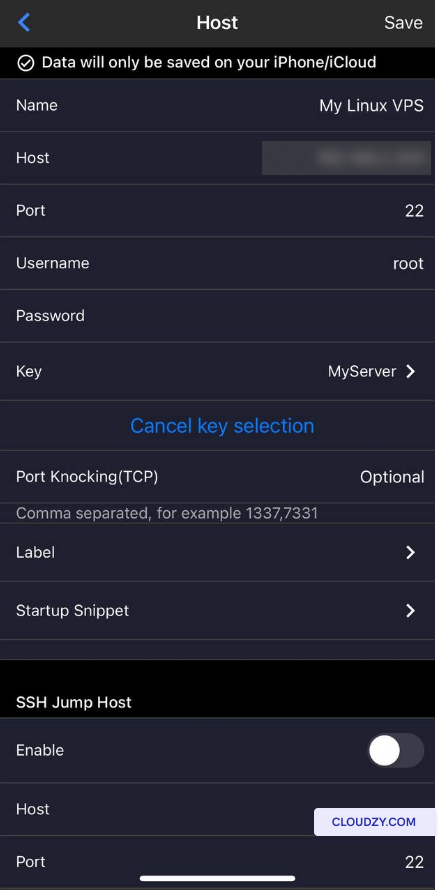
  1. Fill in the required fields like Name, Host IP, and Username
    (e.g., root).

  2. Instead of entering a password, choose the Key
    button.

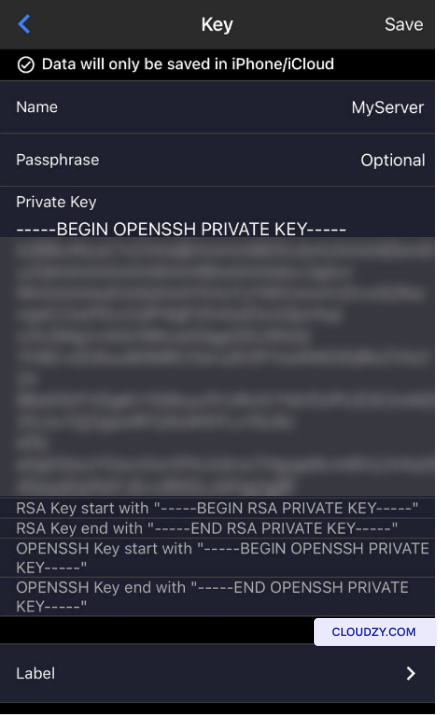
  3. You will be redirected to the Keys page. Choose
    Add a Key.

  4. Select a name for your key and copy and paste the contents of
    your private key file (id_rsa).

Choose key name
  1. If you secured your private key with a passphrase, enter it in
    the designated field.

  2. Finally, choose Save twice to complete the
    process

Connecting to Your Linux
VPS

With your SSH keys imported, you’re ready to connect to your Linux
VPS using xTerminal. Follow these steps:

  1. Launch xTerminal on your iOS device.

  2. From the app’s home page, select the server you added
    earlier.

  3. xTerminal will automatically use your imported SSH keys for
    authentication.

  4. Enter your SSH key passphrase (if applicable) and tap on
    Connect.

You now know how to connect to your Linux VPS from an iOS device
using SSH keys and xTerminal. If you have any questions, don’t hesitate
to contact our support agents by submitting a
ticket
.

<BlogFAQSection data={[ { title: ‘Is it necessary to set a
passphrase for my SSH keys during generation?’, answer: ‘Setting a
passphrase for your SSH keys is optional but highly recommended for
added security. A passphrase acts as an additional layer of protection
for your private key, ensuring that only authorized users can access
your Linux VPS.’, }, { title: ‘Can I manage multiple Linux servers with
xTerminal?’, answer: ‘Absolutely, xTerminal allows you to manage
multiple Linux VPS instances with ease. By importing your SSH keys, you
can connect to various servers securely from your iOS device,
streamlining your server management experience.’, }, { title: ‘Is
xTerminal suitable for beginners with little experience in SSH and
server management?’, answer: ‘xTerminal offers an intuitive user
interface that caters to both beginners and experienced users. With
straightforward import options for SSH keys, even users with limited SSH
knowledge can securely connect to their Linux VPS instances using
xTerminal.’, }, ]} />

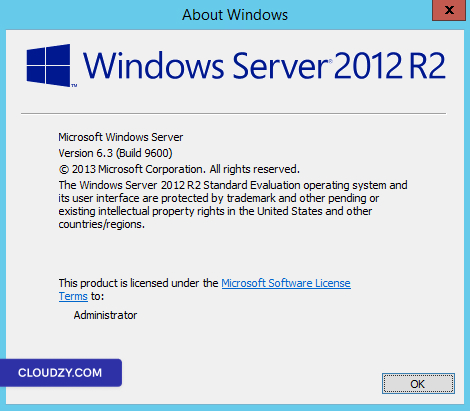
Cloudzy’s Windows Server VPS comes with an evaluation license. This
license lasts for 180 days from your VPS’s first deployment. After this
period, you need a proper license to continue using the VPS. We’ll guide
you on how to get this license. This includes understanding different
Windows Server versions and CPU requirements. Each factor is crucial in
selecting the right license for your needs.

Prerequisites

  1. Active Cloudzy Account: First, have an active
    and verified Cloudzy account. This is essential for managing your VPS
    and its licenses.

  2. Know Your Windows Server Version: Be aware of
    your VPS’s Windows Server version. Different versions have varying
    licensing requirements.

  3. Understand VPS Specifications: Know your VPS’s
    CPU count and RAM amount. These specs influence your license
    choice.

  4. Access Microsoft Licensing Info: Use Microsoft’s
    official documentation for licensing details. Find it at Microsoft’s
    Licensing Website
    .

  5. Prepare for License Acquisition: Prepare
    yourself to buy a new license. You can buy it from Microsoft or
    authorized sellers. This step is key after the 180-day trial.

  6. Be Compliance Aware: Keep yourself informed
    about Microsoft’s licensing terms. Compliance is crucial to avoid
    service issues or legal problems.

Acquiring
the Appropriate Windows Server License for Your Cloudzy
VPS

Your Cloudzy VPS comes with a 180-day evaluation license for Windows
Server. Post this period, a full license is needed. Cloudzy does not
provide these licenses. As a user, you must buy your own. This can be
done either through Microsoft or authorized resellers.

To choose the right license, first, determine your Windows Server
version:

  1. Log into your VPS.

  2. Press Win + R to open the Run dialog.

  3. Type winver and press Enter.
    This will show your server’s version and build.

Server version and build

With this version information, select a matching license. Make sure
it fits your server’s version and VPS specs. Always refer to Microsoft’s
guidelines for a compliant and informed choice. If you need any more
information or further assistance, feel free to contact our support team
by submitting a
ticket
.

In order to create a safe and reliable environment for all users, we
have provided all users with our policies. Failure to adhere to our
policies may result in account suspension. To give you a better
perspective, this guide will explain what types of suspensions happen in
Cloudzy and how they may affect your account and services.

What Are
the Types of Suspension in Cloudzy?

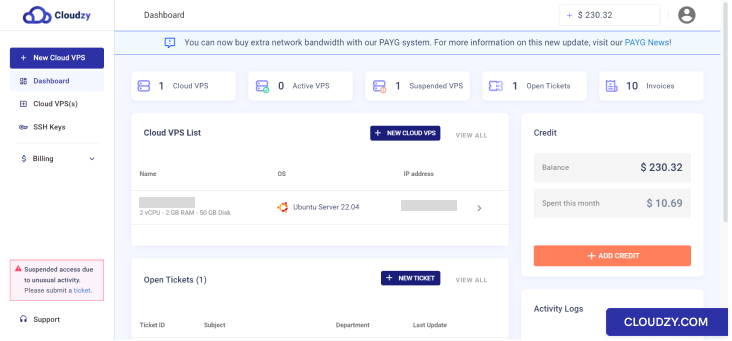
Our cloud platform has two distinct suspensions regarding two
separate flows.

  • Suspension due to insufficient credit

  • Suspension due to ToS violation

With this in mind, let’s learn more about each of these VPS
suspensions.

Suspension Due to ToS
Violation

Suspended by admin

Suspension due to abusing the service has two main types: suspending
a specific Cloud VPS or the user’s account.

1. Suspending a Specific Cloud VPS

When it comes to suspending a particular Cloud VPS, it may include
one of the following actions:

  • Suspending the VPS’s network: In this type of
    suspension, the server still exists but bypassing the VPS ID will be
    unreachable, and no data transfer is allowed. Of course, the VNC viewer
    still functions in the control panel and can be used by the user, but
    the VPS essentially has no network connection.

  • Suspending the VPS’s VNC: In this type of
    suspension, the user can’t reconnect to the same session and the system
    terminates the VNC server for that VPS. Therefore, the VNC viewer will
    not work in the control panel, and the user will not be able to use
    it.

  • Suspending the VPS’s process: When users have
    their VPS process suspended, they cannot access it. The status of
    suspension will be shown in the VPS list for the owner. In this kind of
    suspension, the owner cannot do multiple actions, including reaching VNC
    Viewer, resizing the VPS, deleting that VPS, or even renaming
    it.

Notice: In all these types of suspension, except for
VNC suspension, the owner cannot Turn On/Off (Reboot) the VPS.

Notice: Under some circumstances, the user can
request to have VNC disabled for the VPS in question.

2. Suspending a User’s Account

Suspending a client’s account means suspending all the account
servers and preventing the user from creating new ones.

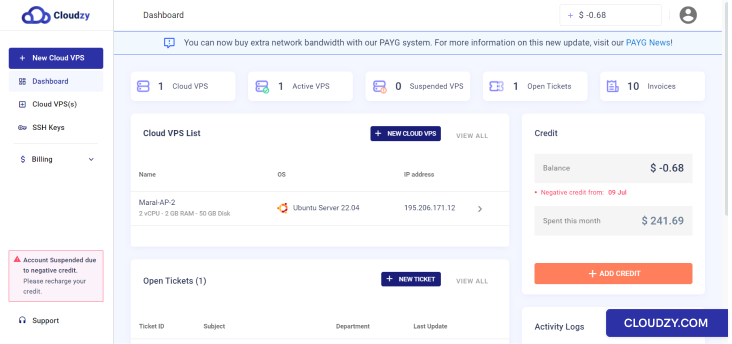
Suspension Due to
Insufficient Credit

Suspended by billing

In case, by any chance, a user does not have enough account credit
for their services, we will contact them and a series of events will
follow:

  • User’s network will get suspended for all servers immediately
    after the credit balance reaches zero.

  • User’s VPS processes will get suspended for all servers after 48
    hours (2 days) of reaching zero credit.

  • All user’s servers will be terminated after 168 hours (7 days) of
    reaching zero credit.

Notice: Note that a user can also get suspended for
both the above reasons, ToS violation and insufficient
funds.

Now that you know the types of suspensions and their consequences, we
advise that you prevent actions that can lead to suspension, just to
ensure you have a safe and smooth experience with Cloudzy. If you have
any questions, don’t hesitate to contact us by submitting a
ticket
.

<BlogFAQSection data={[ { title: ‘What are the reasons a Cloudzy
admin may suspend my account?’, answer: ‘Under certain conditions, such
as SMTP/email abuse, attacks, and domain abuse, admins will suspend an
account or server.’, }, { title: ‘How to reactivate a suspended account
that violated Cloudzy’s ToS?’, answer: ‘Users experiencing suspension
due to ToS violation or similar actions should open a ticket for that
VPS and wait for the support team to investigate the causes of the
suspension and report back.’, }, { title: ‘How to reactivate suspended
Cloud VPS due to insufficient credit?’, answer: ‘Users experiencing
suspension due to insufficient credit should charge and increase their
account credit to activate their servers. We advise all users to do so
before their credit balance reaches zero. In the unfortunate event of
reaching no credit, users have 7 days to increase their credit balance
and prevent VPS termination.’, }, ]} />

Users who choose Cloudzy’s Pay-As-You-Go (PAYG) plans appreciate the
flexibility and cost-effectiveness of these plans. However, some
confusion may happen when users notice they’re still being charged even
while their Cloud VPS is powered off. This article explains the reason
behind these fees. While your VPS is not active, the disk space
allocated to it remains reserved exclusively for your use. Other
resources like RAM and CPU may be shared, but the dedicated disk space
is a continuous investment to maintain the integrity and readiness of
your data. This guide will delve into how Cloudzy’s resource allocation
affects billing, helping users understand and plan for their VPS
expenses.

Prerequisites

Before diving deeper into understanding the billing of inactive VPS
on PAYG plans, make sure you are familiar with the following
concepts:

  1. PAYG Plan Structure: Know the basics of how
    Pay-As-You-Go billing works, including how charges are typically
    calculated for active use.

  2. Resource Allocation: Understand how resources
    like disk space, CPU, and RAM are allocated to your VPS. Specifically,
    recognize that disk space is exclusively reserved for your VPS, while
    CPU and RAM are often shared resources.

  3. Operational Costs: Be aware that maintaining the
    physical and network infrastructure to support your reserved disk space
    and potential resource usage involves ongoing costs for the
    provider.

With a grasp of these concepts, you’ll be better equipped to
understand the specifics of why you’re charged for your inactive
VPS.

Explanation

Recognizing Reserved
Resources

When you create a VPS, Cloudzy allocates and reserves certain
resources for your exclusive use. The most significant of these is disk
space, which is dedicated to your VPS to store data, applications, and
the operating system.

Understanding Disk Space
Costs

Even when your VPS is turned off, the disk space remains reserved and
cannot be allocated to other users. This means that the physical drives
in the data center continue to store your data securely. This is
responsible for costs that are related to space, power, and
infrastructure maintenance.

Shared vs. Dedicated
Resources

While disk space is reserved, other resources like CPU and RAM are
dynamically allocated and can be shared among users. However, the
infrastructure to support these resources remains active and ready,
contributing to the overall operational costs.

Billing for
Inactivity

Under the PAYG model, users are billed for the resources allocated to
them, regardless of usage. This means that while you may not be actively
using the CPU or RAM, the dedicated disk space’s ongoing reservation is
a billable aspect.

Optimizing Costs

To manage costs effectively, consider your VPS usage patterns and
plan accordingly. If you find your VPS is often inactive, reassessing
your resource needs or exploring different plan options might lead to
better cost optimization.

If you have questions about your specific billing details or want to
understand how to optimize your plan, Cloudzy’s support team is
available to provide personalized advice and solutions. Feel free to
contact our support team by submitting a
ticket
.

When it comes to using various payment methods, the CoinPayments
service is a popular and unique way. Different types of crypto assets
(coins) enable paying for advanced functionalities. Let’s talk about the
required steps to take to pay for your Cloudzy services via
cryptocurrencies.

Quick Guideline
for Paying With Crypto

Here are the needed steps to pay with Crypto:

Step
1: Choose the CoinPayments Gateway and Complete the CoinPayments
Information

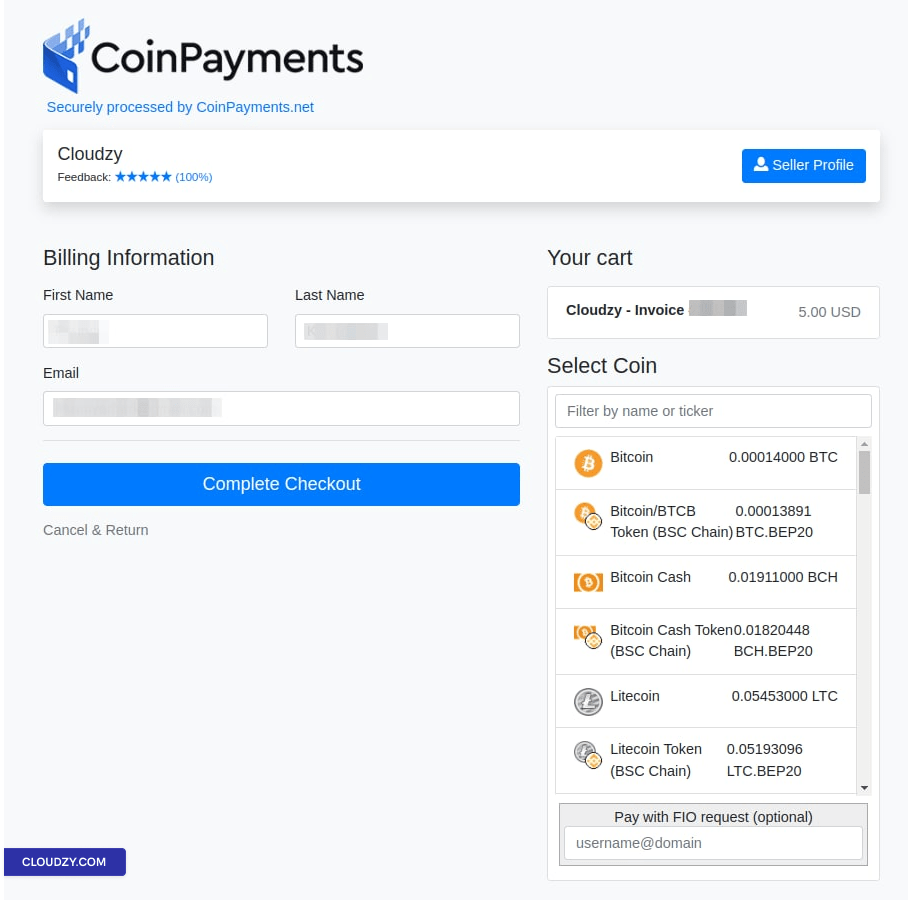
When you want to charge your credit balance utilizing crypto-assets,
you should choose the CoinPayment gateway. To do this, you need to click
on the add credit button and then choose the
Pay with CoinPayments option.

After this, the page will be redirected to the CoinPayments merchant,
in which you should pick a coin and Complete Checkout. CoinPayments will
need you to give the essential information to continue the process.
After filling out this form, you can review your order and click the
Complete Checkout button to finalize the process.

Note: although unnecessary, you can register
here.

filling out CoinPayment info

Step 2: Open Your
Wallet

Once you click on the Complete Checkout button, you
will be navigated to a new page to help you understand where to send the
funds and how much you should send. You can withdraw or send funds
through your web or mobile wallet, where your tokens are stored. Before
withdrawing a coin, you must choose a specific coin on an exchange or
wallet.

Opening your wallet

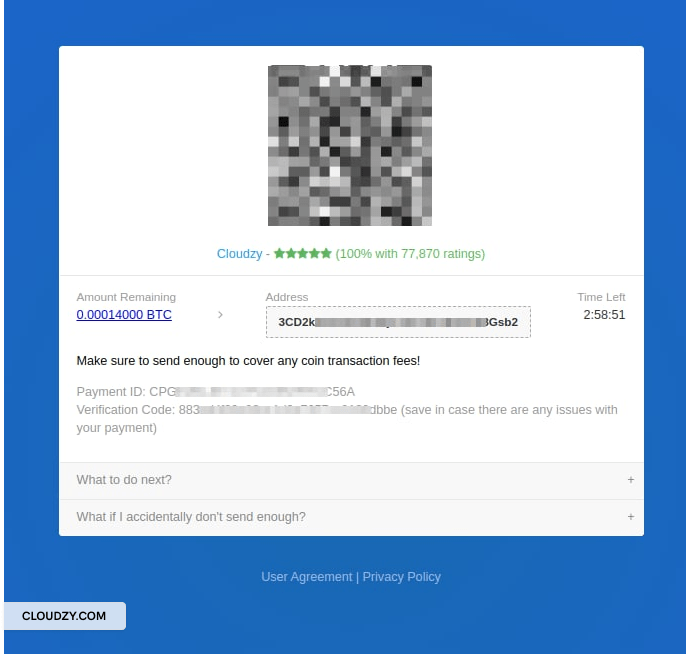
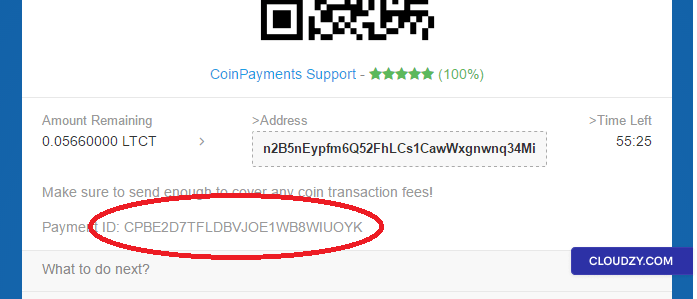
Note: You can access your Payment
ID
on the checkout page, as shown below.

Payment ID

Note: Please have a copy of this document, as a
computer malfunction may destroy it. You can Utilize this ID to reach
CoinPayments to help you with your payment.

Step
3: Scan the QR Code or Copy the Address to Send Funds

At this point, you must determine how much you want to withdraw from
your wallet and where. To do this, copy the wallet address provided on
the CoinPayment interface and paste it.

Step 4:
Review and complete the Transactions

Now, you will need to review your transaction to confirm that the
correct amount is being transmitted to CoinPayments because some
exchanges may subtract fees from the total being sent.

Congratulations! You followed all the required steps for paying with
crypto. If you have any questions, feel free to submit a ticket
and contact our customer support team for assistance.
<BlogFAQSection data={[ { title: ‘How long does the CoinPayment
confirmation process take?’, answer: “The confirmation process typically
takes about 10 to 15 minutes; however, it depends on the number of
blocks and the coin’s target block time needed to confirm the amount.
Note that If your coins are successfully transmitted from your wallet,
it does not necessarily mean that CoinPayments has already gotten them.
Don’t hesitate to contact our help if your payment takes longer than 30
minutes.”, }, ]} />

If you want to choose cryptocurrency as a payment method at Cloudzy,
you need to understand the blockchain network confirmation process. This
critical step affects the time it takes for transactions to be confirmed
and for credits to be applied to your account. The confirmation wait
time is directly affected by the network fees paid: higher fees can lead
to quicker confirmations, whereas lower fees may lead to a wait time of
up to 72 hours. This article will clarify the crypto payment process,
explain the impact of transaction fees, and set clear expectations for
you during the confirmation window.

Add Credit

Prerequisites

Before initiating a cryptocurrency payment with Cloudzy, make sure
you have the following:

  1. A valid and funded cryptocurrency wallet compatible with the
    currencies accepted by Cloudzy (e.g., Bitcoin, Litecoin, DOGE, or
    Tether).

  2. Understanding of the transaction fee structure of the blockchain
    network you are using, as this will affect the confirmation time of your
    payment.

  3. Awareness of the current network congestion, which can impact
    transaction speeds regardless of the fees paid.

With these prerequisites in place, you’ll be better prepared to
navigate the crypto payment process effectively.

Crypto Payment
Verification

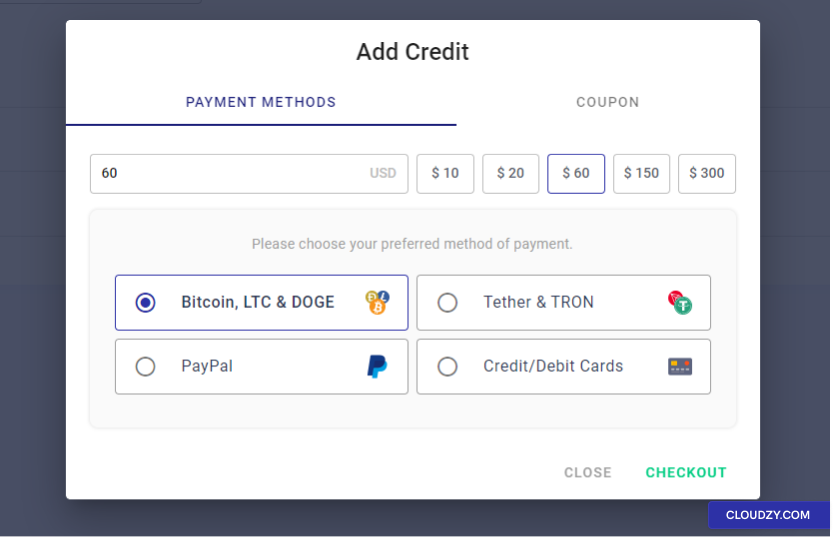
  1. Selecting Your Payment Amount: Choose the credit
    amount to add to your Cloudzy account from the predefined options or
    specify a custom amount.

  2. Choosing Your Payment Method: From the payment
    options, pick your preferred cryptocurrency: Tether, Bitcoin, Litecoin,
    DOGE, or TRON.

  3. Initiating the Payment: Navigate to the payment
    gateway and follow the prompts to send the payment from your
    cryptocurrency wallet.

  4. Transaction Fee Selection: At this point, you’re
    required to select a transaction fee. A higher fee will speed up the
    confirmation, while a lower fee may result in a longer waiting
    period.

  5. Utilizing Blockchain Explorers:

For Bitcoin transactions, use blockchain explorers like blockchain.com or btc.com, entering your transaction ID (TXID)
for tracking.

For Litecoin, explore your transaction through blockchair.com or live.blockcypher.com/ltc.

For DOGE, dogechain.info can
provide transaction status updates.

For TRON, complete your transaction through tronscan.org.

For Tether (USDT), depending on the network chosen:

  • For ERC-20-based transactions, etherscan.io is appropriate.

  • For transactions on the Omni Layer, omniexplorer.info will be
    useful.

  • For TRC-20-based transactions, tronscan.org is the go-to blockchain
    explorer.

  1. Awaiting Confirmation: The blockchain network
    needs to confirm the transaction, which can take a few minutes up to 72
    hours (in some rare scenarios even more than 72 hours). This waiting
    time largely depends on the fee and the current network
    traffic.

  2. Checking Payment Status: If your payment status
    is Pending, you can check its progress in your Cloudzy
    account. For detailed tracking, use the transaction ID on the
    corresponding blockchain explorer.

  3. Receiving Credit: Your Cloudzy account will be
    credited with the chosen amount once the transaction is confirmed by the
    blockchain network, allowing you to proceed with using the
    services.

Understanding the complexities of crypto payments, from selecting
transaction fees to tracking confirmations via blockchain explorers, is
crucial for a seamless experience at Cloudzy. By following these
guidelines and utilizing the provided tools and explanations, you can
navigate the confirmation process effectively and enjoy the benefits of
cryptocurrency transactions. If you have any questions, feel free to
contact us by submitting a
ticket
.

At Cloudzy, maintaining a secure and reliable environment is highly
important. This commitment is reflected in our Acceptable Use Policy
(AUP)
, which outlines the acceptable and prohibited activities for
all users. Account suspension is a serious action taken to protect this
integrity and can be triggered by a breach of these guidelines. Reasons
for suspension include, but are not limited to, involvement in illegal
activities, infringement of intellectual property, resource abuse, and
network abuse, among others. This article seeks to explain why
suspensions might occur, what activities typically lead to such actions,
and how affected users can seek further assistance. By understanding

these policies, users can better navigate their responsibilities and
avoid potential disruptions to their services.

Prerequisites

Before delving into the specifics of account suspension, it’s
important to understand the following aspects of Cloudzy’s Acceptable Use Policy
(AUP)
:

  • Nature of Prohibited Activities: Familiarize
    yourself with the range of activities that are considered unacceptable
    by Cloudzy, including illegal activities, infringement of intellectual
    property, spamming, resource abuse, and network abuse, among
    others.

  • User Responsibilities: Recognize the
    responsibilities laid out in the AUP, including adhering to laws,
    maintaining the security of your account and services, and reporting
    violations or security concerns.

  • Enforcement and Consequences: Understand the
    actions Cloudzy may take in response to AUP violations, including
    warnings, suspension, termination, identity verification requests, and
    potential legal action.

With a clear understanding of these prerequisites, users can better
navigate the reasons and resolutions related to account suspension.

Process Flow

When Cloudzy receives an abuse report or its internal systems detect
patterns indicative of abuse, users may be suspended as part of the
account suspension flow. This process is integral to maintaining service
integrity and adherence to the Acceptable Use Policy.

  1. Identification of Violation: Cloudzy identifies
    potential AUP violations through reports or internal
    monitoring.

  2. Immediate Action: Depending on the severity,
    Cloudzy may suspend the account to prevent further issues.

  3. Notification to User: Cloudzy typically informs
    the user of the suspension and the suspected violation.

  4. User Response: Users are encouraged to contact
    Cloudzy support to understand the specific reasons and discuss
    reinstatement options.

Users can avoid suspension by regularly reviewing Cloudzy’s Acceptable Use
Policy
and Terms of
Service
, ensuring compliance, and promptly addressing any warnings
or requests for information from Cloudzy. If you have any questions,
feel free to contact us by submitting a
ticket
.

Troubleshooting connectivity issues on a Cloud Virtual Private Server
(VPS) often involves examining and adjusting the firewall settings. A
properly configured firewall is essential for maintaining optimal
security while ensuring that services remain accessible. This article
provides a comprehensive guide on how to manage and troubleshoot your
VPS’s firewall settings for improved connectivity.

Prerequisites

Before diving into the firewall troubleshooting steps, ensure you
meet the following prerequisites:

  1. Sudo Privileges: You should have sudo privileges
    on your VPS to execute administrative commands.

  2. Basic Firewall Knowledge: Familiarity with basic
    firewall concepts and commands, specifically for UFW (Uncomplicated
    Firewall), used in this guide.

  3. SSH Access: Ensure you have SSH access to your
    VPS for remote command execution.

  4. Updated System: Your VPS should be running an
    up-to-date version of its operating system for security and
    compatibility. To update your system, log in to your VPS and run these
    two commands:

sudo apt update && sudo apt upgrade.

Step 1: Check Firewall
Status

  1. Check the firewall status:

Begin by checking the current status of your firewall with:

sudo ufw status

This command will display whether the firewall is active and show any
existing rules.

  1. Activate Firewall If Inactive:

You’ll need to enable the firewall if it’s not active. Before doing
so, make sure SSH connections are allowed to prevent getting locked
out:

sudo ufw allow ssh
sudo ufw enable

These commands will allow SSH connections through the firewall and
then activate it.

This step is crucial to ensure that your firewall is running and
configured correctly for initial diagnosis.

Step 2: Review
and Modify Firewall Rules

  1. List Current Firewall Rules:

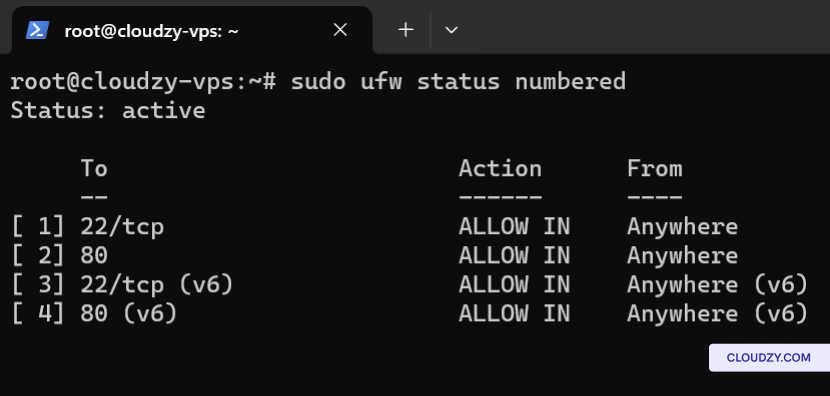
To view all current firewall rules with their numbers, use:

sudo ufw status numbered
List Firewall Rules

This command provides a clear overview of all the rules and their
sequence.
  1. Allowing a Specific Port:

To allow traffic on a specific port, execute:

sudo ufw allow [port_number]

Replace [port_number] with the actual port number
you wish to open.

  1. Denying a Specific Port:

To block traffic on a specific port, use:

sudo ufw deny [port_number]

Replace [port_number] with the port number you want
to close.

  1. Deleting a Specific Rule:

To remove a rule, identify its number from the list, then run:

sudo ufw delete [rule_number]

Replace [rule_number] with the number corresponding
to the rule you want to delete.

  1. Recheck Updated Rules:

After making changes, recheck the updated rules with:

sudo ufw status

By reviewing and modifying the firewall rules as needed, you can
manage the traffic flow to and from your VPS, addressing potential
connectivity issues.

Step 3: Test
Connectivity

  1. Test Service Connectivity:

-For web services, access your website via a browser. Or you can use
a command like: curl http://your_website.com.

-For SSH, test the connection with ssh
username@your_vps_ip
.

-For FTP services, try connecting using an FTP client or command
line: ftp your_vps_ip.

  1. Verify Access to Allowed Ports:
  • To check if a specific port is accessible, you can use the telnet
    command: telnet your_vps_ip port_number.

  • For example, to test a web server on port 80: telnet
    your_vps_ip 80
    .

  1. Check for Blocked Services on Denied Ports:
  • Confirm that connections to denied ports are blocked. Attempt to
    connect to a service on a blocked port, and it should fail.

  • For instance, if you’ve blocked port 8080, testing with
    telnet your_vps_ip 8080 should not succeed.

Including these command examples provides a practical approach to
verifying the effectiveness of your firewall settings.

Step 4:
Additional Troubleshooting Tips

  1. Verify Service Status:

Make sure the services you’re trying to access, such as web servers
(apache2, nginx) or databases (mysql), are running. Use commands like
sudo systemctl status apache2 to check their
status.

  1. Check for IP Restrictions:

Make sure no IP-based restrictions are set in the firewall that might
inadvertently block your access. This can be verified with sudo
ufw status
.

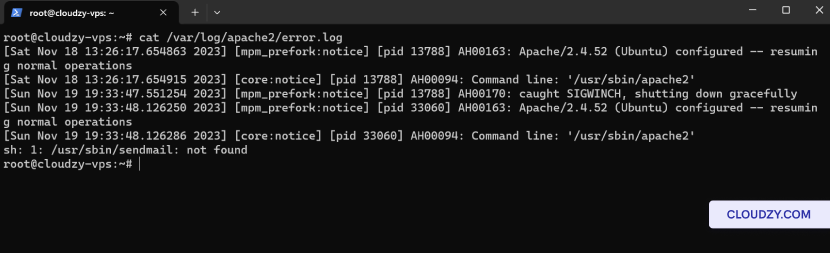
  1. Review Logs for Clues:

Check server logs for any error messages or clues related to
connectivity issues. For Apache, you might look at
/var/log/apache2/error.log.

Review Logs for Clues
  1. Use Network Diagnostic Tools:
  • Ping: Test network connectivity to your server
    (ping your_server_ip).

  • Traceroute: Trace the path packets take to your
    server (traceroute your_server_ip). This is helpful for identifying
    where connectivity issues occur along the route.

  • Netstat: Display network connections and
    listening ports (netstat -plntu). Useful for seeing what services are
    listening on which ports.

  • Nmap: Scan for open ports to verify if the
    firewall rules are correctly applied (nmap your_server_ip).

These additional steps and tools can help you diagnose and resolve
more complex connectivity issues.

You now know everything about connectivity troubleshooting. If you
have questions or need more information, feel free to contact us by submitting a
ticket
!

If you are experiencing issues with adjusting RDP screen resolution
on your Windows VPS ,this guide will help you modify the resolution of
your Remote Desktop connection from Windows, macOS, Android, and
iOS.

Changing
Remote Desktop Resolution from Windows

If you are using a Windows operating system, you can easily modify
the Remote Desktop resolution using the built-in Remote Desktop
Connection application. Follow these steps to adjust the resolution to
your preferences:

Step 1: Launch
Remote Desktop Connection

Begin by initiating the Remote Desktop Connection application. You
can do this by following one of these methods:

Press the Windows key, type Remote Desktop
Connection
or mstsc into the search box, and
press Enter.

Step 2: Access Advanced
Options

Once the Remote Desktop Connection window is open, click on the
Show Options button. This will reveal additional
settings and configurations for your remote desktop session.

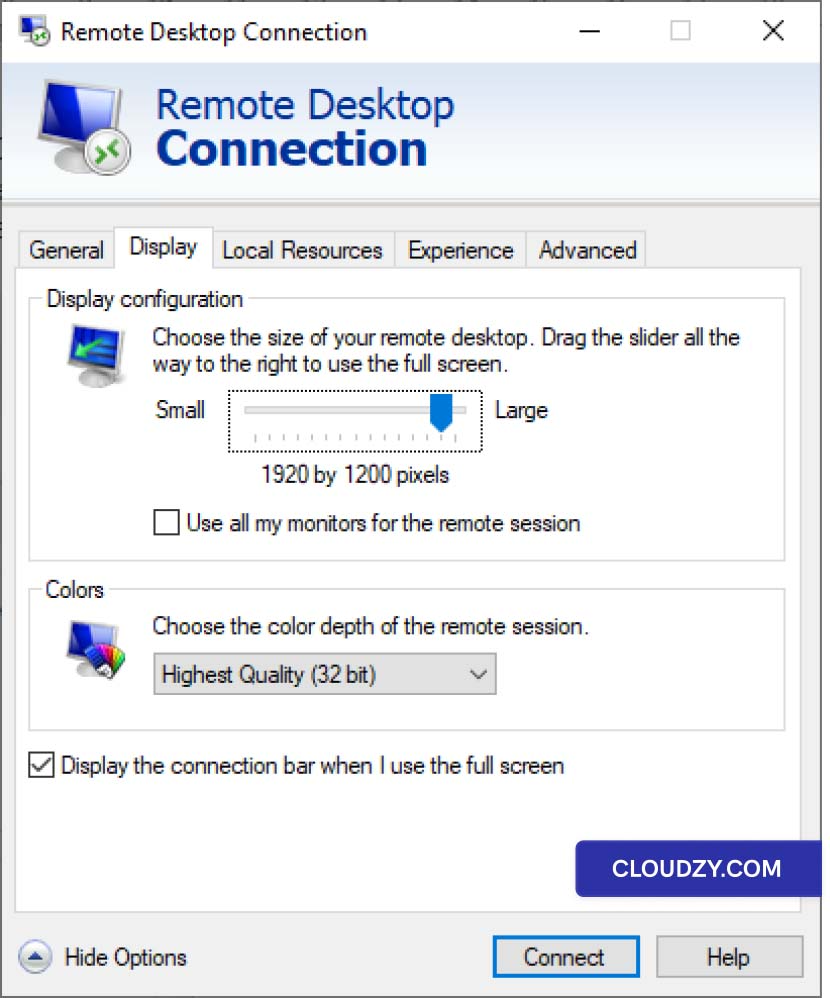
Step 3: Configure
Display Settings

Navigate to the Display tab within the Remote
Desktop Connection window. Here, you’ll find various display-related
settings that can be adjusted.

Step 4: Adjust
Resolution

To customize the resolution for your Remote Desktop session, utilize
the slider in the Display configuration section. Slide it to select your
preferred resolution, which can be tailored to match your device’s
capabilities and your visual preferences.

Adjust Resolution

Adjusting
Remote Desktop Resolution from macOS

For macOS users who already possess a Remote Desktop profile, you can
adjust your RDP connection resolution directly from the Microsoft Remote
Desktop — the same application you use to connect to your Windows
VPS:

  1. Launch the Microsoft Remote Desktop application on your macOS
    device from the Applications folder.

  2. In the application, click the ••• (ellipsis)
    button on the main screen and select Edit.

  3. In the Edit Remote Desktops window, select the
    remote desktop connection you want to adjust.

  4. Click the Edit button (pencil icon) at the
    bottom of the window to modify the settings for that
    connection.

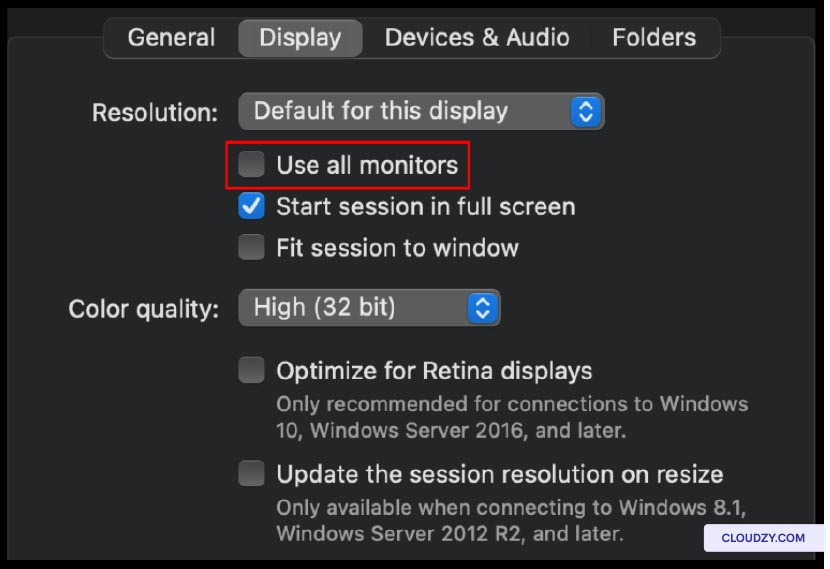
  5. In the Edit Remote Desktop window, go to the
    Display tab.

  6. Ensure the Use all monitors option is unchecked
    to set a custom screen resolution for your Remote Desktop.

Custom screen resolution
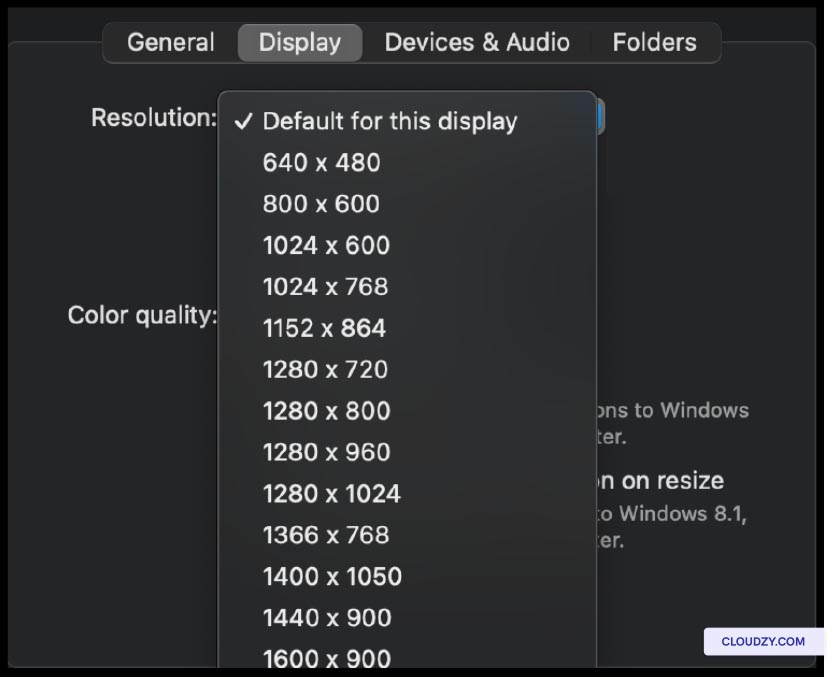
  1. Here, you’ll find the option to customize the display settings. Use
    the slider to set your preferred resolution for the remote desktop
    session.
Set preferred resolution
  1. Optionally, you can adjust other display-related settings, such
    as color depth and scaling, to suit your preferences.

  2. After configuring the display settings, click the
    Save button to save your changes.

Adjusting
Remote Desktop Resolution from iOS

For iOS users, the process of changing the Remote Desktop resolution
is as follows:

Step 1:
Launch the Remote Desktop Application

Launch the Remote Desktop application on your iOS device. This will
be the same application you use for connecting to your Windows VPS.

Step 2: Access
Settings

Once the app is open, tap the ••• (ellipsis) button located in the
top left corner of the screen. This will open a menu with various
options.

Step 3: Configure
Display Settings

Within the menu, select Settings to access the
configuration options for your remote desktop sessions. Once in the
settings section, navigate to the Display category.

Step 4: Choose
Your Preferred Resolution

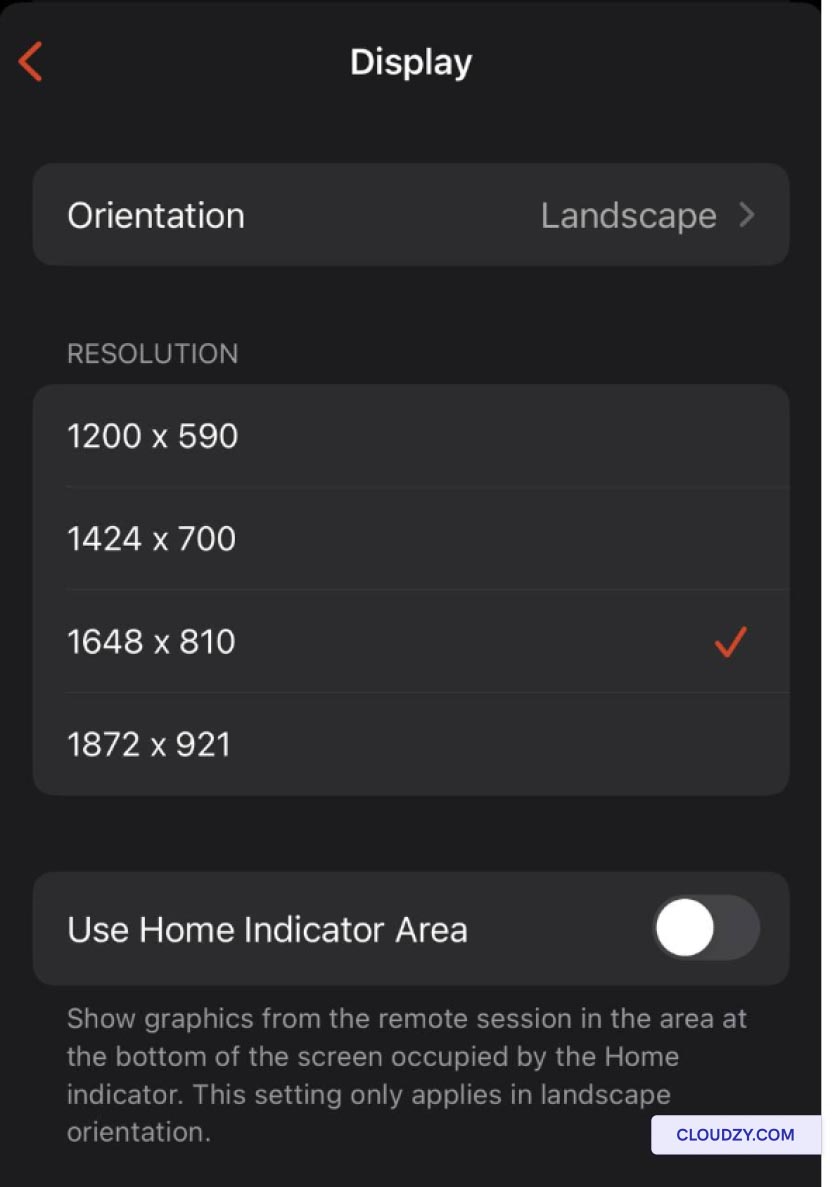
In the Display section, you’ll find the option to
select your preferred resolution. Tap on this setting to reveal a list
of available resolutions. Choose the resolution that best suits your iOS
device and your visual preferences.

Select the preferred resolution

Modifying
Remote Desktop Resolution from Android

Android users can follow these steps to change their Remote Desktop
resolution:

Step 1: Customize
Display Resolution

From the Microsoft Remote Desktop application you use to connect to
your VPS, in the bottom section of the page, locate the
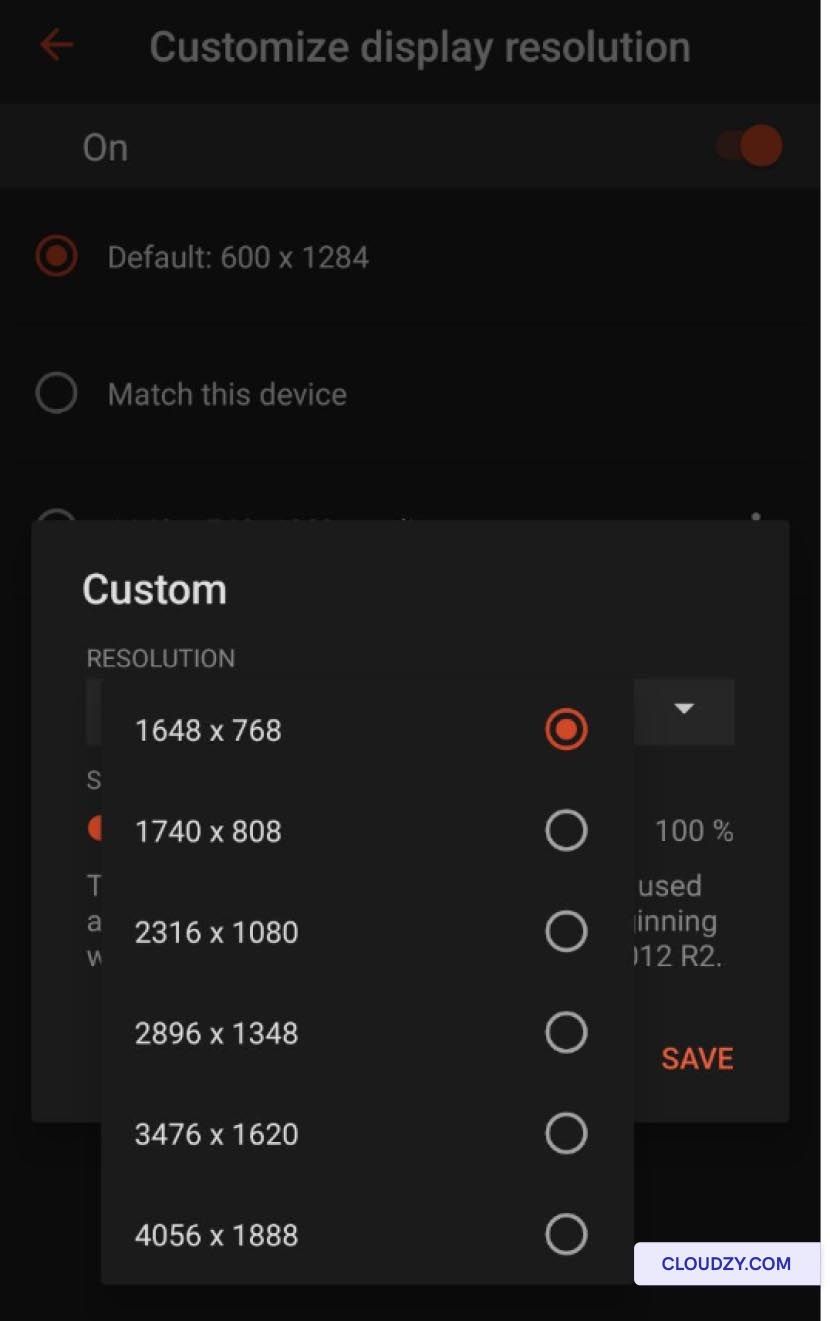
Customize display resolution option. Toggle it from
Off to On to enable customization of
the display resolution.

Customize display resolution

Step 2: Choose Your
Resolution

After enabling Customize display resolution, a
dropdown menu will appear, presenting various resolution options. Pick
the resolution that best suits your needs and the capabilities of your
Android device.
Resolution dropdown

Step 3: Save
the Configuration and Connect

After selecting your preferred resolution, make sure to save the
configuration settings. Then, return to the application’s home page.
From the home page, you can now connect to your VPS by selecting the
configured connection. This will establish a remote desktop session with
the chosen resolution settings.

<BlogFAQSection data={[ { title: ‘Why is it important to adjust
the Remote Desktop resolution?’, answer: ‘Adjusting the Remote Desktop
resolution is crucial to ensure a seamless and tailored viewing
experience when accessing your computer remotely from different devices.
Without proper resolution adjustments, you may encounter cramped visuals
or oversized elements, hindering your productivity.’, }, { title: ‘Can I
revert to the default resolution settings if needed?’, answer: ‘Yes, you
can revert to default resolution settings if required. Most Remote
Desktop applications and operating systems allow you to switch back to
default settings when necessary, ensuring flexibility and
adaptability.’, }, { title: ‘Are there any additional tips for
optimizing the Remote Desktop experience?’, answer: ‘Along with
adjusting the resolution, consider factors like color depth, scaling,
and quality settings to further enhance your Remote Desktop experience.
Experiment with these settings to find the configuration that best suits
your needs and preferences.’, }, ]} />

In this guide, we will walk you through the process of activating or
changing your email address within the Cloudzy Panel, ensuring the
security and functionality of your account.

Email Verification for
New Users

New users registering on the Cloudzy Panel must complete email
verification to ensure account security and gain full access to our
services. Without email verification, account restrictions will be in
place, limiting actions such as creating VPS.

Upon registration, users will receive an email containing a
verification link. This email link expires in two days. If you don’t
receive the verification email, please check your junk or spam folder.
In case you still can’t find it, you can request to resend the email
from the Cloudzy Panel.

Changing Your Email
Address

To change your email address in Cloudzy Panel, follow these
steps:

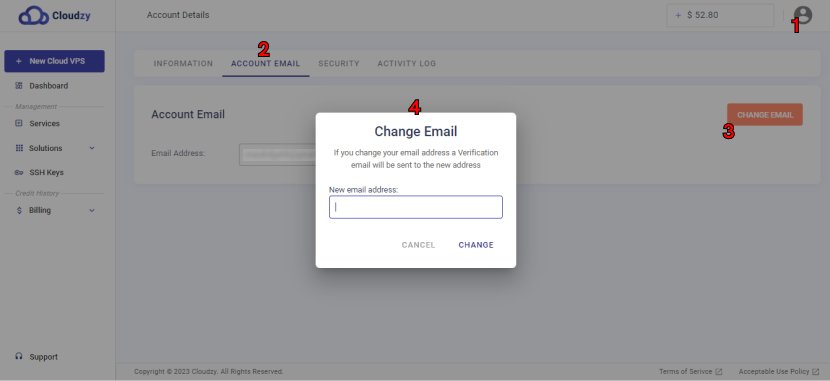
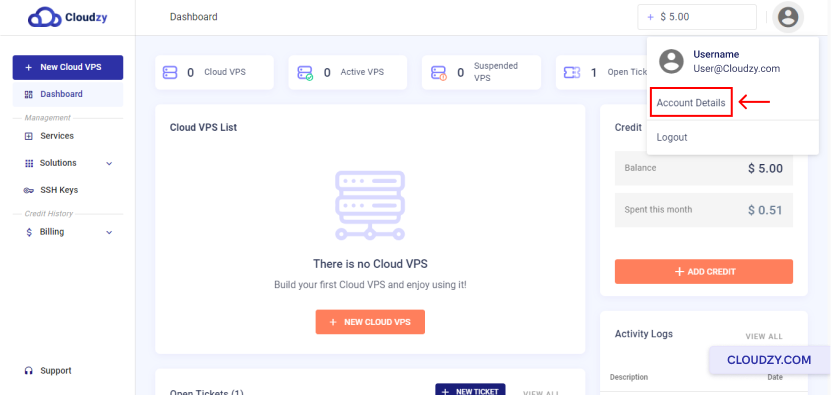
  1. Click on the user icon in the top-right corner of the Cloudzy
    Panel interface.

  2. From the dropdown menu, select Account
    Details
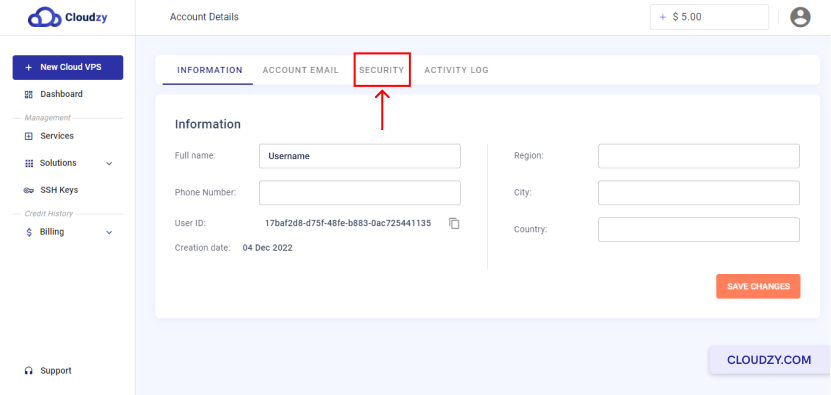
    .

  3. Locate and click on the ACCOUNT EMAIL option
    within the Account Details section.

  4. Next, click on the CHANGE EMAIL button.

  5. You will be prompted to input your new email address.

  6. Keep in mind that your new email address will need to undergo a
    verification process to ensure its validity and security.

Change email address

You can now easily activate or change your email address in the
Cloudzy Panel. Email verification is a vital part of maintaining account
security and ensuring you have uninterrupted access to the services we
offer. If you encounter any issues during this process, don’t hesitate
to reach out to our support team by submitting a
ticket
.

If you ever need to change your Cloudzy account’s password, you can
do so in just a few simple steps. Follow the instructions below to
change your account’s password:

  1. Log in to your account in the Cloudzy panel.
Login
  1. On the right corner of the panel, click on the avatar.
Click on avatar
  1. Click on the Account Details option.
Click on Account Details
  1. From the top menu, click on SECURITY.
Click on SECURITY
  1. Enter your current password, new password and finally confirm your
    new password in the respective boxes.
Change password
  1. Click on the CHANGE PASSWORD Button to finalize the
    change you made.
Confirm new password

You have now successfully changed your Cloudzy account’s password. If
you need any more information or further assistance, feel free to
contact our support team by submitting a
ticket
.