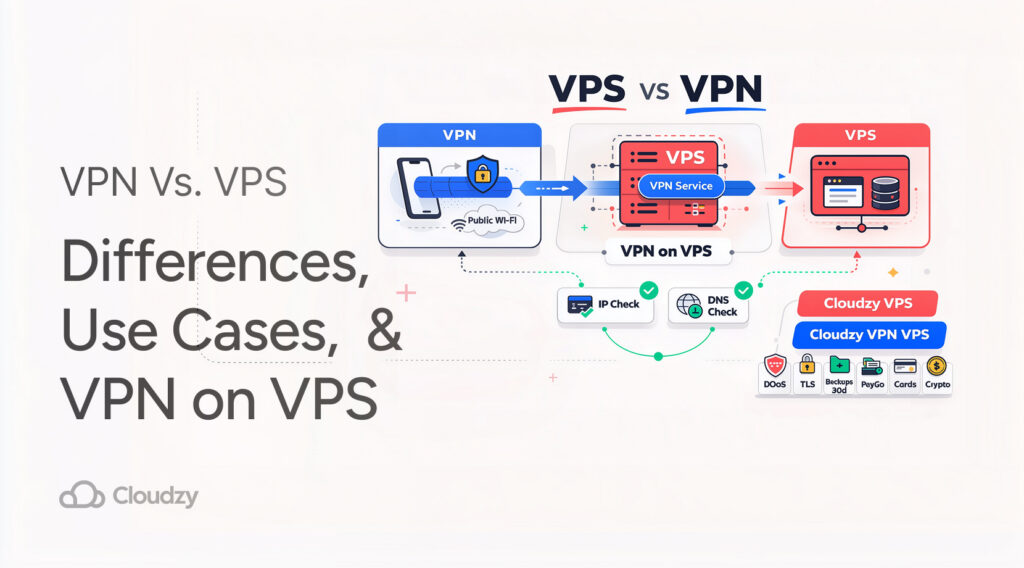
If you’re trying to pick between a VPN and VPS, you should first know that a VPN protects the path your traffic takes, and a VPS is a server you rent to run things.
Most people who search this are really asking two different questions: “How do I keep my internet traffic private on sketchy networks?” and “Do I need a server for hosting or remote access?” Once you name your goal, answering the VPN vs VPS question becomes easy to answer.
Below, we’ll compare VPN vs VPS in plain language, then get practical with the overlap case of running a VPN server on a VPS so you control the endpoint.
VPN vs VPS in 30 Seconds
Before we get into all the details, let’s have a quick breakdown of what VPS and VPN are and what they’re good for:
| Tool | What It Is | Good For | Not Good For |
| VPN | An encrypted tunnel from your device to a VPN endpoint | Safer browsing on public Wi-Fi, changing your visible IP, reducing local snooping | Hosting apps, “being anonymous” by default |
| VPS | A virtual server in a data center with its own OS and resources | Hosting websites/APIs, running bots, staging, always-on gateways | Protecting your laptop’s traffic unless you add a VPN layer |
This is the quick decision checklist we use with customers:
- If you want safer traffic on public Wi-Fi, start with a VPN.
- If you want to host a site, API, database, or always-on tool, start with a VPS.
- If you want a private VPN endpoint that you control, you’re in the VPN-on-a-VPS territory, because you’ll run the VPN on a VPS.
That last bullet is where most confusion lives, so let’s build the mental model first.
What a VPN Actually Does (and What People Expect It To Do)
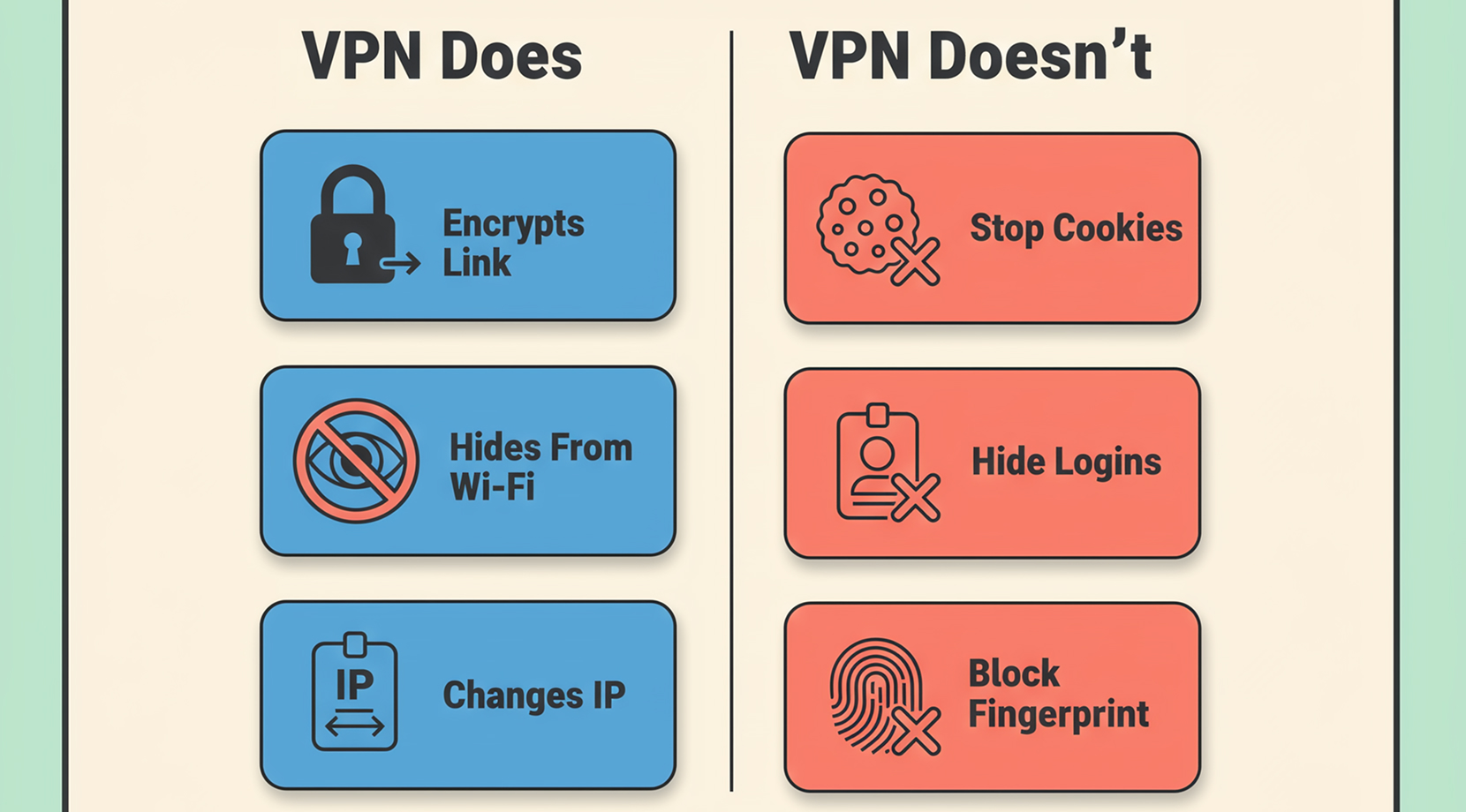
A VPN is best thought of as a secure tunnel. Your laptop or phone encrypts traffic, sends it through that tunnel, and the VPN endpoint decrypts it and forwards it to the internet. The big advantage is that the Wi-Fi you’re sitting on, and anyone sniffing the local network, sees encrypted traffic instead of a readable stream.
People also expect a VPN to “hide them.” In practice, it changes who can see what. It can hide your browsing from the local network and shift your visible IP address, but it doesn’t delete tracking, and it doesn’t magically make your accounts invisible.
The Tunnel Model in Plain English
Here’s the path in one line:
Device → encrypted tunnel → VPN server → internet
What changes:
- The hotspot, hotel network, or office guest Wi-Fi can’t easily read your traffic.
- Websites see the VPN server’s IP, not the coffee shop’s IP.
What doesn’t change:
- Sites still see your browser fingerprints, cookies, and account logins.
- The VPN endpoint becomes the new “place” that sees your traffic patterns.
If you’re stuck on the VPN vs VPS choice, this is the first fork in the road. A VPN is for the network path. A VPS is more about running software somewhere else.
Quick Checks That Tell You Your VPN Is Doing Its Job
Before you trust a tunnel, do two quick checks. They take a minute and save you from the “it was connected but not routing” trap.
- Confirm your visible IP changes
curl -s https://api.ipify.org ; echo
Run it with the VPN off, then on. The output should change. If you’re doing this on a server and you’re not even sure what IP you were assigned, our guide on finding your VPS IP address can help you confirm it in the panel.
- Confirm DNS isn’t leaking
The easiest check is a DNS leak test in your browser. Run it once with the VPN off, then again with it on. The “resolvers” should match what you expect from your VPN.
If you want a local check too:
Windows (PowerShell):
Get-DnsClientServerAddress
Linux (systemd-resolved):
resolvectl status
macOS:
scutil –dns | grep nameserver
Now that the VPN side is clear, let’s talk about the other half of the confusion.
What a VPS Actually Is (and Why It’s Not a Privacy Tool by Default)
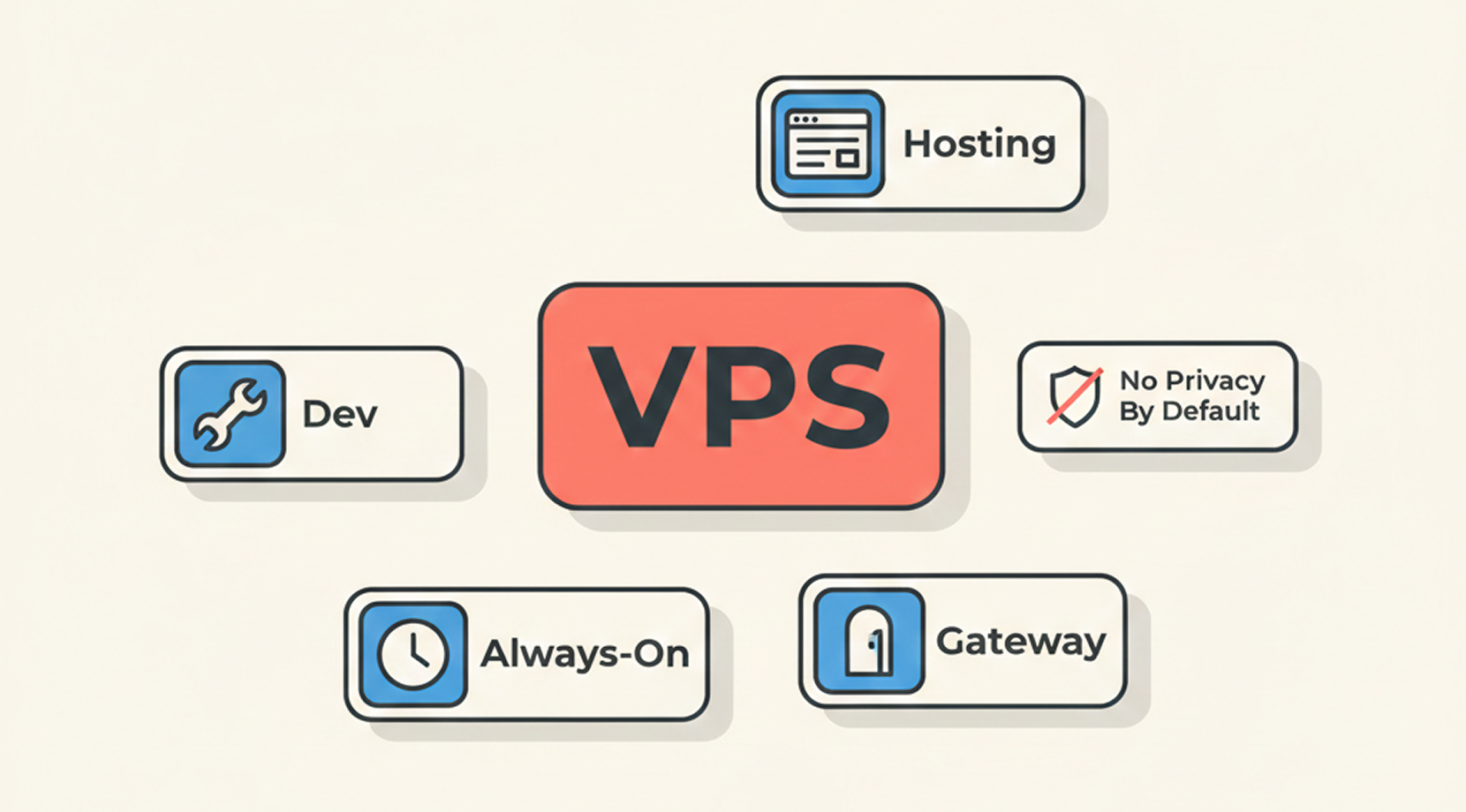
A VPS is a virtual machine in a provider’s data center. You get your own OS, your own disk, and allocated CPU/RAM. It’s the thing you rent when you want a server without buying hardware.
A simple mental image of a VPS is that it’s an apartment in a big building. You control what’s inside your unit, but you don’t control the whole building. That’s why a VPS is powerful, but also why “privacy” is not automatic. Privacy is something you set up on top of it, usually with encryption, access control, and sane defaults.
If you want more context on what a VPS is and how it differs from other hosting models, our breakdown of cloud hosting vs VPS helps connect the dots without getting lost in technical jargon.
What You Use a VPS For in Real Life
A VPS is popular because it solves boring, practical problems:
- Hosting: a website, API, dashboard, or small database.
- Dev and staging: a box that matches production more closely than a laptop.
- Always-on services: a CI runner, a bot, a cron job, a monitoring node.
- Gateways: a controlled entry point to private systems, which is the bridge to VPN and VPS in the same setup.
That last bullet is the overlap case we’ll get to soon, but first, we need a clean comparison.
Difference Between VPN and VPS (Complete Comparison)
The difference between VPN and VPS is not about privacy alone; it’s also about the job you want done.
If you’re searching for the difference between VPN and VPS, you’ll get more clarity from outcomes than definitions.
A VPN is for private transport. A VPS is for running software.
VPN vs VPS by Outcome
Here’s the comparison in outcomes, because you want to know the end result of using one or the other:
| Outcome | Best Tool | Why | Common Gotcha |
| Safer browsing on hotel Wi-Fi | VPN | Encrypts the local hop | You still need good browser hygiene |
| Host a website or API | VPS | You control the stack | You must patch and secure it |
| Get a fixed IP with full server control | VPS | Dedicated endpoint | IP reputation is now “your problem” |
| Reach home services without port-forwarding | VPN on a VPS | Private path + stable relay | Routing mistakes waste time |
| Keep admin access off the public internet | VPS + VPN | Put admin paths behind the tunnel | Locking yourself out is easy |
If this table already clicked for you, great. If not, the overlap scenario usually makes it click.
The Overlap Case: Running a VPN on a VPS
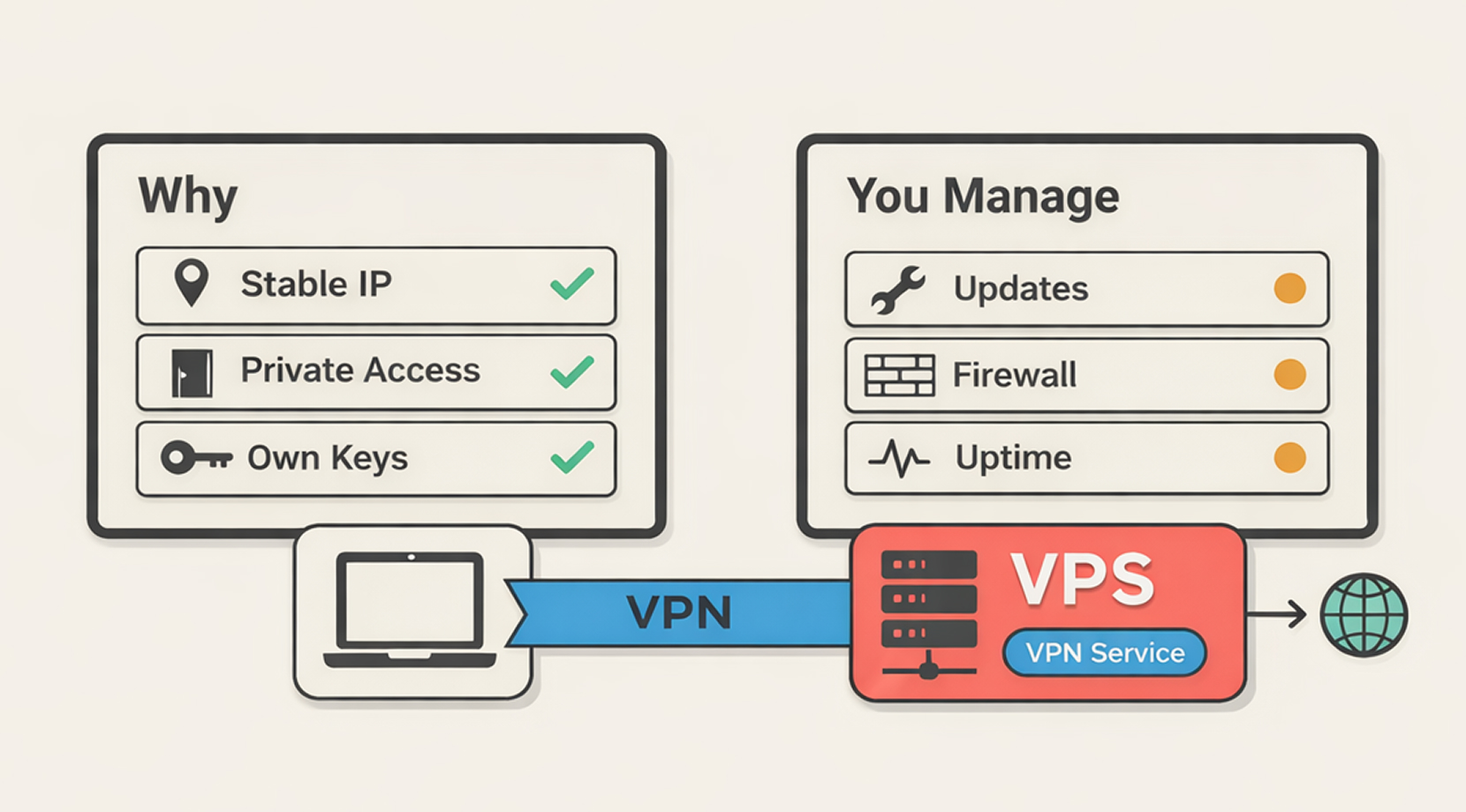
Running a VPN server on a VPS is where VPN and VPS finally meet.
You’re still using a VPN tunnel, but instead of buying a VPN subscription with shared exit nodes, you operate your own endpoint on your own virtual server.
People pick this route for a few recurring reasons:
- They want a stable endpoint for travel, remote work, or allowlists.
- They want remote access to private tools without exposing ports to the internet.
- They don’t love the trust model of random VPN apps and want the keys in their hands.
From our side, what we see is that someone sets it up in 10 minutes, then spends the afternoon on routing, firewall rules, and MTU quirks. That’s the cost of owning the endpoint.
If you want a spec-focused guide for picking a node, our post on the best VPS for VPN is where we go deep on what actually matters for a VPN VPS: location, bandwidth, and how predictable the network feels under load.
The Tradeoffs People Underestimate
The internet is full of “just self-host WireGuard, and you’re done.” It can be that smooth, but the boring tradeoffs still apply:
- You inherit patching and service uptime. If your VPN server goes down, your remote access goes down with it.
- You’re not blending into a shared pool anymore. Your exit IP is uniquely yours. That’s good for allowlists, but it’s not a magic cloak.
- Misconfigurations are common. The classic ones are AllowedIPs that route too much, NAT rules that make debugging harder, or running VPN inside containers and then wondering why routes don’t work.
If you choose this route, keep the checks lightweight and boring. Boring is good in networking.
Beginner-Friendly Checks for a VPN on a VPS
The goal here is not a full installation tutorial. It’s a short checklist you can run on any Linux VPN server to confirm it’s alive, routing, and not exposing extra ports.
1) Confirm the VPN service is running.
If you’re picking a protocol, WireGuard is the modern default in a lot of self-hosted setups, and OpenVPN still shows up in places where UDP gets blocked.
WireGuard on systemd commonly looks like this:
sudo systemctl status wg-quick@wg0
sudo wg show
OpenVPN often looks like one of these, depending on distro and packaging:
sudo systemctl status openvpn-server@server
sudo systemctl status openvpn@server
If systemd says “active (running)” and the tool output shows a handshake or recent transfer, you’re in a good place.
2) Confirm only the VPN port is listening publicly.
On the VPS:
sudo ss -lntu
If you see SSH (22) open, that may be fine, but treat it like a controlled tool, not a default. In a lot of self-hosted setups, people keep SSH closed to the public internet and only allow it over the tunnel.
A simple UFW pattern looks like this:
sudo ufw status verbose
The point is not a specific firewall brand. The point is: know what’s open.
3) Confirm routing matches your intent.
This is where beginners go wrong, so start with the simplest question: “Am I tunneling all internet traffic, or only private subnets?”
On the server and client, inspect routes:
ip route
If you only want access to your home subnet, you should see routes for that subnet, not a default route for everything. If you do want full-tunnel, then a default route makes sense, but now you care more about DNS and MTU.
4) Make a rollback plan before you “tune.”
This is the part people skip, then regret. Take a snapshot in your hosting panel before changing firewall rules, NAT, or tunnel settings. On our infra team, most “I locked myself out” tickets trace back to skipping that one step.
Now, if this overlap case still feels like too much work, that’s a good signal. Many people are happier with a simple VPN app for public Wi-Fi, and they only go into VPN and VPS setups once remote access becomes a real need.
Common Mistakes People Make with VPN and VPS
This section exists because the same mistakes show up again and again, in tickets and in forum threads.
Symptom → Likely Cause → Fix
| Symptom | Likely Cause | Fix |
| VPN is “connected” but traffic looks unchanged | Split tunneling, broken routing, or DNS mismatch | Check IP before/after, then check DNS resolvers |
| Sites still know where you are | Cookies, accounts, device location services | Log out, test in private mode, review browser permissions |
| Self-hosted VPN is slow on mobile | MTU mismatch, mobile VPN overhead, distance | Test MTU, test from a laptop, pick a closer region |
| WireGuard works at home, fails on some networks | UDP blocked | Use a TCP fallback (often OpenVPN TCP 443) or stealth mode. Port changes alone often won’t help if UDP is blocked. |
| VPS feels fine, but VPN traffic jitters | Congested uplink or CPU saturation | Watch CPU, test different regions, keep configs simple |
A quick note on “slow VPN”: a lot of “VPN is slow” is just physics. If your VPN endpoint is far away, your packets take a longer trip. That shows up as lag long before you hit bandwidth limits.
Overall, once you understand the VPN and VPS difference, in terms of distance, routing, and endpoints, most performance issues should become clear.
Which One Should You Pick? Four Scenarios with Straight Answers
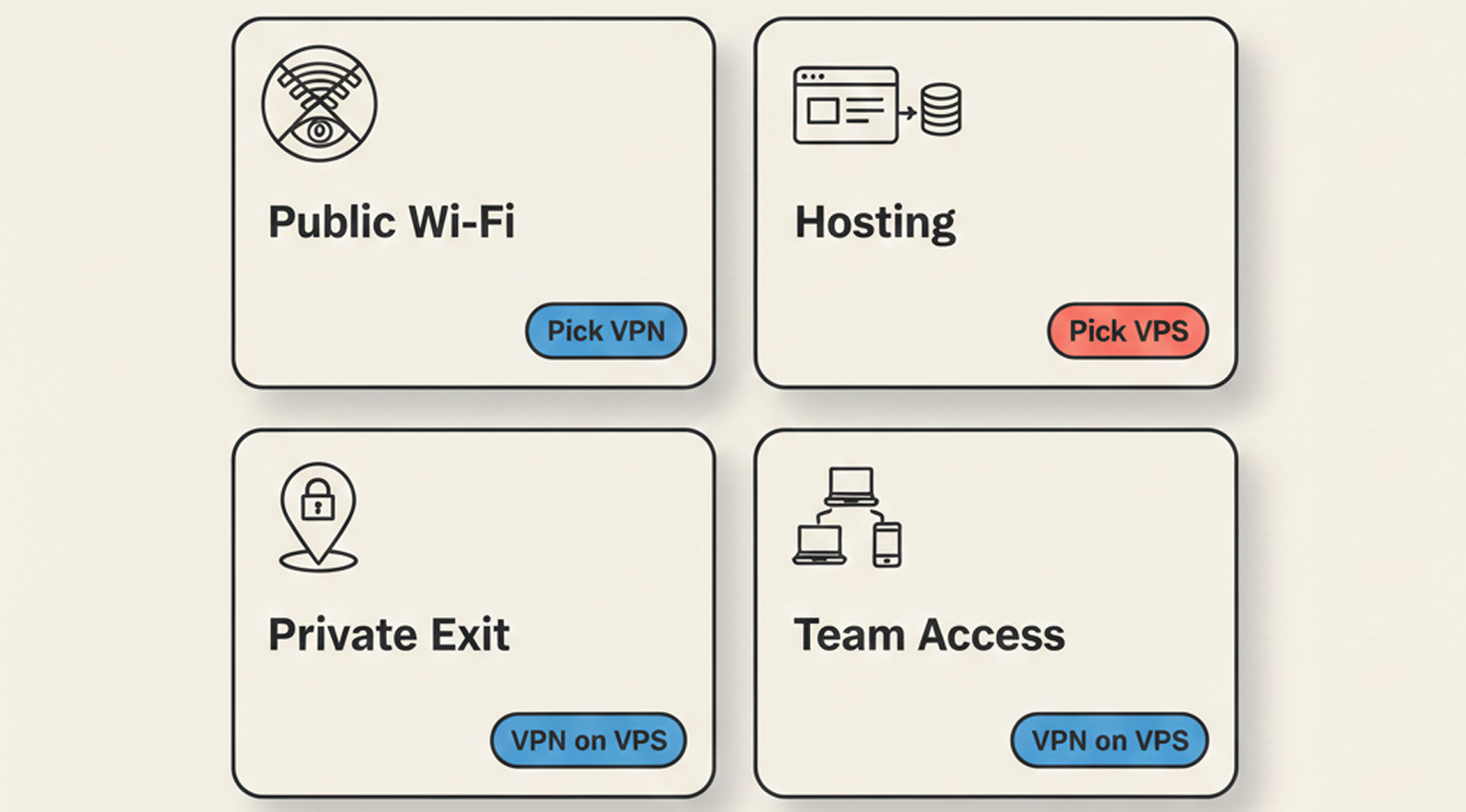
Now that you have a grasp on the basics of it all, here are typical use cases we see and what we recommend for each one:
If You Want Safer Browsing on Public Wi-Fi
Pick a VPN. That’s its native job.
In real life, this is the airport and hotel story. You’re signing into email, checking banking, and sending work messages. You’re not trying to host anything. You just want your traffic encrypted on networks you don’t control.
This is the most common reader scenario, so we’re weighing the article toward it. A VPS is not required for this, unless you specifically want to run your own endpoint.
If You Need a Server to Run Stuff Online
Pick a VPS. If you’re hosting a site, building an API, running a bot, or staging an app, you want a VPS because it’s a machine you control.
This is also where VPN and VPS can pair nicely. Basically, keep the public-facing app on normal ports, but put admin paths behind a VPN, so your dashboard and SSH are closed to the open internet.
If you want a practical “server reliability without headaches” checklist, our guide on running business apps on a VPS focuses on habits that reduce downtime.
If You Want a Private Exit That You Control
This is the classic “I want my own endpoint” case. It’s also the most common reason people combine VPN and VPS.
A VPN on a VPS gives you:
- A stable IP you own.
- Control over keys, peers, and access.
- A gateway you can place in a region that matches your travel or remote-work needs.
The cost is that you own the chores: updates, firewall, and the occasional routing rabbit hole.
If You Need Remote Access for a Small Team
If you’re onboarding coworkers, contractors, or clients to private tools, a VPN server on a VPS is a clean model. You can rotate keys, revoke access, and keep an audit trail of who has a config.
This is also where you should think about “ops debt.” The smaller the team, the more you want the system to be simple. Simple configs, simple peer lists, simple firewall rules.
That’s the kind of environment where VPN and VPS do the job well and don’t require your weekends.
If your takeaway from the scenarios above is “I need a server anyway, and I want private access to feel predictable,” it’s time to pick a VPS setup that’s affordable, intuitive, and even comes with free 24/7/365 support.
A Practical Fix: Cloudzy VPS for Hosting, and Cloudzy VPN VPS for Private Access
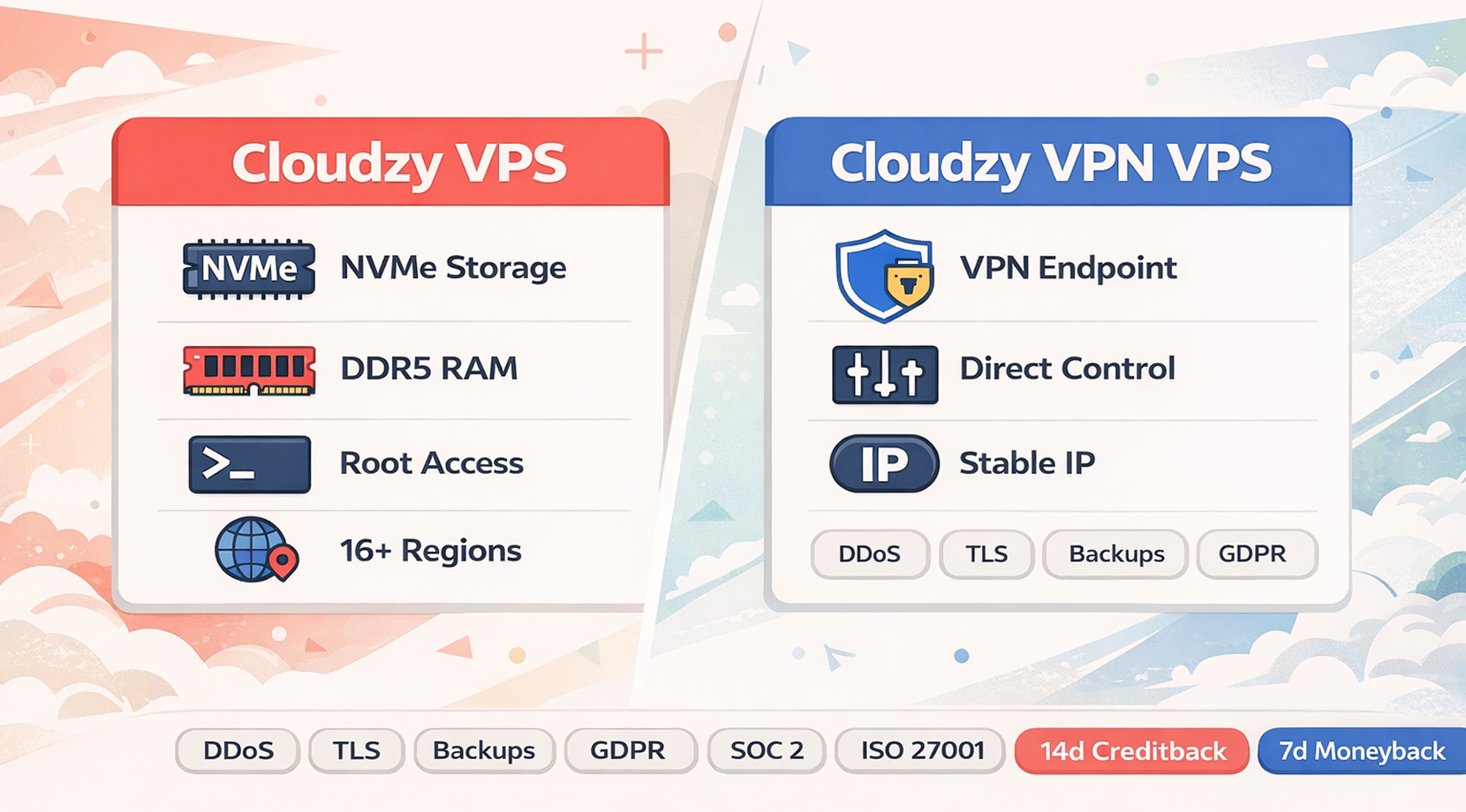
If your real problem is “I need a server anyway, and I also want private access,” this is where our stack fits naturally.
For hosting workloads, you can buy VPS plans that give you dedicated resources, NVMe SSD storage, DDR5 RAM, full root access, and locations across 16+ regions.
You can deploy in 60 seconds, scale as your workload grows, and pay hourly, monthly, or yearly.
For private access setups, our VPN VPS hosting is built for running a VPN endpoint on infrastructure you control. That matters in the overlap case where VPN and VPS are part of the same workflow.
On top of performance, we also built the boring safety pieces into the platform, including advanced multi-layer DDoS protection with automatic mitigation, TLS encryption for data in transit, daily automated backups with a 30-day retention policy, plus compliance with GDPR, SOC 2, and ISO 27001.
Billing is flexible, with pay-as-you-go options, and we support crypto (BTC and ETH), PayPal, major credit and debit cards (Visa, Mastercard, Amex, Discover), plus Alipay, Skrill, Perfect Money, and stablecoins. If you spin something up to test, there’s a 14-day unused creditback and a 7-day moneyback.
The point is not “buy a thing.” The point is solving the actual workflow problem, a predictable server plus a predictable private access path.