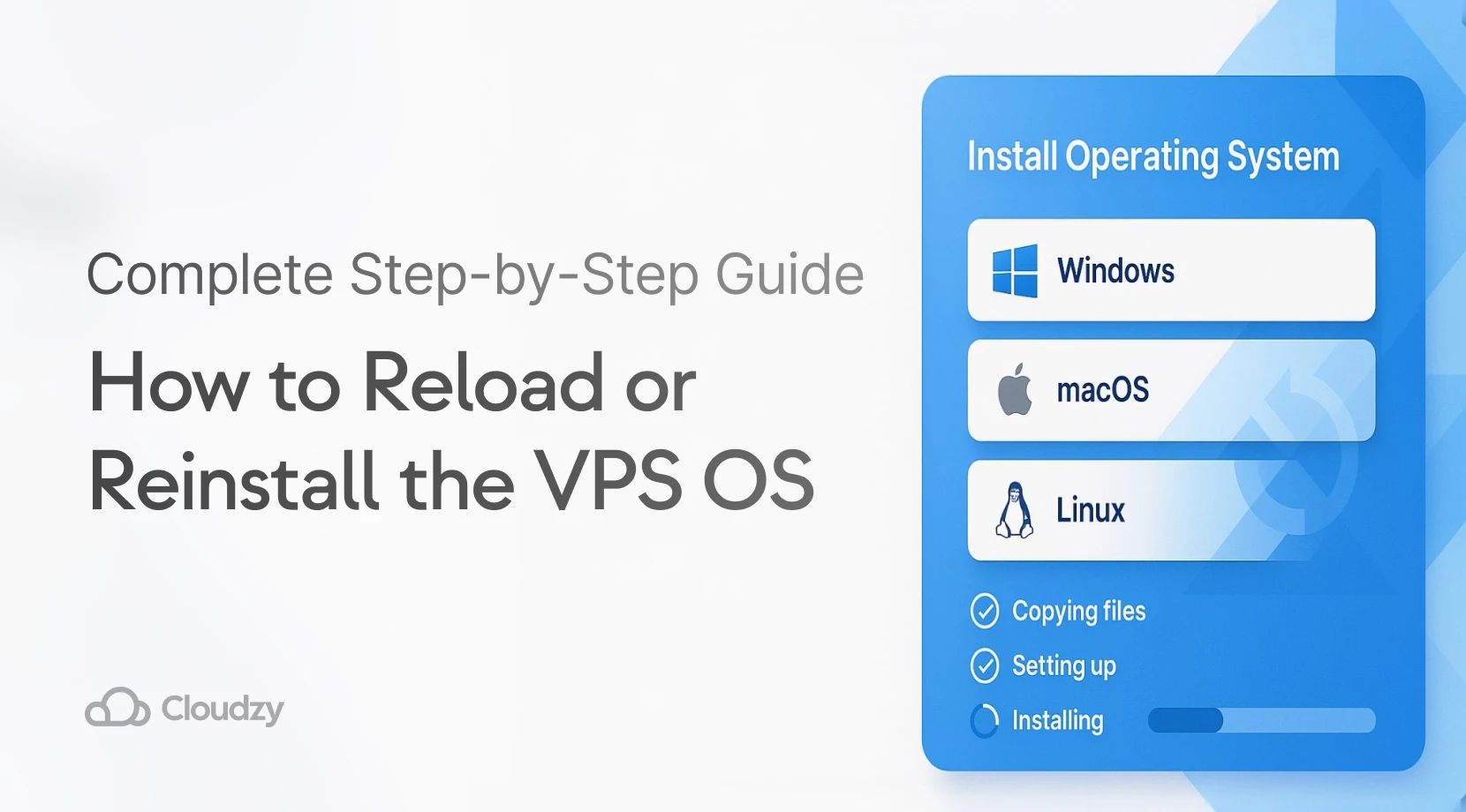
Reinstalling your operating system gives you a fresh start when system issues pile up or security gets compromised. With cyberattacks happening every 39 seconds globally and data breaches costing businesses $4.88 million on average in 2024, knowing this process becomes vital for server maintenance.
This guide covers Cloudzy’s VPS OS reinstallation process from start to finish. You’ll learn when to reinstall, how to prepare your data, the exact control panel steps, and which security measures to implement immediately afterward.
If you’re new to VPS hosting and unfamiliar with server management basics, check out our guide on What Is a VPS Provider first. However, if you already have a VPS running and need to fix it or start fresh, this guide walks you through the entire process step by step.
When Should You Reinstall Your VPS OS?
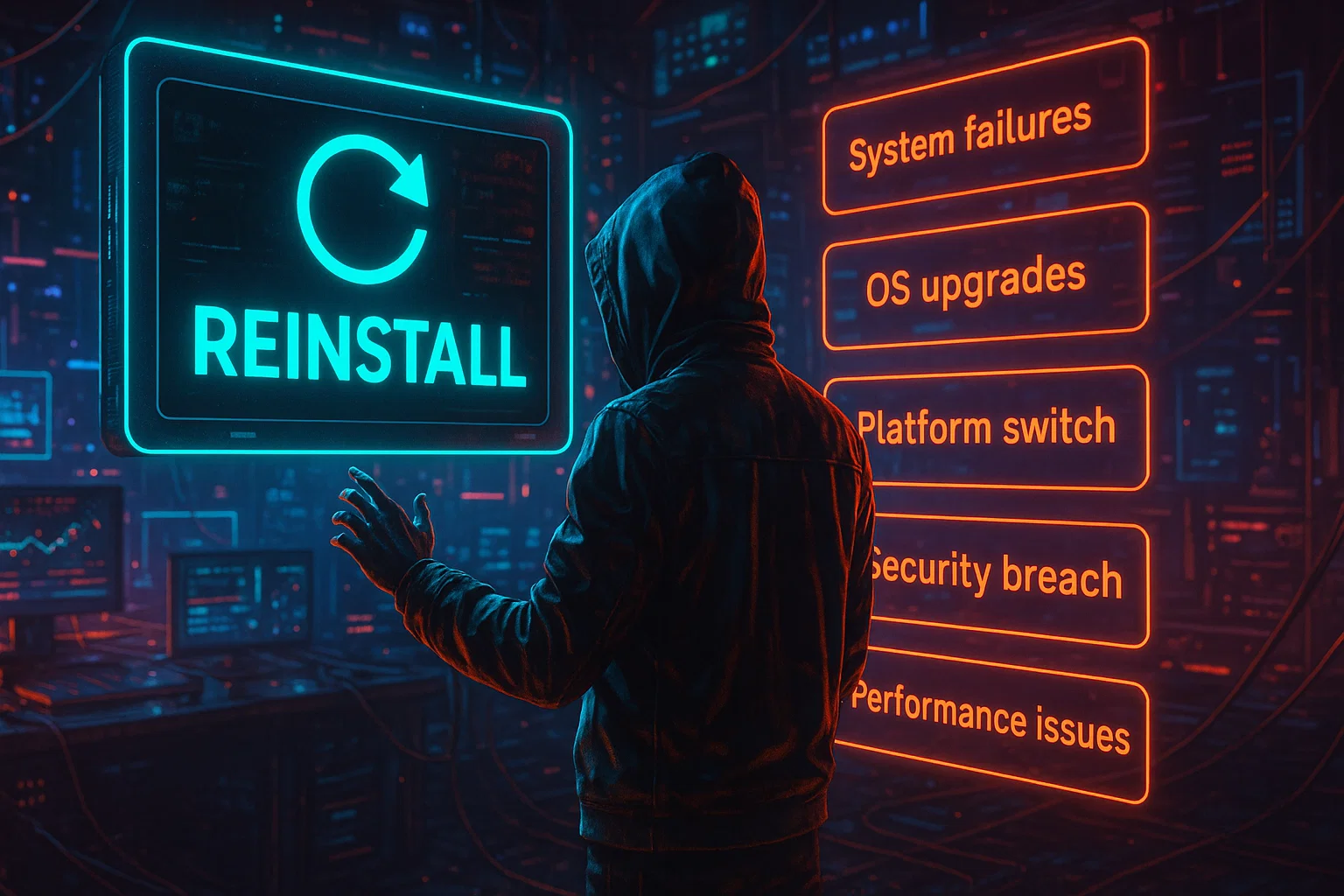
Consider full OS reinstallation in these scenarios:
|
Situation |
Why Reinstall Works |
|
System corruption |
Fixes failed updates and corrupted files |
|
Security breach |
Removes malware and compromised files |
|
OS version upgrade |
Gets security patches and new features |
|
Platform change |
Switches between Windows and Linux |
|
Performance issues |
Eliminates clutter and misconfigurations |
System Corruption and Failed Updates
Updates sometimes fail midway, leaving your OS unstable. Configuration files get corrupted, system libraries break, or boot processes fail completely. When troubleshooting these issues takes longer than reinstalling, a fresh install becomes the practical choice.
Security Breaches and Malware
If malware compromised your server or attackers gained unauthorized access, you can’t trust any files on the system. Malware hides in unexpected locations, modifies system binaries, and creates backdoors that survive standard cleanup. Knowing how to reset a VPS server fully is the only way to guarantee a clean, uncompromised system.
OS Version Upgrades
Upgrading to newer OS versions brings security patches, bug fixes, and new features. While in-place upgrades sometimes work, they often leave behind outdated packages and configuration conflicts. Clean reinstalls typically result in better performance and fewer compatibility issues.
Platform Changes
Switching from Windows Server to Linux (or the reverse) requires a complete reinstallation. This scenario arises when application requirements change, when you need platform-specific features, or when you want to reduce licensing costs.
Pre-Reinstall Preparation
WARNING: Complete these steps before you reload or reinstall the VPS OS, as all data will be permanently deleted.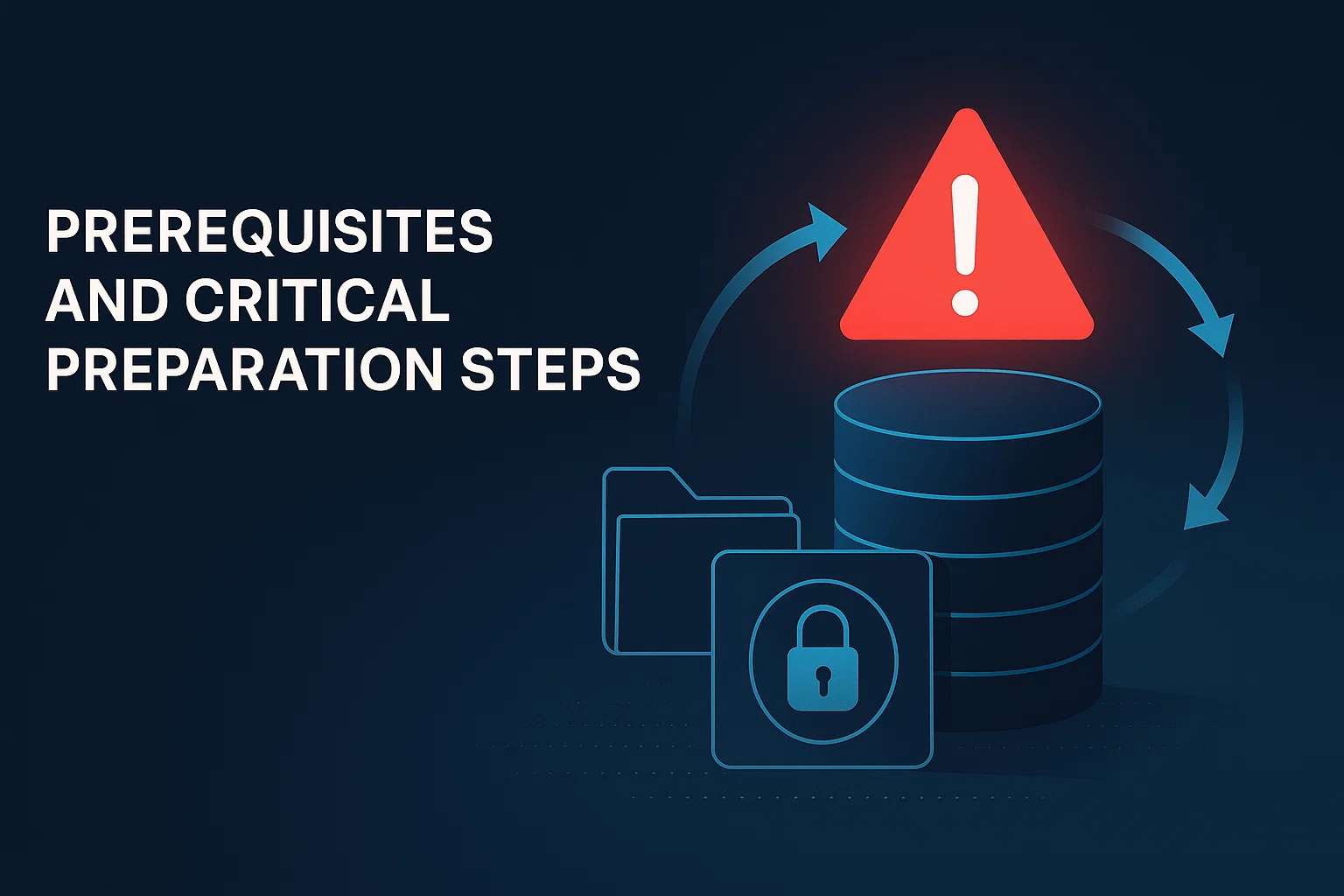
Create Complete Backups
Back up these critical items:
- Website files and application code
- Database exports (MySQL, PostgreSQL, MongoDB)
- Configuration files (/etc/, web server configs)
- SSL certificates and private keys
- Email data and mail server configurations
- User accounts and SSH keys
- Cron jobs and scheduled tasks
Store backups in multiple locations and verify you can access them before proceeding with reinstallation.
Database Backup Commands:
For MySQL/MariaDB:
mysqldump -u root -p --all-databases > all_databases.sqlFor PostgreSQL:
pg_dumpall -U postgres > all_databases.sqlFile Backup Methods:
Use rsync to create complete backups:
rsync -avz /var/www/ /backup/www_backup/Or use tar for compression:
tar -czf website_backup.tar.gz /var/www/Download backups to your local machine using SCP or SFTP before starting the reinstallation. Check file sizes and try extracting a small portion to verify integrity.
Document Your Current Setup
Record these server details while your system is still running:
- Installed software and versions
- Network configuration (IP addresses, DNS, firewall rules)
- Database connection details
- Web server configurations
- Application environment variables
- Active user accounts
This documentation speeds up restoration later and helps prevent configuration errors during setup.
Schedule Maintenance Window
Choose off-peak hours for reinstallation since users need advance notice. The process takes 2-15 minutes, depending on the OS, but you’ll need additional time for security setup and data restoration afterward.
Step-by-Step: How to Reload or Reinstall VPS OS on Cloudzy
When you’re learning how to reset VPS server settings or perform a complete OS reinstallation, the process remains easy through Cloudzy’s control panel. Follow these steps carefully to avoid any issues during the reinstallation.
Step 1: Access Cloudzy Control Panel
Log in to your Cloudzy account at the client portal and click Services in the main navigation. Locate your target VPS server from the list and click to open the management page.
If you manage multiple VPS instances, double-check you selected the correct server since this action cannot be reversed once started.
Step 2: Navigate to the Reinstall Option
In your VPS dashboard, find the Install or Reinstall button. This typically appears in the main action menu or technical details section, so click to open the OS selection interface.
Step 3: Select Your Operating System
 Choose from Cloudzy’s available OS templates based on your needs:
Linux Distributions:
- Ubuntu (22.04 LTS, 24.04 LTS)
- Debian (11, 12)
- AlmaLinux (8, 9)
- Rocky Linux (8, 9)
- Fedora (latest stable)
Windows Server:
- Windows Server 2025
- Windows Server 2022
Consider your application requirements, experience level, and support lifecycle when making your selection.
Choosing the Right Linux Distribution:
|
Distribution |
Support Period |
Best For |
Why Choose It |
|
Ubuntu LTS |
5 years |
Web hosting, application servers, and beginners |
Extensive community support and package availability make it safe for most users. When you reload or reinstall the VPS OS Ubuntu, you get the latest features with LTS stability. |
|
Debian |
Stable releases |
Production servers needing minimal changes |
Exceptional stability with conservative release cycles. Choose when stability matters more than having the latest software versions. |
|
AlmaLinux / Rocky Linux |
10 years |
Enterprise environments, long-term projects |
Enterprise-grade alternatives with RHEL compatibility. If you need to reload or reinstall the VPS OS CentOS, these are your modern replacements without licensing costs. |
Choosing Windows Server:
|
Version |
Support Until |
Best For |
Why Choose It |
|
Windows Server 2025 |
2034 |
Cutting-edge features, modern applications |
Latest security features, improved Hyper-V capabilities, and enhanced Active Directory functionality. Select for the newest Windows capabilities. |
|
Windows Server 2022 |
2031 |
Most business applications, proven stability |
Solid choice with proven stability and broad application compatibility. Works well for most business applications without issues. |
At Cloudzy, our Windows VPS solutions come with your chosen version pre-installed and ready to use. You can buy VPS server plans starting at competitive rates, with NVMe SSD storage, up to 40 Gbps network speeds, and a 99.95% uptime guarantee across 13 regions.
Step 4: Create a Strong Root Password
Generate a password with at least 12 characters total. Include uppercase and lowercase letters, numbers, and special characters for maximum security. Use a password manager to generate and store this securely.
Step 5: Confirm Reinstallation
Review your OS selection carefully and verify your password is correct. Read the data deletion warning thoroughly, then click Reinstall to proceed with reloading or reinstalling the VPS OS.
Step 6: Wait for Installation
Installation typically completes in 2-15 minutes, depending on your chosen OS. Cloudzy’s control panel displays progress in real-time, so wait for the confirmation screen before attempting to access your server.
Step 7: Verify Installation
After completion, note the new OS name shown in your control panel. Verify your IP address (which usually remains the same) and keep your new root credentials secure for future access.
Immediate Post-Reinstall Security

Servers are most vulnerable immediately after fresh installs, so complete these security steps before restoring data or applications.
Update System Packages Immediately
For Linux systems, run these commands via SSH to get the latest updates:
# Ubuntu/Debian
sudo apt update && sudo apt upgrade -y# AlmaLinux/Rocky Linux
sudo dnf update -yFor Windows Server, open Windows Update and check for updates. Install all critical and security updates, then reboot if the system requires it.
Disable Root Login and Create Admin User (Linux)
# Create new admin user

sudo adduser adminuser

sudo usermod -aG sudo adminuser

# Disable root SSH login

sudo nano /etc/ssh/sshd_config

# Set: PermitRootLogin no

sudo systemctl restart sshd
Set Up SSH Key Authentication (Linux)
# On your local machine

ssh-keygen -t ed25519 -C "[email protected]"

# Copy to server

ssh-copy-id adminuser@your_server_ip

# Disable password authentication

sudo nano /etc/ssh/sshd_config

# Set: PasswordAuthentication no

sudo systemctl restart sshd
Configure Firewall
For Linux with UFW:
sudo ufw default deny incoming

sudo ufw default allow outgoing

sudo ufw allow ssh

sudo ufw allow http

sudo ufw allow https

sudo ufw enable
For Windows Server, open Windows Defender Firewall. Configure inbound rules for required services only, then block all unnecessary ports to reduce the attack surface.
Install Fail2Ban (Linux)
# Ubuntu/Debian
sudo apt install fail2ban -y# AlmaLinux/Rocky
sudo dnf install epel-release -y

sudo dnf install fail2ban -y

sudo systemctl enable fail2ban

sudo systemctl start fail2ban
Common Mistakes to Avoid
Even experienced administrators make critical errors during VPS reinstallation that lead to data loss or security vulnerabilities. Learning from these common pitfalls helps you avoid costly downtime and keeps your server secure from the start.
Not Testing Backup Restoration
Many discover their backups are incomplete or corrupted only when trying to restore them. Test backup restoration on a non-production system before you reload or reinstall the VPS OS to avoid unpleasant surprises.
Skipping Security Hardening
Attackers scan for newly installed servers with default configurations around the clock. Research shows DDoS attacks surged 41% in 2024, with servers facing attacks within hours when security hardening is skipped.
VPS servers attract attackers because they often host multiple applications and databases containing sensitive customer data, making them high-value targets.
Using Weak or Default Passwords
Automated bots continuously scan for servers with weak passwords throughout the internet. Recent research shows that VPS servers face sophisticated attacks that exploit default credentials and weak authentication methods.
These attacks often succeed within the first 24 hours after a server goes online, so always use strong passwords and prefer SSH key authentication instead.
Not Documenting Changes
Reinstalling without proper documentation makes restoration complete guesswork. Detailed notes about your previous setup save hours of troubleshooting later and prevent costly mistakes during recovery.
Interrupting the Installation
Never power off or restart your VPS during OS installation, since this corrupts the installation. If corruption occurs, you’ll need manual intervention from support to fix it.
Forgetting DNS Updates
If your IP address changes during reinstallation, update your DNS records immediately. Otherwise, your site becomes inaccessible to visitors until the records are corrected.
Installing Applications Before Security
Install security updates and configure firewalls before adding applications or restoring data. This prevents attackers from exploiting known vulnerabilities during the setup process when your server is most exposed.
Restoring Your Data
After securing your fresh OS installation, restore your applications and data systematically. This step-by-step approach minimizes errors after you reload or reinstall the VPS OS and makes sure nothing gets overlooked.
1. Install Required Software

Begin by installing the software stack your applications need to run properly. For web servers running Ubuntu:
sudo apt install nginx mysql-server php-fpmFor LAMP stack:
sudo apt install apache2 mysql-server php libapache2-mod-phpInstall any additional packages your applications require before restoring data to prevent missing dependency errors.
2. Restore Configuration Files
Copy your backed-up configuration files to their original locations:
sudo cp backup/nginx.conf /etc/nginx/nginx.conf

sudo cp backup/php.ini /etc/php/8.1/fpm/php.ini
Review each configuration file carefully to verify paths and settings match your new installation, since server paths sometimes differ between OS versions.
3. Import Databases

Restore your database backups using the appropriate command:
For MySQL/MariaDB:
mysql -u root -p < all_databases.sqlFor PostgreSQL:
psql -U postgres -f all_databases.sqlVerify database restoration by logging in and checking that all tables and data exist correctly.
4. Upload Application Files
Transfer your application files back to the server using SFTP:
scp -r /local/backup/www/* user@server:/var/www/Set correct ownership and permissions afterward:
sudo chown -R www-data:www-data /var/www/

sudo chmod -R 755 /var/www/
5. Configure SSL Certificates
If you use Let’s Encrypt, reinstall certbot first:
sudo apt install certbot python3-certbot-nginx

sudo certbot --nginx -d yourdomain.com
For custom SSL certificates, restore certificate and key files to the appropriate directory and update your web server configuration.
6. Restore Cron Jobs
Edit the crontab to restore your scheduled tasks:
crontab -ePaste your backed-up cron jobs and save. Verify they’re set correctly afterward:
crontab -l7. Test All Functionality
Before directing traffic to your server, test everything thoroughly. Check that applications load correctly, database connections work properly, and SSL certificates are valid.
8. Monitor for 24-48 Hours
Watch server logs closely for the first two days after going live. Look for error messages, failed authentication attempts, or unusual traffic patterns, then address any issues immediately before they escalate.
Conclusion
Reinstalling your VPS OS on Cloudzy provides a simple way to resolve system issues, upgrade to newer OS versions, or recover from security incidents. The process takes just minutes through Cloudzy’s control panel once you understand the steps.
Successful reinstallation relies on three critical areas: thorough preparation with verified backups, immediate security hardening after the fresh install, and systematic data restoration using documented procedures. Skipping any of these steps increases the risks of data loss or extended downtime substantially.
Remember that a reinstalled VPS is essentially a new server requiring the same care as fresh deployments. Always implement security updates and configure firewalls before making it publicly accessible, then monitor closely during the first days of operation.
If you encounter issues during or after reinstallation, Cloudzy’s support team will always assist with technical problems related to the process itself.
FAQ
How long does VPS OS reinstallation take on Cloudzy?
Will reinstallation delete all my data?
Can I switch between Windows and Linux during reinstallation?
What happens to my IP address?
Can I reinstall the same OS version?
What should I do immediately after reinstallation?
How do I regain access if I forget the new password?
Can I keep additional storage drives during reinstallation?