
Cloudzy’s One-Click Apps (OCA) let you deploy popular applications on a VPS without going through the usual manual setup. This guide walks you through launching a WordPress site using the WordPress OCA from start to finish.
Prerequisites
Before getting started, make sure the following are in place:
- Sufficient account credit to cover the cost of the service.
- An active Cloudzy account ready to deploy.
- Operating system compatibility — WordPress OCA runs on Ubuntu. You can choose from Ubuntu 18.04, Ubuntu 20.04, or Ubuntu 22.04.
Step 1: Choose Your Application
- Log in to your Cloudzy dashboard.
- Click on Applications in the left sidebar.
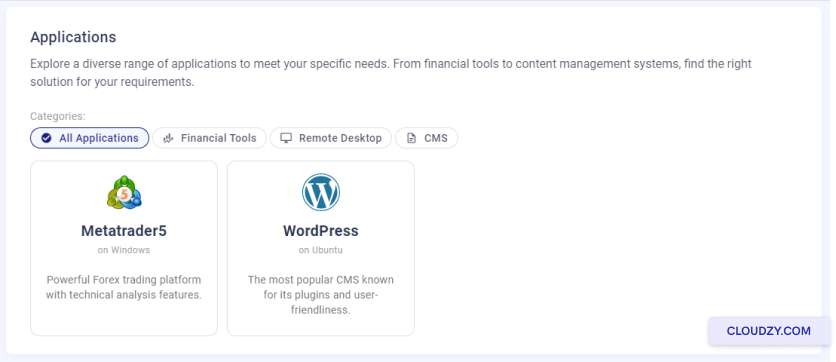
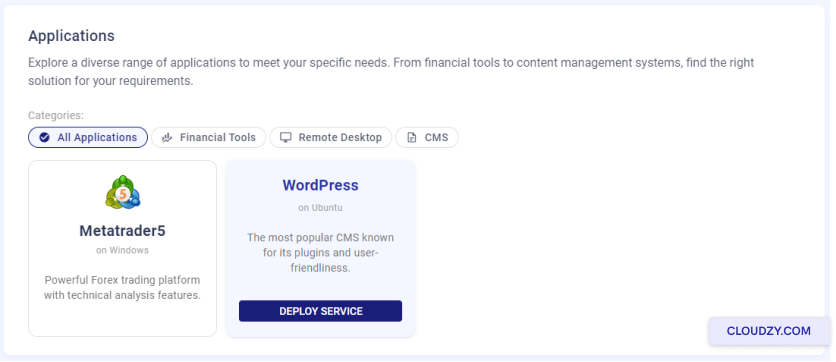
- Locate WordPress in the list of available apps and click Deploy Service.
Step 2: Configure Your Service
- You’ll be taken to the New Service page.
- Choose your preferred server location — options such as Las Vegas, Dallas, and Amsterdam may be available depending on current stock.
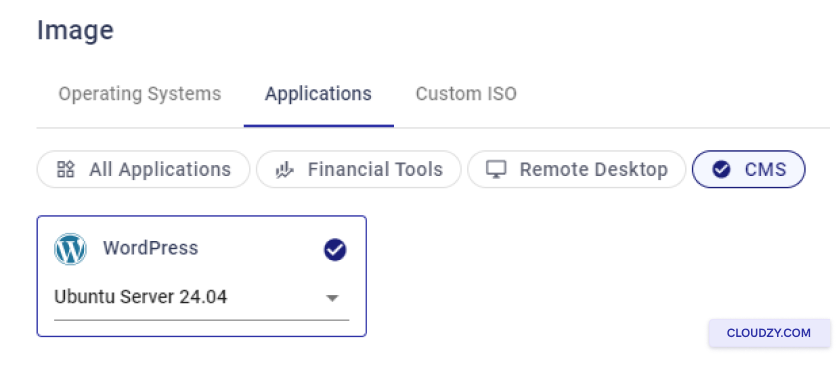
- Select your operating system. WordPress OCA is built on Ubuntu — choose the version that works best for you
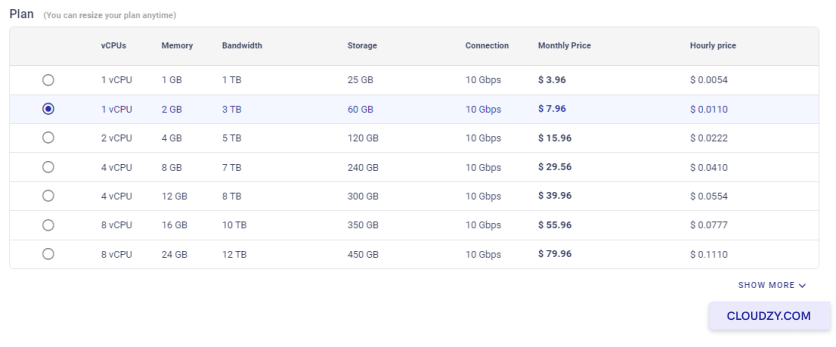
- Select a plan based on your resource requirements. More vCPUs and memory will give you a more powerful server.
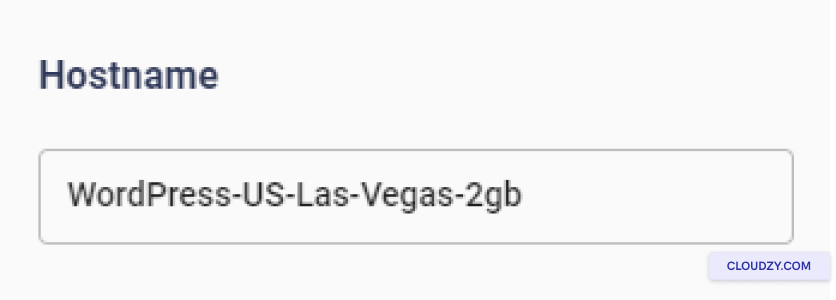
- Enter a name for your service in the Hostname field.
Step 3: Review and Deploy
- Review your selections and check the estimated monthly and hourly prices.
- If everything looks correct, click Deploy Now.
Step 4: Wait for Deployment
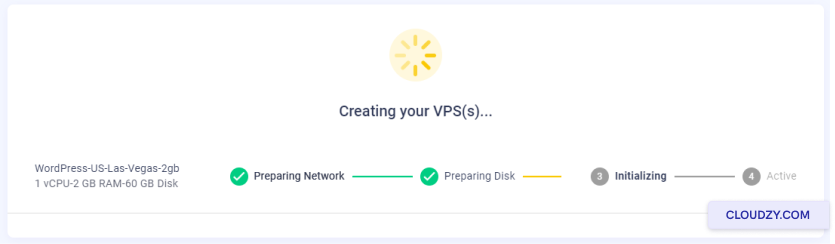
After deploying, a progress bar will appear showing steps such as Preparing Network and Preparing Disk. Once it completes and shows Active, your VPS is ready.
Step 5: Access Your WordPress Installation
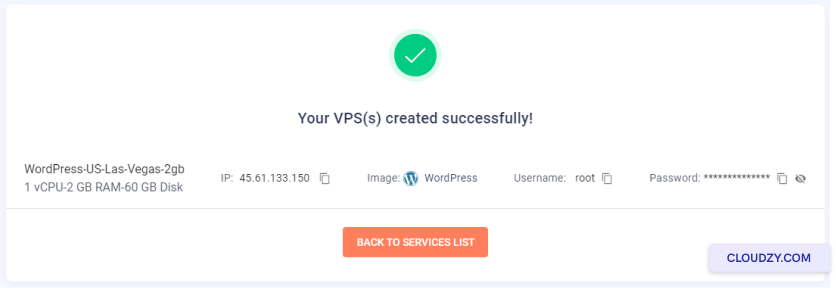
- Your VPS details — including the IP address, username, and password — will be displayed once the server is active. Keep these safe.
-
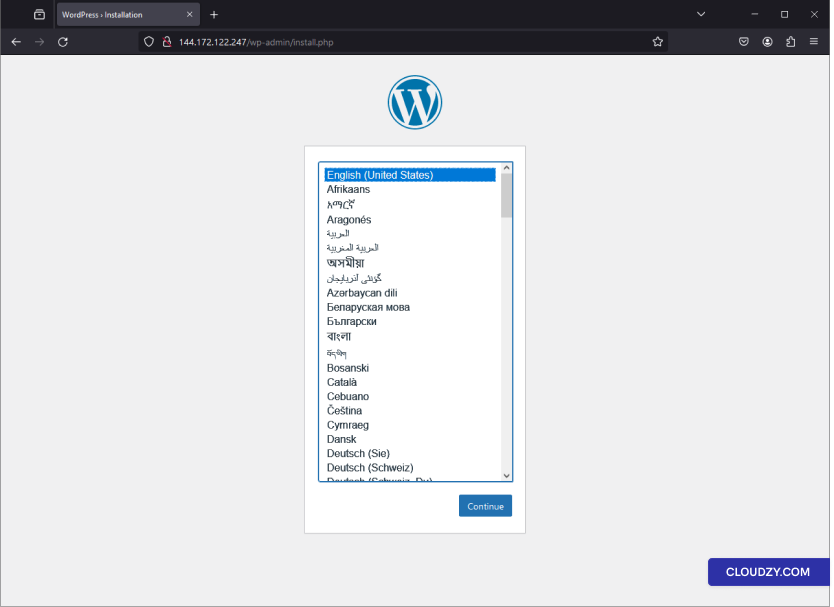
- Enter the IP address in your browser.
- You’ll land on the WordPress language selection page. Choose your language and click Continue.
Step 6: Complete the WordPress Setup
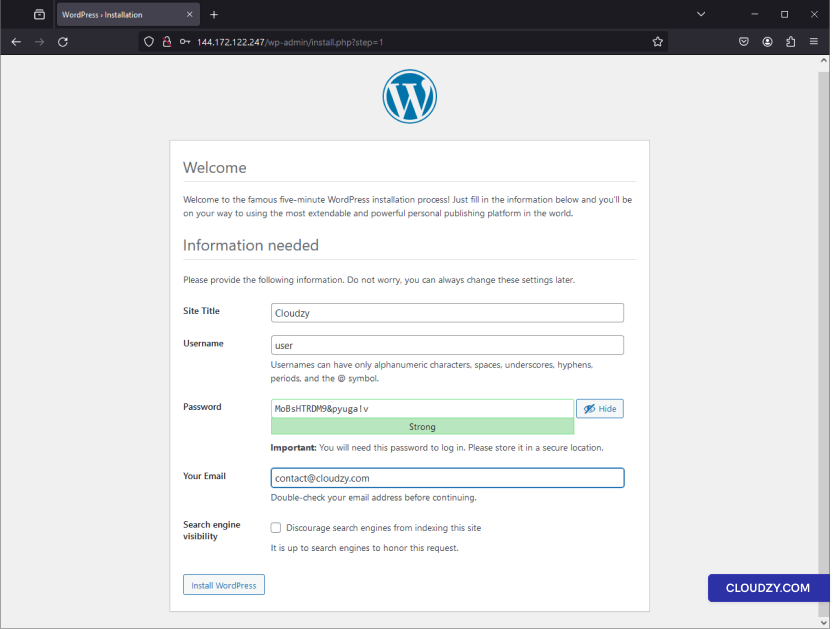
- On the WordPress installation page, fill in your Site Title, Username, Password, and Email.
- For security purposes, it’s recommended to uncheck the option that says Discourage search engines from indexing this site — you can manage this from the dashboard later.
- Click Install WordPress.
Step 7: Confirm Installation
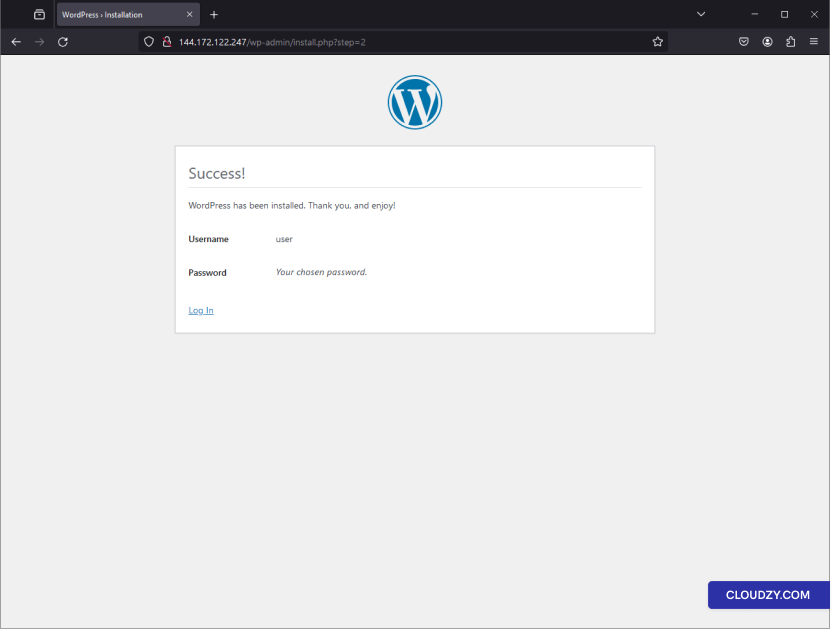
A success message will confirm that WordPress has been installed. Your chosen username will be displayed along with a prompt to log in.
Step 8: Log In to WordPress
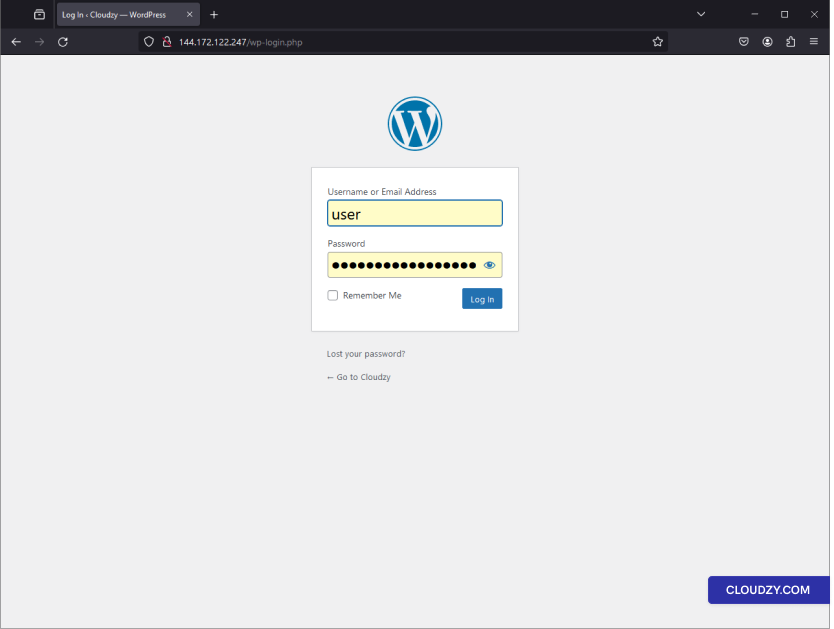
- Go to your WordPress login page at
your-ip-address/wp-login.php. - Enter your username and password and click Log In.
Step 9: Start Building
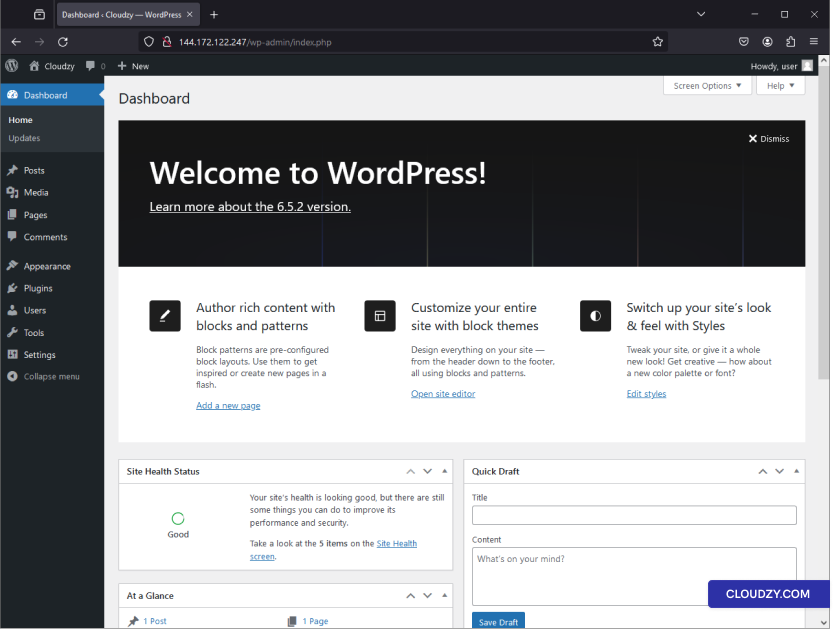
You’re now in the WordPress Dashboard. From here you can customize your site, write posts, add pages, and install plugins — your site is live and ready to go.
And that’s it! Your WordPress site is ready to go, all set up with Cloudzy’s One-Click App service. You can start creating content and customizing your site as you wish. If you need any more information or further assistance, feel free to contact our support team by submitting a ticket.