
Nested Virtualization is the technology that allows you to run virtual machines inside your Cloud VPS. If you need to work with Hyper-V, run Android emulators, or set up any similar virtualized environment, this feature needs to be enabled before your VPS is created.
Before You Start
Nested Virtualization can only be enabled during the VPS creation process — it cannot be activated on an existing VPS. If you’ve already created a VPS without it and need this feature, you’ll need to create a new VPS with Nested Virtualization enabled from the start.
Also note that your VPS must have a minimum of 8 GB of memory for Nested Virtualization to be available. If your plan has less than this, the option will be grayed out during setup.
Enabling Nested Virtualization
- Log in to your account and open the Cloudzy panel.
- Click the + New Cloud VPS button to begin the creation process.
- Select your preferred operating system and configure your settings as needed.
- In the advanced configuration section, locate the Nested Virtualization checkbox and make sure it is enabled.
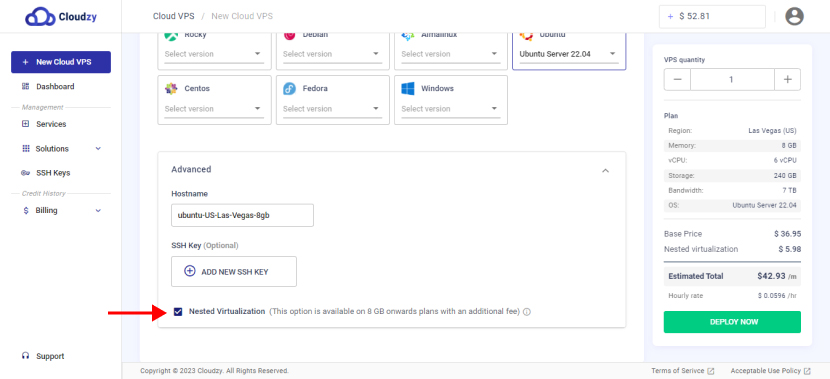
5. Complete the setup and create your VPS.
Your VPS will now be created with Nested Virtualization active.
Pricing
The cost of a VPS with Nested Virtualization depends on the plan you choose. For detailed pricing, refer to the plan selection page in your Cloudzy panel.
If you have any questions, the support team is available through the Cloudzy support portal.